Your product photos are already doing most of the work. The lighting is right, the angles are consistent, and the product looks exactly as it should. But if those photos are sitting in a static folder, a PDF no one opens, or a plain image gallery with zero interaction, you're leaving a significant amount of revenue on the table. The solution is straightforward: turn your product photos into a shoppable catalog that customers can actually browse, click through, and buy from. Flipbooks AI makes this possible without design software, complex code, or a team of developers.
Why Static Photos Stop Selling

The browsing gap nobody addresses
There's a difference between a customer who sees your products and one who browses them. Seeing is passive. It happens when someone scrolls past a thumbnail. Browsing is active: turning pages, comparing items side by side, and spending time with your catalog the same way people used to spend time with physical magazines.
Static product galleries don't create that experience. They're flat, they don't tell a story, and they give shoppers no reason to stay. Studies consistently show that interactive content keeps visitors on-page 2 to 3 times longer than static alternatives. More time on-page means more decisions made, and more decisions made means more sales.
What buyers actually want
Buyers want to feel like they're shopping, not auditing an inventory list. They want to flip through pages, see how a dress pairs with a bag, find a product they weren't looking for but immediately want, and then click through to buy it without switching tabs. A shoppable catalog creates exactly that loop. It's not a nice-to-have. For brands selling more than 15 to 20 SKUs, it's the most practical way to present your range without overwhelming the customer.
What Makes a Catalog Shoppable

Beyond pretty pictures
A shoppable catalog is not just a PDF with good photos. It needs to do three things at once: present products beautifully, make navigation effortless, and convert browsing into action. Every page should be purposeful. A header image sets the mood, supporting images show detail, and every product should have a clear next step, whether that's a link to a product page, a WhatsApp inquiry button, or an embedded order form.
The 5 elements that drive clicks
A catalog that actually converts is built around these five components:
- High-resolution imagery with consistent backgrounds and lighting
- Clear product names and pricing, always visible without hover states
- Direct buy or inquiry links embedded on the product image or nearby
- Logical page flow, grouped by category, collection, or story
- Mobile optimization, since more than 60% of catalog views happen on phones
💡 Products shown in context (styled in a room, worn by a model, used in a recipe) consistently outperform white-background-only images in click-through rate. Include at least one lifestyle shot per category section.
Photo types and where they perform
Not all product photos serve the same purpose. Knowing which type to use where makes a measurable difference in how buyers respond.
| Photo Type | Best For | Where to Place It | Conversion Impact |
|---|
| Lifestyle shot | Fashion, Home, Beauty | Opening spreads, section headers | High |
| White background | All categories | Individual product pages | Medium |
| Detail / close-up | Jewelry, Textiles, Tech | Paired with main product shot | High |
| Model / in-use | Apparel, Tools, Food | Feature pages | Very High |
| Flat-lay | Accessories, Gift sets | Category openers | Medium |
How to Organize Your Product Photos
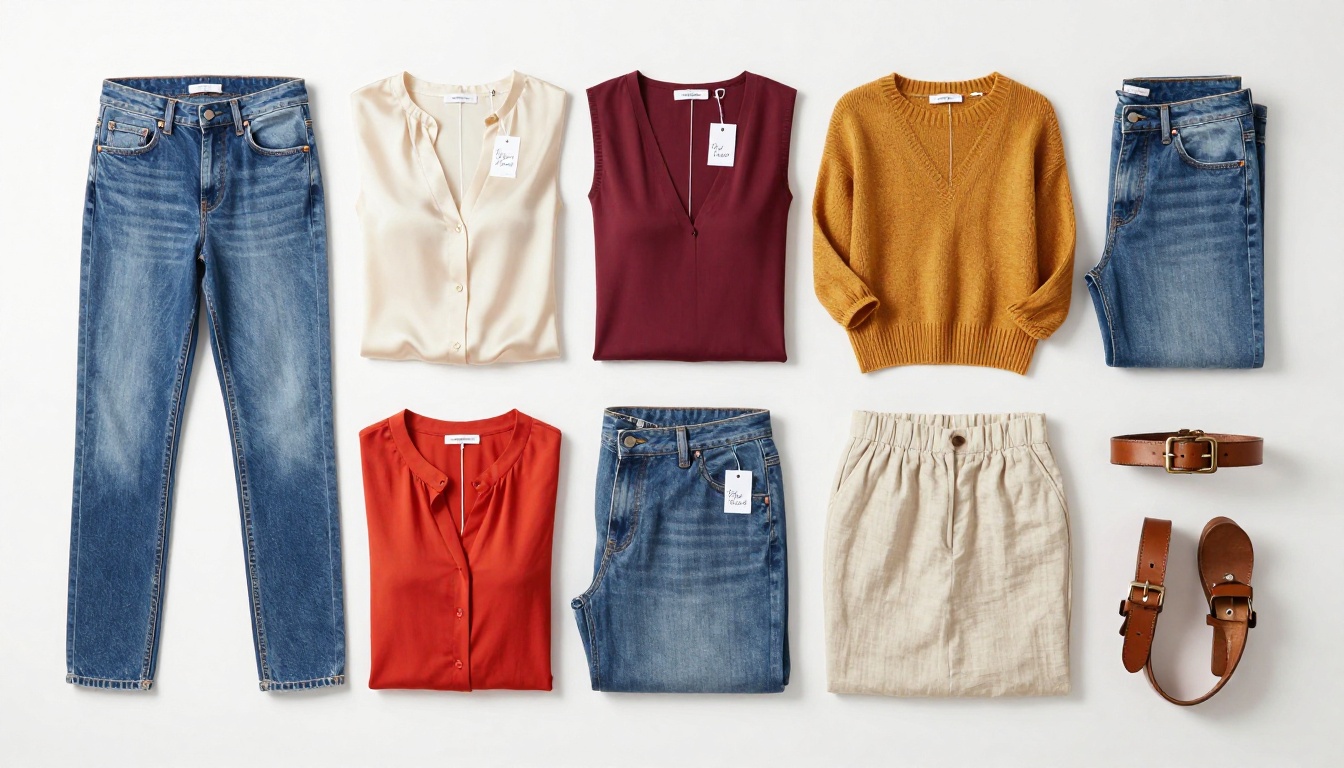
Sort by category or story
Before you build anything, your photos need a clear architecture. The two most effective approaches are:
Category-based structure: Group by product type (shirts, trousers, accessories). This is intuitive for buyers who already know what they want. Works best for large catalogs with 50 or more SKUs.
Story-based structure: Group by collection, season, or use case (summer essentials, home office, gift sets). This creates an editorial feel that encourages discovery. Works best for lifestyle brands and seasonal launches.
A hybrid approach works well for mid-sized catalogs: open with a 2 to 3 page editorial spread that tells the story, then transition into category-organized product pages.
Naming and tagging for SEO
If your catalog lives online (and it should), every page and every embedded link is indexable. The way you name your products and categories directly affects how your catalog ranks in search. Use descriptive filenames (blue-linen-shirt-xl.jpg beats IMG_4721.jpg), include alt text on every image, and make sure your catalog URL slug reflects your core product keyword.
✅ Before uploading to any platform, batch-rename your product images with a consistent format: [category]-[product-name]-[variant].jpg. This takes 20 minutes upfront and saves hours of SEO cleanup later.
Build Your Digital Catalog

Creating a shoppable digital catalog with Flipbooks AI follows a straightforward five-step process. No design degree required.
Step 1: Build your PDF
Start in whatever design tool you're comfortable with: Canva, Adobe InDesign, Google Slides, or PowerPoint. Your goal is a well-structured PDF where each spread presents products clearly. Use consistent margins, keep text minimal on product pages, and ensure images are at least 300 DPI for crisp rendering. Each page should have breathing room, not a grid of 12 tiny thumbnails.
If you're building a fashion catalog, the Fashion Catalog Creator provides ready-made templates you can drop your photos into. For furniture or home goods, the Furniture Catalog Maker handles the specific proportions and specs that work for large-item products.
Step 2: Upload and convert
Go to Flipbooks AI and log into your account. Click New Flipbook, upload your PDF, and the platform converts it to an interactive flipbook in under two minutes. Pages retain their original design, typography, and photo quality. There's no compression that degrades your imagery.
The PDF to Flipbook Converter handles files up to 500 pages, more than enough for most seasonal catalogs.
Step 3: Customize your branding
Once your catalog is uploaded, apply your brand identity:
- Set your brand colors for the flipbook background and UI controls
- Add your logo to the toolbar or opening page
- Choose a page flip animation (soft paper, hard cover, fast slide)
- Set a custom domain so the link reads
catalog.yourbrand.com instead of a generic URL
💡 Matching the flipbook's background color to your brand's secondary color creates a much more cohesive feel than the default white or black options.
Step 4: Add shoppable links
This is where the catalog becomes truly shoppable. On each product page, you can add clickable hotspots that link directly to your product pages, a checkout, or an inquiry form. Place them on the product image itself, not just in small text at the bottom. Buyers tap images, not footnotes.
You can also embed:
- Video demos alongside product photos
- Audio clips (great for fragrances, musical instruments, or any sensory product)
- Pop-up overlays with sizing charts or ingredient lists
Step 5: Share and track
When your catalog is ready, Flipbooks AI gives you three sharing options:
- Direct link: a clean, shareable URL for email campaigns, direct messages, or bio links
- Embed code: drop your catalog directly into any website or landing page using the Embed Flipbook on Website tool
- Password protection: for wholesale clients, press kits, or pre-launch previews
On the Professional plan, you also get:
- Analytics: page views, click-through rates, and time-on-page per catalog
- Lead generation forms: capture email addresses before the catalog loads
- Offline downloads: let buyers save a version for areas with no connectivity
Different product categories have different requirements. Here's how the most common formats compare:
| Format | Best For | Page Count | Standout Feature |
|---|
| Seasonal Lookbook | Fashion, Home Decor | 20 to 40 pages | Editorial storytelling |
| Product Range Catalog | Electronics, Tools, Hardware | 40 to 100 pages | Spec tables, SKU codes |
| Mini Launch Catalog | New collections, Product drops | 8 to 16 pages | Impact over volume |
| Wholesale Order Book | B2B, Trade shows | 20 to 60 pages | Price tiers, MOQ info |
| Beauty Edit | Skincare, Cosmetics | 12 to 30 pages | Swatches, ingredient callouts |
⚠️ Avoid putting more than 6 to 8 products per page spread. Crowded pages reduce click-through rates because buyers don't know where to look first.
The Product Catalog Generator and Digital Catalog Maker are purpose-built for these formats, with templates that already apply the right spacing and hierarchy for each type.
Real-World Use Cases
Fashion brands
A mid-sized fashion brand launching a spring collection can use its existing lookbook photos to build a catalog in a single afternoon. Rather than sending a 40MB PDF attachment to wholesale buyers (which most email clients block), they publish a flipbook link that loads in under a second on any device. Each spread has product codes, colorway options, and a direct inquiry link. Wholesale buyers flip through it on their phones during trade shows without downloading anything.
Using the Interactive Lookbook Designer, fashion brands can add video clips of runway walks alongside static product photos for a richer presentation.
Home decor and furniture
Furniture brands face a specific challenge: their products are large, contextual, and hard to evaluate without seeing them in a room. A shoppable digital catalog solves this by combining room-setting photography with close-up detail pages showing fabric swatches, wood grain finishes, and leg options. The Furniture Catalog Maker includes page templates specifically designed for this presentation style.
Beauty and skincare

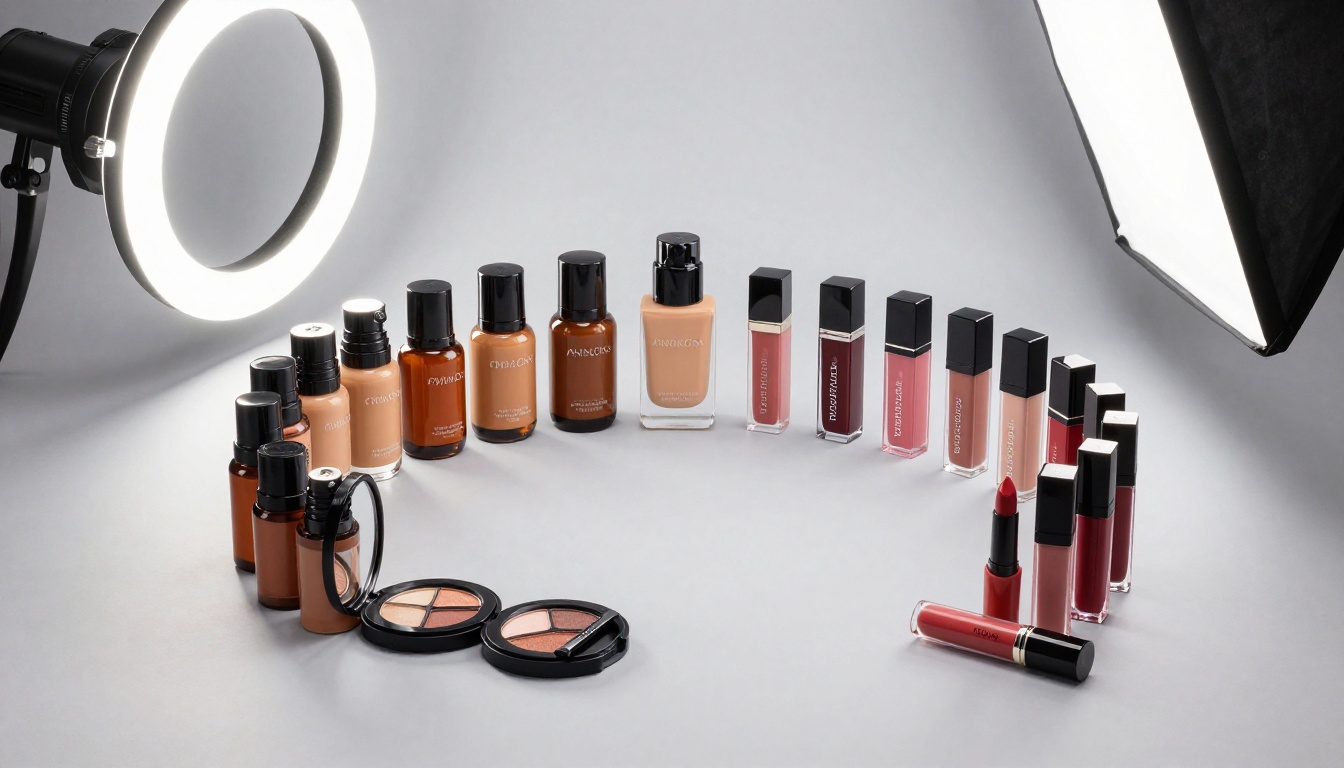
Beauty brands need to present texture, finish, and application, not just the bottle. A shoppable catalog for a skincare line might open with a 2-page brand story spread, move through hero products with before/after photography, and then present the full range sorted by skin concern. Embedded pop-ups can hold ingredient lists and dermatologist quotes. Each product image links directly to its page on the brand's website.
For multi-product beauty lines, combining the Digital Catalog Maker with Flipbooks AI's analytics creates a complete pipeline from browse to buy.
Features Worth Paying For

Not every catalog needs every feature. Here's what matters at each business stage:
| Feature | Free | Standard | Professional |
|---|
| Flipbooks published | 1 | Unlimited | Unlimited |
| Custom branding | No | Yes | Yes |
| Password protection | No | Yes | Yes |
| Embed on website | Yes | Yes | Yes |
| Video and audio | No | Yes | Yes |
| Analytics dashboard | No | No | Yes |
| Lead generation forms | No | No | Yes |
| Offline downloads | No | No | Yes |
| No watermarks | No | Yes | Yes |
For most small and medium brands just starting out, the Standard plan hits the right balance: unlimited catalogs, no watermarks, and custom branding at a cost that makes sense before you've proven catalog ROI. Once you're seeing traffic and want to optimize, the Professional plan's analytics tell you exactly which pages buyers linger on and which products they click.
See all pricing options to find what fits your current stage.
Common Mistakes to Avoid

Most catalog failures come down to a handful of repeatable errors:
- Too many products per page: Buyers scan, they don't study. Give each product room to breathe.
- No price visible: If customers have to click away to find the price, most won't bother.
- Portrait-only photography: Landscape and square formats work far better for catalog spreads. Shoot with catalog layout in mind.
- No mobile test before publishing: Open your catalog on your phone before sending it to anyone. If you're pinching and zooming, your buyers will bounce.
- Generic link: A URL with random characters looks provisional. Set a custom domain or at minimum a custom slug that reflects your brand and season.
- No call-to-action on the last page: The final spread is prime real estate. Use it for a seasonal offer, a signup form, or a direct link to your store.
⚠️ Never publish a catalog without testing every embedded link. Broken product links in a digital catalog are the equivalent of a wrong price tag in a physical store. They erode trust immediately.
What to Do After You Publish
Publishing is not the end. It's the beginning of a feedback loop. With the analytics available on the Professional plan, you can see:
- Which pages have the highest exit rate (potential weak points in your catalog flow)
- Which products get the most click-throughs (candidates for hero placement in the next edition)
- What devices your audience uses (informs whether to optimize for mobile or desktop first)
Use this data to iterate. The second edition of your catalog will always outperform the first, provided you're paying attention to what the numbers say.
💡 Send your catalog link as a direct message to your top 20 wholesale accounts or loyal customers before the public launch. Their response patterns in the first 48 hours are your most reliable indicator of what the broader audience will do.
Start Selling From Your Catalog Today
Your product photos are ready. Your inventory exists. The only thing between you and a shoppable catalog that works around the clock is putting the pieces together in the right format.
Get started for free on Flipbooks AI and build your first interactive product catalog today. Use the Product Catalog Generator for a quick start, or browse all available tools to find the exact template that fits your product category.
If you're ready to invest in analytics and lead generation, check pricing plans to see what the Professional tier can do for your brand. A catalog that captures leads while buyers browse pays for itself very quickly.
Stop treating your product photos as attachments. Turn them into an experience.



