Picking a PDF to flipbook tool feels simple. You search, compare a few screenshots, check the pricing page, and sign up. Then you run your first conversion and realize the output looks nothing like what you expected. Pages are blurry. The mobile version is broken. Your brand colors are locked behind a higher-tier plan. The sharing link shows a competitor's logo at the top of the viewer. And support tells you that is "working as intended."
This happens to thousands of people every week, and it is almost entirely avoidable. The mistakes people make when choosing PDF to flipbook tools are predictable, repeatable, and fixable. This article walks through each one directly so you do not have to learn them the hard way.
Flipbooks AI is referenced throughout as a practical example since it addresses many of the issues that trip people up on other platforms.
The number one selection mistake is filtering by price before filtering by output quality. Free tools are not actually free if the result is a low-resolution, watermarked flipbook you cannot share with a client or publish in a professional context.

Most people also compare tools by looking at screenshots of the interface, not screenshots of the actual flipbook output. Those are completely different things. A polished dashboard can hide poor rendering quality, laggy animations, or missing fonts in the published result.
The second most common mistake is ignoring the quality of the source PDF. PDF to flipbook conversion is only as good as the file you upload. A PDF exported from a Word document at 72dpi will produce a blurry flipbook regardless of which tool you use. Before blaming the platform, check the export settings of your source file.
💡 Always export your PDF at 300dpi or higher for print-quality source files. For screen-only publications, 150dpi is the minimum acceptable. Never use "web optimized" PDF exports as your source for conversion.
The Free Plan Trap
Free plans on PDF flipbook tools are almost universally crippled in one of three ways:
- Watermarks on the published flipbook or inside the viewer window
- Page limits, usually capped at 15 to 30 pages
- No custom branding options at all, not even logo placement
If you are evaluating a tool on its free plan and then presenting that output to a client, you are showing them a version that does not represent what they would actually receive as a paying customer.
Feature Checklist Before You Commit
| Feature | Why It Matters |
|---|
| No watermarks | Professional presentation without third-party branding |
| Unlimited pages | No surprises with longer documents |
| Custom branding | Your logo, your colors throughout |
| Password protection | Control over who sees private content |
| Analytics | Understand how readers interact with your content |
| Embed code | Place the flipbook inside your own website seamlessly |
| Mobile optimization | Over 60% of readers browse on phones |
| Offline download | Access without internet at events or presentations |
The Quality Problem Nobody Warns You About
Text sharpness in flipbooks is a known pain point that almost no tool discusses openly in its marketing. When a PDF is converted to a flipbook, each page is typically rendered as an image. If that rendering resolution is too low, text looks blurry at normal zoom levels and nearly unreadable when users zoom in.
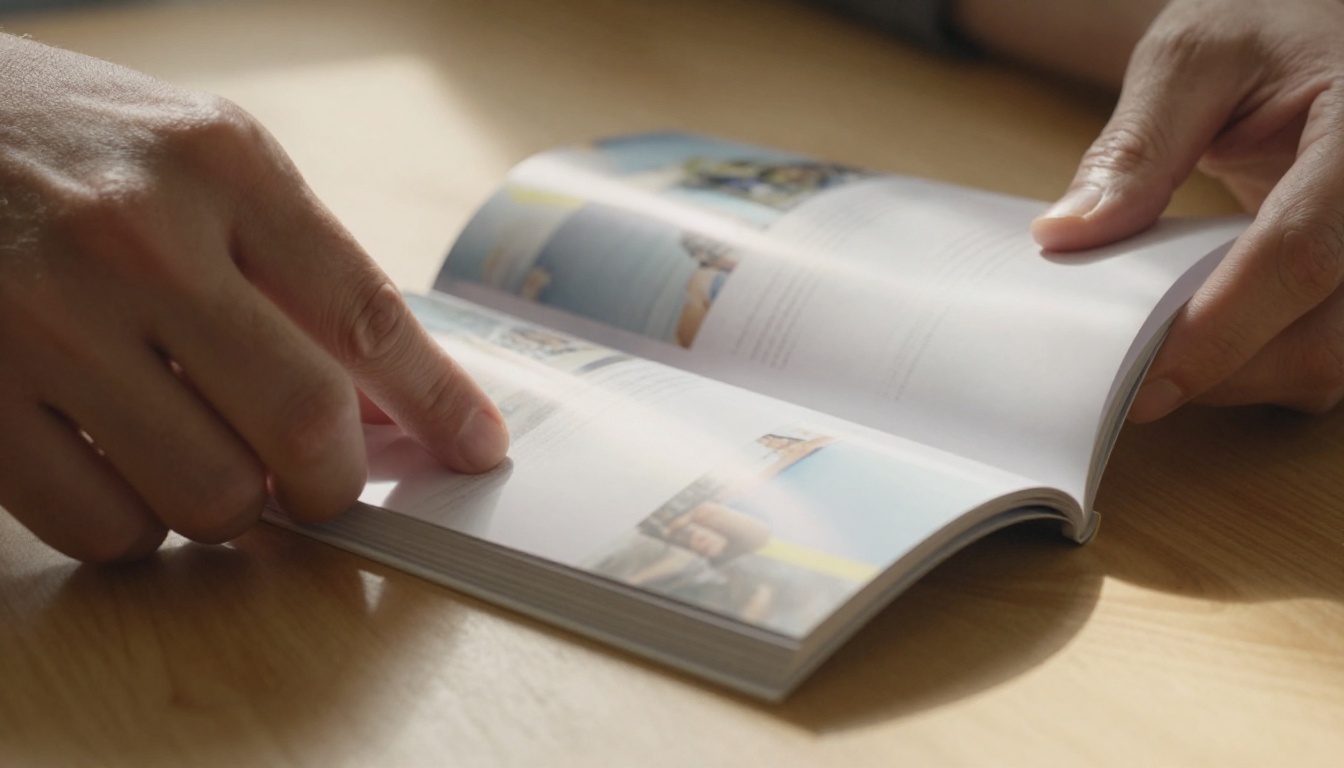
The tools that handle this well render pages at high resolution and serve them progressively: loading a lower-resolution preview first, then swapping in the sharp version as the page loads. The tools that do this poorly render everything at one flat resolution and call it done. The difference is immediately visible on any modern display.
What to test before committing to any platform:
- Upload a PDF with small-point body text (10pt or 11pt is a good benchmark)
- View the resulting flipbook on a desktop at 100% zoom
- Zoom in to 150% and check if text stays crisp or starts to pixelate
- Open the same flipbook on your phone and repeat the same check
⚠️ If text blurs at 150% zoom on desktop, it will be nearly unreadable on a phone's smaller screen. This is a rendering quality failure, not a browser issue.
Font Rendering and Embedded Fonts
Another quality issue that rarely gets mentioned: fonts. When a PDF has embedded custom fonts, a low-quality conversion tool may substitute them with system defaults. The result is a flipbook that looks completely different from your original design. Headers in the wrong weight, body text in a different font family, and spacing that no longer matches your layout.
Check specifically for:
- Whether font substitution occurs on conversion
- Whether ligatures and special characters render correctly
- Whether kerning and tracking are preserved at small sizes
Mobile Experience: The Overlooked Deal-Breaker
Over 60% of web traffic in 2025 is mobile. Yet many PDF to flipbook tools were built primarily for desktop and had mobile experiences added later as afterthoughts. The result is flipbooks that technically "work" on phones but feel clunky, require pinching and zooming to read anything, or have navigation controls too small to tap comfortably.

A properly mobile-optimized flipbook should do all of the following:
- Scale text automatically so it is readable without zooming
- Have touch-friendly navigation controls with swipe gesture support
- Load quickly on mobile connections through progressive image loading
- Display correctly in both portrait and landscape orientations
- Avoid horizontal scrolling to read a single page
✅ Test any flipbook tool on an actual mobile device before committing. Real device behavior often differs significantly from desktop browser preview modes and simulator tools.
The Pinch-to-Zoom Problem
If the only way to read body text on a phone is to pinch and zoom in, the reading experience is broken for that audience. Legitimate flipbook tools either reflow the PDF content for mobile viewports or provide a dedicated "mobile view" that presents content in a scrollable single-column format alongside the standard flipbook view.
This distinction matters enormously for use cases like digital catalogs, restaurant menus, and reports where people frequently browse on their phones. A restaurant menu that requires zooming to read the pasta section is a poor experience by any standard.
Branding Walls You Will Hit (and When)
Branding limitations are where most users get genuinely surprised. A tool's free or entry-level plan may allow some customization, but the specific features that define professional output are almost always reserved for premium tiers.
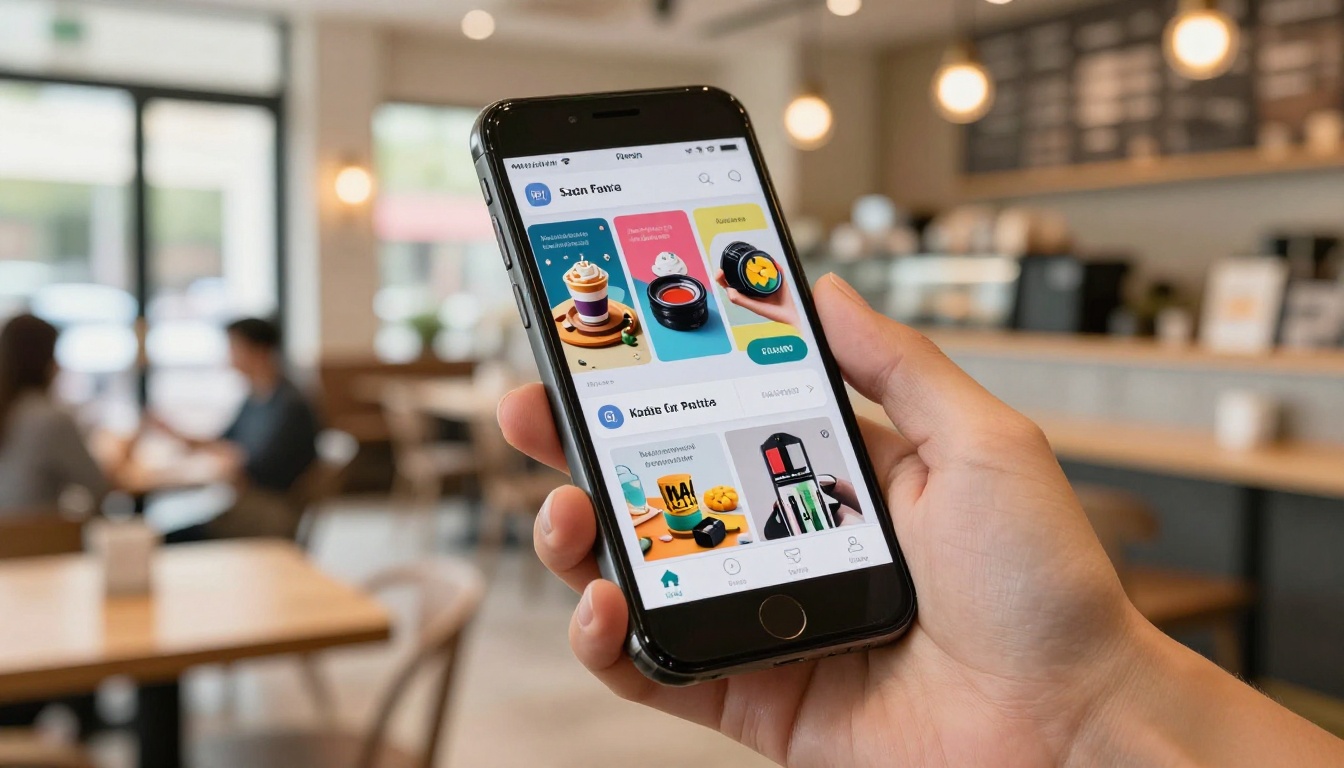
The three most common branding restrictions that catch people off guard:
- Viewer domain: The flipbook opens at
toolname.com/your-flipbook instead of your own domain or website
- Loading screen logo: The tool's branding appears during the flipbook loading animation, which every reader sees
- Footer attribution: A "Powered by [Tool]" link sits at the bottom of the viewer on every page
These are not cosmetic annoyances in professional contexts. If you are sending a client a digital catalog or presenting a report to executive stakeholders, third-party branding inside your publication undermines your credibility and positions the tool provider ahead of your own brand.
Branding Feature Comparison by Plan Tier
| Branding Feature | Basic Plan | Standard Plan | Professional Plan |
|---|
| Remove viewer watermark | No | Yes | Yes |
| Custom loading screen | No | No | Yes |
| Custom domain or embed | No | Yes | Yes |
| Brand colors in viewer | No | Yes | Yes |
| Upload your own logo | No | Yes | Yes |
| Custom favicon | No | No | Yes |
| White-label viewer | No | No | Yes |
With Flipbooks AI, there are no watermarks on any paid plan, and custom branding is available from the Standard plan upward. Check the pricing page for the current breakdown of what each tier includes.
Sharing and Embedding: More Complicated Than You Think
Most people assume "sharing" means sending a link. It can, but the specifics matter quite a bit depending on your use case.

Here are the sharing scenarios that catch people off guard:
Direct link sharing works everywhere and is the simplest option. But the viewer URL may contain the tool's brand name in the domain unless you are on a custom domain plan.
Embed codes allow you to place the flipbook inside your own website or landing page. Most tools provide an iFrame snippet. The quality of that embed, its responsiveness, and whether it requires JavaScript varies significantly between platforms.
Password protection is essential if you are sharing confidential documents: unreleased product catalogs, internal reports, private client materials, or pre-launch lookbooks. Not all tools offer this at affordable price points.
Offline downloads let you generate an offline HTML version of the flipbook. This is critical for trade shows, presentations in venues without reliable internet, or sharing flipbooks as downloadable files via email.
Lead capture allows you to require an email address before the reader accesses the flipbook. This converts your publications into lead generation assets.
💡 If your use case involves private or sensitive content, always verify that password protection is available on your target plan before upgrading. Not every platform includes it at mid-tier pricing.
Sharing Feature Availability at a Glance
| Sharing Feature | What to Check |
|---|
| Direct public link | Available on all plans universally |
| iFrame embed code | Most paid plans, some free tiers |
| Password protection | Check tier restrictions carefully |
| Offline HTML download | Professional plans typically |
| Reader analytics | Professional tier or above |
| Email lead capture gate | Advanced plans only |
| Social share buttons | Usually included across tiers |
Flipbooks AI includes embed codes, password protection, offline downloads, and analytics. Lead generation features are available on the Professional plan. You can compare all plan details here.
How to Convert Your PDF the Right Way
There is a right way to do a PDF to flipbook conversion and a fast way. They are not always the same thing, and cutting corners on preparation creates problems that no tool can fix after the fact.
Prepare Your Source PDF Correctly
Before you even touch the upload button, make sure your file is conversion-ready:
- Export at 300dpi minimum for any document with photography or detailed graphics
- Embed all fonts in the export settings, not just subset them
- Convert from CMYK to RGB before uploading if the original was designed for print (CMYK colors shift visually when rendered on screen)
- Flatten transparencies in the export to avoid rendering artifacts at layer edges
Upload and Configure on Flipbooks AI
On Flipbooks AI, the process is direct:
- Go to your dashboard and create a new flipbook
- Upload your PDF via drag-and-drop or the file browser
- Set the publication title and configure your branding options (logo, colors, viewer theme)
- Choose your page flip style: soft curl works for magazines and brochures, hard cover suits books and reports, and slide mode fits modern presentation-style content
- Enable password protection if the content is private or confidential
- Add multimedia embeds if your content benefits from video or audio
Customize for Your Specific Audience
Different publication types have different optimization priorities:
Product catalogs: Prioritize image fidelity and fast load times. Use the Digital Catalog Maker or the Fashion Catalog Creator for catalog-specific layout support.
Restaurant menus: Mobile optimization is the top priority since customers open menus on phones at the table. The Restaurant Menu Creator is built specifically for this use case.
Real estate brochures: Password protection and offline download are critical when sharing pre-listing materials. The Real Estate Brochure Creator handles property-specific layouts well.
Corporate reports and annual reviews: Analytics and lead capture matter here. The Annual Report Creator and Corporate Report Maker are purpose-built for these documents.
Creative portfolios: Visual fidelity is everything. The Digital Portfolio Creator and Photography Portfolio tools preserve image quality at the highest level.
Event programs and guides: Use the Event Program Maker or Travel Guide Flipbook tools to create publications formatted for quick, easy reading.
When comparing platforms, most people look at the wrong criteria. Price and interface design dominate the decision, while output quality, mobile experience, and branding flexibility get ignored until after purchase.

Evaluation Framework: What to Test, Not What to Assume
| Evaluation Factor | Common Mistake | What to Do Instead |
|---|
| Pricing | Compare base price only | Compare feature availability per tier |
| Output quality | Trust platform screenshots | Upload a test PDF and inspect yourself |
| Mobile experience | Preview on desktop only | Test on an actual phone |
| Branding options | Assume all plans allow full removal | Verify which tier removes all tool branding |
| Sharing | Assume a link is enough | List all your sharing requirements upfront |
| Support quality | Ignore response time data | Check reviews on G2, Capterra, or Trustpilot |
| Flipbook limit | Assume unlimited | Confirm per-plan document caps |
Who Benefits Most From Getting This Right
A fashion brand sending a seasonal lookbook to retail buyers needs: high image fidelity, zero tool branding, password protection for pre-launch materials, and an embed for their website. A free tool covers none of these adequately. The Interactive Lookbook Designer addresses all of them on a single plan.
A marketing agency delivering publications for multiple clients needs: client-logo branding (not the agency's logo, and certainly not the tool's logo), analytics per publication, and the ability to produce unlimited flipbooks without per-document fees. The Standard plan at Flipbooks AI covers unlimited flipbooks with full custom branding.
An education provider publishing course materials and training documents needs: clean mobile display for students on phones, password protection for paid course content, and easy embedding inside a learning management system. The Course Material Publisher and Training Manual Flipbook tools fit this workflow directly.
Stop Optimizing for Price, Start Optimizing for Output
The pattern behind every mistake covered above is the same. People optimize for price first and discover quality problems later. The cost of redoing a publication, explaining broken output to a client, or switching platforms mid-project is almost always higher than the cost of choosing the right tool before you start.
The questions worth asking before you pick any platform:
- What does the actual flipbook output look like on a phone? Not the marketing screenshot.
- Which tier do I need to remove all tool branding from the viewer?
- Can I password-protect individual flipbooks without upgrading to the most expensive plan?
- How does the embed behave inside a responsive website on mobile?
- If I need analytics or lead capture, is that available at a price I can justify?
- Are there limits on the number of flipbooks I can create, or is it truly unlimited?
If a platform cannot answer these questions clearly in its documentation or free trial, that is itself a meaningful answer.

The right PDF to flipbook tool is one where you see your output on a phone, in an embed, and behind a password-protected link, and it looks exactly the way you designed it. No extra logos. No blurry text. No broken mobile layouts.
Ready to see what that actually looks like? Create your first flipbook for free on Flipbooks AI and check the output quality before committing to any plan.
Browse the full tools directory to find purpose-built tools for your specific publication type, from product catalogs and restaurant menus to annual reports and photography portfolios.
When you are ready to choose a plan, compare all pricing tiers to match the features you actually need with the budget that works for you.



