There is something satisfying about a page turning. Not just visually, but in the way it signals momentum, progression, a story moving forward. That is exactly why digital flipbooks have become a go-to format for brands, educators, and creators who want their content to do more than just sit on a screen as a static PDF. But before you jump in and hit publish on your first flipbook, there are a few things that will make the difference between something polished and something that frustrates your readers. Flipbooks AI makes the process accessible, but preparation still matters.
Why Flipbooks Beat Static PDFs
Static PDFs are practical. They are universal, easy to generate, and almost everyone knows how to open one. But they were built for printing, not for screens. Reading a PDF on a phone is an exercise in pinching, zooming, and scrolling sideways. Flipbooks change that equation entirely.
The Page-Turn Effect That Draws Readers In
The page-turn animation is not just a gimmick. Research on digital reading behavior consistently shows that interactive content holds attention longer than static equivalents. When a reader sees a page physically turn, their brain registers the experience as closer to reading a physical publication than scrolling a document. That sense of physicality builds credibility and encourages people to keep reading.
For brands, this matters. A product catalog that feels like a real catalog sells differently than one that feels like a spreadsheet with photos.
Mobile Readers and Why They Matter
More than 60% of web traffic now comes from mobile devices. If your flipbook does not work cleanly on a phone, you are cutting off a majority of your potential audience before they even get to page two.

Modern flipbook platforms are built with mobile-first design in mind. Good ones automatically reformat pages for smaller screens, adjust navigation controls for touch interfaces, and load quickly on mobile connections. Before choosing a platform, always test a sample flipbook on your phone.
💡 Pro tip: Open any flipbook demo on your phone before committing to a platform. If it loads slowly or requires pinch-zooming to read, look elsewhere.
PDF Is Your Best Friend
When creating content for a flipbook, PDF is your starting point. Almost every reputable flipbook platform accepts PDF as the primary input format. The reasons are practical: PDF preserves your layout exactly, embeds fonts, and handles image compression reliably.
Design your content in tools like Adobe InDesign, Canva, or even Google Slides, then export as a PDF before uploading. Do not skip this step and try to upload a Word document or PowerPoint file directly. The conversion quality is almost always worse.
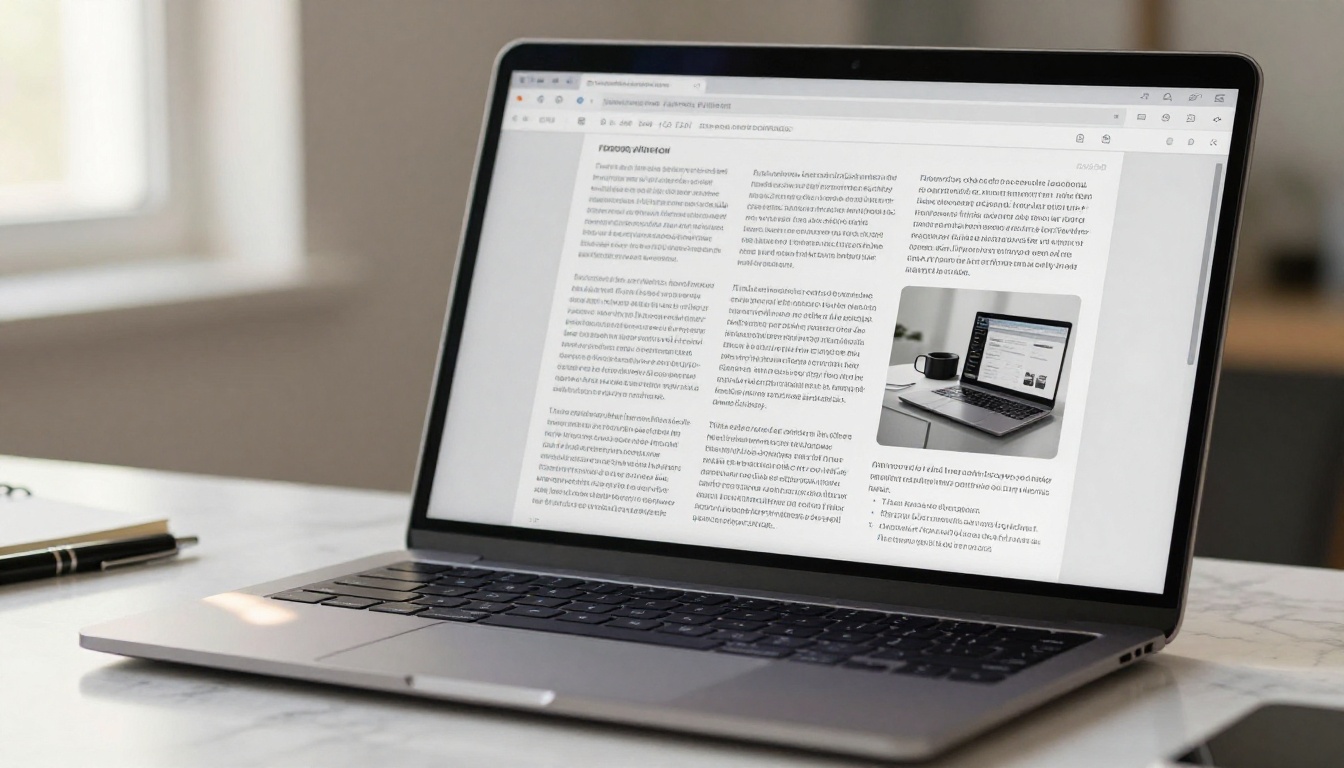
Image Resolution and Export Settings
The most common beginner mistake is exporting a low-resolution PDF and then wondering why the flipbook looks blurry. Here are the settings that matter:
| Setting | Recommended Value | Why It Matters |
|---|
| PDF Resolution (DPI) | 150 to 300 DPI | Sharp text and images on retina screens |
| Color Mode | RGB | Screen-optimized, not CMYK which is for print |
| Compression | Medium, not Maximum | Balances file size and quality |
| Image Format in PDF | JPEG or PNG embedded | Avoids pixelation on zoom |
| File Size Target | Under 50MB | Faster loading, better user experience |
⚠️ Warning: Exporting in CMYK color mode will make your colors appear dull and desaturated on screen. Always use RGB for anything viewed digitally.
Plan Before You Build
This step is where most first-timers skip ahead too fast. They have a PDF ready, they found a flipbook tool, and they want to see the result immediately. Skipping the planning phase means more revisions later, which is far more frustrating than spending 20 minutes upfront.
Know Your Audience First
Who is going to read this flipbook? That question shapes every decision that follows: the length, the tone, the visual density, whether you need password protection, and how you will distribute it.
A company using a product catalog for retail buyers needs a different approach than a photographer building a digital portfolio for potential clients. The format might look similar on the surface, but the content priorities are completely different.
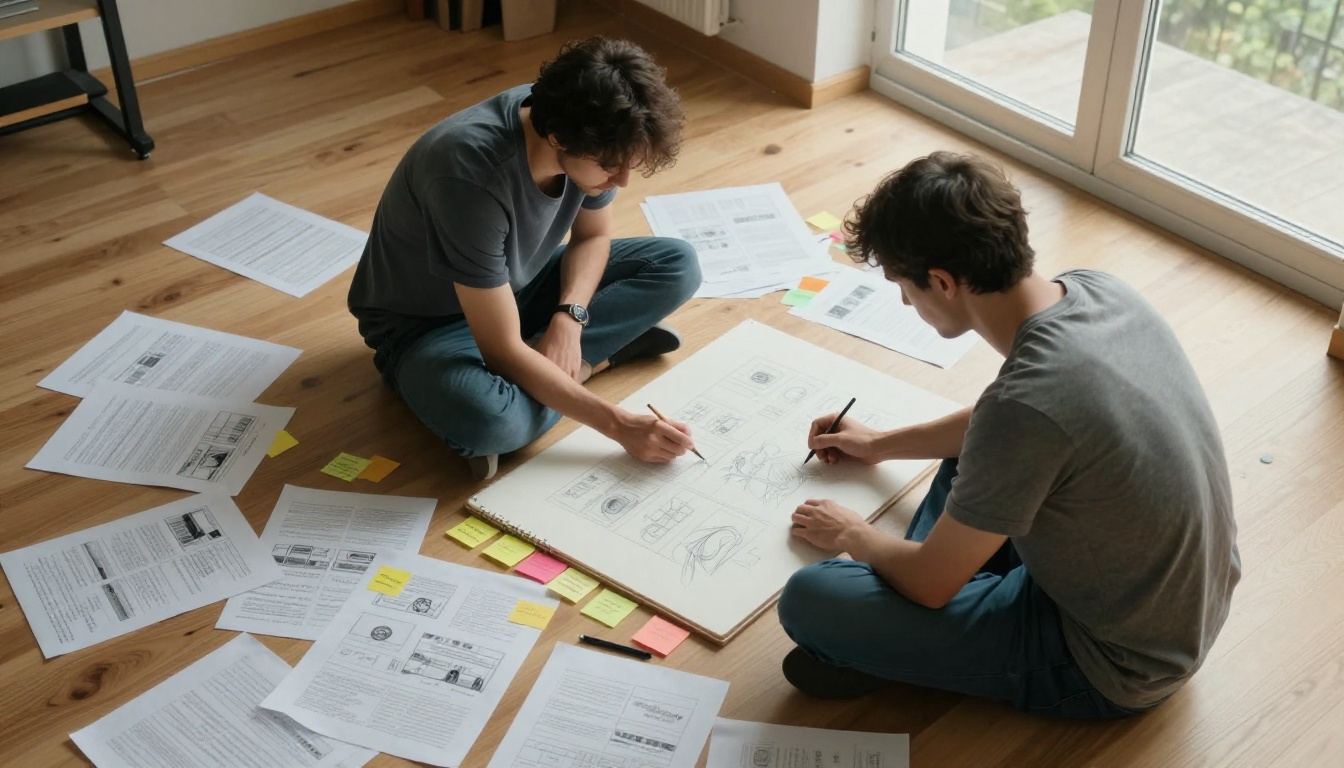
Ask yourself these questions before you start:
- What do I want the reader to do after viewing this?
- Will they be reading on mobile, desktop, or both?
- Is this public content or does it need access controls?
- How often will this content need updating?
How Long Should Your Flipbook Be
There is no universal answer, but there are practical guidelines. Flipbooks work best when the content has a natural page structure. Here is a rough breakdown by content type:
| Content Type | Ideal Page Count | Notes |
|---|
| Product catalog | 20 to 60 pages | Enough to show range without overwhelming |
| Restaurant menu | 4 to 12 pages | Short, scannable, easy to navigate |
| Company brochure | 8 to 20 pages | Focused on a single narrative or offer |
| Portfolio | 12 to 30 pages | Let the work speak without padding |
| E-book or report | 30 to 100+ pages | Longer is fine with strong navigation |
| Newsletter | 4 to 8 pages | Bite-sized, designed for quick reading |
✅ Best practice: Every page should earn its place. If a page does not add value, cut it. Readers drop off faster when content feels padded.
Not all flipbook tools are equal. Some are free but add watermarks. Others are affordable but cap how many flipbooks you can create. A few are genuinely excellent and built for the long term.
What to Look for in a Flipbook Tool
The non-negotiables for any serious creator:
- No watermarks: Your flipbook should look like yours, not like an advertisement for the platform you used
- Custom branding: Your colors, your logo, your domain
- Mobile-responsive output: Works on any screen without extra effort
- Password protection: For private documents, proposals, or client-specific content
- Embed options: You should be able to drop your flipbook into any website with a single code snippet
The nice-to-haves that separate good platforms from great ones: analytics that show how readers interact with your content, lead generation forms, and the ability to embed video or audio directly in pages.
Free vs. Paid: The Real Difference
| Feature | Free Tier | Standard Plan | Professional Plan |
|---|
| Watermark-free | No | Yes | Yes |
| Flipbooks per account | 1 to 3 | Unlimited | Unlimited |
| Custom branding | No | Yes | Yes |
| Password protection | No | Yes | Yes |
| Analytics | No | Basic | Full heat maps and per-page stats |
| Lead generation forms | No | No | Yes |
| Offline downloads | No | Yes | Yes |
| Embedded video and audio | No | Yes | Yes |
For a one-time personal project, a free tier might work. But if you are creating flipbooks for business, clients, or regular publishing, the limitations of a free plan will slow you down quickly. The Standard plan on Flipbooks AI covers unlimited flipbooks with no watermarks, which is the minimum any serious creator should be working with.
Design Basics That Actually Matter
Good design in a flipbook is not about being flashy. It is about being clear. Your reader should never have to work to figure out what they are looking at or where to go next.
Fonts, Colors, and Readability
Stick to two fonts maximum: one for headings, one for body text. Sans-serif fonts like Inter, Helvetica, or Open Sans read better on screens than serif fonts at small sizes. Body text should sit comfortably at 11 to 14pt in your source PDF.
For colors, high contrast between text and background is not optional. Light grey text on a white background looks subtle in a design software preview and completely unreadable on a phone in daylight.
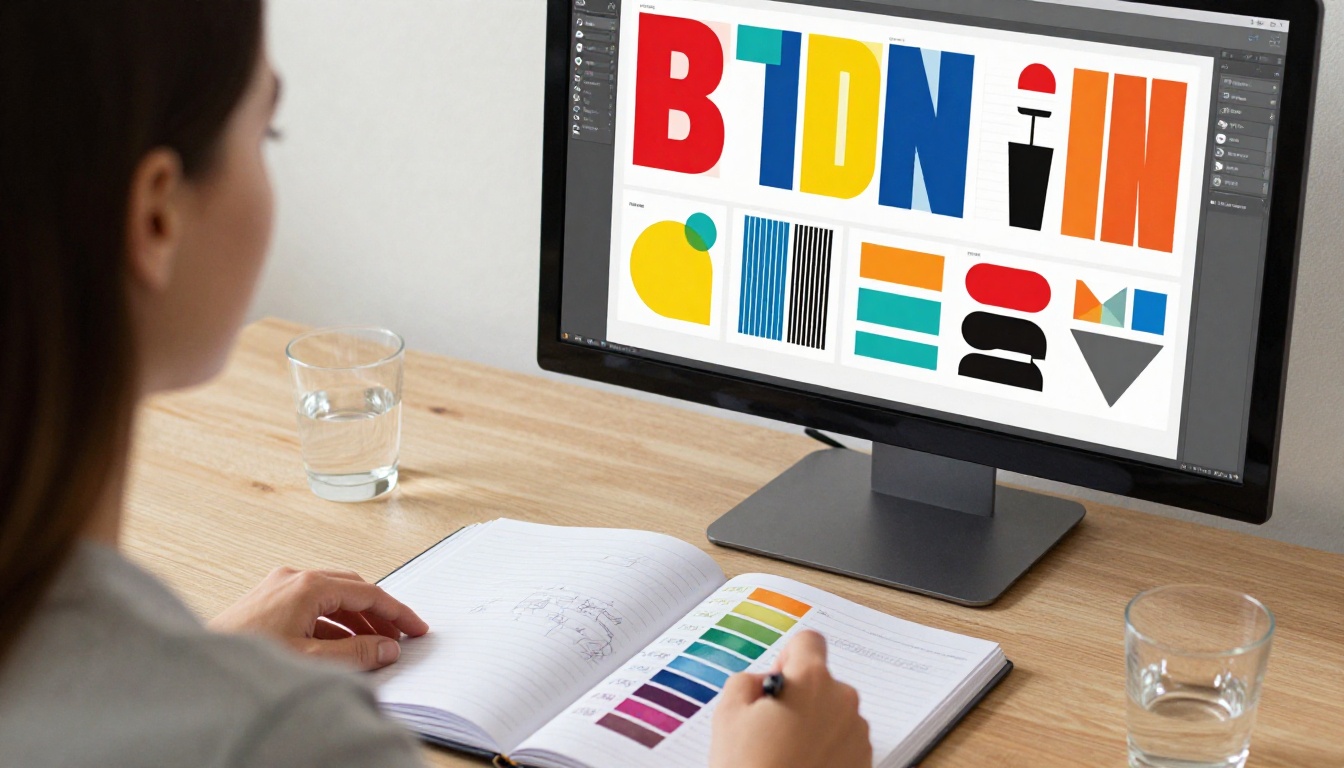
A few rules that will save you from common problems:
- Never use pure white (#FFFFFF) as a background with pure black (#000000) text. It is too harsh on screens. Use near-white (#F8F8F8) and near-black (#1A1A1A) instead.
- Leave breathing room between sections. White space is not wasted space.
- Keep important content away from page edges. Some flipbook viewers clip the edges slightly on mobile.
Images and Visual Flow
Every image in your flipbook should serve a purpose. Decorative images that do not connect to the content around them slow reading and dilute your message. Images that illustrate a point, show a product, or establish mood earn their place.
For image quality, export at 150 DPI minimum from your design file. If your original image is a small JPEG pulled from a website, do not try to stretch it to fill a page. It will show.
💡 Pro tip: Use consistent image sizing within sections. If product photos switch between square, landscape, and portrait orientation on every page, the flipbook feels chaotic. Pick a format and stick to it within each section.
How to Create Your First Flipbook on Flipbooks AI
Flipbooks AI is built to make this process fast without cutting corners on quality. Here is exactly how to do it from start to finish.
Step 1: Upload Your PDF
- Go to flipbooksai.com and create your account. The free tier gets you started immediately with no credit card required.
- From your dashboard, click Create New Flipbook.
- Drag and drop your PDF into the upload zone, or click to browse your files.
- Wait for the conversion to process. For a 20-page PDF, this typically takes 15 to 30 seconds.
- Once processed, you will see a live preview of your flipbook with the page-turn animation active.
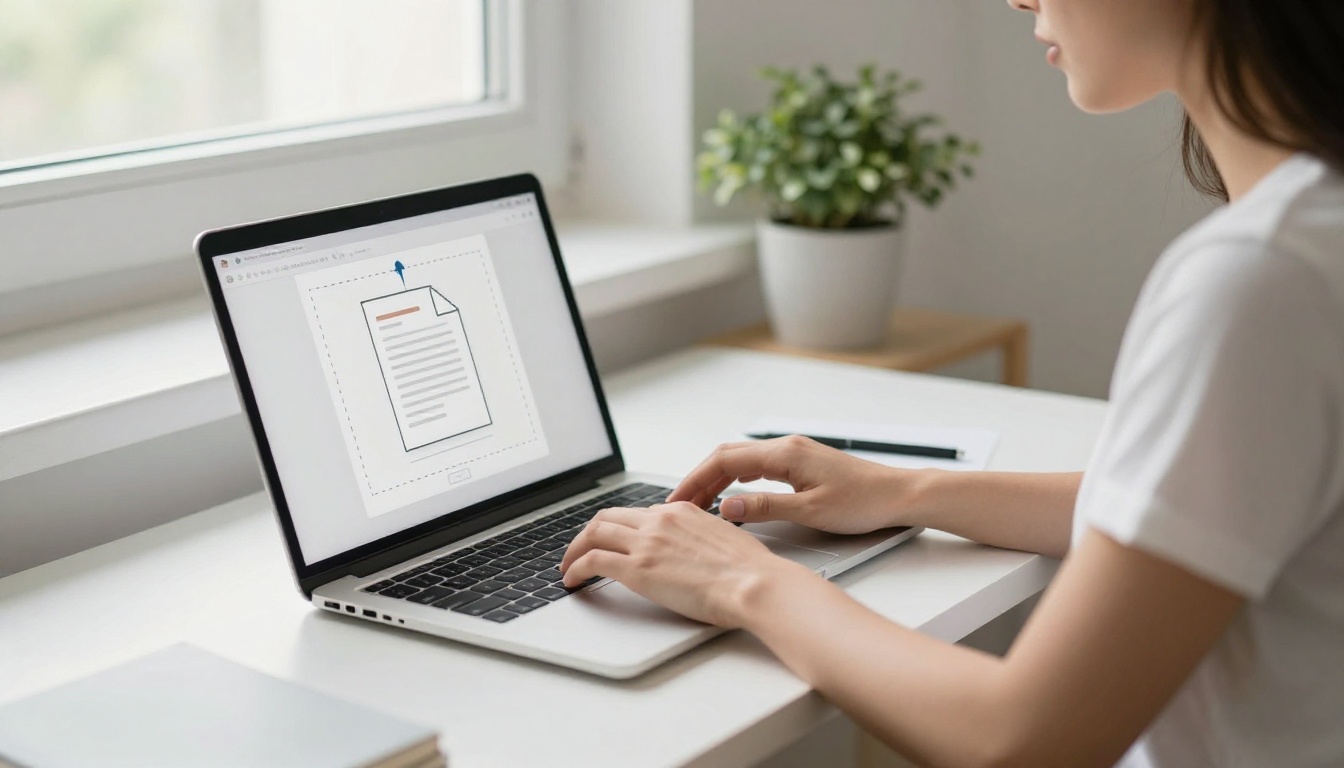
⚠️ Important: Check your preview page by page before moving to customization. Conversion issues like font substitution or missing images are far easier to fix by going back to your source PDF than by trying to edit within the flipbook tool.
Step 2: Customize Your Flipbook
This is where your flipbook stops looking generic and starts looking like yours.
- Branding: Upload your logo and set your primary brand color. These apply to the viewer frame around your flipbook.
- Background: Choose between white, dark, or a custom color for the page background area.
- Page effects: Enable the page-turn shadow and fold effect for a more realistic feel.
- Multimedia: On pages where it adds value, embed video clips or audio tracks directly into specific pages.
- Table of contents: For longer publications, add a clickable table of contents so readers can jump to any section directly.
✅ Best practice: Preview on mobile after each customization step. What looks great on a 27-inch monitor can be cramped and hard to navigate on a 5-inch phone screen.
Step 3: Share and Distribute
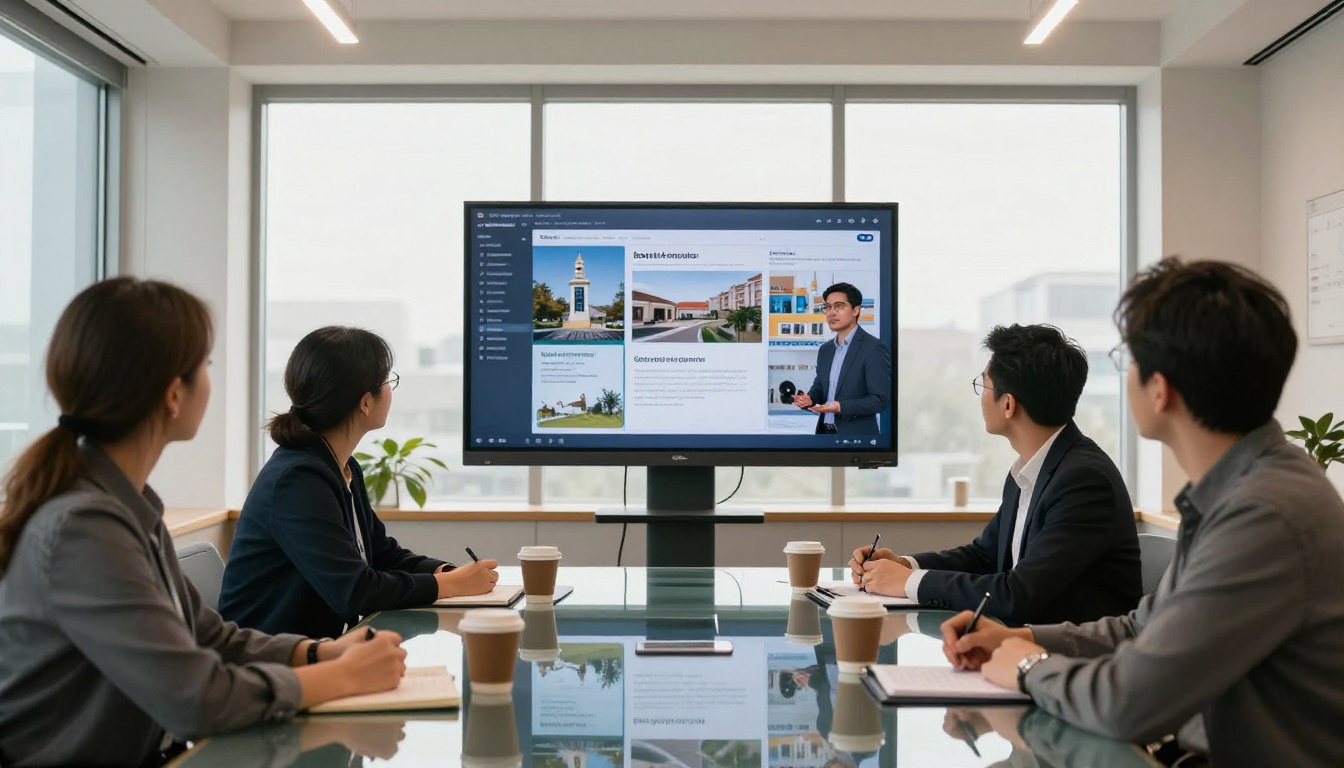
Once your flipbook looks right across devices, you have several ways to put it in front of readers:
- Direct link: A clean URL you can share via email, social media, or messaging apps
- Embed code: Drop your flipbook directly into your website or blog with a single HTML snippet using the embed flipbook tool
- Password protection: Set a password for private content like client proposals or internal reports
- QR code: Generate a QR code to add to printed materials that links directly to your digital version
For Professional plan users on Flipbooks AI, lead generation forms let you collect reader information before they access the flipbook, which is valuable for gated content and marketing campaigns.
Mistakes First-Timers Make
Skipping the Preview Step
Almost everyone does this at least once. They create a beautiful PDF, upload it, see that it converted, and share the link immediately. Then a reader opens it and finds a garbled font, a missing image, or a page that looks completely different from the original.
Always preview your entire flipbook, page by page, on at least two devices before sharing it with anyone.
Ignoring Mobile Optimization
Designing for A4 portrait pages works fine for print. On mobile, portrait flipbook pages are often too tall to read without zooming. If you know your audience is primarily mobile, consider designing your source PDF in a landscape or 16:9 format. It fills a phone screen more naturally and eliminates the need to zoom.
Real estate agents using a real estate brochure and restaurants publishing a menu flipbook will find that landscape orientation reads significantly better for mobile-first audiences.
After Publishing: What Comes Next
Tracking Who Reads It
Publishing a flipbook and never checking whether anyone reads it past page two is a missed opportunity. Analytics tell you which pages get the most time, where readers stop, and how they are accessing your content.
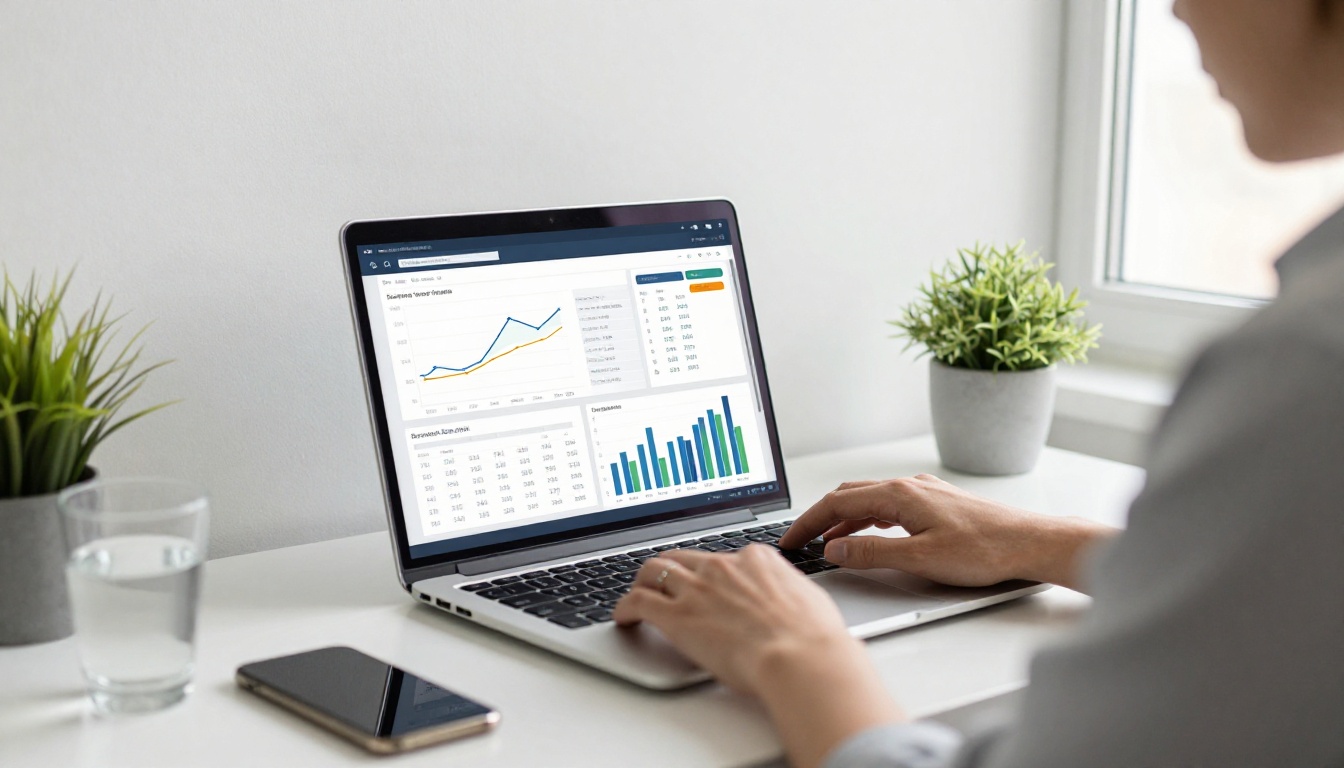
On the Professional plan at Flipbooks AI, analytics include per-page view counts, total reading time, geographic data, and device breakdowns. For marketing teams, this data is invaluable for refining future publications and understanding what content actually resonates with readers.
Keeping It Fresh
One of the practical advantages of digital flipbooks over printed materials is that you can update them. If a price changes, a team member leaves, or you need to correct a typo, you can swap the underlying PDF and republish without changing your URL or embed code.
This makes flipbooks a far better long-term investment than printed brochures or static PDFs for any content that needs periodic updates. Your catalog flipbook, e-book, or training manual can stay current without the cost and hassle of reprinting.

Ready to create your first flipbook? Get started for free on Flipbooks AI and see how fast a polished digital publication comes together. Browse all flipbook tools and templates to find the format that fits your content best. When you are ready to remove limits and add full analytics, compare pricing plans to choose the right fit for your workflow.



