You finished the PDF. The layout is clean, the copy is tight, and then you notice the problem: every website, order form and booking page you mention is just plain text. Readers have to copy, paste and hope. The good news is that you can add links to a PDF for free, and you do not need an Adobe Acrobat subscription to do it. This article walks through the free online tools that work, the exact steps for each type of link, and how to publish the result as a clickable flipbook with Flipbooks AI so the links also work on phones, tablets and embedded web pages.
Why Links Inside PDFs Matter
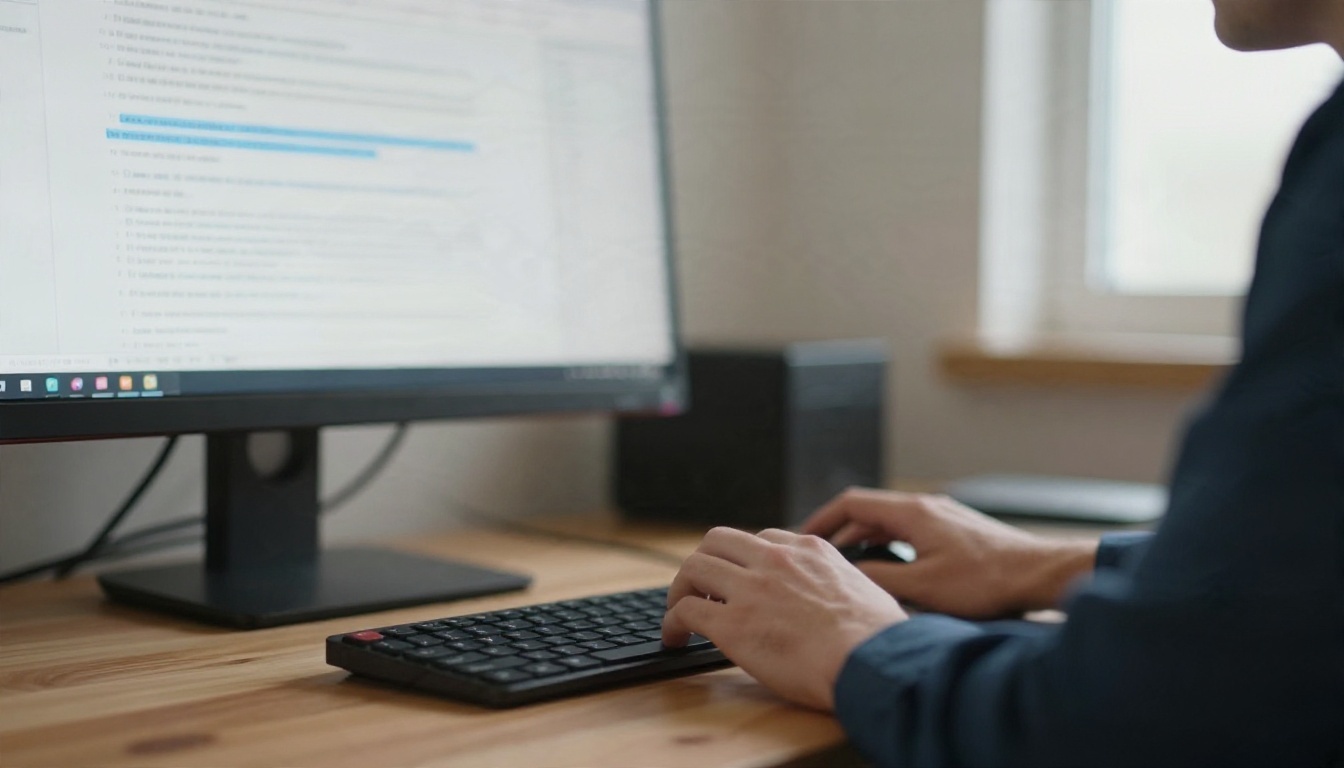
A PDF without links is a dead end. The reader finishes a page, wants to act, and has to leave the document to do it. Most of them simply do not.
The Cost of a Static PDF
Think about a price list that says "Order at example.com/shop". The reader must memorize or retype that address. Compare that to a button that opens the shop in one tap. The second version removes friction, and friction is where conversions die.
Static PDFs also hide useful data. When a link is just text, you cannot tell whether anyone looked at it. A properly linked document, especially when published online, lets you route readers to tracked pages and measure what they click.
What Clickable Links Change
Links turn a flat file into a navigation tool. Here is what you can do once they are in place:
- Send readers to a product page straight from a catalog photo.
- Jump between chapters from a table of contents.
- Open an email draft with a mailto link for quotes or support.
- Point to videos, maps and forms without bloating the file size.
- Return to the start with a "back to contents" link on every page.
💡 Pro tip: Plan your links before you export. It is far easier to style a link in the source document than to patch it into a finished PDF.

Adobe Acrobat Pro is excellent, but it is not the only route. Three paths cover almost every situation, and all of them have a free option.
Browser-Based PDF Editors
Online editors let you open a PDF in a tab, draw a rectangle or select text, and attach a URL. Popular names include Sejda, PDFescape, PDF24 and Smallpdf. Each offers a free tier, but the limits differ: file size, pages per document, or tasks per day. Always check the current limits on the tool's own site before you commit a big job to it.
The upside is speed. Open the file, add the link, download. The downside is privacy. You are uploading your document to someone else's server, so skip this route for contracts or anything confidential.
Edit the Source File Instead
If you still have the original Word, Google Docs, Canva or Pages file, this is the cleanest method. Add the links in the source and export to PDF. Links are preserved automatically, and you avoid re-editing the PDF every time the copy changes.
- Google Docs: select text, press Ctrl+K, paste the URL, then download as PDF.
- Microsoft Word: select text, right-click, choose Link, then Save As PDF.
- Canva: select an element, click the link icon, then download as PDF Standard.
- LibreOffice: insert a hyperlink, then export as PDF with the "Hyperlinks" option ticked.
Free Desktop Alternatives
When files are sensitive or very large, a local app is safer. LibreOffice Draw can open a PDF, accept new hyperlinks and export again. It is not pretty, and complex layouts may shift, but it is free and offline.
| Method | Cost | Works offline | Best for | Main drawback |
|---|
| Browser PDF editor | Free tier | No | Quick fixes on small files | Upload limits and privacy |
| Edit the source (Word, Docs, Canva) | Free | Partly | Documents you still own | Needs the original file |
| LibreOffice Draw | Free | Yes | Sensitive files | Layout can shift |
| Flipbook platform | Free to start | No | Sharing online with live links | Output is a web flipbook, not a PDF |
How to Add Links Step by Step

The exact buttons vary by tool, but the logic is identical everywhere. Pick the link type, pick the target, test it.
Link Text to a Web Address
This is the most common case. Follow these steps in any free online editor:
- Upload your PDF and open the Links or Annotate panel.
- Select the words you want to make clickable, such as "Book a demo".
- Choose External URL and paste the full address, including
https://.
- Apply the change and repeat for every link.
- Download the updated file and open it in a normal PDF viewer.
⚠️ Warning: Always paste the full address with https://. A link that starts with only www can be treated as a file path by some readers and fail silently.
Link a Button or Image
Text links are easy to miss. A button is not. Draw a rectangle over a button graphic, a product photo or a logo, then assign the URL to that rectangle. In most editors, you pick the Link tool, drag a box, and choose the destination.
Make the box a little larger than the visual. On a phone, a thumb needs a generous target, and a tiny box turns every tap into a miss.
Jump to Another Page
Internal links make long documents usable. The process is the same, but the destination is a page number instead of a URL.
- Select the table of contents entry.
- Choose Go to page as the link action.
- Enter the target page number.
- Add a "Back to contents" link on the target page so readers can return.
Here is a quick reference for which link type suits which job:
| Link type | Destination | Good for | Example |
|---|
| External URL | Web page | Shops, forms, articles | "Buy now" button |
| Internal page | Page in same PDF | Contents, chapters | Chapter 3 entry |
| Email (mailto) | Draft message | Quotes, support | sales@yourdomain.com |
| File link | Another document | Specs, downloads | Product data sheet |
| Phone (tel) | Dialer | Local services | Tap to call |
Make Links Clickable in a Flipbook
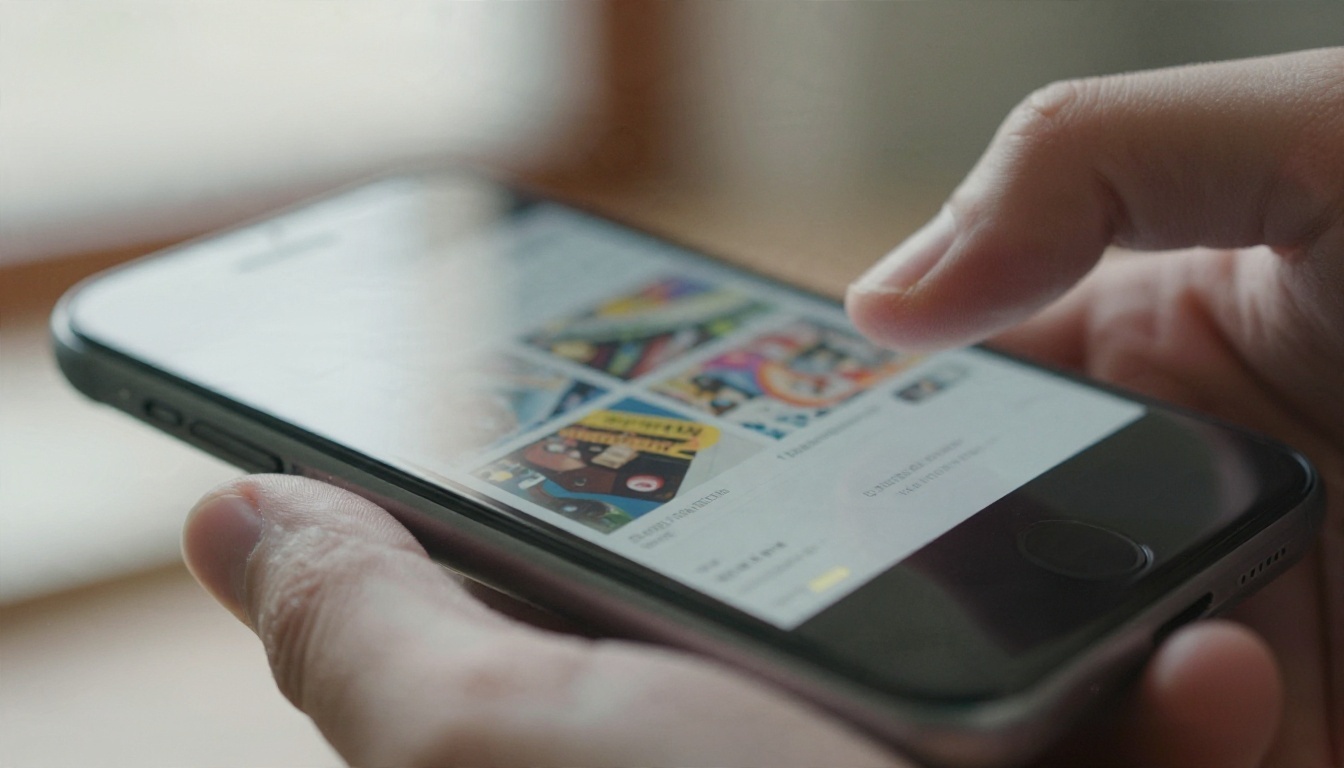
Here is where things get interesting. A PDF with links is good. A page-turning flipbook with links is better, because it loads in the browser, adapts to small screens and does not require anyone to download or install a reader.
Many people open PDFs on a phone, and mobile PDF viewers can be clumsy: pinch to zoom, hunt for a tiny link, tap the wrong line. A flipbook solves that with a layout built for touch. If you want the full conversion workflow, the PDF to Flipbook Converter is the direct route.
How to Create a Clickable Flipbook with Flipbooks AI
- Create your account. Go to Flipbooks AI and sign in. You can start free and compare pricing plans later if you need more.
- Upload your PDF. Drag the file into the upload area. The platform converts each page into a flipbook page automatically. Links you added earlier should carry over, so open the result and tap each one to confirm.
- Customize the look. Add your logo, pick brand colors, choose a background and set the page-turn effect. Custom branding stays clean because there are no watermarks, ever.
- Add multimedia. Drop in videos or audio where a link alone would be too thin. A product demo playing inside the page often beats a link to an external site.
- Share it. Copy a direct link, grab an embed code for your website, or lock the flipbook with a password for private audiences. The Embed Flipbook on Website tool covers the embed step.
- Track results. On the Professional plan, analytics and lead generation show who opened the flipbook and how they interacted with it. You can also allow offline downloads for readers with poor connections.
✅ Best practice: Upload a version with links already in place, then use the flipbook preview as your final test. It is the closest thing to what your readers will experience.
PDF vs Linked Flipbook
| Feature | Linked PDF | Flipbook |
|---|
| Opens in a browser tab | Depends on the viewer | Yes |
| Mobile-responsive layout | Limited | Yes |
| Page-turn animation | No | Yes |
| Embed on a website | Awkward | Simple embed code |
| Password protection | Needs extra software | Built in |
| Embedded video and audio | Rarely works | Supported |
| Reader analytics | None | Professional plan |
Real-World Examples
Abstract advice only goes so far. Here are three situations where clickable links change the outcome.
A Boutique Product Catalog

A small clothing shop sends a seasonal PDF to its mailing list. Every product photo links to the matching page in the online store. Instead of asking customers to search, the catalog sends them to the exact item. A flipbook version feels like leafing through a real lookbook, and the Product Catalog Generator or Fashion Catalog Creator are built for this kind of project.
Course Material for Students
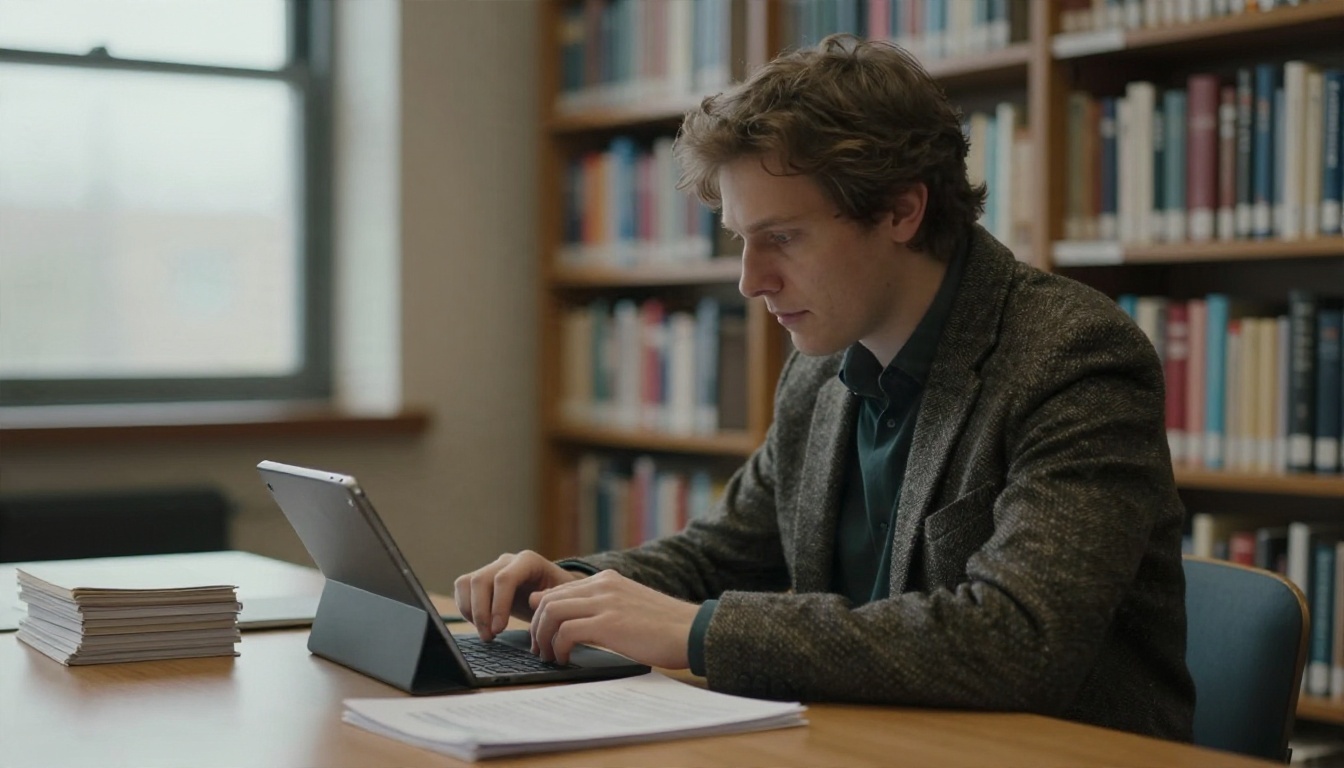
A lecturer has a forty-page reading pack. Each chapter heading links to a short video, each reference links to the source article, and a contents page jumps between modules. Students stop emailing "where is the link?" because the pack answers it. The Course Material Publisher handles that structure well, and the Training Manual Flipbook works for staff onboarding.
A Property Brochure
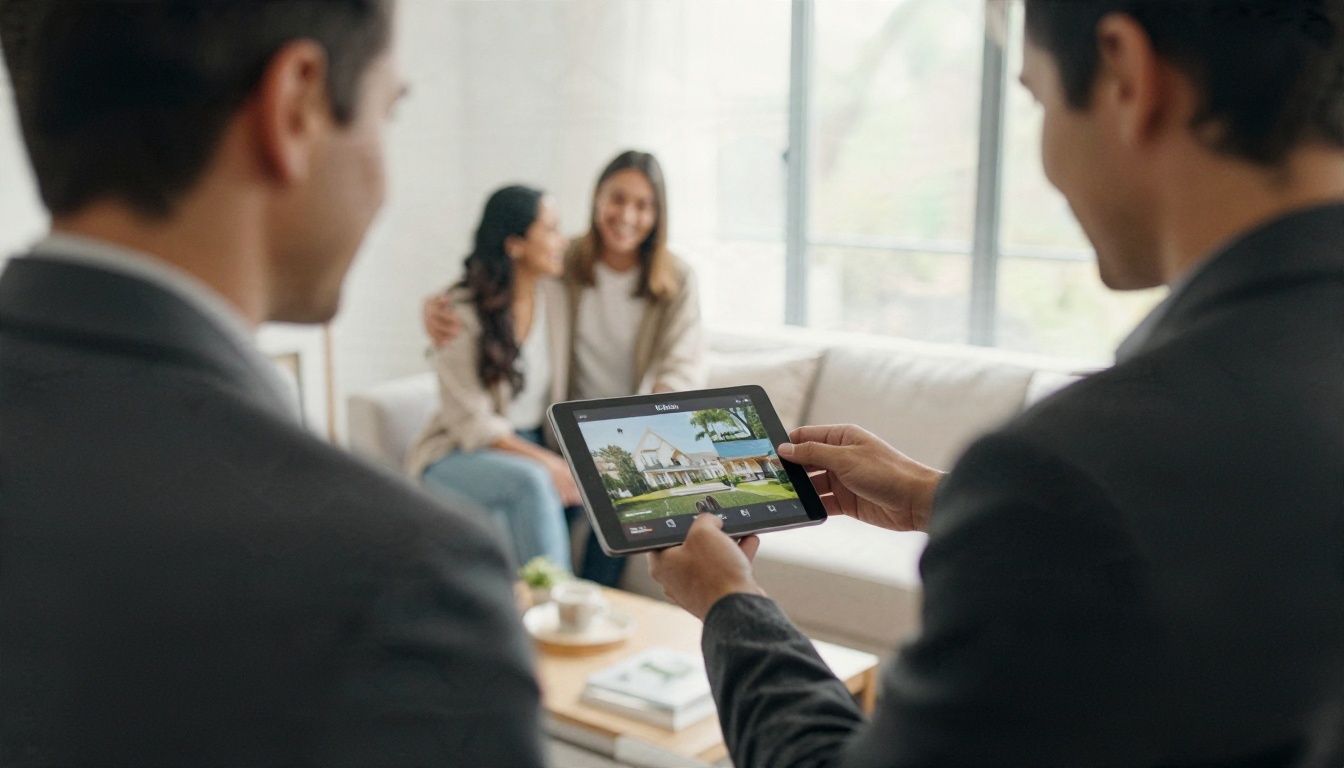
An agent adds a "Book a viewing" button, a map link, a virtual tour link and a tap-to-call number on the last page. The couple on the sofa can act before the agent has even left. For this use case, try the Real Estate Brochure Creator.
Common Mistakes and Fixes
Most broken PDFs fail for the same few reasons. Check this list before you hit send.
Links That Break After Export
Some editors flatten a document when saving. Links vanish, and nobody notices until a customer complains. Always reopen the final file in a standard viewer and click every link, not just the first one.
Tiny Tap Targets on Mobile
A link built from a single short word is nearly impossible to tap with a thumb. Make the clickable area a full phrase, a full line or a button of at least 44 pixels in height.
Tracking Parameters That Look Messy
Long campaign URLs are ugly when printed or read aloud. Use a short redirect on your own domain for any link that might appear in print, then keep the long version hidden behind the clickable text.
| Problem | Likely cause | Fix |
|---|
| Link does nothing | Missing https:// | Re-enter the full address |
| Link lost after saving | Editor flattened the file | Use a different tool or edit the source |
| Wrong page opens | Page numbers shifted | Re-link after final edits |
| Hard to tap on phone | Target too small | Enlarge the clickable box |
| Looks like plain text | No visual cue | Add color and underline |
⚠️ Warning: Never put private links, such as admin dashboards or unlisted files, in a PDF that will be shared widely. Anyone with the file can read the address.
Test Before You Send

Ten minutes of testing saves hours of apologies. Use this short routine every time:
- Click every link on desktop, in order, from page one.
- Open the file on a phone and tap each link with your thumb.
- Try a second browser or PDF reader, since behavior can differ.
- Check internal jumps and confirm that each one has a way back.
- Ask a colleague to open the file cold and report anything odd.
Italics aside, the real rule is simple: if you would be annoyed to click it, so will your reader.
Start Linking Your PDFs Today
You now have three free routes: a browser editor for quick jobs, the original source file for clean exports, and a desktop app for sensitive documents. For documents that need to look good, load fast on mobile and keep every link tappable, a flipbook is the strongest finish.
Ready to publish? Get started for free on Flipbooks AI, browse all flipbook tools to find the right template for your project, or compare pricing plans when you need analytics, lead generation and unlimited flipbooks.



