You have a product line, a deadline and a budget of exactly zero. The question is which free design app gets a polished catalog out the door faster. Both Affinity and Canva can do it, but they get there in very different ways, and picking the wrong one costs you hours. This comparison breaks down where each tool shines, where it struggles, and how to publish the finished file as an interactive flipbook with Flipbooks AI so customers can actually browse it on any device.

The Short Answer
If you want speed and templates, pick Canva. If you want precise typography, master pages and print-grade control, pick Affinity. Most small businesses fall into the first group, while agencies, photographers and anyone with a 100-page product range lean toward the second.
Here is the quick version before we dig in:
| Need | Canva | Affinity |
|---|
| Ready-made catalog templates | Excellent | Limited |
| Fast setup for beginners | Excellent | Moderate |
| Multi-page layout control | Good | Excellent |
| Photo retouching | Basic to good | Excellent |
| Print-ready PDF options | Good | Excellent |
| Team collaboration | Excellent | Limited |
| Free access | Free plan with limits | Free to use |
💡 Pro tip: You do not have to choose forever. Many teams build the layout in one app and export a PDF that works everywhere.
What Each App Actually Is
Canva in one paragraph
Canva is a browser-first design platform built around drag-and-drop templates, a huge library of stock elements and real-time teamwork. You open a catalog template, swap the photos, change the colors and export. The free plan is generous, though some premium photos, fonts and one-click brand tools sit behind a paid subscription.
Affinity in one paragraph
Affinity is a professional-style suite for layout, photo editing and vector illustration. After Canva acquired the company, the apps were brought together and made free to use, which changed the comparison for small businesses. You get serious tools such as master pages, baseline grids, advanced text controls and non-destructive photo editing without paying for a license. Some optional AI and cloud features may require a Canva subscription, so check the current terms before you rely on them.
Why the difference matters for catalogs
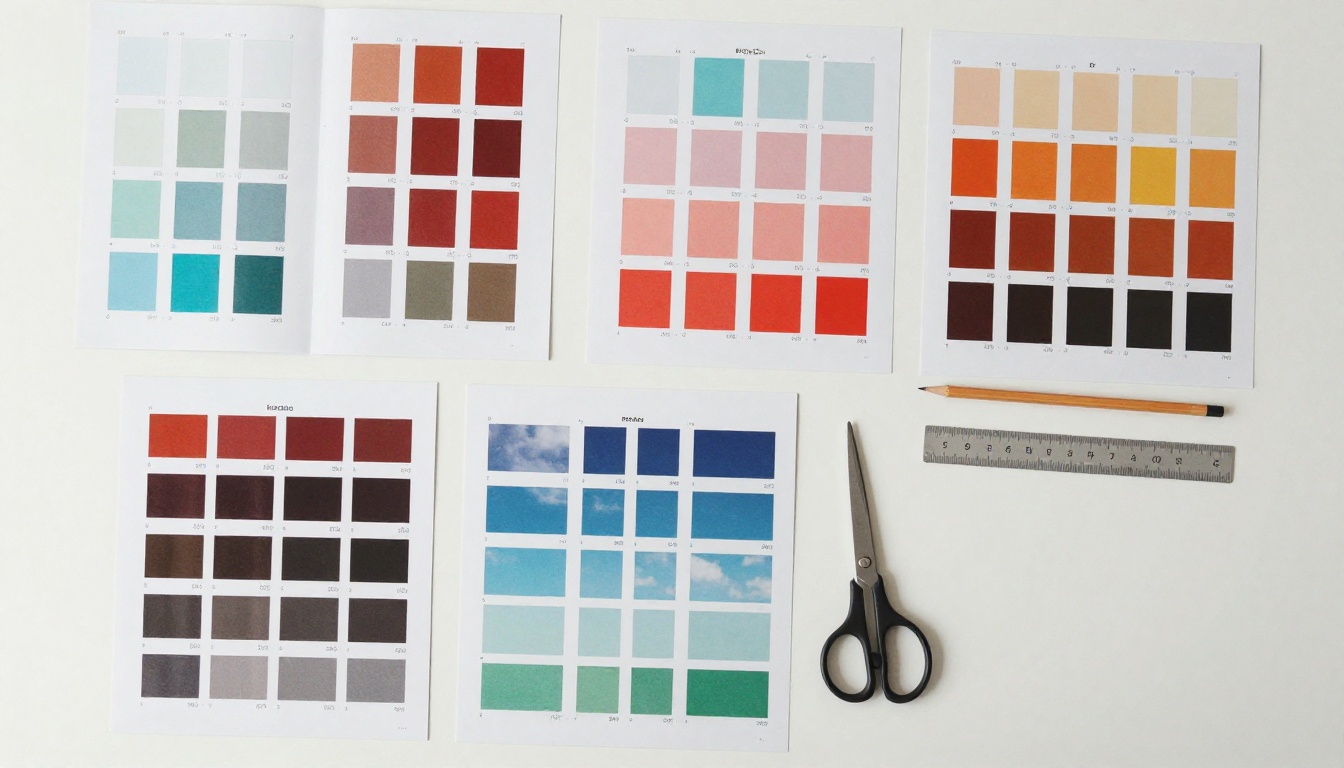
A catalog is not a poster. It repeats the same structure dozens of times: product photo, name, price, short description, code. Tools that handle repetition well save you the most time. Canva solves it with templates and duplicate pages. Affinity solves it with master pages, styles and precise grids.
Templates and Speed
Canva wins the first hour
Open Canva, search for a catalog, and you will find hundreds of layouts for fashion, furniture, food, beauty and electronics. Each one is already balanced, with text hierarchy, margins and image frames in place. A beginner can have a ten-page product catalog drafted in an afternoon.
Affinity asks for more setup
Affinity gives you a blank canvas with professional tools. That is powerful, but you will build your own grid, set up your own text styles and decide on your own spacing. The upside is that the result looks like your brand, not like a template thousands of other shops are also using.
A real example
A boutique candle maker with 24 products used Canva to build a 16-page catalog in one evening. A furniture studio with 140 items used Affinity master pages so every product spread inherited the same grid, which meant adding a new item took about two minutes. Both approaches were right for their business.
✅ Best practice: Count your products first. Under 30 items, templates usually win. Over 80 items, structured layouts usually win.
Layout Control for Multi-Page Catalogs
Master pages and consistency
This is where Affinity pulls ahead. You can create a master page with headers, footers, page numbers and column grids, then apply it to every product page. Change the footer once and the whole document updates. Canva handles repeating elements through copying and brand kits, which works, but it is easier for small inconsistencies to creep in across long documents.
Typography
Affinity offers fine control over kerning, tracking, leading, text flow between frames and typographic styles. For a catalog with dense spec tables and multilingual text, that precision is a real advantage. Canva's text tools are simpler, faster and entirely adequate for short product blurbs.
Tables and spec sheets
Neither app is a spreadsheet, but both can display product data. Canva includes table elements that are easy to edit. Affinity gives you tighter alignment tools, which makes dense spec grids look cleaner.
Photos and Product Images
Retouching
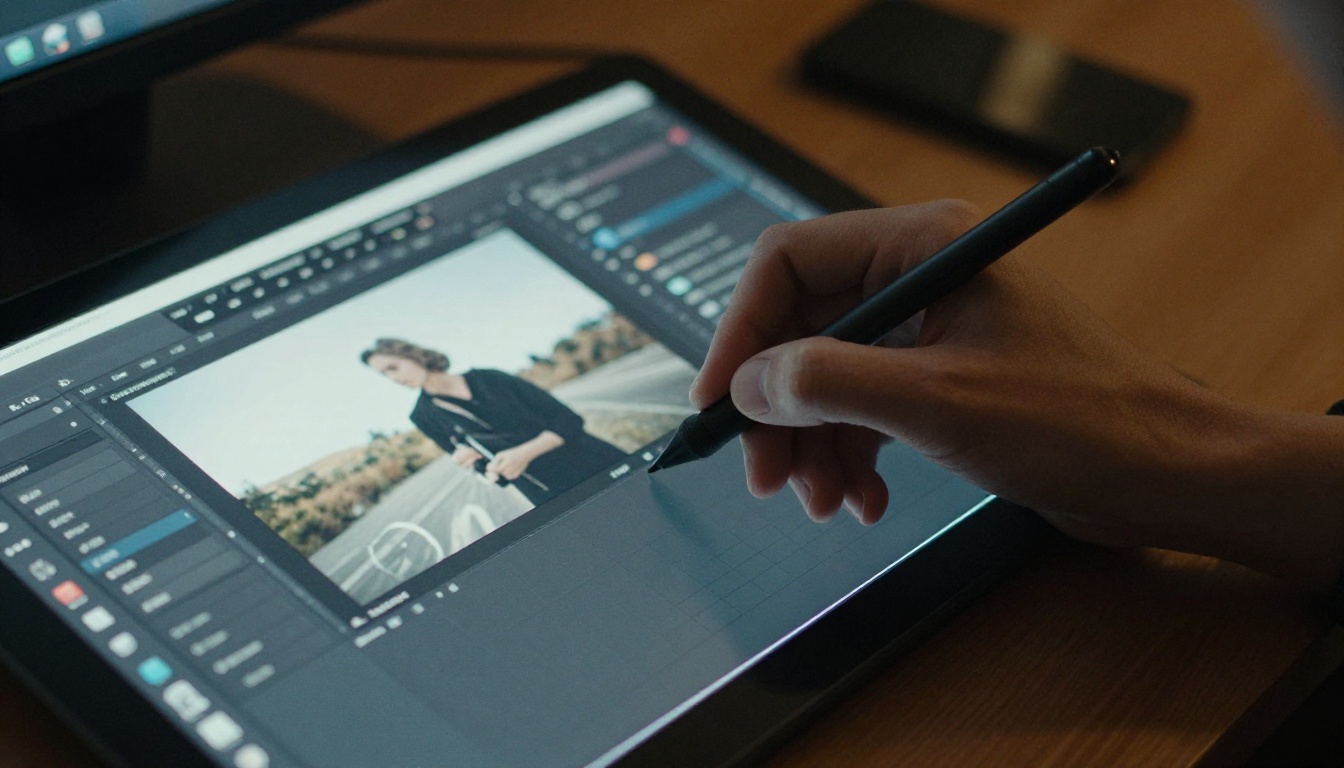
Product photos make or break a catalog. Affinity's photo tools handle layers, masks, curves, frequency adjustments and batch-style workflows. If your shots need background cleanup, color correction or shadow work, it is the stronger option. Canva offers one-click background removal and basic adjustments through its online editor, though some of those tools are limited on the free plan.
Stock imagery
Canva includes a very large library of photos, icons and illustrations, with a portion available for free. Affinity does not bundle a stock library of that scale, so you will source images elsewhere or use your own photography.
Image quality in exports
Both apps can export high-resolution files. Affinity gives you more control over color profiles and resampling, which matters when a printer asks for specific settings.
| Image task | Canva | Affinity |
|---|
| Background removal | One click | Manual selection and masks |
| Color correction | Sliders and filters | Curves, levels, selective color |
| Stock library | Large | Not bundled |
| Batch consistency | Brand kit | Styles and macros |
| Color profile control | Limited | Detailed |
Print Readiness and Export
Bleed, margins and color
If you plan to print, you need bleed, crop marks and the right color space. Affinity supports these natively with detailed export presets. Canva lets you add bleed and export a print-oriented PDF, which is usually enough for local print shops and online printers, but less configurable.
Digital-first catalogs
Many catalogs now live on screens only. In that case, print settings matter far less than file size, link support and how the pages look on a phone. A compact PDF exported from either tool will do the job, and a digital publishing tool takes it from there.
⚠️ Warning: Always request a proof from the printer before running a full batch. Screen colors and printed colors never match exactly.
Teamwork and Workflow
Canva is built for sharing
Several people can edit the same design at once, leave comments and approve changes. A sales manager can update prices while a designer swaps images. For small teams without a dedicated designer, that is a major advantage.
Affinity is a solo workflow
Affinity works best when one person owns the file. You can share exported PDFs and packaged files, but live co-editing is not its strength. Agencies often accept that tradeoff because it keeps control tight.
Which fits which team
| Team type | Better fit |
|---|
| Solo shop owner | Canva |
| Small marketing team | Canva |
| Freelance designer | Affinity |
| Photography studio | Affinity |
| Large product range with a designer | Affinity |
| Seasonal promotions, frequent edits | Canva |

Real Cost of Free
What the free plans include
Canva's free tier covers the core editor, thousands of templates and a basic storage allowance. Premium assets, brand kits, magic resize and some AI tools require a Pro subscription. Affinity is free to use, with optional paid features tied to a Canva subscription.
Hidden costs
Free tools cost something else: time. Canva saves time on layout but may cost money if you need premium photos. Affinity saves money on tools but costs time if you are new to professional layout software.
Quick cost comparison
| Cost factor | Canva Free | Affinity Free |
|---|
| Software price | $0 | $0 |
| Premium templates | Some locked | Few templates |
| Learning time | Low | Medium to high |
| Stock images | Some locked | Bring your own |
| Team seats | Limited | Not designed for it |

Which One Should You Pick?
Pick Canva if
- You need a catalog this week.
- You have no design background.
- Several people will edit prices and photos.
- You like starting from a template.
Pick Affinity if
- You care about typography and exact spacing.
- Your catalog has many pages with repeating structures.
- You retouch product photos yourself.
- You work with a commercial printer who sends detailed specs.
Use both
A common workflow is to retouch photos in Affinity, then place them into a Canva template for quick layout. Another is to design in Affinity and export a PDF for the web. Free tools make mixing easy.
Publish Your Catalog as a Flipbook
Whichever app you pick, you end up with a PDF. A raw PDF is fine for email, but it feels flat on a phone, loads slowly and gives you no data. Turning it into a page-turning flipbook fixes all three.
How to create a catalog flipbook with Flipbooks AI
- Export your PDF. In Canva, choose Share, then Download, then PDF Standard. In Affinity, use the Export persona or File, then Export, and pick a PDF preset suited to screens.
- Open the platform. Go to Flipbooks AI and create an account.
- Upload the PDF. The PDF to Flipbook Converter turns your pages into a realistic page-turning book in seconds.
- Customize the look. Add your logo, pick background colors, adjust page effects and drop in videos or audio where they help sell a product.
- Share it. Copy a direct link, grab the embed code for your site (see Embed Flipbook on Website), or add password protection for wholesale price lists.
- Measure results. On the Professional plan you get analytics and lead generation, so you can see which pages people read and who asked for more.

Tools that fit catalog work
💡 Pro tip: Keep the exported PDF under 20 MB and use RGB color for screen-only catalogs. Pages load faster and photos look brighter.
What you gain over a plain PDF
| Feature | Plain PDF | Flipbook |
|---|
| Page-turning feel | No | Yes |
| Mobile-friendly reading | Pinch and zoom | Responsive |
| Embed on a website | Awkward | One snippet |
| Password protection | Depends on tools | Built in |
| Reader analytics | None | Professional plan |
| Watermarks | n/a | None, ever |
Common Mistakes to Avoid
Too many fonts
Stick with two typefaces. Both apps make it easy to go overboard, and catalogs look cheaper when typography is inconsistent.
Low-resolution photos
A blurry product photo costs more sales than a plain layout ever will. Use images at least 1500 pixels on the long side for screen catalogs and higher for print.
Ignoring page order
Put bestsellers early, group related products and end with contact details and a clear next step. The layout tool will not do this thinking for you.
Skipping a mobile test
Open the finished file on your phone before sending it out. Small text and cramped tables are the most common complaints.

Final Verdict and Next Step
Canva is the faster route for most small businesses: templates, teamwork and quick edits make a decent catalog easy. Affinity is the sharper tool for people who want precise layout, strong photo editing and serious print control, and it costs nothing to try. Both export clean PDFs, so you can start with whichever feels more natural today.
When your design is ready, put it in front of customers properly. Get started for free on Flipbooks AI, browse all flipbook tools, and compare pricing plans to find the one that fits your catalog.