Your phone holds 14,000 photos, and you can barely find the three you actually want. That is the exact problem an AI photo album maker solves: it sorts the pile, picks the strongest shots, lays them out on pages, and hands you something you can finally share. Better still, once the album exists, a platform like Flipbooks AI can turn it into a page-turning flipbook that opens in any browser with a single link.
This article walks through what these tools really do, which free options are worth your time, how online makers compare, and how to share the final result without watermarks or messy attachments.
What an AI Photo Album Maker Does
Forget the old routine of dragging 200 images into a grid one at a time. A modern album maker uses machine vision to read your photos and make decisions you would normally spend an evening on.
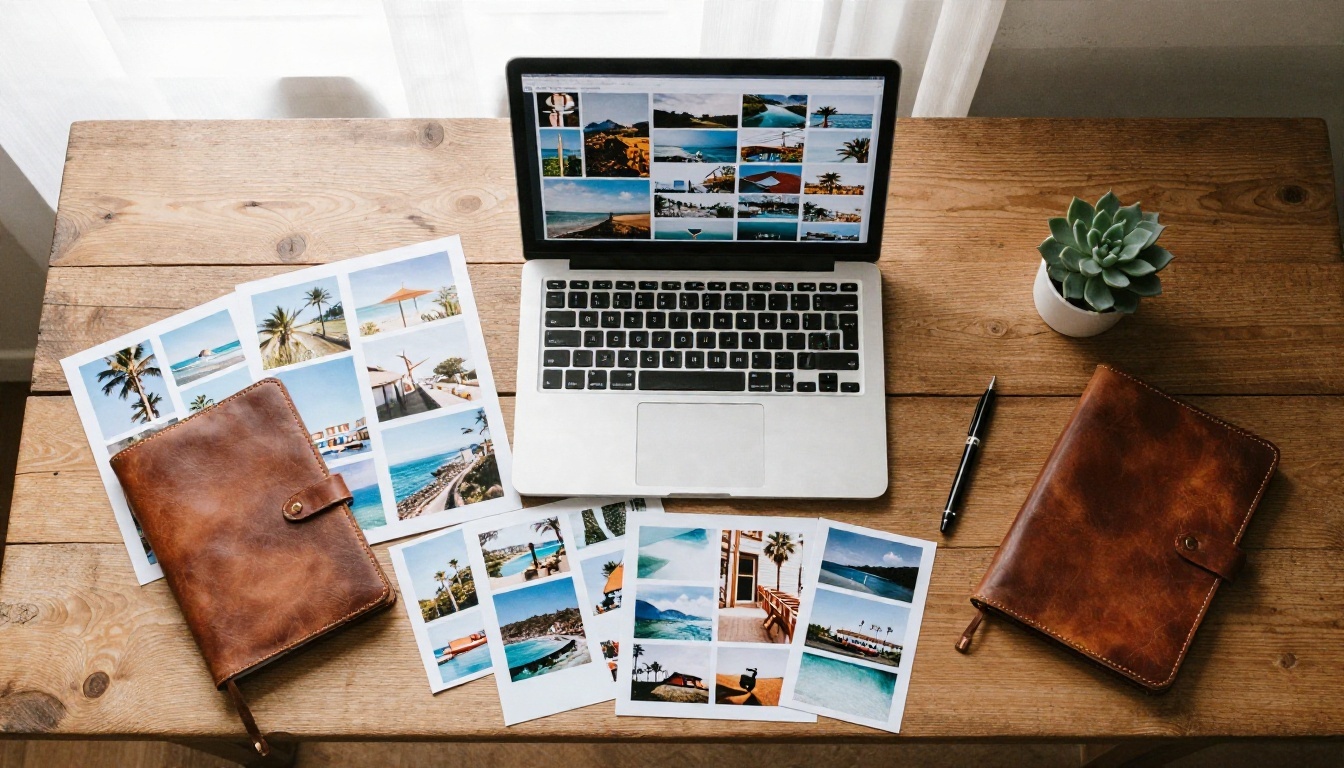
Sorting and Picking Photos
The first job is triage. The software scans your library and does several things at once:
- Groups by moment: dates, locations and faces cluster into trips, birthdays and weekends.
- Removes near duplicates: the nine almost identical sunset shots become one.
- Flags blurry or closed-eye frames: the weak ones drop to the bottom.
- Ranks the best shot in each cluster so you start with a strong shortlist.
The time saved here is the real selling point. Picking photos is the slowest part of any album, and it is where most projects die.
Layout and Captions
After selection comes design. The tool assigns photos to pages, crops around faces, and balances large hero images against smaller supporting ones. Many makers also suggest captions drawn from dates and place names, such as "Lisbon, June" or "Emma's first steps."
💡 Pro tip: Treat the AI layout as a first draft. Swap two or three photos by hand and rewrite the captions in your own voice. That small effort makes the album feel personal instead of generated.
Free Options Worth Trying
You do not need to pay to get a decent result. Free tiers have improved a lot, though each comes with trade-offs.
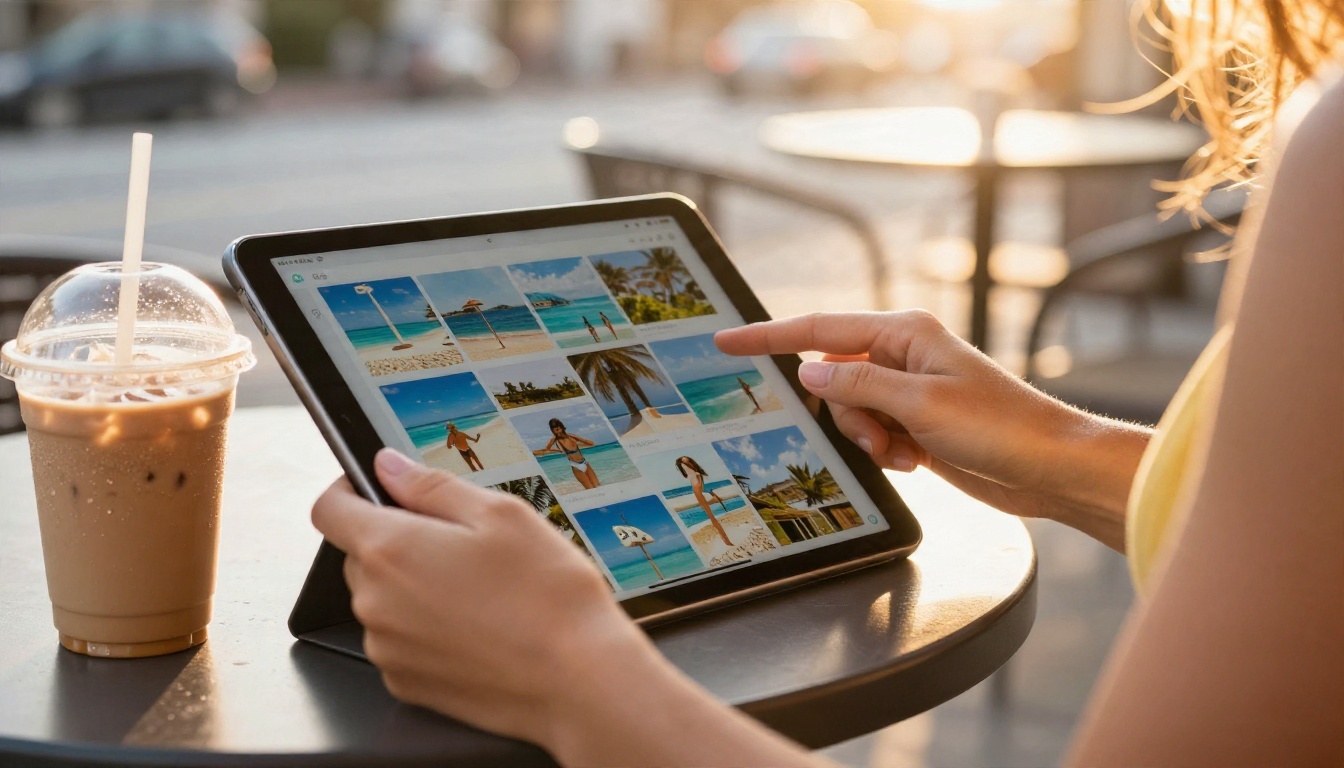
Built-in Phone Apps
Both major phone platforms ship with a gallery that creates "memories" and shared albums automatically. They are quick and private, and they cost nothing. The downside is control. You get a slideshow or a simple shared folder, not a designed album with pages, captions and a proper reading experience.
Browser-Based Editors
Online editors let you pick a template, upload photos and arrange them on a canvas. Their free plans usually include a limited set of templates and a cap on pages or exports. Some add a watermark to the free download, which is worth checking before you invest an hour in the layout.
Open Source and Desktop Software
If you prefer to keep files on your own computer, desktop layout software and open source page designers give you full control. The cost is time. Expect a steeper setup and little to no AI assistance.
| Option | Typical Cost | AI Help | Best For | Watch Out For |
|---|
| Phone gallery memories | Free | Auto selection | Quick recaps | No real page design |
| Browser album editor (free tier) | Free with limits | Auto layout | Simple albums | Watermarks, page caps |
| Desktop layout software | Free or one-off fee | Minimal | Full control | Learning curve and setup time |
| PDF plus flipbook publisher | Free to start | Depends on the editor | Sharing with a reading experience | Needs one export step |
⚠️ Warning: Always read the export terms of a free plan. A beautiful album that you cannot download without a logo stamped on every page is not really free.
Online makers split into three camps: print-first services, design-first editors and sharing-first platforms. Knowing which camp a tool belongs to saves you from picking the wrong one.
| Tool Type | Main Strength | Main Weakness | Output |
|---|
| Print-first services | Beautiful physical books | Pay per book, shipping time | Printed album |
| Design-first editors | Templates and styling | Sharing is often a flat image or link | PDF, PNG, JPG |
| Sharing-first platforms | Interactive viewing and links | Not built for printing | Web flipbook |
| AI auto-builders | Fast first draft | Less layout control | Mixed |
What Free Plans Usually Limit
Before you commit, check these five limits:
- Page count: many free tiers stop at 20 to 30 pages.
- Export quality: low resolution files look soft on a large screen.
- Watermarks: a logo on every page ruins gifts and portfolios.
- Storage: albums may expire or be deleted after a period.
- Sharing: some tools lock links behind a paid plan.
Why the Export Format Matters
A PDF is the most portable format. It keeps your layout intact, opens everywhere, and works as the input for a flipbook. So whichever maker you choose, make sure it can export a clean PDF at good resolution. That one feature keeps every other door open.
Turn Your Album Into a Flipbook
Here is where most people stop too early. They finish the album, export it, and then email a 90 MB attachment that nobody opens. A flipbook solves the sharing half of the problem.

A flipbook turns your PDF into a realistic page-turning viewer. Readers click or swipe to flip pages, zoom into details, and view it on a phone, tablet or laptop. There is nothing to download and nothing to install.
Flipbook vs Attachment vs Photo Folder
| Sharing Method | Looks Like an Album | Works on Mobile | Easy to Control Access | Heavy Files |
|---|
| Email attachment | No | Sometimes | No | Yes |
| Shared photo folder | No | Yes | Partly | No |
| Social media post | No | Yes | No | No |
| Flipbook link | Yes | Yes | Yes (password option) | No |
The difference is the experience. A folder feels like a filing cabinet. A flipbook feels like holding the album.
How to Create a Photo Album Flipbook
If your album is already a PDF, you are minutes away from a shareable version. The PDF to Flipbook Converter handles the conversion, and for wedding projects the Wedding Album Flipbook page is a handy starting point.

Step 1: Create Your Account
Head to Flipbooks AI and create an account. The dashboard is where all your flipbooks live, so you can return to edit or share them any time.
Step 2: Upload and Convert
- Export your finished album from your photo maker as a PDF.
- Click the upload button in your dashboard and select the file.
- Wait a few moments while the pages are converted into a flipbook.
- Open the preview and flip through to confirm every page looks right.
💡 Pro tip: Export at a high resolution but keep the file under a sensible size. Crisp pages with fast loading beat huge files that stall on mobile data.
Step 3: Customize the Look
Make the flipbook feel like yours:
- Branding and colors: pick a background tone that suits the photos, such as soft cream for family albums or charcoal for black and white work.
- Page effects: adjust how the pages turn so the motion feels natural.
- Multimedia: embed videos and audio on specific pages. A wedding vow clip or a voice note from a grandparent turns a static page into a keepsake.
- Mobile-responsive design: the viewer adapts to small screens automatically, so check it on your own phone.
Step 4: Share It Your Way
You have three main options:
- Direct link: paste it into a message or email.
- Embed code: place the album on a personal site or blog. The Embed Flipbook on Website tool explains the process.
- Password protection: keep private family photos private by requiring a password before anyone can view.
Step 5: Go Further with Pro Features
When you want more control, the Professional plan adds analytics to see how many people opened your album and lead generation for photographers who collect contact details. Offline downloads let relatives keep a copy without a connection. Every plan is free of watermarks, ever, and unlimited flipbooks arrive with the Standard plan and above.
Real-World Use Cases
The same workflow fits very different needs.
| Scenario | What You Build | Why a Flipbook Helps |
|---|
| Wedding recap | Ceremony and party album | Guests open it on any device, no account needed |
| Family history | Scanned old prints with captions | Relatives far away flip through together |
| Travel diary | Trip photos with maps and notes | Embedded audio adds the sounds of the place |
| Photographer proofing | Client gallery as pages | Password and analytics show who viewed it |
| Gift for a parent | Year in review for a birthday | One link, no printing delay |
A Family Archive Example
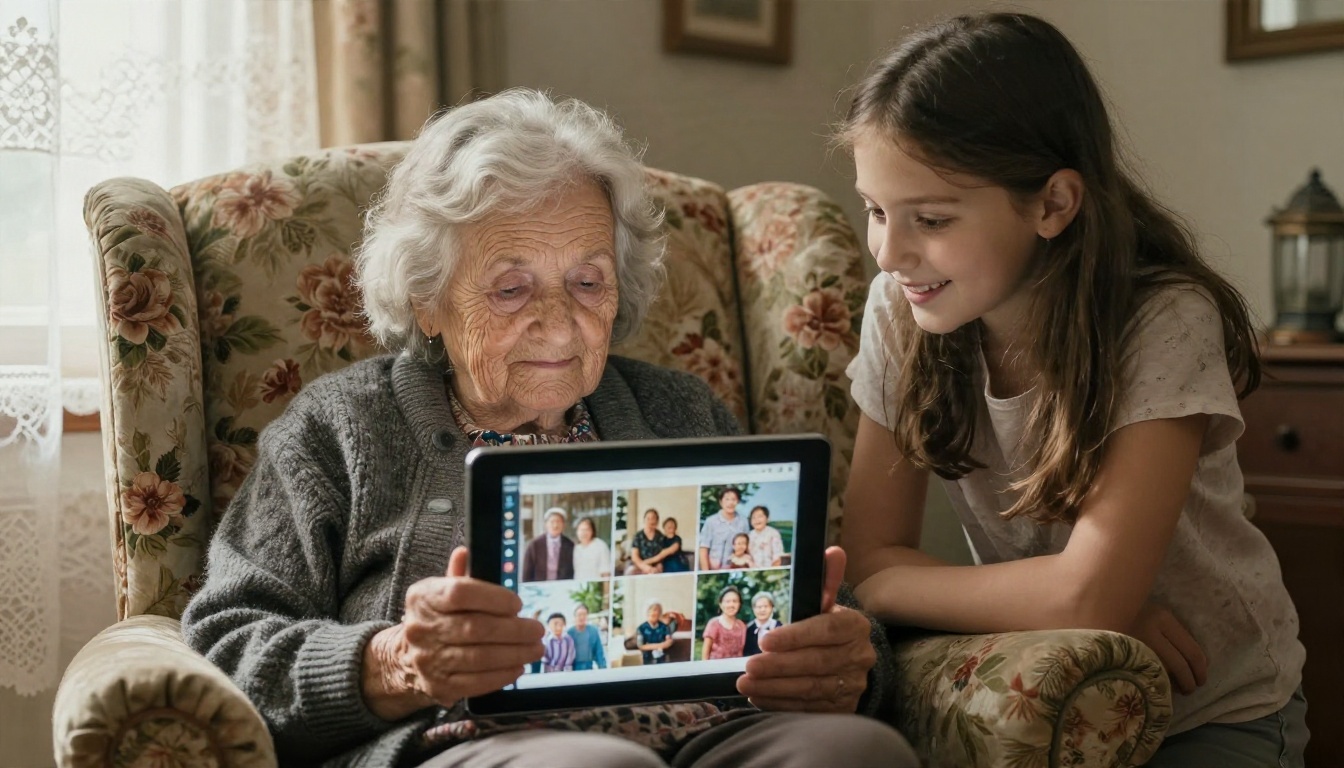
Imagine a daughter who scans 60 old prints from her grandmother's shoebox. She adds the AI generated captions, fixes a few names, exports a PDF, and uploads it. The grandmother opens the link on a tablet and flips through her own wedding day, while cousins on three continents open the same link. No postage, no lost prints.
A Photographer Example
A portrait photographer builds a 30-page proof album for each client. With a password on every link and the Photography Portfolio tool for public work, they separate private proofs from showcase material in one dashboard.
A Travel Example
A couple returning from a month abroad drops 400 photos into an AI maker, keeps 80, and adds a short voice note on the market page. Friends see it as a flipbook the same evening. That beats a group chat dump every time.
Mistakes to Avoid
Even with great software, a few habits ruin albums.
Keeping Too Many Photos
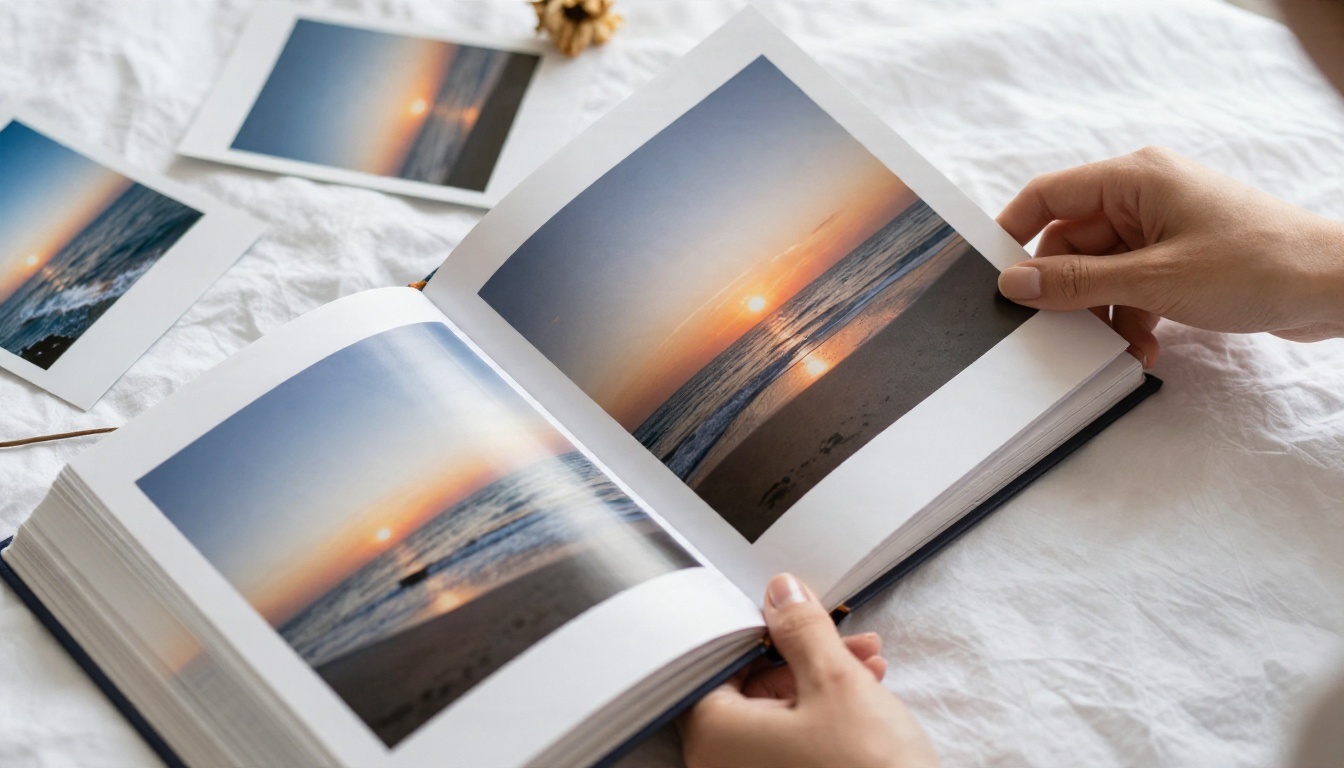
More is not better. A 120-page album of near identical shots wears people out by page 15. Aim for one strong image per moment, and cut ruthlessly.
Skipping the Proofread
AI captions sometimes guess wrong about names, places or dates. Read every page once before sharing, especially in family albums where a wrong name stings.
Ignoring Privacy
Photos of children, homes and addresses deserve care. Use password protection, avoid public embeds for private albums, and think twice before posting location details.
✅ Best practice: Keep a master copy of the original photos and the PDF in two places, such as a hard drive and a cloud folder. A flipbook is for sharing, not for backup.
Choosing Format Over Purpose
Decide the goal before opening any tool:
- Want a physical book? Choose a print-first service.
- Want fast sharing? Export a PDF and create a flipbook.
- Want both? Do both from the same PDF.
Tips for a Better Album
A few small decisions make the difference between a forgettable gallery and an album people reopen.

- Open and close strong: start with your best photo and finish with a quiet, emotional one.
- Tell a sequence: arrange by story, not only by date. Arrival, adventure, rest, goodbye.
- Mix scale: alternate full-page photos with small groups so the rhythm stays interesting.
- Write short captions: five to ten words is plenty.
- Check on a phone: most people will view it there first.
- Use consistent color: a soft edit across all photos looks more professional than a mix of filters.
For ready-made structures, browse the full list of flipbook tools, including the Travel Guide Flipbook and the Recipe Book Flipbook for family cookbooks with photos.
Make Your First Album Today
The best workflow is simple. Let an AI maker do the sorting and first layout, polish it with your own captions, export a PDF, and publish it as a flipbook. You end up with something that looks like an album, travels like a link, and never lands in a spam folder.

Ready to share your memories properly?
Pick your best 80 photos tonight, and send the link tomorrow.



