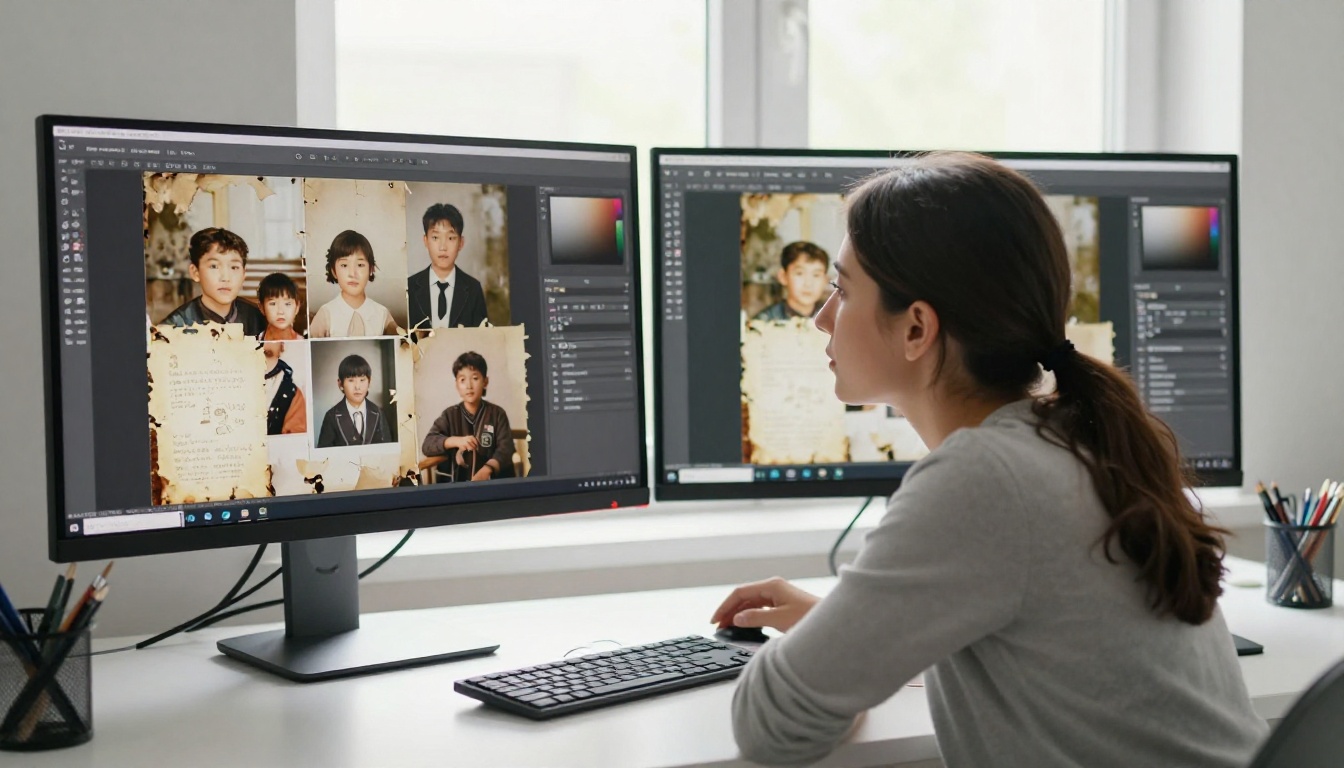
Old family photographs are among the most irreplaceable objects most people will ever own. A grandparent's wedding portrait from 1952, a faded snapshot of siblings in a backyard from 1967, a water-stained school photo with a cracked emulsion surface. These images hold entire lifetimes of memory, yet most of them are slowly deteriorating in shoeboxes and closets right now. AI photo cleanup for old family albums has changed what is possible for ordinary people, without darkroom expertise or expensive software subscriptions. Flipbooks AI takes that restoration work one step further, turning a folder of repaired photographs into an interactive, shareable digital album the whole family can browse.
What AI Actually Does to Old Photos
The phrase "AI photo restoration" sounds almost like magic, but the process is grounded in specific, well-defined tasks that machine learning models have gotten exceptionally good at. Before diving into tools and workflows, it helps to know what you are actually buying when you use these systems.
Scratch and Damage Removal
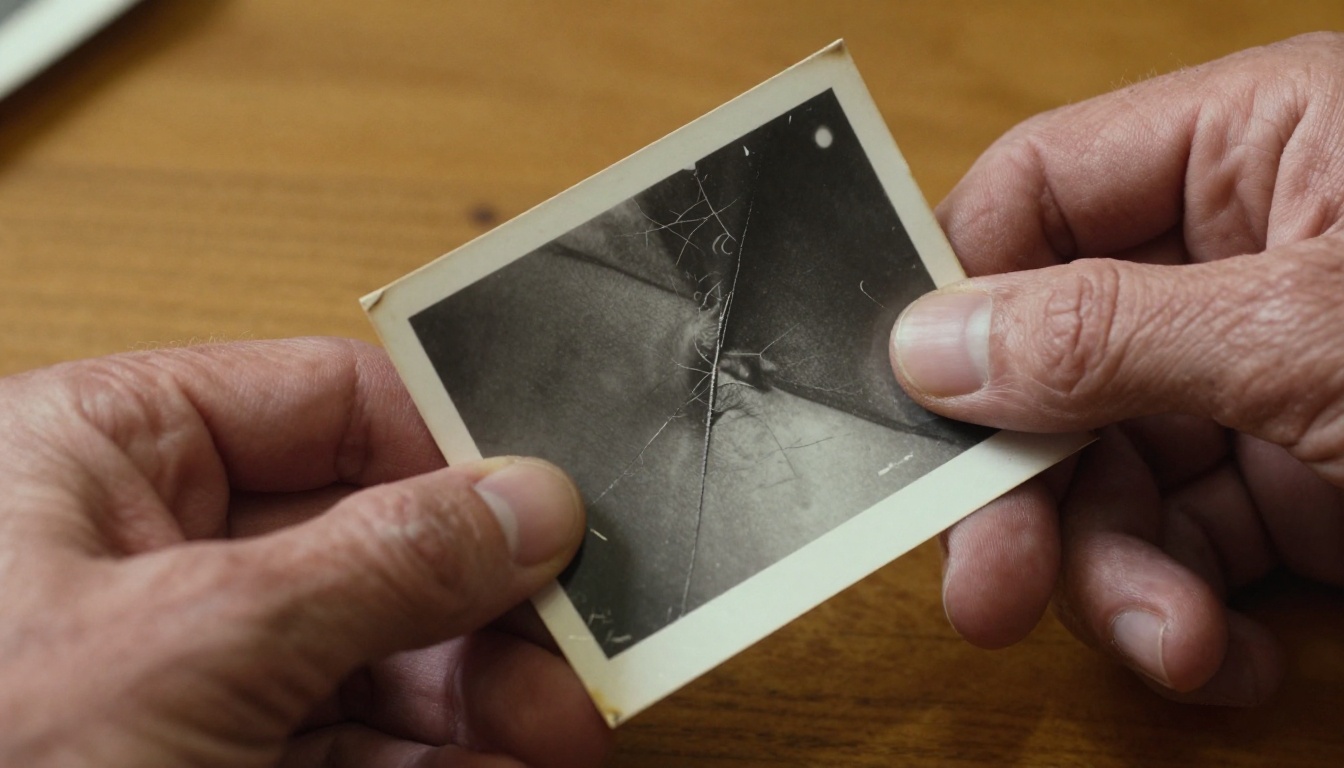
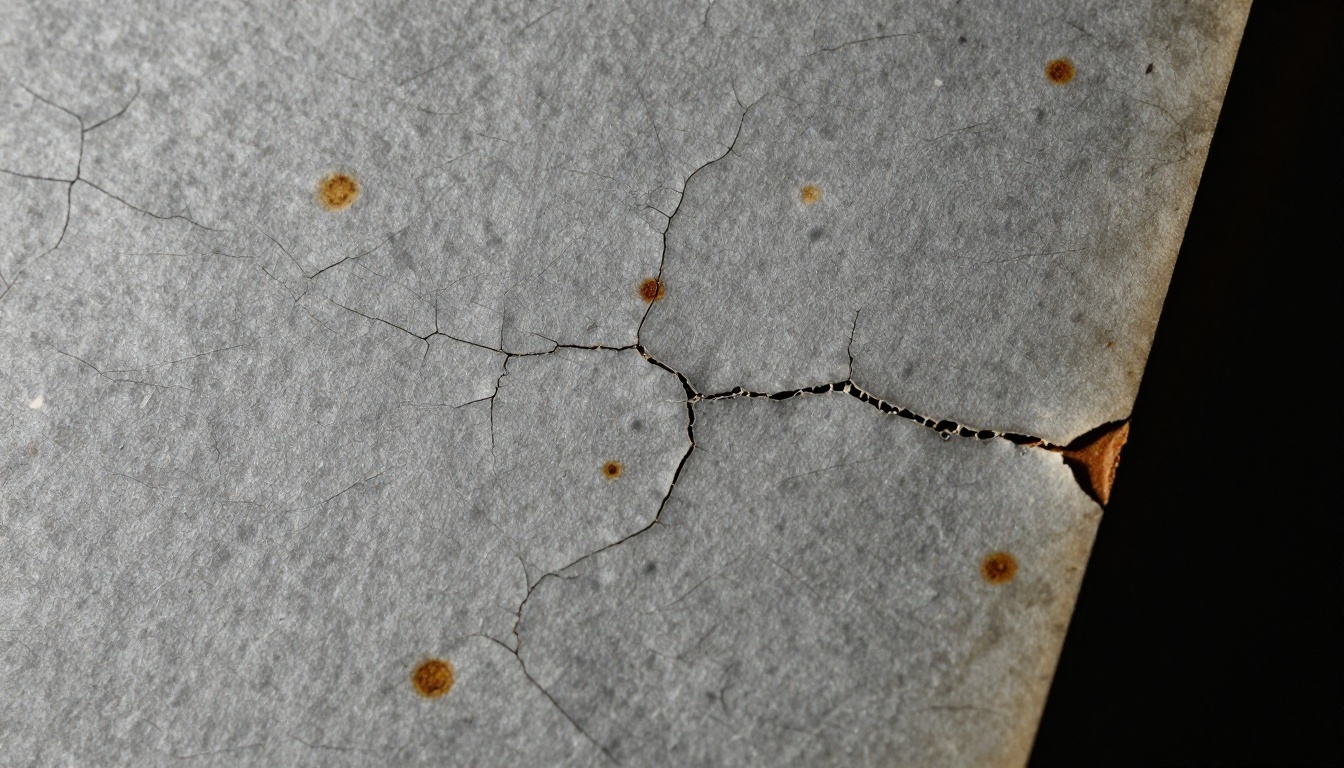
Physical damage to photographic prints comes in predictable forms: scratches from rough handling, creases from folding, water stains from floods or leaks, and adhesive residue from old albums. Modern AI restoration models are trained on millions of damaged and repaired image pairs, so they recognize these patterns automatically.
The AI fills in damaged areas using a technique called inpainting, drawing on surrounding context to reconstruct what was likely there. A scratch crossing a face gets filled based on the skin tone, lighting direction, and texture on either side of the damage. The results are often indistinguishable from an undamaged original.
Color and Fade Recovery
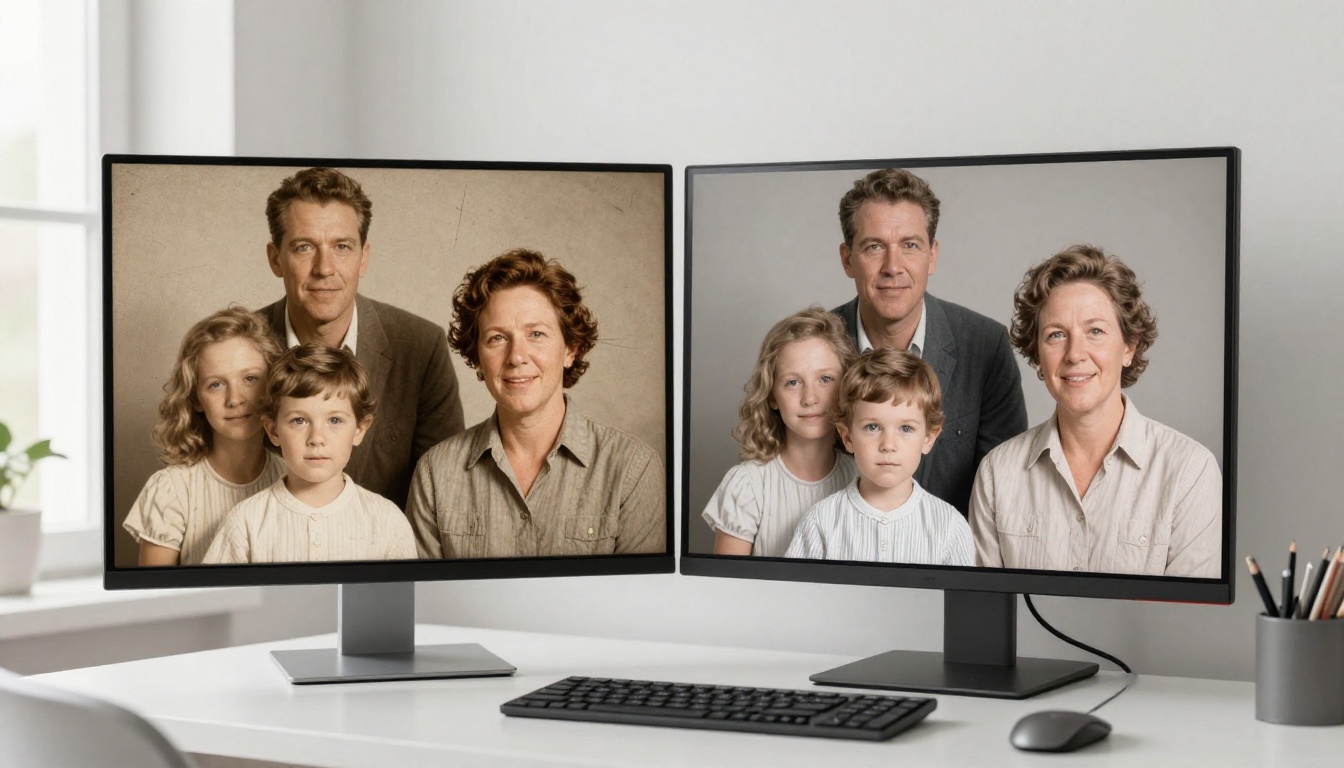
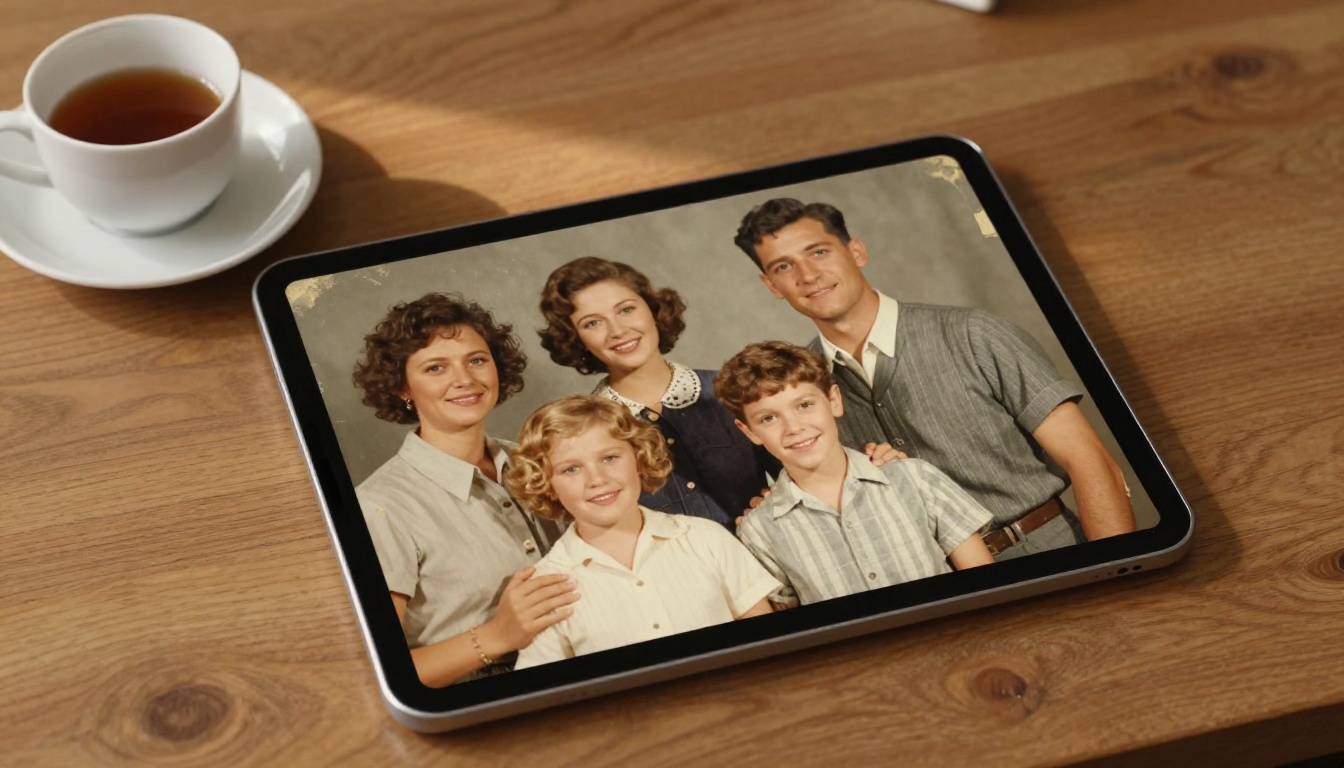
This is where AI photo cleanup becomes emotionally powerful. Photographs fade because the dyes in color prints break down over time, or because black-and-white prints were never color to begin with. AI colorization models analyze the content of an image, things like grass, skin, sky, and fabric, and apply statistically likely colors based on training data from that era.
💡 AI colorization is an educated estimate, not a documentary record. For family archives, always preserve the original black-and-white scan alongside any colorized version.
The results are rarely perfect, but they are often stunning enough to change how a family relates to an old image. A black-and-white photo of grandparents becomes recognizably real when warm skin tones, a blue dress, and green grass are restored with confidence.
Resolution and Sharpness
Old photographs were often taken with lower-quality lenses, developed under imperfect conditions, or simply degraded over decades. AI upscaling uses super-resolution algorithms to predict and add fine detail, sharpening faces, textures, and backgrounds without introducing the blurry look of older digital zoom.
Modern upscalers can take a 300-pixel-wide face and reconstruct it at 1200 pixels with plausible detail, particularly for skin texture, hair strands, and fabric weave.
The Damage Types AI Handles Best
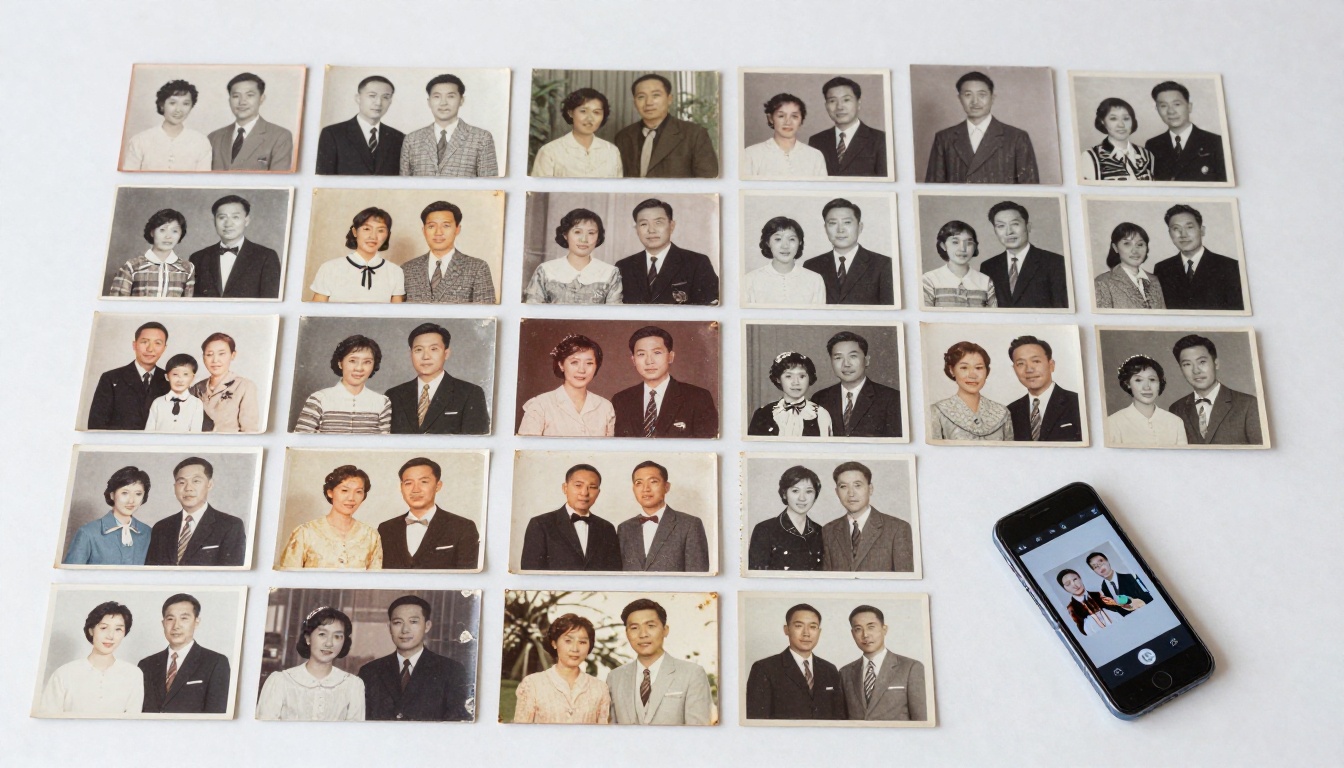
Not all photo damage is equal. Some types respond beautifully to AI repair. Others require more manual work. This table gives a realistic picture of what to expect:
| Damage Type | AI Effectiveness | Notes |
|---|
| Surface scratches | Excellent | Linear damage is easy to inpaint |
| Fading and yellowing | Excellent | Color normalization is well-trained |
| Emulsion cracks | Good | Fine cracks restore well; large areas may look soft |
| Water stains | Good | Edge-type stains restore better than center damage |
| Torn sections | Moderate | Missing content requires reconstruction from context |
| Mold and foxing spots | Moderate | Spot removal works; heavy infestation may cause artifacts |
| Motion blur | Poor | Camera shake from original capture is hard to reverse |
| Severe overexposure | Poor | Blown-out highlights contain no recoverable data |
Understanding this helps you set realistic expectations before processing a precious photograph, and helps you decide when to escalate to a professional restorer instead of relying on AI alone.
The landscape of AI restoration tools grew quickly after 2022. Some are browser-based with no installation required. Others are desktop applications offering more granular control. Here is a practical comparison across the most-used options:
| Tool | Platform | Free Tier | Colorization | Scratch Removal | Upscaling |
|---|
| Remini | Mobile (iOS/Android) | Yes (limited) | Yes | Yes | Yes |
| MyHeritage Photo Enhancer | Web | Yes | Yes | Yes | Yes |
| Adobe Photoshop | Desktop | No | Via plugin | Manual + AI | Yes |
| VanceAI | Web | Yes (credits) | Yes | Yes | Yes |
| Photomyne | Mobile | Yes | No | Basic | Yes |
| Luminar Neo | Desktop | No | Via plugin | Yes | Yes |
What to Look for in a Free Tool
Free tools are excellent for testing whether restoration is even feasible for your specific photographs. Most apply heavy compression to downloaded results, which is fine for digital sharing but not for reprinting. If you plan to print restored photos at large sizes, invest in a paid tier or a desktop application that outputs at full resolution.
⚠️ Many free web apps store uploaded images on their servers. Read privacy policies before uploading photographs of minors or sensitive family content.
When to Go Professional
For truly irreplaceable photographs, consider hiring a professional photo restorer. Human restoration artists handle damage that AI still struggles with: missing faces, heavy mold damage, completely torn sections. Expect to pay between $30 and $150 per image depending on complexity. For everything else, the AI tools above handle the job well.
How to Digitize Before You Restore
AI restoration is only as good as the scan you feed it. Digitization quality matters enormously. A poorly lit phone photo of a print introduces new noise and distortion on top of the existing damage, which gives the AI more problems to solve, often with worse results.
Scanner vs. Phone Camera
| Method | Resolution | Speed | Cost | Best For |
|---|
| Flatbed scanner (600 DPI) | Excellent | Slow | Low (one-time) | Archival quality, large prints |
| Flatbed scanner (1200 DPI) | Outstanding | Very slow | Low (one-time) | Small prints, fine detail |
| Smartphone scanning app | Good | Fast | Free | Quick shares, non-archival use |
| DSLR or mirrorless camera | Excellent | Medium | High (equipment) | Fragile originals, large formats |
| Professional drum scanner | Exceptional | Very slow | High (service) | Rare or very high-value originals |
For most family album projects, a flatbed scanner at 600 DPI hits the right balance of speed and quality. Scanning at 1200 DPI gives the AI more data to work with during upscaling, but storage requirements increase significantly.
Best Settings for Old Photos
- Set resolution to 600 DPI minimum, 1200 DPI for prints smaller than 4x6 inches
- Use TIFF format, not JPEG, for archival scans. JPEG compression permanently discards image detail
- Scan in color even for black-and-white prints. Color scans capture tonal information that JPEG compression discards
- Clean the scanner glass with a lint-free cloth before each session
- Handle prints by edges only to avoid adding new fingerprints to damaged surfaces
- Save each print as a separate file at full resolution with a clear descriptive filename
Step-by-Step: Restoring a Faded Family Portrait with AI
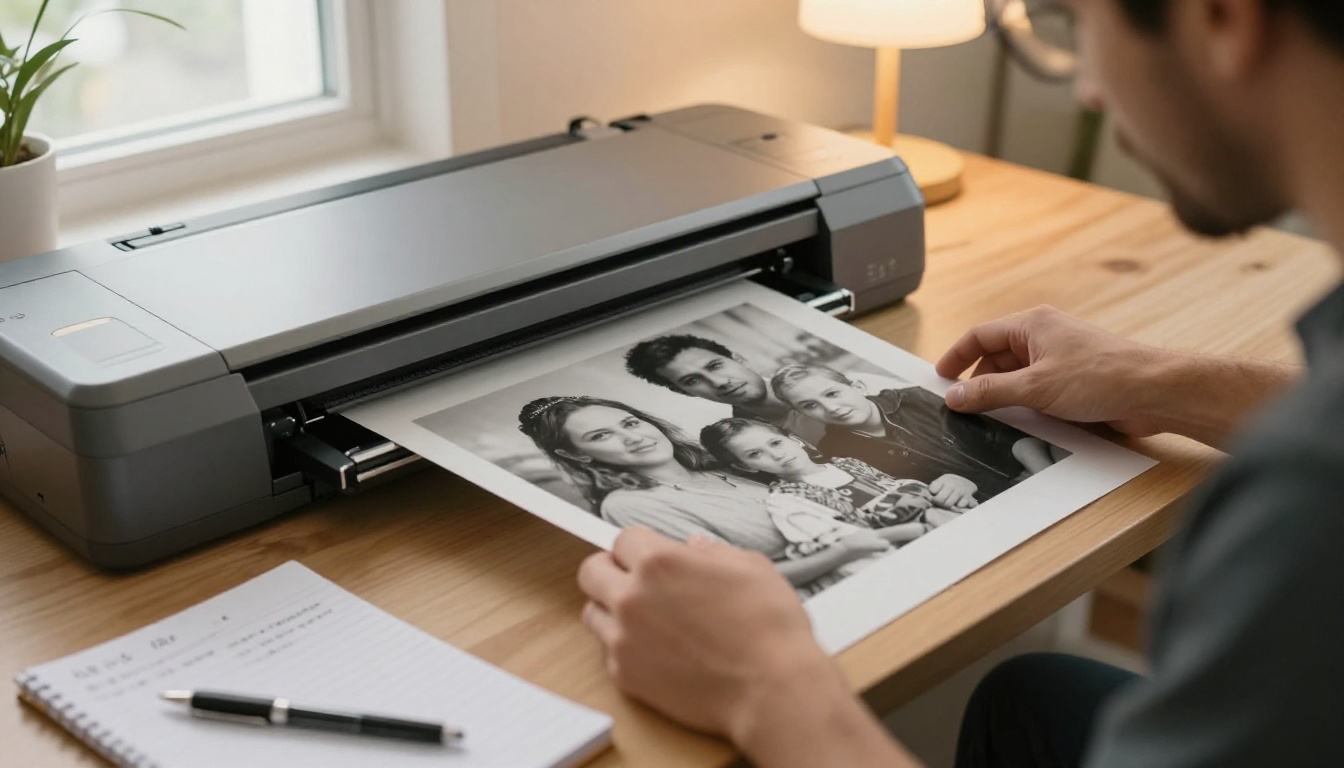
This walkthrough uses MyHeritage Photo Enhancer as an example, since it offers a free tier and targets exactly this use case. The general steps apply to most browser-based AI restoration tools.
What you need: A scanned photograph in TIFF or high-quality JPEG format, and an email address.
- Scan the original at 600 DPI or higher and save as TIFF
- Open your chosen AI tool in a browser and create a free account
- Upload your scan. Most tools accept files up to 10-20MB on the free tier
- Select a restoration mode: look for options labeled "Restore" or "Colorize"
- Let the AI process. This typically takes 10-60 seconds depending on the tool
- Review the result at 100% zoom. Check faces, edges, and previously damaged areas for artifacts
- Download the result. Free tiers often watermark or compress the output file
- Apply a second pass if needed. Some tools allow chaining: sharpen first, then colorize separately
- Compare at full resolution with your original scan before deleting anything
- Save both files with clear names like
1967_backyard_scan.tif and 1967_backyard_restored.jpg
✅ Never delete your original scan. AI restoration is interpretive, and you may want to reprocess the same image with a better tool in two or three years as the technology improves.
5 Mistakes That Ruin Photo Restorations
Photo restoration is easier than it has ever been, but these consistent errors produce disappointing results or permanently lost originals:
- Over-sharpening faces: AI sharpening can turn a soft portrait into an uncanny, plastic-looking face. Use sharpening at 50-70% of maximum, not 100%.
- Skipping the original backup: Overwriting or discarding the original scan is the single most irreversible mistake in any restoration workflow.
- Using JPEG for intermediate files: Every time you save a JPEG, you lose image data. Use TIFF or PNG for any file you plan to edit further before final export.
- Ignoring color cast in scans: Old prints often carry a strong yellow or magenta cast from paper aging. Correcting this color cast before AI processing gives significantly better restoration results.
- Treating AI colorization as fact: AI assigns colors based on statistical probability, not historical record. Grandma's dress may have been red, not the blue the AI chose. Label colorized images clearly so future family members understand the distinction.
Turn Restored Photos into a Digital Album with Flipbooks AI
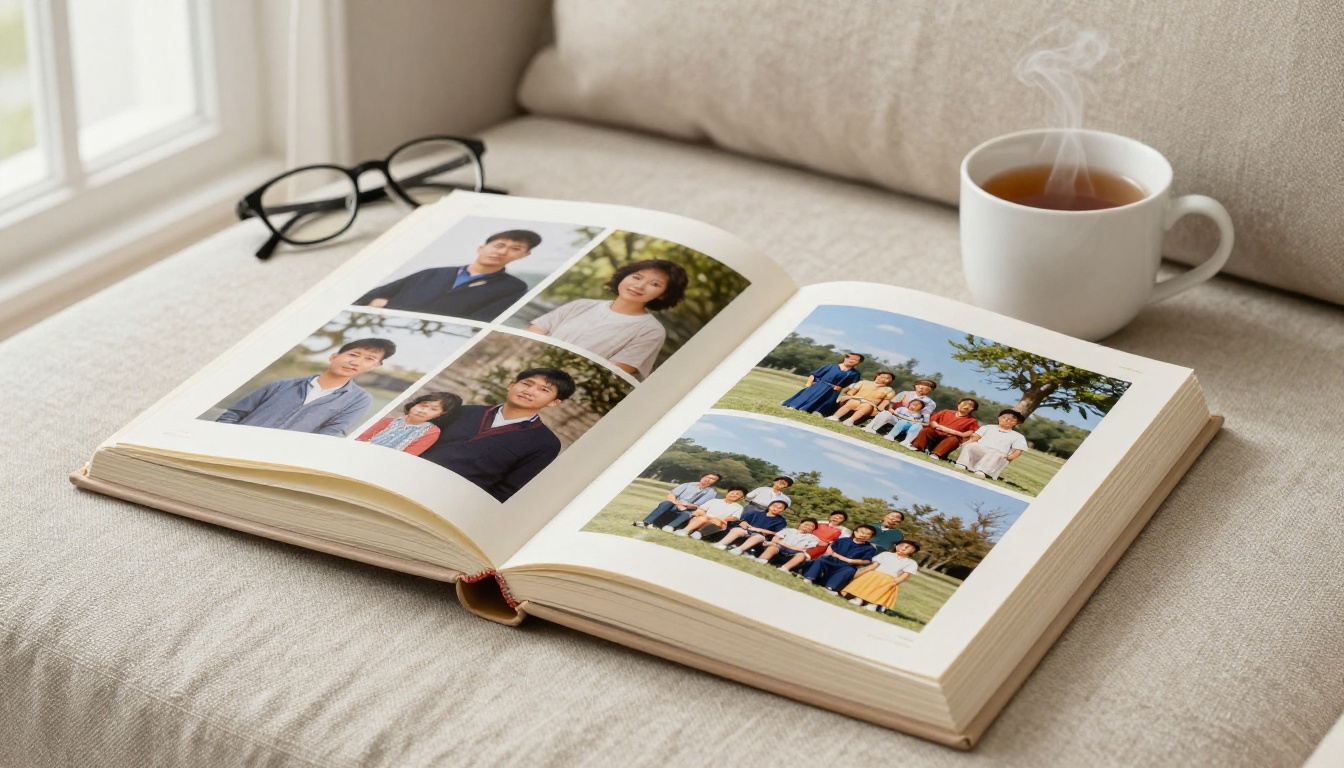
Once you have a collection of cleaned-up, restored family photographs, the next challenge is sharing them meaningfully. A folder of JPEG files on a Google Drive link is functional but flat. Flipbooks AI turns that collection into an interactive, page-turning digital album that relatives can browse on any device without downloading anything.
How to Create a Family Photo Flipbook
The Photography Portfolio flipbook tool and the Wedding Album Flipbook are both well-suited to family archive projects, offering page-by-page navigation that mirrors the experience of holding a physical album.
- Prepare your PDF: Arrange your restored photographs in a presentation tool like Canva or Google Slides. Export as PDF at maximum quality.
- Create an account at Flipbooks AI. The free tier lets you test the conversion immediately.
- Upload your PDF: Drag and drop your file. The converter handles the rest, turning each page into a high-quality flip-page interface with realistic page-turn animation.
- Add custom branding: Set a title like "The Mitchell Family Archive, 1940-1985", choose a color scheme, and add your family name to the design.
- Enable password protection: For private family content, this feature keeps your album visible only to people you share the password with.
- Share the link: Copy the URL and send it by email, text, or post it in a family group chat. Recipients view the album in their browser with no app install required.
- Embed on a family website: If your family maintains a genealogy site or memorial page, the embed code drops the full flipbook directly into any webpage.
Features available on Flipbooks AI:
- No watermarks, ever
- Unlimited flipbooks on Standard plan and above
- Password protection for private family content
- Analytics to see who viewed your album and when (Professional plan)
- Offline download option for relatives without reliable internet
- Mobile-responsive design that works on phones and tablets
- Custom branding with your own colors and design
💡 The Digital Portfolio Creator works beautifully for curated "best of decade" collections, letting you build themed mini-albums (one per decade or one per family branch) rather than one overwhelming archive that nobody wants to scroll through.
Pricing Options
See pricing plans before committing to a paid tier. For most family archive projects, the Standard plan covers everything needed: unlimited flipbooks, no watermarks, and password protection. The Professional plan adds analytics and lead generation tools, which are more relevant for commercial use than personal family archives.
3 Creative Ways to Share Restored Family Photos
Beyond a standard digital album, restored photographs open up several meaningful sharing formats that bring people together around shared history.
Annual Family Newsletter: Use the Newsletter Flipbook Publisher to create a yearly digital newsletter combining restored historical photos with current family updates. Send the link each December as a living, growing family record that accumulates over time.
Memorial Tributes: A memorial flipbook combining restored historical photos with recent images and written tributes is a more permanent and accessible alternative to a printed memorial booklet. Password-protect it for family-only access and share the link at the service or send it directly to those who could not attend.
Reunion Slideshows: Upload a decade-by-decade album for display at a family reunion. The flipbook format on a large screen television is far more engaging than a standard slideshow, and relatives can browse independently at their own pace rather than waiting for someone else to advance the slides.
The Right Workflow from Start to Finish
Putting it all together, here is the recommended sequence for a full family album restoration project:
| Phase | Task | Time Required |
|---|
| 1. Inventory | Sort physical albums, identify priority photos | 1-3 hours |
| 2. Digitization | Scan at 600+ DPI in TIFF format | 2-8 hours per album |
| 3. Cleanup | Rotate, crop, remove basic dust in any photo editor | 1-2 hours |
| 4. AI Restoration | Run photos through AI sharpening and colorization | 1-3 hours |
| 5. Review | Compare originals vs. restored at 100% zoom, reject artifacts | 1-2 hours |
| 6. Archive | Organize files with clear naming, back up to two locations | 30-60 minutes |
| 7. Publish | Assemble PDF, create flipbook on Flipbooks AI, share link | 1-2 hours |
The entire workflow for a single album of 50-100 photographs typically takes one focused weekend. The result is a permanent, shareable digital archive that can be passed down alongside or instead of the fragile physical originals.
What the Next Few Years Look Like
AI photo restoration capabilities are improving faster than most people realize. Tools available in 2024 already handle damage that required professional retouching artists just five years ago. In the near term, expect video restoration (applying the same AI techniques to Super 8 and VHS family footage), 3D depth reconstruction from flat photographs, and automated archiving systems that scan, categorize, and date photographs automatically from visual context clues like clothing styles and vehicle makes.
None of these developments change the core workflow described here. Digitize now, at the highest quality you can manage, and the images will be ready for whatever comes next.
Start Preserving What Matters
The photographs sitting in albums and shoeboxes right now will not wait indefinitely. Paper degrades. Emulsion cracks. Floods happen. The cost of digitizing and restoring a family album has never been lower, and the tools have never been more capable.
Start with the photographs you would be most devastated to lose. Scan them this weekend. Run them through an AI restoration tool. Then bring them to life as a shareable digital album on Flipbooks AI so every branch of your family can browse them, regardless of where they live.
Ready to build your first family album flipbook? Try it free and see how quickly a box of deteriorating prints becomes something worth sharing. Browse all available tools to find the right format for your project.



