You have 3,000 photos on your phone, a birthday coming up, and a vague plan to "make an album someday." The gap between that plan and a finished book is almost always the software. Pick a tool that fights you and the project stalls in week one. Pick one that fits and you can finish a 30 page photobook in a single evening, then share it with the whole family through a link on Flipbooks AI.
This article compares album and photobook design software by what actually matters: cost, templates, print sizes, export quality and online sharing. You will see which free options are worth your time, which file settings avoid blurry prints, and how to turn the same layout into a digital page-turning book anyone can open on a phone.
What Photobook Software Actually Does
At its core, photobook software is a layout engine. It places photos on pages, keeps margins consistent, lets you add captions, and exports a file that a printer or a screen can read. Everything else, such as auto-fill, face detection or themed backgrounds, is a convenience layer on top.
Desktop, Web and Mobile Tools
Each category has a different trade-off, and the right choice depends on how many photos you have and where the book will end up.
| Tool type | Best for | Strengths | Weak spots |
|---|
| Desktop layout apps | Large, detailed books | Full control, works offline, handles big files | Steeper setup, some cost money |
| Web editors | Quick family albums | No install, built-in templates, easy sharing | Needs good internet, export limits |
| Mobile apps | Travel diaries, small books | Photos are already on the device | Small screen makes fine alignment hard |
| Print lab software | Books printed by one shop | Exact print specs, instant price preview | Locked to that lab's products |
Who Needs Which Type
A parent assembling a first-year baby album should lean toward a web editor with templates. A wedding photographer delivering 80 pages to a client needs a desktop layout app with precise bleed and export controls. Someone making a quick holiday memory book from a phone can start on mobile, then finish on a laptop.
💡 Pro tip: Decide the final format before you pick the tool. A printed book, a PDF, and an online flipbook each have different requirements. Starting with the output saves rework.
Free Options Worth Trying
You do not need to spend money to produce a good looking photobook. The free tier of most tools is enough for a first project. The catch is usually in the export, where watermarks, low resolution or locked print products appear.
Free Web Editors
Browser-based design editors offer photobook and album templates with drag and drop placement. They are ideal when you want to build a 20 to 40 page book quickly. Check three things before investing time: whether PDF export is allowed on the free plan, whether the export is high resolution, and whether a watermark is added.
Open Source Layout Apps
Open source desktop publishing software, such as Scribus, is free with no watermark. It gives professional controls over bleed, color profiles and master pages. The trade-off is time: expect an afternoon of setup before your first page looks right. It suits people who enjoy control and plan to make several books.
Lab Software From Print Shops
Many print shops offer a free downloadable or browser editor. Because the software is built around the lab's own paper and binding, the preview is close to what arrives in the mail. The downside is that your project often cannot leave that ecosystem.
| Free option | Cost to start | Watermark risk | Export freedom | Learning effort |
|---|
| Browser design editors | Free tier | Sometimes on premium assets | Often PDF, varies by plan | Low |
| Open source layout apps | Free | None | Full PDF control | Medium to high |
| Print lab editors | Free | None | Usually tied to lab orders | Low |
| Presentation software | Often already owned | None | PDF export works | Low |
⚠️ Watch out: "Free" sometimes means free to design and paid to download. Run a one-page test export before building 40 pages.
Templates That Save Hours
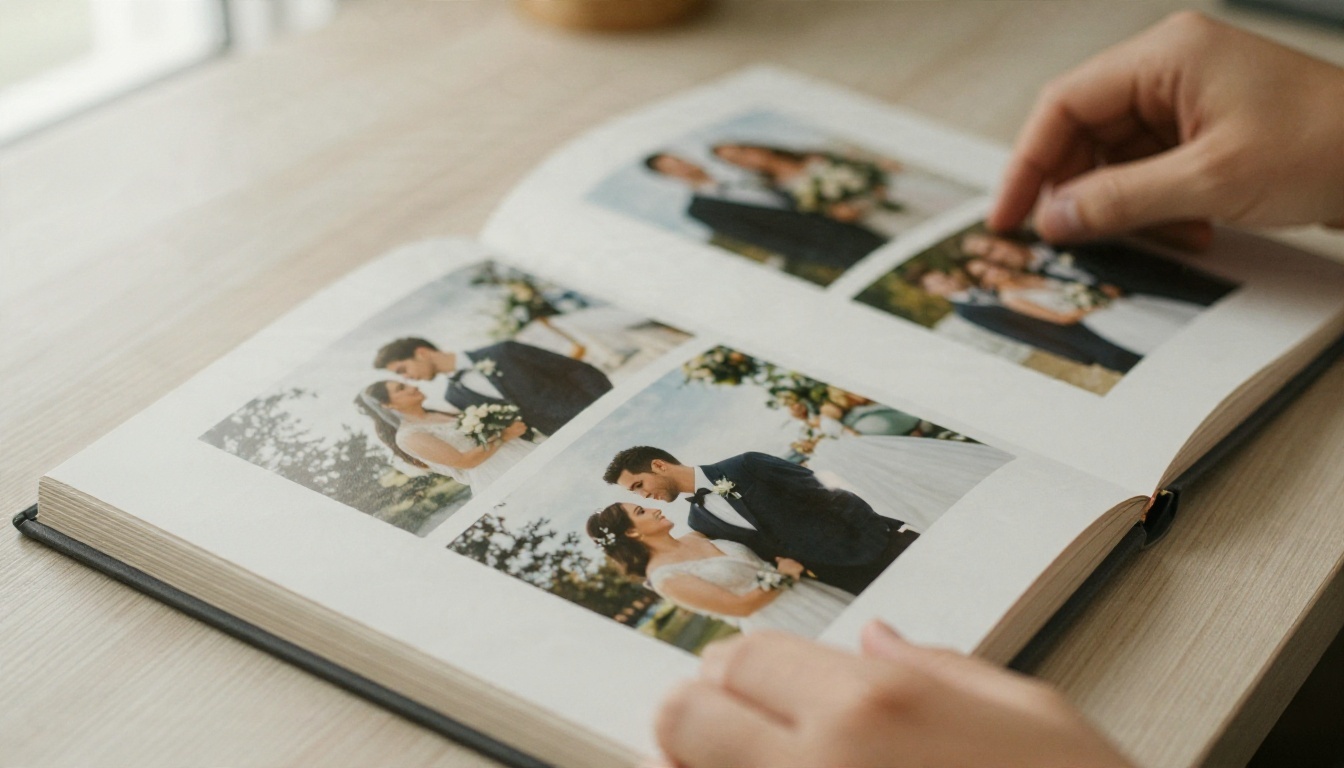
Templates are the fastest route from a pile of photos to a clean book. A good template locks in margins, font pairings and spacing so you only decide which photo goes where.
Picking a Layout Style
Match the template to the story, not to the trend.
- Full bleed layouts: one dramatic photo across the whole page. Great for landscapes and portraits.
- Grid layouts: four to nine photos per page. Perfect for events and school years.
- Collage layouts: mixed sizes with captions. Suited to travel diaries.
- Minimal layouts: one photo with lots of white space. A strong fit for wedding and art albums.
Mistakes With Templates
- Overfilling pages. More than six photos per page makes a book feel like a contact sheet.
- Ignoring photo orientation. Portrait shots forced into landscape frames get cropped badly.
- Mixing too many fonts. Two typefaces is plenty.
- Skipping the cropping check. Faces near the page edge or the center fold can be lost.
✅ Best practice: Use one template family for the whole book, and break the pattern only for two or three hero pages.
Print Sizes and File Specs
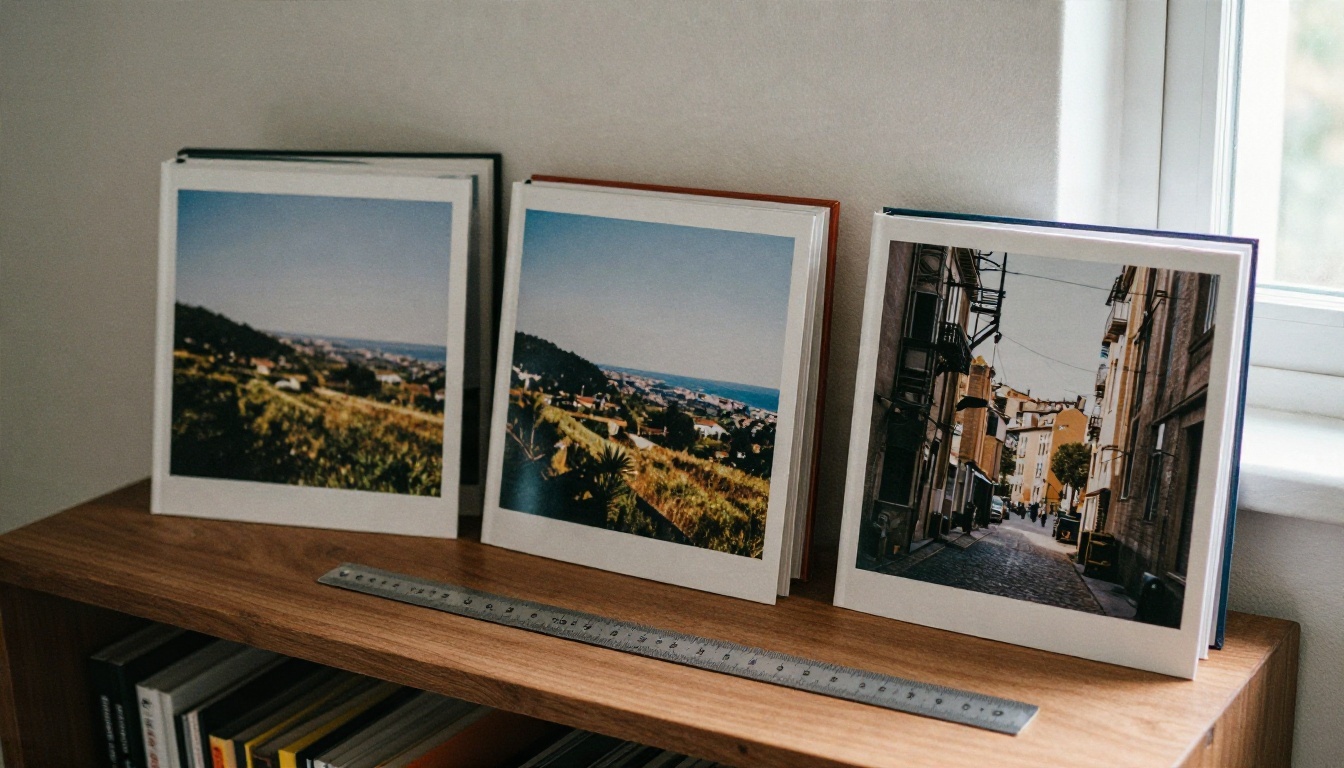
Size changes everything: price, page count, and how photos feel. Square formats are popular for social media photos, landscape books suit scenery, and portrait books favor people and documents.
Common Photobook Sizes
| Format | Typical size | Orientation | Good for |
|---|
| Small square | 6 x 6 in (15 x 15 cm) | Square | Gifts, pocket albums |
| Standard square | 8 x 8 in (20 x 20 cm) | Square | Family and baby books |
| Large square | 12 x 12 in (30 x 30 cm) | Square | Weddings, showpieces |
| Portrait | 8 x 10 in | Vertical | Portrait and fashion work |
| A5 / A4 | 14.8 x 21 cm / 21 x 29.7 cm | Vertical or horizontal | Europe, travel journals |
| Landscape | 11 x 8.5 in | Horizontal | Scenery and road trips |
Exact dimensions vary by printer, so always download the lab's template before you design.
Resolution, Bleed and Margins
These three settings cause most print disappointments.
- Resolution: aim for 300 DPI at the printed size. A photo that looks sharp on screen may be too small for a full page.
- Bleed: extend backgrounds and edge-to-edge photos about 3 mm (0.125 in) beyond the trim line. The cutter is never perfectly exact.
- Safe margin: keep text and faces at least 6 mm (0.25 in) inside the trim edge.
- Color: export in sRGB unless your printer specifies another profile.
💡 Pro tip: Lay-flat binding hides less of the center of a spread than standard binding. If a panoramic photo crosses two pages, choose lay-flat and keep faces away from the center.
Build an Album in Seven Steps
Here is a workflow that works in any tool, free or paid.
- Choose the story. One trip, one year, one event. Books with a clear scope finish; "everything" books do not.
- Cull ruthlessly. Pick about 60 percent more photos than you need, then cut down. Remove near duplicates.
- Sort by sequence. Chronological order is the easiest, but themes also work.
- Set the page size. Use your printer's template or a standard size from the table above.
- Place hero photos first. Decide the opening spread, the middle highlight and the closing page.
- Fill in supporting pages. Use grid or collage templates, and add short captions with dates and places.
- Proof twice. Read captions aloud, zoom to 100 percent on a few photos, and view each spread as the reader will.
Online Sharing Without the Printing Bill
Printed books are wonderful, but they are one copy in one house. Relatives overseas, wedding guests and clients all want to see the album today. This is where a digital page-turning version helps.
How to Create an Online Album with Flipbooks AI
Export your finished layout as a PDF, then follow these steps. For a quick path, the PDF to Flipbook Converter handles the conversion.
- Get started. Open Flipbooks AI and create an account. You can try it before committing to a plan.
- Upload the PDF. Drag your photobook PDF into the upload area. Each page becomes a flipbook page, and the conversion usually takes a short while depending on file size.
- Customize the look. Add your branding, choose a background color, and pick page-turn effects. A soft neutral background lets photos stand out.
- Add multimedia. Embed a video clip or an audio track, such as wedding vows or a favorite song, on the relevant pages.
- Share it. Copy the direct link, or use the embed option to place the album on your website or blog.
- Protect private albums. Turn on password protection for family photos or client galleries.
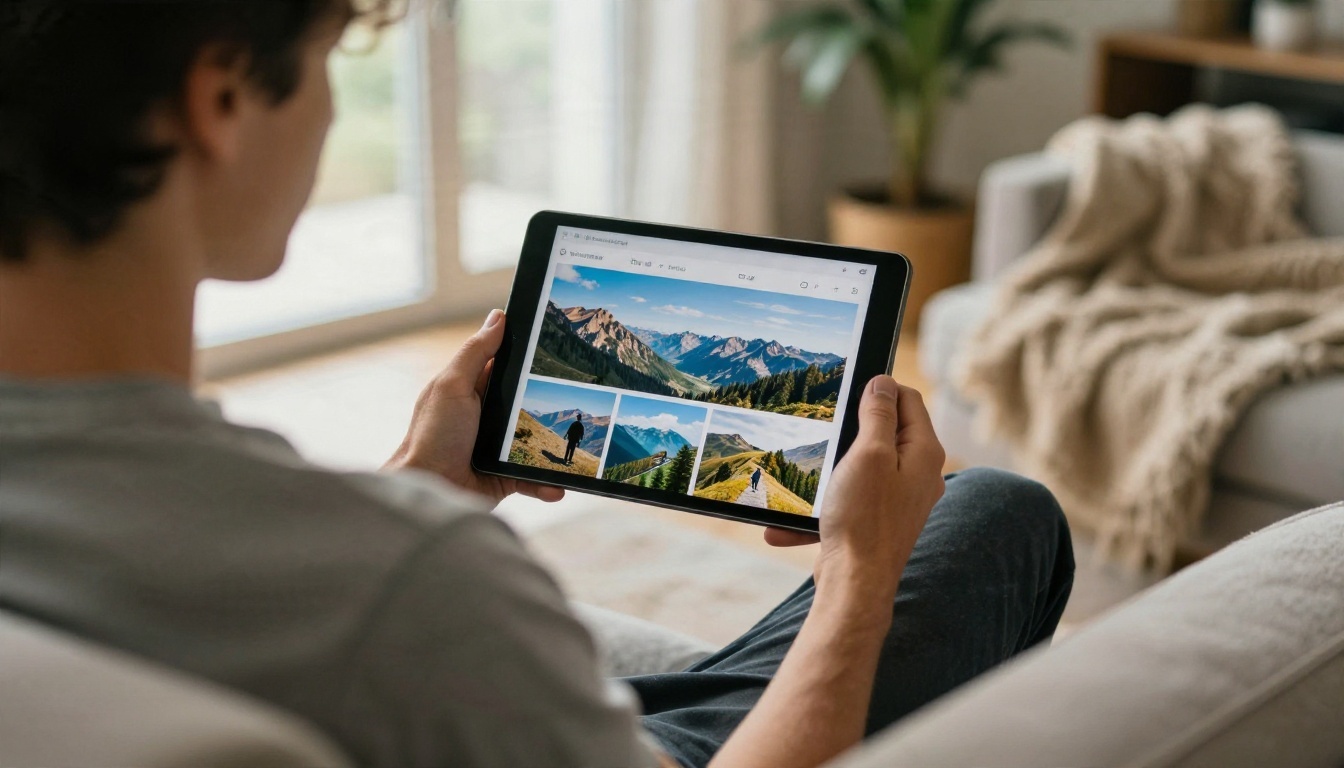
The result is mobile-responsive, so relatives can swipe through on a phone with no app to install, and the flipbooks carry no watermarks.
Professional Features Worth Having
On the Professional plan, you can see analytics about who opened the album and which pages they spent time on. Photographers can also use lead generation forms and offer offline downloads. Compare pricing plans to see which tier fits your needs.
| Sharing method | Setup effort | Privacy control | Best for |
|---|
| Printed book | High | Physical only | Gifts, keepsakes |
| Raw PDF by email | Low | None once sent | One-off delivery |
| Cloud photo folder | Low | Link based | Raw photo access |
| Flipbook link | Low | Password option | Page-turning viewing |
| Embedded flipbook | Medium | Site controlled | Portfolios, blogs |
Real Examples You Can Copy
A Wedding Photographer's Delivery
A photographer designs a 40 page album in a desktop layout app, sends it to a lab for printing, and exports the same layout as a PDF. The couple's relatives get a password protected link using the Wedding Album Flipbook tool, so no one waits for the printed copy.
A Family Travel Journal
A family on a two week road trip builds a landscape album in a free web editor, adds a short caption for each day, and shares the flipbook link in the family chat. Grandparents flip through it on a tablet. The Travel Guide Flipbook tool suits this format well.
A Portfolio for Clients
A freelance photographer collects the best work into a 20 page book. With the Photography Portfolio flipbook, the portfolio gets embedded on the home page and the analytics show which sections prospects look at most.
A School Memory Book
A teacher builds a year-end book from classroom photos, using grid templates for events. Parents receive one link through the class newsletter. The Yearbook Flipbook Maker fits this case.
If you want a simple rule: use a free web editor for a first book, an open source or desktop layout app when you need precision, and a flipbook for sharing. Always test the export on one page, design to the printer's template, and keep 300 DPI on every full page photo.
Ready to share your finished album? Get started for free on Flipbooks AI, browse all flipbook tools for albums, portfolios and catalogs, or compare pricing plans to choose what works for you.



