Your phone holds thousands of photos, and almost none of them will ever be looked at again. They sit in a camera roll, buried between screenshots and receipts. An album creator app fixes that by giving your pictures an order, a story and a way to be shared. If you want the experience of turning real pages without paying for printing, platforms like Flipbooks AI let you turn a simple PDF into a page-flip album that opens on any phone, tablet or laptop.
This article looks at what an album creator app really does, which free online options are worth your time, how to build a page-flip album from scratch, and how to share it without asking anyone to install anything. Expect honest comparisons, a step-by-step tutorial, and a few mistakes I would rather you avoid.
What an Album Creator App Does
At its simplest, an album creator app takes a pile of photos and arranges them into something with a beginning, a middle and an end. Some apps stop at a slideshow. Others give you proper pages, captions, layouts and a way to share the finished product. The best ones do all of that on a phone screen without making you fight the interface.
Printed Albums vs Digital Albums
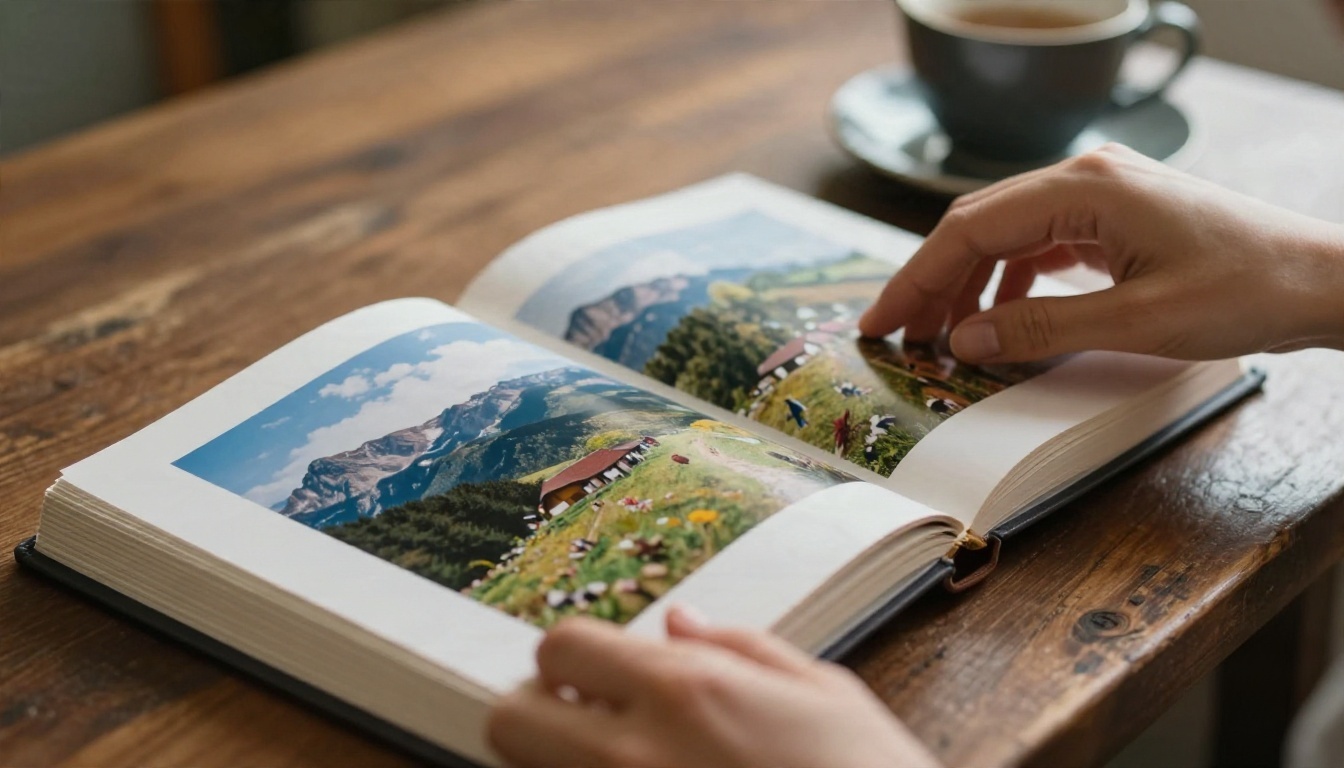
A printed album feels wonderful. The paper has weight, the prints have a smell, and guests pick it up without being asked. The downside is cost, shipping, storage and the fact that only one person can hold it at a time. If a relative lives in another country, a printed album means a parcel and a two week wait.
A digital album trades the smell of paper for speed. You can fix a typo at midnight, add the last three photos from a trip, and send the result before breakfast. Nobody needs a shelf for it either.
| Feature | Printed album | Digital page-flip album |
|---|
| Upfront cost | Medium to high | Free to low |
| Time to finish | Days to weeks | Minutes to hours |
| Easy to edit later | No | Yes |
| Shareable with many people | One copy at a time | Unlimited viewers via link |
| Works on a phone | No | Yes |
| Feels like turning pages | Yes | Yes, with page-flip effect |
Why the Page-Flip Effect Matters
A scrolling gallery is efficient, but it has no rhythm. Page-flip albums bring rhythm back. Viewers swipe or click, the page curls over, and the next spread appears. That small motion tells the brain it is looking at a collection and not a feed. People linger longer, and they tend to go through the album in the order you intended.
💡 Pro tip: If your goal is to show a story, such as a wedding day or a first year of parenthood, choose a page-flip format. If you only need to dump 400 photos for quick download, a plain shared folder is fine.
Free Online Options Compared
"Free" means different things depending on who is saying it. Some tools are free forever but limited. Others are free until you try to export. Before you spend an evening building something, check three things: whether there is a watermark, whether you can share by link, and whether the album works on a phone.
Built-In Phone Gallery Apps
Every modern phone ships with a way to make a basic album or memory reel. It costs nothing and needs no sign up. The trade-off is control. You rarely get custom page layouts, and sharing often means sending a video or a cloud link tied to a specific ecosystem. Friends on a different type of phone may see a reduced version.
Cloud Photo Services
Cloud services let you create shared albums and invite people. They are excellent for collecting photos from a group, say after a birthday party where everyone took pictures. They are less excellent for presenting those photos. You get a grid, not a story, and you cannot easily control the order of pages or add a title spread.
Free Flipbook Tools
This is where page-flip albums live. You design your album in any app you like, export it as a PDF, and convert it into a flipbook that turns pages on screen. Flipbooks AI follows this approach, and you can try it free before deciding whether a paid plan makes sense. One thing worth noting is that the platform promises no watermarks, ever, which matters a lot when the album is a gift.
| Option type | Page-flip look | Share by link | Embed on a site | Watermark risk |
|---|
| Phone gallery app | No | Sometimes | No | Low |
| Cloud photo service | No | Yes | Limited | Low |
| Free slideshow maker | No | Often | Sometimes | Medium to high |
| PDF to flipbook converter | Yes | Yes | Yes | Depends on tool |
| Flipbooks AI | Yes | Yes | Yes | None |
⚠️ Watch out: Some free tools add a logo on the last page or across every photo. Always preview the exported album on your own phone before sending it to anyone you want to impress.
Build a Page-Flip Album Step by Step
Here is the practical part. This tutorial assumes you have a folder of photos and about thirty minutes. The process works for a holiday, a wedding, a baby's first year or a simple "best of this year" collection.

Step 1: Pick and Order Your Photos
Start with a ruthless edit. If you took 600 pictures on a trip, forty will tell the story better than all of them together. Pick one strong opening image, group the rest by place or moment, and end with something quiet, such as a sunset or a sleeping child.
A reliable page plan looks like this:
- Opening page: one big photo and a short title.
- Chapters: two to four photos per spread, grouped by theme.
- Highlight spread: one full-bleed image with a caption.
- Closing page: a calm photo and the date.
Step 2: Lay Out the Pages as a PDF
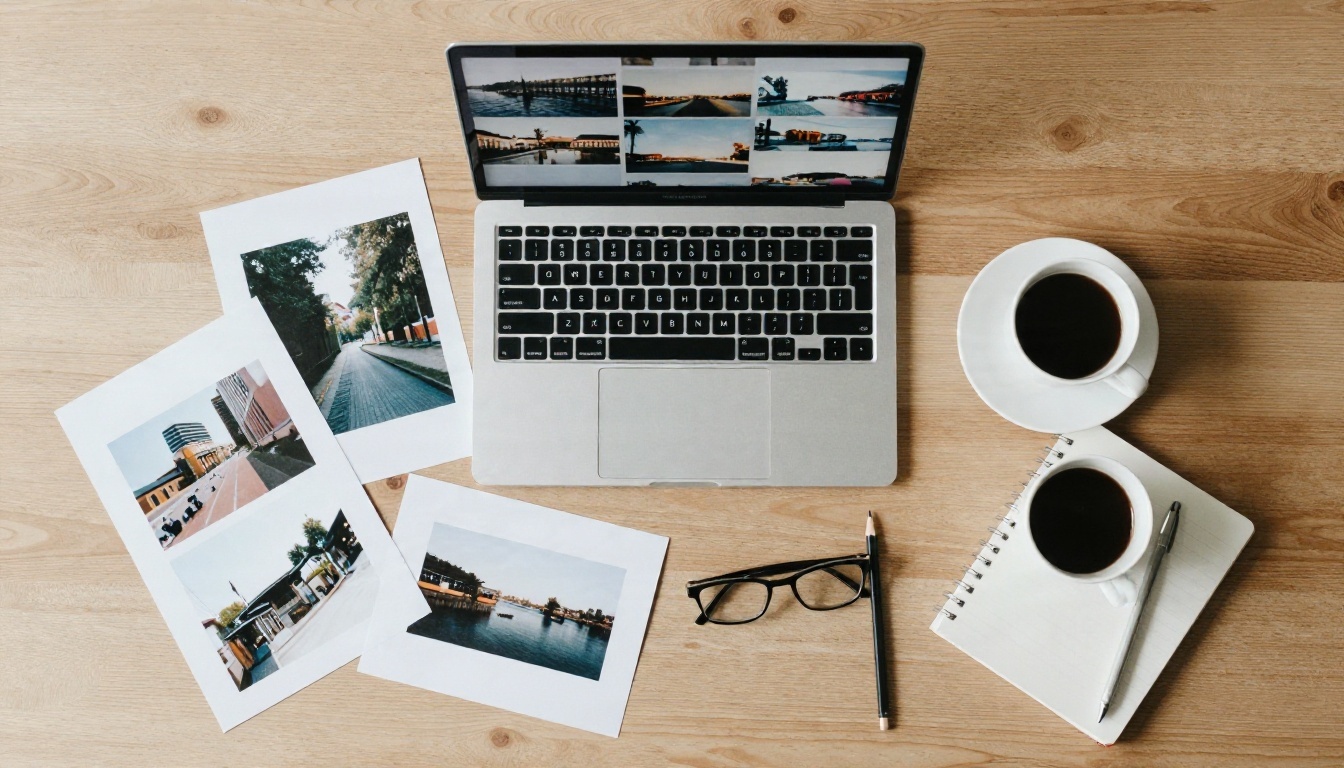
Use any tool you already like to design the pages. A free design app, a word processor or a presentation tool will do. Export the result as a PDF at screen quality. A 20 to 40 page album with good photos usually stays comfortably small. This PDF is the raw material for your flipbook.
Step 3: Upload and Convert
Create an account on Flipbooks AI and upload your PDF. The platform converts each PDF page into a flipbook page, keeps the order you set, and generates a page-turn animation automatically. For this step, the PDF to Flipbook Converter is the tool you want. For wedding albums specifically, there is also a dedicated Wedding Album Flipbook page, and photographers can look at the Photography Portfolio option.
Step 4: Customize the Look
Once the flipbook appears, tune it to suit the mood of the album. You can adjust:
- Background color: warm cream for family albums, deep charcoal for travel photography.
- Page effects: soft page curl and shadow so the flip feels natural.
- Branding: add your own logo if the album is for a business or a studio.
- Multimedia: embed a short video clip or a song so the album plays audio while viewers browse.
✅ Best practice: Keep the background simple. Busy backgrounds fight with photos, and the page-flip animation already provides plenty of movement.
Step 5: Share and Protect It
When you are happy with the result, choose how to share. You can copy a direct link, embed the album on a website, or restrict access with a password. Professional plans add analytics and lead generation, plus offline downloads so viewers can keep a copy. The next section goes deeper on each option.

Easy Sharing Without the Headaches
An album nobody can open is just a file. Sharing is where most free tools quietly fall apart, so it deserves its own plan.

Direct Links
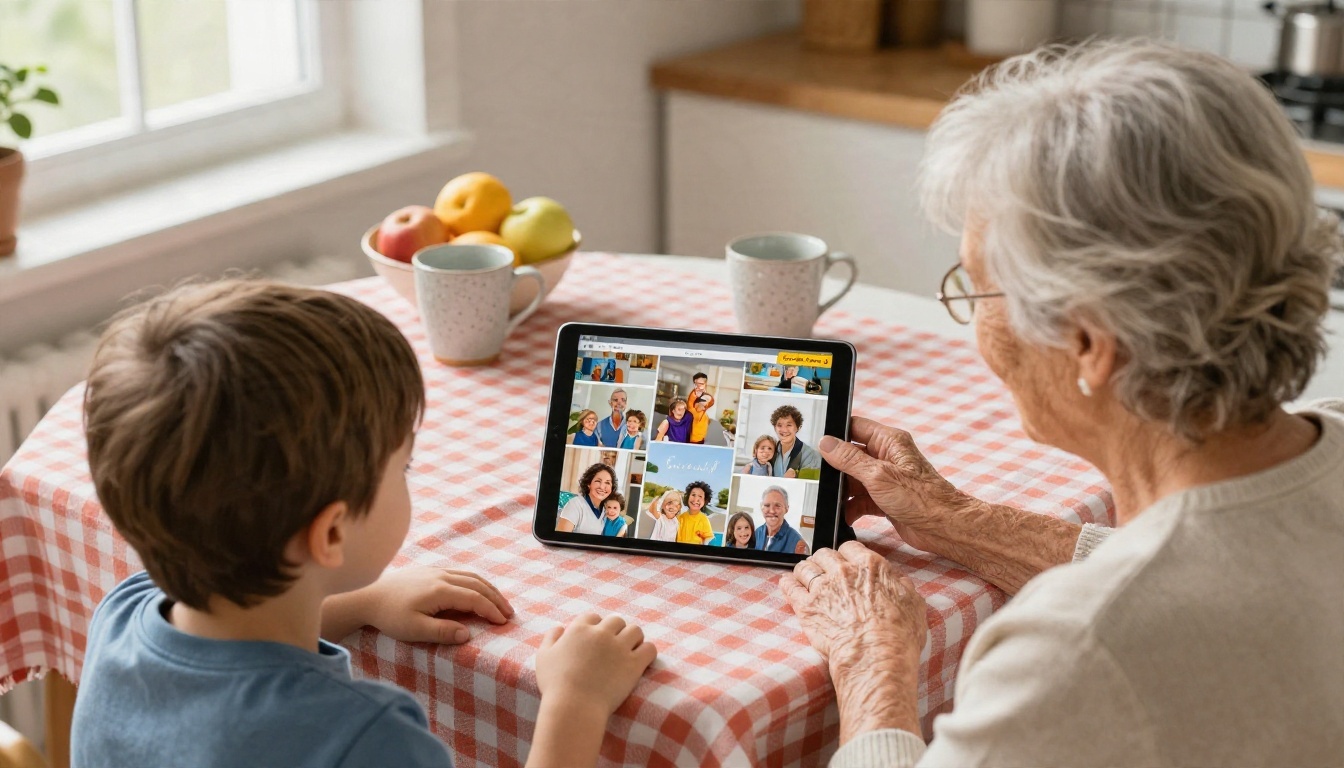
A link is the simplest option. Paste it into a messaging app, an email or a group chat. Viewers tap, the album opens in their browser, and they start flipping. There is no app to download and no account to create. For grandparents and less technical friends, this is a gift.
Embedding on a Website
If you run a blog, a family site or a small business page, embed the album directly in a page. The Embed Flipbook on Website tool gives you a snippet you can paste into your site. Photographers use this to show a gallery on their own domain without sending visitors elsewhere.
Password Protection
Family albums often include children, private events or personal moments. A password keeps the album between the people you meant to share it with. Share the link in one message and the password in another, and you already have a better setup than most public photo links.

| Sharing method | Best for | Needs account to view | Privacy level |
|---|
| Public link | Friends, social posts | No | Low |
| Password protected link | Family, private events | No | High |
| Website embed | Photographers, small businesses | No | Depends on site |
| Offline download | Travel, poor connections | No | High |
💡 Pro tip: For a gift album, send the password separately and add a short personal note on the first page. It makes the moment of opening feel intentional.
Album Ideas That Get Opened
A beautiful album is wasted if it has no reason to exist. These are real-world scenarios where a page-flip album works better than a camera roll.

Wedding and Anniversary Albums
A wedding generates thousands of photos, and couples often wait months for an album. With a digital page-flip version, you can build a preview album the week after the wedding and send it to guests who could not attend. Add a favorite song and the first dance video, and you have something that feels finished long before the printed copy arrives.
Baby and Family Milestones
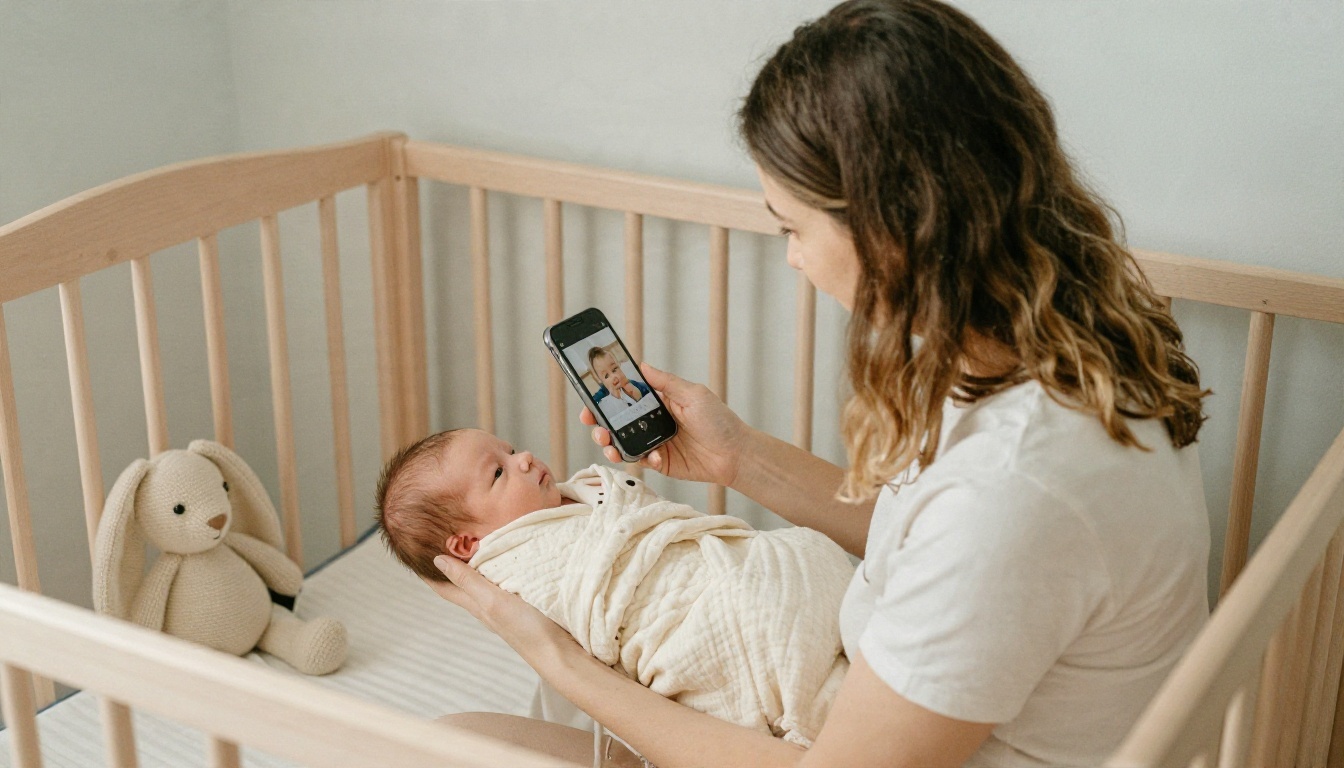
Parents rarely have time to build a perfect album. A page-flip album lets you add a page each month and keep the same link. Grandparents bookmark it and check back, and you never need to resend files. When the child is older, the whole first year is in one place.
Travel and Holiday Memories
Travel albums benefit most from captions and maps. Add a title page with the route, then one spread per destination. A short caption under each photo turns "nice beach" into "the afternoon we missed the last bus and stayed for sunset". The Travel Guide Flipbook tool is useful if you want to turn the album into something other travelers can follow.
| Use case | Ideal page count | Suggested extras | Sharing style |
|---|
| Wedding preview | 20 to 30 | Music, video clip | Password link |
| Baby first year | 24 to 36 | Monthly captions | Private link |
| Holiday trip | 16 to 24 | Map page, captions | Public or private link |
| Family reunion | 12 to 20 | Name labels | Group chat link |
| Photographer showcase | 20 to 40 | Branding, contact page | Website embed |
Tips for Phone Photographers
Most albums start on a phone, so it makes sense to build the habit there. A few small decisions during shooting save hours later.
- Shoot in the same orientation for photos you plan to place full page. Mixed orientation makes layout slower.
- Favorite as you go. Tap the heart on the best shots the same day, and your edit is half finished.
- Take establishing shots. A wide photo of a place gives each chapter a natural opener.
- Capture details. Tickets, menus and hands make an album feel lived in.
- Back up before editing. Keep originals safe in a cloud folder or on an external drive.
Because Flipbooks AI produces mobile-responsive flipbooks, the album you build on a laptop will fit a phone screen without any extra work. That matters because most viewers will open your link from a messaging app on their phone, not at a desk.
Mistakes That Ruin Good Albums
Even good photographers make the same errors. Here are the ones I see most.
- Too many photos per page. Four to six is the maximum for comfortable viewing on a phone. Two or three is better.
- No story order. Chronological is safe, but thematic chapters can be stronger. Pick one and stay consistent.
- Huge PDF files. A 300 MB file will load slowly for viewers on mobile data. Compress images before exporting.
- Unreadable captions. White text on a light photo disappears. Use a darker band or choose another photo.
- Skipping the preview. Always open the finished album on a phone and a laptop before sharing.
⚠️ Warning: Do not share a public link for an album that includes children's full names, home addresses or school uniforms. Use password protection instead.
Choosing the Right Plan
If you only need to make one or two albums, a free option is a sensible starting point. If you plan to create many albums, brand them as a business, or track who opens them, paid features begin to earn their place.
| Need | Free trial approach | Paid plan approach |
|---|
| One family album | Works well | Not needed |
| Many albums for a year | Limited | Unlimited flipbooks on the Standard plan and above |
| Track viewers | Not available | Analytics on the Professional plan |
| Collect contact details | Not available | Lead generation on the Professional plan |
| Custom branding | Basic | Full custom branding |
Compare all options on the pricing page to see what suits your situation. If you are a photographer or a studio, check the Digital Portfolio Creator to see how an album can double as a client showcase.
Make Your First Album Today
You do not need a design degree or a big budget to turn a camera roll into something people enjoy opening. Pick forty photos, arrange them into a PDF, and let a flipbook platform do the page-turning for you. The whole process fits into an evening, and the result will outlast most of the printed albums on your shelf.
Ready to start? Create your free account on Flipbooks AI and upload your first album. Browse all flipbook tools to find a format that suits your project, or compare pricing plans when you are ready for unlimited albums, analytics and lead generation.



