You attach a polished PDF, press send, and assume everyone on the list can read it. Some of them can't. A PDF is not accessible just because it opens, and the email wrapper around it adds a second layer of problems. So, are PDFs accessible when sent as an email? Sometimes. It depends on how the file was built, which settings were switched on before export, and how the recipient's mail app handles attachments. This article walks through the tags, the settings, the email client quirks, and the alternatives, including how a tool like Flipbooks AI fits into a sharing workflow that doesn't leave anyone behind.
The Short Answer
A PDF can be fully accessible. It can also be a flat picture of text that a screen reader skips entirely. Both files look identical on screen, which is exactly why this topic catches so many senders off guard.
💡 Quick test: open your PDF and try to select a sentence with your cursor. If you can't highlight any text, the file is probably an image, and a screen reader will have nothing to read.
What Accessible Actually Means
An accessible PDF lets people with visual, motor, cognitive or hearing disabilities get the same information as everyone else. In practice that means:
- Real text, not scanned images of text.
- Tags that tell assistive software what is a heading, a paragraph, a list or a table.
- A logical reading order, so content is read in the sequence a sighted reader would follow.
- Alternative text for meaningful images and charts.
- Sufficient colour contrast, with a ratio of at least 4.5:1 for normal text under WCAG 2.1 AA.
- A declared document language and a descriptive title.
Standards such as WCAG, PDF/UA (ISO 14289), Section 508 in the United States and the European Accessibility Act all point to the same fundamentals. If you send documents to customers, students or the public, these are no longer nice extras. They are increasingly a legal expectation.
Why Email Adds Extra Risk
Email introduces problems that exist before anyone opens the file:
- The attachment filename and the email subject are the first things a screen reader announces. "scan0042.pdf" tells the listener nothing.
- Many people open attachments on a phone, inside a preview pane, or in a browser tab, not in a full PDF reader. Each of these renders the file differently.
- Large attachments can be blocked, trimmed or slow to download on weak connections.
- The email itself may contain no summary, so the reader has to open the attachment just to find out what it is.
What Breaks Accessibility in Email
Most failures come from a short list of causes. Here is how they map to real-world impact.
| Problem | Who is affected | Typical fix |
|---|
| Scanned pages with no text layer | Screen reader users, anyone using text to speech | Run OCR, then re-check tags |
| Missing or wrong tags | Screen reader and braille display users | Re-export with tags enabled, repair in Acrobat |
| Illogical reading order | Screen reader users, cognitive disabilities | Fix order in the tag tree or source file |
| Images with no alt text | Blind and low vision users | Add concise alt text, mark decoration as artifact |
| Low colour contrast | Low vision, colour blindness, bright sunlight | Raise contrast to 4.5:1 or better |
| Untitled file and no language | Screen reader users | Set title and language in document properties |
| Tiny text that won't reflow | Low vision users on phones | Use a larger base size or offer a reflowable format |
Scanned Pages and Missing Text
This is the most common and most damaging problem. A scanned contract, a photographed flyer or a "print to PDF" from an image editor all produce pages that are pictures. Optical character recognition (OCR) can add a text layer, but OCR makes mistakes with columns, tables and unusual fonts, so you still need to proofread the output.
Missing Tags and Reading Order
Tags are the hidden structure behind a PDF. Without them, assistive software guesses the order, and the guess is often wrong. A two column newsletter might be read straight across both columns, producing nonsense sentences. A table might be read cell by cell with no header context.
⚠️ Warning: "Print to PDF" and some online converters strip tags completely. Always use the export function inside your authoring tool instead.
Email Client Previews
Gmail, Outlook and Apple Mail each open PDFs in their own viewer. Some previews are built for speed, not accessibility, and may not expose the tag structure to assistive technology in the same way a desktop PDF reader does. The safe habit is to tell recipients they can download the file and open it in a dedicated reader if the preview doesn't work for them.
Settings to Check Before Sending
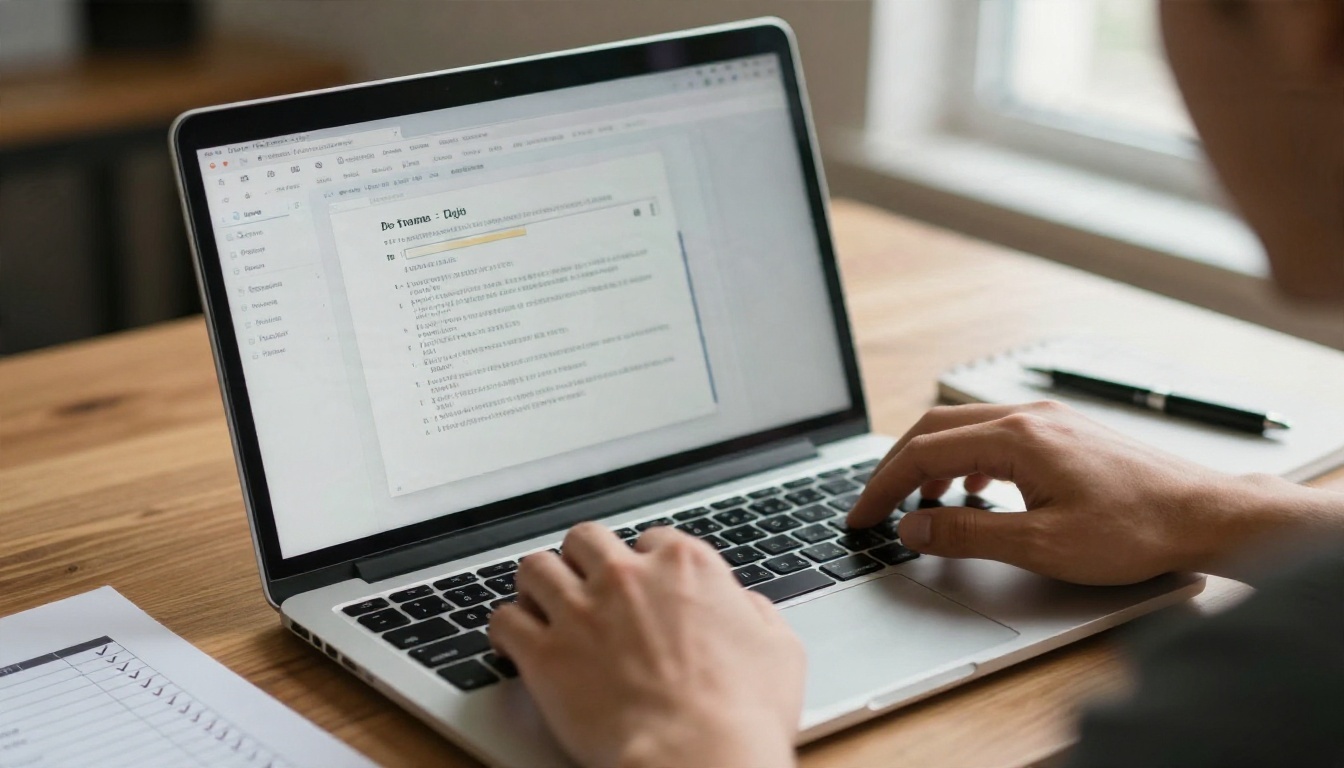
Accessibility is built in at the source, not patched at the end. Whether you start in Word, InDesign, Google Docs or PowerPoint, the sequence is similar.
Set Title and Language
Open the document properties in your source file and add a descriptive title such as "Spring Membership Pricing 2026". Then set the document language (English, Spanish and so on). Screen readers use the language to pick the right pronunciation rules. Without it, a Spanish document may be read with English phonetics.
Use Real Headings and Alt Text
Apply built in heading styles (Heading 1, Heading 2, and so on) instead of making text bold and bigger by hand. Use true bulleted and numbered lists, not hyphens typed manually. For every meaningful image, chart or logo that carries information, write alt text that explains the purpose, not just the appearance.
- Good alt text: "Bar chart showing sales rising from 12,000 in January to 31,000 in June."
- Weak alt text: "Chart" or "image1.png".
- Decorative images: mark them as decorative so they are skipped.
Export With Tags Enabled
When exporting, look for the option that creates tags. In Microsoft Word, choose Save As, PDF, Options and tick Document structure tags for accessibility and Create bookmarks using headings. In Adobe InDesign, tick Create Tagged PDF in the export dialog. In Google Docs, tags are generated automatically, though the structure still depends on proper heading use.
Run an Accessibility Checker
Run the checker twice: once in the source app and once on the finished PDF.
- In Word, go to Review, Check Accessibility and fix every error and warning.
- Export to PDF with tags enabled.
- Open the PDF in Adobe Acrobat and choose Tools, Accessibility, Accessibility Check.
- Review the Reading Order and Tags panels for anything out of sequence.
- Run a free tool such as PAC (PDF Accessibility Checker) for a second opinion.
- Rename the file with a plain, descriptive name before attaching it.
✅ Best practice: automated checkers catch roughly a third to half of real issues. Always do a manual pass, ideally with a screen reader such as NVDA (free on Windows) or VoiceOver on a Mac.
| Check | Where to do it | Automated? |
|---|
| Tags present | Acrobat Accessibility Check | Yes |
| Title and language set | Document Properties | Yes |
| Alt text on figures | Acrobat, PAC | Presence only, not quality |
| Reading order | Reading Order panel, screen reader | Manual |
| Colour contrast | Colour contrast analyser tool | Partly |
| Table headers | Tags panel | Partly |
| Link text makes sense | Visual review | Manual |
How Email Clients Handle PDFs
Even a perfectly tagged file can run into trouble depending on how it is delivered. This table gives a general picture. Behaviour changes with app versions, so test with your own audience.
| Environment | Typical behaviour | Practical tip |
|---|
| Gmail on the web | Opens a built in viewer, offers download | Add a download note in the email body |
| Outlook desktop | Previews or opens in the default PDF app | Works well if the user has Acrobat or a similar reader |
| Apple Mail and iOS | Quick Look preview, then Files or Books | Preview may be limited, suggest opening in a full reader |
| Android mail apps | Hands off to a PDF viewer or browser | Keep file size small to avoid timeouts |
| Corporate gateways | May scan, rewrite or block attachments | Send a secure link when files are large or sensitive |
A few habits help in every case:
- Put a plain text summary in the email body. Two or three sentences covering what the document is and what action is needed.
- Mention the file type and size ("PDF, 1.2 MB") so people know what to expect.
- Keep attachments under a few megabytes where you can. Compress images and subset fonts.
- Avoid password protection that blocks screen readers or copy permissions. Some restrictions switch off text extraction, which defeats accessibility.
Alternatives to PDF Attachments
Sometimes the best accessible format isn't a PDF at all. The right choice depends on the content and the audience.
Plain Text or HTML Email
For short announcements, put the content directly into the email. A well structured HTML email with headings, real lists and descriptive link text is easy for screen readers and works on every device. It also reflows when someone enlarges the text.
An Accessible Web Page
For longer content such as policies, manuals or reports, a web page with proper heading structure is generally the most flexible format. Readers can resize text, change contrast, use their own browser tools and navigate by headings.
A Link to an Interactive Flipbook
If your document is design heavy (a catalogue, lookbook, magazine, menu or brochure) and you want people to read it comfortably on any screen, a hosted flipbook is a strong alternative to a heavy attachment. The email stays tiny, the link never gets stripped by an attachment filter, and you can update the content without sending a new file. A flipbook is a visual, page turning experience, so it should complement an accessible PDF or web page, not replace it for readers who depend on assistive technology. Offer both: the link for most readers and a tagged PDF download for anyone who needs it.
| Option | Best for | Strengths | Limitations |
|---|
| Tagged PDF attachment | Formal documents, forms, contracts | Familiar, printable, can meet PDF/UA | Depends heavily on source file quality |
| HTML email body | Short updates | Reflows, works everywhere | Weak for complex layouts |
| Web page | Long reference content | Most flexible for assistive tech | Needs a site and upkeep |
| Hosted flipbook link | Catalogues, magazines, brochures | Light email, mobile friendly, trackable | Visual format, pair with accessible download |
| Large print or Word file | Specific user requests | Easy to resize and edit | Extra version to maintain |

How to Share a Flipbook Instead
If you decide a link beats an attachment for part of your audience, this is the workflow on Flipbooks AI. Do the accessibility work on the PDF first, since the flipbook starts from that file.
- Prepare the PDF. Use the checklist above, then keep the tagged version as your downloadable fallback.
- Upload it. Create an account, then drop the file into the PDF to Flipbook Converter. Conversion takes moments, and there are no watermarks.
- Customise the look. Add your logo, pick brand colours, choose a page effect, and check that text stays large enough on a phone. You can also embed video and audio.
- Set access. Share a direct link, or turn on password protection if the content is private.
- Embed if needed. Place the flipbook on your own site with the embed tool, so the email can link to a page that also lists the accessible download.
- Add the offline download. Enable offline downloads so recipients can save the file and read it in their own reader.
- Send a short, clear email. Describe the content in text, give the link, and mention that an accessible PDF is available on request or in the page.
💡 Pro feature: on the Professional plan, analytics and lead generation show who opened your flipbook, how far they read, and where people drop off. Unlimited flipbooks are included from the Standard plan.
| Feature | Why it helps with email sharing |
|---|
| Short shareable link | No attachment size limits or gateway blocks |
| Mobile responsive design | Readable on phones without pinching |
| Password protection | Private content without messy zip files |
| Offline download | Gives readers a file in the format they prefer |
| Custom branding | Looks trustworthy, which reduces spam folder risk |
| Analytics | Shows whether readers actually open the content |

Real Examples
A Restaurant Menu
A restaurant emails its seasonal menu to a mailing list. The tagged PDF has proper headings for starters, mains and desserts, with allergens written as text rather than icons only. The email links to a hosted version built with the Restaurant Menu Creator, and the plain text body lists opening hours and a phone number for guests who prefer to call.
A School Newsletter
A school sends a monthly newsletter to hundreds of parents, many reading on phones. Instead of a 15 MB attachment, the email includes a short text summary of dates and deadlines and a link to a flipbook made with the Newsletter Flipbook Publisher. A tagged PDF sits underneath for families who use screen readers or print at home.
An Annual Report
A non profit shares its yearly report with donors and regulators. The finance team exports a tagged PDF with alt text on every chart and a data table beside each graph. The public version is published through the Annual Report Creator, with the PDF available for download so nobody is forced into one format.
Common Mistakes to Avoid
- Sending scans. If it came off a scanner, run OCR and check the result.
- Relying on colour alone. "See the red items" excludes colour blind readers. Add labels or patterns.
- Vague link text. "Click here" means nothing in a list of links. Use "Download the 2026 price list (PDF, 1.4 MB)".
- Locking the document. Restrictions that block text copying can also block assistive tools.
- Skipping the human test. A checker passes files that still read badly. Listen to the first page with a screen reader.
- Forgetting the email itself. Subject line, plain summary and descriptive filename matter as much as the PDF.
Your Pre-Send Checklist
Before you send your next PDF, run through this list:
- Text is selectable, not an image.
- Title and language are set.
- Headings, lists and tables use real structure.
- Meaningful images have alt text.
- Contrast meets 4.5:1 for body text.
- Accessibility Check shows no errors, and you listened to a page with a screen reader.
- The filename is descriptive.
- The email body summarises the content in plain text.
- An alternative format or link is offered.
Send Documents Everyone Can Open
A PDF attachment can be accessible, but only when the source file is structured properly, exported with tags, and checked by a person as well as a tool. When an attachment is heavy, visual or likely to be blocked, a link is often the better delivery method, as long as an accessible version is one click away.
Ready to try the link approach? Create your free account on Flipbooks AI, turn your checked PDF into a shareable flipbook, and send a lighter, cleaner email. Browse all flipbook tools to find the format that suits your content, or compare pricing plans to see which features fit your team.



