Someone feeds a stack of paper into a scanner, saves the result as a PDF, and uploads it to the website. Job done, right? Not quite. For a person who relies on a screen reader, that file may be nothing more than a silent, blank rectangle. If you publish records, forms or course material, the question "are scanned PDFs accessible?" deserves a straight answer, and the answer is: usually not, at least not until you do more than run OCR. Tools like Flipbooks AI help with the reading experience, but first you need to know what is actually broken.
What a Scanned PDF Really Is
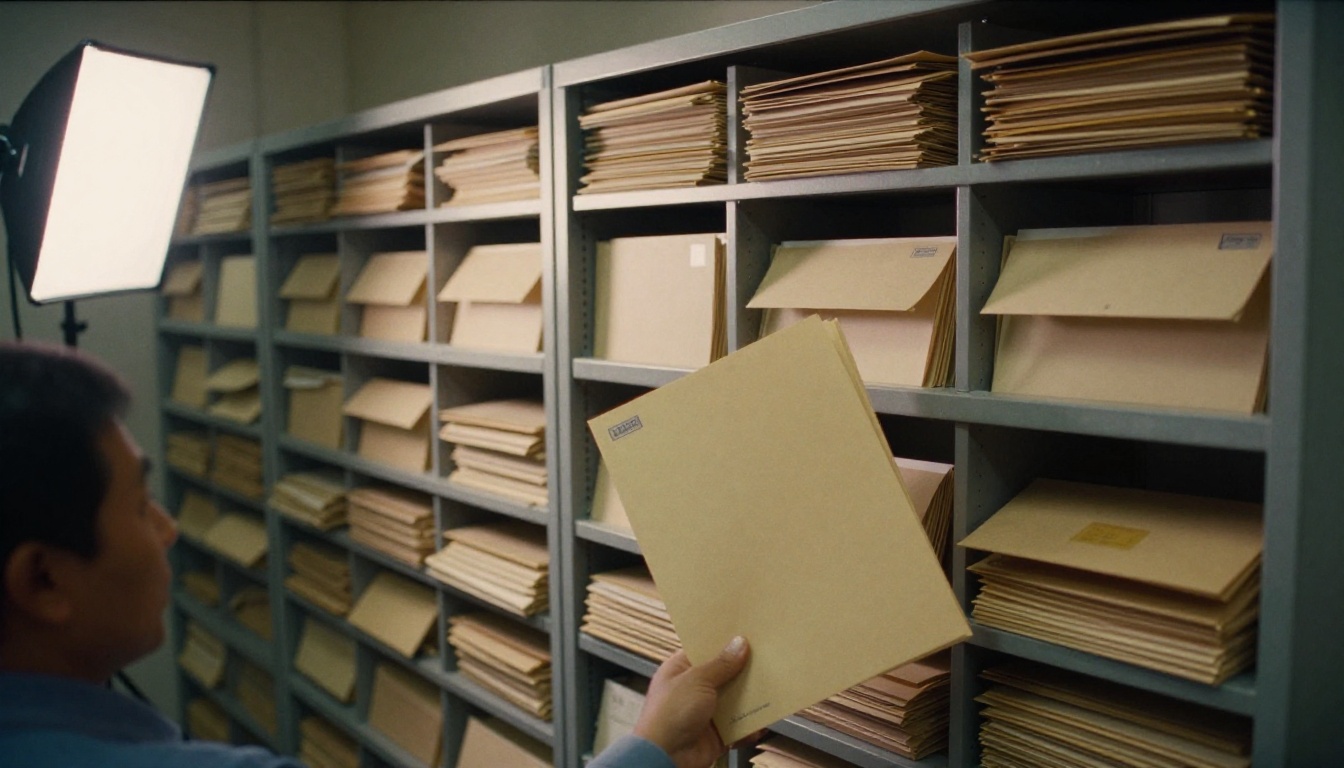
A scanned PDF is a photograph of a page wrapped in a PDF container. There are no words in it, only pixels. Your eyes see a sentence. A computer sees a grid of gray and white dots.
That has three immediate consequences:
- Screen readers have nothing to read. They announce "image" or stay silent.
- Search does not work. Ctrl+F finds nothing, because there is no text to match.
- Copy and paste fails. Users cannot lift a phone number or a date out of the page.
💡 Quick test: Open the PDF and try to select a single word with your cursor. If you can only drag a box over the whole page, it is an image-only scan.
Why OCR Helps but Does Not Finish the Job
OCR (optical character recognition) reads the pixels and guesses the letters. The software then places an invisible text layer behind the picture. That is a real improvement: search starts working and a screen reader can at least pull out characters.
But OCR only answers one question: "what letters are on this page?" It says nothing about structure, order or meaning.

What OCR Gets Wrong
- Misread characters. A zero becomes the letter O, a lowercase L becomes the number 1. In a legal notice or a medication schedule, that matters.
- Scrambled reading order. Two-column pages, sidebars and footnotes often come out in the wrong sequence.
- Lost tables. Rows and columns collapse into a stream of numbers with no headers.
- Handwriting and stamps. Most engines skip them or invent nonsense.
- No images described. A chart becomes a gap, or worse, a garbled string of axis labels.
What OCR Never Adds
Accessibility is more than readable characters. A document also needs:
- Tags that mark headings, paragraphs, lists and tables
- A logical reading order
- Alternative text for meaningful images
- A document language so the screen reader uses the right voice
- A title that shows in the browser tab and in assistive tools
- Sufficient contrast and text that can be resized
⚠️ A PDF with a text layer but no tags can still fail a screen reader test. The words are there, but the structure is not.
The Accessibility Gap in Plain Numbers
Here is how the same document behaves at each stage of processing.
| Stage | Searchable | Screen reader can read | Headings navigable | Tables usable | Resizable text |
|---|
| Raw scan (image only) | No | No | No | No | No |
| Scan plus OCR | Yes | Partly | No | No | Limited |
| OCR plus tags and order | Yes | Yes | Yes | Partly | Limited |
| Fully remediated PDF | Yes | Yes | Yes | Yes | Limited |
| Reflowable web version | Yes | Yes | Yes | Yes | Yes |
Notice the last column. Even a perfectly tagged PDF is a fixed page. On a phone, a reader has to pinch and scroll sideways. People with low vision often need text that reflows, and that is a format question, not an OCR question.
Who Gets Hurt When Scans Stay Inaccessible

The people affected are not rare edge cases. They include:
- Blind and low-vision readers who use screen readers or magnifiers
- People with dyslexia who rely on text-to-speech and custom fonts
- Readers with motor impairments who navigate by voice or switch devices
- Anyone on a small phone screen with a slow connection
- Non-native speakers who paste text into a translator
Government Records
Public agencies hold decades of paper: meeting minutes, permits, tax notices, court rulings. Many were scanned in bulk and posted as image-only files. Residents who cannot read them cannot request services, check deadlines or follow decisions that affect them.
Many jurisdictions have legal duties here. Section 508 in the United States, the ADA's effective communication rules, the European Accessibility Act and EN 301 549 all point toward documents that work with assistive technology. A scan with a text layer only partly meets that bar.
Schools and Universities
Course packets, syllabi, handbooks and past exams are classic scan candidates. A student who is blind cannot wait three weeks for the disability office to remediate a reading that was due on Monday.

✅ Best practice: Treat accessibility as part of the publishing step, not as an accommodation request that arrives after a complaint.
If you have to rescue an existing scan, work through these steps in order.
- Check image quality. Rescan at 300 DPI or higher if the page is skewed, faint or shadowed. Bad input gives bad OCR.
- Run OCR with the right language. Set the language before processing, not after.
- Proofread the output. Read at least the numbers, names and dates. Fix errors in the text layer.
- Add tags. Mark every heading level, paragraph, list and table. Use real table header cells.
- Set the reading order. Walk the page the way a person would, top to bottom, column by column.
- Write alt text. Describe what a chart or photo shows and why it matters, in a sentence or two.
- Set title and language metadata.
- Run an automated checker, then test by ear. Open the file with a screen reader and listen for ten minutes.
How Long Does It Take?
| Document type | OCR only | Full remediation by hand |
|---|
| One-page notice | Minutes | 15 to 30 minutes |
| 10-page form with fields | 5 to 10 minutes | 1 to 2 hours |
| 50-page report with tables | 10 to 20 minutes | A full working day or more |
| 300-page archive volume | About an hour | Several days |
This is why a backlog of thousands of scans feels impossible. The sensible move is to prioritize: start with the files people request most, the ones tied to deadlines or money, and anything newly created.
Common Mistakes to Avoid
- Assuming "searchable" means "accessible." Search is one benefit. Navigation, order and alt text are others.
- Trusting the OCR on the first pass. Always spot-check numbers.
- Scanning in grayscale at low resolution to save space, then wondering why accuracy drops.
- Flattening forms so fields cannot be filled in with assistive technology.
- Posting a Word file and a scan side by side with no note on which one is the authoritative version.
- Never testing with real assistive tools.
⚠️ Automated checkers catch roughly a third of real barriers. The rest needs a human who reads the result.
Even a clean, tagged PDF has limits. It is a fixed page, built for print proportions. On a phone it forces zooming and horizontal scrolling, and that is a barrier on its own for readers with low vision or tremors.
A web-based reading experience can offer what a fixed PDF cannot:
- Responsive layouts that fit any screen
- Real text that a browser, a reader mode or a translator can process
- Links that open from a contents page straight to a section
- Fast loading on weak connections
- Shareable URLs instead of attachments
Where Flipbooks AI Fits In
Once your PDF has a proper text layer and clean structure, the PDF to Flipbook Converter turns it into an online, mobile-responsive reading experience with no watermarks. It is not a replacement for tagging and alt text, so do that work first. What it adds is a reading format people can open from a link on any device, with page navigation, search and zoom built in.
For public agencies, the Report Flipbook Creator suits annual reports and board packets. For educators, the Course Material Publisher and School Newsletter Creator keep handouts in one place instead of scattered email attachments.
How to Publish a Cleaned PDF as a Flipbook
Here is a short walkthrough once your file has passed your accessibility check.
- Create your account. Go to Flipbooks AI and sign in.
- Upload the PDF. Drag the corrected file into the converter. Text-based pages convert quickly, and long files take a bit more time.
- Check the result. Page through the flipbook on a laptop and on your phone. Confirm search finds real words.
- Customize it. Add your logo, pick brand colors and choose page effects. Keep contrast high: dark text on a light background.
- Add media where it helps. Embed a short audio or video summary for readers who prefer listening.
- Choose how to share it. Use a direct link, an embed code for your website, or password protection for private material. The Embed Flipbook on Website tool covers the embed path.
- Track usage. On the Professional plan, analytics show which pages get read, and lead generation helps when you share with outside audiences. Offline downloads let readers keep a copy.
💡 Keep the tagged PDF available as a download next to the flipbook. Some readers prefer the original format with their own assistive software.
Comparing Your Options
| Approach | Best for | Weakness |
|---|
| Image-only scan | Archival backup only | Unusable for assistive tech |
| Scan plus OCR | Quick search and copy | Poor structure and order |
| Tagged, remediated PDF | Formal records and forms | Fixed page, hard on phones |
| Flipbook from a clean PDF | Reports, catalogs, handbooks | Needs a good source file |
| Native web page | Short, frequently updated content | More effort for long documents |
Most organizations end up using two or three of these together. A tagged PDF serves as the formal record, and a flipbook or web page serves as the everyday reading copy.
Real-World Scenarios
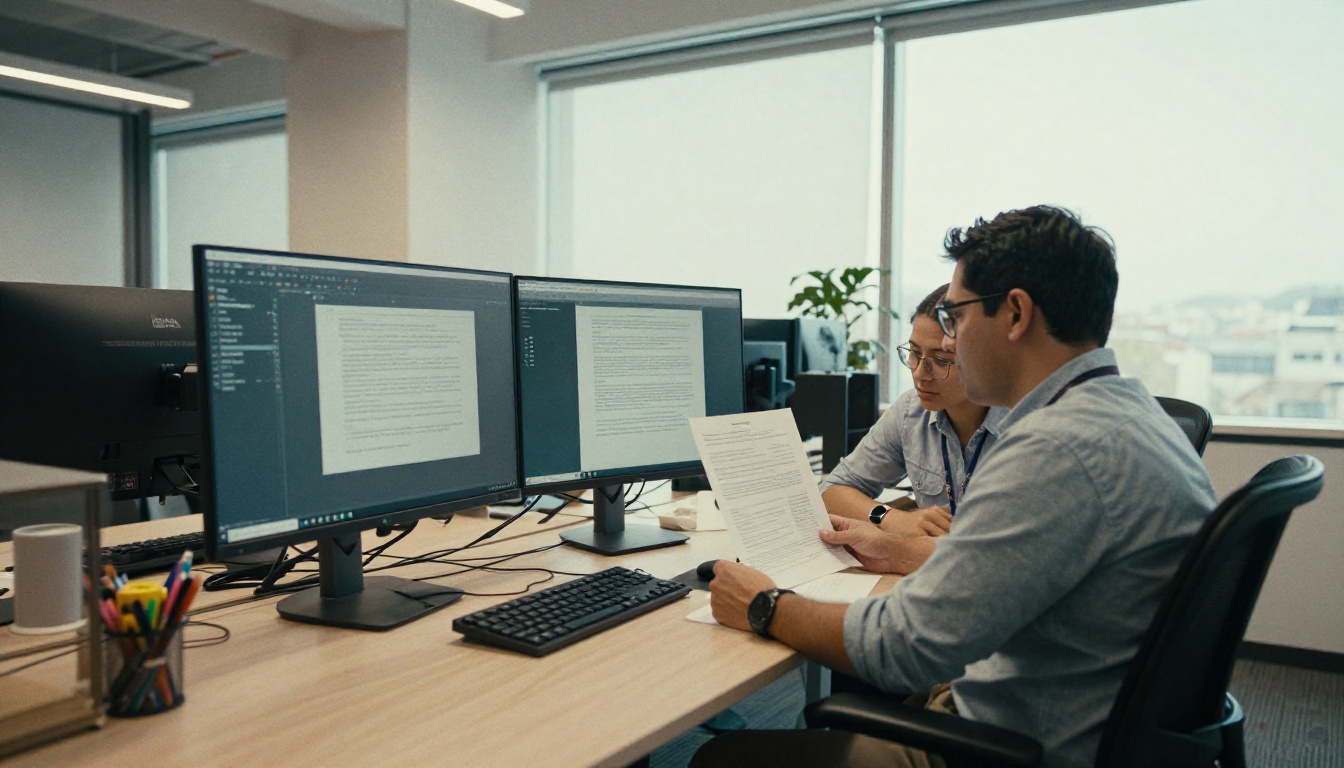
A county clerk's office has 4,000 scanned meeting minutes. They start with the ones from the last two years, which get most requests. Each goes through OCR, a quick proofread of names and vote counts, and tagging. The rest stay image-only until someone asks, with a clear notice explaining how to request an accessible copy within a few days.
A school district scans its student handbook every summer. This year, the office exports the original from the layout file instead of rescanning, which gives real text and headings immediately. The tagged PDF then goes into a flipbook for parents who read on their phones.
A university department receives a scanned article from a library for a reading list. Before posting it, an assistant runs OCR, fixes the footnote order and adds a short description for the two charts. It takes under an hour, and a blind student can use the reading on the first day.
When You Can Skip the Scan Entirely

The cheapest accessibility fix is never creating the inaccessible file. Ask these questions first:
- Does the original exist in digital form? Export from the source, not from a scanner.
- Is the content still current? Retire outdated papers rather than remediate them.
- Could this be a web page? Short notices rarely need a PDF.
- Can you set a rule for new documents? Require tagged exports from every department going forward.
For paper that truly has to be scanned, such as signed contracts or historical records, keep the image as the legal record and publish an accessible companion version alongside it.
The Short Version for Busy Teams
If you remember nothing else, remember these four points:
- A scanned PDF is an image until OCR gives it text.
- OCR text is not the same as an accessible document.
- Structure, order, alt text and language settings finish the job.
- A responsive reading format makes the result easier for everyone.
Next Steps for Your Documents
Pick ten of your most requested scans this week and run them through the checklist above. Once they are clean, create a free account and publish them with the PDF to Flipbook Converter. Browse all flipbook tools to find a layout that fits reports, handbooks or newsletters, and compare pricing plans when you need analytics, password protection or unlimited flipbooks.



