Laying out a magazine used to mean weeks of nudging text boxes, fixing orphaned lines, and arguing about margins. Today, AI can place your photos, balance your columns, and hand you a polished spread in minutes. The catch is that not every tool does this well, and the output still has to reach readers in a format that feels like a real magazine. This ranking walks through the best AI magazine makers that lay out pages for you, and shows how to publish the result as a page-turning issue with Flipbooks AI.
What AI Layout Actually Does
Before the ranking, it helps to be clear about what "lays out pages for you" means. A good AI layout tool does four jobs without constant babysitting:
- Places content on a grid. It picks column counts, gutters, and margins that suit the amount of text and images you supply.
- Sets hierarchy. Headlines, subheads, pull quotes, and captions get sensible sizes and weights.
- Fits images. It crops and positions photos so faces, products, and horizons stay in frame.
- Keeps the issue consistent. Fonts, colors, and spacing repeat from page to page, so the issue reads as one publication.
What it does not do is decide your editorial voice. You still bring the story, the photos, and the taste. The AI removes the repetitive production work that eats most of the schedule.
💡 Pro tip: Write and edit your text before you ask any tool to lay it out. Layout engines choose better when the word count of each article is final.
Every tool below was judged on the same five points:
- Layout intelligence: how much of the page building happens without manual fixes.
- Template quality: whether the starting designs look like magazines or like slide decks.
- Export options: print-ready PDF, web, and interactive formats.
- Learning curve: how fast a first-timer can finish an issue.
- Value: what you get at the free and entry paid levels.
Features and plans change often, so confirm current details on each vendor's site before you commit.
Who this ranking is for
- Small business owners producing a quarterly customer magazine
- Schools and clubs publishing newsletters or yearbooks
- Freelance writers and photographers building a showcase issue
- Marketing teams turning blog content into a branded digital magazine
The Best AI Magazine Makers Compared
Here is the quick view before the detailed write-ups.
| Rank | Tool | Best for | AI layout strength | Typical output |
|---|
| 1 | Canva (Magic Design and Magic Layout) | Beginners and small teams | Strong template matching | PDF, web link |
| 2 | Adobe InDesign with Firefly features | Professional editorial work | Deep control, selective automation | Print PDF, interactive PDF |
| 3 | Visme | Branded business magazines | Good brand kit automation | PDF, HTML, web link |
| 4 | Adobe Express | Fast social-first issues | Quick template remixing | PDF, web link |
| 5 | Microsoft Designer | Light newsletters | Prompt-driven layouts | Image, PDF |
| 6 | Flipsnack | Teams that publish often | Template-based flow | Flipbook, PDF |
Remember that none of these replace the publishing step. Most of them export a PDF, and a PDF is a flat file. Turning it into a flipbook is what makes it feel like a magazine on a phone.
1. Canva: The Easiest Starting Point
Canva earns the top spot because it removes the most friction. You describe the issue, upload your images, and its AI features suggest page designs that match your content. The layout assistants can reflow a page when you swap a photo or add a long paragraph.
What it does well
- Huge library of magazine, lookbook, and newsletter templates
- Brand kit support, so colors and fonts stay consistent
- Easy collaboration, which suits small editorial teams
- Quick resizing between a print format and a screen format
Where it falls short
- Typographic control is lighter than in a professional desktop tool
- Very long, text-heavy issues can feel clumsy to manage
- The best AI features sit behind paid plans
Verdict: The right choice if you want a good-looking issue this week, not a perfect one next month.
2. Adobe InDesign: The Professional Standard
InDesign remains the reference tool for serious editorial work. Its newer AI features help with tasks such as generating image variations, cleaning up assets, and speeding up repetitive steps. The page-building logic is still more manual than the others on this list, but the control is unmatched.
What it does well
- Master pages, paragraph styles, and precise grids
- Print-ready output with bleeds, color profiles, and fine typographic settings
- Smooth integration with Photoshop and Illustrator assets
Where it falls short
- Real learning time is needed before you feel fast
- Subscription cost adds up for occasional publishers
- AI helps with parts of the job rather than laying out the whole issue
Verdict: Best for design teams and magazines that will also be printed professionally.
3. Visme: Best for Branded Business Issues
Visme leans into business content: reports, proposals, and company magazines. Its AI tools can draft layouts from a prompt and apply your brand kit across pages. It also handles charts and data visuals neatly, which helps when your magazine includes numbers.
What it does well
- Brand kit applied across the whole issue
- Built-in charts, tables, and interactive elements
- Straightforward sharing and embedding
Where it falls short
- Templates lean corporate, so lifestyle magazines need more tweaking
- Export limits vary by plan
Verdict: A solid fit for company magazines, annual reviews, and sales publications.
4. Adobe Express: Fast and Friendly
Adobe Express sits between Canva and the full Adobe suite. It remixes templates quickly and is good at turning a single design into several sizes. For short issues of ten to twenty pages, the speed is hard to beat.
- Strengths: Fast template swaps, solid font and asset library, easy for beginners
- Weaknesses: Multi-page editorial control is basic, so long issues get tedious
5. Microsoft Designer: Prompt-First Layouts
Microsoft Designer lets you describe what you want and generates layout options. It suits simple newsletters and short promotional magazines. Heavy editorial structure, such as contents pages and running headers, takes manual work.
- Strengths: Low barrier to entry, quick drafts
- Weaknesses: Limited multi-page tooling, fewer magazine-specific templates
6. Flipsnack: Publishing and Layout Together
Flipsnack combines a design editor with flipbook hosting. That is useful if you want one platform for both steps. The trade-off is that its design tools are less flexible than a dedicated layout app, and plan limits affect how many publications you can keep live.
- Strengths: Design and hosting in one place, regular template updates
- Weaknesses: Less layout freedom, plan limits on active flipbooks
Use this table to match a tool to your situation.
| Your situation | Best pick | Why |
|---|
| First magazine, small budget | Canva | Low learning curve, many templates |
| Print run with a professional printer | InDesign | Print-ready control |
| Company magazine with brand rules | Visme | Brand kit and data visuals |
| Short social-first issue | Adobe Express | Speed |
| Quick internal newsletter | Microsoft Designer | Prompt-driven drafts |
| Layout and hosting from one vendor | Flipsnack | Single platform |
Three mistakes to avoid
- Starting with the template, not the content. Choose the template after you know your word and image counts.
- Ignoring screen reading. Over half of readers will open your issue on a phone, so check type size on a small screen.
- Skipping a final proof. AI layouts can leave an awkward line break or a cropped face. Read every page once.
⚠️ Warning: Always check image rights before you feed photos into any AI layout tool. A beautiful page built on an unlicensed photo is still a legal problem.
Why a PDF Is Not the Finish Line
Once your layout tool has done its job, you have a PDF. It is reliable and printable, but it behaves like a document, not a magazine. Readers pinch, scroll, and download. There is no page-turn feel, and you get no data on who read what.
A flipbook fixes this. It gives readers a familiar page-turning experience in the browser, works on mobile, and can be shared with a simple link or embedded in your website. That is the step where Flipbooks AI fits into the workflow. You design in the tool you like best, then publish with a platform built for reading.

What a flipbook adds to a magazine
- Page-turn reading that feels like the printed object
- Mobile-responsive design so text stays readable on any screen
- Custom branding with your colors and logo
- Password protection for private or members-only issues
- Embedded video and audio for interviews and behind-the-scenes clips
- No watermarks, so the issue looks professional
- Analytics and lead generation on the Professional plan
How to Publish Your Magazine with Flipbooks AI
Here is the practical workflow, from finished PDF to shareable issue.
Step 1: Export your layout
From Canva, InDesign, Visme, or any other tool, export a high-quality PDF. Keep the page order exactly as you want readers to see it. If you built spreads, export them as individual pages for the cleanest page-turn.
Step 2: Create your account
Create an account on Flipbooks AI and open your dashboard. You can check pricing plans at any time to see which tier matches your publishing volume.
Step 3: Upload and convert
Use the PDF to Flipbook Converter to upload your file. The platform converts each page into a flipbook page. For magazine projects specifically, the Magazine Flipbook Creator and the E-Magazine Publishing Tool are tuned for this kind of content.
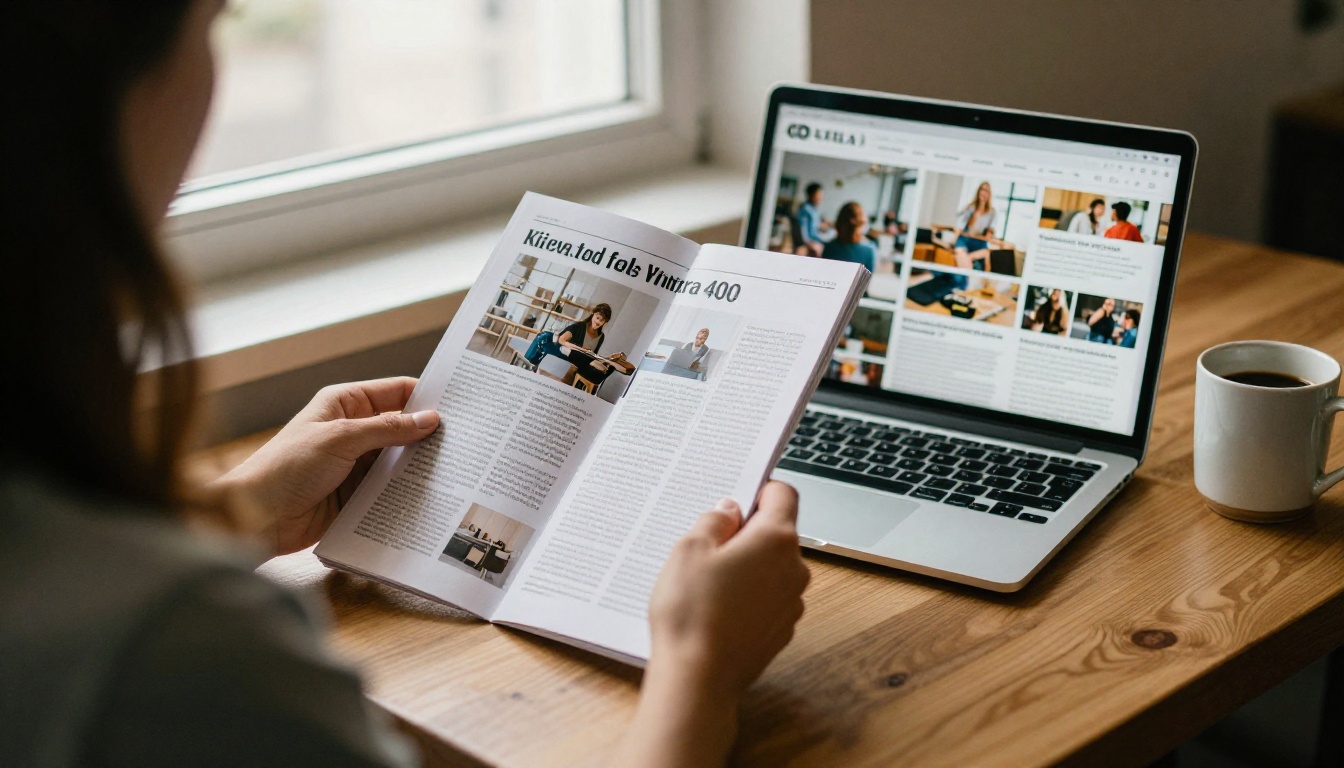
Step 4: Customize the reader experience
- Add your logo and brand colors
- Choose page effects and background styling
- Attach video or audio to the pages where they help most, such as an interview page
- Add clickable links to your shop, newsletter signup, or contact page
Step 5: Choose how to share
- Direct link for email and social posts
- Embed code to place the issue on your own site, see Embed Flipbook on Website
- Password protection for subscriber-only editions
- Offline downloads for readers who want a local copy
Step 6: Track results
On the Professional plan, analytics show how readers behave, and lead generation captures contact details before an issue opens. That turns a magazine from a design project into a measurable marketing channel.
✅ Best practice: Publish each new issue at a consistent link pattern, such as one flipbook per season. Readers and search engines learn where to find you.
Real-World Examples
Here is how different publishers can combine an AI layout tool with a flipbook.
| Publisher | Layout tool | Published as | Result |
|---|
| Boutique clothing brand | Canva | Lookbook flipbook, see Interactive Lookbook Designer | Seasonal collections that feel editorial |
| Freelance photographer | InDesign | Portfolio magazine, see Photography Portfolio | A showcase clients can flip through |
| Regional real estate agency | Visme | Quarterly market magazine | Listings and data in one branded issue |
| High school newsroom | Adobe Express | Newsletter flipbook, see School Newsletter Creator | Fast monthly issues for parents |
A small business scenario
A bakery owner wants a spring menu magazine. She writes eight short pieces, shoots twenty photos on a phone, and drops them into a Canva magazine template. The layout assistant arranges the pages in an afternoon. She exports a PDF, uploads it to Flipbooks AI, adds her logo and a link to the order page, and shares one link on Instagram and in her email list. Total time: a single working day, with no print costs.
A photographer scenario
A wedding photographer builds a showcase issue in InDesign for fine control over image crops. She publishes it with the Wedding Album Flipbook tool and protects it with a password for each client, so every couple sees only their own gallery.
AI gives you a strong first draft. These habits turn it into a finished issue.
- Limit fonts to two. One for headlines, one for body text.
- Repeat a grid. Consistency is what makes an issue feel professional.
- Give photos room. White space makes a page look expensive.
- Use pull quotes sparingly. One per spread is plenty.
- Check contrast. Light text over a busy photo is hard to read on a phone.
- Keep captions short. A single sentence is usually enough.
A simple page-count plan
| Issue length | Best for | Suggested mix |
|---|
| 8 to 12 pages | Newsletters, promos | 1 feature, 3 short pieces, 1 call to action |
| 16 to 24 pages | Quarterly brand magazines | 2 features, 5 short pieces, 1 interview |
| 32 pages or more | Annual issues, portfolios | 3 features, gallery spreads, contents page |
What to Expect From AI Layouts in Practice
Be realistic. AI layout tools are fast, but they are not mind readers. Expect to fix around ten to twenty percent of pages by hand: a headline that wraps badly, a photo cropped too tightly, a table that needs more room. That is still a large saving over building every page from scratch.
If your issue is mostly photography, give the tool fewer words per page and let the images lead. If your issue is mostly text, pick a template with strong typographic hierarchy and let the AI manage columns and pull quotes.
Ready to Publish Your Issue?
Pick the layout tool that matches your skills and budget, finish your pages, and then give readers an experience worth opening. Start by creating your free account on Flipbooks AI, browse all flipbook tools to find the right template for your publication, and compare pricing plans when you are ready for analytics and unlimited issues. If you want to go straight to a paid plan, use the account to pricing shortcut.