Your product photos are doing more selling than your copy ever will. A shopper scrolls past a grey, badly cropped sneaker in half a second, and stops on a clean, well-lit one. The good news: you no longer need a studio or a retoucher to get that second look. Tools like Photoroom, Pixelcut and Claid cut out backgrounds, fix lighting and generate fresh scenes in seconds. This ranking shows where each one wins, where it falls short, and how to pick one. Once your images are ready, you can also drop them into a shareable catalog with Flipbooks AI.

The Short Answer
If you want one pick without reading everything, here it is.
- Photoroom is the best all-rounder for small stores that shoot on a phone and also need batch editing on desktop.
- Pixelcut is the fastest for mobile-first sellers who edit, resize and post from the same device.
- Claid is the strongest for teams and developers who need to process thousands of images through an API or a bulk workflow.
💡 Pro tip: Most sellers do not need to choose forever. Many run a free trial of two tools on the same ten products and keep the one whose cutouts need the fewest manual fixes.
How We Ranked Them
A flashy demo tells you nothing about a Tuesday afternoon with 200 SKUs waiting. So the ranking uses practical criteria:
- Cutout quality: clean edges on hair, glass, mesh, jewelry chains and fuzzy knits.
- Scene realism: shadows, reflections and perspective that match the product.
- Batch speed: how many images you can process without babysitting.
- Workflow fit: mobile app, web editor, API, plugins and integrations.
- Value: what you actually get on the free and entry paid plans.
Pricing and limits change often, so treat any plan details below as a snapshot and confirm them on each vendor's site before you commit.
Quick Comparison Table
| Feature | Photoroom | Pixelcut | Claid |
|---|
| Best for | Small stores, mixed phone and desktop use | Mobile-first sellers and social posts | Teams, agencies, developers |
| Background removal | Excellent, fast | Very good | Excellent, built for volume |
| AI backgrounds and scenes | Yes, with instant templates | Yes, with style presets | Yes, including AI photoshoot style generation |
| Batch editing | Yes | Yes, lighter | Yes, core strength |
| API access | Yes | Yes | Yes, central to the product |
| Mobile app | Strong | Strongest | Limited, web and API focus |
| Learning curve | Low | Very low | Medium |
Photoroom: The Balanced Pick
Photoroom started as a background remover and grew into a full product photo studio. Open the app, drop in a photo and the cutout is ready before you finish blinking. From there you can place the product on a plain color, a marble counter, a wooden table or an AI-generated scene.

What It Does Well
- Cutout accuracy: Edges on bottles, sneakers and bags are usually clean on the first pass.
- Templates: Pre-built layouts for marketplaces make white-background compliance simple.
- Batch mode: You can apply one background and one set of adjustments to a whole folder.
- Team features: Shared brand kits keep colors and layouts consistent across editors.
Where It Struggles
- Transparent products such as glassware sometimes need a manual touch-up on the rim.
- Free exports may carry a watermark, so check the current plan limits.
- Very complex scene generation can drift from your real product shape, so always compare the result against the original.
Real-World Example
A candle brand with 60 products shoots every item on a kitchen table with a phone. In Photoroom they remove each background, apply one warm neutral backdrop in batch, and add a soft shadow. The whole catalog looks like one studio session, and it takes an afternoon instead of a week.
Pixelcut: The Mobile Speed Champion
Pixelcut is built for people who live on their phone. The interface is simple, the buttons are big, and the result is something you can post to Instagram or upload to a store before you put the phone down.

What It Does Well
- Magic eraser: Remove dust, cables, fingerprints and stray props with a swipe.
- Quick resizing: One tap produces square, story and banner formats.
- Upscaling: Low-resolution supplier images can be sharpened for larger placements.
- Style presets: Choose a mood and get a believable scene without writing a long prompt.
Where It Struggles
- Batch workflows are lighter than what agencies need.
- Heavy catalog work is slower on a phone than on a desktop tool.
- Fine control over shadows and reflections is more limited than in a pro editor.
⚠️ Watch out: Auto-generated scenes can change small details such as a logo or a label. Zoom in before you publish, especially for regulated products like cosmetics or supplements.
Real-World Example
A handmade jewelry seller photographs a new ring at 9 a.m. By 9:10 it is cut out, placed on a soft pastel surface, resized for a story and a product page, and scheduled. Nothing touched a laptop.
Claid: Built for Volume
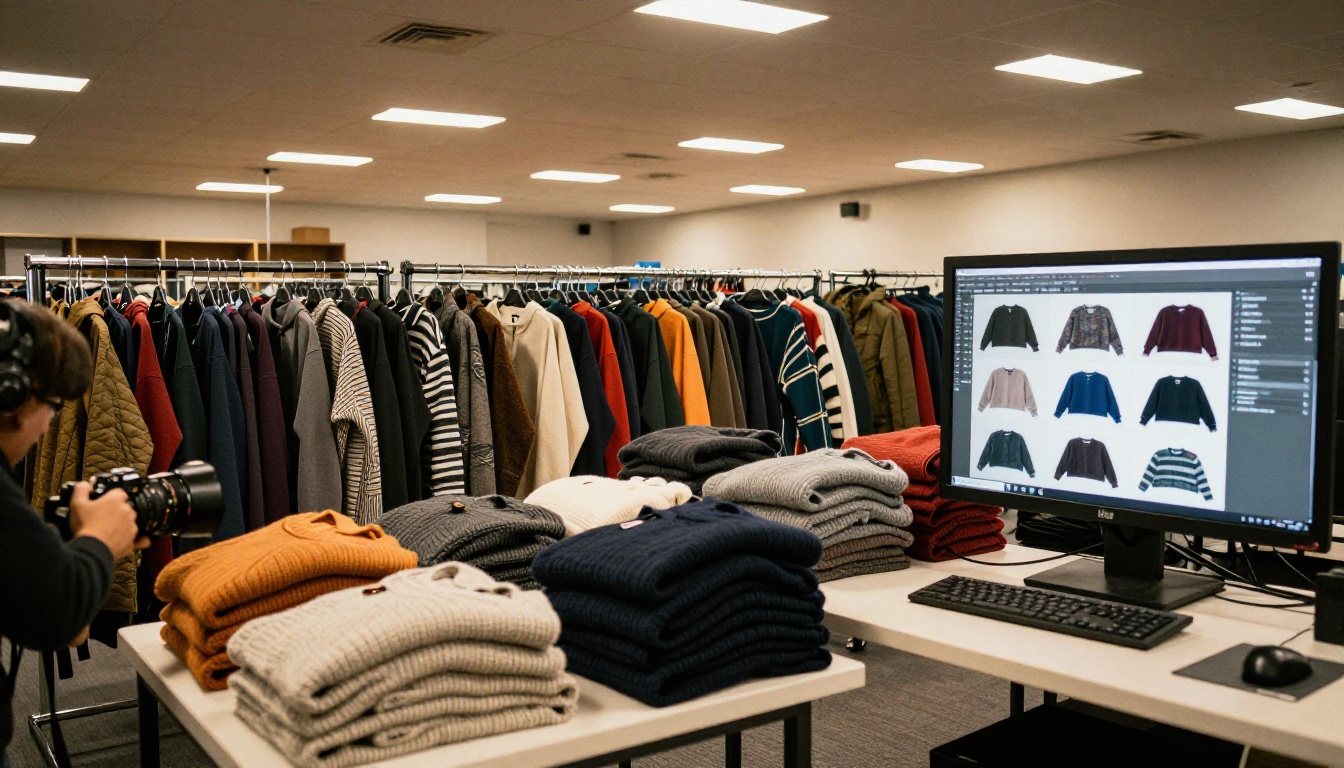
Claid takes a different approach. It is API-first, which means developers can plug it directly into a store, a PIM or an internal pipeline. Teams that upload hundreds of images a day get automatic cleanup, background replacement and resizing without anyone opening an editor.
What It Does Well
- Bulk processing: Send a folder or a feed and receive consistent results.
- Automation: Trigger edits when a new image lands in your system.
- Consistency: The same rules apply to every product, so a catalog of 5,000 items looks uniform.
- Upscaling and cleanup: Low-quality supplier photos get sharper and more usable.
Where It Struggles
- It is less friendly for a solo seller who wants to tap and post.
- Setup takes more effort, especially if you want to use the API.
- You get the most value at volume, so tiny shops may find it more than they need.
Real-World Example
A marketplace with several hundred new listings per day receives supplier photos in all shapes and sizes. A Claid pipeline removes the backgrounds, centers each product, standardizes the canvas and delivers uniform images to the listing page automatically.
Head-to-Head by Use Case
Different jobs favor different tools. This table matches the most common situations to a winner.
| Situation | Best choice | Why |
|---|
| Solo seller shooting on a phone | Pixelcut | Fastest from shot to post |
| Store owner with 50 to 500 SKUs | Photoroom | Strong batch mode and templates |
| Agency serving several clients | Photoroom or Claid | Brand kits or automation |
| Developer building a pipeline | Claid | API-first design |
| Social-first brand | Pixelcut | Instant resizing and styles |
| Marketplace with supplier uploads | Claid | Uniform output at scale |

How to Get Better Results From Any Editor
The best AI tool still cannot rescue a bad source photo. A few habits improve every result.
Shoot With Clean Light
Place your product near a window and keep the light soft. Harsh shadows confuse cutout algorithms and create jagged edges.
Use a Contrasting Surface
A dark product on a light surface, or the reverse, gives the AI a clear boundary. White on white is the classic failure case.
Keep the Camera Level
Shoot at the angle you want in the final image. AI scenes look believable when the product perspective already matches the new background.
Check the Edges at 100%
Zoom in before you export. Look for fringing, missing straps, cut-off handles and softened logos.

A Simple Workflow You Can Copy
Here is a repeatable process that works with any of the three tools.
- Shoot every product from the same three angles: front, side and detail.
- Cut out the backgrounds in one batch.
- Apply a single backdrop and shadow style across the whole set.
- Review each image at full size and fix the problem ones by hand.
- Export in the sizes your store and social channels need.
- Publish to your shop and turn the best images into a shareable catalog.
✅ Best practice: Keep a folder of your untouched originals. If a marketplace asks for proof of the real product, you will have it.
Turn Edited Photos Into a Catalog
Great photos deserve a great presentation. A product page shows one item at a time. A catalog shows the whole range, in the order you choose, and it works on any phone.

How to Create a Product Catalog With Flipbooks AI
- Export your edited images and assemble them into a PDF using your favorite layout tool.
- Go to Flipbooks AI and create an account.
- Upload the PDF with the PDF to Flipbook Converter. Pages turn into a realistic page-flip experience in moments.
- Customize your branding, colors and page effects so the catalog matches your store.
- Add links, video or audio to the pages that need extra context.
- Share it with a direct link, embed it on your site using the Embed Flipbook on Website tool, or protect it with a password for wholesale buyers.
For a fashion brand, the Fashion Catalog Creator is a natural fit. For a broader range of goods, try the Product Catalog Generator or the Digital Catalog Maker. There are no watermarks on your flipbooks, and the design is mobile-responsive.
What the Paid Plans Add
| Capability | Why it helps sellers |
|---|
| Unlimited flipbooks (Standard plan and above) | Publish a catalog per season or per collection |
| Password protection | Share wholesale price lists privately |
| Analytics (Professional plan) | See which pages buyers actually read |
| Lead generation (Professional plan) | Capture emails before a buyer opens the catalog |
| Offline downloads | Let reps open the catalog without a connection |
See the full list on the pricing page.

Common Mistakes to Avoid
Even with great tools, sellers repeat the same errors.
- Over-processing: A product that looks too perfect can feel fake. Keep some natural shadow and texture.
- Inconsistent backgrounds: A catalog with five backdrop styles looks messy. Pick one or two and stick to them.
- Altered products: If the AI changes a color, a label or a shape, you invite returns and complaints.
- Ignoring file size: Huge images slow your pages down. Compress before you publish.
- Skipping alt text: Describe each image for accessibility and search.
Free Plan or Paid Plan?
Start free. Test your ten hardest products, the ones with glass, fur, chains or thin straps. If the free output is good, you only need a paid plan for volume, watermark-free exports and team features.
| If you... | Then... |
|---|
| Edit fewer than 30 images a month | A free plan may be enough |
| Post daily to social | A paid mobile plan saves time |
| Run a store with hundreds of SKUs | Pay for batch and brand kits |
| Process images at scale | Choose an API plan and budget by volume |
Final Pick and Next Steps
Photoroom is the best default for most online stores. Pixelcut wins when speed on a phone matters most. Claid wins when volume and automation matter more than a pretty interface. Run the same ten products through two of them and the winner will be obvious within an hour.
Ready to show off your new photos? Get started for free on Flipbooks AI and publish a catalog your customers can flip through on any device. Browse all flipbook tools to find the right template, or compare pricing plans to choose what works for you.



