A seven year old with a pencil, a stack of paper and a wild idea about a dragon who is afraid of fire will happily fill a notebook. The trouble starts afterwards: how do you turn those scribbles into something that looks like a real book, can be read on a tablet, shared with grandparents and used in a classroom? That is exactly what the best children's book creator apps for parents and teachers solve. This ranking compares the tools we would actually put in front of a child, and it also shows how to publish the finished story as a page-turning flipbook with Flipbooks AI.
What Makes a Good Book Creator App
Not every app that lets you drop a picture on a page deserves a place on a school tablet or a family iPad. Before ranking anything, we judged each tool against the same short checklist.
Ease of Use for Young Authors
A child should be able to add a page, type a sentence and place a picture without asking an adult for help every thirty seconds. Large buttons, drag and drop, and a clear undo button matter more than a long feature list.
Classroom and Family Controls
Teachers need class codes, student accounts and a way to review work before it goes public. Parents need privacy: stories should stay inside the family unless they choose otherwise.
Output Options
A story that is trapped inside an app is a story nobody reads. We looked for PDF export, printing, audio recording and easy sharing.
Cost and Value
Free plans are great for a trial, but class sets and long projects often push you toward a paid tier. Prices change often, so always check each vendor's current page before you commit.
💡 Pro tip: Run a ten minute test with one child before buying anything. If they can finish a two page story alone, the app passes the first and most important test.
The Best Children's Book Creator Apps Ranked
Here is how the leading tools compare at a glance. Ratings reflect our hands-on view of ease of use, flexibility and classroom fit.
| Rank | App | Best For | Ease of Use | Free Option | Printing |
|---|
| 1 | Book Creator | Classrooms and mixed ages | Excellent | Limited free library | PDF and ebook export |
| 2 | StoryJumper | Printed keepsakes | Very good | Yes, with limits | Hardcover and softcover orders |
| 3 | Canva | Parents who like design | Very good | Yes | PDF and print services |
| 4 | Storybird | Writing prompts and art | Good | Limited | Digital focus |
| 5 | Google Slides | Zero budget projects | Good | Yes | PDF export |
| 6 | Pixton | Comic style stories | Good | Limited | Digital and PDF |
1. Book Creator
Book Creator is the app most teachers mention first, and for good reason. Pages behave like a simple canvas where text, drawings, photos, audio and video can sit side by side. Children can record themselves reading each page, which is wonderful for early readers and for students who are practicing a second language.
Strengths: clean interface, works on tablets and browsers, collaboration features for groups.
Watch out for: the free tier limits how many books you can keep at once.
2. StoryJumper
StoryJumper leans into the idea of a real, physical book. You pick a theme, add scenes and characters, write the text and then order a printed copy if you wish. It is a lovely choice for a birthday present or a class gift.
Strengths: large library of scenes and props, print ordering, easy for beginners.
Watch out for: printed copies add cost, so plan your budget.
3. Canva
Canva is not built only for children's books, but its picture book templates, drag and drop editor and huge asset library make it a strong option for parents who enjoy design. Teachers also like the education features for sharing designs with a class.
Strengths: polished templates, flexible layouts, great for illustrated covers.
Watch out for: more options can overwhelm younger children, so an adult may need to set up the page first.
4. Storybird
Storybird starts with artwork and asks children to write the story around it. That reverse approach works well for reluctant writers because the first blank page problem disappears.
Strengths: inspiring illustrations, writing prompts, community feel.
Watch out for: less control over using your own photos and drawings.
5. Google Slides
Do not underestimate a free tool. One slide equals one page, the text is easy to edit, and every student in a Google classroom already has access. Set the slide size to a portrait book shape and you have a surprisingly capable picture book editor.
Strengths: free, familiar, real time collaboration.
Watch out for: no built in book templates, so you will need to build your own layout.
6. Pixton
Pixton focuses on comics and storyboards. For students who prefer panels and speech bubbles to paragraphs, it opens a different door into storytelling.
Strengths: characters with adjustable poses and expressions, comic layouts.
Watch out for: better for short stories than long picture books.
Which App Fits Parents Best
Parents usually care about three things: privacy, time and a result worth keeping. A rainy Sunday project should end with something the whole family can hold or open on a screen.
The Family Keepsake Route
If the goal is a book for a birthday or a trip, choose an app with print ordering. StoryJumper and Canva both handle this well. Add real photos next to drawings and let the child dictate the words if they cannot write yet.
The Bedtime Story Route
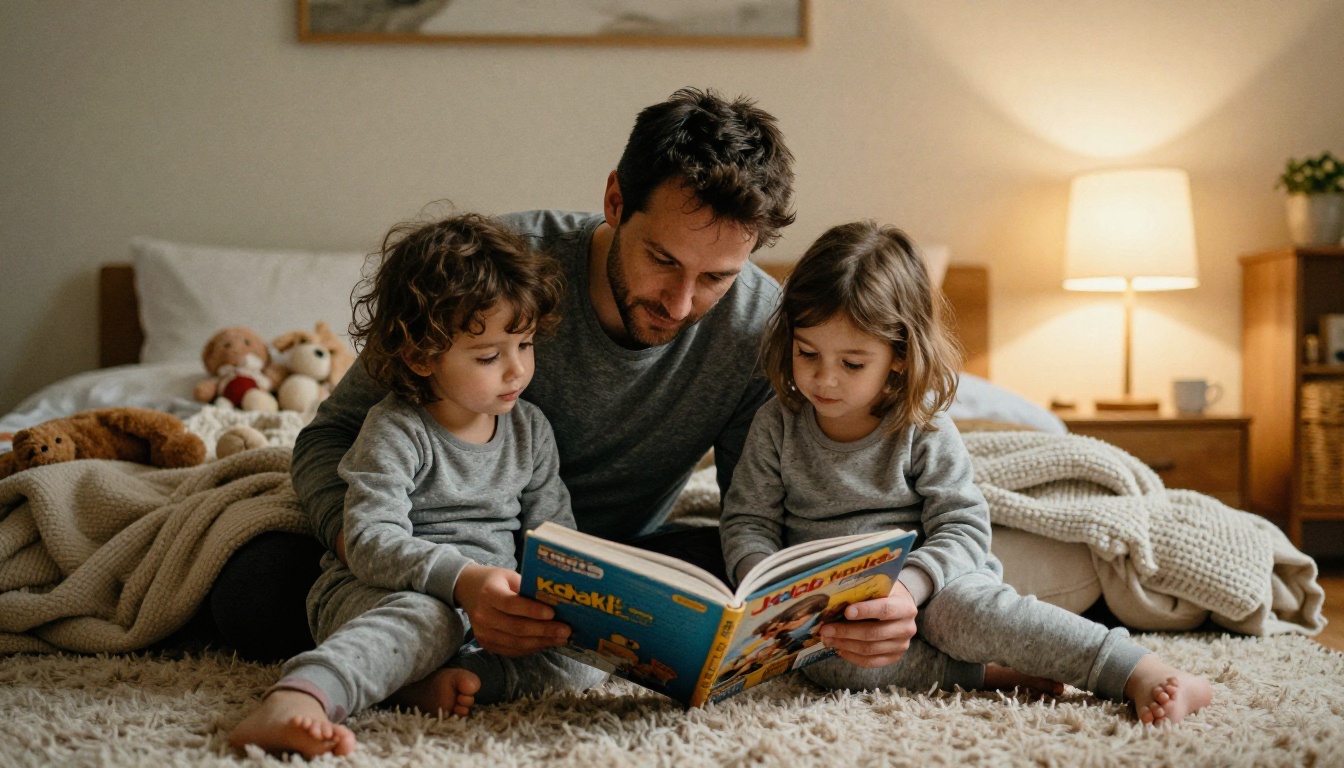
For stories made together at night, speed matters. Pick a tool with templates so you can fill in pages in twenty minutes. Record your voice reading each page and the finished book becomes a keepsake long after the children have grown up.
✅ Best practice: Save every draft as a PDF. If an app changes its pricing or shuts down a feature, your family's stories remain safe on your own device.
Which App Fits Teachers Best
A classroom adds new demands: thirty students, limited time, and a need to track progress. Here is how the tools stack up for school use.
| Feature | Book Creator | Google Slides | Canva | StoryJumper |
|---|
| Student accounts | Yes | Yes (via school) | Education plan | Yes |
| Real time group work | Yes | Yes | Yes | Limited |
| Audio recording | Built in | Add on | Add on | Limited |
| Teacher review before sharing | Yes | Yes | Yes | Yes |
| Learning curve | Low | Low | Medium | Low |
Project Ideas That Work
- Alphabet books: each student makes one page for a letter, then the class combines them.
- Science journals: photos from a nature walk become a field guide.
- Retell a classic: students rewrite a fairy tale from the villain's point of view.
- Math story problems: each page poses a problem and the next page shows the answer.
- Class memory book: a year of field trips collected into one story.
Keeping Work Safe and Private
Before anything goes online, review each book for names, faces and locations. Many schools have rules about publishing student work, so check your policy first.
⚠️ Warning: Never publish a child's full name alongside their photo in a public link. Use first names only, or share through a password protected page.
From App to Flipbook: Sharing the Finished Story
Here is the gap most of these apps leave open. Once a story is finished, you often have a PDF. A PDF is fine, but it feels flat. Grandparents scroll, they do not turn pages. That is where Flipbooks AI comes in: it turns the PDF into a realistic page-turning book you can share with one link.
Why a Flipbook Beats a Plain PDF
- Feels like a real book: pages curl and turn with a satisfying effect.
- Works on any device: mobile responsive, so it reads well on phones, tablets and laptops.
- No watermarks, ever: the finished book looks like yours.
- Private by choice: password protection keeps a children's story within the family or class.
- Embeds and audio: add narration or video to make stories come alive.
| Sharing Method | Page Turning Effect | Mobile Friendly | Password Option | Looks Like a Book |
|---|
| Emailed PDF | No | Fair | No | No |
| Cloud storage link | No | Fair | Sometimes | No |
| Flipbooks AI link | Yes | Yes | Yes | Yes |
| Printed copy | Yes | Not applicable | Not applicable | Yes |
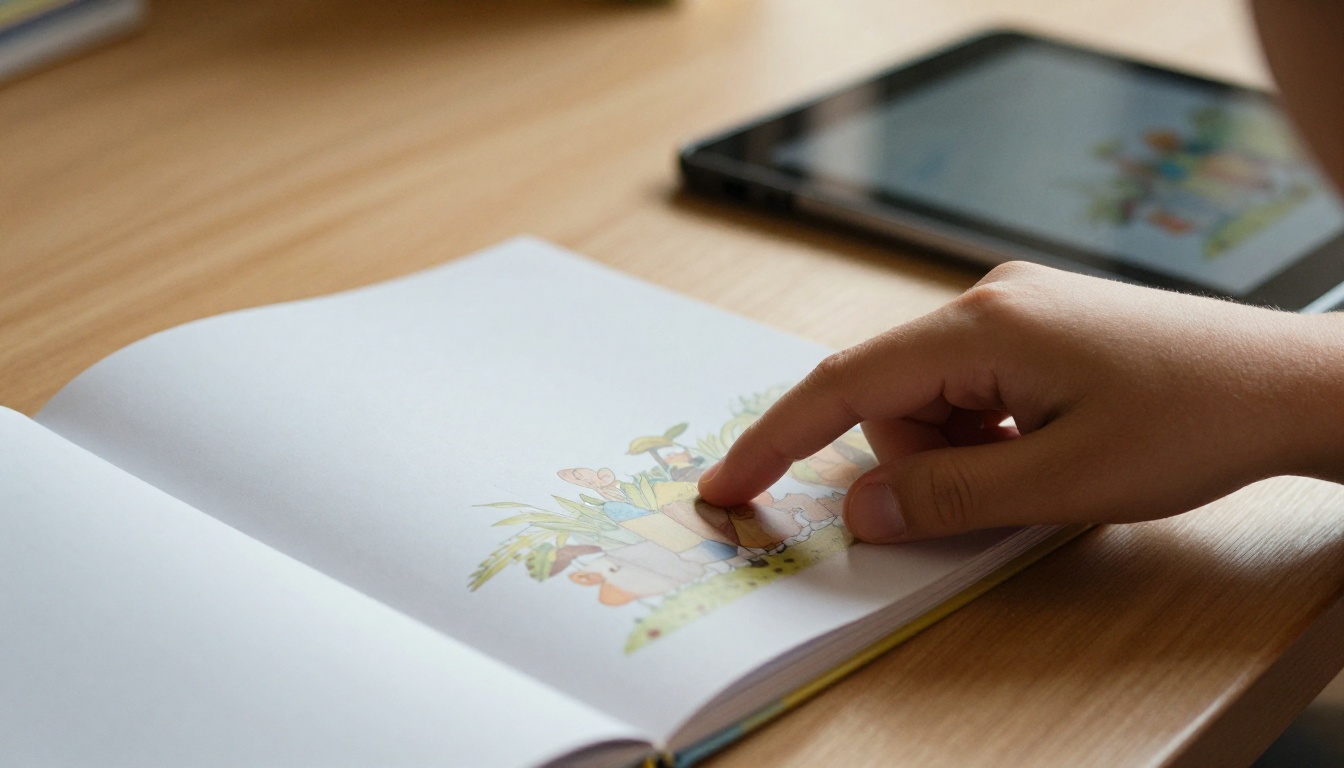
How to Create a Children's Flipbook with Flipbooks AI
Whichever app you pick for writing and drawing, the publishing steps stay the same. Here is the full process using the PDF to Flipbook Converter.
Step 1: Export Your Story as a PDF
In Book Creator, Canva, Google Slides or any other app, choose the download or export option and save the story as a PDF. Check that every page appears in the right order.
Step 2: Sign Up and Upload
Create an account and upload the PDF. Conversion takes moments, and your pages appear as a flipbook right away. For longer projects, the Interactive E-Book Publisher is a handy starting point.
Step 3: Customize the Look
Pick a background color that matches the story's mood: soft blue for a bedtime tale, bright yellow for an adventure. Add a custom logo for a school or class brand, and choose the page turn effect you like best.
Step 4: Add Sound and Video
Embed audio of a child reading each page, or a short video of the author introducing their book. This is a lovely way to bring a story alive for relatives who live far away.
Step 5: Share With the Right People
Copy the direct link, or use the embed option to place the book on a class website or blog. Turn on password protection for anything that should stay private.
Step 6: Track Reads (Optional)
On the Professional plan, analytics show how many people opened the book, which is great for a class showcase or a school fundraiser. You can also allow offline downloads so grandparents can read without a connection.
💡 Pro tip: Teachers can use the Course Material Publisher to collect a whole year of student books in one place, and the School Newsletter Creator to announce each new release to families.
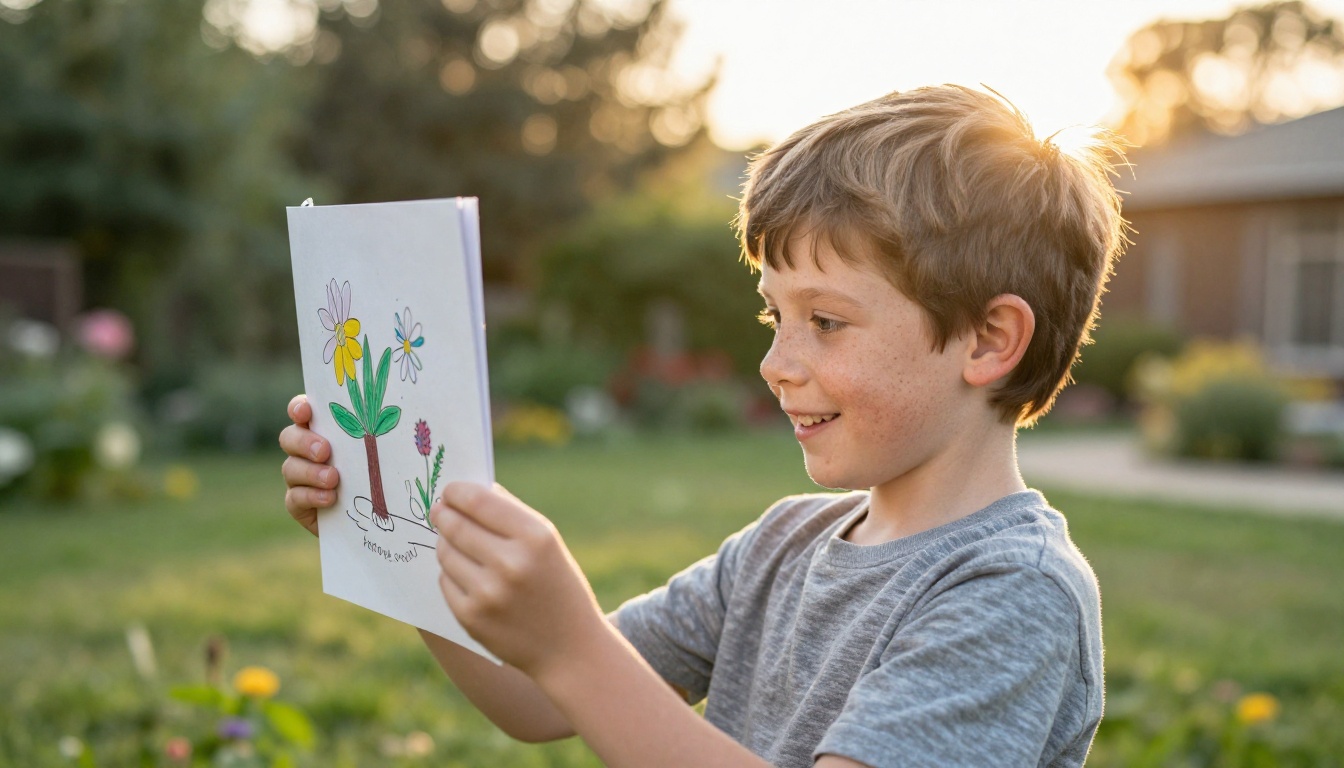
Real World Examples
A Second Grade Class Anthology
A teacher has twenty four students write a one page story each in Google Slides. She merges the slides into a single PDF, uploads it, and sends the flipbook link to parents on the last day of school. Families read the book at home, and the teacher keeps a private copy for next year's examples.
A Grandparent Gift
A mother and her six year old make a story about their dog in Canva. They record the child's voice for each page, embed the audio in the flipbook and send the link to grandparents overseas. The grandparents hear their granddaughter read, every night if they wish.
A Library Reading Hour
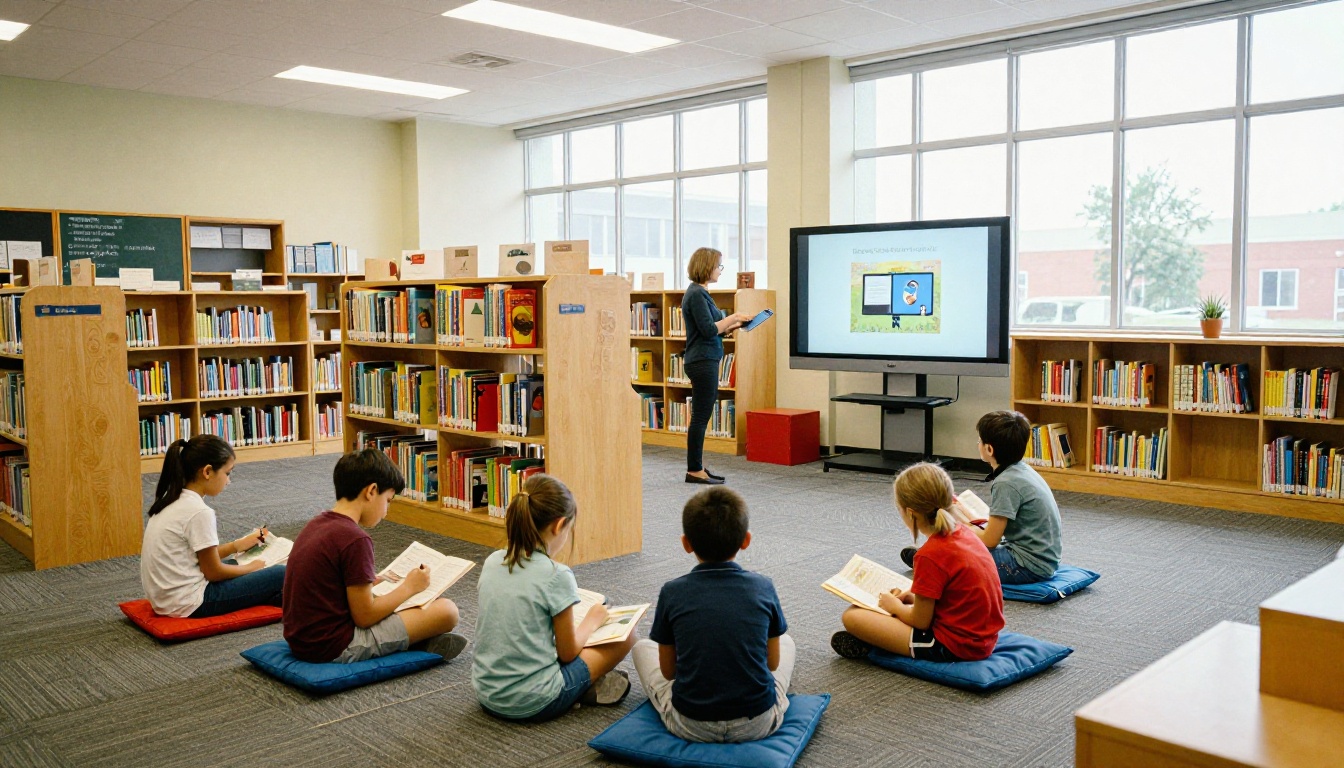
A school librarian builds a series of short illustrated stories with Book Creator and shares them through one flipbook link projected on a wall screen. Children sit on cushions while the librarian turns the pages with a single tap.
Tips for Better Children's Books
Keep Text Short
Picture books for ages four to seven usually carry one to three sentences per page. Let the pictures tell most of the story.
Use Real Photos and Drawings Together
A photographed hand drawn character beside a real photo of the park creates a charming mix that children love and adults remember.
Plan the Page Count
Sixteen pages is a comfortable length for a first project. It is long enough to tell a story with a beginning, a middle and a happy ending, and short enough to finish in a weekend.
Read It Aloud Before Publishing
Reading the story out loud shows you where sentences stumble. Children are the best editors, so ask them what feels wrong.
Quick Picks by Situation
| Your Situation | Best Pick | Why |
|---|
| Teacher with a class set of tablets | Book Creator | Student accounts, audio and group work |
| Parent wanting a printed gift | StoryJumper | Easy print ordering |
| Parent who likes design | Canva | Polished templates |
| Zero budget classroom | Google Slides | Free and familiar |
| Child who loves comics | Pixton | Panels and speech bubbles |
| Any finished story to share | Flipbooks AI | Page turning link, no watermark |
Ready to Publish Your First Story?
The best app is the one a child will actually open tomorrow. Pick one from this list, finish a short story this weekend and then give it the home it deserves.



