You bought the iPad for streaming and email, and now it sits next to a shoebox of unsorted photos, a stack of washi tape and a nagging feeling that you should finally turn those memories into pages. Good news: the best digital scrapbook apps for iPad crafters can give you every sticker, texture and paper pattern without the glue mess. And once your pages are done, a tool like Flipbooks AI can turn them into a page-turning album that anyone can open on a phone.
This ranking comes from the way crafters actually work: dropping photos onto a canvas, layering stickers, writing with an Apple Pencil, and exporting something worth sharing. Below you will find seven apps, three comparison tables, a step-by-step workflow and a few mistakes that waste hours.
What Makes a Great Scrapbook App
Not every creative app suits scrapbooking. A photo editor handles one picture well but struggles with twenty layered elements. A drawing app gives you brushes but no page templates. Before ranking anything, here are the criteria used.
Layers and Object Control
A scrapbook page is a pile of objects: photos, paper, tape, stickers, journaling blocks. You need to move, resize, rotate and reorder each one with a finger or the Pencil. Apps with weak layer handling turn a simple page into a frustrating puzzle.
Sticker and Paper Libraries
Importing your own assets matters, but a built-in library saves time. Look for PNG sticker support, paper textures and the ability to buy or import kits from independent designers.
Apple Pencil Support
Handwritten journaling is half the charm. Pressure sensitivity, palm rejection and a good lasso tool separate a pleasant app from a clumsy one.
Export Quality
You want high-resolution PNG, JPEG or PDF output. If you plan to print or build an album, export quality decides how sharp the final result looks.
💡 Pro tip: Test any app with a single page before buying a subscription. Import five photos, add three stickers, write one line by hand and export a PDF. If that takes more than ten minutes, move on.
The 7 Best Apps, Ranked
Here is the ranked list, from the most flexible all-rounder to the most specialized options.
1. Goodnotes
Goodnotes began as a note-taking app, but crafters adopted it for digital planners and scrapbooks. It handles images, stickers and handwriting on the same page, and its infinite-feeling zoom makes small details easy to place. Sticker packs are widely sold by independent creators, so you can build a themed collection quickly.
Best for: crafters who love handwriting and want planner-style journaling pages.
2. Procreate
Procreate is a full illustration app, yet scrapbookers use it for custom washi tape, hand-painted backgrounds and torn-paper edges. Its layer system is among the best on iPad. The tradeoff is that it has no page management, so a twenty-page album means twenty separate canvases.
Best for: artists who want to craft their own embellishments from scratch.
3. Canva
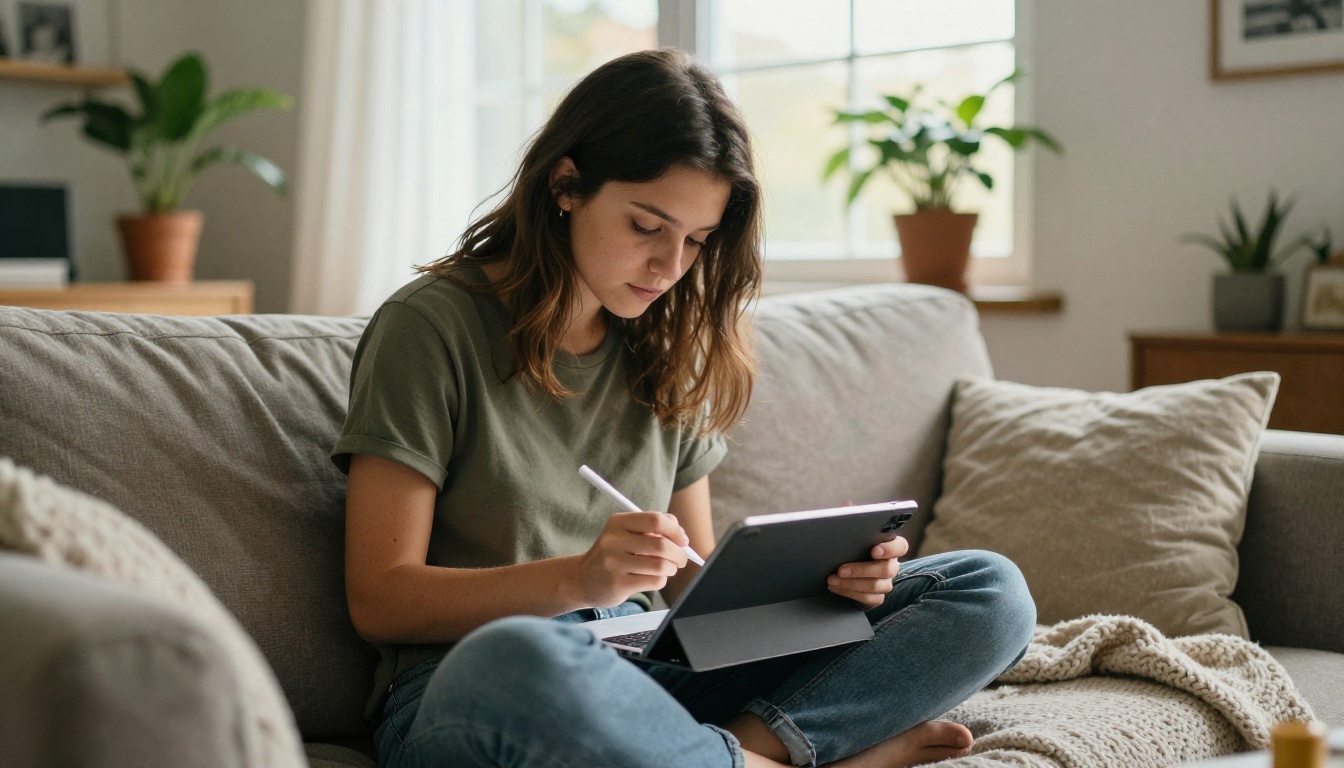
Canva offers a huge library of templates, frames and graphics, and it works across iPad, browser and phone. Collage-style scrapbook pages come together fast, and the drag-and-drop editing is friendly for beginners. Many of the best elements sit behind a paid tier, so check what is included before you commit.
Best for: beginners who want attractive layouts in minutes.
4. Notability
Notability combines typed text, handwriting and imported media on flexible pages. It is a solid choice if your scrapbook leans toward journaling, with long handwritten stories beside a few photos. Audio recording attached to a page is a lovely touch for family histories.
Best for: story-heavy pages, travel journals and memory books with voice notes.
5. Adobe Express
Adobe Express sits between a template tool and a design app. It gives you quick resizing, background removal and decent typography. Crafters who already use the wider Adobe ecosystem will feel at home.
Best for: polished, template-driven pages with clean typography.
6. Journal It
Journal It is built specifically around digital scrapbooking and planner pages. It supports layered objects, stickers and page-style layouts, making it more purpose-built than general design apps. Its focus on scrapbook workflows is its main strength.
Best for: crafters who want a dedicated scrapbooking environment.
7. Pic Collage
Pic Collage is the simplest option on the list. You add photos, drop stickers, adjust a grid and export. It will not satisfy detailed crafters, but it is perfect for quick, casual pages shared on social media.
Best for: fast, light-hearted collages and casual use.
Side-by-Side Comparison
Numbers and checkmarks beat vague descriptions. Use this table to match an app to your style. Features can change with updates, so confirm the details in the App Store listing.
| App | Best Strength | Apple Pencil Feel | Multi-Page Albums | Effort to Pick Up |
|---|
| Goodnotes | Handwriting and stickers | Excellent | Yes | Low |
| Procreate | Custom artwork | Excellent | No, one canvas each | Medium |
| Canva | Templates | Good | Yes | Very low |
| Notability | Journaling and audio | Excellent | Yes | Low |
| Adobe Express | Clean typography | Good | Limited | Low |
| Journal It | Scrapbook-specific tools | Good | Yes | Medium |
| Pic Collage | Speed | Basic | No | Very low |
Which Crafter Are You?
Matching the app to your habits saves money. This second table maps common crafter profiles to the best starting point.
| Crafter Profile | Start With | Why |
|---|
| Handwriting lover | Goodnotes | Natural pen feel and sticker packs |
| Illustrator | Procreate | Custom brushes and textures |
| Busy parent | Canva | Templates finish pages quickly |
| Travel journaler | Notability | Text, photos and audio together |
| Casual sharer | Pic Collage | Zero setup time |
| Dedicated hobbyist | Journal It | Scrapbook-first design |
Build a Page in Six Steps
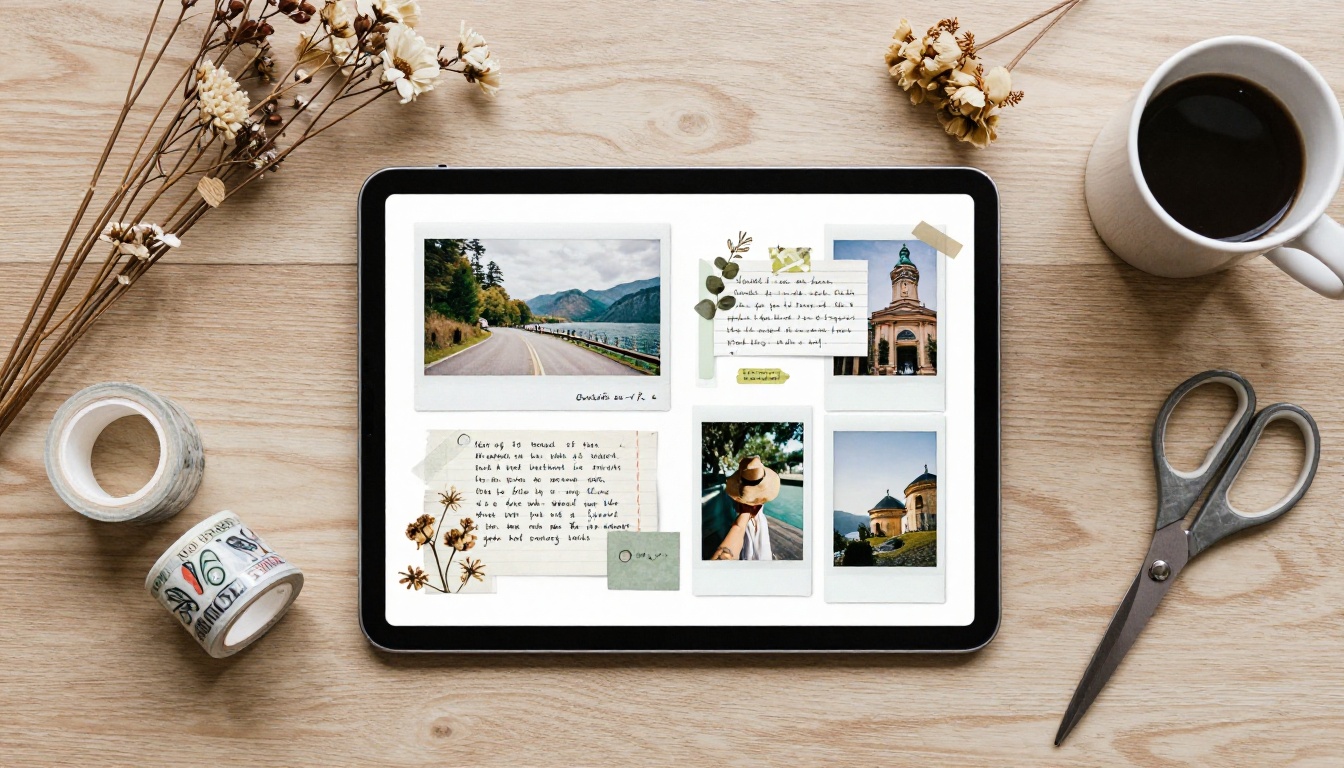
Whatever app you choose, the process stays similar. Here is a repeatable workflow that keeps pages consistent across an entire album.
- Pick a theme and a palette. Choose three or four colors from your main photo. Warm sand and sage for a beach trip, for example.
- Set the page size. Use the same dimensions for every page, such as a 12 by 12 inch square or a 16:9 landscape. Consistency makes printing and sharing easier later.
- Place the hero photo first. Give it the largest space and let everything else support it.
- Add paper and texture. Layer a subtle paper background under photos, then add a torn edge or a strip of tape.
- Write the story by hand. Two or three sentences with the Pencil beat a long paragraph. Date and place are enough.
- Export at full quality. Save as PDF or high-resolution PNG, and keep the original editable file.
✅ Best practice: Name your files with a number and a topic, like 03-beach-day. Sorting a forty-page album becomes effortless.
Practical Example: A Family Beach Trip
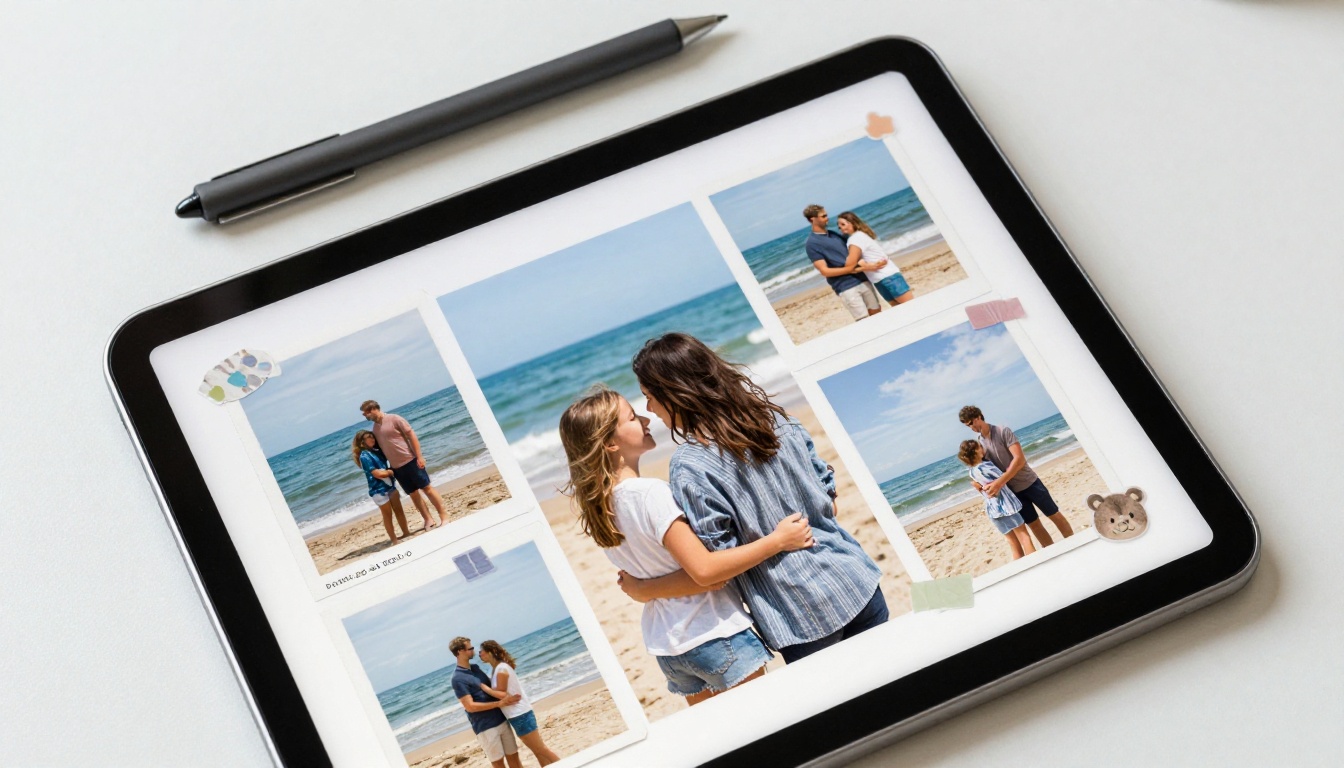
Imagine a family of four back from a week on the coast. They have about 300 photos. A good approach: choose 24 favorites, group them into six themes (arrival, sandcastles, sunsets, food, rainy day, goodbye), and build one two-page spread per theme. One hero photo, two supporting shots, a handwritten caption and two stickers per page. In Goodnotes or Canva, that is roughly an evening of relaxed work.
Apple Pencil Habits That Help
The Pencil is the biggest advantage an iPad has over a laptop. A few habits make a real difference.
Use the Lasso Tool Often
Select a group of items and move them together. This keeps a photo, its tape and its caption aligned while you adjust the layout.
Zoom Before You Place
Zoom to about 200 percent when aligning stickers on a photo corner. Small gaps that look fine at full size become obvious in print.
Keep Handwriting Large
Small writing gets lost when pages are viewed on a phone. Make your journaling slightly larger than feels natural.
Save Favorite Colors
Most apps let you store a palette. Reuse it across the album for a cohesive look.
Free Versus Paid: What You Really Pay For
Many scrapbookers spend more on sticker packs than on the app itself. Here is a realistic view of where money goes.
| Cost Area | Typical Model | Worth It? |
|---|
| App license | Free tier, one-time purchase or subscription | Yes, if you use it weekly |
| Sticker kits | Individual packs from designers | Only for themes you will use |
| Stylus | Apple Pencil | Strongly recommended |
| Printing | Photo book services | Optional, for gifts |
| Sharing platform | Flipbook publishing | Useful for family sharing |
⚠️ Warning: Subscriptions stack up quickly. Cancel anything you have not opened in a month, and keep your exported PDFs so you never lose access to finished pages.
Share Pages as a Flipbook
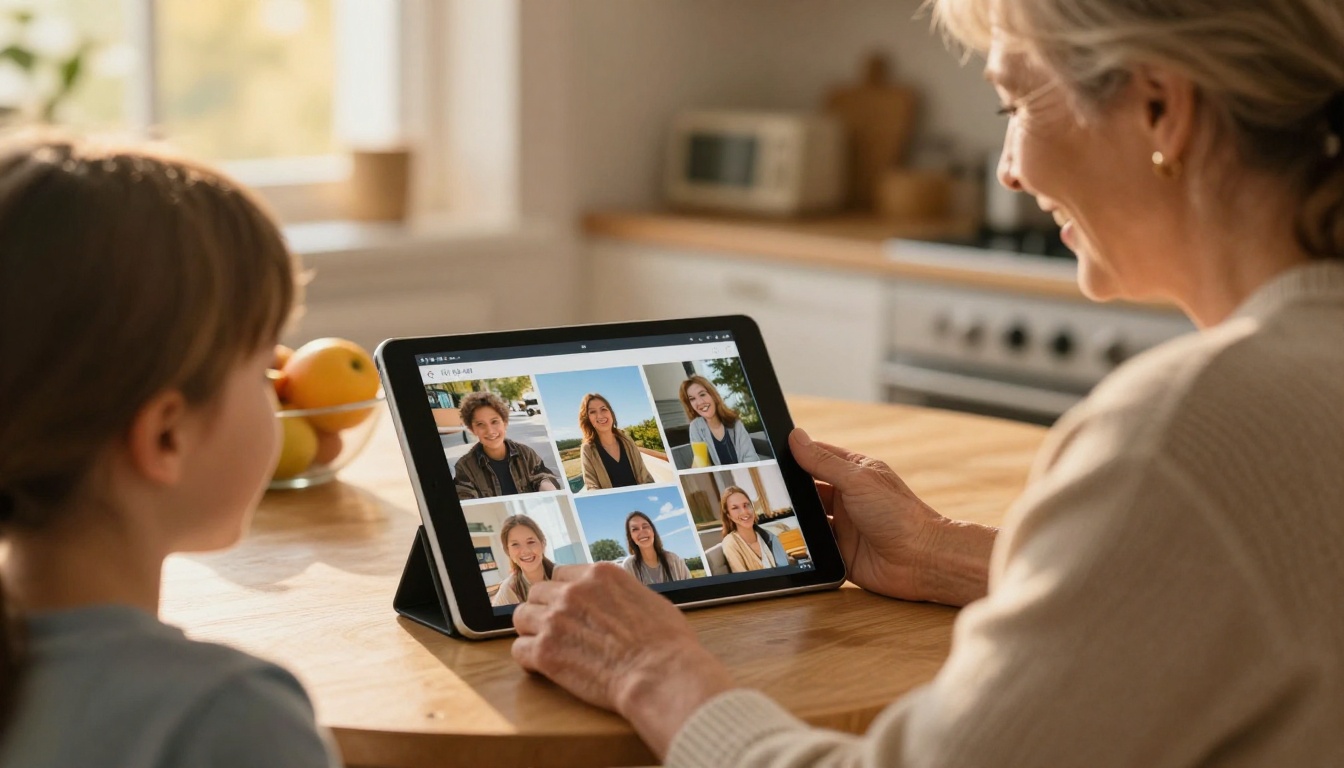
A folder of PNG files is not much fun to open. Grandparents want to flip through an album, not scroll through thirty attachments. That is where a flipbook shines: it turns your exported pages into a realistic page-turning book that works on phones, tablets and desktops.
How to Create a Scrapbook Flipbook with Flipbooks AI
If you export your finished pages as a single PDF, the process is short. Use the PDF to Flipbook Converter or the Wedding Album Flipbook tool for event memories.
- Get started. Create a free profile at Flipbooks AI.
- Upload your PDF. Export all pages from your scrapbook app as one PDF, then upload it. The platform converts each page into a flipbook spread automatically.
- Customize the look. Pick a background color that matches your palette, set page-turn effects and add a custom front page. You can also embed audio, such as a family voice message, on specific pages.
- Share it. Copy a direct link, use the embed code for a family website, or protect the album with a password for private photos. See the embed tool for details.
- Go further. On the Professional plan, analytics show who opened the album and offline downloads let relatives view it without internet. Compare options on the pricing page.
A few reasons crafters like this approach:
- ✅ No watermarks, ever
- ✅ Mobile-responsive reading on any phone
- ✅ Password protection for family-only albums
- ✅ Custom branding and colors
- ✅ Offline downloads for relatives with poor connections
💡 Pro tip: Export your scrapbook pages in the same page size and keep the margins at least half an inch. Flipbook viewers crop edges slightly on small screens, and a safe margin keeps captions readable.
Choosing Between Apps
Still undecided? Compare how different apps handle the end of the process, which is where many crafters get stuck.
Three Quick Rules
- If you write a lot, pick Goodnotes or Notability.
- If you draw, pick Procreate and export pages to a PDF.
- If you want speed, pick Canva or Pic Collage.
Mistakes to Avoid
- Mixing page sizes. Pages with different proportions look messy in an album and break flipbook layouts.
- Using low-resolution photos. Phone screenshots of photos look soft. Import originals from your library.
- Overloading pages. Five stickers on a small photo hide the memory. Leave breathing space.
- Skipping backups. Export a PDF every time you finish a spread and store a copy in cloud storage.
- Buying every pack. Pick one theme per album and stick with it.
Real-World Use Cases
Scrapbooking on iPad fits more situations than you might expect.
| Use Case | Suggested App | Output |
|---|
| Baby first-year album | Goodnotes | PDF, then flipbook for grandparents |
| Wedding memory book | Canva | Printed book plus flipbook link |
| Travel journal | Notability | Flipbook with embedded audio notes |
| Graduation gift | Journal It | Flipbook shared by link |
| Pet memorial | Procreate | Illustrated pages exported to PDF |
A Travel Journal Workflow
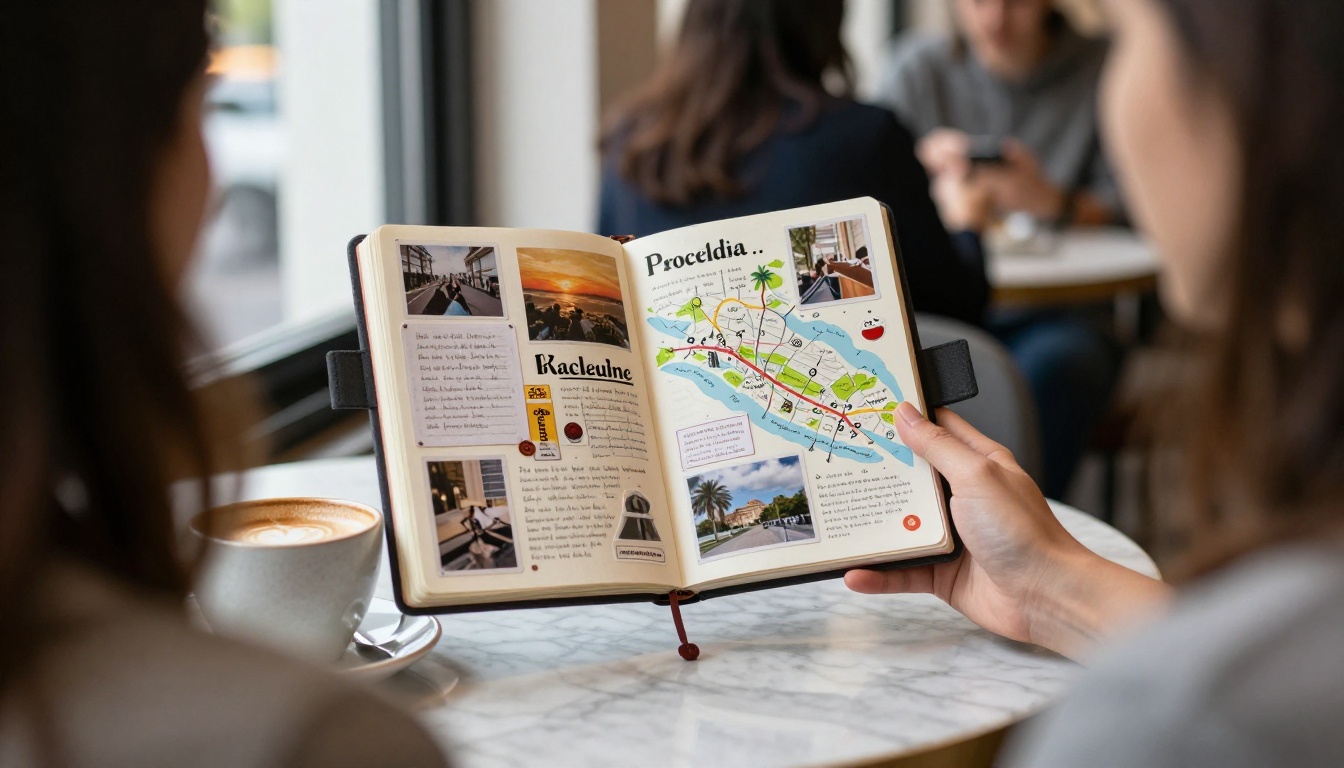
Crafters who travel can build pages in a cafe the same day. Import five photos, add a map sticker, write the date and a single sentence. By the end of the trip, you have twenty pages almost finished instead of a backlog of two thousand photos.
A Gift Album for Parents
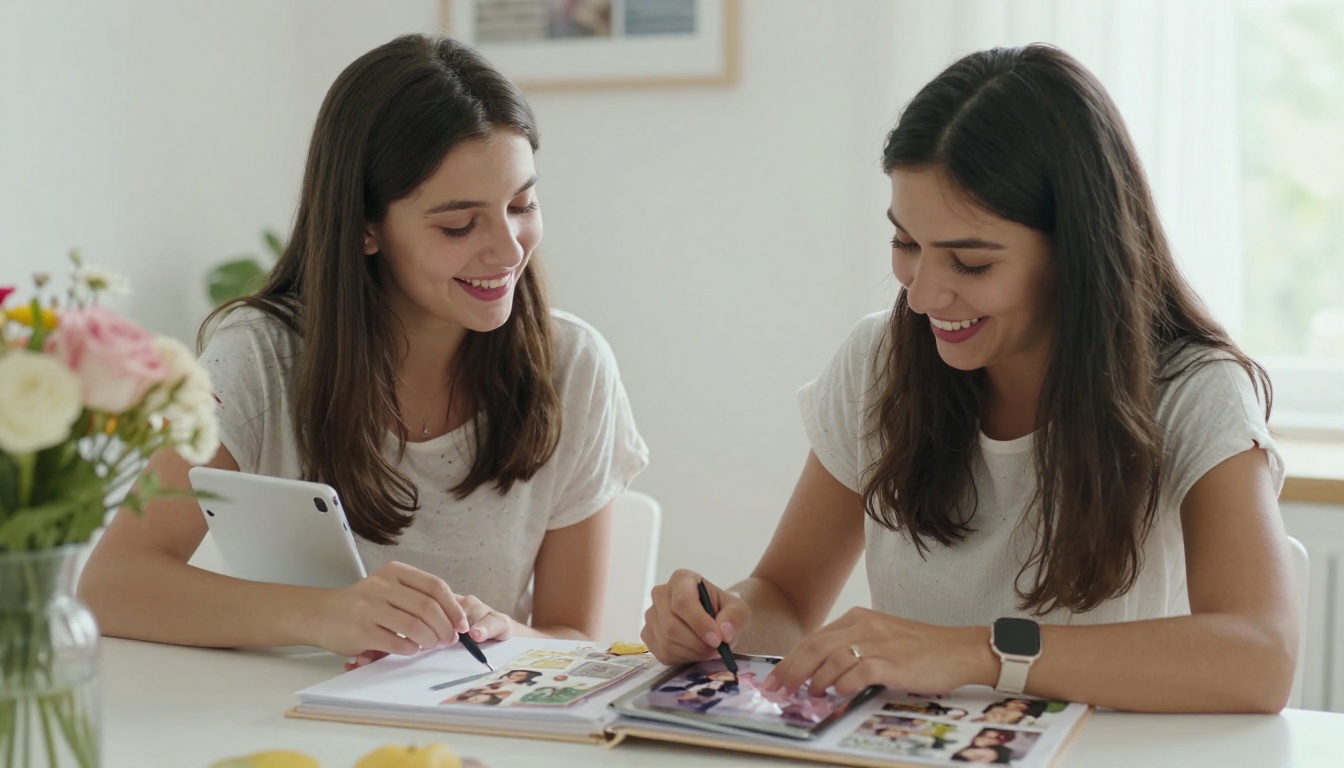
A teenager and a parent can build a wedding memory scrapbook together. One selects photos, the other writes captions. The result becomes a gift that is easy to share with relatives overseas through a link.
Final Picks and Next Steps
If you want one answer: start with Goodnotes for a balanced, Pencil-friendly experience, add Canva when you need a fast template, and bring in Procreate only when you want custom artwork. Pick one app, finish one album, and only then consider a second.
Ready to share your pages? Get started for free on Flipbooks AI and turn your PDF into a page-turning album. Browse all flipbook tools to find the right template, or compare pricing plans to choose what suits your family album.



