A Chromebook is fast at one thing: running the web. That is exactly why most desktop flipbook software fails on it, and why the best flipbook makers for a Chromebook are the ones that live entirely in the browser. If you have ever waited thirty seconds for a heavy page-turn animation to load, or found out that an installer simply will not run on ChromeOS, this ranking is for you. We tested the problem from the point of view of a low-memory laptop: fast uploads, light viewers, no plugins, and sharing that works on any device. Platforms like Flipbooks AI were built for the browser first, which makes them a natural fit.
Why Chromebooks Struggle With Flipbooks
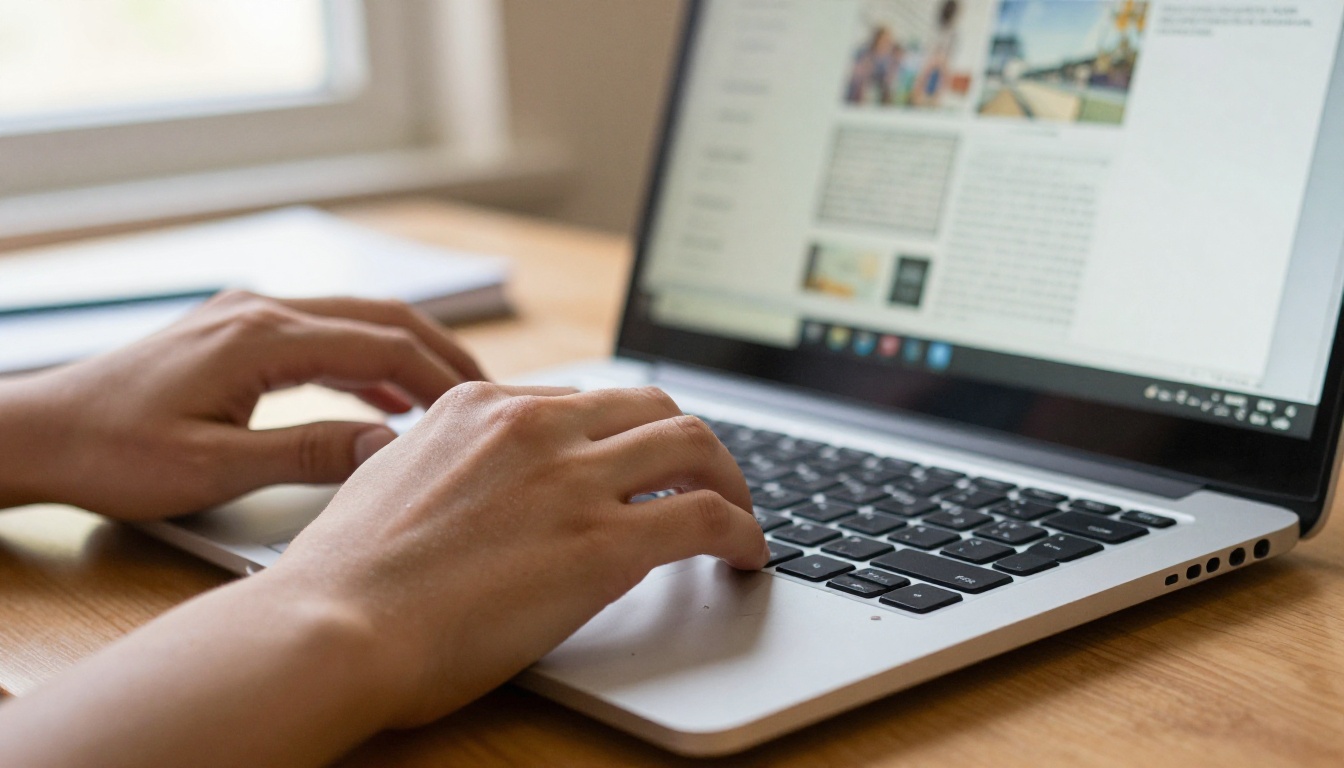
ChromeOS is a lightweight system. It has no .exe or .dmg support, limited local storage, and often 4 GB of RAM. Many classic flipbook tools assume a Windows or Mac desktop, so they either do not install or they push all the work onto a browser tab that runs out of memory.
The Three Real Bottlenecks
- Installation: Desktop-only software cannot run at all. Android and Linux workarounds exist, but they are slow and fragile.
- Memory: Large PDFs rendered in the browser can freeze a tab. Good tools convert on a server and stream light page images to you.
- Heavy viewers: Flipbooks with dozens of animations or autoplay media drain battery and stutter on older processors.
What "Runs Smoothly" Actually Means
For this ranking, smooth means four things: the editor opens in under five seconds, a 40-page PDF converts without freezing the tab, page turns stay fluid on a 4 GB device, and the finished flipbook opens quickly on a phone. Anything that fails one of these tests drops down the list.
💡 Pro tip: Open chrome://settings/performance and keep Memory Saver on while you work. It frees idle tabs so your flipbook editor gets more RAM.
We looked at what matters on a school or work Chromebook rather than on a gaming PC. The scoring below is simple and transparent, so you can reuse it with any tool you try.
| Criteria | Weight | What we checked |
|---|
| Browser-only editing | 30% | No install, no extension, no Linux container |
| Conversion speed | 25% | Time from PDF upload to a shareable flipbook |
| Viewer performance | 20% | Page-turn fluidity on 4 GB RAM and on phones |
| Sharing and embeds | 15% | Links, embed codes, password protection |
| Price and limits | 10% | Watermarks, page caps, number of flipbooks |

The Best Flipbook Makers for Chromebook
Here is how the main options compare for a Chromebook user. Exact plans change often, so check each pricing page before you commit.
1. Flipbooks AI
Best overall for Chromebook users. Flipbooks AI runs completely in Chrome. You upload a PDF, the conversion happens on its servers, and you get a responsive flipbook with no watermark. Because the heavy lifting is remote, an entry-level Chromebook feels as quick as a high-end laptop.
- ✅ No watermarks, ever
- ✅ Unlimited flipbooks on the Standard plan and above
- ✅ Password protection, embed codes, offline downloads
- ✅ Analytics and lead generation on the Professional plan
- ✅ Mobile-responsive viewer that stays light
You can try it through the account page and compare plans on the pricing page.
2. Browser-Based Design Suites
General design platforms with a flipbook export are comfortable on ChromeOS because they are web apps. They shine when you need to design pages from scratch. The tradeoff: editors with many layers can slow a 4 GB device, and the exported flipbook may be locked behind a paid tier.
3. Classic Page-Turning Publishers
Long-established flipbook publishers offer web uploaders, but several still push a desktop app for their more detailed features. On a Chromebook you will be limited to the web version, so read the feature list for what is actually available in the browser before paying.
4. Office-Suite Add-Ons
If your school already uses Google Workspace, slide and document exports can be turned into simple page-by-page viewers. They are light, but they rarely offer a true page-flip effect, branding control or lead capture.
Quick Comparison Table
| Feature | Flipbooks AI | Design suites | Classic publishers | Office add-ons |
|---|
| Works fully in browser | Yes | Yes | Partly | Yes |
| PDF to flipbook | Yes | Limited | Yes | Limited |
| No watermark | Yes | Paid tiers | Paid tiers | Yes |
| Page-flip effect | Yes | Yes | Yes | Rarely |
| Password protection | Yes | Varies | Varies | Via file sharing |
| Embed on a website | Yes | Yes | Yes | Limited |
| Light on 4 GB RAM | Yes | Medium | Medium | Yes |

Speed Tips for Low-Memory Laptops
Even the best tool benefits from a few habits. These take minutes and make a visible difference on school-issued devices.
Prepare Your PDF First
Most slowdowns start with the source file. A 200 MB PDF full of uncompressed photos will upload slowly on any connection.
- Export images at 150 to 200 DPI instead of 300.
- Remove hidden layers and unused fonts.
- Keep a single PDF under 50 MB when possible.
- Split a very long document into chapters.
Keep Your Browser Lean
- Close unused tabs before converting a file.
- Disable extensions you do not need while editing.
- Restart the Chromebook once a week to clear background processes.
- Use a wired or 5 GHz Wi-Fi connection for uploads.
⚠️ Warning: Do not open the editor and a video call in the same session on a 4 GB Chromebook. One of them will stutter, usually the one you care about.
Pick Lightweight Media
Embedded video makes flipbooks lively, but autoplay clips slow older hardware. Host long videos on a streaming platform and embed a short preview instead. Flipbooks AI lets you embed video and audio, so you can choose where the extra weight is worth it.

How to Create a Flipbook on Chromebook
This tutorial uses Flipbooks AI because it needs nothing installed. The same flow works on any Chromebook, including older models.
Step-by-Step Walkthrough
- Get started. Open Chrome and go to Flipbooks AI, then create an account.
- Upload your PDF. Drag the file into the upload area, or pick it from Google Drive or the Downloads folder. Conversion runs on the server, so your Chromebook only has to display the result. The PDF to Flipbook Converter is the fastest route for a single document.
- Customize the look. Add your logo, choose background colors, set the page-flip effect and add links or multimedia on the pages that need them.
- Choose sharing options. Copy a direct link, grab an embed code for your site, or turn on password protection for private content. The Embed Flipbook on Website tool explains the embed step.
- Go further with the Professional plan. Turn on analytics to see which pages get read, capture leads with a form, or allow offline downloads for places with weak Wi-Fi.
✅ Best practice: Test the flipbook link on your phone before sending it out. If it opens quickly there, it will open quickly almost anywhere.
Time You Can Expect
| Step | Typical time on a Chromebook |
|---|
| Open the editor | Under 5 seconds |
| Upload a 40-page PDF | 20 to 60 seconds |
| Server conversion | A few moments |
| Branding and settings | 3 to 5 minutes |
| Share link or embed | Under 1 minute |
Real Examples for Chromebook Users
The strongest reason to use a browser-based tool is that the people who read your flipbook, and the people who make it, can all use the same cheap hardware.
Teachers and Schools
A teacher can turn a worksheet bundle into a flipbook that students open on their own Chromebooks without installing anything. Try the Course Material Publisher for lesson packs, or the School Newsletter Creator for parent updates. A Training Manual Flipbook works well for staff onboarding too.
Small Businesses
A boutique owner can publish a seasonal lookbook straight from a Chromebook behind the counter. A Product Catalog or a Digital Price List stays easy to update: replace the PDF and share the same link.
Restaurants and Events
A cafe can host a menu flipbook behind a QR code. An organizer can use the Event Program Maker so attendees open the schedule on their phones.
Use Case Table
| Use case | Best format | Recommended tool |
|---|
| Lesson packs | PDF with links | Course Material Publisher |
| Product list | Catalog flipbook | Product Catalog Generator |
| Portfolio | Image-heavy flipbook | Digital Portfolio Creator |
| Newsletter | Short monthly flipbook | Newsletter Flipbook Publisher |
| Menu | One-page or multi-page | Restaurant Menu Creator |

Mistakes to Avoid on ChromeOS
Most problems come from a handful of habits. Avoid these and your flipbooks will feel faster for everyone.
3 Common Mistakes
- Choosing a desktop-first tool. If the signup page pushes an installer, expect trouble on ChromeOS.
- Uploading huge source files. Compress images before upload, not after.
- Ignoring the reader's device. Most readers open links on a phone, so test there first.
Free Plans With Hidden Limits
Some free tools place a watermark on every page or cap the page count at a few dozen. A watermark looks unprofessional on a client catalog. Read the limits first, and compare against the pricing plans so you know what you actually get.
⚠️ Warning: A cheap tool that adds a logo to your pages can cost more in credibility than a paid plan costs in money.

Which One Should You Pick
If you want one answer, choose the browser-first tool with no watermark and flexible sharing. If you are a school already tied to a document suite, start with a simple export and move up when you need branding or analytics.
Decision Table
| If you are... | Choose... | Why |
|---|
| A teacher or student | Flipbooks AI | Runs in Chrome, easy PDF upload |
| A small business | Flipbooks AI | Branding, embeds, no watermark |
| A designer building from scratch | A design suite | Layout control, then export a PDF |
| A quick one-off share | Office add-on | Simple and already available |
Quick Checklist Before You Commit
- Does the editor open fast in a Chrome tab?
- Is there any installer or plugin requirement?
- Does the free tier add a watermark?
- Can you protect the flipbook with a password?
- Does the finished viewer run well on a phone?

Ready to Build Yours
You do not need a powerful laptop to publish a polished flipbook. You need a tool that does the heavy work elsewhere and a viewer that stays light. Ready to create your first flipbook? Get started for free on Flipbooks AI, browse all available flipbook tools to find the right template, and review the pricing plans when you are ready for sharing controls, analytics and lead capture. When you are set to go further, choose your plan and publish from the same Chromebook you already own.