You export a PDF, send it to the printer or upload it to your site, and then you spot it: a typo in the headline, a page in the wrong order, a phone number that is off by one digit. Fixing that after publication is embarrassing and slow. The good news is that you do not need a paid suite to repair it first. This ranking of the best free PDF editors for fixing files before you publish shows what each tool does well, where it stumbles, and how to combine them. And once the file is clean, you can turn it into a page-turning online publication with Flipbooks AI.
What Free Editors Can Really Fix
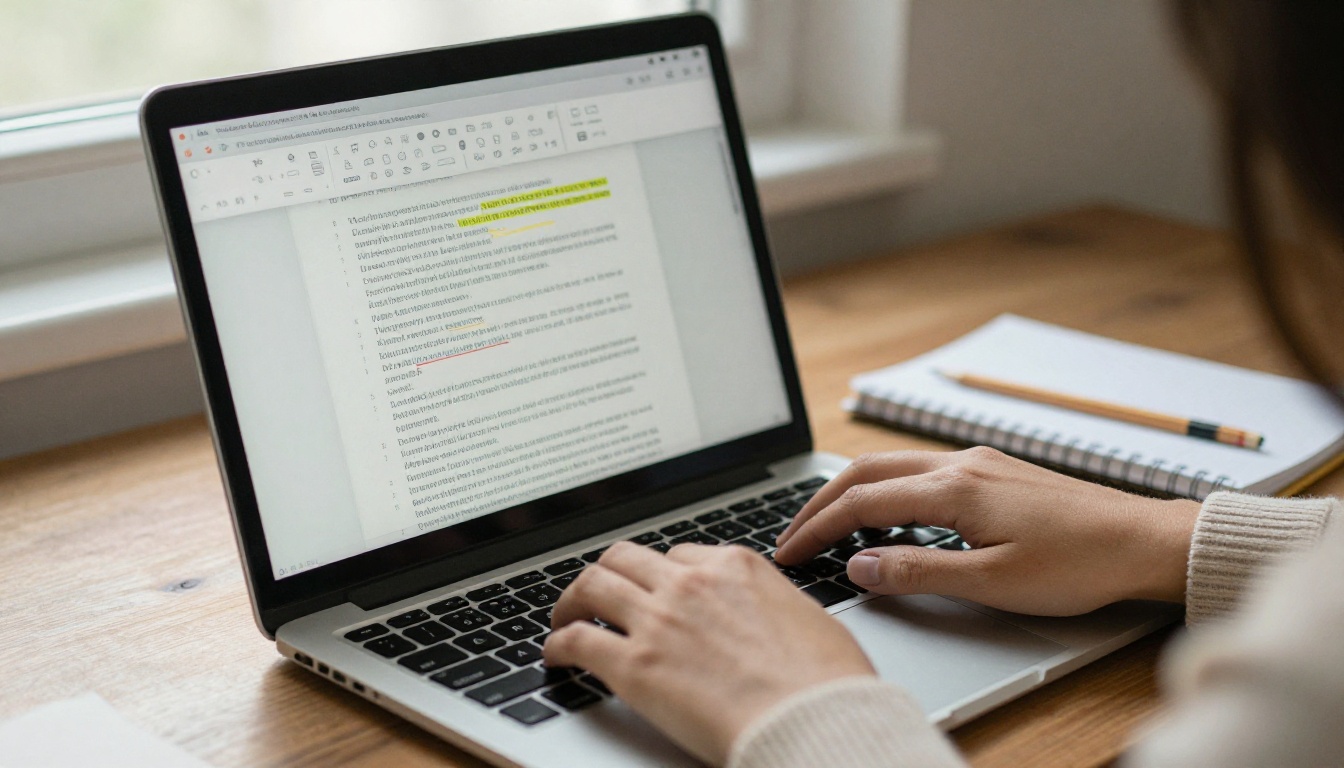
Free does not mean useless. Most problems that show up right before publishing are small, and small problems are exactly what free tools handle best. Here is the realistic list of repairs you can expect without paying anything:
- Text fixes: correcting typos, swapping a date, updating a price or a contact detail.
- Page repair: reordering, rotating, deleting, or inserting pages.
- Merge and split: joining chapters into one file, or pulling a single section out.
- File size: shrinking a 90 MB export to something readers can open on mobile data.
- Annotations: removing stray comments, sticky notes, and highlights.
- Links and metadata: fixing broken URLs, setting the title and author fields.
What free tools usually struggle with is heavy layout work. If a brochure was built in a design app with custom fonts, editing text directly in the PDF can shift lines or substitute fonts. We will come back to that, because it decides which tool you should open first.
💡 Pro tip: Always fix the source file when you still have it. A PDF editor is the fastest rescue, but the original design file is the cleanest one.
Our Ranking Criteria
Every tool below was judged on five points that matter when a deadline is close:
- Editing depth: can it change existing text, or only add new text on top?
- Privacy: does the file stay on your computer, or go to a server?
- Limits: page caps, daily task limits, watermarks.
- Speed: how fast you can go from open file to saved fix.
- Output quality: does the saved PDF keep fonts, images, and links intact?
Free plans and limits change often, so confirm the current terms on each vendor's site before you commit to a big batch.
The Best Free PDF Editors Ranked
1. PDFgear: Best All Rounder
PDFgear is a desktop and mobile app that offers text editing, page management, compression, and conversion without asking for a subscription. It is the one to open when you want to change a sentence and keep moving. Text edits feel close to a word processor, and the interface stays out of your way.
Best for: quick text corrections and page cleanup on a normal business document.
Watch out for: very complex layouts, where reflowed lines can need a manual nudge.
2. LibreOffice Draw: Best for Deep Text Surgery
LibreOffice is free and open source, and its Draw module can open a PDF as an editable drawing. Every text block becomes an object you can move, restyle, or delete. That makes it strong for stubborn fixes, such as replacing a logo or adjusting a column that other tools will not let you touch.
Best for: layout repairs where you need full control.
Watch out for: missing fonts. If the PDF uses a font you do not have installed, Draw substitutes another and the look can change.
3. Sejda PDF Editor: Best Online Option
Sejda runs in the browser, so there is nothing to install. It handles text edits, form fields, links, merging, and compression. The free tier has caps on file size, page count, and tasks per hour, which is fine for a single brochure but tight for a big batch.
Best for: one-off fixes on a computer where you cannot install software.
Watch out for: privacy. Uploads go to a server, so skip it for confidential contracts.
4. PDF24 Creator: Best Toolbox for Offline Work
PDF24 bundles a long list of tools in one Windows app: merge, split, compress, rotate, reorder, and annotate. It processes files locally, which helps with sensitive documents. Its text editing is lighter than PDFgear or Draw, so treat it as the page and file utility, not the proofreading tool.
5. PDFsam Basic: Best for Splitting and Merging
PDFsam does a narrow job and does it well. Split a 200 page report by bookmarks, merge twelve chapters in a chosen order, or extract only the pages you need. It does not edit text, but nothing in this list is faster at reorganizing a long file.
6. Xodo: Best for Annotation and Review
Xodo is a friendly reader and annotator available on web, desktop, and mobile. It is good when a reviewer needs to mark up a draft, and for removing those marks later. For heavy text rewriting, use one of the tools above instead.
Side by Side Comparison
| Tool | Runs | Edits Existing Text | Merge/Split | Compression | Privacy |
|---|
| PDFgear | Desktop, mobile | Yes | Yes | Yes | Local |
| LibreOffice Draw | Desktop | Yes (object based) | Limited | No | Local |
| Sejda | Browser | Yes (limits apply) | Yes | Yes | Cloud upload |
| PDF24 Creator | Desktop | Basic | Yes | Yes | Local |
| PDFsam Basic | Desktop | No | Excellent | No | Local |
| Xodo | Web, desktop, mobile | No (annotation) | Basic | No | Depends on mode |
⚠️ Warning: Features and free limits change. Treat this table as a starting point and verify current terms before you rely on a tool for a large project.
Rather than testing six apps, use the problem you actually have as the starting point.
| Your Problem | Open This First | Why |
|---|
| A typo in body text | PDFgear | Fast inline text edit |
| Logo or column misaligned | LibreOffice Draw | Object level control |
| Pages out of order | PDFsam Basic or PDF24 | Drag and reorder |
| File too large to email | PDFgear or Sejda | Built in compression |
| Reviewer comments left in | Xodo | Easy annotation cleanup |
| Confidential file | Any offline desktop tool | Nothing leaves your machine |
Fixing Typos Without Breaking the Layout
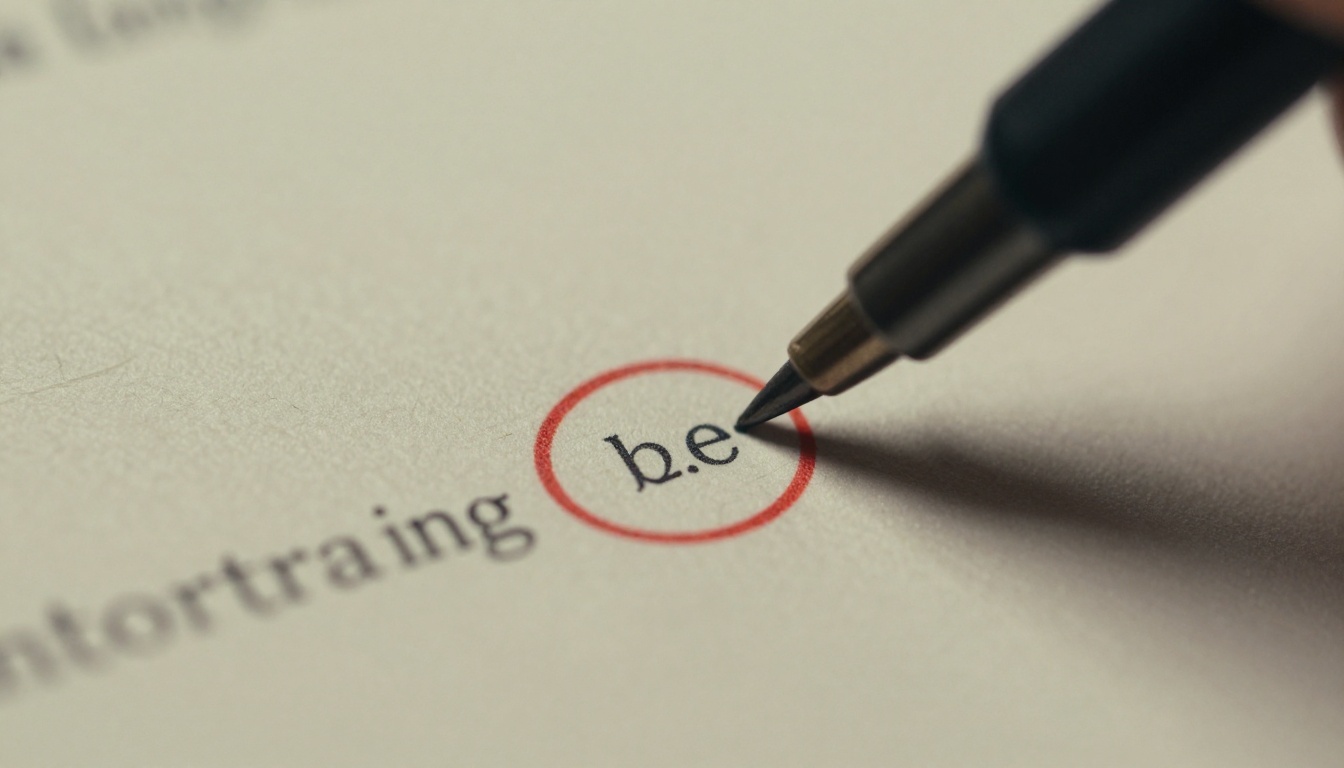
Typos are the most common last minute error, and they are also the easiest to make worse. Short edits are safe. Longer rewrites cause trouble because a PDF stores text as separate lines, not as flowing paragraphs. A new sentence that is longer than the old one will not wrap onto the next line by itself.
Follow this routine:
- Zoom to 200% so you can see exactly what you are changing.
- Edit only the words that are wrong. Keep the new text the same length when you can.
- Check the line end. If the sentence runs long, shorten a nearby word.
- Save under a new filename, so the original stays as a backup.
- Search the document for the same typo, because it often repeats.
Reordering and Removing Pages
A reorder is usually a thumbnail view and a drag. Before you delete anything, check whether the page numbers in the footer are baked into the page. If they are, deleting a page leaves a numbering gap that you will need to fix by hand or in the source file.
Shrinking an Oversized File
Large PDFs are mostly large images. Compression tools downsample images, and the quality loss is rarely visible on screen. A good target for web reading is a file small enough to open quickly on a phone. If the result looks soft, step the compression level back one notch and test again.
✅ Best practice: Compress last. Every edit and re-save after compression can degrade image quality further.
Real World Scenarios
The Freelance Designer
A freelancer sends a portfolio PDF and notices the client's name is misspelled on page three. The source is on another computer. PDFgear fixes the word in under a minute, then the same app compresses the file below the email limit.
The Restaurant Owner
A menu PDF goes live with last season's prices. Instead of waiting for the designer, the owner opens it in PDFgear, updates five numbers, and re-uploads. A Restaurant Menu Creator project could then turn the corrected file into a flipbook menu guests can open from a QR code.
The Real Estate Agent
An agent merges separate listing sheets into one brochure with PDFsam, removes a sold property, and runs a final compression. The result feeds a Real Estate Brochure flipbook that clients can flip through on their phones.

The Pre-Publish Checklist
Run through this list every time. It takes five minutes and prevents most public mistakes.
| Check | Time | Risk If Skipped |
|---|
| Proofread names and numbers | 3 minutes | Wrong contact details go public |
| Click all links | 2 minutes | Readers hit dead pages |
| Strip comments | 1 minute | Internal notes get seen |
| Compress | 1 minute | Slow downloads, high bounce |
Free Editor Limits to Expect
Free tools make trade-offs, and it helps to know them in advance:
- Page or size caps on browser tools, which can block a long catalog.
- Daily task limits, so a ten file batch may stall halfway.
- Font substitution when you edit text that uses fonts missing from your computer.
- Scanned documents that are really images. Editing them needs text recognition first, and free versions of that vary in accuracy.
- Watermarks on some "free" exports. Test with a throwaway file before you trust a tool with the real one.
If you hit one of these walls, the fix is usually to switch tools for that one step, not to buy a subscription.
From Fixed PDF to Flipbook
A clean PDF is a good file, but it is still a static download. Many readers will not open it at all. Turning it into a flipbook gives you a link that loads in the browser, flips like a real publication, and works on a phone. Here is how to do it with Flipbooks AI.
How to Create a Flipbook with Flipbooks AI
- Start your account. Go to Flipbooks AI and create an account. You can test the workflow before you pick a plan.
- Upload the PDF. Use the PDF to Flipbook Converter. Drop in the file you just fixed. The pages convert in moments and the links you repaired stay clickable.
- Customize the look. Add your logo, pick brand colors, choose the page turn effect, and drop in video or audio where it helps the story.
- Set sharing options. Copy a direct link, grab an embed code to embed the flipbook on your website, or lock it with a password for private content.
- Go further with Pro features. The Professional plan adds analytics, lead generation forms, and offline downloads. Check the pricing plans to see what fits.
| Feature | Static PDF | Flipbook |
|---|
| Opens in browser | Sometimes | Always |
| Mobile friendly reading | Pinch and zoom | Responsive layout |
| Embeds on a web page | Awkward | Simple embed code |
| Password protection | Limited | Built in |
| Reader analytics | None | Available on Professional |
| Watermarks | Depends on tool | None, ever |
💡 Pro tip: Fix the PDF first, then convert. Every typo you catch before conversion is a typo you do not have to republish later.
Not sure which format suits your project? Browse the full list of flipbook tools for catalogs, brochures, magazines, portfolios, and more.
A Simple Workflow You Can Reuse
Put it all together and you get a repeatable process that works for any document:
- Duplicate the original file and work only on the copy.
- Reorganize pages with PDFsam or PDF24.
- Edit text with PDFgear, or LibreOffice Draw for stubborn layouts.
- Clean annotations and set the metadata.
- Compress once, at the end.
- Proof the final file on a phone and a desktop.
- Publish as a flipbook so readers get a fast, polished experience.
Three Common Mistakes
- Editing the only copy. One bad save and the original is gone.
- Compressing too early. Repeated saves compound the quality loss.
- Skipping the phone test. Most readers will see your file on a small screen first.
Ready to Publish

Free tools can fix almost anything that goes wrong in the last hour before a launch. Pick PDFgear for quick text edits, LibreOffice Draw for layout repairs, PDFsam for page order, and Sejda when you are away from your own computer. Run the checklist, save a clean copy, and then give that file a better home.
Ready to turn your corrected PDF into something readers want to open? Get started for free on Flipbooks AI, browse all tools and templates to find the right fit, and compare pricing plans to choose what works for you. When you are ready to publish with analytics and lead capture, you can upgrade through your account.



