A zine costs almost nothing to make, and that is exactly why so many artists and students fall in love with them. One sheet of paper, a few folds, and you hold a tiny magazine that says exactly what you want it to say. The hard part is rarely the idea. It is picking software that does not charge you for the privilege of arranging eight small pages. This ranking compares seven free zine makers, shows who each one suits, and finishes with a simple way to publish the result as a digital zine with Flipbooks AI.
I judged every tool on the same five things: how fast you get a usable page layout, whether it exports a clean PDF, how well it handles images, how much it limits you on the free tier, and how painful it is for a total beginner. Prices and limits change often, so check each tool's own page before you commit to a big project.
What Makes a Zine Maker Good
Most zine projects are short. Eight pages, sixteen pages, maybe a thirty-two page photo book if you are ambitious. That means you do not need a heavy publishing suite. You need a handful of specific things done well.
The Features That Matter
- Page size control: zines are often A6, A5, or half-letter. A tool that locks you to slides or posters will fight you.
- Clean PDF export: your printer or copy shop needs a flat file with sensible margins.
- Image handling: photos, scans, and collage cut-outs should drop in without blurring.
- Typography freedom: hand-lettered fonts, ransom-note mixes, and tiny captions all need room to breathe.
- No heavy watermark: a logo stamped on every page ruins the look of a handmade object.
Who Is Making Zines Right Now
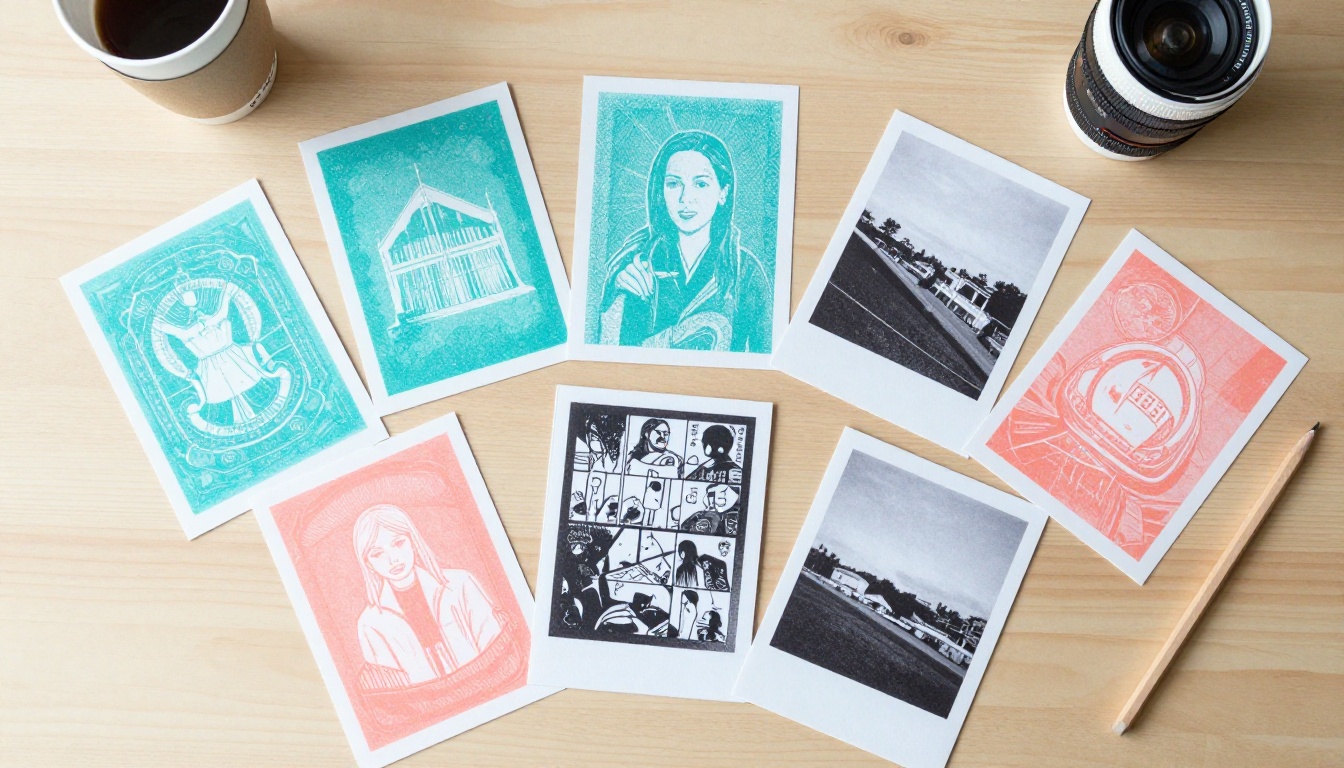
Illustrators use them for comic anthologies and sketchbook highlights. Photography students use them for portfolio-style series. Music scenes still run on gig zines. Teachers assign them as alternatives to essays, because a student who has to fold their argument into eight pages learns to edit hard.
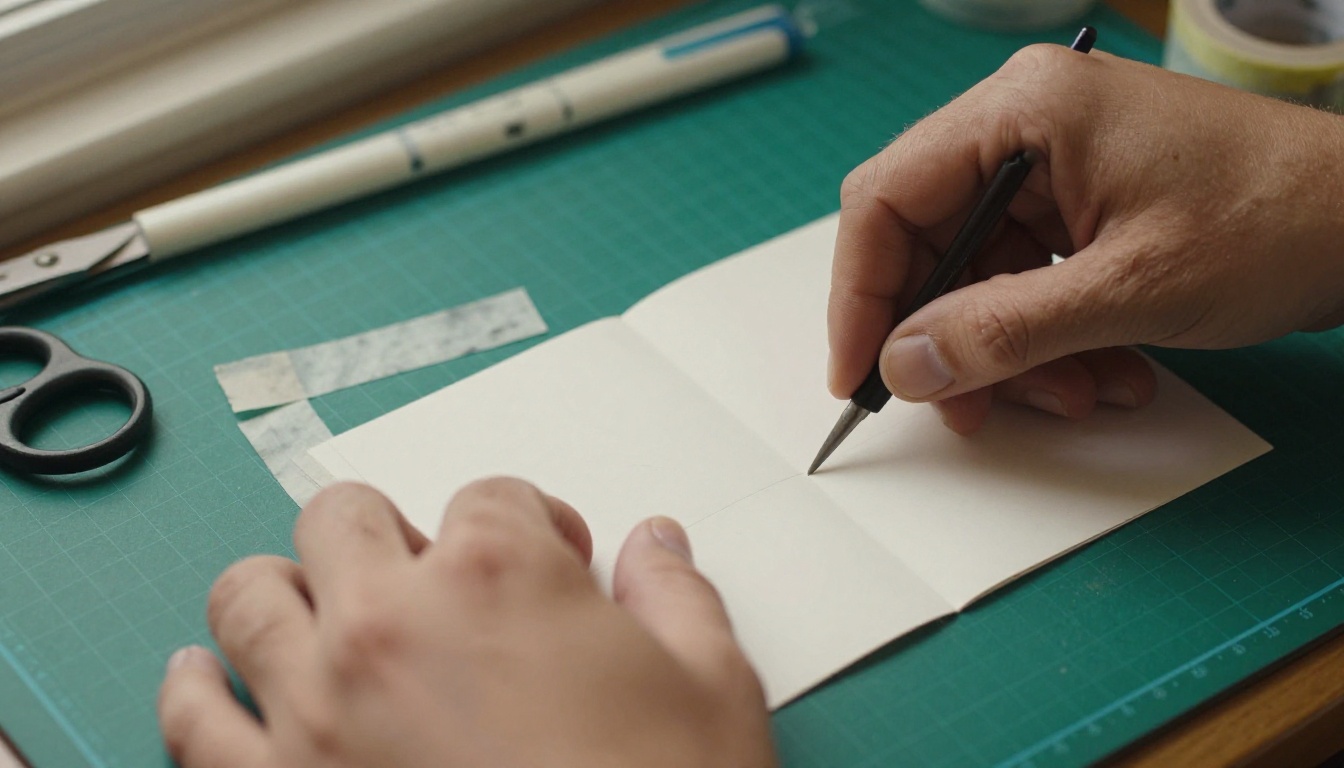
💡 Pro tip: Before opening any software, fold a blank sheet into your zine format and number the pages by hand. Page order on an eight-page fold is counter-intuitive, and a paper mockup saves you from printing a booklet where page three sits upside down.
Here is the short version before we go deeper. Ratings are my own judgment based on how each tool performs for small zine projects.
| Tool | Best For | Custom Page Size | PDF Export | Beginner Friendly |
|---|
| Canva | Fast, polished layouts | Yes | Yes | Very |
| Adobe Express | Social-style zines | Limited | Yes | Very |
| Google Slides | Class projects, teamwork | Yes | Yes | Very |
| Scribus | Print-accurate booklets | Yes | Yes | Steep curve |
| Penpot | Designers who like vector work | Yes | Yes | Moderate |
| Book Creator | Younger students, classrooms | Preset | Yes | Very |
| LibreOffice Draw | Offline, no account needed | Yes | Yes | Moderate |
The 7 Best Free Zine Makers
1. Canva for Speed
Canva is the easiest way to get a good-looking zine on screen within ten minutes. You set a custom size, drop in photos, and use the built-in grids to lock your layout. The free tier covers the basics, and the PDF export is print-friendly. The catch: some templates and stock elements sit behind the paid plan, and it is easy to end up with a zine that looks like everyone else's. Use your own photos and drawings, and the template look disappears.
2. Adobe Express for Social Zines
Adobe Express suits zines that live mostly on phones. It handles bold type and quick collages well, and the free account is generous for simple projects. Page size options are narrower than Canva's, so print-first zines can feel cramped. It is a good pick if your audience will read on a screen anyway.
3. Google Slides for Group Projects
This one surprises people. Set a custom page size under the page setup menu, and each slide becomes one zine page. Several students can edit at once, comments work, and everything saves automatically. Typography is basic, but for a class assignment or a collaborative anthology it is hard to beat. Export as PDF and you are done.
4. Scribus for Print Accuracy
Scribus is open-source desktop publishing software. It handles bleeds, guides, master pages, and professional print output, and it costs nothing. The interface looks dated, and the first hour is humbling. If you plan to print a run of fifty or more and care about exact margins, the effort pays off. For a single eight-page fold, it is probably overkill.
5. Penpot for Vector Lovers
Penpot is a free, open design tool that runs in the browser. It is strong for illustrators who want crisp vector shapes, custom grids, and reusable components. You build each page as a frame and export the set as a PDF. It was built for interface design, so you will set up your own print margins, but the control is excellent.
6. Book Creator for Classrooms
Book Creator is built for schools. Students can mix text, drawings, audio, and photos into a single book, and the interface is friendly enough for younger learners. The free library has a cap on how many books you can create, so teachers with large classes should check the current limits first.
7. LibreOffice Draw for Offline Work
If you have no reliable internet or simply prefer not to create accounts, LibreOffice Draw does the job. Set a custom page size, place images, and export a PDF. It lacks template polish, but nothing is stopping you from building your own grid and reusing it for every issue.
The best tool depends less on features and more on the kind of zine you are making. Match the project to the workflow.
For Illustrators and Comic Artists
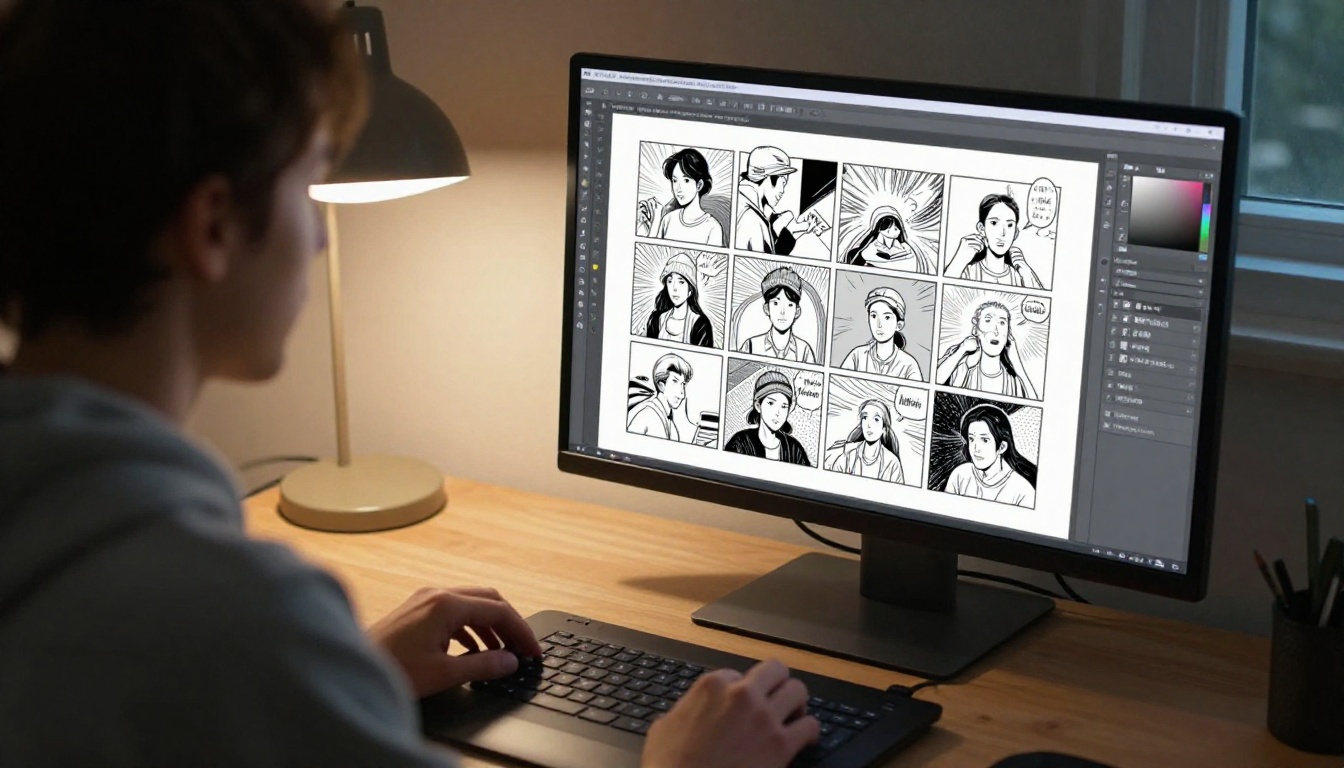
Scan your pages at 300 dpi or higher and place them in Penpot or Scribus, where panel borders stay crisp. If you draw digitally, export each page as a PNG and assemble in Canva for speed. Keep a consistent margin of at least 6 mm so staples do not eat your art.
For Photography Students
Photo zines live and die on image quality. Use Canva or Scribus, keep one image per spread when possible, and let white space do the talking. Resist the urge to add effects. A plain caption in a clean font beats a filter every time.
For Class Assignments
Google Slides or Book Creator wins here. Collaboration matters more than typography, and your instructor probably wants a link or a PDF, not a print-shop file.
| Project Type | Recommended Tool | Why It Works |
|---|
| Comic anthology | Penpot or Scribus | Sharp lines, exact margins |
| Photo series | Canva | Fast grids, good image handling |
| Group assignment | Google Slides | Real-time editing |
| Younger students | Book Creator | Simple, safe, visual |
| Offline drafting | LibreOffice Draw | No account needed |
How to Build a Zine Step by Step
Whatever tool you choose, the process is nearly the same. Follow these steps and you will avoid the usual mistakes.
Plan the Fold First
- Fold a sheet of paper in half three times to make an eight-page booklet.
- Cut the center slit along the middle fold, open it, and refold it into a small booklet.
- Number every page in pencil, including the cover and back page.
- Sketch rough thumbnails of what goes on each page.
Build the Layout
- Create a document at your chosen page size, such as A6 or half-letter.
- Set margins of 6 to 10 mm and add a grid.
- Place your images and text, keeping fonts to two families at most.
- Check that nothing important sits close to the spine.
Export and Print
- Export a high-quality PDF at 300 dpi.
- Print a test copy on cheap paper and fold it.
- Fix upside-down pages or cramped margins.
- Print the final run and staple along the fold.
⚠️ Warning: Many print shops want pages in "reader spreads" and others want "printer spreads" (imposed). Ask which one before you send the file, or you may pay for a run in the wrong order.
Make Your Zine Digital With Flipbooks AI
Paper is wonderful, but a PDF attached to an email is a lonely way to share a zine. Readers scroll past, the pages feel flat, and you cannot see whether anyone opened it. This is where a flipbook helps. Flipbooks AI turns your finished PDF into a page-turning digital zine that works on phones, tablets, and desktops. Since a zine is basically a tiny magazine, the Magazine Flipbook Creator is a natural starting point, and the PDF to Flipbook Converter handles the simplest case.
How to Create a Digital Zine
- Export your PDF. Use the file from Canva, Scribus, Penpot, or any tool above.
- Sign up. Create an account on Flipbooks AI.
- Upload the PDF. The conversion turns each page into a flipbook page with a realistic page-turn effect.
- Customize the look. Pick background colors, add your own branding, and choose page effects that suit the mood of your zine.
- Add media. Embed video or audio, such as a playlist for a music zine or a short studio tour for an art zine.
- Share. Copy a direct link, or use the Embed Flipbook on Website option to place it on your portfolio page.
- Protect it if needed. Add a password for private class submissions or limited-release issues.
Why Artists Like It
- ✅ No watermarks on your pages
- ✅ Mobile-responsive reading
- ✅ Password protection for private work
- ✅ Embedded video and audio
- ✅ Offline downloads for readers
- ✅ Analytics on the Professional plan to see who is reading
For portfolio-style zines, the Digital Portfolio Creator and Photography Portfolio tools are worth a look. Teachers handling class publications may prefer the Course Material Publisher.

| Sharing Method | Reader Experience | Tracking | Best For |
|---|
| Emailed PDF | Static, easy to ignore | None | Quick drafts |
| Printed copy | Tactile, personal | None | Fairs and swaps |
| Flipbook link | Page-turn, mobile friendly | Yes, on higher plans | Portfolios and releases |
| Embedded flipbook | Lives on your own site | Yes, on higher plans | Artist websites |
Real Examples From Real Situations
A Student Photo Series
A photography student shoots twelve street portraits for a final assignment. Instead of a slide deck, they build a sixteen-page photo zine in Canva, export a PDF, and upload it for a flipbook. The instructor opens a link on a phone, flips through the pages, and the student prints twenty copies for a gallery night.
An Illustrator Selling Minis
An illustrator draws a short comic, lays it out in Penpot, and prints thirty copies at a local shop. A digital version goes on their portfolio site as an embedded flipbook, so buyers can preview a few pages before ordering a physical copy.
A Campus Collective
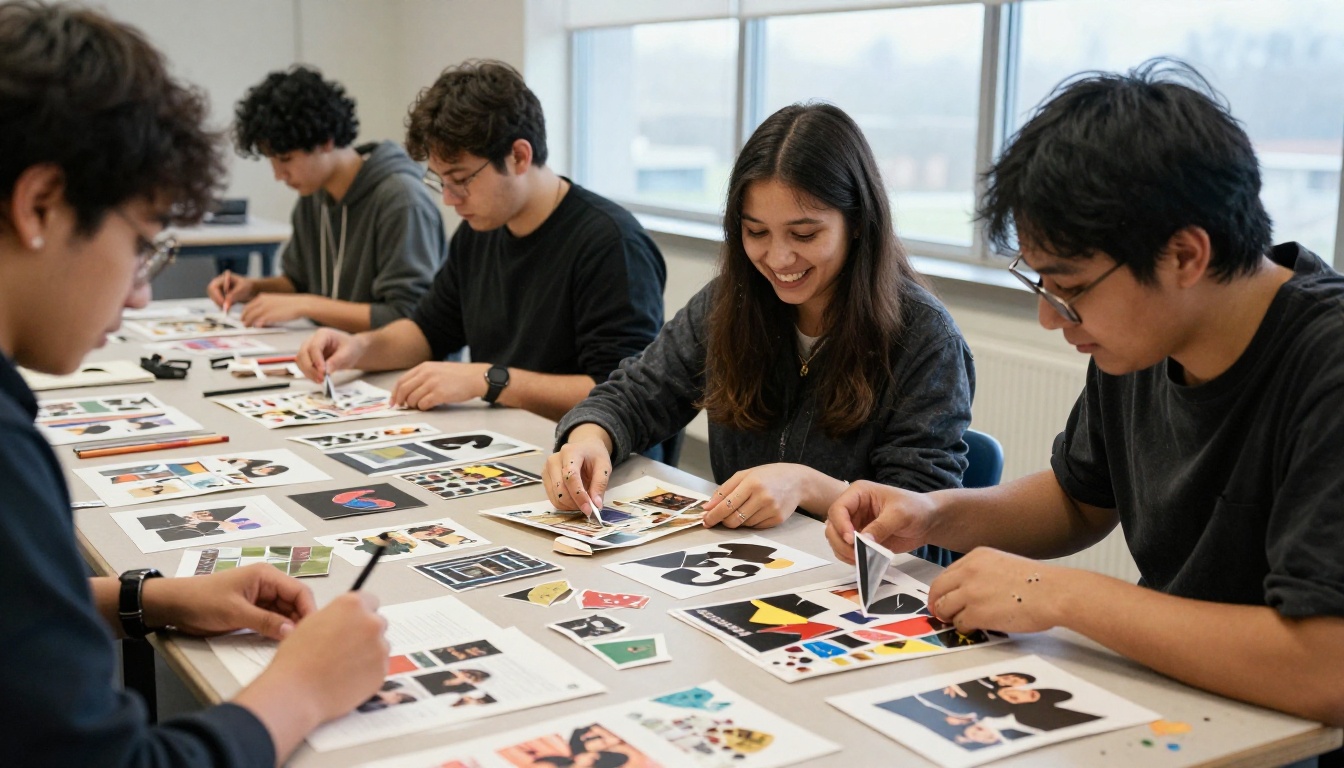
A group of art students makes a quarterly anthology. They draft together in Google Slides, collect final art in a shared folder, and publish each issue as a digital zine with a password for contributors during review, then a public link at launch.
Mistakes That Waste Time and Money
Starting With Too Many Pages
An eight-page zine is a finished object. A forty-page zine is a second job. Start small, finish it, then scale up for issue two.
Ignoring Resolution
Low-resolution images look soft on paper even when they seem fine on a screen. Scan drawings at 300 dpi and export photos at full size.
Skipping the Test Print
A single test print on plain paper catches almost every error. It costs pennies and saves a whole run.
Forgetting Where the Staples Go
Keep text and faces away from the spine. Staples are small, but they will find your favorite line of text.
✅ Best practice: Keep a master file with your page size, margins, and fonts already set. Duplicate it for every new issue, and your zines will look like a series.
Where Zines Meet Fairs and Feeds
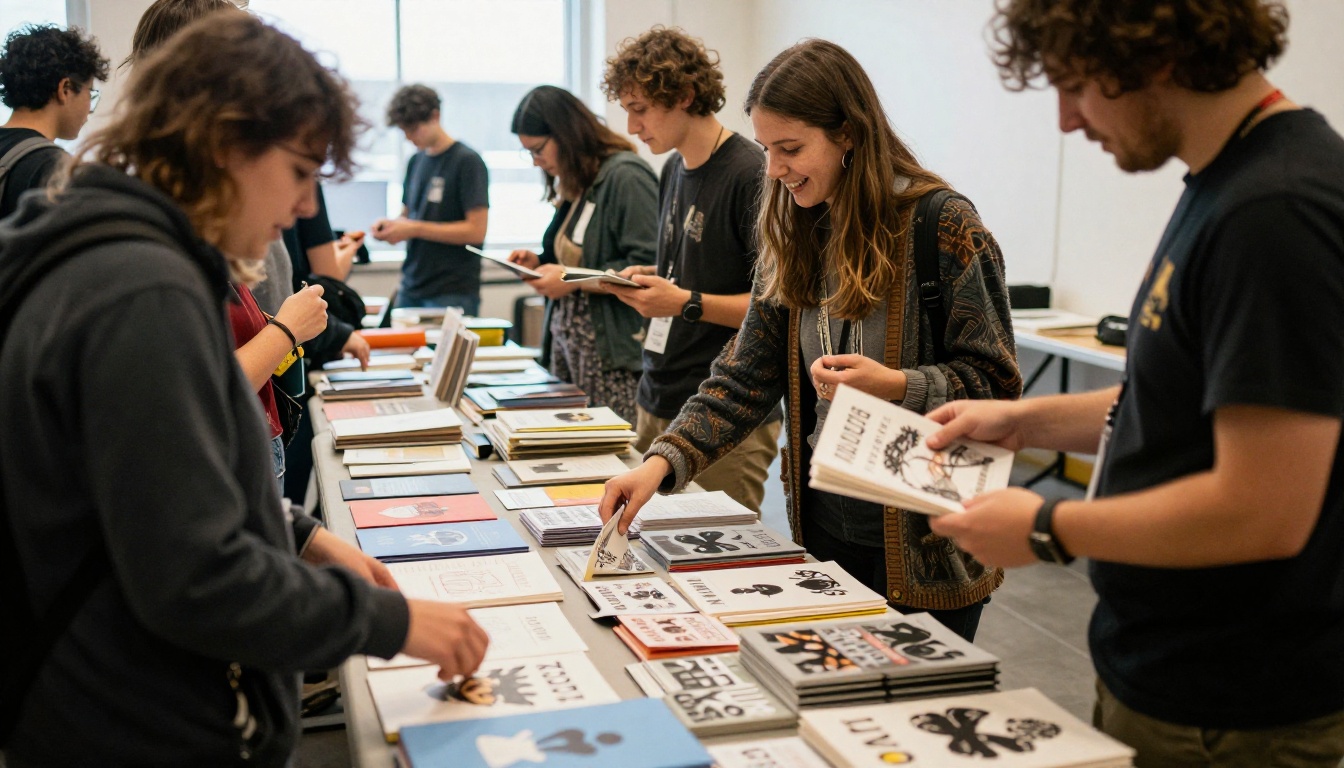
Printed zines still shine at fairs, swap meets, and bookstores. A table piled with small, odd, handmade objects pulls people in like nothing else. A digital copy complements that. Add a small card or sticker with a link so visitors can read the digital issue later, share it with friends, or see your next one when it appears.
Ready to Publish Your Zine
Pick one tool from the list, build eight pages this week, and put your work in front of people. For layouts, Canva and Google Slides get you moving fastest, while Scribus and Penpot reward patience with more control. When the PDF is ready, get started on Flipbooks AI and turn it into a shareable digital zine. Browse all available flipbook tools to find the right format, or compare pricing plans when you want analytics and more control over how readers find your work.



