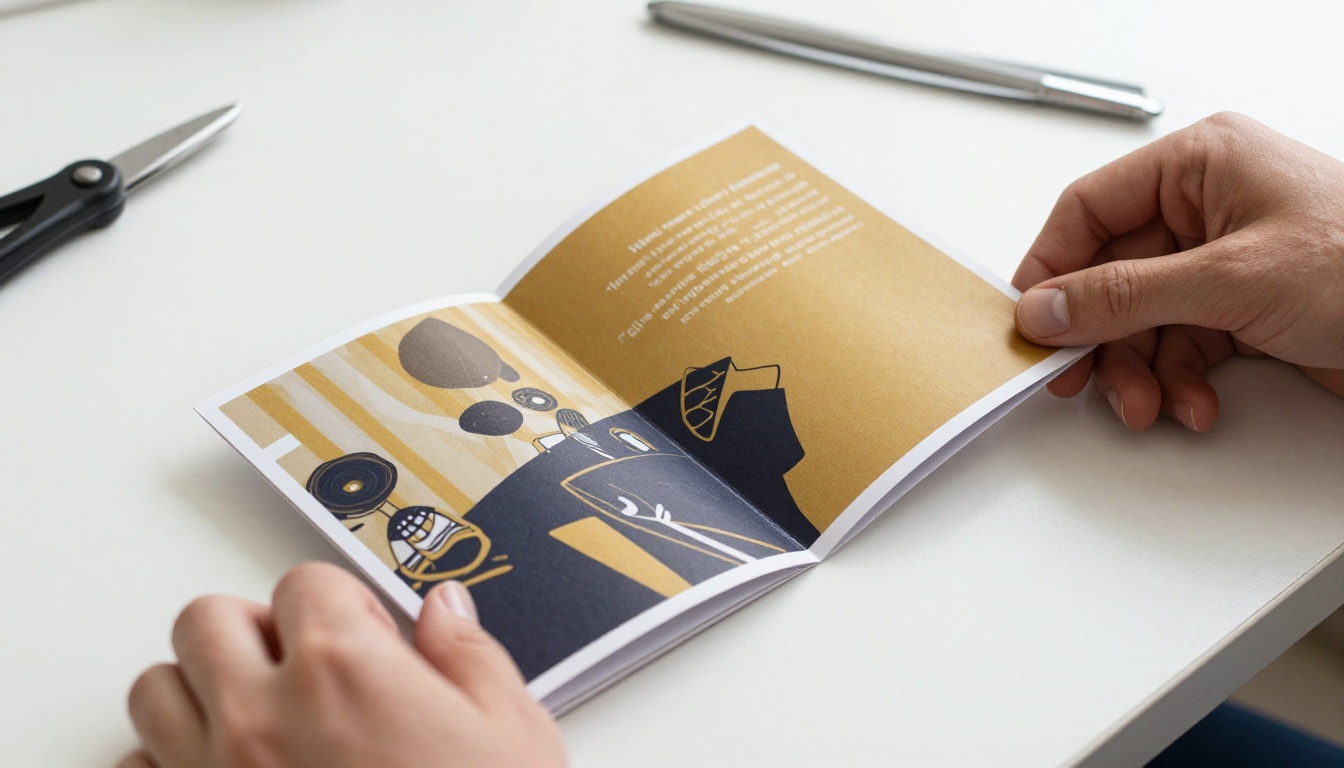
A trifold brochure looks simple until you open a blank canvas and realize you are designing six panels that must read in a very specific order. The good news: the iPad is now a serious layout machine, and the right app turns a free afternoon into a print-ready file. This ranking walks through the best iPad apps for designing a trifold brochure, shows what each one does well, and finishes with a way to turn the final PDF into an interactive page-turning version with Flipbooks AI.
What a Trifold Needs From an App
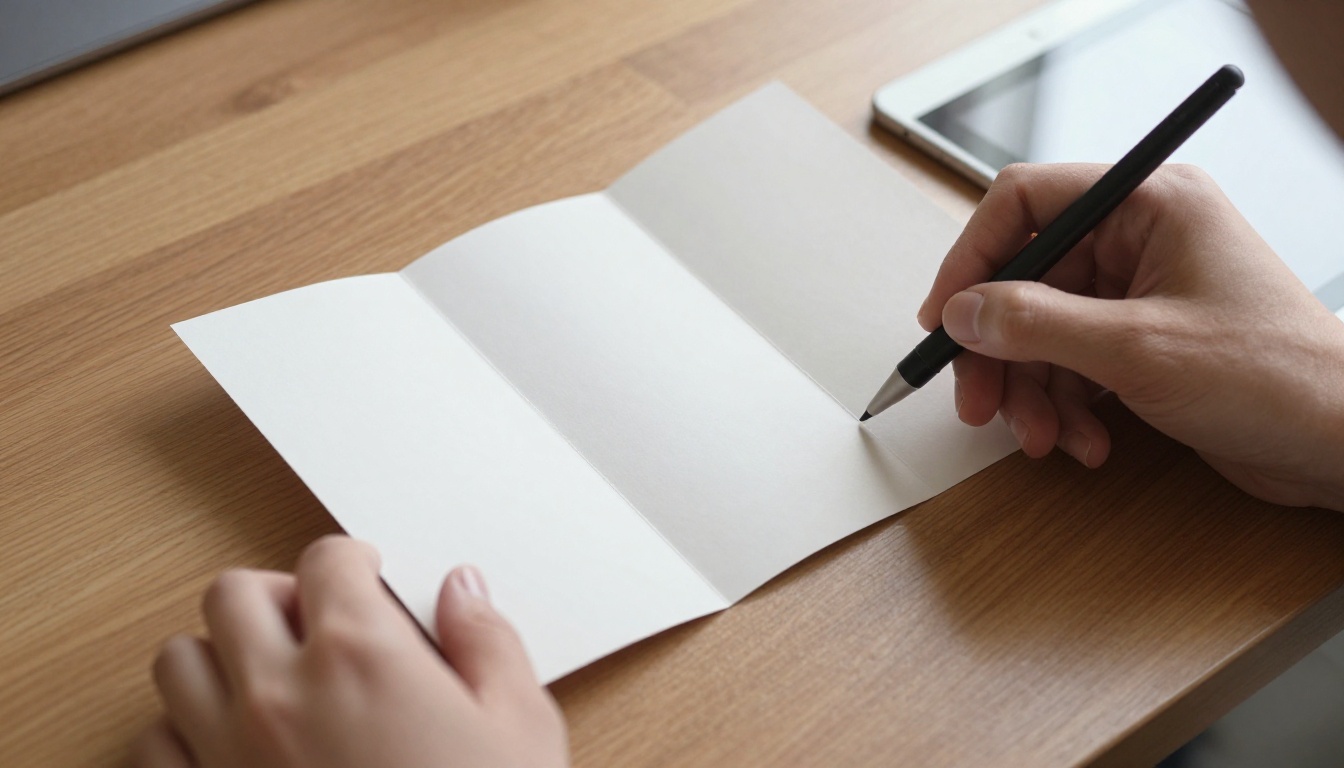
Before comparing apps, it helps to know what the job actually demands. A standard trifold is a letter-size sheet (8.5 x 11 inches) printed on both sides and folded into three panels. That means six surfaces: front panel, inside flap, back panel, and three inside panels.
An app earns a spot on this list only if it handles most of these:
- Custom page sizes in inches or millimeters, so you can set 11 x 8.5 inches landscape.
- Guides and margins that mark the fold lines and safe zones.
- Bleed support, usually 0.125 inches, so color runs to the trimmed edge.
- PDF export at 300 DPI, ideally with crop marks.
- Text control: kerning, line spacing, and paragraph styles.
- Touch-friendly tools that work with a finger or Apple Pencil, not a shrunken desktop interface.
💡 Pro tip: Make the inside flap about 1/16 inch narrower than the other panels (roughly 3.625 inches versus 3.6875). Without that tweak, the folded panel buckles slightly and text near the edge gets squeezed.
The Seven Apps at a Glance
| Rank | App | Best For | Custom Sizes | Bleed and Crop Marks | Difficulty |
|---|
| 1 | Canva | Speed and templates | Yes | Yes (Pro export) | Low |
| 2 | Affinity Publisher 2 | True print layout | Yes | Yes | Medium |
| 3 | Adobe Express | Quick branded pieces | Limited | Limited | Low |
| 4 | Apple Pages | Text-heavy brochures | Yes | No | Low |
| 5 | Adobe Illustrator | Custom vector artwork | Yes | Yes | High |
| 6 | Procreate | Hand-drawn illustration | Yes | No | Medium |
| 7 | Keynote | Surprise fallback | Yes | No | Low |
1. Canva: Fastest Route to a Finished Trifold
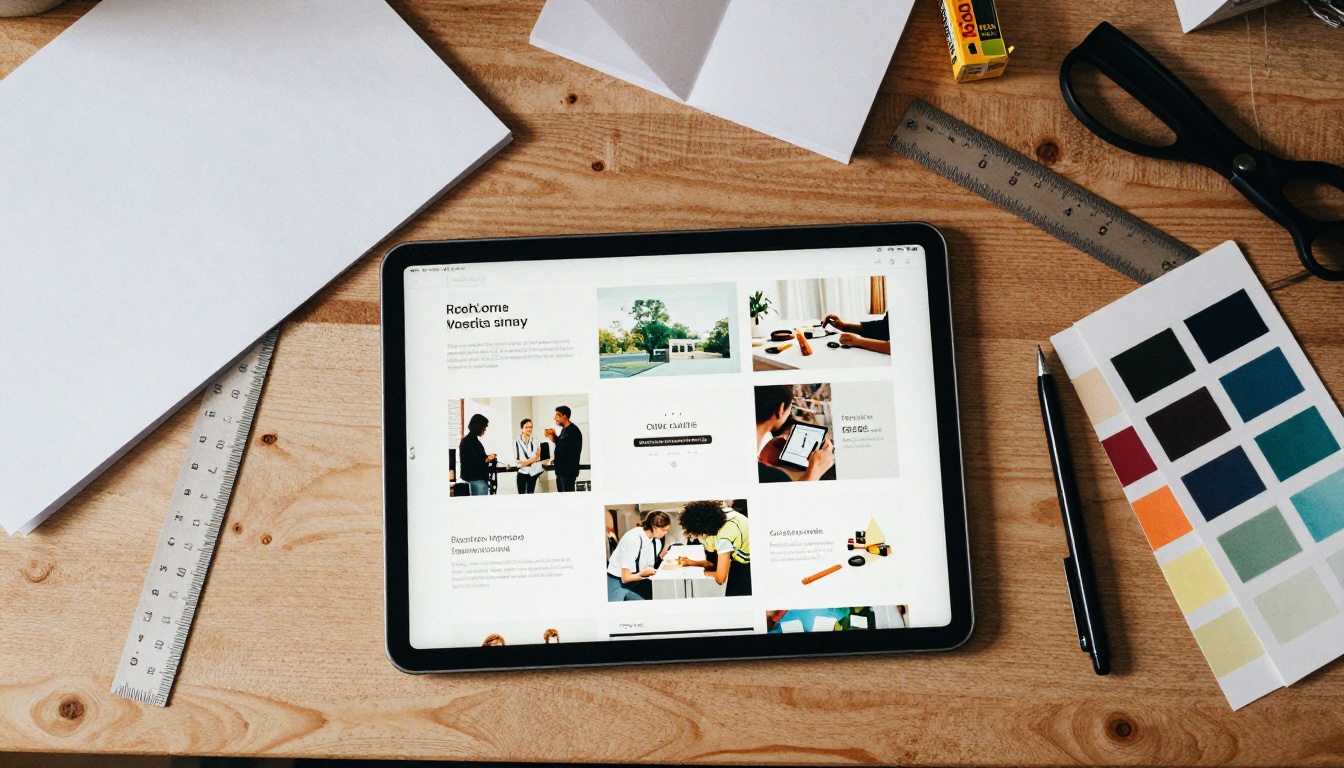
Canva sits first because it removes the blank-page problem. Search "trifold brochure" and you get dozens of templates already split into panels, with placeholder text and photo frames.
Where Canva Wins
- Template volume. You can change colors, swap fonts, and replace photos in minutes.
- Brand kit. Save your logo, palette, and fonts once, then apply them to every piece.
- Collaboration. Send a link so a client can comment on panel three while you are on the train.
- Print ordering. You can send the file directly to a print service from inside the app.
Where Canva Struggles
Typography control is shallower than in a dedicated layout app, and the best export options (crop marks, bleed, PDF Print) sit behind the paid plan. Heavy pages with many photos can also feel sluggish on older iPads.
⚠️ Watch out: Canva templates are popular. If you do not change the layout meaningfully, your brochure may look like someone else's. Replace at least the photography, the headline font, and the color palette.
2. Affinity Publisher 2: Closest to Desktop Quality
Affinity Publisher 2 for iPad is the pick for designers who care about print precision. It supports master pages, text flow between frames, paragraph styles, and proper color management including CMYK.
Why It Suits Trifolds
You can build one master page with fold guides, drop in three columns, and reuse it on the inside spread. Text frames link, so a long paragraph in panel one can continue into panel two without manual cutting. Pricing and plans have changed over the past year, so check the App Store listing for the current model before you commit.
Trade-Offs
There are no ready-made brochure templates comparable to Canva's library, so you start from a grid. For a first-time designer, that is a hurdle. For a professional, it is the entire point.
3. Adobe Express: Quick Branded Pieces
Adobe Express is closer to Canva in spirit: templates, drag-and-drop, and a clean interface. It ties into Adobe Fonts and Creative Cloud libraries, which is a real advantage if you already work in that ecosystem.
- Strengths: Polished typography options, background removal, quick resizing.
- Limits: Page sizing is less flexible than Affinity or Illustrator, and multi-panel print setups need workarounds.
Use it for a simple promotional trifold where speed matters more than precise fold geometry.
4. Apple Pages: The Underrated Option
Pages gets ignored in design roundups, yet it handles text-heavy brochures better than people expect. Switch to a page layout document, set a custom paper size, and use three columns with a generous gutter.
Best Scenarios
- A clinic or school sharing information where words matter more than visuals.
- Internal documents that several people need to edit through iCloud.
- Projects where you are already working in Apple's ecosystem.
The weakness is print production. Pages has no bleed settings, so you must extend backgrounds manually and confirm with your printer. For home printing or digital sharing, that is fine.
5. Adobe Illustrator: Custom Vector Artwork
Illustrator on iPad is not a layout app first, but for brochures built around icons, maps, or illustrations, it is hard to beat. Vector shapes stay sharp at any size, and you can set up artboards for each side of the sheet.
| Task | Illustrator | Canva | Affinity Publisher |
|---|
| Custom icons and logos | Excellent | Limited | Good |
| Long text blocks | Fair | Good | Excellent |
| Template start | Few | Many | Few |
| Print precision | Excellent | Good | Excellent |
If your trifold features an infographic or a custom map, design that artwork in Illustrator, then place it into a layout app.

6. Procreate: Hand-Drawn Personality
Procreate is an illustration tool, not a publishing app, and that is exactly why it belongs here. A brochure for a bakery, a yoga studio, or a children's event gains warmth from original drawings.
How to Use It Well
- Create a canvas at 3300 x 2550 pixels (11 x 8.5 inches at 300 DPI).
- Draw each panel's artwork on separate layers.
- Export as PNG files.
- Place them in Canva or Affinity Publisher and add the text there.
Never set body text inside Procreate. Raster text gets soft when printed, and edits become painful.
7. Keynote: The Surprise Fallback
Keynote can build a trifold if you have nothing else installed. Set a custom slide size of 11 x 8.5 inches, use shape guides for the fold lines, and export as PDF. It will not offer bleed or crop marks, but for a school event or a neighborhood flyer it gets the job done without extra downloads.
How to Pick in Under a Minute
| Your Situation | Choose |
|---|
| Need it done today with a template | Canva |
| Printing professionally, want control | Affinity Publisher 2 |
| Already live in Adobe | Adobe Express or Illustrator |
| Mostly text, simple layout | Pages |
| Illustration-led brochure | Procreate plus a layout app |
| No budget and no time | Keynote |
✅ Best practice: Many pros combine two apps. Draw or prepare artwork in Procreate or Illustrator, then assemble the final layout in Affinity Publisher or Canva.
Panel Layout That Actually Works
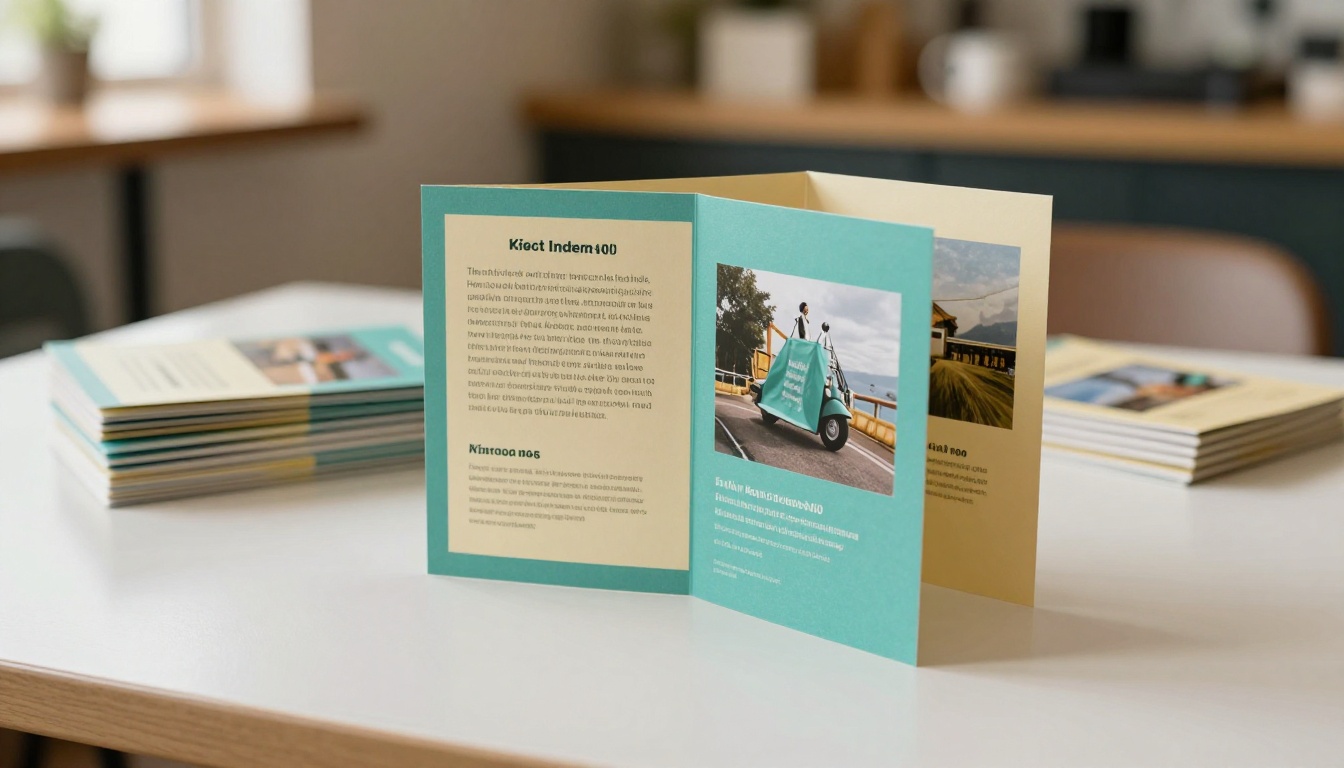
The app matters less than the order of information. Readers open a trifold in a predictable sequence, so plan each panel's job.
| Panel | Position | Job |
|---|
| Front panel | Outside right | Headline, one strong image, brand name |
| Inside flap | Outside left (folds in) | A teaser or customer quote |
| Back panel | Outside center | Contact details, map, call to action |
| Inside left | Inside | The problem or story |
| Inside center | Inside | The solution, main offer |
| Inside right | Inside | Proof, pricing, next step |
Three Common Mistakes
- Text too close to folds. Keep at least 0.25 inches of margin on every side of a fold.
- Too many fonts. Two typefaces, maybe three weights, are plenty.
- No clear call to action. Every trifold should end with one instruction: call, scan, visit, or book.
A Real Example
Picture a dental clinic. The front panel carries a friendly photo and the line "A calmer visit starts here." The flap shows a patient quote. Inside, the three panels list services, the team, and pricing for new patients. The back panel holds a QR code to book online. Each panel has one idea, which is why it works.
Print Settings Checklist
Before you send anything to a printer, run through this list.
| Setting | Recommended Value |
|---|
| Page size | 11 x 8.5 in landscape |
| Bleed | 0.125 in on all sides |
| Resolution | 300 DPI minimum |
| Color mode | CMYK for offset, RGB acceptable for digital |
| Safe margin | 0.25 in from edges and folds |
| Fold type | C-fold (letter fold) or Z-fold |
| Paper | 100 lb gloss text or 80 lb matte |
| Export | PDF with crop marks |
⚠️ Warning: C-fold and Z-fold look identical on screen but fold differently. Confirm which one your printer will use before you finalize panel order.
Turn Your PDF Into an Interactive Flipbook
Print is only half the story. Most brochures also get emailed, posted on a website, or sent in a messaging app, and a flat PDF is a clunky way to share a six-panel layout. This is where a digital version helps.
Once you export your design as a PDF from any app above, you can convert it with the PDF to Flipbook Converter or the Brochure Flipbook Maker. Readers flip through pages on a phone just as they would with paper, and the result stays sharp on any screen.

How to Create a Brochure Flipbook
- Export your PDF from Canva, Affinity Publisher, or whichever app you used. Use one page per side or one page per panel, whichever reads better on a screen.
- Open Flipbooks AI. Create a free account and start a new flipbook.
- Upload the PDF. The conversion runs automatically and keeps your fonts and images intact.
- Customize the look. Add your logo, pick brand colors, choose page-turn effects, and embed video or audio if you want a richer experience.
- Share it. Copy a direct link, use the embed code for your website, or add password protection for private distribution.
- Track results. On the Professional plan you get analytics and lead generation, so you can see who opened your brochure and which pages they read. See the pricing plans for details.
Why It Beats a Plain PDF
| Feature | Plain PDF | Flipbooks AI Flipbook |
|---|
| Page-turn experience | No | Yes |
| Mobile-responsive | Pinch and zoom | Fits the screen |
| Watermarks | n/a | None, ever |
| Password protection | Limited | Yes |
| Embed on a website | Awkward | One snippet |
| Analytics | No | Professional plan |
| Offline downloads | Yes | Yes |
💡 Pro tip: Add a QR code on the back panel of the printed trifold that points to the digital flipbook. Readers who pick up the paper copy can share the digital version in one tap.
Use Cases That Fit

Quick Workflow From Idea to Share
Here is a realistic flow for someone building a trifold on a Saturday morning.
- Outline the six panels on paper in ten minutes. One idea per panel.
- Pick the app using the table above. Beginners should start with Canva.
- Set up the page: 11 x 8.5 inches, 0.125 inch bleed, fold guides at 3.67 inches and 7.33 inches.
- Place images first, then headlines, then body text. Photography sets the tone.
- Proof on the iPad at 100 percent zoom, then print one copy on a home printer to check fold alignment.
- Export the print PDF and send it to your printer.
- Export a screen version and convert it to a flipbook for email and social posts.

Ready to Share Your Design?
The best iPad app for a trifold is the one you will actually finish a project in. For most people that means Canva for speed, or Affinity Publisher 2 when print precision counts. Pair either with a clear panel plan, correct print settings, and a digital version, and your brochure reaches readers in both worlds.
Ready to put your design in front of more people? Get started for free on Flipbooks AI, browse all flipbook tools to find the right template for your industry, or compare pricing plans to pick what works for you.



