You set a tablet on a stand, open a brochure PDF, and walk away. Twenty minutes later a visitor has swiped out of the viewer, opened the browser, and is checking sports scores. That is the problem a kiosk app solves, and picking the right one decides whether your display survives a full event day. If you also want the document itself to look sharp and behave well on touch screens, a Flipbooks AI link loaded into a kiosk browser is often the cleanest answer. This ranking walks through the best kiosk apps for showing PDFs on a tablet, what each one does well, and where each one falls short.
What a Kiosk App Actually Does
A kiosk app locks a tablet to a single task. It hides the home button behavior, blocks notifications, stops visitors from opening settings, and usually restarts the display if something crashes. For PDFs, the lockdown part matters more than the viewer itself.
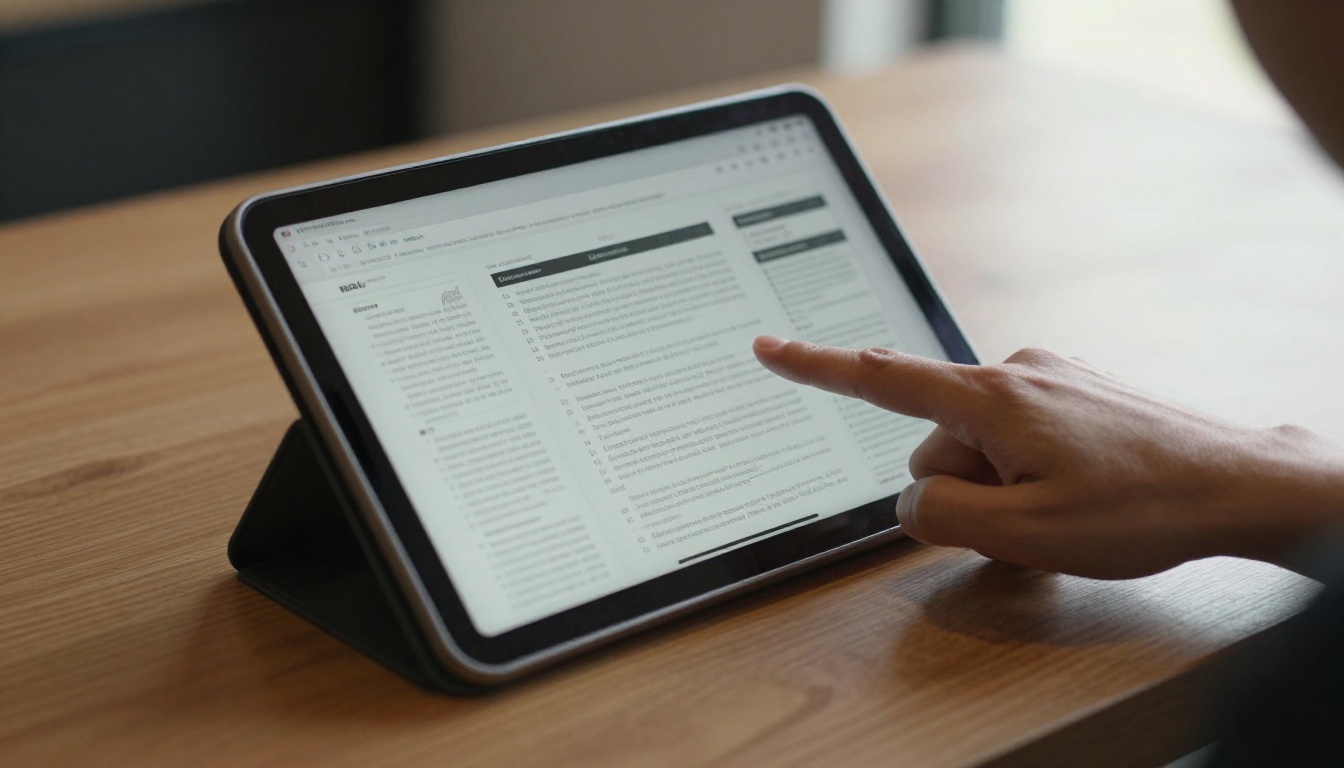
Most setups combine three layers:
- The lock: a kiosk app or OS feature that pins the tablet to one app or one web page.
- The content: a PDF file, a hosted PDF link, or a flipbook page.
- The hardware: a stand or enclosure that keeps the tablet physically in place.
Skip any layer and the display fails. A great app on a loose tablet gets walked off. A locked tablet showing a 60 MB PDF that stutters gets ignored.
💡 Pro tip: Decide the content format first. A kiosk app that opens a lightweight web link is far easier to update than one that needs a file copied onto every device.
How We Ranked These Apps
Ranking kiosk software is less about feature counts and more about what breaks at 3 p.m. on day two of an event. We weighed five things:
- Lockdown strength: can a determined visitor escape?
- PDF handling: does it open files smoothly, or only links?
- Remote control: can you change content without touching the tablet?
- Setup time: minutes or afternoons?
- Fit for small teams: does it need an IT department?
The Short Version
| Rank | App or Method | Platform | Best For | Remote Management |
|---|
| 1 | Fully Kiosk Browser | Android | Single-page PDF or flipbook displays | Yes, cloud or local |
| 2 | Apple Guided Access | iPad | One-off events, no budget | No |
| 3 | Scalefusion | Android, iOS, Windows | Fleets of tablets | Yes |
| 4 | Hexnode | Android, iOS | Mixed device fleets | Yes |
| 5 | SureLock | Android | Strict app lockdown | Yes |
| 6 | Kiosk Pro | iPad | Browser based iPad kiosks | Limited |
The Best Kiosk Apps, Ranked
1. Fully Kiosk Browser
This is the favorite for single-purpose Android displays, and for good reason. It loads a URL in a locked browser, hides the system bars, and can reload the page on a timer so the display always shows fresh content. It also offers motion detection to wake the screen when someone walks up, plus a remote admin console.
Strengths:
- Fast setup, usually under ten minutes.
- Screensaver, auto reload and restart options.
- Works well with hosted pages, which means one link updates every tablet.
Weaknesses:
- Android only.
- Opening raw PDF files depends on the device's viewer, so results vary.
That second point is why many teams point Fully Kiosk Browser at a hosted flipbook instead of a PDF file. A flipbook page renders the same way on every device.
2. Apple Guided Access
If your tablet is an iPad and the budget is zero, Guided Access is already installed. Triple click the side button, and the iPad stays inside one app. You can disable touch on regions of the screen and set a time limit.
Strengths:
- Free and built in.
- Perfect for a two-day trade show booth.
Weaknesses:
- No remote management.
- A restart means you re-enable it by hand.
- Nothing stops the iPad from showing a PDF in a clumsy viewer.
⚠️ Warning: Guided Access does not survive a dead battery gracefully. Keep the iPad plugged in and test a full power cycle before the doors open.
3. Scalefusion
Scalefusion is a mobile device management suite with a strong kiosk mode. You push a single app or a web link to many tablets at once, lock the home screen, and watch each device from a dashboard.
Strengths:
- Manages dozens or hundreds of tablets.
- Supports Android, iOS and Windows.
- Policies, scheduling and remote lock.
Weaknesses:
- Overkill for one tablet.
- Monthly per device pricing adds up.
4. Hexnode
Hexnode follows a similar model, with kiosk lockdown inside a wider device management platform. It suits companies that already manage phones and laptops and want tablets under the same roof.
Strengths:
- Clean policy controls.
- Good for mixed fleets.
Weaknesses:
- More configuration than a simple display needs.
5. SureLock
SureLock from 42Gears is built around strict lockdown on Android. You whitelist the exact apps a visitor may touch, hide everything else, and password protect the exit.
Strengths:
- Very hard to escape.
- Fine control over what is visible.
Weaknesses:
- Interface feels dated.
- Takes longer to configure than a browser kiosk.
6. Kiosk Pro
Kiosk Pro is a kiosk browser for iPad. Like Fully Kiosk Browser on Android, it loads a web page and keeps visitors inside it. It is a good pairing for hosted content on Apple hardware.
Strengths:
- Purpose built for iPad display use.
- Handles page reloads and inactivity resets.
Weaknesses:
- Needs to be paired with Guided Access or MDM for a full lock.
Where Raw PDFs Fall Short
Here is the part many kiosk guides skip. The lock is only half the experience. A visitor still has to read the document, and a raw PDF on a tablet has real limits.
- Slow loading: large PDFs can take many seconds before the first page appears.
- Awkward navigation: pinch zoom and scroll fight each other on small screens.
- No page feel: nothing signals that this is a brochure or a menu.
- Viewer chrome: download buttons and share icons invite visitors to leave the page.
- No analytics: you never find out which pages people read.
Turning the PDF into a flipbook fixes most of this. The PDF to Flipbook Converter takes your file and produces a page-turning version that loads quickly and works with touch gestures. You then give the kiosk app that single link.
PDF Versus Flipbook on a Kiosk
| Factor | Raw PDF | Flipbook Link |
|---|
| Load time | Slower with large files | Pages load as needed |
| Touch navigation | Scroll and pinch | Swipe to turn pages |
| Updating content | Replace file on each device | Update once, every tablet changes |
| Visitor escape routes | Viewer buttons and share menus | Contained page |
| Reading analytics | None | Page level data on Professional plan |
| Branding | Plain document | Custom colors and logo |
✅ Best practice: Keep your source PDF under control too. Compress images before conversion and avoid embedding fonts you do not need.
Real World Setups That Work
Theory is nice. Here is how these tools show up on actual floors.
Trade Show Booth
A booth team puts an Android tablet on a stand, runs Fully Kiosk Browser, and loads a hosted product brochure. Motion detection wakes the screen when a visitor approaches. When the team updates a price on day one evening, they edit the source once and every tablet shows it the next morning.

Real Estate Showroom
An agent hands visitors an iPad in Guided Access showing a property brochure. A Real Estate Brochure flipbook keeps floor plans crisp and swipeable, so buyers browse without asking for help.
Restaurant and Hotel Lobby
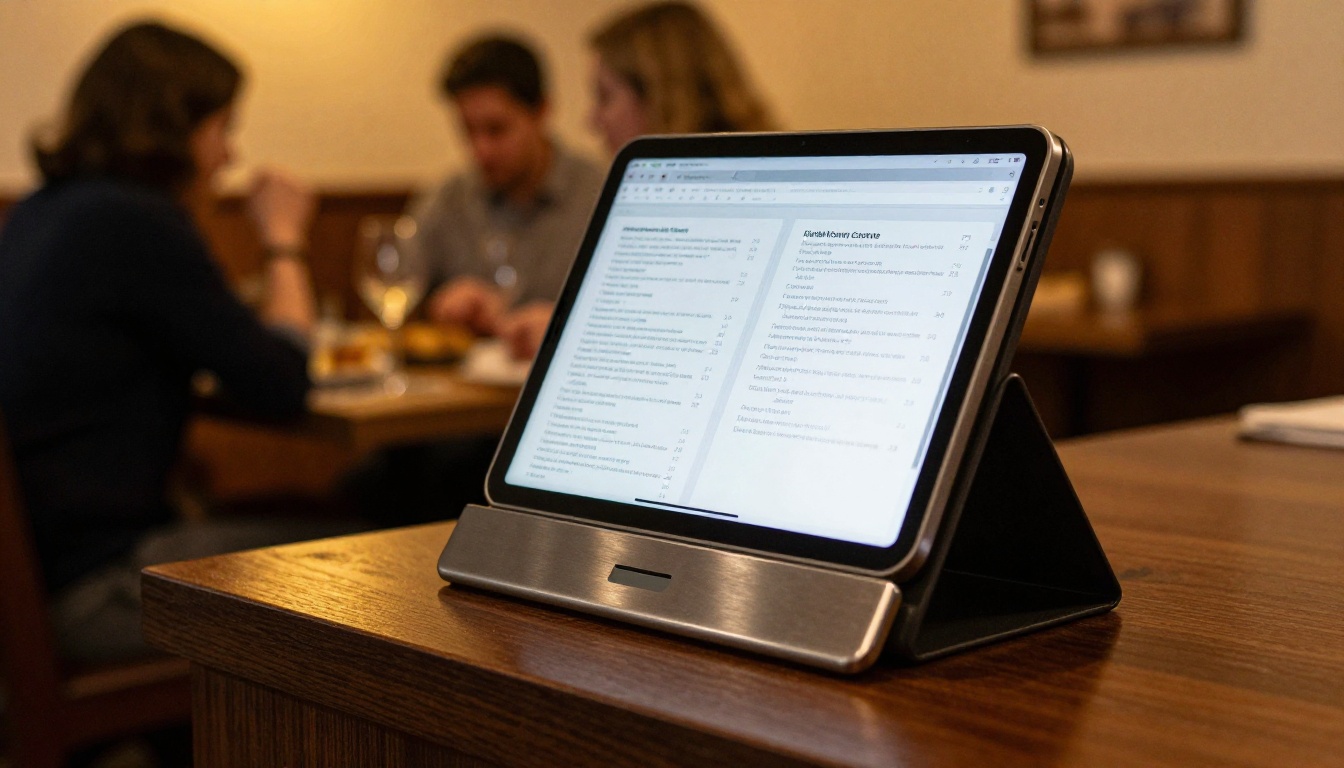
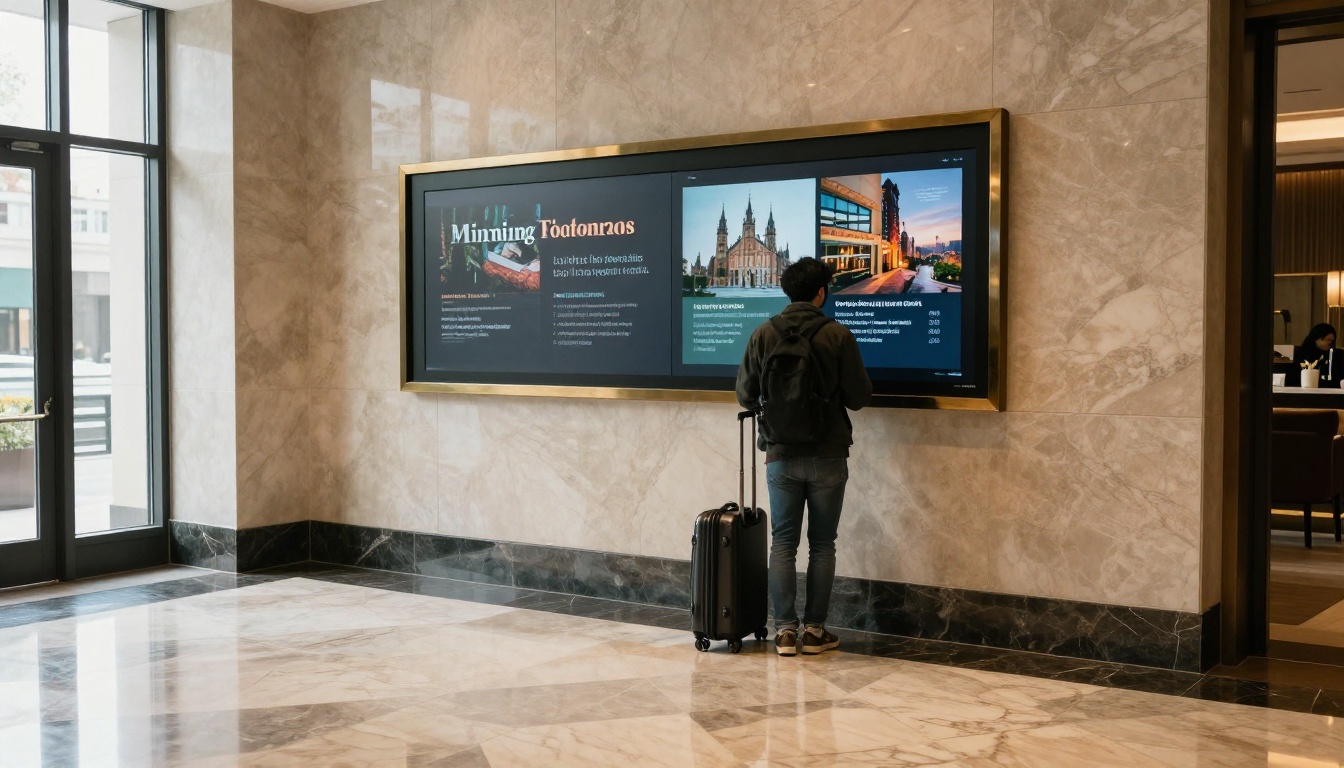
Restaurants use a locked tablet at the host stand to show a digital menu. Hotels mount tablets on lobby walls with local attraction brochures. In both cases a Restaurant Menu Creator or Hotel Brochure flipbook gives a polished look, and the kiosk app keeps guests inside it.
Event Programs
Conferences replace printed schedules with a tablet at the registration desk. An Event Program Maker flipbook handles last minute session changes without reprinting anything.

Use Case Matching
| Scenario | Tablet | Lock Method | Content Format |
|---|
| One tablet, two day event | iPad | Guided Access | Flipbook link |
| One Android display, permanent | Android | Fully Kiosk Browser | Flipbook link |
| 20 tablets across stores | Mixed | Scalefusion or Hexnode | Flipbook link |
| High traffic public space | Android | SureLock | Flipbook link |
| Retail lookbook counter | iPad | Kiosk Pro plus Guided Access | Flipbook link |
How to Build a PDF Kiosk With Flipbooks AI
This is the quickest route from a finished PDF to a working display. The steps below use a hosted flipbook, so any kiosk app on the list can show it.

- Create an account. Head to Flipbooks AI and sign up. The pricing page lists what each plan includes.
- Upload your PDF. Drop the file in. The converter splits it into pages and builds the flipbook, with no watermarks.
- Customize the look. Add your logo, set brand colors, pick a page turn effect, and embed video or audio where it helps. Mobile responsive design means it fits any tablet screen.
- Choose sharing settings. Copy the direct link for the kiosk, or use the embed option if the display sits inside a larger web page. Password protection is available for private content.
- Point the kiosk app at the link. In Fully Kiosk Browser or Kiosk Pro, paste the link as the start URL. In Guided Access, open the link in the browser first, then start the session.
- Check the results. On the Professional plan, analytics show which pages visitors read and lead generation tools capture contact details. Offline downloads give visitors a copy to take home.
💡 Pro tip: Test the link on the actual tablet, on the venue's real Wi-Fi, before the event. Venue networks are often slower than you expect.
For more formats, browse all flipbook tools, including a Digital Catalog Maker for product displays and a Digital Portfolio Creator for creative studios.
Hardware and Setup Tips
Software gets the attention, but hardware ends many kiosk projects early.
Choose the Right Enclosure
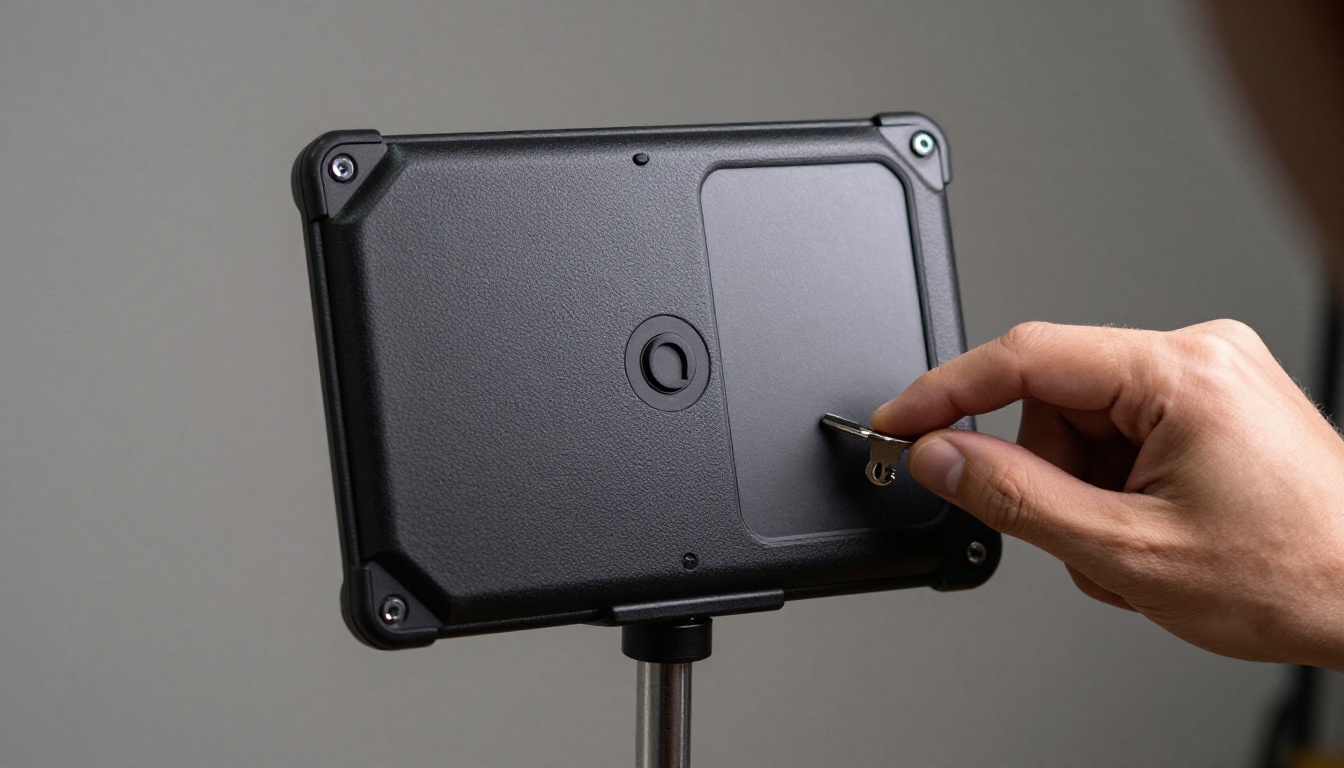
Pick an enclosure that covers the home button, locks the back panel, and leaves the charging port reachable by a cable run through the stand. A swivel mount helps in showrooms, while a fixed pole stand suits crowded lobbies.
Prepare the Tablet
- Turn off notifications and automatic updates during the event.
- Disable auto lock, or set it long enough for slow readers.
- Lower brightness a little to extend battery life, then plug in power.
- Set the Wi-Fi network to reconnect automatically.
Configure the Lock
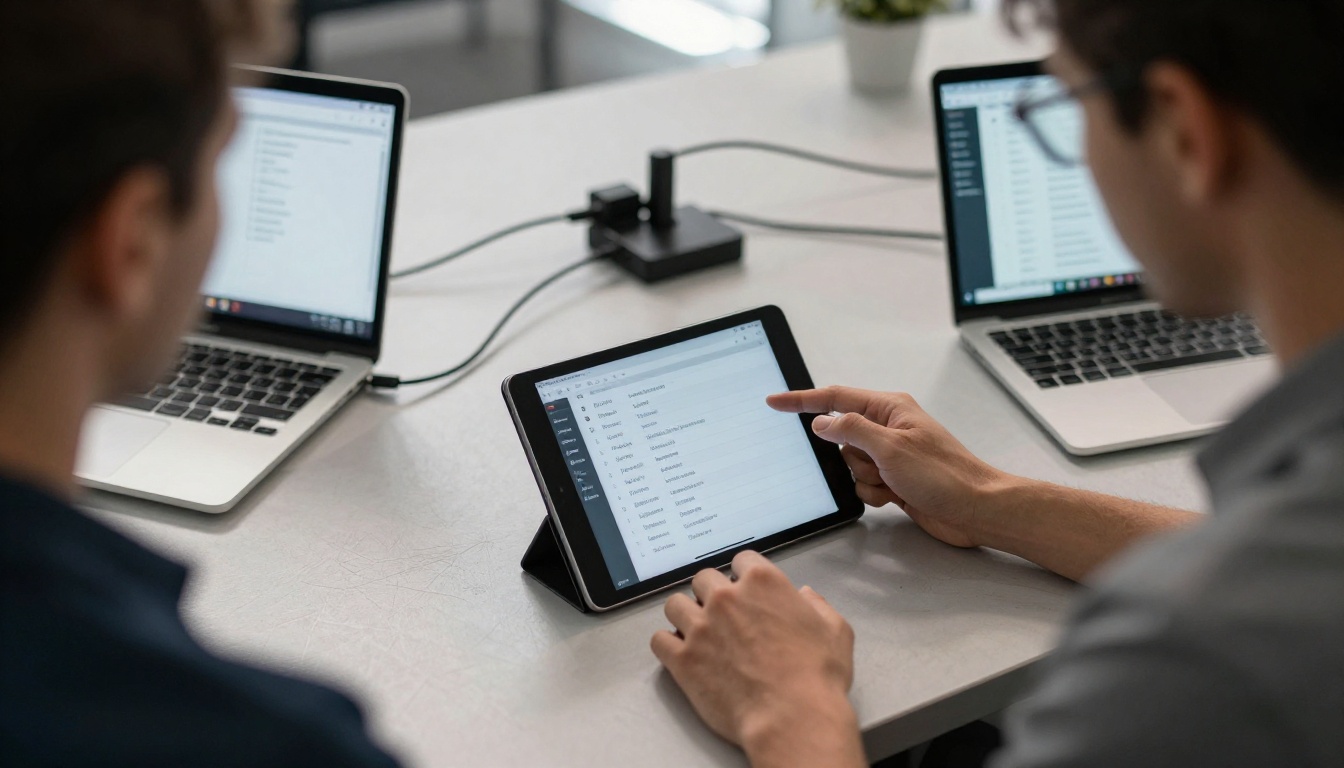
Whatever app you choose, set an exit password only your team knows, enable an inactivity reset so the display returns to page one, and write down the restart steps for staff.
Common Mistakes
- Relying on the PDF viewer alone. Visitors find the share button within minutes.
- Skipping a power test. Reboots happen. Confirm the display recovers by itself.
- Using a huge file. Slow pages feel like a broken display.
- No inactivity reset. The next visitor lands on page 47.
Choosing the Right App for You
If you have one Android tablet and want the best result for the least effort, start with Fully Kiosk Browser. If it is an iPad and a short event, Guided Access plus a hosted link works well. For a fleet, Scalefusion or Hexnode saves hours of manual setup. When security is the top concern, SureLock is the strictest.
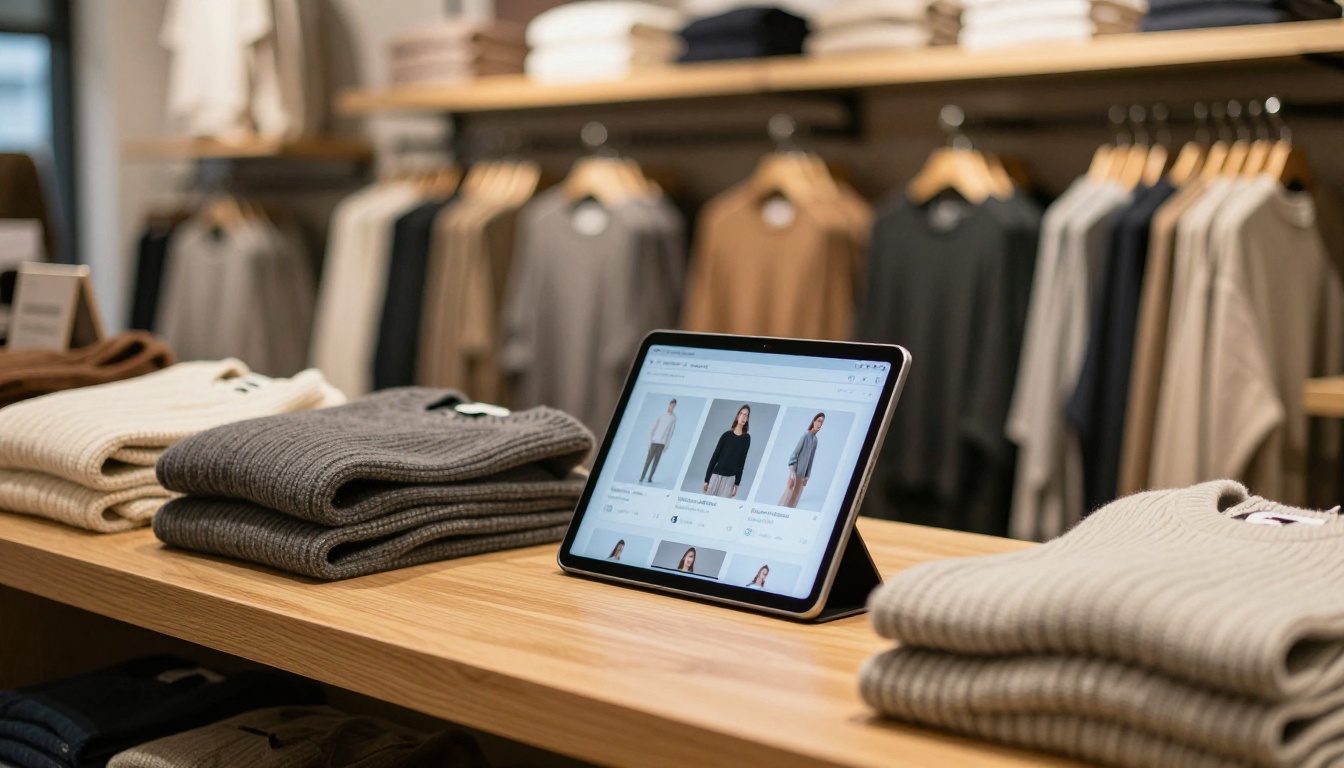
Across all of them, the same rule holds: lock the tablet, but also make the content worth reading. A tidy flipbook inside a solid kiosk app beats a perfect lock on a clumsy PDF every time.
Ready to Build Your Display?
Ready to turn your PDF into something visitors actually enjoy? Get started for free on Flipbooks AI, compare pricing plans to see which features fit your event, and browse the full list of tools and templates to find the right format for your booth, lobby or store.



