Building a magazine used to mean a desktop computer, expensive software, and a long weekend. Now a phone in your pocket and a tablet on your couch can handle most of the job. The catch is that dozens of apps claim to do it, and many of them are built for flyers or social posts, not multi-page issues. This ranking sorts the best magazine maker apps for phones and tablets by what they actually do well, and shows how to publish the result as a swipeable issue with Flipbooks AI.
What Makes a Magazine App Good
A good magazine app handles pages, not just single canvases. That sounds obvious, yet it is the first thing that separates real layout tools from poster makers. Before you download anything, check these points:
- Multi-page documents with facing spreads or at least easy page reordering
- Text styling that includes columns, paragraph spacing, and font pairing
- Image handling with cropping, masking, and high-resolution export
- Export options such as PDF at print or screen quality
- Touch comfort, meaning handles you can grab with a fingertip and not only a mouse cursor
💡 Pro tip: Always test an app with a 12-page dummy issue before committing. Problems with text flow and page reordering only show up once you have real volume.
Phone vs Tablet: Pick Your Screen
A phone is great for quick edits, captions, and last-minute fixes. A tablet is where real layout work happens, especially with a stylus. Most creators end up using both: they rough out the issue on a tablet and polish small details on the phone while commuting.
The Output Matters More Than the App
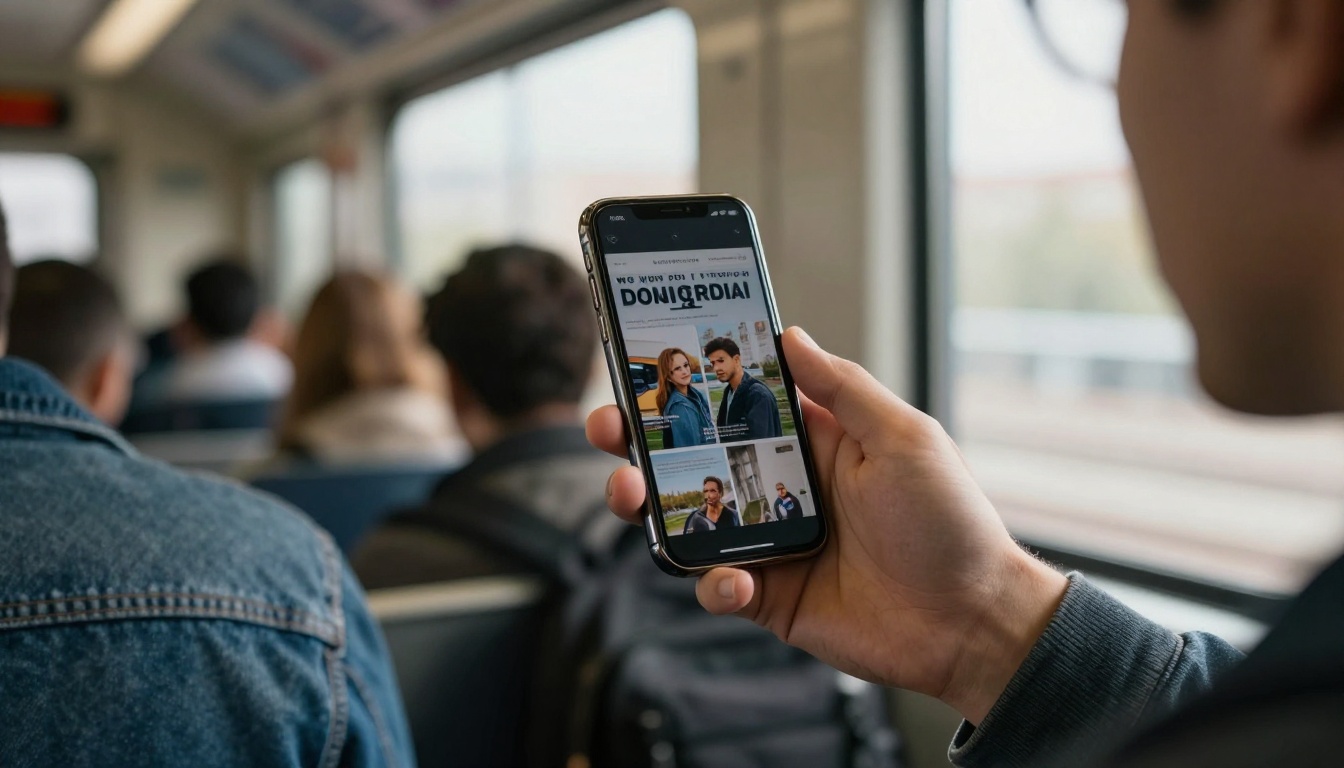
Whichever app you choose, the final file is usually a PDF. A PDF is fine for printing, but it is clumsy on a phone: readers pinch, zoom, and scroll sideways. Turning that PDF into a page-turning flipbook is what makes the issue pleasant to read on small screens. We will return to that in the publishing section.
The 7 Best Apps Ranked
These rankings reflect layout ability, mobile comfort, template quality, and export flexibility. No single app wins every category, so the order below matches the most common needs: a creator who wants a finished issue without a steep learning curve.
1. Canva
Canva earns the top spot for sheer accessibility. Its mobile apps for iOS and Android include hundreds of magazine, lookbook, and zine templates, drag-and-drop photo frames, and a font library that rarely leaves you stuck. Multi-page documents are easy to manage, and the page grid view lets you reorder an entire issue with your thumb.
- Best for: beginners, small businesses, school and community publications
- Strengths: huge template range, quick collaboration, simple PDF export
- Weaknesses: limited typographic control, fewer fine-tuning tools for long text
2. Adobe Express
Adobe Express sits close behind. It is lighter than a full desktop layout program, but its design tools feel polished, and its brand kits help keep fonts and colors consistent across pages. If your issue is photo-heavy, the image tools and background removal are a pleasure on a tablet.
- Best for: social-first brands and photo-led issues
- Strengths: brand consistency, strong image tools, clean interface
- Weaknesses: page count and text flow are less flexible than a true publishing program
3. Affinity Publisher 2 for iPad
This is the pick for people who want a real desktop-class layout tool on a tablet. Master pages, paragraph styles, baseline grids, and text frames that flow across pages are all available, and the Apple Pencil works well for precise placement. It has a steeper curve, but the control is hard to beat for long-form magazines.
- Best for: designers and serious independent publishers
- Strengths: master pages, typography, print-ready output
- Weaknesses: iPad-focused, and the interface takes patience

4. Apple Pages
Pages is built into every Apple device and quietly handles magazine-style layouts better than people expect. Its page layout mode, text boxes, and image placeholders are simple, and everything syncs through iCloud between iPhone, iPad, and Mac.
- Best for: newsletters and simple magazines on Apple devices
- Strengths: free on Apple hardware, easy sync, clean export
- Weaknesses: limited template depth, no Android version
5. Visme
Visme leans toward presentations and reports, but its magazine and ebook templates are solid, and its data widgets (charts, maps, counters) are handy for business-oriented issues. The mobile experience works best on a tablet in a browser.
- Best for: annual-report-style magazines and data-driven issues
- Strengths: charts and interactive elements
- Weaknesses: the phone experience feels cramped
6. Marq (formerly Lucidpress)
Marq is a good fit for teams that need brand control. Locked templates let a marketing lead set the rules while others fill in content. That makes it practical for franchises, real estate groups, and organizations with many contributors.
- Best for: teams with strict brand standards
- Strengths: template locking, shared libraries
- Weaknesses: less casual for solo creators
7. Joomag
Joomag is both a creation tool and a digital publishing platform. It has a built-in editor, and it also handles distribution and subscriptions. The editor is less nimble on a phone, so most people design elsewhere and use it as a hosting layer.
- Best for: subscription magazines and publishers who want a bundled shop
- Strengths: distribution features and a reader app
- Weaknesses: the editor is less polished than the top contenders

Side-by-Side Comparison
Here is how the seven apps compare on the points that matter most when you work from a touch screen.
| App | Phone | Tablet | Multi-Page Control | Template Library | Skill Level |
|---|
| Canva | Excellent | Excellent | Good | Very large | Beginner |
| Adobe Express | Excellent | Good | Moderate | Large | Beginner |
| Affinity Publisher 2 | Not available | Excellent (iPad) | Excellent | Small | Intermediate to pro |
| Apple Pages | Good | Good | Moderate | Small | Beginner |
| Visme | Limited | Good | Moderate | Large | Beginner |
| Marq | Limited | Good | Good | Moderate | Beginner to intermediate |
| Joomag | Limited | Good | Moderate | Moderate | Beginner |
Quick Picks by Situation
| If you are... | Start with | Why |
|---|
| A first-time creator | Canva | Templates and an easy grid view |
| A photographer | Adobe Express | Strong image tools |
| A designer with an iPad | Affinity Publisher 2 | Real layout control |
| A team lead | Marq | Locked brand templates |
| A subscription publisher | Joomag | Bundled distribution |
✅ Best practice: Pick the app that matches your weakest skill. If typography scares you, choose templates. If layout is your strength, choose the program with master pages.
A Workflow That Actually Works
A great app does not fix a messy process. The routine below keeps a mobile-first issue on schedule, whether it is a 12-page lookbook or a 40-page monthly.
- Outline the issue on paper or in a notes app. List every page, its headline, and the image it needs.
- Collect photos in one album. Name them in the order they appear. A tidy album saves hours.
- Build the cover first. The cover sets the typography and color rules for the rest of the pages.
- Create two or three page types. For example: a full-bleed photo page, a text-plus-image page, and a pull-quote page. Reuse them.
- Export a PDF at screen quality. Check it on your phone, not just your tablet.
- Convert the PDF into a flipbook so readers can swipe through it like paper.

Real-World Examples
- A boutique owner designs a seasonal lookbook in Canva on a tablet, then shares it with customers as a flipbook link in an email.
- A school club builds a monthly newsletter in Apple Pages, exports a PDF, and posts a single link on the class portal.
- A travel photographer lays out a portfolio magazine in Affinity Publisher 2 on an iPad, then embeds the finished issue on a personal site.
- A real estate team uses Marq to keep every agent's property magazine on brand.
Three Common Mistakes
- Using tiny text. A line that looks fine on a tablet is unreadable on a phone. Keep body text at a comfortable size and test on the smallest screen.
- Exporting huge files. Giant PDFs load slowly on mobile data. Compress images before you export.
- Ignoring the cover. Readers decide in seconds. Spend extra time on your first page.
Publish Your Issue as a Flipbook
Most of these apps end with a PDF. That is where Flipbooks AI fits in. You upload the PDF, and it becomes a page-turning flipbook that opens in any browser, including mobile ones. Readers do not need an app or an account to view it.

How to Turn Your Magazine Into a Flipbook
Here is the full process, from the PDF to a shareable link. If you have a Flipbooks AI account ready, it takes only a few minutes.
- Create your account. Go to Flipbooks AI and sign in. You can do this from a phone or tablet browser.
- Upload your PDF. Drag the file in, or pick it from your device. The PDF to Flipbook Converter turns each page into a flippable spread.
- Customize the look. Add your own branding, adjust colors, choose page effects, and place multimedia where it helps the story.
- Add video and audio. Short clips and background sound work well in lifestyle and travel issues, since flipbooks can embed both.
- Set your sharing options. Copy a direct link, or use the Embed Flipbook on Website tool to place the issue on your own page. For private issues, add password protection.
- Review analytics. On the Professional plan you can track views and capture leads, and you can allow offline downloads so readers keep a copy.
💡 Pro tip: Send yourself the link and open it on your phone before sharing it with anyone. If the first page looks good on the smallest screen, it will look good everywhere.
Tools Built for Magazine Makers
Different issues call for different starting points. These tools are worth a look:
Browse all the flipbook tools to see what else fits your project.
PDF vs Flipbook on Mobile
Many creators wonder whether the extra step is worth it. The table below shows the difference on a small screen.
| Feature | Plain PDF | Flipbook |
|---|
| Page turning | Scroll or pinch | Swipe like paper |
| Loads in a browser | Often downloads first | Opens directly |
| Branding | None | Custom colors and logo |
| Video and audio | Rarely supported | Can be embedded |
| Password protection | Depends on the viewer | Built in |
| Analytics | None | Available on Professional plan |
| Watermarks | Not applicable | None, ever |
⚠️ Watch out: Some online converters add a watermark to free exports. Flipbooks AI never does, so your issue stays clean.
Matching Plans to Your Needs
If you publish once in a while, a basic plan is plenty. If you release every month, or you need unlimited flipbooks, the Standard plan and above is the better fit. For lead capture and analytics, look at the Professional plan. Compare the options on the pricing page.
Tips for Better Mobile Issues
Small habits make a big difference once readers open your issue on a phone.
- Use one idea per page. Dense spreads are tiring on a small screen.
- Choose high-contrast color pairs. Light gray text on white disappears outdoors.
- Keep headlines short. Five to eight words read well in any size.
- Add captions to photos. They give context and break up long blocks.
- Link generously. A flipbook can point readers to your shop, site, or signup page.

A Simple Checklist Before Publishing
- Proofread every headline and caption
- Confirm image resolution is sharp but files are compressed
- Test the PDF on both a phone and a tablet
- Open the flipbook link in a private browser window
- Share the link with one trusted reader for feedback

Pick One and Publish
The best app is the one you will open every week. For most people that means starting with Canva or Adobe Express for fast results, moving to Affinity Publisher 2 if you want finer control on an iPad, and using Apple Pages if you live in the Apple ecosystem. Whatever you choose, finish the job by turning the PDF into a flipbook that reads well on every screen.
Ready to publish your first issue? Get started for free on Flipbooks AI, browse the tools and templates to find your best fit, or compare pricing plans to choose what works for you.



