You do not need a design degree or a monthly subscription to put together a brochure that looks professional. The Microsoft and Google apps already sitting on your computer can handle the job, and once the layout is done you can turn the PDF into a page-turning online version with Flipbooks AI. The real question is which app deserves your afternoon. This ranking compares six options on layout control, templates, teamwork and print quality, so you can pick one and start.
Quick Ranking at a Glance
Before the details, here is how the six tools stack up for a typical small business brochure.
| Rank | Tool | Best For | Layout Control | Teamwork | Cost |
|---|
| 1 | Microsoft Word | Text-heavy trifolds | High | Good | Included with Microsoft 365 |
| 2 | Microsoft PowerPoint | Visual, image-led brochures | Very high | Good | Included with Microsoft 365 |
| 3 | Google Slides | Free, shared design work | High | Excellent | Free |
| 4 | Google Docs | Simple bifolds and text | Medium | Excellent | Free |
| 5 | Microsoft Publisher | Print-first layouts | Very high | Weak | Legacy desktop app |
| 6 | Google Drawings | Single-page flyers | Medium | Good | Free |
💡 If you only have ten minutes to choose: pick PowerPoint when you want pictures to lead, Word when words lead, and Google Slides when several people must edit at the same time.
A brochure is not a normal document. It has panels, folds, bleed margins and images that must stay sharp when printed. So the ranking leans on practical tests rather than feature lists.
What Mattered Most
- Panel control: Can you build three equal columns and keep them aligned?
- Image handling: Do photos stay crisp after export to PDF?
- Templates: Are there usable starting layouts, or do you begin with a blank page?
- Collaboration: Can a colleague comment without emailing files back and forth?
- Export quality: Does the PDF keep fonts, colors and links?
The Search Intent Behind This Topic
People looking for the best brochure tools in these two ecosystems usually want one of two things. Either they are on a tight budget and need free software, or they already pay for Microsoft 365 and want to know whether it can replace a designer. Both groups get an answer below.
Microsoft Word: The Reliable Workhorse

Word has been making brochures for decades, and the built-in templates still hold up. Search "brochure" in the template gallery and you will find trifolds, bifolds and half-page leaflets with placeholder text already styled.
Why Word Works
Word shines when the brochure carries a lot of text: a service menu, a clinic information sheet, a course outline. Columns, text boxes and styles keep paragraphs consistent, and the spell checker catches mistakes before they reach the printer.
Strengths
- Hundreds of ready brochure templates
- Strong typography and paragraph styles
- Easy to turn a layout into a fillable template for staff
- Exports clean PDFs with live hyperlinks
Weaknesses
- Images can shift when you edit nearby text
- Rotating or layering objects feels clumsy
- No true bleed setting for professional print shops
Setting Up a Trifold in Word
- Open a blank document and set the orientation to Landscape.
- Go to the Layout tab, choose Columns, then pick Three.
- Set margins to 0.5 inches so panels have breathing room.
- Insert text boxes for headlines and keep body text inside the columns.
- Add images with Wrap Text set to "In Front of Text" so they stay put.
- Duplicate the page for the reverse side and export as PDF.
⚠️ The inside middle panel of a trifold is usually about 1/16 inch narrower so it can fold in. If your print shop is strict, ask for their template instead of guessing.
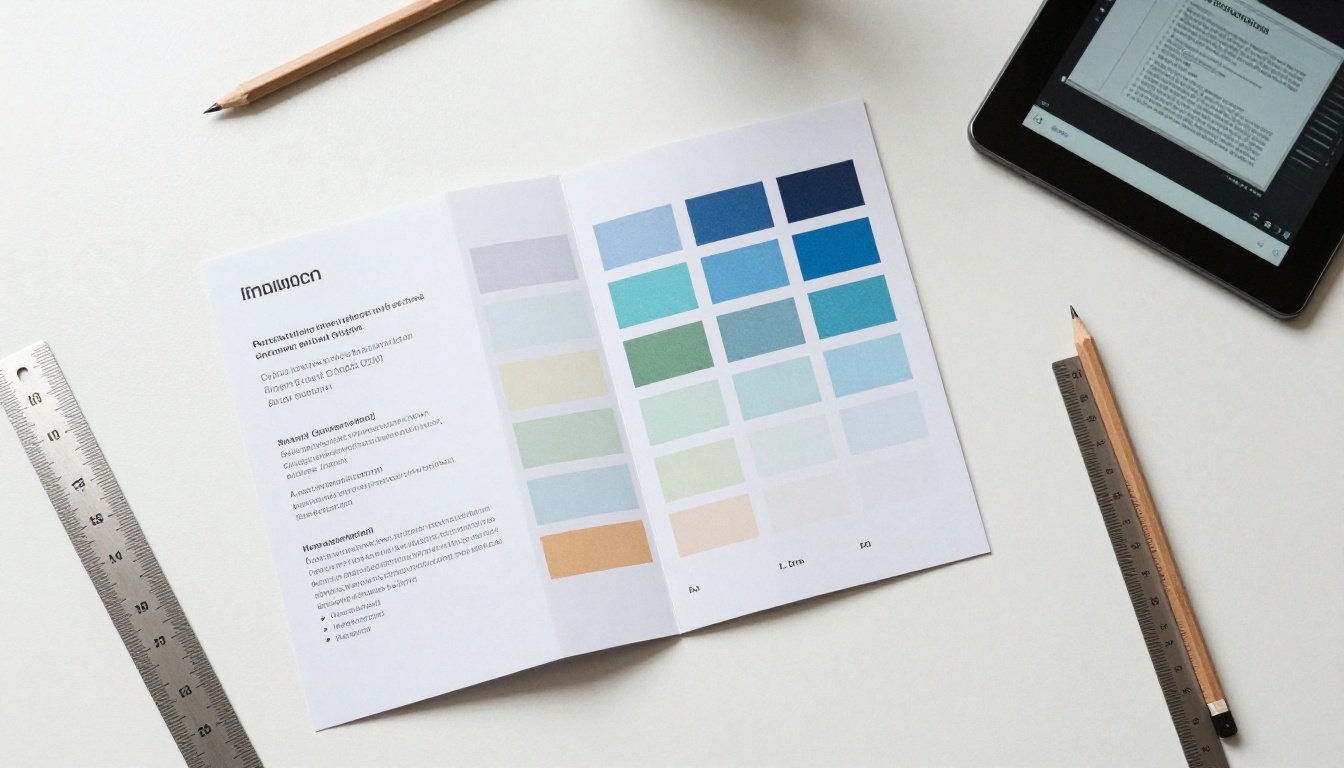
Designers quietly rely on PowerPoint for flyers and brochures because it treats every element as a free-floating object. You can drag, snap, align and layer without fighting text flow.
Why Slides Beat Pages
PowerPoint gives you alignment guides, a grid, and the Morph and Designer features. Setting the slide size to a custom dimension, such as 11 by 8.5 inches for a landscape trifold, turns the canvas into an exact print area.
Best Moves in PowerPoint
- Use Smart Guides to keep three panels equal.
- Add a rectangle behind each panel and set its fill to a brand color.
- Crop photos into shapes with the Crop to Shape option.
- Use Merge Shapes to build custom icons and dividers.
- Save the slide as a high-quality PDF rather than a picture.
Real-World Example
A small landscaping company needed a brochure before a home show. The owner built a three-panel layout in PowerPoint using photos of finished gardens, exported it to PDF the same evening, and printed 200 copies the next morning. The same file later became an online brochure for customers who prefer to browse on a phone.
Microsoft Publisher: Still Useful for Print
Publisher was built for brochures, and it shows. Guides, master pages and a proper print setup make it the most print-aware app on this list. The catch is that Microsoft has retired the product, so it only suits people who already have a copy installed and a file to maintain.
| Feature | Publisher | Word | PowerPoint |
|---|
| Master pages | Yes | No | Yes (slide master) |
| Print bleed controls | Yes | No | Limited |
| Object layering | Excellent | Fair | Excellent |
| Cloud collaboration | No | Yes | Yes |
| Ongoing support | Ended | Active | Active |
✅ If you are starting fresh today, skip Publisher and use PowerPoint. You get nearly the same control with active updates and cloud sharing.
Google Slides: Best Free Option for Teams

Google Slides is the free counterpart to PowerPoint, and for many small teams it is the smartest pick. Everything lives in the browser, so there is nothing to install and no version confusion.
Where Slides Wins
- Live editing: Two or ten people can work at once.
- Comments: Tag a colleague on a headline and resolve it later.
- Version history: Roll back to yesterday's layout in two clicks.
- Free assets: Stock images, icons and fonts are built in.
Where It Falls Short
Slides has fewer effects and no equivalent to Merge Shapes. Custom page sizes work, but you must set them under File, then Page setup, then Custom. Fonts also change if a viewer lacks them, so always export to PDF before sharing.
Quick Slides Setup
- Create a new presentation and open Page setup.
- Choose Custom and enter 11 by 8.5 inches.
- Add guides through View, Guides, Add vertical guide at 3.67 inches and 7.33 inches.
- Build each panel inside the guides.
- Download as PDF Document.
Google Docs: Simple and Fast
Google Docs works for bifold brochures and text-forward leaflets. You can set the page to landscape, use a three-column layout or a table with invisible borders, and write straight away.
Table Trick for Panels
Insert a one-row, three-column table, remove the borders, and drop text and images into each cell. The table keeps the panels aligned without any manual dragging. It is not elegant, but it is quick and works on any device.
💡 Docs is ideal for the first draft. Write the copy there, then move it into Slides or PowerPoint when you are ready to design.
Google Drawings: Good for One-Page Pieces
Drawings is the least known tool on the list. It gives you a freeform canvas, which suits single-page flyers and simple infographic panels. It lacks multi-page support, so a full brochure means several separate drawings. Use it for a front panel or a map, not the whole project.
Side-by-Side Feature Comparison
| Need | Best Pick | Runner-Up |
|---|
| Lots of text | Word | Google Docs |
| Photo-led layout | PowerPoint | Google Slides |
| Free and shared | Google Slides | Google Docs |
| Professional print setup | Publisher (legacy) | PowerPoint |
| Quick single page | Google Drawings | PowerPoint |
| Template variety | Word | PowerPoint |
Common Mistakes to Avoid
Even with a good tool, a few errors ruin brochures.
Using Low-Resolution Images
A photo that looks fine on screen can print blurry. Aim for 300 dpi at final size, which for a full panel means roughly 1,100 pixels wide.
Ignoring the Fold
Keep important text at least 0.25 inches away from every fold and edge. Otherwise a headline can be sliced in half.
Too Many Fonts
Stick to two typefaces: one for headings and one for body text. Three or more makes the page look chaotic.
Skipping the Test Print
Print one copy on a regular office printer, fold it, and read it in your hand. You will notice spacing problems that never show on a monitor.
Printed brochures still work at trade shows, front desks and local events. But paper has limits: you cannot update it, you cannot track who opened it, and you cannot click through to a booking page.
| Factor | Printed Brochure | Digital Flipbook |
|---|
| Cost per copy | Ongoing | Near zero |
| Updates | Reprint needed | Replace the file |
| Tracking | None | Views and clicks |
| Sharing | Hand delivery | Link or embed |
| Video and audio | No | Yes |
Most businesses end up doing both. The same PDF feeds the print shop and the online version.
How to Create a Brochure Flipbook with Flipbooks AI

After exporting your PDF from Word, PowerPoint or Slides, the next step takes about two minutes. The Brochure Flipbook Maker turns it into an online brochure with realistic page turns, and the Online Brochure Designer helps if you want to adjust the layout further.
Step by Step
- Get started: Create an account on Flipbooks AI. Starting is free.
- Upload the PDF: Drag the exported file into the uploader. The platform converts each page automatically using the PDF to Flipbook Converter.
- Customize: Add your logo, pick brand colors, choose a page-turn effect and set a background. You can also embed videos and audio on any page.
- Share: Copy the direct link, use the embed code for your website, or turn on password protection for private brochures.
- Measure: On the Professional plan, analytics and lead generation show who opened the brochure and how long they stayed. Offline downloads let customers save a copy.
What You Get
- ✅ No watermarks, ever
- ✅ Unlimited flipbooks on the Standard plan and above
- ✅ Mobile-responsive reading
- ✅ Custom branding
- ✅ Password protection
Compare the options on the pricing page to see which plan matches your needs.
💡 Industry brochures have dedicated tools too. Try the Hotel Brochure Designer or the Real Estate Brochure Creator for sector-specific layouts.
Real-World Use Cases

Real Estate Agents
An agent builds a property brochure in PowerPoint with one slide per room, exports it, and shares an online version on listing sites. Buyers flip through on their phones before booking a viewing.
Spas and Wellness Studios
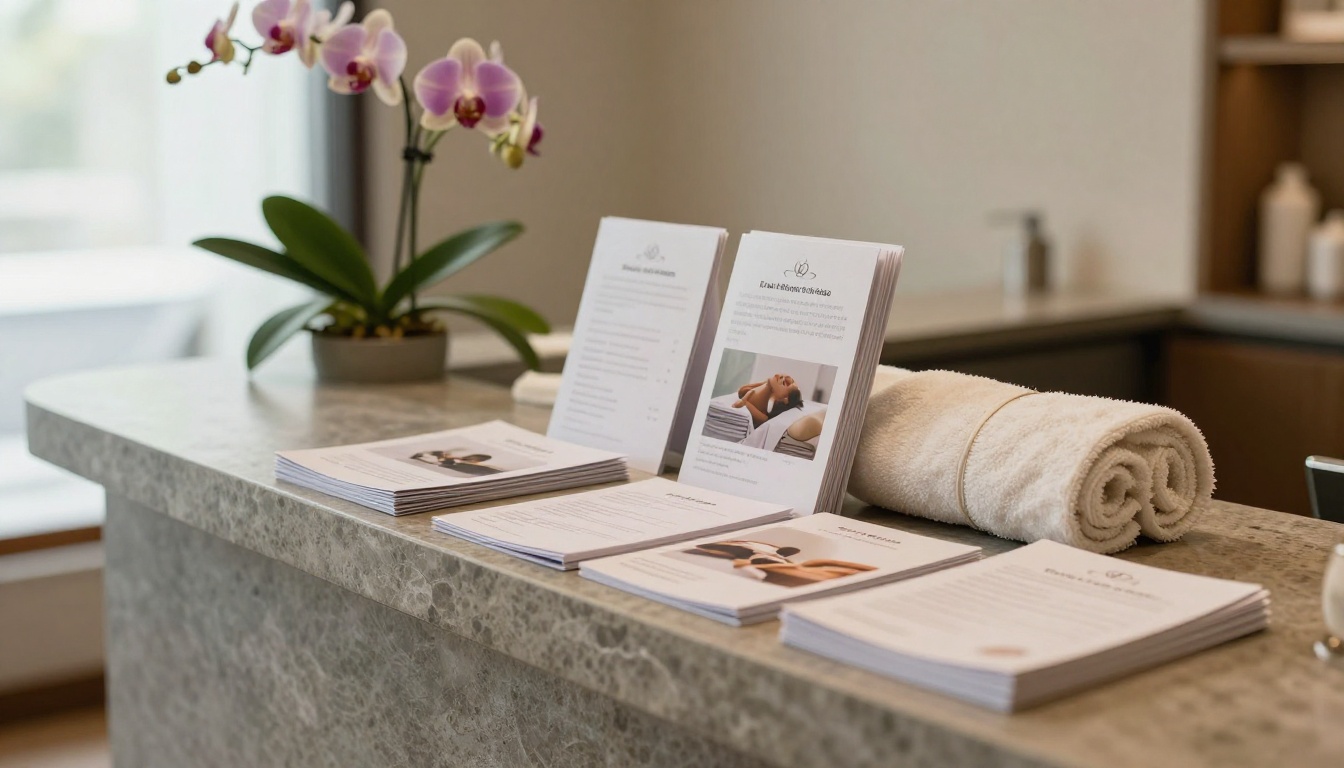
A spa keeps printed brochures at reception, then sends the digital version with every booking confirmation. Treatment lists change often, so updating one file beats reprinting a stack. The Spa and Wellness Menu tool is built for this.
Local Bakeries and Cafes

A bakery designs a seasonal brochure in Google Slides, prints twenty copies for the counter, and shares a link on social media for custom cake orders.
Use this short decision list:
- You pay for Microsoft 365 and want great visuals: PowerPoint.
- Your brochure is mostly text: Word.
- You need a free option with teammates: Google Slides.
- You are drafting copy first: Google Docs.
- You inherited a Publisher file: keep using it, but plan a move.
Whatever you choose, the format matters less than the finish. A clean layout, sharp photos and one clear call to action beat any fancy feature.
Ready to Publish Yours?
Pick a tool from the list, build your layout, and export the PDF. Then get started for free on Flipbooks AI to turn it into an interactive brochure your customers can open on any device. Browse all flipbook tools to find the right template, or compare pricing plans when you are ready for analytics and unlimited flipbooks.



