Your newsletter lands on a doormat on Monday and in an inbox on Tuesday, and somehow both versions need to look like they came from the same brand. That is the real test of the best newsletter design software for print and digital issues: not how pretty a template looks in a demo, but whether one tool can produce a crisp press-ready PDF, a clean email and a shareable online edition without three separate rebuilds. Tools such as Flipbooks AI now sit in the middle of that workflow, turning a finished PDF into a page-turning web issue. This ranking walks through the options, who each one suits and how to combine them.
What Print and Digital Issues Need
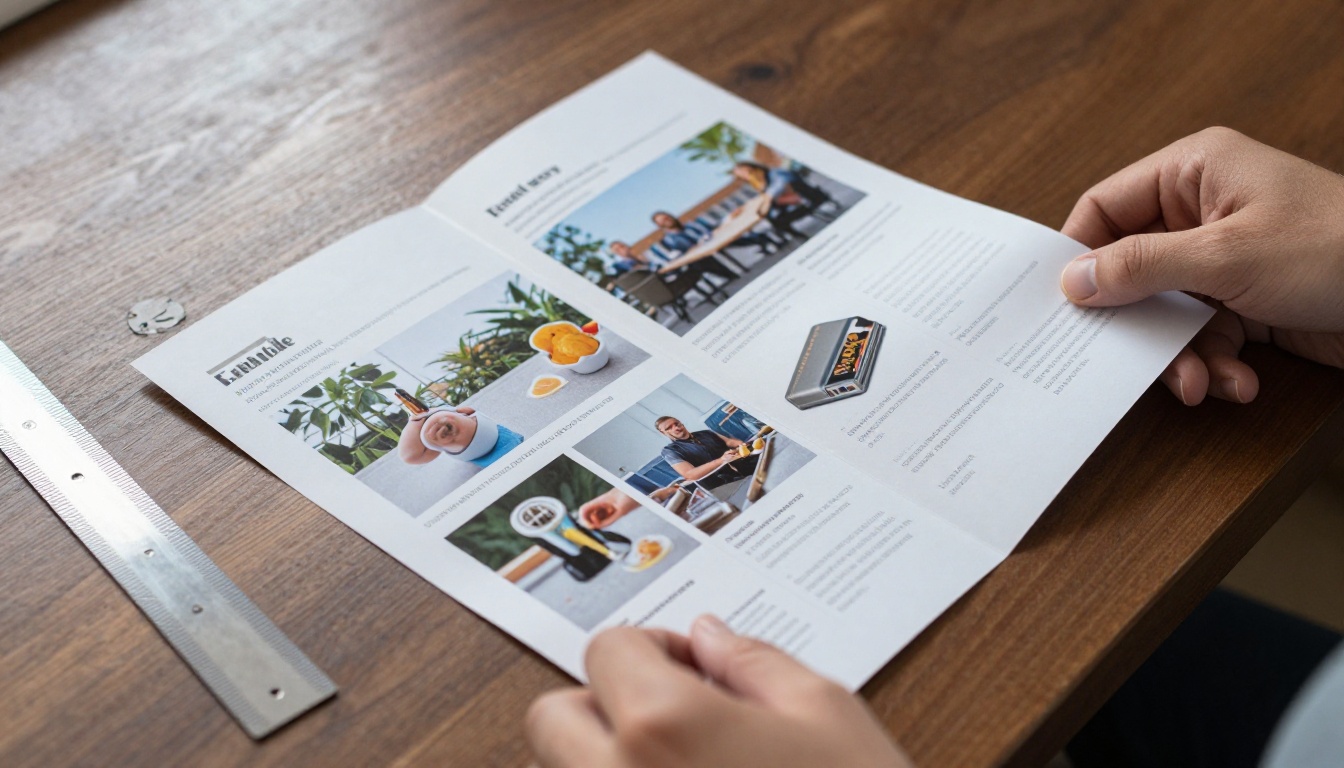
A print newsletter and a digital newsletter are two different products that happen to share a name. Print cares about bleed, resolution, color profiles and folding. Digital cares about load speed, mobile layout, link tracking and inbox rendering. Software that excels at one often struggles with the other.
Print requirements
For print, your software needs to export a PDF at 300 DPI with bleed and crop marks. It should support CMYK color, embedded fonts and master pages so every page keeps the same margins. If your printer asks for PDF/X files, check that your tool can produce them before you commit.
Digital requirements
For digital, the priorities flip. You want responsive layouts, image compression, alt text fields and link tracking. An email must survive Outlook, Gmail and Apple Mail. A web edition must open fast on a phone.
The hybrid problem
Most teams publish both. The usual pain is the handoff: designers finish a print layout, then someone rebuilds it for email by hand. Good workflows treat the print PDF as the source of truth and generate the digital versions from it.
💡 Pro tip: Decide your primary format first. If print is your main channel, pick a layout tool. If email is primary, pick an email builder. Then add a converter for the secondary format.
Our Ranking Criteria
We weighed each tool on six points. Every score below reflects how well a tool serves both formats, not just one.
- Layout control: grids, master pages, typography and image handling
- Print output: bleed, CMYK, PDF export quality
- Digital output: email export, responsive behavior, web sharing
- Template quality: how usable the starting designs are for newsletters
- Learning curve: time for a non-designer to publish a decent issue
- Cost model: subscription, one-time license or free
The Best Newsletter Design Software Ranked
Here is the quick comparison before we go tool by tool.
| Rank | Tool | Best for | Print ready | Email ready | Cost model |
|---|
| 1 | Adobe InDesign | Professional print layouts | Excellent | Limited | Subscription |
| 2 | Canva | Fast hybrid issues | Good | Good (via export) | Free and paid tiers |
| 3 | Affinity Publisher | One-time purchase print work | Excellent | Limited | One-time license |
| 4 | Flipbooks AI | Turning PDFs into web issues | Not a layout tool | Link and embed | Free and paid plans |
| 5 | Mailchimp or similar | Email-first newsletters | Weak | Excellent | Free and paid tiers |
| 6 | Scribus | Free print layouts | Good | Weak | Free |
| 7 | Microsoft Publisher | Simple office newsletters | Fair | Weak | Bundled with Office |
1. Adobe InDesign
InDesign remains the benchmark for print. Master pages, paragraph styles, linked images and robust PDF/X export make it the safest choice when a commercial printer is involved. A twelve-page club magazine with advertisements lives comfortably here.
The weak spot is digital. Exporting to an email layout is clunky, so most teams export a PDF and hand it to another tool. The subscription cost and the learning curve are also real hurdles for small teams.
Choose it if: you have a trained designer and print is your main channel.
2. Canva
Canva wins on speed. Its newsletter templates let a marketing coordinator build a branded issue in an afternoon, then download a print PDF or share a link. Brand kits keep colors and fonts consistent across issues.
Print control is lighter than InDesign: CMYK handling and advanced bleed settings depend on the plan, so confirm with your printer. For a hybrid newsletter at modest volume, it is the most practical all-rounder.
Choose it if: you want one tool for a mixed team of designers and non-designers.
3. Affinity Publisher
Affinity Publisher gives you InDesign-style tools for a one-time fee. Master pages, text flow and professional PDF export are all present. It suits freelancers and small agencies tired of subscriptions.
Digital output is its limit. Treat it as a print engine and pair it with a converter for web.
Choose it if: you want pro print layout without monthly payments.
4. Flipbooks AI
Flipbooks AI does not replace a layout tool, and that is exactly why it ranks high for hybrid issues. You export your finished PDF from InDesign, Canva or Affinity, then convert it into an interactive page-turning edition. Readers get a mobile-responsive web issue with no watermarks, and you keep one design as the single source of truth.
The dedicated Newsletter Flipbook Publisher is built for this use. Paid plans add password protection, analytics and lead generation, which you can compare on the pricing page.
Choose it if: you already have a PDF and want a polished online edition fast.
5. Mailchimp and email builders
Email-first platforms such as Mailchimp, Flodesk or Beehiiv handle sending, segmentation and reporting. Their drag-and-drop editors produce responsive emails that render reliably across inboxes.
They are not print tools. If you need a mailed copy, you will rebuild the design elsewhere.
Choose it if: your newsletter is mostly email and print is occasional.
6. Scribus
Scribus is free, open source and capable of professional print output including CMYK and PDF/X. The interface feels dated and the learning curve is steep, but for a volunteer organization with no budget it works.
7. Microsoft Publisher
Publisher is simple and already installed in many offices. It handles basic folded newsletters well enough. Treat it as a stopgap rather than a long-term system, since template variety and export options are limited.
Features That Actually Matter
Feature lists are long, so focus on what changes outcomes. This table shows which capabilities matter most for each format.
| Feature | Print impact | Digital impact | Priority |
|---|
| Master pages | High | Medium | Must have |
| CMYK and bleed | High | None | Must have for print |
| Responsive layout | None | High | Must have for email |
| Brand kit | Medium | Medium | High |
| Link tracking | None | High | High |
| Template library | Medium | Medium | Nice to have |
| Collaboration and comments | Medium | Medium | Nice to have |
Templates versus custom grids
Templates save hours, but only if they fit your content. A template built for three short articles will break when you drop in one long feature. Look for tools that let you edit the underlying grid, not just swap text.
Typography and color control
Consistent type is what makes an issue feel professional. Choose software that stores paragraph and character styles, so a headline change updates every page at once.

⚠️ Warning: Screen colors are RGB and printers use CMYK. Always request a printed proof before a full run, or your vivid blue may arrive as dull purple.
Different teams need different stacks. These real scenarios show how the pieces fit.
A school or nonprofit
A school communications coordinator needs low cost, easy templates and parent-friendly sharing. Canva for design, a printed copy for the front office and an online edition for families works well. The School Newsletter Creator turns that PDF into a link parents can open on a phone.

A small business or local brand
A shop owner who mails a seasonal issue and emails it to customers should design once in Canva or Affinity, export a PDF, then publish it as a flipbook. Sharing the same link in email and on social media keeps the brand consistent.
A corporate communications team
Larger teams need approval flows, brand control and analytics. InDesign for layout, a flipbook publisher for the web edition and an email platform for distribution gives each stage a specialist tool. The analytics on a Professional plan show which pages readers actually reach.
A freelance designer
Freelancers value one-time purchases and client-friendly delivery. Affinity Publisher plus a flipbook link lets you hand clients both a print file and a shareable preview.
| Team type | Layout tool | Email tool | Web edition |
|---|
| School or nonprofit | Canva | Mailchimp | Flipbook link |
| Small business | Canva or Affinity | Flodesk or Mailchimp | Flipbook link |
| Corporate team | InDesign | Enterprise email platform | Flipbook with analytics |
| Freelancer | Affinity Publisher | Client's platform | Flipbook preview |
Here is a simple workflow that produces print, email and web editions from a single design.
How to publish a web edition with Flipbooks AI
- Finish your layout in your preferred design tool and export a high-quality PDF.
- Create an account at Flipbooks AI and open the PDF to Flipbook Converter.
- Upload the PDF. Conversion takes moments, and each page becomes a turnable spread. The upload screen shows a progress bar and a preview thumbnail of page one.
- Customize the look. Add your logo, pick background colors, choose the page-turn effect and embed videos or audio where they help.
- Set sharing options. Copy a direct link, grab an embed code for your site with the Embed Flipbook on Website tool or add password protection for members-only issues.
- Turn on extras. Professional plans add analytics, offline downloads and lead generation forms.
- Link it in your email. Use a teaser image and a button that points to the flipbook.
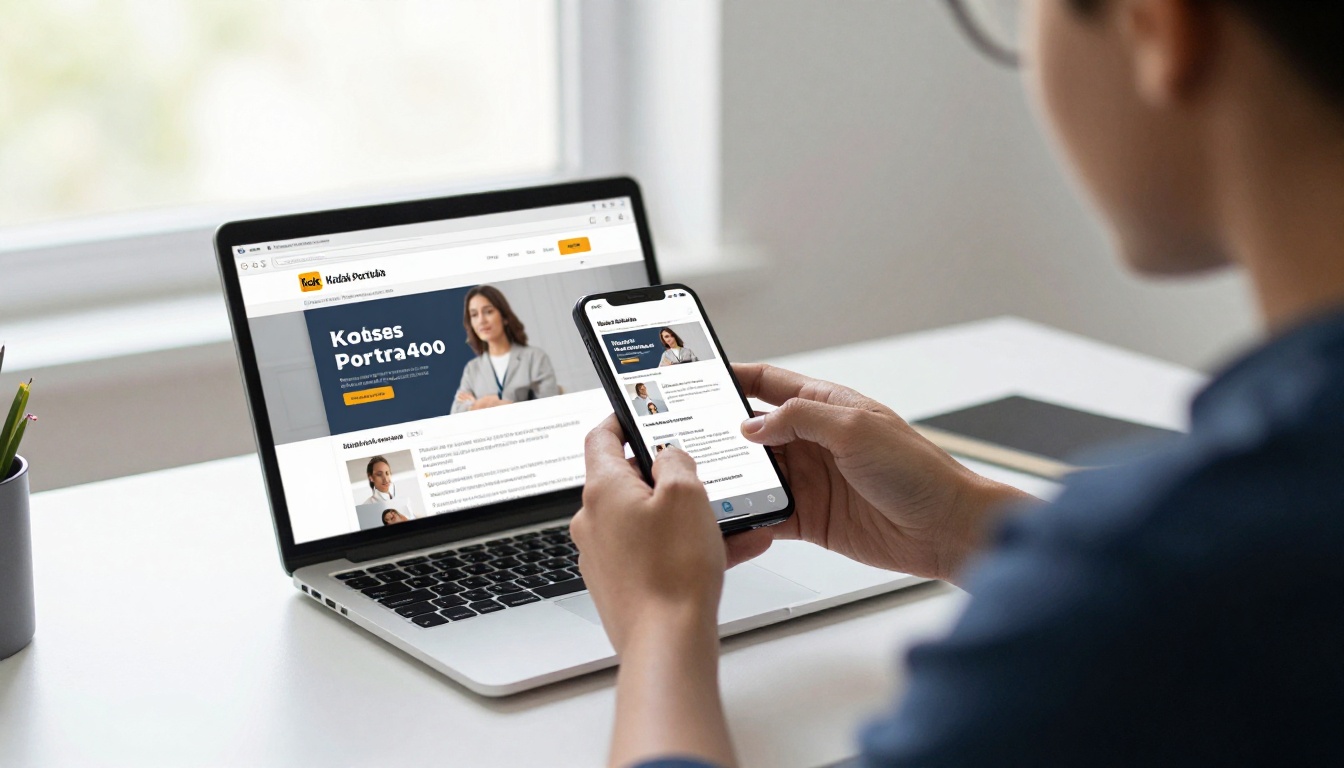
✅ Best practice: Keep your email short. Send a teaser with two or three highlights and link to the full web edition. Readers get a lighter inbox and you get trackable clicks.
Preparing the print run
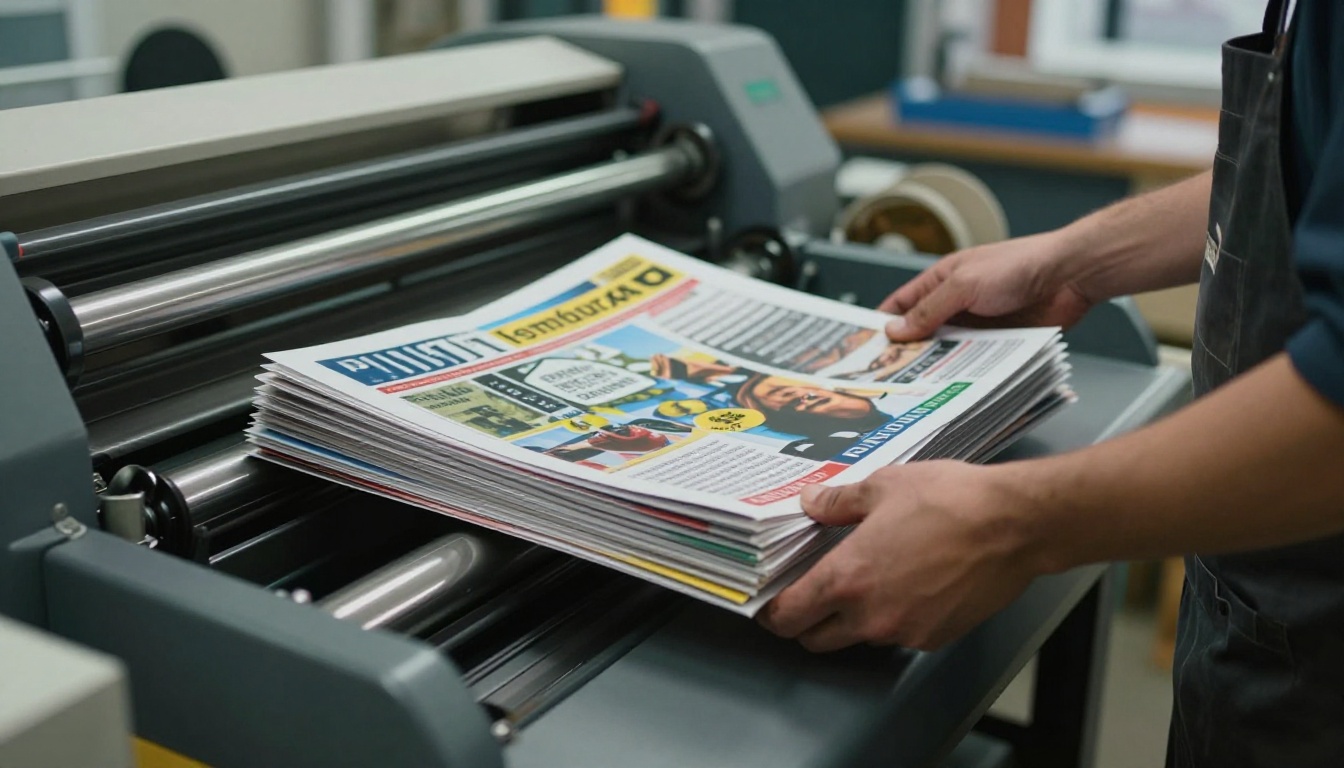
For the printed copy, confirm trim size, paper weight and bleed with your printer before you design. Request a digital proof and check folds on a printed dummy.
Mailing and distribution
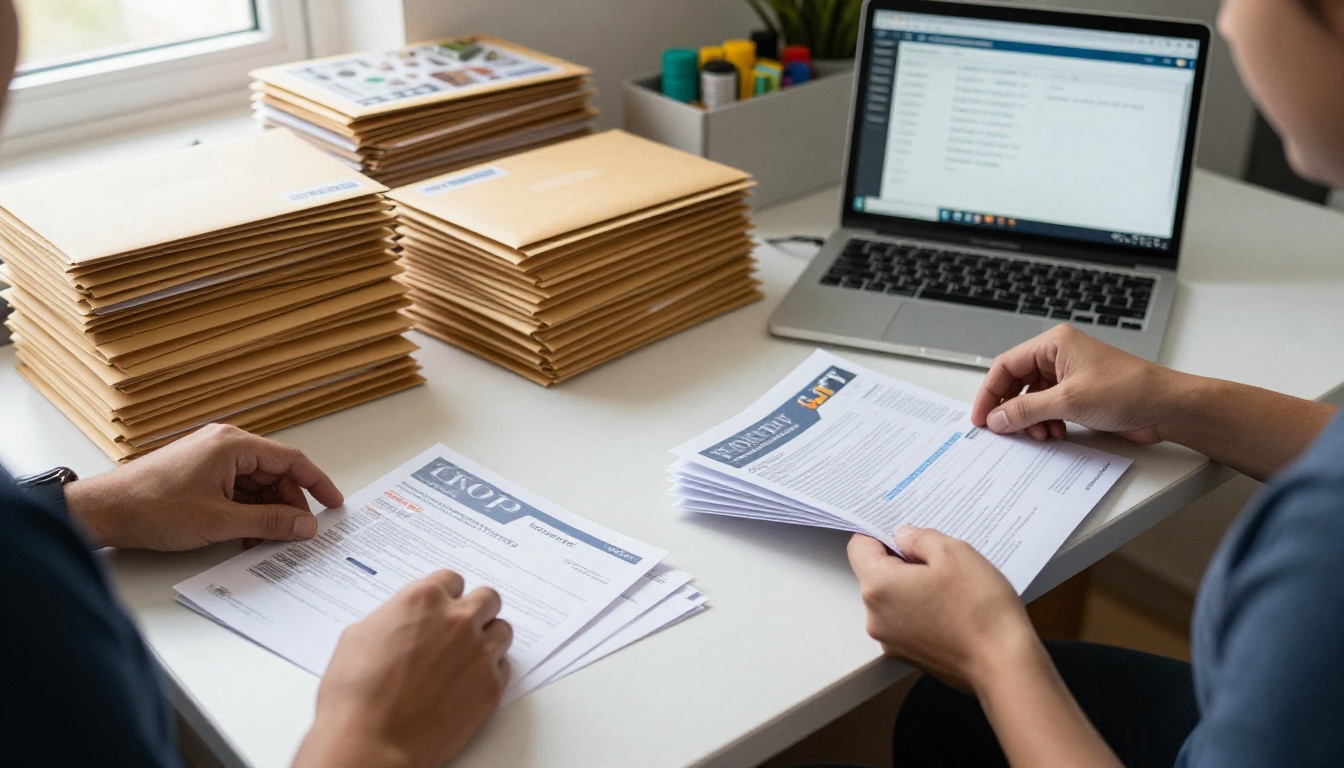
If you mail issues, build a checklist: address list cleaned, postage class chosen, QR code on the printed page that points to the web edition. That QR code connects the two formats and gives you a way to measure how many print readers go online.
Common Mistakes to Avoid
Even good software cannot fix a weak process. Watch for these.
- Designing for email first, then forcing it onto paper. Low-resolution images look soft in print.
- Skipping the proof. A single typo repeated across 5,000 copies is expensive.
- Too many fonts. Two typefaces are enough for most issues.
- Ignoring mobile. Over half of email opens happen on phones, so test on one.
- No call to action. Every issue should point readers somewhere, whether that is a signup, a store or an event.
- Forgetting accessibility. Add alt text, keep contrast high and use real text rather than text baked into images.
⚠️ Warning: Never send a final print file without opening the exported PDF and checking that fonts, images and links survived the export.
Quick Decision Checklist
Use this short list to settle on a stack in five minutes.
- Is print your main channel? Start with InDesign or Affinity Publisher.
- Do you need speed and a shared team workspace? Start with Canva.
- Is email your main channel? Use an email builder and link to a web edition.
- Do you already have a PDF? Convert it with a flipbook publisher.
- Is the budget zero? Use Scribus or the free tiers of Canva and Flipbooks AI.
| If your priority is | Pick this combination |
|---|
| Print quality | InDesign + flipbook web edition |
| Speed | Canva + flipbook link |
| Low cost | Scribus or Canva free + free flipbook |
| Email results | Email platform + teaser linking to flipbook |
Ready to Publish Your Next Issue?
The strongest setup is rarely a single tool. Pick a layout app that matches your skills, an email platform that matches your list and a flipbook publisher that turns the finished PDF into a web edition readers enjoy. Ready to try it? Get started for free on Flipbooks AI, browse all flipbook tools to find the right template fit or compare pricing plans to choose what works for your team. One design, three formats, and a newsletter that looks the same everywhere it lands.



