Nothing kills a booth demo faster than a spinning loading wheel. You paid for the space, printed the banners, flew the team in, and the venue Wi-Fi gives up at 10:15 on day one. The same thing happens to museum kiosks with flaky connections and to classrooms where the school network blocks half the internet. The fix is a digital publication that lives on the device itself. This ranking looks at the best offline flipbook makers for trade shows, kiosks and classrooms, and shows how to build one with Flipbooks AI so it keeps turning pages when the connection drops.
Why Offline Matters
A flipbook is normally a web page. The pages, images and animations load from a server every time someone opens the link. That works at your desk. It fails in three places where flipbooks are most useful:
- Exhibition halls: thousands of phones and scanners share one overloaded network.
- Public kiosks: the device sits in a lobby for months, and any hiccup shows visitors a blank screen.
- Classrooms: filtered networks, shared bandwidth and rural connections make streaming unreliable.
An offline flipbook solves this by packaging everything into a file or folder that opens from local storage. No network request, no loading delay, no embarrassment.
💡 Pro tip: Test offline mode by switching your laptop to airplane mode before you leave the office. If the flipbook opens and every page turns smoothly, it is ready for the road.
The Three Offline Models
Not every "offline" feature works the same way. Tools fall into three groups:
- Downloadable packages: you export a folder or single file that opens in any browser from a USB stick or hard drive.
- Installed apps: the flipbook lives inside a desktop or mobile app that caches content after the first sync.
- Cached web pages: the browser stores the pages after one online visit. Convenient, but fragile if the cache is cleared.
For events and kiosks, the first model is the safest. For classrooms with occasional connectivity, the second can also work well.
We scored each approach on six practical criteria rather than marketing claims:
- Does the export run with zero internet from the first launch?
- Do animations, page effects and embedded media survive the export?
- How fast can a non-technical person produce the file?
- Can you update content without rebuilding everything?
- Does it support kiosk-style looping or full-screen playback?
- What does it cost per year for a small team?
The Ranking at a Glance
| Rank | Approach | Offline Export | Page Effects Kept | Setup Time | Best For |
|---|
| 1 | Flipbooks AI with offline download | Yes, downloadable copy | Yes | Minutes | Trade shows, kiosks, classrooms |
| 2 | Desktop flipbook software | Yes, exe or app bundle | Mostly | Under an hour | Single-machine kiosks |
| 3 | Presentation software exports | Yes, local file | Limited | Under an hour | Quick classroom decks |
| 4 | Plain PDF in a viewer | Yes | No page curl | Minutes | Fallback copy |
| 5 | Browser-cached web flipbook | Partial | Yes | Minutes | Casual, low-risk use |
1. Flipbooks AI With Offline Downloads
Flipbooks AI turns a PDF into a page-turning publication and lets you keep a downloadable copy for offline use. That copy keeps the page effects, your branding and embedded media, so it looks the same on a show floor as it does online. There are no watermarks, ever, which matters when the flipbook is the first thing a prospect sees on your booth screen.
It also gives you something offline-only tools lack: the online version. Share a link after the show, embed it on your site, and password-protect private material, all from the same source file.
Strengths:
- Fast conversion from PDF to flipbook
- Custom branding, colors and page effects
- Audio and video embedding
- Mobile-responsive design for visitors who scan a QR code
- Analytics and lead generation on the Professional plan (see pricing)
Trade-off: the Professional plan is where the lead and analytics tools live, so budget for it if you want to capture visitor data online after the event.
2. Desktop Flipbook Software
Installed programs export a self-contained executable or folder. They are dependable on a single Windows or Mac machine and need no browser setup. The downsides are real, though: licensing is often per computer, updates mean re-exporting and re-copying files, and sharing an online version usually needs a second product.
3. Presentation Software Exports
PowerPoint and Keynote can run fully offline and are familiar to every teacher. They lack the page-turn feel that makes a flipbook inviting, and layouts can shift between machines. Treat them as a backup, not the headline experience.
4. Plain PDF in Kiosk Mode
A PDF will always open. Put it in full-screen mode, disable the toolbar, and it runs on almost anything. But there is no page curl, no sound, no interactive polish. It is the "break glass" option.
5. Browser-Cached Web Flipbooks
Some online viewers store pages in the browser cache after one visit. This works until someone clears the cache, the browser updates, or the kiosk reboots into a fresh profile. Fine for a casual demo, risky for a three-day event.
Best Picks for Trade Shows
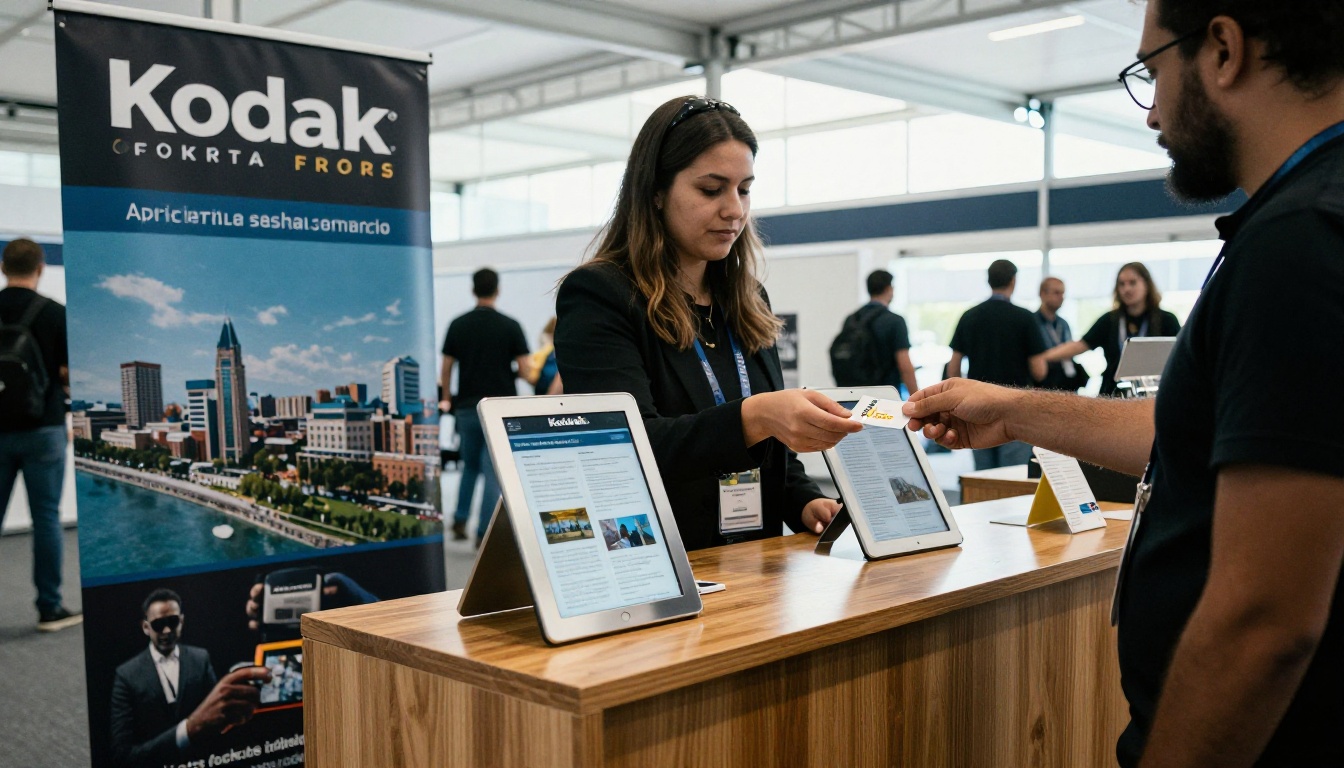
Show floors are the harshest test. Wi-Fi is shared, power outlets are scarce, and your audience gives you about eight seconds before they walk on.
What Works at a Booth
- A looping flipbook on a large screen that attracts passers-by.
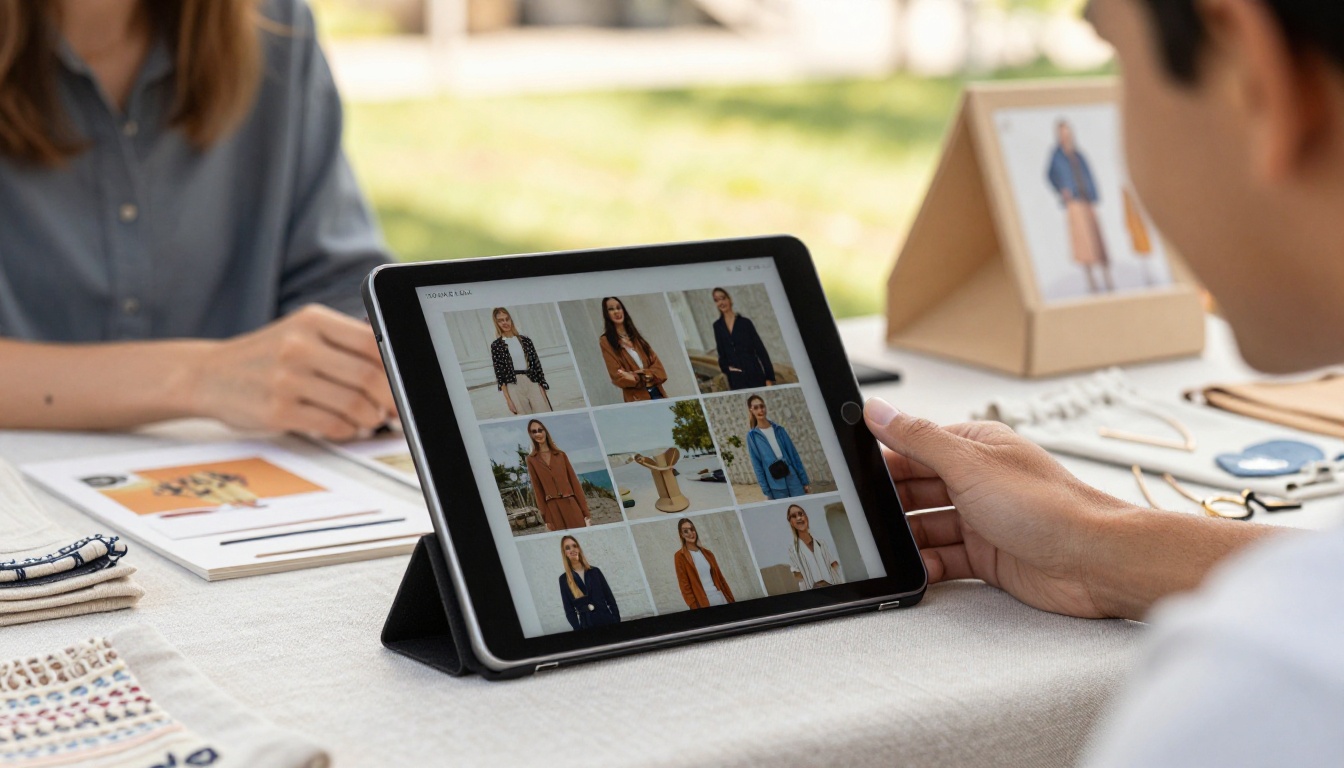
- A second copy on a tablet so staff can walk the aisle and show products.
- A QR code that opens the online version for visitors who want to keep it.
- A USB stick backup in the bag in case a device fails.
A furniture maker, for example, can load a furniture catalog onto a 55-inch screen and a tablet. When the hall network slows to a crawl, the booth keeps running at full speed. A fashion label can do the same with an interactive lookbook.
| Booth Need | Recommended Setup | Backup |
|---|
| Attract attention | Looping flipbook on big screen | Printed banner |
| Show detail | Tablet with offline copy | Laptop with USB copy |
| Capture leads | QR code to online version | Paper sign-up sheet |
| Survive power issues | Charged tablets | Power bank |
⚠️ Warning: Large videos embedded in a flipbook inflate the file size. Compress them before export so older tablets do not stutter.
Best Picks for Kiosks
Kiosks run unattended for weeks. Reliability beats everything else.
Kiosk Checklist
- Export the offline copy and store it on the kiosk's local drive, not a network share.
- Set the browser to full-screen and disable pop-ups and address bars.
- Configure the machine to launch the flipbook on boot.
- Schedule a weekly restart so memory problems never pile up.
- Keep a second copy of the files on a separate drive.
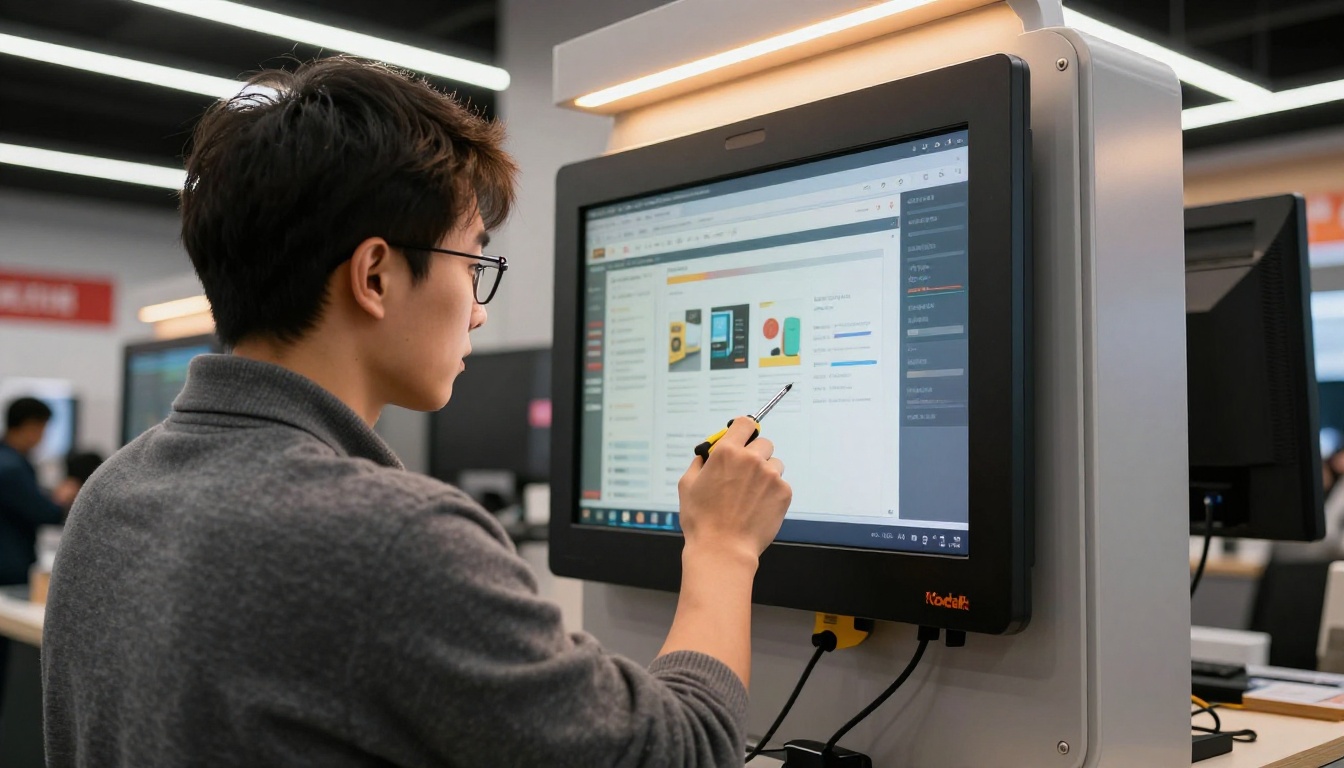
A museum can load a digital catalog of its collection, a hotel lobby can show a hotel brochure, and a dealership can run an automotive brochure on a pedestal screen. In every case, visitors get a fast, tactile experience with no dependency on the building's network.
| Kiosk Location | Content Idea | Update Frequency |
|---|
| Hotel lobby | Brochure and local attractions | Seasonal |
| Museum | Collection catalog | Per exhibition |
| Car dealership | Model brochures | Monthly |
| Real estate office | Property listings | Weekly |
✅ Best practice: Put a small "last updated" line inside the flipbook so staff know when to refresh the offline copy.
Best Picks for Classrooms
Schools face a different problem. Bandwidth is shared across hundreds of devices, content filters block unfamiliar domains, and some students have no home internet at all.

Practical Classroom Uses
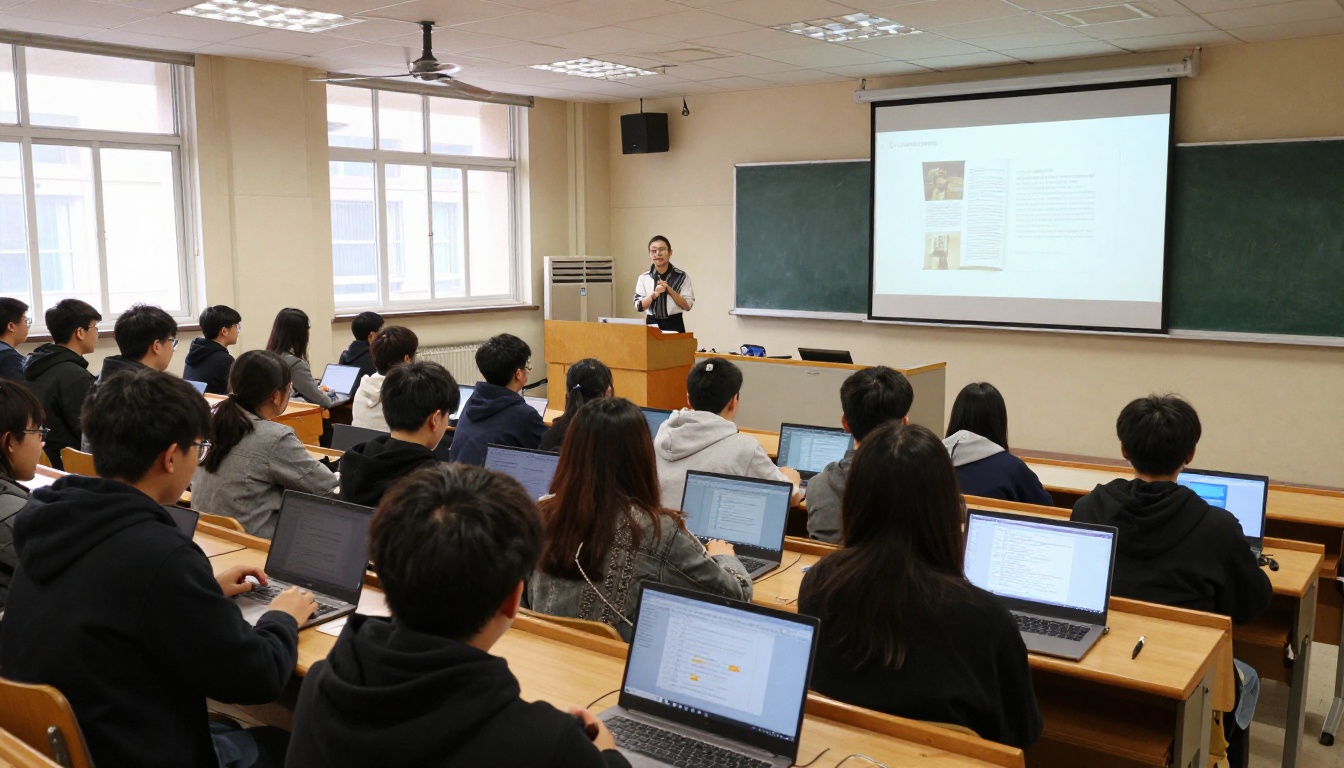
A teacher can place the downloaded copy on a shared drive or hand out USB sticks. Students open it in a browser, and it works on a bus, at home or in a room where the Wi-Fi is down.
| Setting | Delivery Method | Why It Works |
|---|
| Rural school | USB stick or shared drive | No bandwidth needed |
| University | Download from learning portal | Students keep their copy |
| Vocational lab | Local PC folder | Works on locked-down machines |
| Homework packs | Email attachment or SD card | Reaches students without internet |
How to Create an Offline Flipbook With Flipbooks AI
Here is the fastest path from a PDF to a flipbook that runs anywhere.
- Create an account. Sign up on Flipbooks AI and open your dashboard.
- Upload your PDF. Drag in your brochure, catalog or course reader. Conversion takes a short moment, and pages keep their original sharpness.
- Customize the look. Add your logo, choose brand colors, pick a page-turn effect, and place images, audio or video where they help. Browse the flipbook tools to start from a template that matches your use case.
- Set sharing options. Copy the link, grab the embed code for your site (see embedding a flipbook), or add a password for private material.
- Download the offline copy. Save it to your laptop, tablet or USB stick.
- Test in airplane mode. Open the file with the network off. Flip every page, play every video, and check the logo.
- Review analytics after the event. On the Professional plan, view visits and lead data from the online version your QR code pointed to.
💡 Pro tip: Name your files with the event and date, such as "spring-expo-2026-catalog", so you never load an outdated version on show day.
Common Mistakes to Avoid
- Testing only online. The flipbook works at your desk, so you assume it works everywhere. Always test with the network off.
- Skipping the backup. One device failing should not end your demo. Carry a second copy.
- Oversized media. Uncompressed 4K video makes older kiosks lag. Compress first.
- Forgetting the online link. Offline handles the live moment. The online version handles follow-up, sharing and tracking.
- Ignoring file organization. Keep the folder intact. Moving single files out of an export can break pages.
Quick Cost Comparison
| Option | Typical Cost Model | Hidden Cost |
|---|
| Flipbooks AI | Monthly or yearly plan, see pricing | Professional plan for lead tools |
| Desktop software | Per-computer license | Re-exporting for every update |
| Presentation software | Often already owned | Design time to mimic page turns |
| PDF only | Free | No interactive polish |
For most teams, a single subscription that covers the online flipbook and the offline copy beats stitching together two products.
Which One Should You Pick
Choose by situation:
- Running a booth this month: pick a tool with an offline download and a shareable online link, and carry a USB backup.
- Setting up a permanent kiosk: export the offline copy, lock the browser to full screen, and schedule restarts.
- Teaching in a low-bandwidth school: distribute the downloadable copy on shared drives or USB sticks.
- Doing all three: build once, publish many ways. That is where a single platform saves the most time.
Ready to build yours? Get started for free on Flipbooks AI, browse the tools and templates to find your starting point, or compare pricing plans to see which one fits your team. Create your first flipbook today, download the offline copy, and walk into your next event knowing the Wi-Fi can do whatever it wants.



