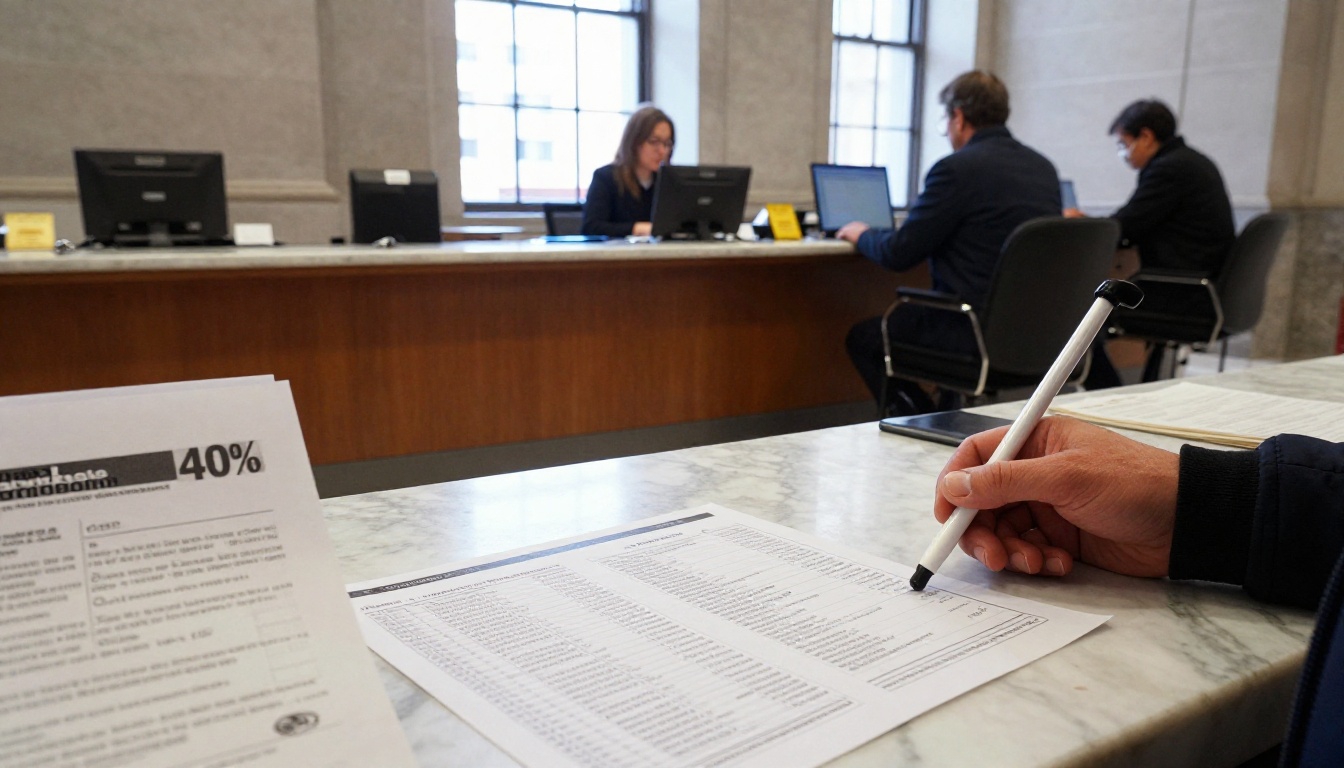
A parent opens your school handbook on a phone with a screen reader running. The reader announces "image, image, image" and then reads the page in the wrong order. That one failed PDF is the reason accessibility checkers exist. Schools, districts, city halls and county offices publish thousands of documents a year, and every one of them has to work for people who use assistive technology. This article compares the best PDF accessibility checkers for schools and public agencies, explains what each one actually tests, and shows how to build a review routine your staff can repeat. Along the way we will look at how formats like a Flipbooks AI flipbook can sit beside an accessible PDF so readers get both a polished page-turning view and a compliant download.
Why Accessibility Checks Matter
Public bodies carry a legal duty here. In the United States, Section 504 of the Rehabilitation Act, Section 508 and Title II of the Americans with Disabilities Act all point toward the same expectation: people with disabilities must get the same information, at the same time, as everyone else. The Department of Justice rule on web and mobile accessibility for state and local governments names WCAG 2.1 Level AA as the technical standard, and that includes PDFs posted online. Deadlines depend on the size of the entity, so confirm the current dates with your counsel.
The legal side is only part of it. Think about who reads your documents:
- Students and parents who are blind, low vision, dyslexic or using a screen magnifier
- Residents reading a zoning notice on a small phone in a bus shelter
- Staff members who rely on keyboard-only navigation
- Older readers who enlarge text and need it to reflow
💡 Accessible documents are better for everyone. Proper headings give every reader a way to jump around, and real text (not a scanned picture of text) can be searched, translated and enlarged.
What a Checker Actually Tests
Most tools check the same core items, drawn from the PDF/UA standard and WCAG:
- Tagged structure: the hidden tag tree that tells a screen reader what is a heading, paragraph, list or table
- Reading order: whether content is announced in a logical sequence
- Alternative text: descriptions for meaningful images
- Document language: so the screen reader uses the right pronunciation
- Document title: shown in the browser tab and announced on open
- Table headers: so each cell can be tied to its row and column
- Form fields: labels, tab order and tooltips
- Color contrast: whether text is readable against its background
- Bookmarks and links: working navigation and descriptive link text
What No Checker Can Decide
Here is the catch. An automated scan can confirm that alt text exists. It cannot confirm that the alt text is good. It can see a heading tag, but it cannot tell you the heading is the wrong level. This is why every serious workflow pairs a tool with a human review.
The Checkers Worth Comparing
The market splits into three groups: free checkers that only report problems, desktop editors that report and repair, and enterprise platforms built for high volume. Features and pricing change, so treat the table below as a starting point and confirm current details with each vendor.
| Tool | Type | Best For | Fixes Problems? | Typical Cost |
|---|
| PAC (PDF Accessibility Checker) | Free desktop checker | PDF/UA validation and screen reader preview | No, reports only | Free |
| Adobe Acrobat Pro Accessibility Checker | Desktop editor | Everyday checking plus manual repair | Yes | Subscription |
| CommonLook | Plugin and enterprise suite | High volume remediation with audit trails | Yes | Paid license |
| axesPDF and axesCheck | Desktop remediation | Detailed tag editing | Yes | Paid license |
| Equidox | Cloud remediation | Converting complex documents to accessible HTML and PDF | Yes | Paid subscription |
| Foxit PDF Editor | Desktop editor | Budget-conscious teams | Partly | Subscription or license |
| Microsoft Word Accessibility Checker | Source document check | Fixing problems before export | Yes, in the source file | Included with Office |
PAC: The Free Validator
PAC is a free Windows tool made for checking PDF/UA conformance. Its strongest feature is the screen reader preview, which lets a non-expert see how a document will be read. It is strict, and it flags things that other tools let slide. The trade-off: it only reports. You still need another program to fix what it finds. Many districts pair PAC with Acrobat Pro for exactly this reason.
Adobe Acrobat Pro
The built-in accessibility checker runs a quick scan, and the Tags panel, Reading Order tool and form editor let you repair what it flags. It is the default choice for most schools because staff may already own it. The weakness is that its checker passes some documents that stricter validators reject, so it should not be your only test for high-stakes publications.
CommonLook and axes
These are the tools of accessibility specialists. They give fine control over the tag tree, create reports you can hand to an auditor, and handle batch work. If your agency publishes board packets, budget books and long reports every month, the cost often pays for itself in saved hours. For a small school office, they can be more than you need.
Equidox and Cloud Remediation
Cloud platforms aim at the hardest documents: multi-column newsletters, complex tables, scanned forms. They use automation to build a first draft of the structure and then let a reviewer correct it. Look at turnaround time and how many documents a human still needs to touch.
Microsoft Word and Google Docs Checkers
The cheapest fix happens at the source. If your handbook starts life in Word, run the built-in Accessibility Checker before you export. Use real heading styles, real list formatting and real table header rows. Export with the "Document structure tags for accessibility" option enabled. Google Docs users can add extensions that check headings and contrast. A well-built source file often needs almost no repair after export.
✅ Best practice: fix the source file first, export second, validate third. Repairing a tag tree by hand is five to ten times slower than building the document correctly.
How to Choose for Your Organization
Your best checker depends on volume, staff skill and budget. Use the matrix below to narrow the field.
| Your Situation | Suggested Setup | Why |
|---|
| Small school office, a few PDFs a month | Word checker plus Acrobat Pro plus PAC | Low cost and enough control |
| District communications team, weekly newsletters | Acrobat Pro plus PAC plus a style template | Repeatable and affordable |
| City or county, large monthly packets | CommonLook or axes plus staff training | Audit trails and batch handling |
| Legacy archive of scanned documents | Cloud remediation service plus triage | Automation for scale |
| Teachers sharing worksheets | Source-file checker plus a short checklist | Low overhead |
Five Questions to Ask Before Buying
- Does it check against PDF/UA and WCAG 2.1 AA, or only a basic subset?
- Can it repair problems, or does it only report them?
- Does it produce a report you can file as evidence of a good-faith effort?
- Can several staff members use it without a specialist?
- How does it handle forms and complex tables?
A Repeatable Review Process
Buying a tool does not make documents accessible. A process does. Here is a workflow that small teams can adopt in a week.
Step 1: Build From Accessible Templates
Create Word or InDesign templates with predefined heading styles, a set of accessible colors and a table style with a header row. When every newsletter starts from the same template, most problems disappear before they begin.
Step 2: Run the Automated Scan
Export to PDF with tags on. Open the file and run your checker. Fix every error first, then resolve warnings.
Step 3: Do a Manual Pass
Automated tools miss a lot. A human reviewer should confirm:
- Headings follow a logical order (H1, then H2, then H3)
- Every meaningful image has useful alt text, and decorative images are marked as such
- Links say where they go ("Download the 2026 bus schedule") rather than "click here"
- The tab key moves through forms in a sensible order
- Text still reads clearly when enlarged to 200 percent
Step 4: Listen to It
Open the file with a screen reader such as NVDA (free) or the one built into your operating system. Five minutes of listening reveals reading order mistakes no report will show.

Step 5: Record and Publish
Save the checker report with the final file. If a complaint arrives later, a dated report shows your team acted in good faith. Then publish, and add a contact line so readers can request another format.
Common Mistakes in School and Agency PDFs
After reviewing many public documents, the same errors appear again and again.
| Mistake | Why It Hurts | Quick Fix |
|---|
| Scanned pages with no text layer | Screen readers see a blank image | Run OCR, then tag the result |
| Fake headings made with bold text | No navigation for screen reader users | Use real heading styles |
| Missing alt text on charts | Data is invisible to blind readers | Add a short summary of the finding |
| Tables without header rows | Cells read with no context | Mark the first row as a header |
| Low contrast color schemes | Hard to read for low vision users | Test against a 4.5 to 1 ratio |
| Flyers built as one big image | Nothing to read aloud | Rebuild the flyer as live text |
| No document title or language | Wrong pronunciation, confusing tab label | Set both in document properties |
⚠️ Warning: A PDF that passes a quick scan can still fail real users. Never publish a document for a high-stakes purpose, such as a special education notice or an election document, without a manual review.
Scanned Documents Deserve Special Attention
Many agencies sit on years of scanned paper records. You do not need to fix everything at once. Triage by demand: start with documents that are requested often, then those tied to deadlines or services, and handle the archive when someone asks. Publish a clear request process so any resident can ask for an accessible copy.
Real-World Scenarios
A Small School District
A district with five schools publishes a handbook, a calendar, lunch menus and weekly notices. The communications coordinator builds three Word templates, runs the Word checker, exports, then validates with PAC. Total added time per document: about ten minutes. Complaints about unreadable handbooks stopped within a semester.
A County Clerk's Office
A county posts agendas and minutes before every board meeting, often late on a Friday. The clerk adopts a fixed agenda template and a one-page checklist. The most common failures, missing headings and unlabeled tables, vanish because the template handles them.
A University Disability Services Team
Faculty upload syllabi and readings in bulk. The office runs a cloud remediation service on the high-enrollment courses first, and gives instructors a short training on building accessible source files. Requests for emergency remediation drop term after term.
Pairing Accessible PDFs With Flipbooks
Accessible PDFs remain the archival, compliant format. But long documents such as annual reports, course catalogs and student handbooks are easier to browse as a page-turning publication. The sensible approach is to offer both: a tagged PDF for assistive technology and a flipbook for readers who prefer a visual experience.
Here is how an office can set that up with the PDF to Flipbook Converter:
- Finish and validate your PDF using the process above. Fix errors in the source file.
- Create an account at Flipbooks AI and upload the PDF. Conversion takes a short time.
- Customize the look: add your school or agency colors, a logo and page effects.
- Choose sharing options: copy a direct link, or use the Embed Flipbook on Website tool to place it on your site. Use password protection for private material such as staff handbooks.
- Link the accessible PDF beside it: add a plain "Download accessible PDF" link next to the flipbook so no reader is forced into the visual version.
💡 Always keep the accessible PDF as the primary document. Treat the flipbook as an extra reading option, not a replacement.
Flipbooks AI publishes with no watermarks, works on mobile screens and supports custom branding. Teams that need reader statistics and lead capture can look at the Professional tier on the pricing page. Education teams can also look at the School Newsletter Creator and the Training Manual Flipbook for common document types, or browse every flipbook tool in one place.

Feature Comparison: Accessible PDF vs Flipbook
| Feature | Tagged PDF | Flipbook |
|---|
| Works with screen readers | Yes, when tagged correctly | Offer the PDF alongside |
| Page-turning visual experience | No | Yes |
| Mobile friendly reading | Needs zooming | Responsive layout |
| Easy to embed on a website | Link only | Embed code available |
| Offline download | Yes | Yes |
| Best use | Compliance and archive | Browsing and sharing |
Training Your Staff
A checker is only as good as the person using it. Plan a short, recurring training program rather than a single workshop.
- Hour one: why accessibility matters, with a screen reader demonstration
- Hour two: heading styles, lists and tables in Word
- Hour three: running the checker and reading its report
- Ongoing: a monthly "document clinic" where staff bring tricky files

Name an accessibility owner in each school or department. That person answers questions, keeps the templates current and checks the most sensitive documents.
A Quick Policy You Can Adopt Today
- Every PDF posted online must pass an automated check and a manual review
- Every document must start from an approved template
- Scanned documents are published only with a text layer
- Each page that hosts documents lists a contact for alternate formats
- Reports are saved for at least one year
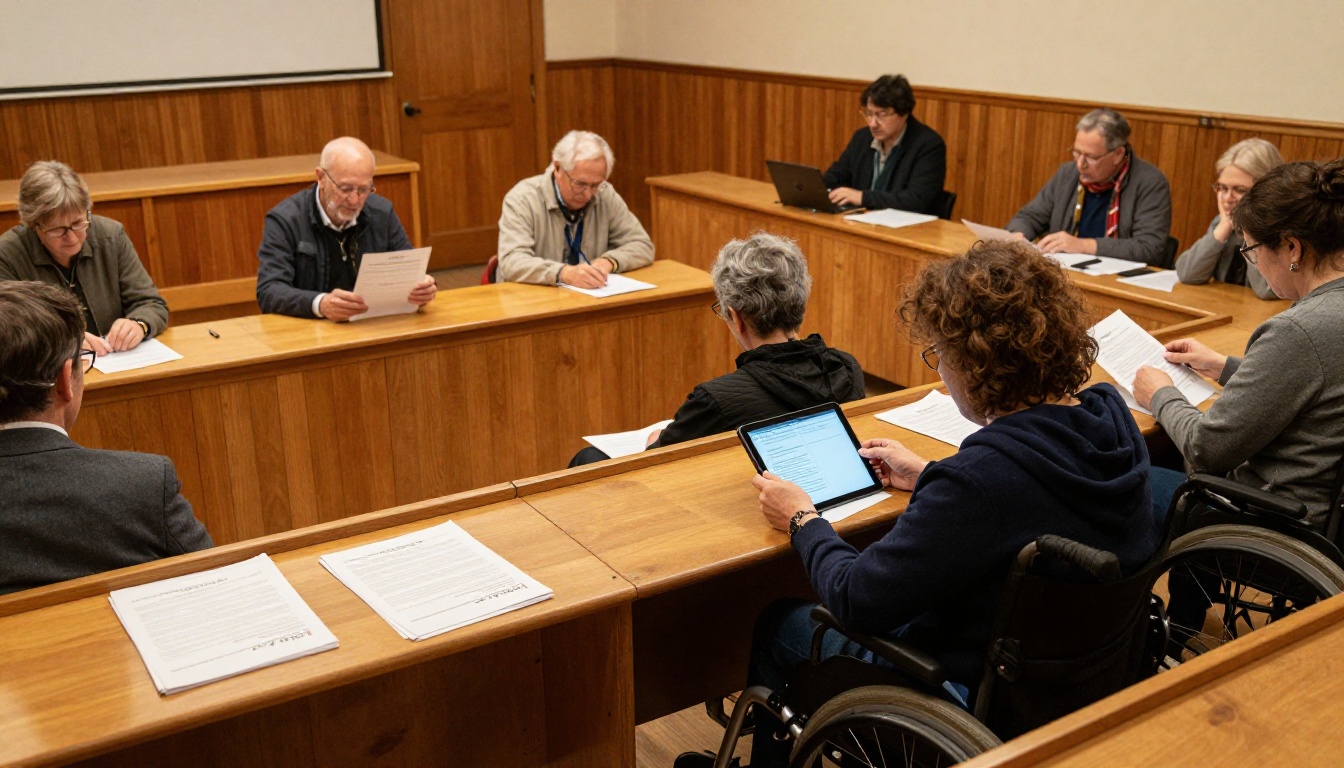
If you want one simple recommendation: start with Word's built-in checker, Acrobat Pro and PAC. Together they handle the needs of most schools and small agencies at a modest cost, and they teach your staff what good structure looks like. Move to CommonLook, axes or a cloud remediation service when volume grows beyond what your team can review by hand.
Ready to give readers a better way to browse your validated documents? Get started for free on Flipbooks AI, compare pricing plans to see which tier fits, and browse the full list of tools and templates to find the right one for your handbook, report or newsletter.



