Every teacher who has tried publishing student work hits the same wall: the writing is wonderful, but the tool for turning it into a real book is either too fiddly or too limited. Two names come up again and again, Book Creator and StoryJumper. They look similar from a distance, yet they behave very differently once thirty kids are logged in at once. This comparison walks through what each one does well, where each one struggles, and how to share the finished books with families using Flipbooks AI.
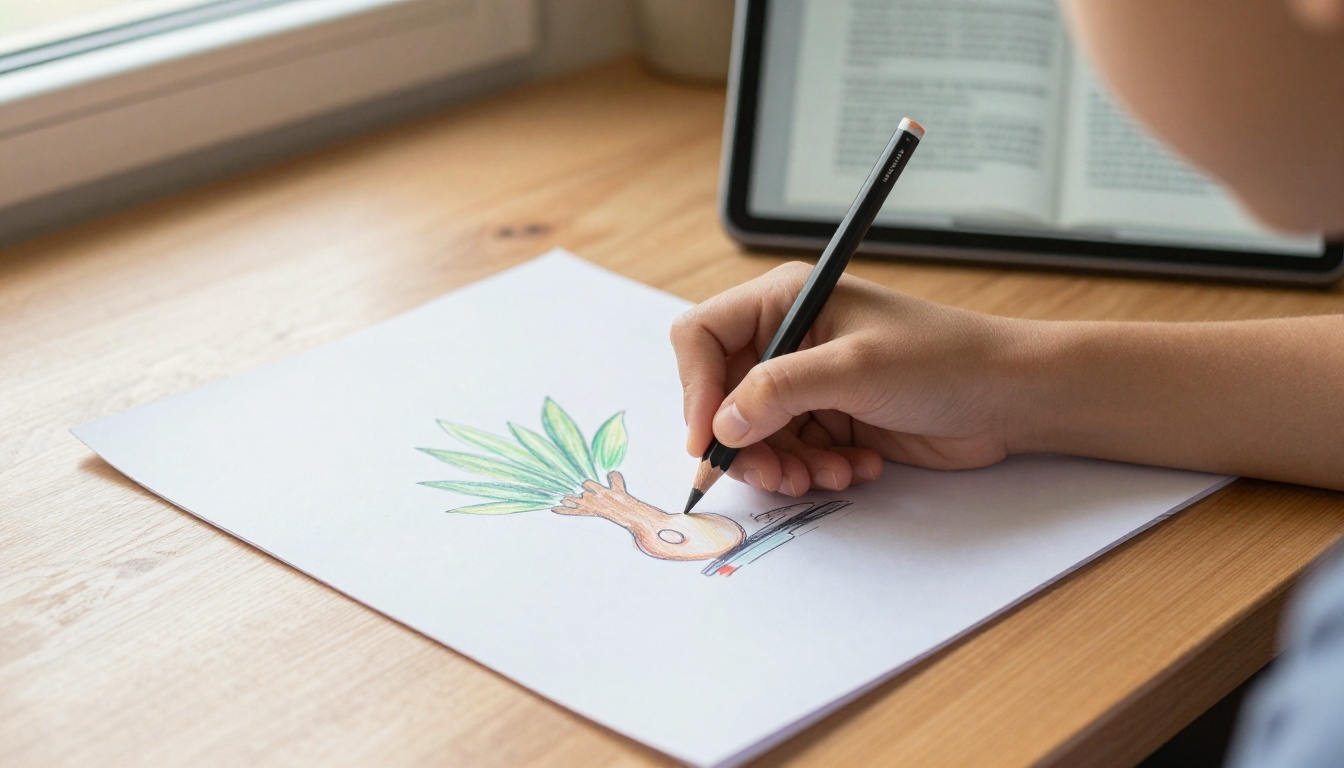
💡 Short answer: pick Book Creator when you want flexible, multimedia, blank-canvas books across subjects. Pick StoryJumper when the goal is a classic illustrated storybook, ready-made scenes, and a printed hardcover at the end.
The Quick Verdict
If you only have two minutes, this table sums up the split. Features and plans change often, so treat the details as a starting point and check each vendor's site before you commit your class.
| Feature | Book Creator | StoryJumper |
|---|
| Best for | Any subject, portfolios, journals, projects | Story writing and picture books |
| Starting point | Blank page or templates | Story scenes, props, characters |
| Audio and video | Strong, built into pages | Narration supported, lighter video |
| Drawing tools | Built-in pen and shapes | Mostly premade art and props |
| Collaboration | Real-time class libraries | Class accounts and shared groups |
| Printing | Export to PDF or ePub | Printed softcover and hardcover orders |
| Learning curve | Low, a bit open-ended | Very low, guided by the editor |
Neither tool is "the winner" for every room. The better question is what you want the finished book to be.
How Book Creator Works
Book Creator gives students a blank canvas and a toolbox. They add text, photos, drawings, audio recordings, and video clips, then arrange everything however they like. It runs in the browser and on tablets, which makes it comfortable on Chromebooks and iPads alike.
Strengths for teachers
- Flexible page layouts: a science lab report, a poetry anthology, and a picture book all fit in the same tool.
- Multimedia first: students can record themselves reading, which suits early readers and multilingual classes.
- Class libraries: teachers can collect every student's book in one shared space and review drafts.
- Accessibility options: text to speech and read-aloud features help students who need extra support.
Where it can frustrate
- A blank page can overwhelm younger children who want a story handed to them.
- The free plan limits how many books each teacher can keep, so large classes may need a paid plan.
- Printing a physical book is not the main path. You export a file and handle printing yourself.

How StoryJumper Works
StoryJumper leans into the classic picture book. Students pick a scene, drop in characters and props, type the story, and the editor keeps pages looking tidy. It feels more like building a storybook than designing a page.
Strengths for teachers
- Fast results: a second grader can finish a decent-looking book in a single session.
- Huge library of art: scenes, characters, and props mean no one has to draw a dragon from scratch.
- Real printed books: families can order softcover or hardcover copies, which makes a powerful keepsake.
- Story-first structure: it nudges students toward beginning, middle, and end.
Where it can frustrate
- Layouts are less open, so non-fiction projects can feel squeezed into a storybook shape.
- Premade art is great for speed but can make books from different students look alike.
- Print orders cost money, so the printed route needs a plan for families and budgets.

Features Side by Side
Here is a more detailed look at what matters when a whole class is working at once.
| Need | Book Creator | StoryJumper |
|---|
| Student drawing | Pen, shapes, and shapes tools on the page | Can upload drawings; most art is premade |
| Recording voices | Yes, per page | Yes, narration option |
| Embedding video | Yes | Limited |
| Templates | Many, across subjects | Story scenes and layouts |
| Teacher review | Class library with comments | Class group with review options |
| Offline use | Apps on tablets help | Mostly browser based |
| Output | PDF, ePub, online link | Online link, printed books |
⚠️ Watch out: plan names, limits, and prices shift every school year. Confirm the current numbers on each website before you request a school budget.
Which Fits Which Grade
Age and writing stamina change the answer more than most people expect.
| Grade band | Better fit | Why |
|---|
| Kindergarten to grade 2 | StoryJumper | Premade scenes lower the barrier, so kids focus on the story |
| Grades 3 to 5 | Either | Depends on whether you want drawing and audio or ready-made art |
| Grades 6 to 8 | Book Creator | Projects, reports, and portfolios need open layouts |
| High school | Book Creator | Multimedia portfolios and publishing across subjects |
Real Classroom Scenarios
Abstract feature lists only go so far, so here are a few situations teachers describe.
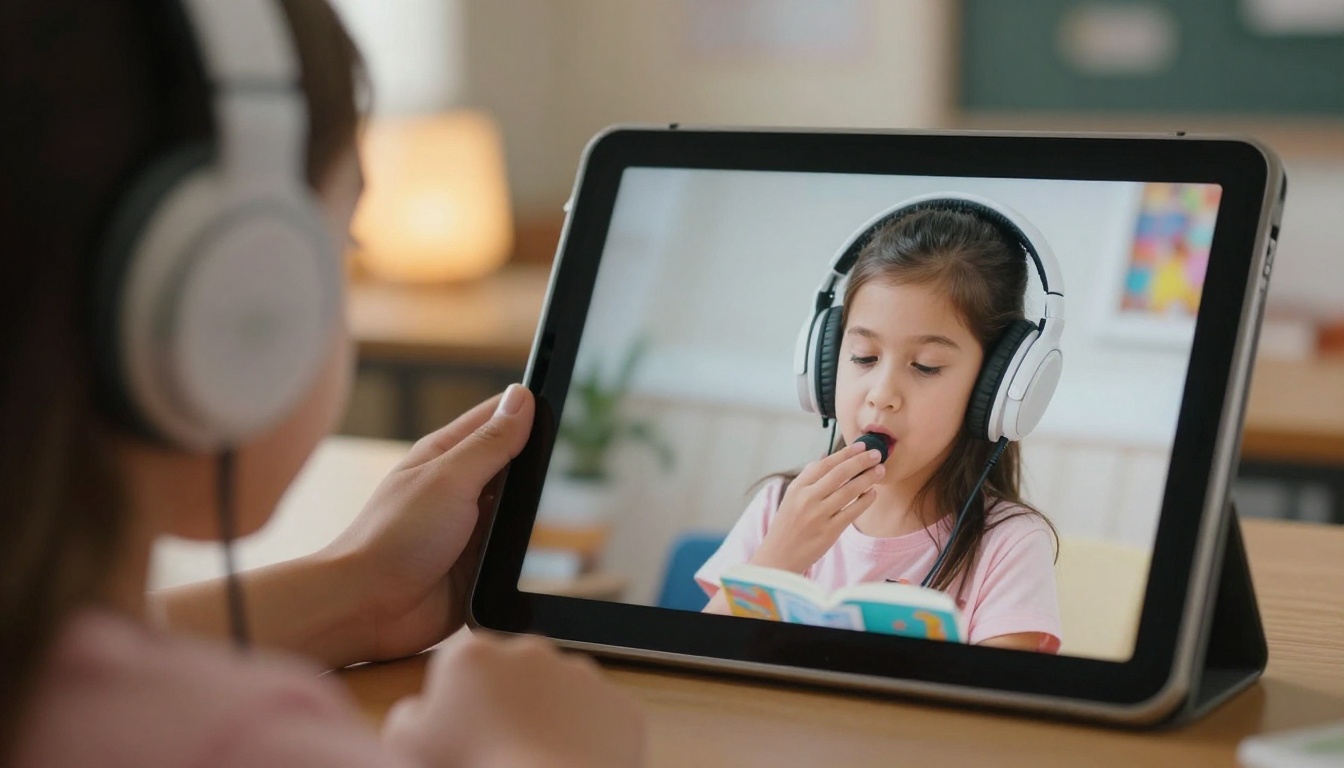
- A second grade class writing animal fables. StoryJumper wins. Students choose a forest scene, add characters, and type a short story. The printed hardcover goes home at the end of term.
- A fifth grade science unit on ecosystems. Book Creator wins. Students photograph a school garden, record a short explanation, and add diagrams they drew by hand.
- A middle school poetry anthology. Book Creator wins on layout freedom. Each student designs their own page, and the teacher stitches them into one class book.
- A reading buddy project between older and younger students. Both work. Older students write in StoryJumper, then younger ones listen to recorded versions.
✅ Best practice: decide the audience first. A book for parents at open house needs different polish than a working draft for peer feedback.
Cost, Privacy, and Setup
Money and student data matter as much as features, so check these before you roll anything out.
- Pricing model: both tools offer free tiers and paid school plans. Free tiers usually cap the number of books or features.
- Student privacy: look for class accounts that do not require student emails, and read each vendor's privacy page for the age groups you teach.
- Device support: test on the exact devices students use, including shared Chromebooks.
- Support and training: a quick teacher webinar or sample lesson can save weeks of confusion.

Sharing Finished Books With Families
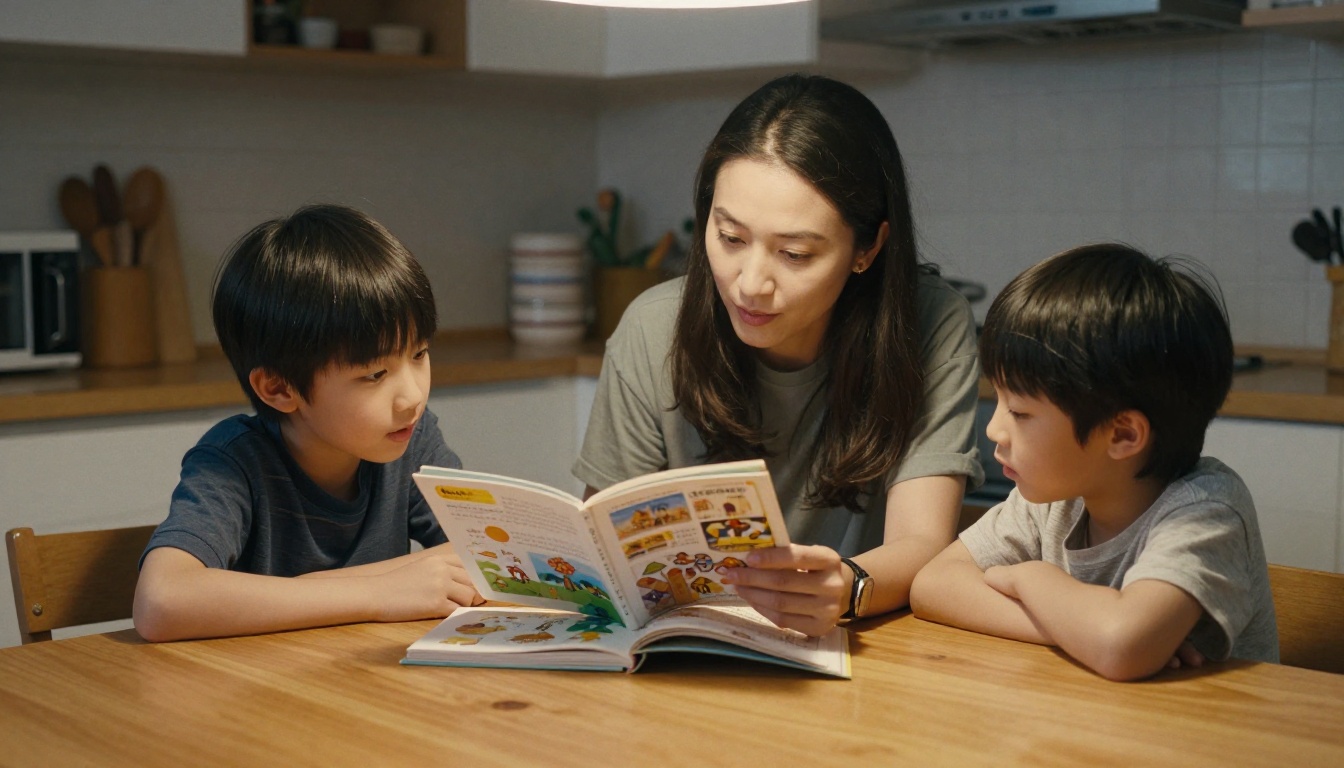
Creating the book is half the job. Getting it in front of parents, grandparents, and the rest of the school is the other half. Links work, but a PDF dropped into an email feels flat, and a printed order is not realistic for every student.
This is where a flipbook helps. Export a book as PDF from Book Creator, or save the pages from StoryJumper, then turn it into a page-turning online book that opens on any phone. Your class gets a polished showcase without printing a single page.
How to turn a student book into a flipbook
- Export the book. In Book Creator, download the PDF. In StoryJumper, export or print the story to PDF where available.
- Create an account. Sign in to Flipbooks AI, which has no watermarks on your books.
- Upload the PDF. Drop it into the PDF to Flipbook Converter and wait for the pages to convert.
- Customize the look. Pick colors, add your school logo, and choose the page-turn effect. You can also add audio or video to pages.
- Share it. Copy a direct link, or use the embed option to place the book on your class site.
- Protect it. Turn on password protection so only families can open the book.
💡 Tip: for a whole class anthology, combine every student's PDF into one file, then publish a single flipbook per grade.
Teachers building longer collections, such as a yearbook or end-of-term showcase, can also try the Yearbook Flipbook Maker or the Interactive E-Book Publisher.
Extra features worth a look
| Feature | Why a teacher cares | Plan |
|---|
| Password protection | Keeps student work private | Available on paid plans |
| Offline downloads | Families read without wifi | Available on paid plans |
| Analytics | See which books get read | Professional |
| Unlimited flipbooks | One flipbook per class project | Standard and above |
| Mobile-responsive reader | Works on any phone | All plans |
Compare pricing plans to see which tier fits a single classroom or a whole school.
Common Mistakes to Avoid
- Choosing by looks alone. A tool can look fun in a demo and fall apart with thirty accounts. Run a small pilot with a few students first.
- Skipping the planning step. Give students a storyboard or outline before they open the app. Books go faster and read better.
- Ignoring file size. Heavy video and large images can make exports slow. Compress media before you publish.
- Forgetting permissions. Photos of students need family consent before any book goes public.
- No review loop. Build in a peer-edit round, even a short one, so spelling and layout get a second pair of eyes.
Run through these questions with your team.
- Are you making stories, or mixed projects across subjects?
- Do students need to draw, record, or embed video?
- Do families expect a printed copy?
- How much writing independence do your students have?
- What does the budget allow this year?
If you answered "stories, ready-made art, printed copies," StoryJumper is the natural fit. If you answered "mixed projects, audio, drawing, and flexible layouts," Book Creator earns the spot. Many schools use both: StoryJumper for primary storytelling units and Book Creator for upper grade projects, then publish everything the same way.
Ready to Share Your Class Books?
Whichever tool you choose, the finished book deserves a proper home. Create your free account on Flipbooks AI, upload your first PDF, and send families a link they can open in seconds. Browse all flipbook tools for school newsletters and course materials, try the School Newsletter Creator, or compare plans to find the right fit for your school.



