Yes, readers can turn flipbook pages with a keyboard, and for many of them it is the fastest and most comfortable way to read. A well built flipbook responds to the left and right arrow buttons, the Spacebar, Page Up and Page Down, and Home and End, so nobody has to chase a tiny page corner with a mouse. If you publish documents with Flipbooks AI, that behavior is part of the viewer your readers already get, which means your catalogs, reports and magazines are ready for desktop readers who prefer to keep their hands on the keyboard.
This article walks through exactly which buttons work, why keyboard reading matters, how it compares with mouse and touch, and how to test it yourself before you share a link.
The Short Answer Readers Want
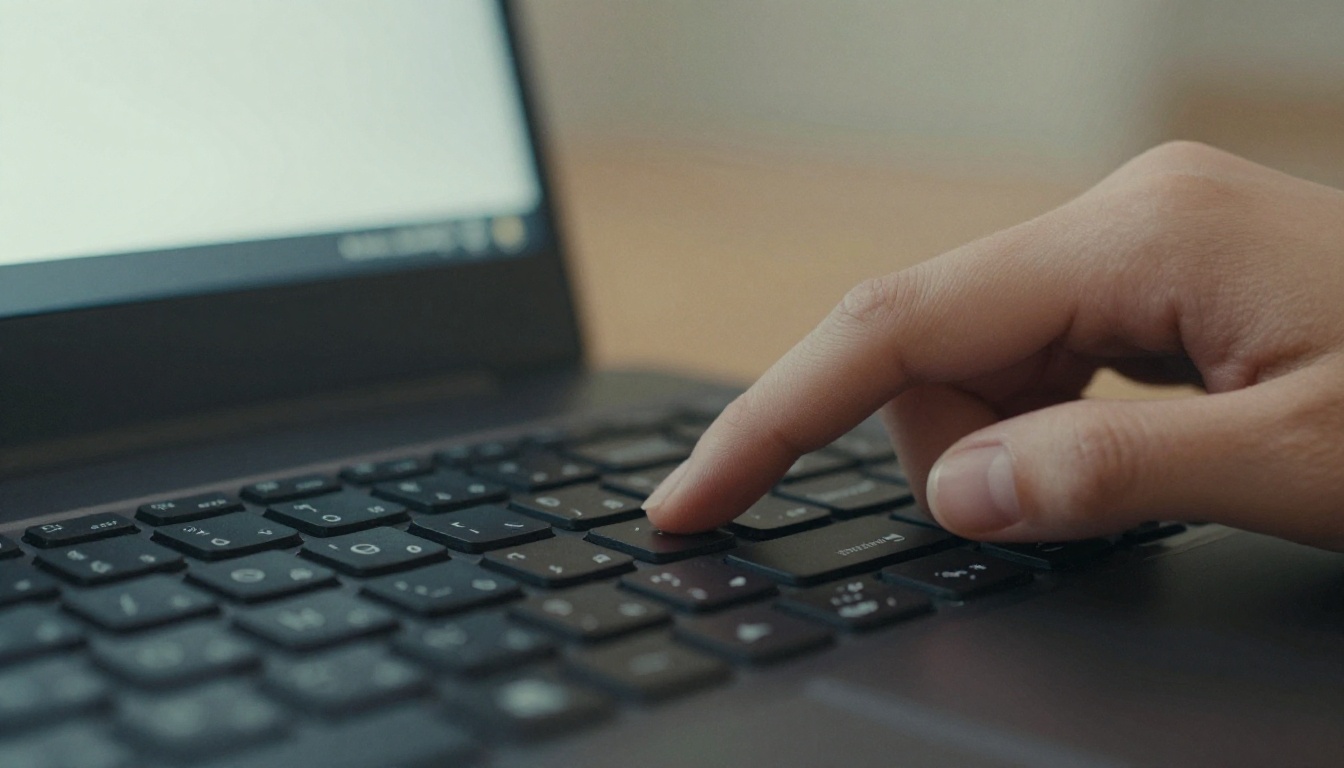
Open a flipbook on a desktop or laptop, click once anywhere on the page so the viewer has focus, and press the right arrow. The page turns forward. Press the left arrow and it turns back. That is the core behavior, and it is what most readers try first.
Beyond the arrows, most readers also expect a handful of other shortcuts. The table below shows what people commonly try and what they expect to happen.
| Button | What readers expect | Typical result |
|---|
| Right arrow | Next page or spread | Turns forward |
| Left arrow | Previous page or spread | Turns back |
| Spacebar | Scroll or advance | Moves forward one page |
| Page Down | Advance | Moves forward |
| Page Up | Go back | Moves back |
| Home | Jump to the start | Returns to the cover |
| End | Jump to the finish | Opens the last page |
| Escape | Leave full screen | Exits full screen mode |
💡 Pro tip: If a button seems to do nothing, click the flipbook once first. Browsers send keyboard input to the element that has focus, so a quick click on the page hands control to the reader.
Why Readers Reach for the Keyboard
People rarely think about it, but a keyboard is the lowest effort input on a desktop. A single tap of one button turns a page. A mouse drag needs aim, a steady hand and a visible target. For a ten page brochure that difference is small. For a 120 page catalog or an annual report it adds up quickly.
Where Keyboard Turning Fits Best
Keyboard reading shines on desktops, laptops and any tablet with a paired keyboard. It is less relevant on phones, where swiping is natural. Think of the keyboard as the desktop reader's version of a swipe.
Why Keyboard Page Turning Matters
It is easy to treat keyboard support as a nice extra. It is more than that. It affects speed, comfort and who can read your content at all.
Faster Reading on Long Documents
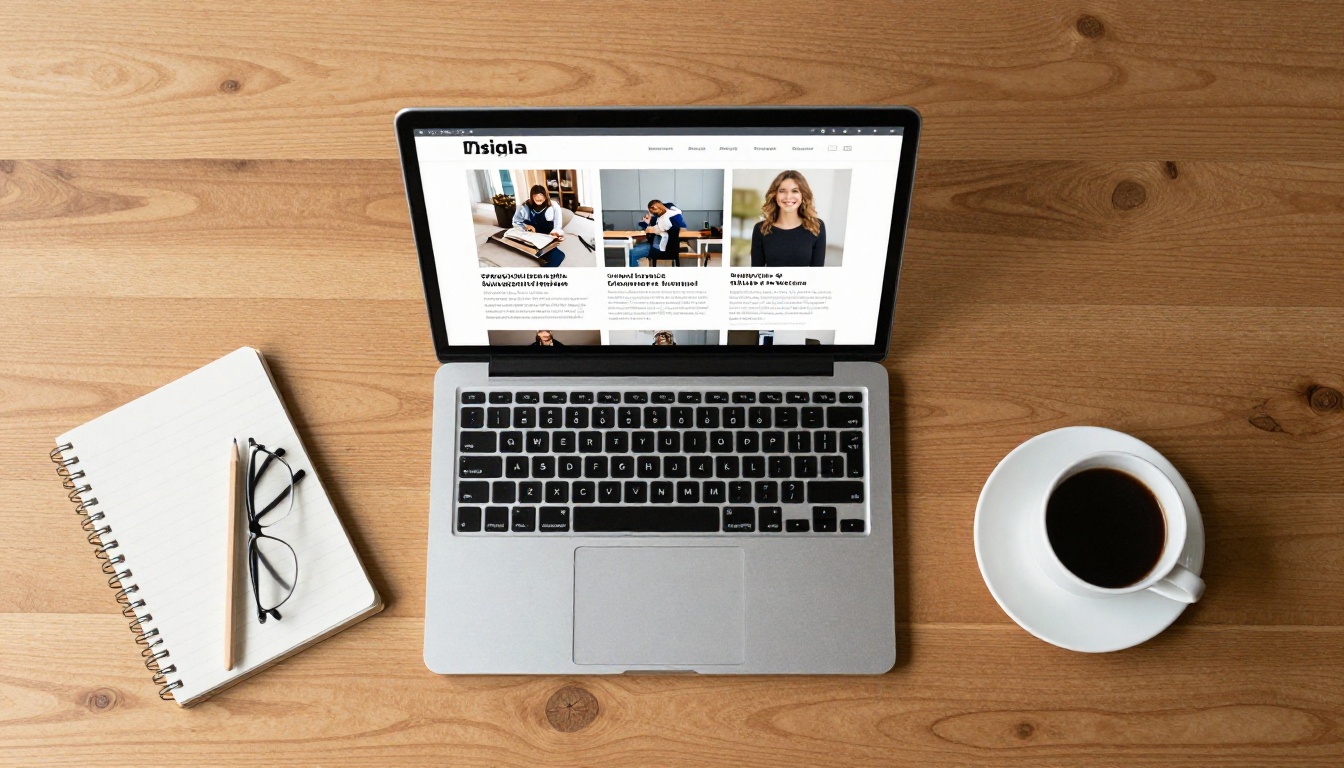
Consider a sales rep reviewing a 90 page product catalog before a call. With the right arrow button, they can move through spreads at their own pace, one tap each, eyes fixed on the screen. With a mouse, every page turn pulls attention toward the cursor. Over dozens of pages the keyboard reader finishes sooner and remembers more of what they saw.
Comfort for Repetitive Strain
Dragging and clicking all day is hard on wrists and shoulders. Many readers, especially those who work at a desk, simply prefer a light tap over repeated mouse movement. A flipbook that respects that preference feels considerate.
Better Access for More Readers
Some readers cannot use a mouse at all. They may rely on a keyboard because of a motor condition, an injury, or a switch device that mimics keyboard input. Others use screen magnifiers that make precise mouse targeting frustrating. For these readers, keyboard page turning is not a convenience. It is the only workable way to read.
✅ Best practice: Treat keyboard reading as part of your accessibility baseline. It costs nothing to support and it widens your audience.
Keyboard, Mouse and Touch Compared
No single input method wins everywhere. The right question is which one suits the reader and the device in front of them.
| Input method | Best device | Strength | Weakness |
|---|
| Keyboard | Desktop, laptop | Fast, precise, low effort | Needs focus on the page |
| Mouse click or drag | Desktop, laptop | Familiar, feels like a real book | More hand movement |
| Touch swipe | Phone, tablet | Natural and quick | Not available on most desktops |
| Navigation arrows on screen | Any device | Visible and obvious | Small targets for some readers |
Mouse Reading Still Has a Place
Dragging a page corner is satisfying. It is the interaction that makes a flipbook feel physical, and many readers enjoy it on short pieces such as menus or lookbooks. The point is not to replace it, but to offer a faster alternative next to it.
Touch Is the Mobile Default
On a phone, readers swipe. A good mobile responsive flipbook adapts the layout to a single page and responds to swipes without any setup from you. Keyboard support matters when that same document opens on a desktop an hour later.
Combining All Three Works Best
The strongest reading experience lets people mix methods. A reader might start with the mouse, switch to the keyboard when the document gets long, and finish on their phone during a commute. Your flipbook should not force a choice.
Real Situations Where It Helps
Keyboard turning is easiest to appreciate in concrete scenarios. Here are a few that come up again and again.
Students Working Through Course Material
A student reading a course packet on a laptop often has notes open in another window. Tapping the right arrow keeps one hand free for taking notes. A course material publisher flipbook lets instructors share readings that behave the way students expect.
Executives Reviewing Reports
Busy decision makers skim. They want to move through an annual report quickly, pause on a chart, then move on. Keyboard turning supports that rhythm. If you build reports with the annual report creator, your readers can fly through the pages without hunting for a corner to grab.

Designers Presenting Portfolios
A designer sharing work on a large monitor or projector often stands beside the screen with a keyboard or clicker in hand. Pressing one button to advance is cleaner than fumbling with a mouse in front of a client. A portfolio flipbook suits that kind of presentation well.
Shoppers Browsing Catalogs
Retail buyers and procurement teams often go through catalogs on office computers. Fast turning means they see more products in less time, which is exactly what you want when the goal is a purchase order. Try the product catalog generator for that use case.
💡 Example: A furniture wholesaler sends a 60 page catalog to a boutique owner. The owner opens it at their desk, taps the right arrow through every collection in a few minutes, and replies with an order. No instructions were needed.
Different shortcuts do slightly different jobs. Knowing the differences helps you describe the experience to your team and spot problems during testing.
Arrow Buttons for Page Turns
The left and right arrows are the main controls. On a double page layout, one press moves a full spread, so the reader sees two new pages. On a single page layout, one press moves one page. This matches how a printed book behaves.
Spacebar, Page Up and Page Down
These three mirror what people already do on ordinary web pages. The Spacebar moves forward, and Page Down does the same. Page Up moves back. They are useful for readers who never think about arrows and simply press whatever feels natural.
Home and End for Fast Jumps
Home jumps to the first page and End jumps to the last. In a long catalog this saves a lot of tapping, and readers often use End to peek at the pricing or contact page before reading the rest.
Zoom and Full Screen Shortcuts
Readers also lean on browser shortcuts. Holding Ctrl (or Cmd on a Mac) and pressing plus or minus zooms the page. Pressing F11 on many systems opens the browser in full screen, and Escape exits it. These come from the browser rather than the flipbook, but they pair nicely with page turning.
| Task | Windows | Mac |
|---|
| Zoom in | Ctrl and plus | Cmd and plus |
| Zoom out | Ctrl and minus | Cmd and minus |
| Reset zoom | Ctrl and 0 | Cmd and 0 |
| Browser full screen | F11 | Ctrl, Cmd and F |
| Exit full screen | Escape | Escape |
How to Test Your Own Flipbook
Do not assume. Spend five minutes checking how your flipbook behaves before you send the link to clients or customers. If you have not made one yet, you can create a flipbook on Flipbooks AI from any PDF.
A Five Minute Testing Routine
Follow these steps on a desktop or laptop:
- Open the public link in a fresh browser tab, not the editor.
- Click once on the page to give the viewer focus.
- Press the right arrow three times. Confirm each press turns the page or spread.
- Press the left arrow three times and confirm you return to the start.
- Try the Spacebar and check that it advances.
- Press End, then Home, and confirm the jumps work.
- Enter full screen and repeat steps 3 and 4.
- Test the embedded version if you placed the flipbook on a website.
Check Embedded Flipbooks Separately
An embedded flipbook lives inside a frame on your page, and the page around it competes for keyboard focus. A reader may need to click inside the frame first. If you embed flipbooks on your site, a short line of helper text such as "Click the flipbook, then use the arrow buttons" removes confusion. The embed flipbook on website tool explains the placement options.
Test on a Real Keyboard and a Real Phone
Emulators miss details. Check on at least one laptop and one phone. On the phone you are testing swipes and on-screen arrows, since there is no physical keyboard to speak of.
Fixing Common Keyboard Problems
Most issues come down to focus and layout. Here are the problems readers report most often and what usually fixes them.
| Problem | Likely cause | Quick fix |
|---|
| Arrows scroll the page instead | Focus is outside the flipbook | Click inside the flipbook once |
| Nothing happens in an embed | Frame has not received focus | Add a short instruction near the embed |
| Spacebar scrolls the host page | Browser default is winning | Click the flipbook first |
| Shortcuts stop after a link click | Focus moved to a new element | Click the page area again |
| Arrows seem reversed | Reader expects right to left layout | Check the document reading direction |
Focus Is Nearly Always the Culprit
Browsers decide which element receives keyboard input. If the reader just clicked the address bar, a menu, or another part of your site, the flipbook is not listening yet. One click fixes it. Mentioning that in your instructions saves support emails.
Watch Out for Crowded Pages
If your site places a chat widget, cookie banner or sticky header next to an embedded flipbook, those elements can steal focus. Place the flipbook where it has room, and test with the banners visible.
⚠️ Warning: Do not hide the on-screen arrows to look cleaner. Some readers need visible controls even when they also use shortcuts.
Making Your Flipbook Easy to Read
Keyboard support works best when the whole reading experience is thoughtful. A few choices make a real difference.
Keep Pages Legible at Any Size
Small type punishes every reader, keyboard users included. Use readable font sizes and strong contrast in the source PDF. Readers who zoom with Ctrl and plus will thank you when text stays sharp.
Add Clear Navigation Cues
A short note on the first page, such as "Use the arrow buttons to turn pages", helps first time visitors. It is a small detail that reduces confusion for catalogs, menus and brochures alike.
Use Features That Respect Readers
Flipbooks AI gives you no watermarks, custom branding, password protection, and embedded video and audio. The Professional plan adds analytics and lead generation, so you can see how far readers get and where they stop. That data is useful when you are deciding whether a long document needs a shorter version.
| Feature | Why it helps readers | Where to find it |
|---|
| Mobile responsive layout | Swipe reading on phones | Built into every flipbook |
| Custom branding | Familiar look and feel | Customization settings |
| Password protection | Safe sharing of private files | Sharing options |
| Offline downloads | Reading without a connection | Sharing options |
| Analytics and lead generation | See reader behavior | Professional plan |
Publish With Confidence
So, can readers turn flipbook pages with a keyboard? Yes. The arrow buttons, Spacebar, Page Up, Page Down, Home and End all give desktop readers a quick, comfortable alternative to the mouse, and for some readers it is the only practical option. The only thing worth remembering is that a click on the page gives the flipbook focus.
Ready to try it? Create a free account and turn a PDF into a flipbook in minutes. Browse the full set of flipbook tools and templates to find the right starting point, or use the PDF to flipbook converter if you already have a file waiting. When you are ready to compare options, check the pricing plans and pick the one that fits.



