Short answer: yes. When you attach a PDF to a Google Classroom post, students can open it, and in most setups they can also download it to their own device. If you want to control that, the setting lives in Google Drive, not in Classroom itself. This article walks through what students actually see, which switches change it, and how a tool like Flipbooks AI gives you a tighter way to share reading material.

The Short Answer
By default, any PDF you attach from Drive is shared with students as a file they can view. Because it is a Drive file, the viewer menu includes a download button. Students on a laptop, a Chromebook, or the mobile app can save a copy in two taps.
That surprises many teachers. They post a worksheet, assume it is "locked inside Classroom," and later find it on a group chat or a homework help site.
Here is what happens in the most common scenarios:
| Scenario | Can students download? | Notes |
|---|
| PDF attached, default settings | Yes | Download icon appears in the viewer |
| PDF attached, "Students can edit file" | Yes | They can also change the original |
| PDF attached, "Make a copy for each student" | Yes | Each student owns their own copy |
| PDF with download disabled in Drive | No download button | Screenshots still possible |
| Link to an outside website | Depends on the site | Classroom does not control it |
💡 Pro tip: Classroom is a delivery tool. The permissions that matter belong to the file in Drive, so always check the file, not just the post.
How Classroom Treats Attachments
When you click Add and choose a Drive file, Classroom asks how students should interact with it. You will see three choices:
- Students can view file: everyone gets the same read-only file.
- Students can edit file: everyone edits the same file together. This is risky for a PDF.
- Make a copy for each student: Classroom creates an individual copy for each person.
None of these three options mentions downloading. That is the part most people miss. The download permission sits one layer deeper, inside the sharing settings of the Drive file.
View Only Is Not Download Proof
"View file" sounds restrictive. In practice it means students cannot change the original. It does not stop them from saving a local copy.
Why Copies Behave Differently
If you pick "Make a copy for each student," each student becomes the owner of their copy. Owners can always download their own files. For a PDF you want to keep controlled, this is usually the worst choice.
How to Turn Off Downloads
You can switch off the download, print, and copy options for viewers. The steps below apply to files you own in Drive.
- Open Google Drive and find your PDF.
- Right click the file and choose Share.
- Click the gear icon in the top right of the sharing dialog.
- Uncheck Viewers and commenters can see the option to download, print, and copy.
- Click Back, then Done.
- Attach the file to your Classroom post as Students can view file.
After this change, students no longer see the download icon in the viewer. Printing from the browser menu is also blocked for that file.
⚠️ Warning: If you changed the setting after posting, reopen the post and check the attachment. Students who already saved the PDF keep their copies.
Settings That Overrule You
A few situations can undo your careful setup:
- File ownership: Only the owner or an editor can change the setting. If a colleague owns the file, ask them.
- Shared drives: Admin policies can restrict or allow downloads at the organization level.
- Edit access: Anyone with edit rights can download, no matter what the checkbox says.
- Make a copy: Student owned copies are always downloadable.
What Students Can Still Do
Turning off the download button is a speed bump, not a wall. Be realistic about what remains possible.
Screenshots. A student can capture any page that appears on screen. A phone camera pointed at a monitor works too.
Copying text. With download disabled, the copy option is also hidden for viewers, but screenshots with text recognition tools can still extract content.
Mobile app differences. Some behaviors vary between the Classroom app and a desktop browser. Always test as a student, using a second account or the Student view option.
| Method | Blocked by Drive setting? | Effort for a student |
|---|
| Download button | Yes | Very low |
| Browser print to PDF | Yes | Low |
| Screenshot | No | Low |
| Phone photo of screen | No | Medium |
| Retyping content | No | High |
The honest takeaway: if the content is truly sensitive, a setting alone will not protect it. Teachers who need stronger control usually move the material to a viewer that adds password protection and tracking.
When Downloads Are a Good Thing
Blocking downloads is not always the right call. Plenty of situations call for the opposite.
- Students with poor internet: A downloaded PDF works on a bus, in a rural home, or during an outage.
- Accessibility needs: Students using screen readers or text size tools often need the file on their own device.
- Study packets: Review sheets are meant to be printed and marked up.
- Parents: Families may want a copy for reference.
✅ Best practice: Allow downloads for worksheets and study notes. Restrict them for exams, answer keys, licensed textbook pages, and anything your school does not have rights to redistribute.
A Checklist Before You Post
Run through this short list each time you attach a PDF.
- Decide whether students should be able to keep the file.
- Confirm you own the file, or that the owner has set permissions.
- Turn off download, print, and copy in Drive when needed.
- Attach as view only, never edit, unless you want collaboration.
- Open Classroom in Student view and try to download.
- Check the file on a phone, since many students use one.
- Note the date, so you can revisit the permissions next term.

Common Mistakes
- Posting a PDF from a personal Drive and forgetting to change sharing to restricted.
- Choosing "Make a copy for each student" for a file that should stay controlled.
- Assuming that unchecking download also hides the file from search engines. It does not, if the link is public.
- Never testing as a student.
A Better Way to Share Reading Material
If you want a page turning reading experience instead of a plain file, you can convert the PDF into a flipbook. Flipbooks AI turns a PDF into an interactive publication that opens in a browser, with sharing controls designed for this exact problem. Students open a link posted in Classroom, read like a book, and you decide what else they can do.
Why teachers choose this route:
- Password protection for private content, so only your class opens it.
- Offline download as an option, which you turn on or off per flipbook.
- No watermarks, ever.
- Mobile responsive pages that suit phones and tablets.
- Embedded video and audio for lessons, not just static pages.
- Analytics on the Professional plan, so you can see who opened the material and for how long.
| Feature | Plain Drive PDF | Flipbooks AI flipbook |
|---|
| Page turning reader | No | Yes |
| Password protection | Via Drive access only | Yes |
| Download control | On or off for viewers | Offline download toggle |
| Read analytics | No | Yes (Professional) |
| Embed videos and audio | No | Yes |
| Works well on phones | Basic | Mobile responsive |
| Watermark | None | None |
How to Create a Protected Flipbook
Here is how to publish a class reading with Flipbooks AI and share it in Classroom.
- Open your account. Go to Flipbooks AI and sign in, or create an account.
- Upload the PDF. Use the PDF to Flipbook Converter. Drag your file in, and the pages convert in moments.
- Customize the look. Add your school logo, choose colors, and pick a page turn effect. You can also add video or audio to a page, such as a teacher walkthrough.
- Set your privacy. Turn on password protection and decide whether offline downloads are allowed.
- Share the link. Copy the direct link and paste it into a Classroom post. For a class website, use the embed code.
- Check results. On the Professional plan, open the analytics panel to see which students opened the material.
If the material is course content, the Course Material Publisher and Training Manual Flipbook tools give you ready layouts. Schools sending home updates can use the School Newsletter Creator, and graduating classes love the Yearbook Flipbook Maker.
💡 Pro tip: Post the flipbook link as a Link attachment, not a Drive file. Classroom then shows a preview and sends students to the reader.
Real Classroom Examples
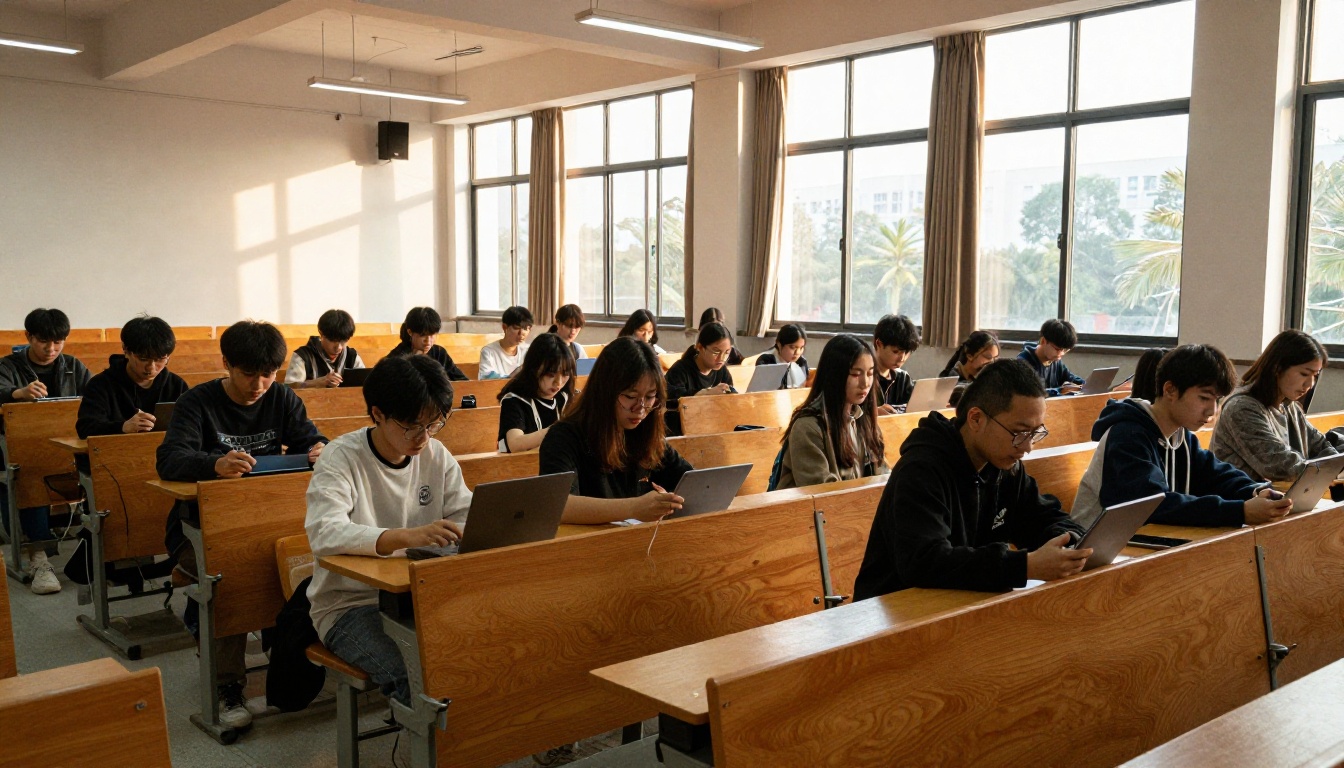
A middle school science teacher posts a lab safety packet. She wants every student to read it, but not circulate it. She converts the PDF, adds a password, and shares the link. Students read on any device, and she checks who has opened it.
A university instructor shares licensed reading excerpts. Downloads are blocked and the material sits behind a password that changes each semester.
A homeschool co-op shares a weekly workbook. Here, downloads stay on, since parents print the pages. The flipbook gives a cleaner reading view for the screen and a printable copy for the kitchen table.
A school office sends a monthly update to families. Rather than attaching a heavy PDF, it posts a single link that opens fast on a phone.
| Use case | Allow downloads? | Suggested approach |
|---|
| Weekly worksheet | Yes | Drive PDF, view only |
| Exam or quiz | No | Drive with download off, or password flipbook |
| Licensed textbook pages | No | Password protected flipbook |
| Family newsletter | Yes | Flipbook link |
| Answer key | No | Keep out of student view entirely |
Questions Teachers Ask
Do students get a notification when they download?
No. Neither Classroom nor Drive tells the teacher when a student downloads a file.
Can I stop downloads after I already posted?
Yes, in the Drive sharing settings. Students who already saved the file keep it, so treat the change as applying from now on.
Does "Student view" show exactly what students see?
It is close, but test on a phone and with a second account to be sure.
Is a screenshot the same as a download?
Technically no, but for a worksheet the result is similar. This is why sensitive material benefits from passwords and tracking, not just a hidden button.
What about Google Docs or Slides?
The same download, print, and copy checkbox exists for them. Students can still request a copy if you choose "Make a copy for each student."
Ready to Share Smarter?
The honest answer to the question in the title is simple: students can download a PDF you post, unless you disable it in Drive, and even then screenshots remain. For ordinary worksheets that is fine. For anything you need to protect, a controlled reader is a better home.
Ready to try it? Get started for free on Flipbooks AI, browse all flipbook tools, or compare pricing plans to see which one fits your school. When you are set to roll it out, upgrade through your account and publish your first protected reading today.



