You send out a flipbook link, then immediately wonder if you made a mistake. Maybe the file had an error. Maybe you need to restrict who can view it. Maybe you just want to update the content without pinging your whole email list again. The good news is that with Flipbooks AI, the answer to "can you change a flipbook link after sharing it" is more nuanced and more flexible than most people expect.
What Happens When You Share a Flipbook Link
The link is a permanent address
When you share a flipbook, the URL that gets distributed functions like a permanent address pointing to a location on the internet. The link itself, meaning the string of characters in the URL, is typically fixed once generated. That is not a bug; it is by design. Permanent URLs ensure that every person who has the link can reliably access the same content over time without it breaking.
But here is where it gets interesting: what the link points to does not have to stay frozen.
What the link actually points to
Think of it like a physical store address. The address stays the same, but the store owner can rearrange the shelves, change the inventory, update the signage, or even lock the front door. The flipbook URL works the same way. The address is fixed, but the content, settings, and access controls behind it can all be modified after sharing.

Can You Actually Change the Link Itself
Short answer: it depends on the platform
On most flipbook platforms, the base URL is auto-generated when you first publish and cannot be retroactively altered. However, some platforms including Flipbooks AI allow you to set a custom slug before or during publishing. If your plan supports custom links, you may be able to create a branded or memorable URL at the outset, such as /my-spring-catalog, which gives you more control from day one.
If the link has already been shared and you need a completely different URL, you typically have to create a new publication and redirect traffic. Most platforms do not offer retroactive link editing for already-published documents.
Fixed vs. customizable link structures
| Feature | Auto-Generated Links | Custom Slug Links |
|---|
| Editable after sharing | No | Sometimes (plan-dependent) |
| Branded appearance | No | Yes |
| SEO-friendly | No | Yes |
| Requires setup upfront | No | Yes |
| Available on Flipbooks AI | Yes (default) | Yes (Standard+) |

What You CAN Change After Sharing
Even if the URL itself is locked, there is a lot you can still adjust once your flipbook is out in the world. This is the part most people overlook, and it can save you from having to resend links or notify your audience of changes.
The content behind the link
With Flipbooks AI, you can replace the underlying PDF or content of a flipbook without changing its URL. That means you upload an updated version, and everyone who already has the link automatically sees the new content the next time they open it. No email blast required.
This is particularly useful for:
- Correcting typos or errors in a published document
- Updating pricing in a product catalog
- Swapping out seasonal content in a brochure or lookbook
- Adding new pages to an ongoing publication
Privacy and access settings
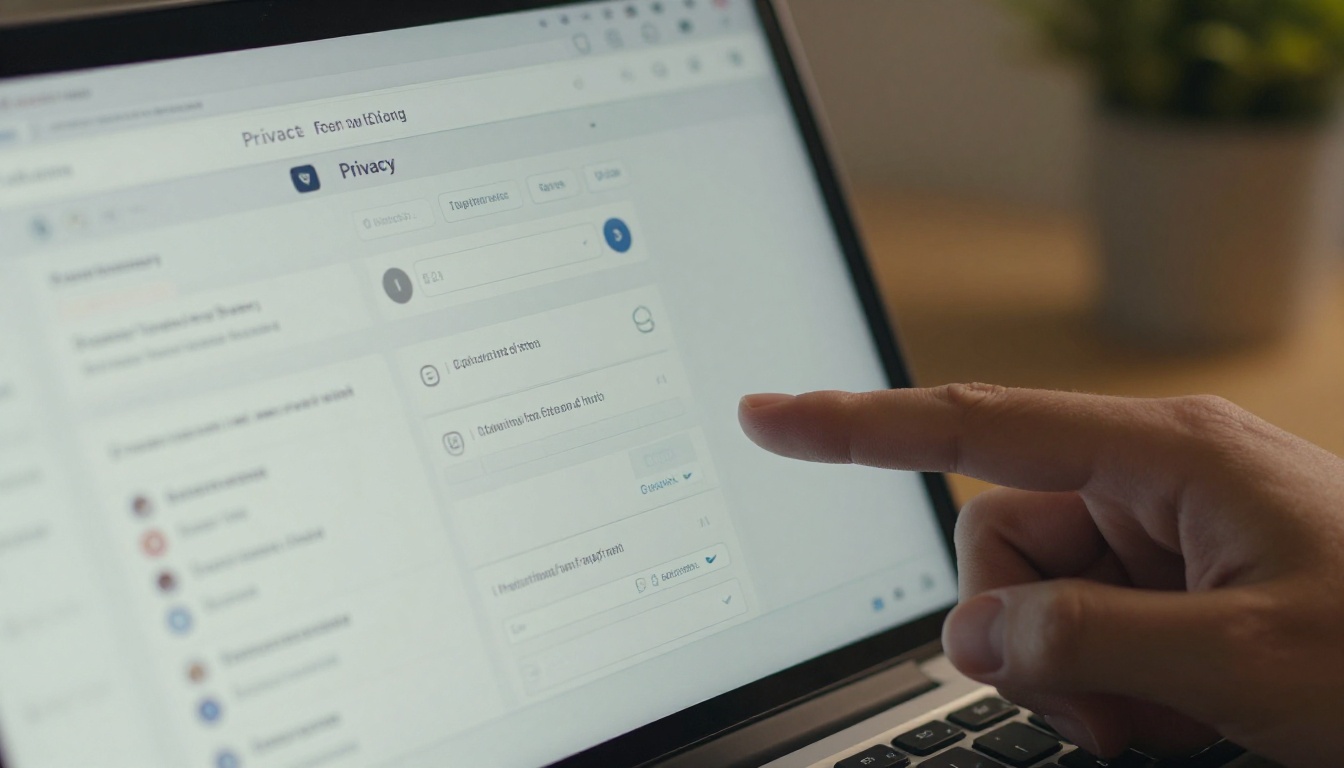
You can toggle your flipbook between public and private after sharing. If you initially published something publicly and then need to restrict access, flipping it to private with password protection takes effect immediately. Anyone who tries the old link will hit a password gate or an access denied page.
Expiration and password protection
Post-sharing settings you can typically control include:
- Password protection: Add or remove a password at any time
- Link expiration: Set a date after which the link stops working
- Viewer access level: Control whether the flipbook can be downloaded or only viewed
- Analytics visibility: Track who is viewing, how long, and from where
| What You Can Change | What You Cannot Change |
|---|
| Content and PDF file | The base URL (in most cases) |
| Privacy settings (public/private) | Original creation date |
| Password protection | Viewer history already recorded |
| Expiration date | Auto-generated share ID |
| Download permissions | Embed codes already deployed |
| Branding and colors | |
| Analytics tracking | |
💡 Always set your privacy preferences before distributing a link to a large audience. It is much easier to open access wide than to retroactively restrict it once hundreds of people have already viewed the document.
How to Update Flipbook Content Without Breaking Links
This is where Flipbooks AI truly shines compared to simply sending a PDF via email. When you send a static PDF, any update requires you to resend the file to every single recipient. With a hosted flipbook, the link is decoupled from the content.
Replace the file, keep the link
The workflow is straightforward:
- Log into your Flipbooks AI account
- Navigate to the flipbook you want to update
- Select the option to upload a new version or replace the PDF
- The updated content goes live at the same URL instantly
- No notifications needed; the link your audience already has still works
This is a fundamental advantage of digital flipbook publishing over static file sharing.
Version control for digital documents
Some professional platforms allow version history, letting you roll back to a previous version if needed. If you update a catalog and then realize the new version had errors, rolling back protects you without any URL disruption.

Controlling Who Sees Your Shared Flipbook
Access control is one of the most powerful post-sharing levers you have. Rather than panicking about a link that is already out in the world, focus on what you can actually do to manage the situation.
Password protection
Adding a password to an already-shared flipbook is one of the fastest ways to limit access. Anyone with the link who has not already viewed it will now be prompted for a password. This is ideal for:
- Internal documents shared accidentally to a wider audience
- Client proposals that need to stay confidential
- Seasonal promotions you want to activate and deactivate on schedule
Private vs. public settings
| Setting | Who Can View | Best For |
|---|
| Public (no password) | Anyone with the link | Marketing materials, menus, portfolios |
| Password protected | Anyone with link AND password | Client documents, internal reports |
| Private (no access) | Nobody | Archived or draft content |
| Domain restricted | Viewers on specified domains | Corporate internal use |
Link expiration
Setting an expiration date on a shared link is clean and professional. Event programs, limited-time offers, and conference materials often benefit from time-gated access. Once expired, the link returns a "no longer available" message, and you do not have to manually revoke anything.

⚠️ If you are sharing a flipbook that contains sensitive business information, always start with password protection enabled. It is a better default than public access, even if you plan to open it up later.
How Flipbooks AI Handles Link Management
Flipbooks AI is built to make post-sharing control seamless. Here is how to work with your flipbook links once something has been distributed.
Step 1: Access your flipbook dashboard
After logging into your account, you will see all your published flipbooks listed with their current status, view counts, and sharing settings at a glance.
Step 2: Update content or settings
Click on any flipbook to open its management panel. From here you can:
- Upload a replacement PDF (content updates instantly at the same URL)
- Toggle between public and private access
- Add or change a password
- Set or remove an expiration date
- Enable or disable download permissions
- Review analytics on who viewed it and for how long
Step 3: Share and distribute your link
Once settings are configured, your sharing options include:
- Direct link: Copy the URL and paste it anywhere
- Embed code: Drop it into your website or blog using the Embed Flipbook on Website tool
- QR code: Generate a scannable code for print materials
- Email: Send directly from the platform
All these sharing methods point to the same underlying URL. So if you update the content or settings, all distribution channels benefit simultaneously.

✅ Use the PDF to Flipbook Converter to convert your document before any distribution. Starting with a hosted flipbook rather than a raw PDF gives you update control from day one.
Common Scenarios and What to Do
You shared the wrong version
This is the most common panic scenario. You sent out a product catalog and realized page 12 still had placeholder text.
What to do: Log in, go to the flipbook, upload the corrected PDF. Everyone who opens the link from this point forward sees the corrected version. Those who viewed it before already have their cached copy, but the live link is clean.
You need to revoke access immediately
An internal report went to the wrong mailing list.
What to do: Set the flipbook to private immediately. Existing views are already logged, but the link becomes inaccessible to new visitors within seconds. If needed, add a password and only share it with the intended recipients.
Your audience needs a memorable URL
You used an auto-generated URL and now want to send something cleaner.
What to do: On supported pricing plans, you may be able to set a custom slug. If not, create a redirect link using a URL shortener that points to your flipbook URL, giving your audience a cleaner-looking address.

| Scenario | Solution | Time to Fix |
|---|
| Wrong content version published | Replace PDF in dashboard | Under 2 minutes |
| Need to restrict access | Set to private or add password | Under 1 minute |
| Want to track who is viewing | Enable analytics (Professional plan) | Instant |
| Link has expired unexpectedly | Remove or reset expiration date | Instant |
| Want a cleaner URL | Use a URL shortener or custom slug | 5 minutes |
| Need to share with a new audience | Copy existing link, adjust settings | 2 minutes |
When to Create a Brand New Link
There are situations where updating an existing flipbook is not the right call. Here is when you should start fresh:
- Completely different content: If you are publishing a new quarter's catalog rather than correcting an old one, creating a separate flipbook preserves the distinction and keeps your analytics clean.
- Brand new campaign: A fresh marketing push typically deserves its own URL so you can track performance independently.
- Archiving old content: When you want the old link to stay active as a historical record while launching something new.
- Testing different versions: If you want to A/B test two versions of a brochure, separate links give you clean data.

💡 Use clear naming conventions in your dashboard. If you publish multiple versions of the same document, labeling them clearly, such as Spring Catalog 2027 vs. Spring Catalog 2027 v2, saves time when you need to find and manage them later.
Flipbook Types That Benefit Most From Link Control
Different use cases have different update frequency needs. Here is a breakdown of how often you might need to change what is behind your shared link:
The pattern is clear: the more frequently your content changes, the more valuable a hosted flipbook link becomes compared to static file sharing.

Take Control of Your Flipbook Sharing
The question "can you change a flipbook link after sharing it" has a practical answer: the URL itself is typically fixed, but almost everything behind that URL is in your hands. Content, privacy, passwords, expiration dates, analytics, and download permissions can all be adjusted at any time without disrupting the people who already have your link.
That level of post-sharing control is exactly what separates a hosted digital flipbook from a PDF dropped in an email. Once that PDF is in someone's inbox, you have zero control over what happens to it. A shared flipbook link keeps you in the driver's seat.
Ready to start publishing content you can actually manage? Create your account on Flipbooks AI and publish your first flipbook in minutes. Browse the full range of tools and templates for every use case, from fashion catalogs to hotel brochures to digital portfolios. Or check out the pricing plans to find the tier that fits your workflow.



