That dusty photo album on your parents' bookshelf, the one filled with slightly overexposed prints from the 90s and handwritten captions in ballpoint pen, holds something irreplaceable. The question most people ask isn't whether those memories are worth preserving. It's whether you can actually make a flipbook from a photo album without it taking a week of your life. The short answer: yes, absolutely, and with the right tools it takes less time than you'd think. Flipbooks AI makes the whole process accessible even if you've never touched design software in your life.
Yes, You Can Flipbook Any Photo Album
Photo albums and flipbooks share a fundamental DNA. Both are collections of images arranged in sequence, designed to be flipped through one page at a time. Converting one into the other is less of a creative leap than most people assume. The real question is which method fits your situation best and what you want the end result to look like.
Physical Albums vs. Digital Albums
The starting point matters. If your photo album is a physical binder sitting on a shelf, you'll need one extra step before converting: digitization. If your photo album already lives as a digital file (a PDF you ordered from a photo printing service, for instance), you're already most of the way there.
| Starting Format | What You Need | Extra Steps |
|---|
| Physical printed album | Scanner or smartphone camera | Digitize, then compile to PDF |
| Printed loose photos | Flatbed scanner | Scan, arrange, compile to PDF |
| Digital PDF album | Nothing extra | Upload directly |
| Digital photos folder | PDF creator software | Arrange and compile to PDF |
What Makes a Good Photo Flipbook
Not every photo collection converts equally well. The best photo flipbooks share a few traits: the images have a natural sequence or story arc, the orientation is consistent throughout (all landscape or all portrait), and there's enough contrast between photos that each page feels distinct from the last. Albums organized chronologically tend to produce the most satisfying results because the page-turning itself becomes part of the narrative.
Resolution matters too. For screen viewing, photos at 72 to 150 DPI produce crisp pages without creating oversized files. If you're working with scanned prints, 300 DPI scans downsampled to 150 DPI for the final PDF hit the sweet spot between quality and file size. Aspect ratio is another factor worth thinking about before you start. Landscape orientation (16:9 or 4:3) works well for scenery and group shots. Portrait orientation (3:4 or 2:3) suits individual portraits and standard print sizes like 4x6.
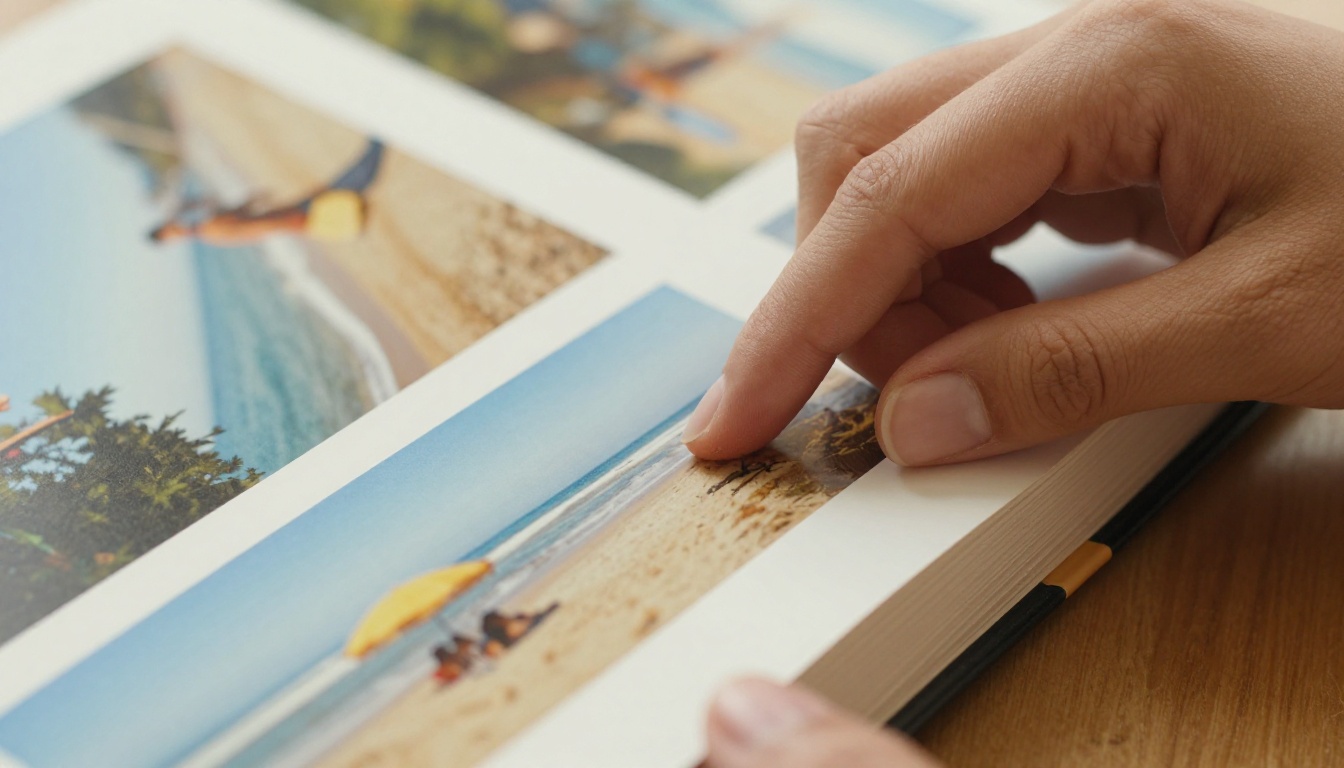
Two Methods Worth Knowing
The Physical Conversion Method
Some people want an actual paper flipbook, the kind you flip with your thumb and watch the images animate. That's a legitimate project, especially if you're working with a series of photos shot in rapid sequence (think burst mode photos of a child blowing out birthday candles, or a time-lapse sequence from a hiking trip). To make this work physically:
- Select 20 to 50 photos with meaningful visual differences between frames
- Print each at a consistent small size (3x4 inches works well)
- Stack them in sequence, staple or bind the left edge tightly
- Trim edges clean with a paper cutter for a professional feel
- Flip from back to front to see the animation
The downside is obvious: once printed, it's static. You can't share it digitally, you can't zoom in on a face, and if you want to give copies to family members scattered across three different cities, you're printing and mailing multiples. Physical flipbooks are a great craft project but a poor preservation strategy.
The Digital Flipbook Method
This is where the real value lives. A digital flipbook replicates the tactile satisfaction of page-turning in a browser or app, complete with realistic curl animations, while adding everything physical books can't do: zoom, links, embedded videos between photo spreads, password protection for private albums, and instant sharing with anyone on any device, anywhere in the world.
💡 Pro tip: A digital flipbook from a photo album can be shared as a link in a text message. Your grandmother doesn't need to install anything to view it on her phone or tablet.
What You Need Before You Start
For Physical Albums
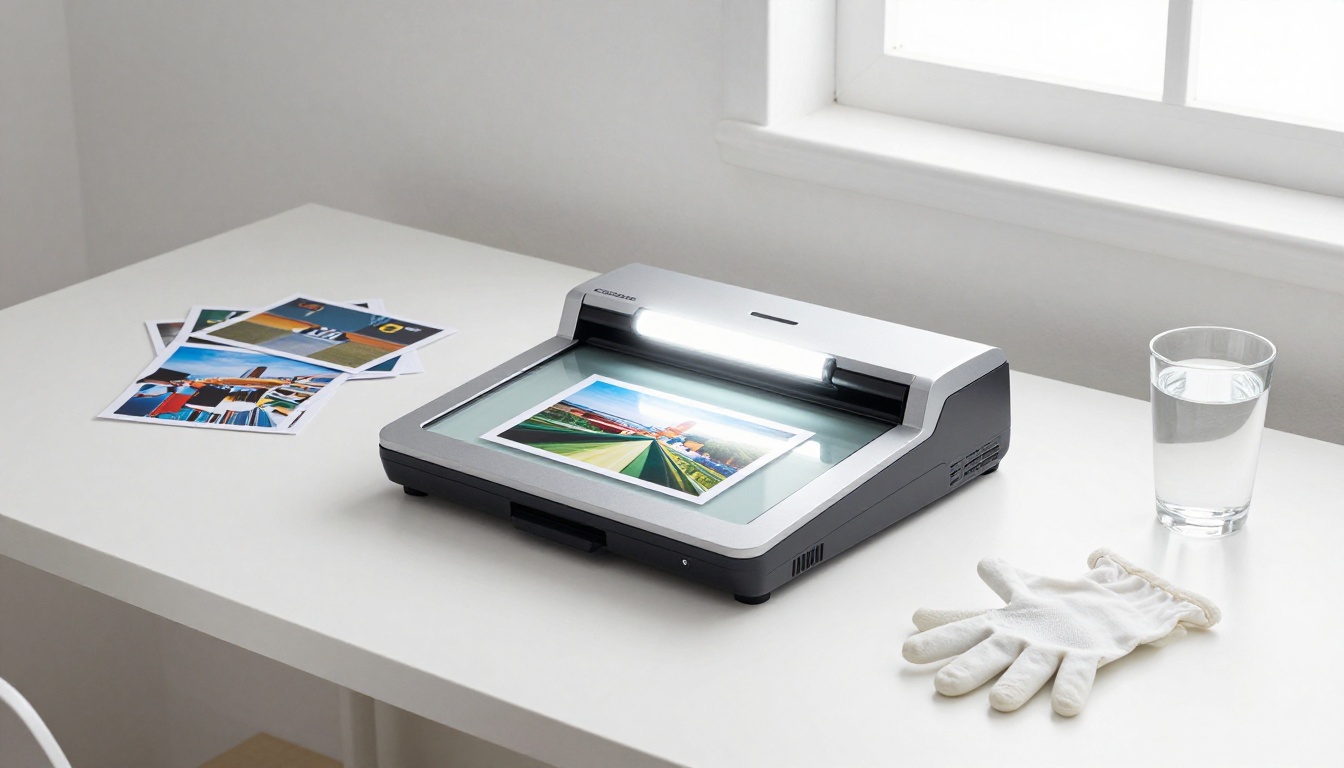
If you're starting with a physical printed album, you have two digitization options:
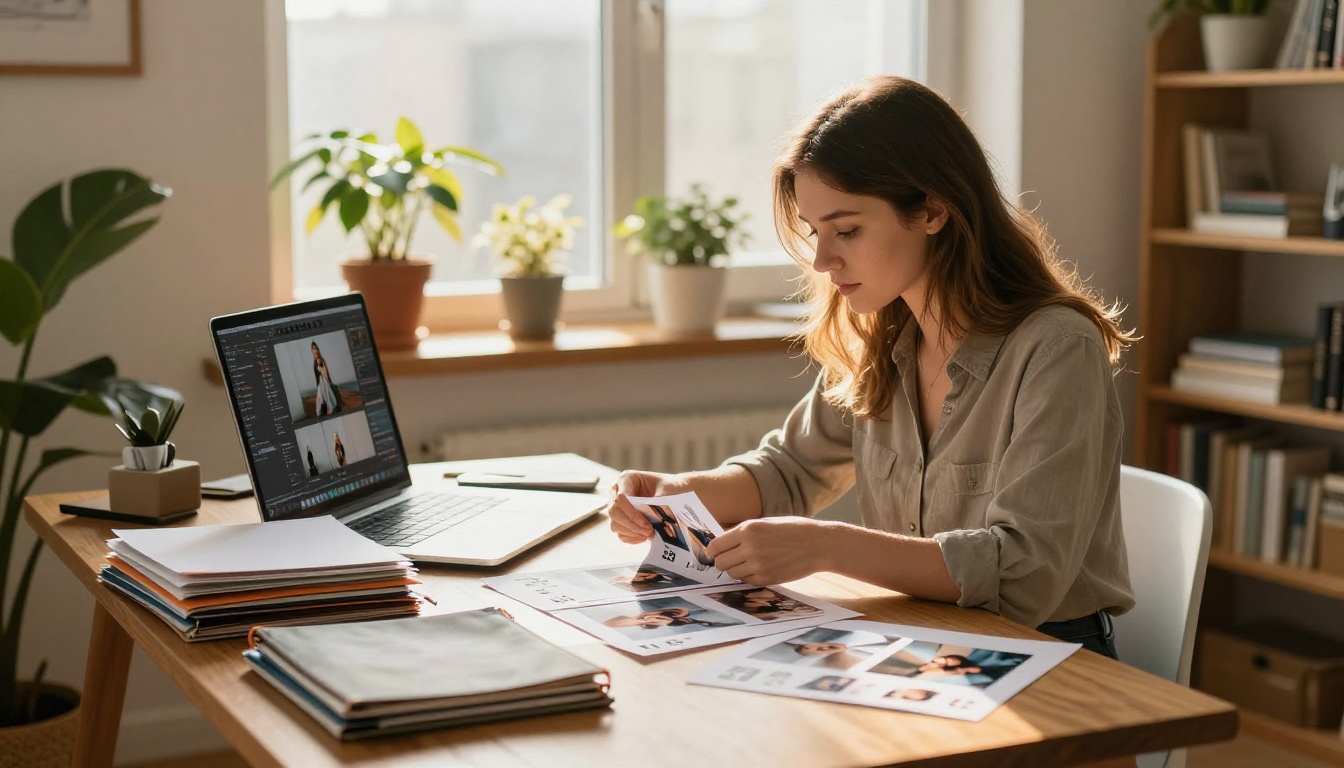
Flatbed Scanner: Best quality. A standard A4 flatbed scanner captures printed photos at 600 DPI or higher, which is more than enough resolution for a digital flipbook. Scan individual photos rather than scanning the open album spread, which introduces glare and page warp at the spine. Most modern flatbed scanners include software that automatically detects and crops multiple photos from a single scan, which speeds up the process considerably.
Smartphone Scanning Apps: Faster but slightly lower quality. Apps like Google PhotoScan or Apple's built-in scanner mode reduce glare using multiple captures of the same photo from different angles. Perfectly adequate for casual family albums, less ideal for precious archival prints where every detail matters.
Once digitized, compile your images into a PDF using any of these tools:
- Adobe Acrobat (paid, highest control)
- Google Slides (free, export as PDF)
- Canva (free tier, excellent layout control per page)
- Apple Pages (free on Mac, simple and clean)
- Microsoft PowerPoint (widely available, exports PDF cleanly)
For Digital Albums
If your photos already exist as digital files (JPEGs from your camera roll, downloads from a photo printing service, or exports from Google Photos), you just need to arrange them and export to PDF. Canva's free tier handles this in about ten minutes. Create one slide per photo, set consistent dimensions across all slides, and export as a single PDF file.
⚠️ Watch your file size: Flipbook platforms work best with PDFs under 200MB. If you're working with hundreds of high-resolution photos, compress the PDF before uploading. Canva and Google Slides both produce web-optimized PDFs automatically.
How to Create a Photo Flipbook With Flipbooks AI
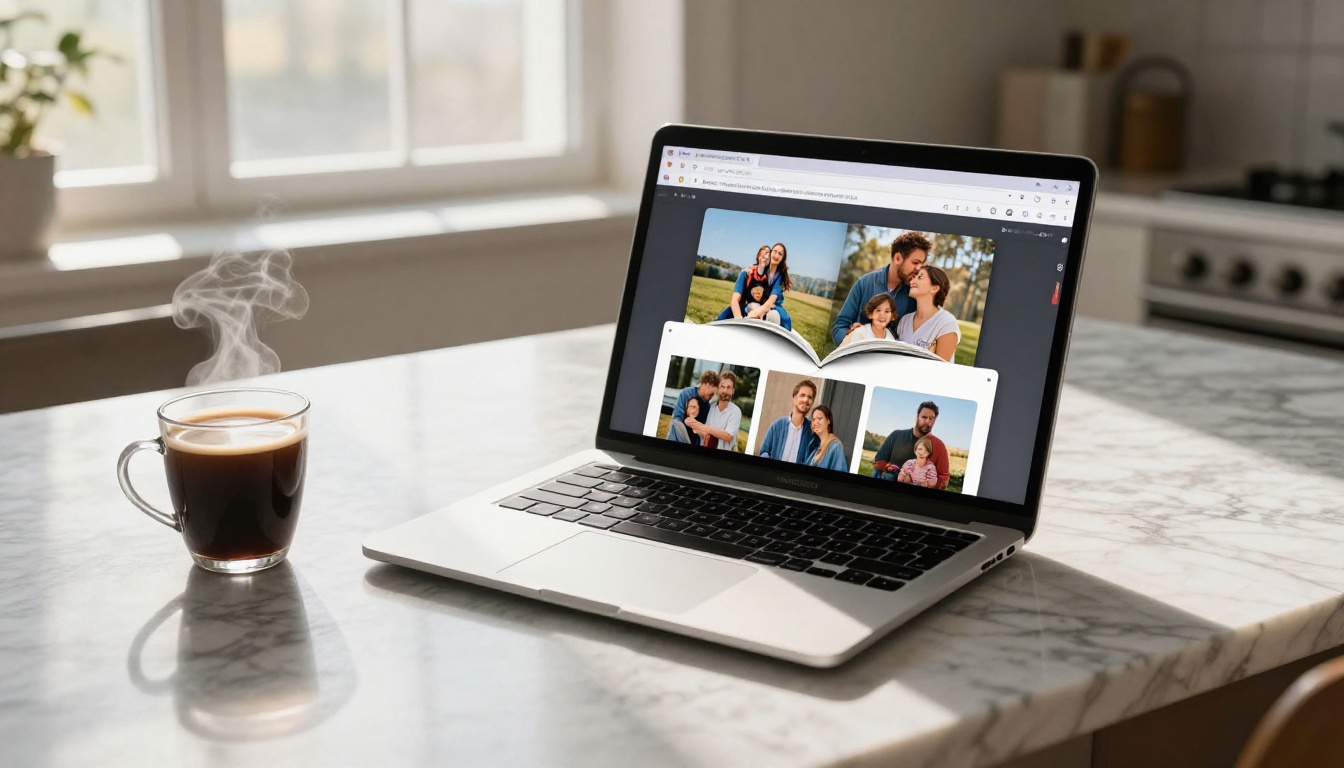
This is where the process clicks into place. Flipbooks AI converts your PDF into a fully interactive digital flipbook with realistic page-turn animations. No design skills needed. No software to install. The whole thing runs in your browser.
Step 1: Prepare Your Photo PDF
Before uploading, run a quick check on your file:
- All photos are in the correct sequence (chronological, thematic, or narrative)
- Orientation is consistent throughout, or intentionally varied with purpose
- File size is under 200MB (compress in Canva or Acrobat if needed)
- The PDF is exported at 72 to 150 DPI for screen viewing, not print resolution
- Page dimensions are uniform throughout the document
Step 2: Create an Account
Go to Flipbooks AI and sign up. The free tier lets you test with your first flipbook immediately, no credit card required. If you're creating a photo album for private family sharing, you'll want the Standard plan at minimum for password protection and to remove the watermark from your published flipbook.
Step 3: Upload Your PDF
Click "New Flipbook" and drag your photo PDF into the upload area. Flipbooks AI processes the file and converts each page into an interactive flipbook page with realistic paper-curl physics. Processing time depends on file size but typically completes in under two minutes for a standard family album of 50 to 100 photos.
Step 4: Customize the Presentation
This is where your photo album gains something physical albums never had. Inside the editor, you can adjust:
- Custom thumbnail: Set a standout first-page image so the flipbook looks polished when shared as a link in a group chat
- Background color: Choose black for a dramatic cinema feel, warm cream for a vintage album aesthetic, or clean white for a minimalist look
- Page-flip animation: Adjust speed and curl style to match the mood of your album
- Flipbook header: Add your family name, a date range, or an occasion title (no watermarks, even on paid plans)
- Embedded media: Insert audio narration, a background music track, or short video clips between photo pages for a richer storytelling experience
Step 5: Share It
Once published, Flipbooks AI gives you several ways to get it in front of the right people:
- Direct link: A clean, shareable URL you can paste into a family group chat or email thread
- Embed code: Drop the flipbook directly into a personal website, memorial page, or blog post
- Password protection: Set a private password so only invited family members can view the album
- QR code: Print it on a physical card, table placard, or event invitation for reunions and celebrations
✅ Best practice: For wedding photo albums being shared beyond the immediate family, use password protection so the album stays within the intended audience and isn't indexed publicly.
Which Photo Albums Convert Best
Not all albums are equal candidates for flipbook conversion. Here's a practical breakdown of the most common album types and their ideal formats:
| Album Type | Best PDF Format | Ideal Audience |
|---|
| Wedding album | Portrait, 50-150 photos | Guests, anniversary sharing |
| Family vacation | Landscape, 30-80 photos | Extended family, holiday cards |
| Baby's first year | Portrait, monthly sections | Grandparents, long-distance family |
| Memorial album | Portrait, chronological | Memorial services, online tributes |
| Vintage/childhood | Mixed orientation, any count | Reunion events, scanning preservation projects |
| Travel photography portfolio | Landscape, thematic groupings | Clients, social sharing, personal site |
Wedding Albums
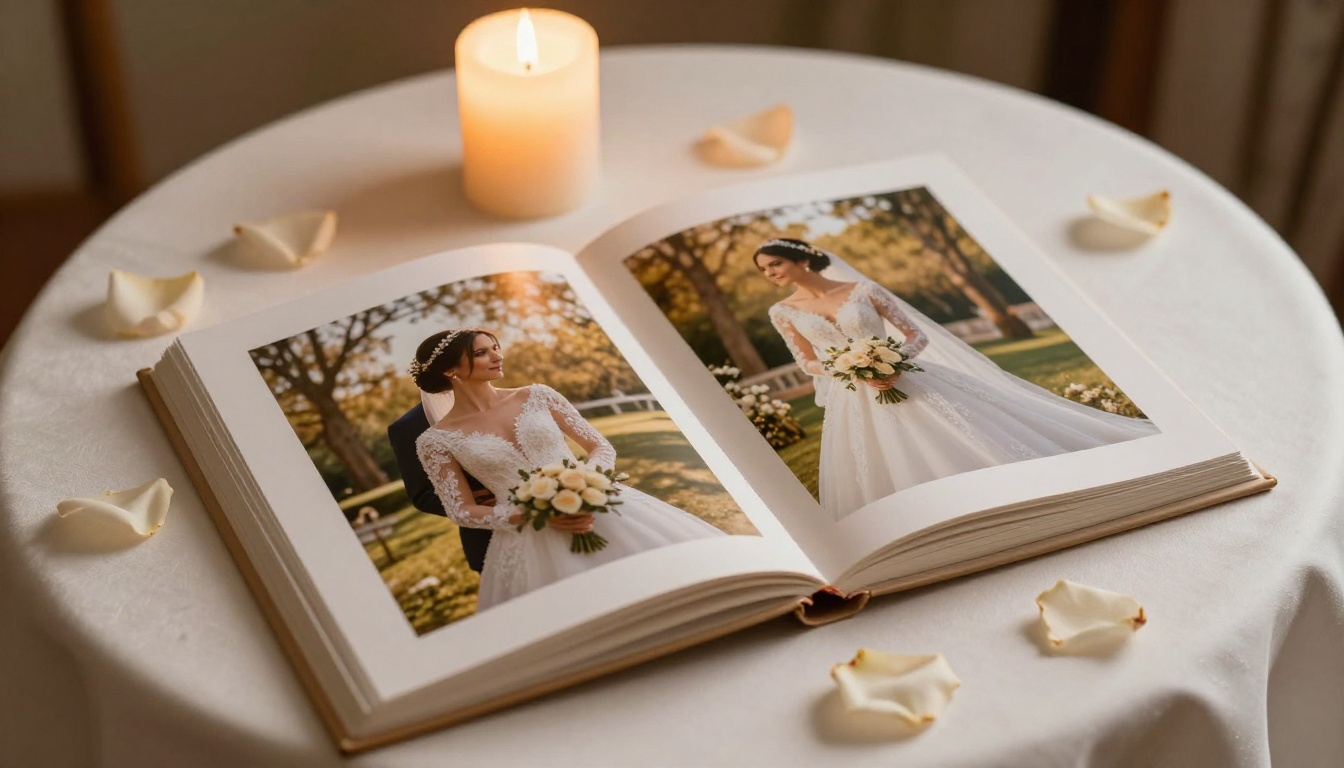
Wedding photo flipbooks are arguably the single most popular use case for this conversion. The sequence is already natural (ceremony, cocktail hour, reception, first dance, send-off), the photos are professionally shot with consistent quality, and there's a built-in audience of guests who want to relive the day. The Wedding Album Flipbook tool is purpose-built for this exact scenario and handles the full spread beautifully.
Childhood and Vintage Albums
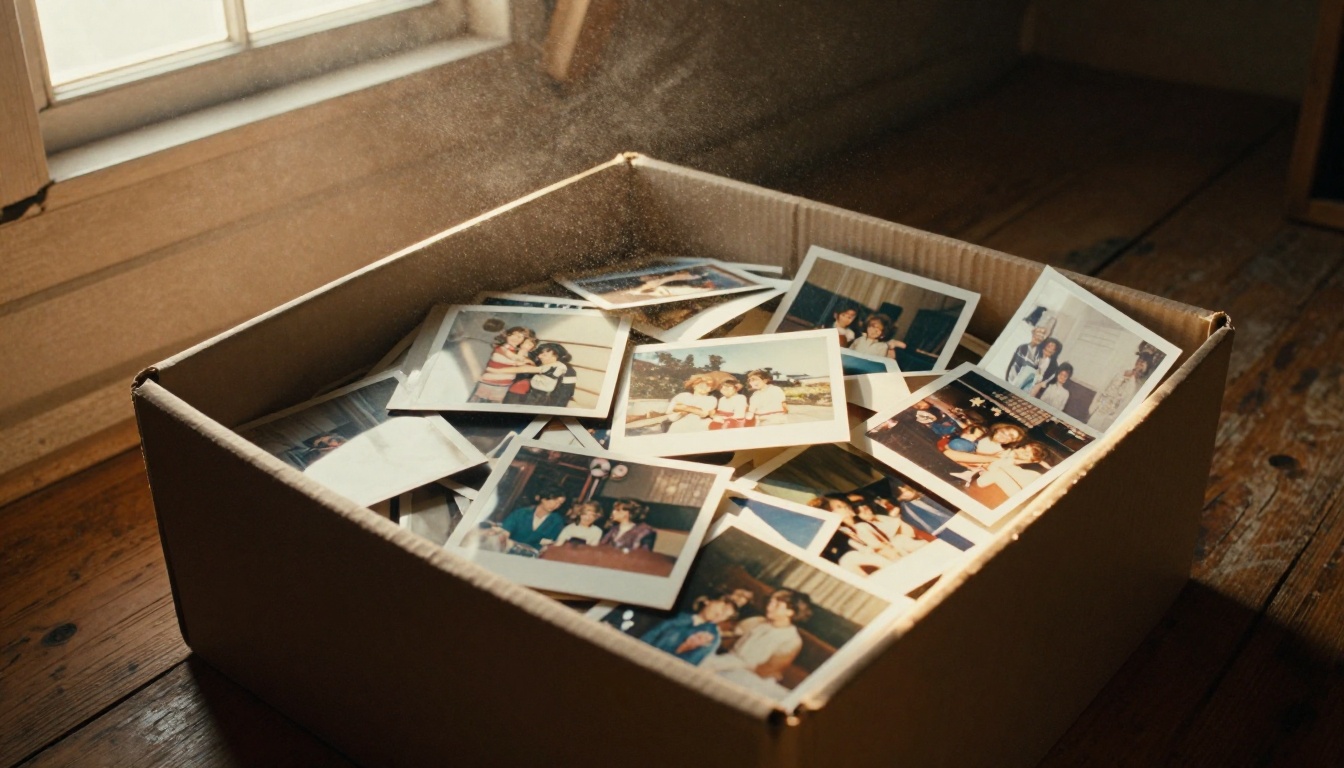
Old printed photographs from the 70s, 80s, and 90s carry a warmth that digital photos rarely replicate. Scanning them and preserving them as a flipbook does something important: it makes them shareable across generations without risking damage to the irreplaceable originals. Faded Polaroids and color-shifted prints from the analog era scan beautifully and feel especially meaningful as a flipbook you can send to aging relatives who live far away.
Travel Photography Collections
If you're a photographer with a curated travel portfolio, a flipbook gives your photos the presentation they deserve. The Photography Portfolio Flipbook tool takes your image collection and presents it in a format that clients can browse exactly like a physical portfolio book, without printing costs, shipping delays, or the risk of a physical book getting damaged in transit.
Sharing Options Compared
Once your photo flipbook is live, you have several distribution channels available depending on who needs to see it:
| Sharing Method | Best For | Privacy Level |
|---|
| Direct link | Family group chats, email, social | Public by default |
| Password-protected link | Private family albums, personal events | Private, invite only |
| Embedded on website | Photographers, memorial pages, blogs | Configurable |
| QR code | Reunion tables, printed event invites | Public by default |
| Offline PDF download | Relatives without reliable internet | N/A |
What Each Plan Gives You
Knowing which plan fits your needs before you start saves time. Here's a quick comparison of what Flipbooks AI's pricing tiers include:
| Feature | Free | Standard | Professional |
|---|
| Number of flipbooks | 1 | Unlimited | Unlimited |
| Watermarks | Yes | No | No |
| Password protection | No | Yes | Yes |
| Custom branding | No | Yes | Yes |
| Analytics tracking | No | No | Yes |
| Lead generation forms | No | No | Yes |
| Offline downloads | No | No | Yes |
| Embedded video/audio | No | Yes | Yes |
| Mobile responsive | Yes | Yes | Yes |
For most family photo album projects, the Standard plan is the right call. It removes watermarks, allows password protection for private sharing, supports unlimited flipbooks across as many albums as you want to convert, and lets you add embedded video or audio to bring extra life to the pages.
Why This Project Is Worth Your Afternoon
Physical Albums Are Fragile
Printed photos fade over time. Albums get dropped, flooded, or lost in moves. A digital flipbook is a backup that also happens to be shareable. Scanning your physical photo album and converting it to a flipbook isn't just a creative project, it's insurance against permanent loss. Once the flipbook is live, you can also download the original PDF for offline storage as a second backup copy.
Long-Distance Family Deserves Better
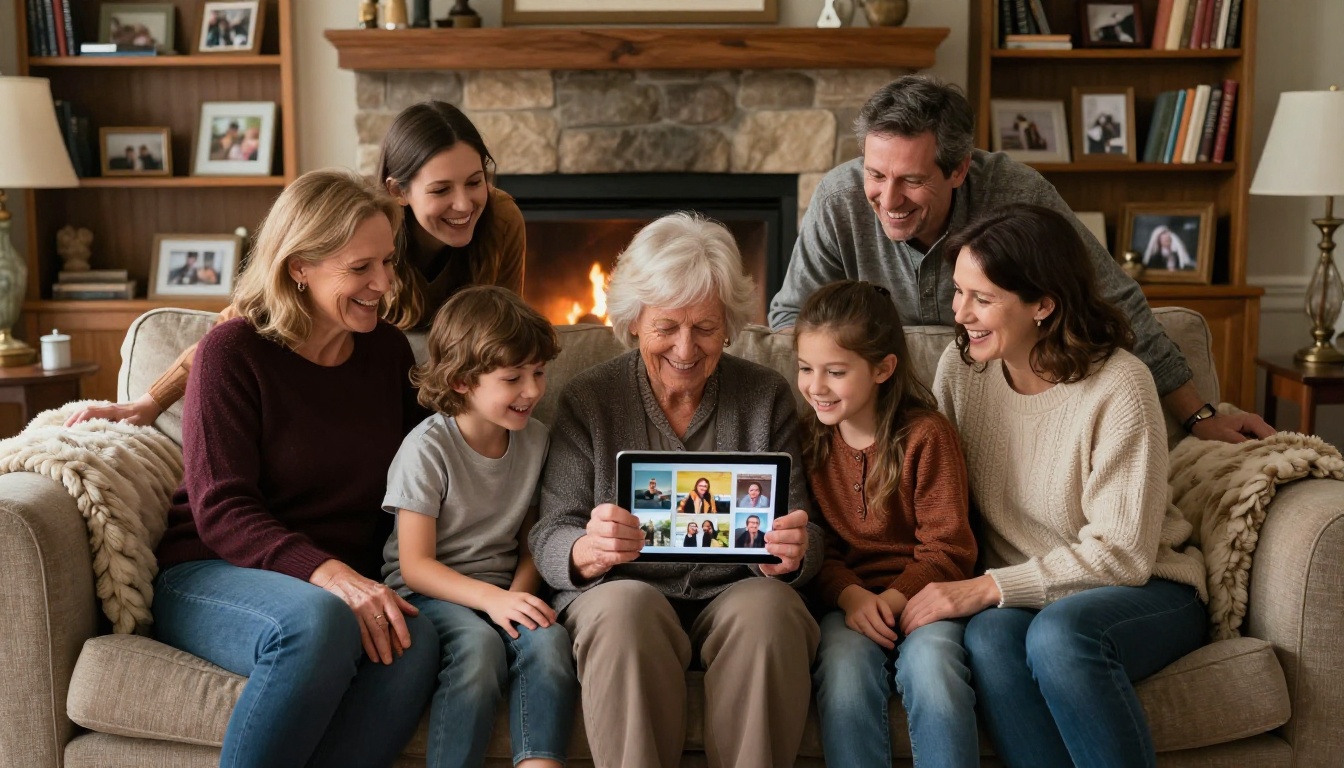
Sending a link takes three seconds. Mailing a photo album takes a week and costs money. A flipbook doesn't get dog-eared in transit. It doesn't require the recipient to scan anything to send it back. It arrives instantly, displays beautifully on any screen from a 65-inch TV to a phone, and can be viewed while someone is sitting in a waiting room, on a plane, or at a kitchen table.
A Folder of Photos Is Not a Story
A folder of 300 JPEGs doesn't tell a story. A sequenced, page-turning flipbook does. The act of flipping through it, even digitally, creates a fundamentally different experience than scrolling through a grid or slideshow. People linger on pages. They go back to earlier ones. They share specific spreads with comments. That's something no photo cloud gallery replicates, and it's exactly why page-turn format has been the default for books and albums for generations.
💡 Pro tip: If you're making a flipbook for a family reunion, create separate flipbooks for different decades or family branches and share each one in the relevant group chat. It turns into a conversation starter that lasts well beyond the event itself.
Common Mistakes That Ruin Photo Flipbooks
Before you start, it's worth knowing the pitfalls that most people hit on their first attempt:
- Mixing orientations randomly: Switching between portrait and landscape pages mid-album creates a jarring experience. Pick one, or group by orientation with a clear visual break between sections.
- Including too many near-identical photos: A flipbook with 200 nearly identical shots from the same event loses its impact fast. Curate ruthlessly. 60 great photos beat 200 average ones.
- Forgetting to compress the PDF: A 400MB file will time out during upload or take forever to load for viewers on mobile. Compress first.
- Skipping the sequence review: Once uploaded, the order is locked. Spend five minutes in Canva or Slides confirming the sequence before exporting the PDF.
- Not testing on mobile: Most recipients will view the flipbook on a phone. Preview it on a small screen before sharing widely.
The Starting Point Is Simpler Than You Think
The biggest barrier for most people isn't technical. It's starting. The photos are sitting in a box in the attic, or spread across three different cloud services, or stuck in a physical album that nobody has touched in eight years. The process of gathering them, sequencing them, and uploading a single PDF takes an afternoon at most.
After that, Flipbooks AI handles everything else. The conversion is automatic. The page-turn animations work from the moment the file finishes processing. The sharing takes thirty seconds. What you end up with is a living version of your photo album that doesn't yellow, doesn't fade, and doesn't require anyone to drive to your house to see it.
If you have a photo album worth remembering, you have everything you need to make a flipbook from it today. Start for free on Flipbooks AI, upload your first album, and see what it looks like with realistic page-flip physics before committing to a plan. When you're ready to remove watermarks and unlock private sharing, compare all available pricing options to find what fits your project and budget.



