You have a beautiful catalog, a report or a brochure that turns pages like a real publication, and a deck due in an hour. The obvious question: can you drop that interactive document straight into a slide and flip through it live? The short answer is yes, in most setups, but not with a simple paste. PowerPoint has no native "embed this flipbook" button, so you need the right workaround. A flipbook built on Flipbooks AI gives you a public link and an embed code, and both can be used inside a deck in ways that actually work on stage.
This article walks through four methods, tells you when each one breaks, and gives you a checklist so the slide behaves when the room is full and the Wi-Fi is not.
What "Live" Really Means
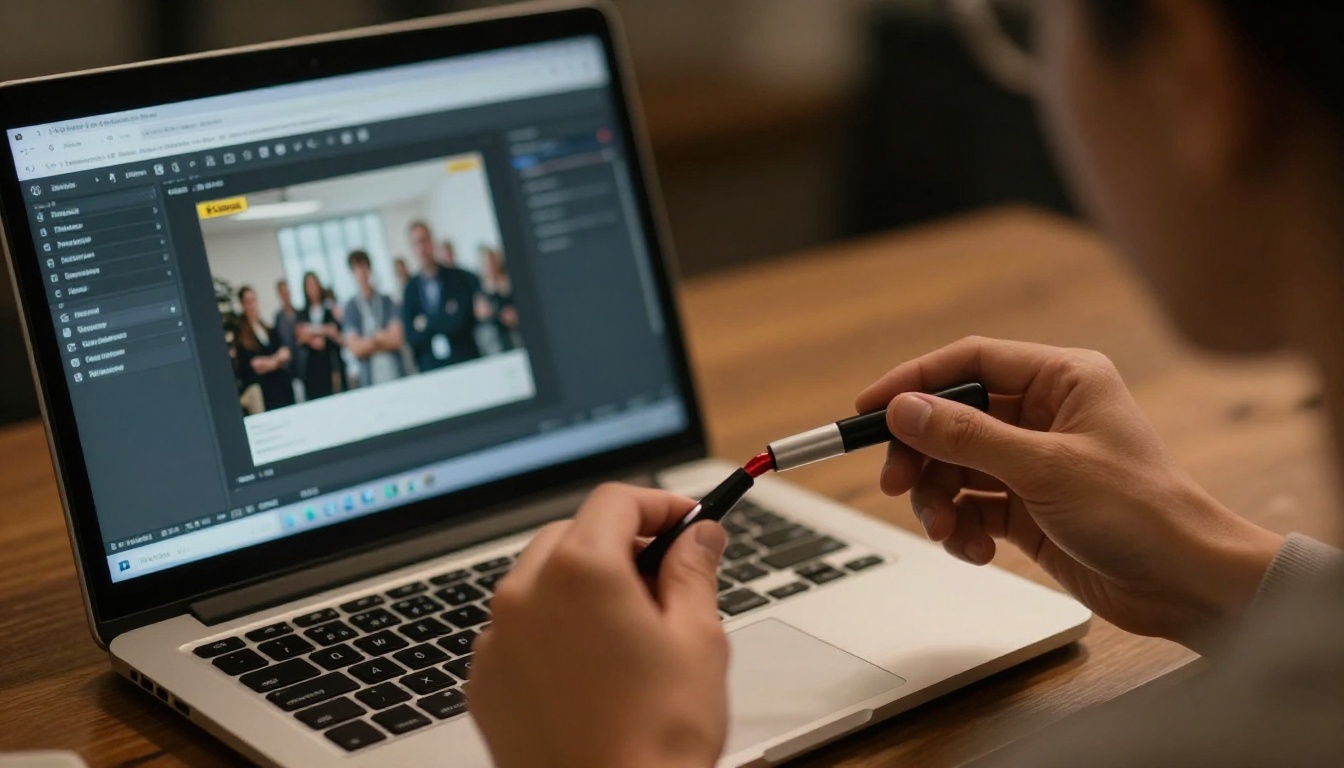
A live flipbook is not a screenshot or a PDF pasted as an image. It is a hosted, interactive document: pages curl, readers zoom, links click, and any update you publish appears for everyone instantly. Because it lives on a web page, PowerPoint has to display a web page to show it.
That is the root of the whole question. PowerPoint plays slides, images, audio and video natively. Web content needs a bridge. Every method below is a different bridge.
Live, Static and Recorded Compared
| Format | Interactive | Always up to date | Needs internet | Risk on stage |
|---|
| Live flipbook in a web viewer | Yes | Yes | Yes | Medium |
| Hyperlink to the flipbook | Yes | Yes | Yes | Low |
| Pasted page screenshots | No | No | No | Very low |
| Screen recording as video | No | No | No | Very low |
💡 Pro tip: The safest deck uses a live method as the main plan and a recorded method as the silent backup on a hidden slide.
Method 1: The Web Viewer Add-In
Microsoft 365 offers a Web Viewer add-in (available through the Office Add-ins store in many Microsoft 365 builds) that renders a web page inside a slide. This is the closest thing to a true embed.
How It Works
- Publish your flipbook and copy its public link.
- In PowerPoint, open Insert, then Get Add-ins.
- Search for a web viewer add-in and add it to the deck.
- Paste the flipbook link into the add-in field.
- Resize the frame on the slide to fill the space you want.
- Start Slide Show and test the page turn with your mouse.
The slide then shows the real flipbook. Readers in the room see pages flip as you click through them.
Where It Falls Short
- Availability depends on your Microsoft 365 version and your company's admin policy.
- The add-in needs an internet connection at presentation time.
- Some versions only support secure
https addresses, which hosted flipbooks use anyway.
- Exporting the deck to PDF freezes the frame as a blank box.
Method 2: A Clickable Link on the Slide
This is the method people underestimate. It is also the most reliable.
Instead of fighting to display the flipbook inside the slide, make the slide the launch pad. A clean cover image of the publication, a clear button, and a hyperlink that opens the live flipbook in a browser window.
Steps to Build It
- Export the flipbook's first page as an image, or take a clean screenshot of the cover.
- Place it on the slide and add a short label such as "Open the catalog".
- Right-click the image and choose Link.
- Paste the flipbook URL.
- In Slide Show mode, click the image. The flipbook opens in your default browser.
- Use Alt + Tab (Windows) or Cmd + Tab (Mac) to return to the deck.
Presenters often prefer this because the flipbook gets the full screen, so page curls and zoom look better than in a small frame.
✅ Best practice: Open the flipbook in the browser before the meeting starts and keep the tab ready. You avoid loading time in front of the audience.
Why It Beats a Frame for Most Talks
- No add-in or admin approval required.
- Works in every PowerPoint version, plus Keynote and Google Slides.
- Full-screen reading is far more legible from the back of the room.
- A failed connection never leaves an ugly blank rectangle in your slide.
Method 3: A QR Code for the Audience
Sometimes you do not need to flip the pages yourself. You want everyone to open the document on their own phone.
Put a QR code that points at the flipbook link on the slide, next to a short headline. The audience scans it and reads at their own pace while you keep talking. Any free QR generator works, and the code stays valid as long as the flipbook link does.
Best Uses for a QR Slide
| Scenario | Why it works |
|---|
| Trade show or conference talk | Attendees take the full document home |
| Sales pitch with a long catalog | Prospects browse during the Q&A |
| Training session | Learners follow the manual on their own device |
| Investor update | Report stays open for later reading |
Because flipbooks built on Flipbooks AI are mobile-responsive, the same link works on a phone without pinching and scrolling a PDF. You can also protect it with a password if the content is private, which the pricing plans explain in detail.
Method 4: Record It as a Video Slide
When the venue has unreliable internet, use a screen recording of you flipping through the document and insert it with Insert, Video, This Device. It is not interactive, but it plays anywhere and never fails.
Keep the recording short, 20 to 40 seconds is plenty, and show the strongest three or four pages. Pair it with a QR code so curious viewers can open the real thing afterwards.
Quick Recording Tips
- Record at the same resolution as your presentation screen.
- Move slowly. Fast flipping looks like a blur on a projector.
- Pause two seconds on every page you want people to read.
- Trim dead air at the start and end.
Side by Side: Which Method Wins?
| Method | Setup time | Interactive | Works offline | Best for |
|---|
| Web viewer add-in | 10 minutes | Yes, inside the slide | No | Seamless in-slide demos |
| Clickable link | 2 minutes | Yes, full screen | No | Most live presentations |
| QR code | 5 minutes | Yes, on audience phones | No | Large audiences and events |
| Video slide | 15 minutes | No | Yes | Poor connectivity venues |
If you have to pick one, pick the clickable link. If you have time for two, add the video backup.
How to Build the Flipbook First
Everything above assumes you already have a published flipbook. If you are starting from a PDF, this is the shortest path with Flipbooks AI.
Step by Step
- Create an account. Sign up at Flipbooks AI, it takes under a minute.
- Upload your PDF. Drag your file in. The PDF to Flipbook Converter turns each page into a turnable spread.
- Customize. Add your logo, colors and page effects. You can also embed videos and audio on selected pages.
- Set privacy. Keep it public or add a password for sensitive material such as board packs.
- Share. Copy the direct link, grab the embed code, or use the Embed Flipbook on Website tool to place it on a web page.
- Track it. On the Professional plan, analytics and lead generation show who opened the flipbook and which pages held attention.
There are no watermarks, so your slide and your flipbook look clean together. If you plan to enable offline downloads or analytics, compare tiers on the pricing page.
💡 Pro tip: The Presentation Flipbook Designer and the Sales Presentation tool are built for exactly this deck-plus-flipbook workflow.

Real Situations Where It Pays Off
The Sales Pitch
A furniture rep presents a quarterly line-up. Instead of exporting 40 product photos into slides, one slide links to the live Furniture Catalog. When prices change next week, the same link shows the new numbers. No one needs a new deck.
The Board Meeting
A finance lead shares a quarterly report. The slide shows the headline numbers, then opens the password-protected report flipbook for anyone who wants detail. The Corporate Report Maker fits this case well.
The Classroom or Training Day
A trainer uses a Training Manual Flipbook. Learners scan the QR code and follow along on their laptops while the trainer shows only the pages that matter for the day.

The Trade Show Booth
A looping slide plays on a booth monitor with a QR code. Visitors scan, open the catalog on their phone and the booth team captures leads through the flipbook's lead form.

5 Mistakes That Break the Slide
- Testing only at your desk. Corporate networks, venue Wi-Fi and projector laptops behave differently. Test on the actual machine.
- Pasting an
http link. Many viewers block insecure addresses. Use the https link.
- Forgetting the PDF export. A frame will not render in a PDF handout. Add the link as visible text.
- Using a tiny frame. Page text becomes unreadable from five meters away. Go full screen or use a link.
- No backup. One hidden slide with a recording saves the day when the network drops.
⚠️ Warning: If your company locks down add-ins or blocks external web content in PowerPoint, the web viewer will not load. Ask IT before the day of the talk, or choose the clickable link method.

Pre-Show Checklist
Run through this the day before and again an hour before:
- Open the flipbook link in a private browser window and confirm it loads without signing in.
- Check the password if you set one, and keep it somewhere you can read it quickly.
- Test the hyperlink in Slide Show mode, not only in edit view.
- Confirm the add-in loads on the presentation computer.
- Charge your laptop and bring the video backup on a USB drive.
- Print the link and QR code on your speaker notes.
Compatibility at a Glance
| Software | Web viewer frame | Clickable link | QR code | Video slide |
|---|
| PowerPoint for Microsoft 365 | Usually | Yes | Yes | Yes |
| PowerPoint desktop (older versions) | Rarely | Yes | Yes | Yes |
| PowerPoint for the web | Limited | Yes | Yes | Yes |
| Keynote | No | Yes | Yes | Yes |
| Google Slides | No | Yes | Yes | Yes |
Should You Even Embed It?
Honestly, not always. If your audience needs to read a single page, a good screenshot is faster. If they need to browse, a link or QR code works better than a frame squeezed into a slide. Embedding makes the most sense when the flipbook is the demo: a product launch where page flipping is the point, or a pitch for the flipbook format itself.
Ask yourself three questions:
- Does the audience need to interact with it, or just see it?
- Will I have reliable internet?
- Will the deck be shared as a file afterwards?
If you answered "interact", "yes" and "no", the web viewer is a good fit. Any other combination points to the link or QR approach.

Your Next Step
You do not need a special plugin to bring a flipbook into a presentation. You need a published flipbook, a link and a plan B. Build your first one with Flipbooks AI, turn the cover into a clickable slide, and add a QR code for anyone who wants to read along.
Browse all the flipbook tools to find a template for your next deck, or look at the plans to see which one adds analytics, lead capture and offline downloads. Then open your deck, click the cover, and watch the pages turn.



