You sent a 60 page catalog, wrote "see page 12" in the email, and the client opened the cover and never got further. It happens constantly. The fix is simple: yes, you can share a link that opens a flipbook on one specific page, and doing it well takes about thirty seconds. If you publish your documents with Flipbooks AI, this is one of the easiest habits to build into your workflow.
This article explains how page-level links work, when they beat sending the whole document, and how to test them so nobody lands on the wrong spread. You will also find comparison tables, a step-by-step routine, and a list of mistakes worth avoiding.
The Short Answer
Yes. A flipbook is a web page, and web pages can carry extra information in their address. Most flipbook viewers use that extra information to say "open at page 12" instead of "open at page 1". The result is a normal link that you paste into an email, a chat, a QR code, or a social post.
💡 Pro tip: Treat the page number in the link as an instruction to the viewer. If the viewer supports it, the reader jumps straight there. If it does not, the reader still gets the full flipbook, so the link never breaks.
Exact behavior depends on the viewer. Check the share panel inside your own flipbook, and always click the final link yourself before sending it. The rest of this article is written so that the routine works regardless of small differences between viewers.
Why Page Links Matter
Readers are impatient. A person who has to hunt for the right page often leaves. A person who lands on the right page in one click usually stays and keeps reading from there.
Less Scrolling, More Reading
A link to the pricing page, the size chart, or the signature recipe removes the search step. The reader sees the thing you meant to show them within a second.
Cleaner Conversations
When a customer asks "what is the warranty on the blue model?", you answer with one link instead of three sentences of directions. Support teams love this because the same link can be reused in every reply.
Better Tracking of What Works
If you send different page links in different campaigns, you can see which entry point earns the most clicks. Pair this with the analytics available on the Professional plan to compare where readers arrive and where they leave.
How Page Links Work
Behind the scenes, a page link is the normal flipbook address plus a small marker that holds the page number. The viewer reads that marker when it loads and flips to that page before the reader sees anything.
The Three Common Patterns
| Pattern | What it looks like | Typical behavior |
|---|
| Query parameter | Flipbook address followed by a page value | Viewer opens at that page on load |
| Hash fragment | Flipbook address followed by a page marker after a hash | Viewer jumps without reloading |
| Copied from share panel | Link generated by a Share button on the current page | Opens at the page you were viewing |
Which pattern your viewer uses is not something readers need to know. What matters is that you generate the link from the viewer itself instead of typing the number by hand. Generated links avoid typos and match the format the viewer expects.
Page Numbers Versus Printed Numbers
This catches almost everyone. Your PDF might call a page "12" in its footer, but the viewer counts from the first physical page, including the front cover and any unnumbered pages. If the document has a cover and a table of contents, printed page 12 may be viewer page 14.
⚠️ Warning: Always open the finished link and compare what appears on screen with what you intended. Do not trust the number printed in the footer.
Single Pages and Spreads
Flipbooks usually show two pages at once on a desktop and one page at a time on a phone. That changes what "the page" means.
| Device | What the reader sees | What a page link should do |
|---|
| Desktop or laptop | Two page spread | Open the spread that contains your page |
| Tablet in landscape | Two page spread | Same as desktop |
| Tablet in portrait | Single page | Open exactly your page |
| Phone | Single page | Open exactly your page |
If your key content sits on the right side of a spread, the left page will also be visible on desktop. Plan for it. Put a headline or image on the left page that supports the content on the right, because both will be seen together.
Step by Step: Share One Page
Here is a routine that works for any flipbook, whether you built it from a brochure, a lookbook, or a training manual.
- Publish the flipbook. If you have not made one yet, create an account, upload your PDF, and let the converter build the flipbook.
- Open the live version. Use the public link, not the editor preview, so you see what readers will see.
- Turn to the exact page. Flip until the content you want to share is visible.
- Open the Share option. Look for a link or share button inside the viewer and check whether it offers to include the current page.
- Copy the link. Paste it into a private browser window so you are not logged in.
- Test on a phone. Open it from a message you send yourself. Check that the right page appears.
- Send it with context. Add one sentence saying what the reader will see, such as "page with the size chart".
✅ Best practice: Keep a short list of your five most shared page links in a note. Support teams and sales reps can reuse them without regenerating anything.

If you need the full document at a specific moment, such as in a sales pitch, the Sales Presentation tool is worth a look. For converting a source file in the first place, the PDF to Flipbook Converter is the starting point.
Real Situations Where It Pays Off
A Restaurant Sharing One Menu Section
A restaurant owner updates the weekend brunch page and wants to promote only that page. A link to the brunch spread goes into a social post and a QR code on the table card. Guests see brunch immediately instead of scrolling past starters and drinks. If you are building something similar, the Restaurant Menu Creator fits well.
A Real Estate Agent Pointing to One Floor Plan
An agent has a 30 page property brochure. A client only cares about the floor plan on page 9. Sending a link to that page in a text message gets a reply within minutes. The agent can also send a different page link for the neighborhood map. The Real Estate Brochure Creator supports this kind of document.

A Teacher Assigning One Reading
A teacher shares a course packet with 80 pages. For tonight's homework, only pages 22 to 25 matter. The teacher sends a link to page 22 in the class chat. Students arrive at the right place and skip the confusion. The Course Material Publisher is built for this kind of material.

A Photographer Highlighting One Project
A photographer has a portfolio flipbook with six projects. When pitching a wedding client, the link goes to the wedding section. When pitching a brand, a different link goes to the commercial section. Same flipbook, two tailored entry points. The Photography Portfolio tool is a good base.

Which Channel Fits Which Link
Different channels treat links differently. Match the link to where it will live.
| Channel | Best link type | Why |
|---|
| Email | Page link with a one line preview | Readers click once and see the point |
| Text or chat app | Page link, short message | Mobile friendly and fast |
| Social post | Page link plus a clear image | The image sets expectation |
| QR code on print | Page link | Scanning lands exactly where the print points |
| Website | Embed with start page | Readers stay on your site |
Linking From Your Own Website
When you want readers to stay on your site, embedding is often better than sending them away. The embed tool gives you code you can paste into a page, and a start page setting where the viewer supports it can help you highlight one section.
QR Codes on Printed Material
A QR code that opens a specific page is one of the neatest tricks around. A printed flyer about the autumn collection can point to the autumn page, not the front cover. Print a test, scan it on two different phones, and only then send it to the printer.

Common Mistakes
Page links are simple, but a few slips cause most of the trouble.
- Using the footer number. The viewer counts from the first physical page.
- Testing only on desktop. A phone may show one page where desktop shows two.
- Sharing the editor link. Readers cannot open it, or they see a different version.
- Forgetting about updates. If you add pages to the front of the document later, old page numbers shift and links point to the wrong place.
- Ignoring privacy settings. A password protected flipbook still asks for the password, even when the link points to page 12.
⚠️ Warning: If you insert or remove pages, test every saved page link again. This takes minutes and prevents awkward replies from confused readers.
When a Link Opens the Wrong Page
Work through this short checklist:
- Open the link in a private window.
- Compare the page on screen with the page you intended.
- Count from the first physical page, not the printed number.
- Regenerate the link from the viewer instead of editing it by hand.
- If the document changed recently, rebuild your saved links.
Privacy and Access
A page link is still a link to the entire flipbook. Anyone with it can usually flip to other pages. If a section is meant to stay private, do not rely on a page link to hide it.
| Need | Better approach |
|---|
| Show one section to everyone | Page link on a public flipbook |
| Show a section only to clients | Password protected flipbook plus a page link |
| Keep one section confidential | Build a separate flipbook with only that content |
Password protection is available so you can keep private content private. See the pricing plans for which features come with each tier.
A Small System That Saves Time
If you share pages often, build a tiny system once and reuse it.
- Name your pages. Keep a note with labels such as "pricing", "size chart", and "contact".
- Store the links. Put them in a shared doc your team can reach.
- Review monthly. Open every link and confirm it still lands on the right page.
- Track results. Compare how many readers arrive from each link using your analytics.
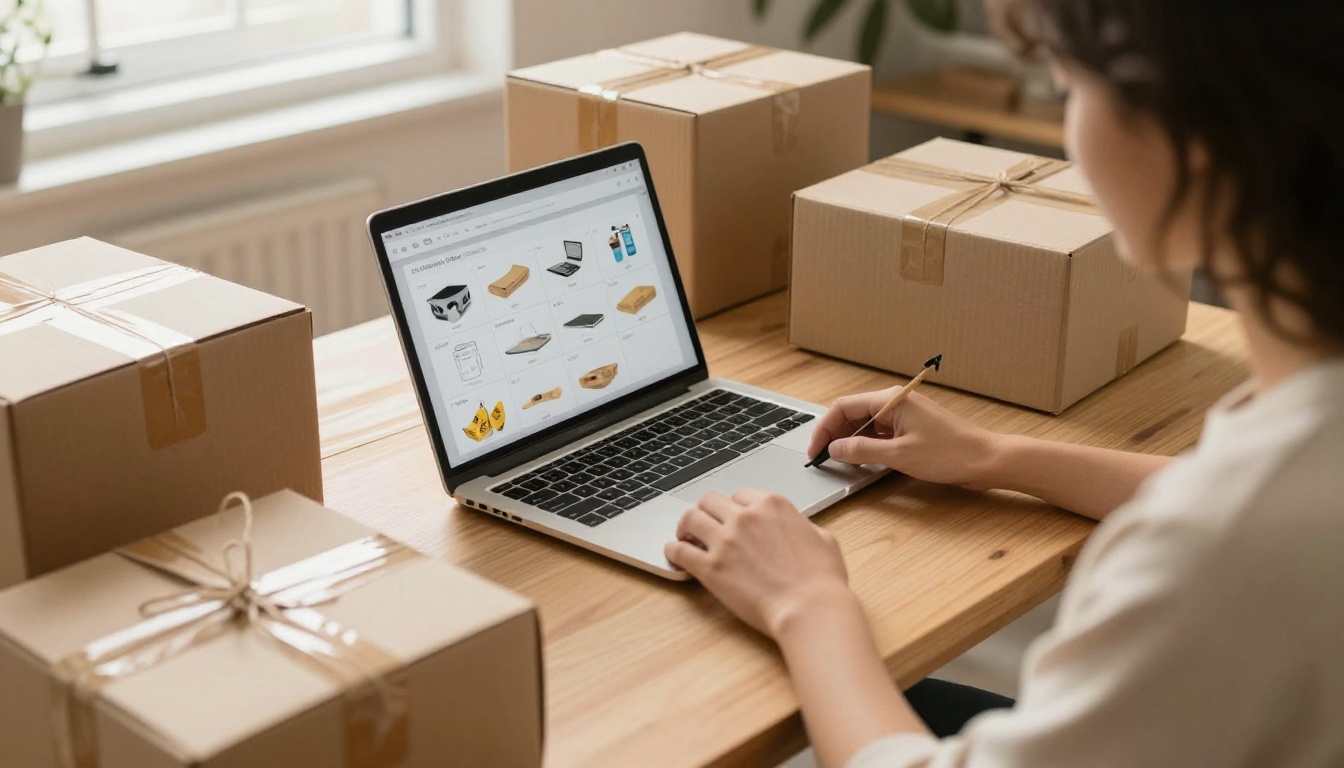
A small online shop might keep links to the bestseller page, the shipping policy, and the returns page. When customers write in, the answer is one paste away. The Product Catalog Generator is a handy way to produce the catalog itself.
Ready to Try It
Sharing one page instead of a whole document respects the reader's time, and it makes your own messages shorter. Build your flipbook, flip to the page that matters, copy the link, and test it on your phone before it goes out.
Ready to try it? Get started for free on Flipbooks AI, browse all flipbook tools to find the right template, or compare pricing plans to choose what works for you.



