You have forty product photos, a Friday deadline and a budget of exactly zero. A designer is out of the question, and a blank page is not much help either. That is the moment a catalog template free of charge becomes the most useful file on your computer. The good news: Word, Canva and Google Docs all give you a workable starting point, and each one suits a different kind of seller. Once your catalog is done, you can also publish it as a page-turning online edition with Flipbooks AI, so customers read it on any phone without downloading a heavy PDF.
This article compares the three tools honestly, shows how to set each one up, and points out where free options start to cost you time.
What a Good Catalog Template Needs
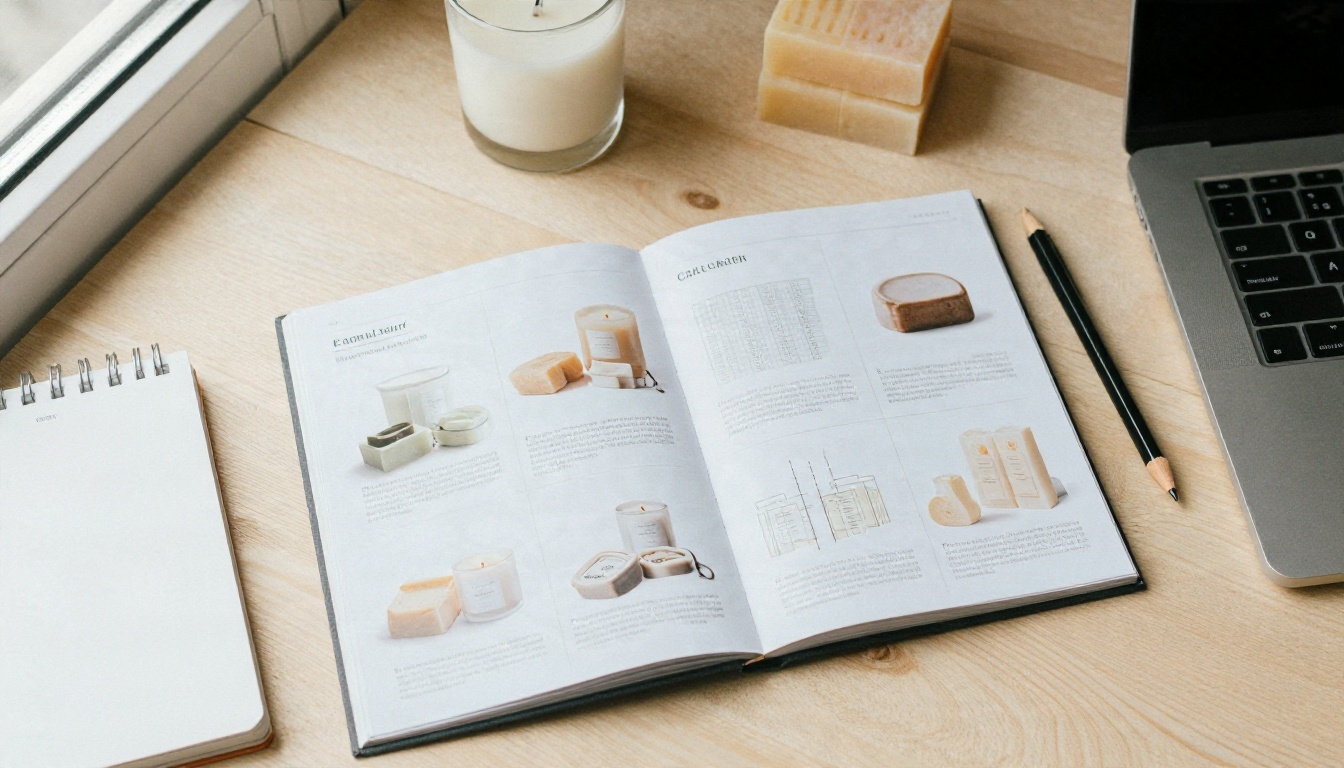
Before you download anything, decide what the template has to do. A catalog is a sales tool, not a photo album. The best templates make products easy to scan, easy to compare and easy to order from.
Layout Basics That Sell
Look for these features in any template, whatever the tool:
- A clear front page with your logo, a season or year, and one strong product photo
- A consistent grid (two or three products per row) so the eye settles into a rhythm
- Room for a short product name, a code or SKU, a price and a one-line description
- A contents or category page if you list more than 20 items
- A closing page with ordering details, contact information and payment terms
- Editable color and font styles so you can match your brand without redrawing anything
💡 Pro tip: Pick a template with more whitespace than you think you need. Once you add real photos and real descriptions, pages fill up fast.
Print or Screen First
Ask where most readers will see the catalog. A printed catalog for a trade show needs bleed margins, high resolution images and a page count divisible by four. A catalog sent by email or shared on social media needs a small file size and a layout that reads well on a narrow phone screen. Landscape pages usually work better on screens, portrait pages on paper.
Word Catalog Templates
Microsoft Word is the tool most people already own, and it is more capable than its reputation suggests. Open File > New and search for "catalog", "brochure" or "price list". You will find a handful of ready-made layouts, plus many more from third-party template sites.

Where Word Works Best
Word shines when your catalog is text-heavy and data-driven. Think industrial parts, wholesale food, office supplies or anything with specifications, sizes and bulk pricing. Tables are native to Word, so a product list with columns for code, description, unit and price takes minutes to build.
Strengths:
- Works offline, with no account needed
- Precise control over margins, headers, footers and page numbers
- Excellent table tools for specification sheets
- Mail merge lets you generate customer-specific price lists from a spreadsheet
Weaknesses:
- Image placement can shift when you edit text nearby
- Free layouts look dated unless you restyle them
- Collaboration is clumsier than in cloud tools
Setting Up a Word Catalog in 6 Steps
- Open a catalog or brochure template and save a copy under a new name.
- Set your brand colors under Design > Colors and your fonts under Design > Fonts, so the whole file updates at once.
- Replace the sample images using right click > Change Picture, which keeps size and position.
- Build the product grid with a borderless table: one cell per product holds the photo, name, code and price.
- Add page numbers and a contents page using heading styles and References > Table of Contents.
- Export with File > Save As > PDF and choose the "Minimum size" option for screens or "Standard" for print.
Canva Catalog Templates
Canva is the favorite for visually driven brands: fashion, beauty, home décor, jewelry, handmade goods. Search "catalog" in the template library and you will see hundreds of layouts, many of them free.

What the Free Plan Includes
The free plan gives you access to a large share of templates, basic photo and graphic elements, drag and drop editing, brand colors, and PDF export. Some stock photos, fonts and effects are marked as Pro, and they stay locked until you pay or swap them for alternatives. A template built mostly from free elements is easy to spot because it has no crown icons on its components.
Why sellers like it:
- Fast visual editing, with nothing to install
- Polished, current-looking page designs
- Easy duplication of a page for each new product
- Built-in image tools for cropping, background tweaks and filters
Where Canva Gets Tricky
Canva is not designed for long, data-heavy documents. A 60-page catalog with 400 SKUs is painful to maintain, because each price change means editing a text box by hand. Tables exist, but they are limited compared with Word or a spreadsheet. Also keep an eye on export quality: choose PDF Standard for screens and PDF Print for press-ready files.
⚠️ Watch out: If a template uses a Pro font or photo and you remove your access later, the layout can change. Replace locked elements with free ones before you export your final file.
Google Docs Catalog Templates
Google Docs is the underdog here. Its built-in template gallery is thin, and catalogs are not its strong point. Yet for teams, it has one advantage the others cannot match: everyone edits the same file at the same time.

Best for Teams and Price Lists
Google Docs works well when the catalog is a living document: a wholesale price list that changes weekly, a product sheet that sales reps and the warehouse both update, or a simple catalog for a small shop with a few dozen items. Version history lets you roll back any mistake, and comments make approval easy.
A practical setup:
- Create a new document and set page orientation to landscape under File > Page setup.
- Insert a table with three or four columns, then place a photo in one column and text in the others.
- Use heading styles for categories so a clickable outline appears automatically.
- Share with Comment access for reviewers and Edit access for the product team.
- Download as PDF through File > Download > PDF Document.
Limits You Will Hit
Google Docs offers no real design canvas. Images sit inside the text flow, which makes magazine-style layouts hard. Fonts are limited to the Google library. If appearance matters as much as accuracy, build the visuals in Canva and keep the data in Docs or Sheets.
Free Template Comparison
Here is how the three options compare for product catalogs.
| Feature | Word | Canva (Free) | Google Docs |
|---|
| Cost to start | Included with Microsoft 365 or Word for the web | Free plan available | Free with a Google account |
| Design quality out of the box | Medium | High | Basic |
| Best product count | 20 to 500+ | 5 to 60 | 10 to 150 |
| Tables and specs | Excellent | Limited | Good |
| Team editing | Good with cloud storage | Good, with shared folders | Excellent |
| Works offline | Yes | Limited | Limited, with setup |
| Print-ready export | Yes | Yes (PDF Print) | Basic PDF |
| Learning curve | Medium | Low | Low |
Which Option Fits Which Seller
| Seller type | Best fit | Reason |
|---|
| Boutique or handmade brand | Canva | Visual layouts with strong photography |
| Wholesale or industrial supplier | Word | Tables, specifications, mail merge |
| Small team with changing prices | Google Docs | Live collaboration and version history |
| Seasonal collection or lookbook | Canva | Quick page duplication and style control |
| Distributor with long SKU lists | Word plus a spreadsheet | Data accuracy over visual flair |

Make Any Template Look Professional
A free template does not have to look free. Three habits separate catalogs that sell from those that get ignored.
Photos That Match
Shoot every product against the same background, with the same light and angle. A white sheet and a window will do. Inconsistent photos make a catalog look messy more than any bad font could. Crop to the same ratio before you place them, so grids line up cleanly.
Pricing Tables That Read Fast
Buyers compare. Give them a clean way to do it. Here is a simple model for a small product line:
| Product | Code | Size | Price | Min. order |
|---|
| Stoneware mug | SM-01 | 350 ml | $14.00 | 6 |
| Linen napkin set | LN-04 | Set of 4 | $22.00 | 4 |
| Soy candle | SC-12 | 200 g | $18.00 | 6 |
| Cotton tote | CT-03 | 38 x 42 cm | $12.00 | 10 |
Keep currency symbols, units and decimal places consistent across every row. Readers notice sloppiness in numbers faster than anywhere else.

Three Common Mistakes
- Too many fonts. Stick to two: one for headings, one for body text.
- Descriptions that repeat the name. "Blue ceramic mug: a mug in blue" tells a buyer nothing. Mention material, size, use or a care instruction.
- No call to action. Every page footer should show how to order: a website, an email or a phone number.
✅ Best practice: Before sending the catalog out, ask one person who has never seen your products to find the price of a specific item. If it takes more than ten seconds, simplify the page.
Turn Your Template Into a Flipbook
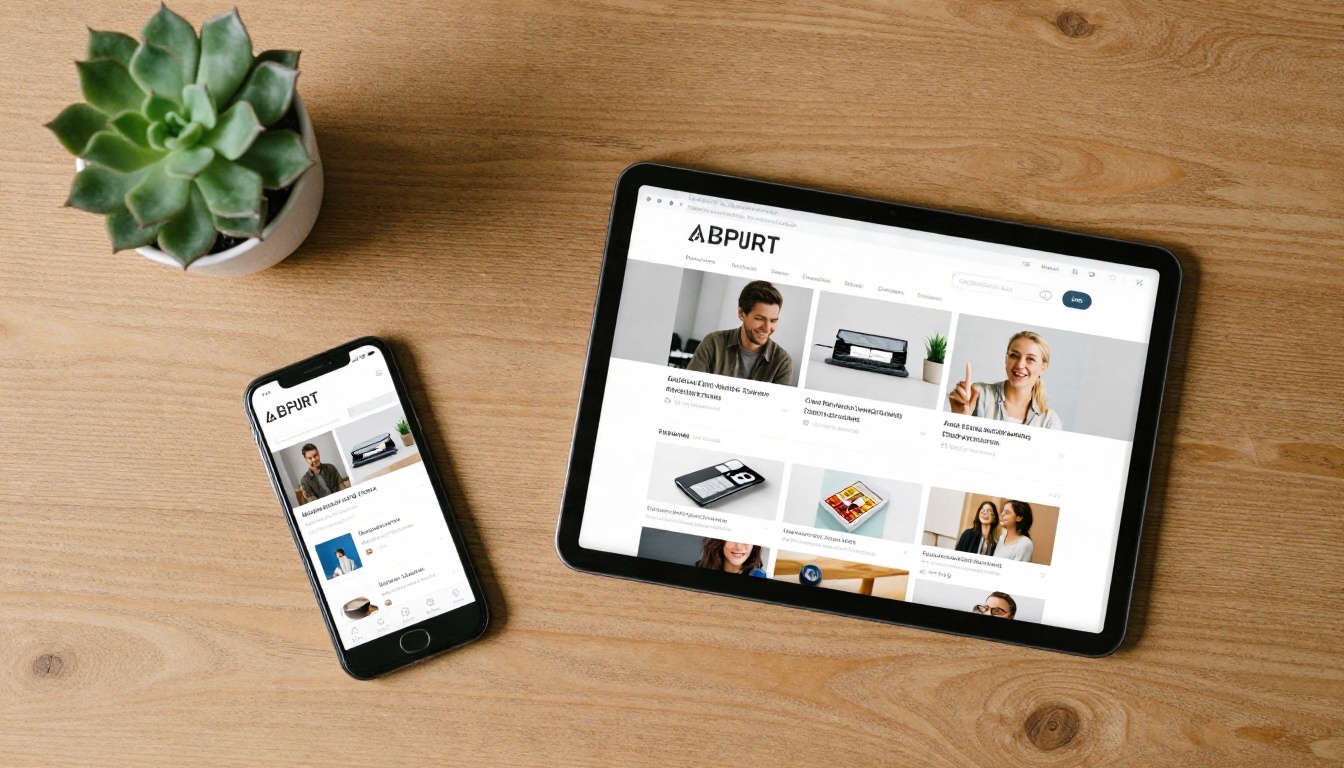
A PDF is fine for printing. For sharing, it has problems: large files bounce out of inboxes, mobile readers pinch and zoom, and you never learn who opened it. A flipbook solves all three. The pages turn like paper, the file loads fast, and you can see what readers do.

Here is how to create a flipbook catalog with Flipbooks AI from any Word, Canva or Google Docs export.
Export and Upload
- Finish your catalog in your chosen tool and export it as a PDF.
- Go to Flipbooks AI and create an account.
- Open the PDF to Flipbook Converter and upload your file. Conversion takes moments, and your pages become a realistic page-turning book.
- For catalog-specific features, use the Product Catalog tool, the Digital Catalog Maker or the Catalog Flipbook Creator. Fashion sellers can try the Fashion Catalog tool.
Customize, Share, Track
- Branding and colors: add your logo, set background colors and choose page-turn effects that suit your brand.
- Multimedia: embed a product video or an audio message on any page. No watermarks appear on your flipbook, ever.
- Sharing options: copy a direct link, or use an embed code to place the catalog on your site. The Embed Flipbook on Website page shows how.
- Privacy: add password protection when a catalog is meant only for wholesale buyers or select clients.
- Offline downloads: let buyers save a copy for later reading when they are away from a connection.
- Analytics and lead capture: the Professional plan shows which pages get the most views and can ask readers for an email before they open the catalog. See the pricing plans for details.
For pure price sheets, the Digital Price List Generator keeps things lightweight and quick to update.
A Real-World Example
A small candle maker builds a 16-page catalog in Canva using a free template, exports it as a PDF, and converts it to a flipbook. She adds the link to her email signature and Instagram bio, and embeds the catalog on her wholesale page behind a password. Retail shops get the password with their welcome email. When she changes a scent or a price, she re-uploads the PDF and every link shows the new version. No reprinting, no resending attachments.
| Task | PDF attachment | Flipbook catalog |
|---|
| Opens quickly on mobile | Often slow | Fast |
| Looks like a real book | No | Yes |
| Password protection | Manual | Built in |
| Embeds on a website | Difficult | One code snippet |
| Reader analytics | None | Available (Professional) |
| Update without resending | No | Yes |
Ready to Publish Your Catalog?
Pick the tool that matches your products. Choose Word for data and specifications, Canva for visual appeal, and Google Docs for shared, fast-changing lists. Build the file, export a clean PDF, and give your customers a better way to read it.

Next steps:
A free template gets you started. A shareable flipbook gets your products in front of buyers.



