You finished the illustrations, the story rhymes, and then a simple question stops everything: what size should the pages be? Pick wrong and the art gets clipped at the printer, the text vanishes into the spine, or the PDF looks tiny on a phone. This article walks through every format decision for a picture book, from trim size to bleed to the export settings, and then shows how to turn the finished file into an online page-turner with Flipbooks AI so parents, teachers and bookstores can open it with one link.
Whether you plan to print 500 copies, sell a digital edition, or just share a bedtime story with the grandchildren, the same template can serve all three. Build it once, and every later step gets easier.
Format Shapes the Story
A children's book is a visual sequence. A wide landscape page gives a fox room to run across the spread. A tall portrait page suits a giraffe, a lighthouse, a character who climbs. A square page feels balanced and calm, which is why so many first-time authors choose it.
Changing the format after the art is finished means redrawing, not resizing. Stretching a square illustration into a portrait page distorts it, and cropping it loses the details you spent hours painting. Decide the shape before the first sketch.
Print First or Screen First
Ask one question before anything else: where will most readers see this book?

- Print first: you need exact trim size, bleed, a gutter, and a page count that suits the printer.
- Screen first: you need a clean aspect ratio, readable text at phone size, and a small file.
- Both: design for print, then export a second, lighter PDF for the screen.
💡 Pro tip: Design at the print size even if you only plan a digital edition today. You can always shrink a high-resolution page. You cannot enlarge a small one without losing sharpness.
Standard Page Sizes Compared
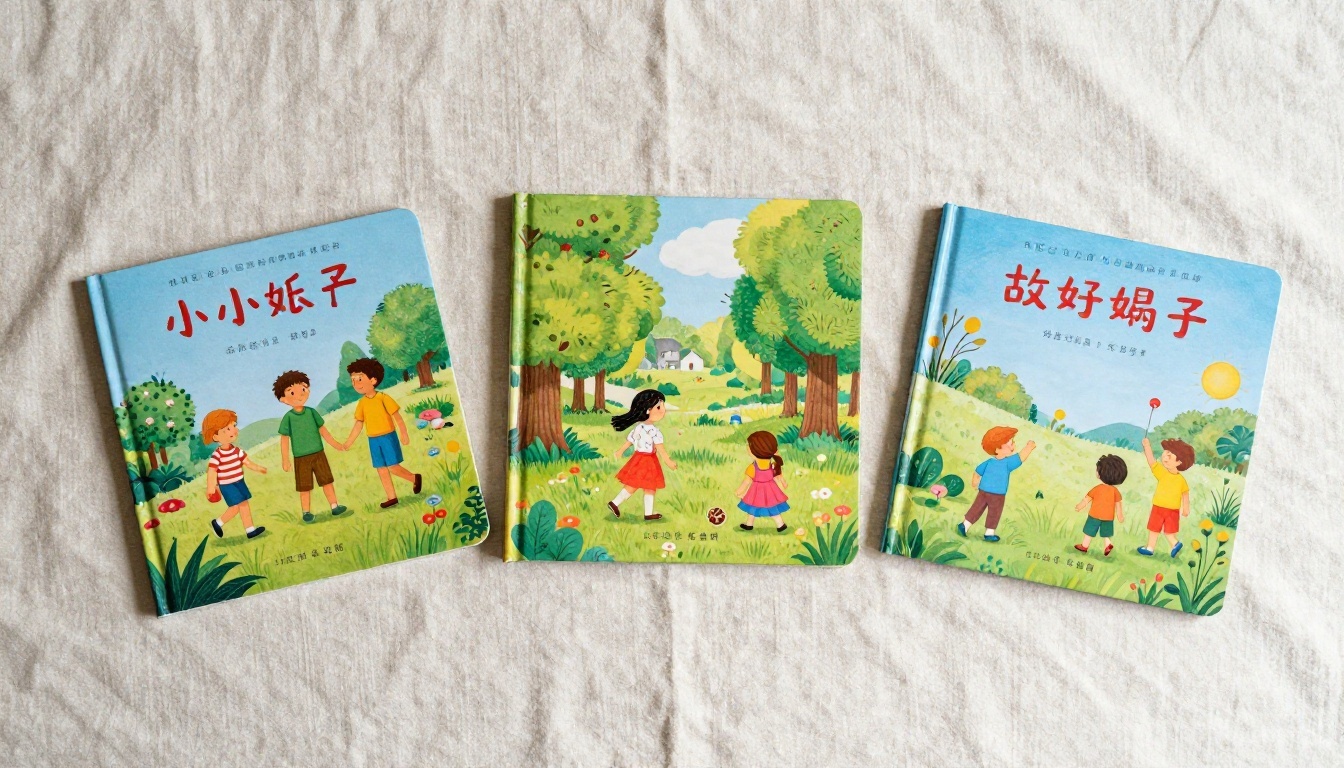
Print-on-demand services and traditional printers share a handful of common trim sizes. The table below lists the ones picture book authors use most often.
| Trim size (inches) | Shape | Best for | Notes |
|---|
| 8 x 8 | Square | Simple stories, toddlers | Low printing cost, easy to hold |
| 8.5 x 8.5 | Square | Picture books with bold art | Very popular on print-on-demand |
| 8 x 10 | Portrait | Character-led stories | Room for tall illustrations |
| 8.5 x 11 | Portrait | Activity books, workbooks | Matches standard letter paper |
| 10 x 8 | Landscape | Panoramic scenes | Wide spreads of 20 x 8 inches |
| 7 x 10 | Portrait | Chapter-style picture books | Slimmer, easy for small hands |
| 6 x 9 | Portrait | Early readers | Closer to a novel in feel |
| 5.5 x 8.5 | Portrait | Board book style, short tales | Compact, travel friendly |
Square Books
Square is the safest first choice. Every page has equal width and height, so you never wonder whether to draw tall or wide. An 8.5 x 8.5 format also makes a clean thumbnail for online shelves, because the preview image does not need cropping.
The downside is that very wide scenes feel cramped. If your story has long horizons, rivers or parades, consider landscape instead.
Portrait and Landscape
Portrait pages feel familiar and shelve neatly. Landscape pages feel cinematic. On a phone, a portrait page fills the screen better when held upright, while a landscape spread fits when the device is turned sideways.
⚠️ Warning: Landscape books can look small on a vertical phone screen. Test your layout at phone size before committing.
Page Count Rules
Printers fold large sheets into groups of pages, so the total must follow a pattern. Standard picture books run 32 pages. Shorter ones use 24, and longer ones use 40 or 48. Many print-on-demand services accept any even number within a range, but a multiple of 8 keeps offset printing efficient and avoids blank pages at the end.
| Page count | Typical use | Story pace |
|---|
| 24 | Short rhyme, board book | Fast, one idea per spread |
| 32 | The standard picture book | 12 to 14 spreads of story |
| 40 | Longer story with extras | Room for an author note |
| 48 | Early reader, small chapters | More text per page |
Bleed, Margins, and Gutters
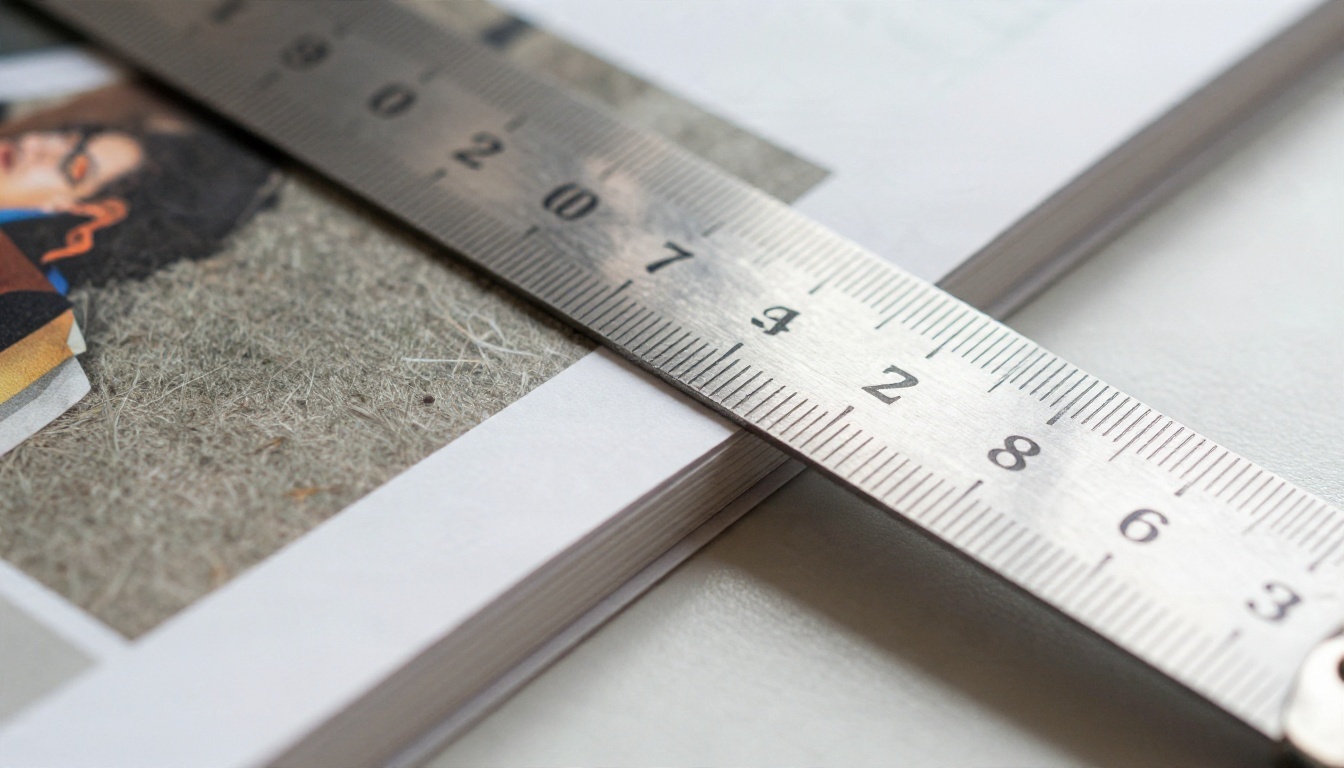
Three invisible zones decide whether your book looks professional. They are bleed, the safe zone, and the gutter.
Bleed Basics
Bleed is extra artwork that extends past the trim line. When the printer cuts the pages, the blade never lands in exactly the same place twice. Without bleed, a hairline of white paper can show on the edge. With it, the art runs right off the page cleanly.
A common requirement is 0.125 inch (3 mm) of bleed on the top, bottom and outside edges. That means an 8.5 x 8.5 page becomes about 8.625 wide by 8.75 tall in your file. Always check your printer's own spec sheet, because the numbers differ slightly between services.
Safe Zones and Gutter
The safe zone is the area where text and important faces must stay, away from the trim edge. A margin of at least 0.375 inch from the outside edge keeps words from being clipped.
The gutter is the inner margin near the spine. In a bound book, pages curve into the fold, so anything placed too close disappears. Allow roughly 0.375 inch on the inside for thinner books and 0.5 inch or more for thicker ones.
| Zone | Typical measurement | What goes there |
|---|
| Bleed | 0.125 in beyond trim | Background color, art that touches edges |
| Trim line | Final page edge | Nothing critical, this is where the cut happens |
| Safe zone | 0.375 in inside trim | All text, faces, key story details |
| Gutter | 0.375 to 0.5 in at spine | Keep text and eyes out of this strip |
✅ Best practice: On a spread, never place a character's face across the fold. Even a perfectly bound book hides a few millimeters in the middle.
Your Free Template PDF Setup
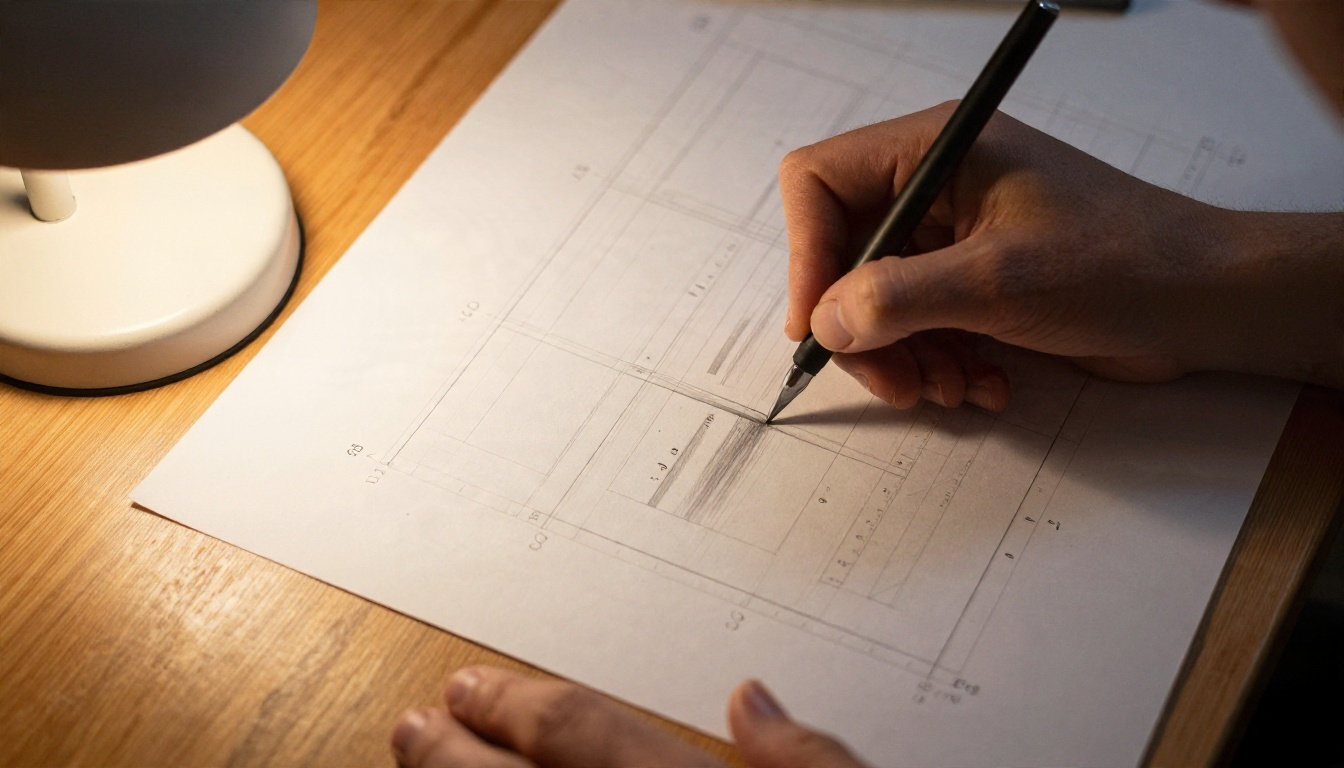
A template is simply a blank page with every guide already in place. You do not need to buy one. You can build your own in any layout or design tool, export it as a PDF, and reuse it for every book you make. Here is the exact setup for an 8.5 x 8.5 inch picture book with 32 pages.
Build the Template Once
- Create a new document with 32 pages, facing pages turned on, and a page size of 8.5 x 8.5 inches.
- Add bleed of 0.125 inch to the top, bottom and outside edges.
- Set margins: 0.375 inch top, bottom and outside, and 0.5 inch inside.
- Place guides at the horizontal center and vertical center, so characters sit on a clear grid.
- Draw a text box at the bottom third of the page for stories that put words under the art. Lock the layer.
- Name the layers: Art, Text, Guides. Hide Guides before export.
- Export a blank PDF with the guides visible. This is your free template PDF, ready to print or share with an illustrator.
💡 Pro tip: Keep a second version with only the trim and bleed marks. Illustrators love receiving this, because it removes every guessing step.
Pixel Dimensions at 300 DPI
If you paint digitally, set your canvas to exact pixels. At 300 dots per inch, the numbers look like this for an 8.5 x 8.5 book:
| Item | Size in inches | Size in pixels |
|---|
| Single page with bleed | 8.625 x 8.75 | 2588 x 2625 |
| Single page, trimmed | 8.5 x 8.5 | 2550 x 2550 |
| Double-page spread with bleed | 17.25 x 8.75 | 5175 x 2625 |
| Safe zone inside a page | 7.75 x 7.75 | 2325 x 2325 |
Paint the spread as one wide canvas when the art crosses the fold. Painting each page separately makes the join visible.
Export a Clean PDF
The same book needs two different PDFs. Mixing them up is the most common export mistake.
Print PDF vs Screen PDF
| Setting | Print PDF | Screen PDF |
|---|
| Page size | Trim plus bleed | Trim only |
| Resolution | 300 DPI | 150 DPI is enough |
| Color mode | CMYK or printer profile | RGB (sRGB) |
| Crop marks | Only if the printer asks | Never |
| Page order | Single pages, reading order | Single pages, reading order |
| Typical file size | 50 to 200 MB | 5 to 30 MB |
For the online edition, export single pages in reading order, with the front page first and the back page last. Spreads stitched together as one wide page do not flip naturally on a screen.
Fonts, Color, and File Size
- Embed all fonts. A missing font turns your title into a default typeface on someone else's device.
- Use at least 14 pt for body text in picture books. Small readers, and parents reading aloud in dim bedrooms, will thank you.
- Convert to RGB for the screen version. CMYK files can look dull and muddy on a phone.
- Compress images to a reasonable size so the book opens quickly on a mobile connection.
- Check the last page. Many authors forget to remove blank spacer pages from the digital export.
⚠️ Warning: Order a physical proof before printing a full run. Colors on a monitor and on paper never match perfectly, and the proof is where you catch a clipped sentence.
How to Create a Children's Flipbook with Flipbooks AI
A PDF is flat. It scrolls, it zooms awkwardly, and on a phone it feels like a document. A flipbook turns the same file into a book that turns pages with a swipe, with a page-curl effect, and opens from a simple link. That experience matters for children's books, because the page turn is part of the story.
Upload and Convert
- Go to Flipbooks AI and create an account.
- Choose your screen PDF, the 8.5 x 8.5 export with single pages in reading order.
- Upload it with the PDF to Flipbook Converter. Conversion takes moments, and every PDF page becomes a flipbook page.
- Check the preview. Flip through the first and last pages to confirm the order and that no text is clipped.
For picture books specifically, the Interactive E-Book Publisher and the E-Book Flipbook Generator are the two closest matches.
Customize the Reading Experience
Once the pages are in, you can adjust how the book looks and feels:
- Branding: add your logo, author name, or publisher mark.
- Colors: set a background that matches your illustration palette, such as soft cream or sage green.
- Page effects: pick the page-turn style and sound if you want a tactile feel.
- Multimedia: embed audio narration or a short video so children can hear the story read aloud.
- Mobile-responsive design: the book resizes automatically for phones, tablets and desktops.
Free of watermarks, the finished book looks like your own product, not a template demo.
Share, Embed, and Protect
| Sharing option | Best for | Example |
|---|
| Direct link | Social posts, messages, email | A parent group chat |
| Embed code | Author websites, blogs, shops | A story page on your site, see Embed Flipbook on Website |
| Password protection | Pre-release copies, paid editions | A reviewer's advance copy |
| Offline download | Classrooms with weak Wi-Fi | A PDF copy for the teacher |
Password protection is especially useful when you sell a digital edition or send an unreleased book to reviewers.
Analytics and Lead Capture
The Professional plan adds analytics and lead generation. You can see how many people opened the book, which pages they reached, and collect email addresses before a reader gets past the first spread. For an author building a mailing list ahead of a launch, that is a quiet and effective tool. Compare options on the pricing page.
Real-World Examples
Different readers need different formats. These three scenarios show how the same template adapts.
| Scenario | Format choice | Sharing method |
|---|
| Self-published author selling on print-on-demand | 8.5 x 8.5, 32 pages, print PDF plus screen PDF | Direct link for sample pages, embed on author site |
| Primary school teacher making a class story | 8 x 10 portrait, 24 pages | Link shared with parents, offline download for the class |
| Illustrator pitching to a publisher | 10 x 8 landscape, full sample spreads | Password-protected link sent to one editor |
A teacher can combine a story with student drawings and publish it through the Course Material Publisher. An illustrator can show finished art in the Digital Portfolio Creator, keeping the picture book as one of several flipbook samples.
💡 Pro tip: Put the first four pages of your book on your website as a free sample, and keep the full edition behind a password or a store link. Readers who like the first spreads often go on to buy.
Five Mistakes That Cost Money
- Skipping bleed. The printer trims, and a white sliver appears on the edge. Always extend backgrounds.
- Text in the gutter. The last word of every line near the spine disappears into the fold.
- Wrong page count. A 30-page file gets padded with blank sheets, or rejected.
- Sharing the print PDF online. A 150 MB file will not open on a phone. Export a separate screen version.
- Painting the art too small. A 1200 pixel illustration stretched to 8.5 inches turns soft and grainy. Work at 300 DPI from the start.
A Quick Pre-Publish Checklist
- Trim size chosen and recorded in the template.
- Bleed added on the three outer edges.
- All text inside the safe zone, away from the gutter.
- Fonts embedded and body text at 14 pt or larger.
- Print PDF and screen PDF saved with clear file names.
- Printed proof checked, then flipbook preview checked on a phone.
- Share link, embed code and password settings decided before launch.
Publish Your Book Today
You now have the full path: choose a trim size, set bleed and margins, build a reusable template PDF, export one version for print and one for screens, and share the screen version as a page-turning book.
Ready to publish? Create your account on Flipbooks AI and upload your first story. Browse all flipbook tools to find the right fit for a picture book, a classroom reader, or a portfolio of your illustrations. When you are ready for analytics, lead capture and unlimited flipbooks, compare the pricing plans and pick the one that suits your launch.



