You drag a PDF into Claude, the progress bar crawls, and then it stops. Or you get a vague red error. Or nothing happens at all. It is one of the most irritating small failures in an otherwise smooth workflow, especially when the document is the whole reason you opened the chat. The good news: almost every Claude PDF upload failed problem comes down to a short list of causes, and each one has a fix you can try in under five minutes. This article sorts them by how often they happen, shows you what to do, and ends with a way to share huge PDFs that no chat tool will accept. If you publish or distribute documents regularly, Flipbooks AI solves the sharing half of the problem.

Why Claude Rejects Your PDF
Before changing anything, it helps to know what kind of failure you are looking at. Uploads fail in three broad ways: the file is refused immediately, the upload starts and hangs, or the upload succeeds but Claude cannot read the content. Each points to a different cause.
The Usual Suspects
Here is how the most common symptoms map to causes.
| Symptom | Most likely cause | Quick fix |
|---|
| Instant error when dropping the file | File too large or too many pages | Compress or split the PDF |
| Progress bar freezes | Unstable connection or browser extension | Retry on a clean connection, disable extensions |
| "Unable to process" message | Corrupted or encrypted PDF | Re-save or print to a new PDF |
| Upload works, answers are empty | Scanned images with no text layer | Run OCR before uploading |
| Paperclip button does nothing | Browser cache or outdated app | Hard refresh or update the app |
| Works on desktop, fails on phone | Mobile storage permissions or weak signal | Switch to Wi-Fi, grant file access |
💡 Pro tip: Test with a tiny, plain one-page PDF first. If that uploads fine, your account and browser are healthy, and the problem is the specific file.
Check the Limits First
Limits change over time, so always confirm the current numbers in Anthropic's help documentation. At the time of writing, the pattern looks like this:
| Limit type | Typical value | What happens when you exceed it |
|---|
| Maximum file size | Around 30 MB per file in the chat app | Upload is refused |
| Page count for full visual reading | Around 100 pages | Extra pages may be read as text only or skipped |
| Files per conversation | Around 20 files | Additional files are blocked |
| API request size | Around 32 MB total | Request returns an error |
⚠️ A PDF can be under the size limit and still fail if it is made of high resolution scans. Page count and image density matter as much as megabytes.
Quick Fixes That Work First
Start with the boring stuff. It solves more cases than anything clever.

Refresh, Retry, Sign In Again
A stalled upload often leaves the session in a half-finished state. Do this in order:
- Wait 30 seconds. Large files can look frozen while still processing.
- Reload the page with a hard refresh (Ctrl+Shift+R on Windows, Cmd+Shift+R on Mac).
- Start a new conversation and attach the file there.
- Sign out, sign back in, and try again.
Starting a fresh chat matters. A conversation that has already absorbed many files or a long history can hit its own capacity ceiling, and the upload then fails even though the PDF is fine.
Switch Browser or Go Incognito
Ad blockers, privacy extensions and corporate security plugins regularly interfere with file uploads. A private window disables most of them in one move.
- Open an incognito or private window and sign in.
- If the upload works there, disable extensions one by one in your normal window.
- If it still fails, try a different browser entirely.
Check Your Connection
Uploads are more sensitive to unstable connections than normal browsing. A VPN, a hotel network or a weak mobile signal can drop the transfer halfway.
- Turn off your VPN and test again.
- Move from mobile data to stable Wi-Fi, or the other way around.
- Pause other heavy uploads, such as cloud backups, while you try.

Fixing Large File Errors
Large files are the number one reason people search for this error. There are three realistic options, and the right one depends on what you need Claude to do with the document.
Compress the PDF
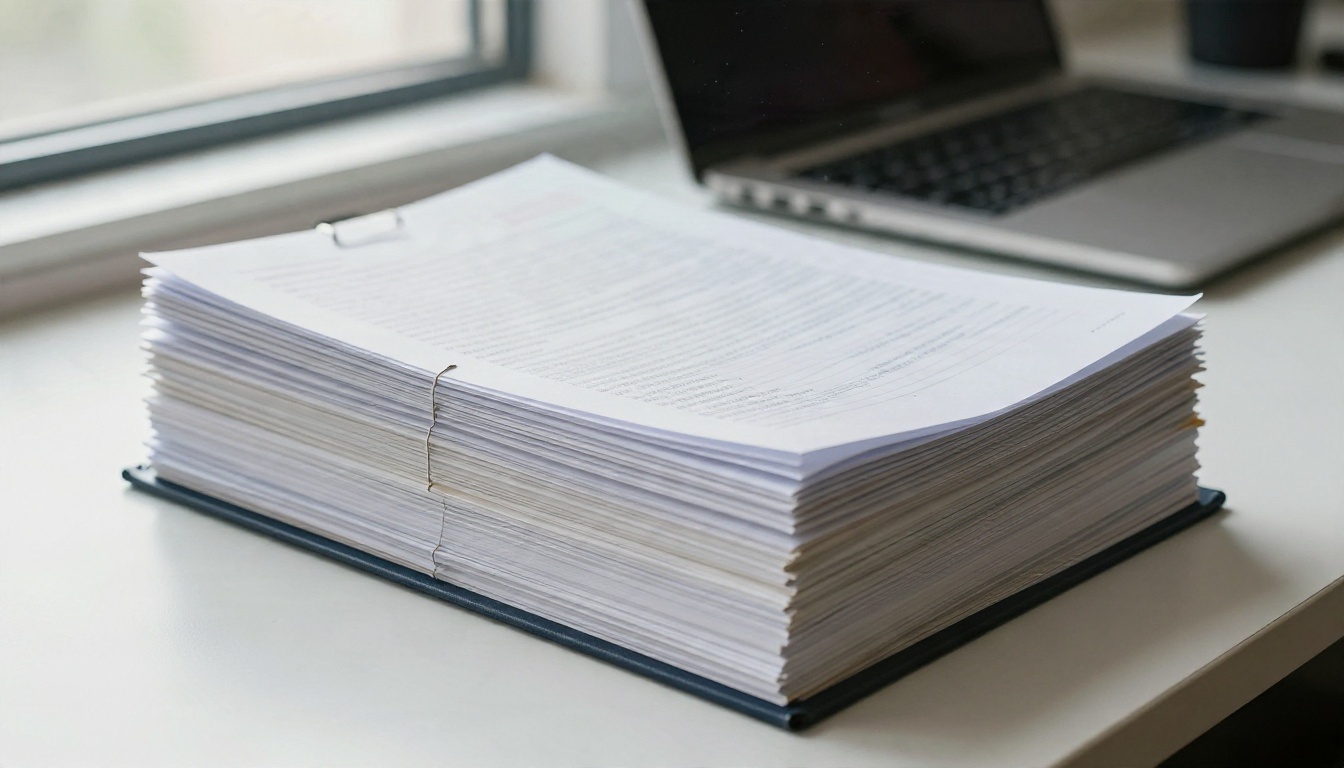
Most oversized PDFs are heavy because of embedded images, not text. Compression can shrink a 60 MB file to under 10 MB with little visible loss.
- Preview on Mac: File, Export, then choose a Quartz filter to reduce file size.
- Adobe Acrobat: File, Save as Other, Reduced Size PDF.
- Free web compressors: Fine for non-sensitive files. Avoid them for contracts or personal data.
- Ghostscript: Best for batch jobs on a command line.
✅ Best practice: Compress to roughly 150 dpi images. Claude reads text and layout well at that resolution, and the file gets much lighter.
Split Into Smaller Parts
If the document runs past the page limit, split it by chapter or section and upload the parts in separate messages. Name each file clearly, such as report_part1_pages1-50.pdf, so you can refer to them in your prompts.
| Method | Best for | Downside |
|---|
| Split by page range | Long reports and manuals | You must track which part holds what |
| Split by chapter | Books and structured documents | Uneven part sizes |
| Split by file size | Image heavy scans | Cuts may land mid section |
Extract Only the Pages You Need
Often you only need ten pages out of three hundred. Extract them into a new PDF and upload that instead. It uploads faster, and Claude answers more precisely because it has less noise to sift through.
When the PDF Itself Is the Problem
Sometimes the connection and the size are both fine, and the file is the culprit.
Password Protection and Encryption
Claude cannot open PDFs that need a password to view. Some files also carry restrictions that block copying or printing, and these can cause failures even without a password prompt. Open the file in a PDF reader, remove the restrictions (you need the owner password for this), and save a clean copy.
Scanned PDFs Without Text
A scanned PDF is just a stack of photos. Claude may accept it but give thin answers, because there is no selectable text. Test it: open the PDF and try to highlight a sentence. If you cannot, run OCR (optical character recognition) with Acrobat, a scanner app or a free OCR tool, then upload the searchable version.
Corrupted Files and Odd Formatting
PDFs exported from unusual design tools, or downloaded through an interrupted connection, can be structurally broken. A reliable repair trick:
- Open the PDF in your browser or a PDF viewer.
- Choose Print, then select Save as PDF (or Microsoft Print to PDF).
- Upload the freshly printed copy.
This rebuilds the file from scratch and clears most hidden errors.
💡 Check the file name too. Very long names, emoji and unusual symbols occasionally trip upload handlers. Rename it to something plain like contract_2026.pdf.

The same PDF can behave differently depending on where you upload it.
| Platform | Common issue | What to try |
|---|
| Web app | Extensions, cache | Incognito window, hard refresh |
| Desktop app | Outdated version | Update the app, restart it |
| iOS and Android | Storage permission, weak signal | Grant file access, use Wi-Fi |
| API | Request over size limit, bad encoding | Reduce file size, check base64 encoding |
| Projects feature | Knowledge capacity reached | Remove old files, then add new ones |
Mobile Uploads
On phones, files stored in cloud drives are sometimes only placeholders that have not been downloaded. Open the file in your Files app first so it is stored locally, then attach it.
API and Developer Errors
If you are sending PDFs through the API, check that the document is correctly base64 encoded, that the total request stays under the size limit, and that the media type is declared as application/pdf. A single malformed field returns the same generic failure as a huge file.
A Smarter Way to Share Big PDFs
Here is the part most troubleshooting articles skip. Sometimes the real goal is not getting a PDF into a chat. It is getting a large document in front of people: clients, students, customers, a team. Emailing a 90 MB PDF fails for the same reasons, and a download link feels clunky on a phone.

Converting the PDF into an online flipbook sidesteps size problems altogether. Readers open a link, turn pages like a magazine and never download a thing. The PDF to Flipbook Converter handles heavy files without the size anxiety.
| Sharing method | Handles 100 MB+ files | Works on mobile | Tracks readers | Looks professional |
|---|
| Email attachment | No | Partly | No | Low |
| Chat upload | No | Partly | No | Low |
| Cloud drive link | Yes | Yes | Limited | Medium |
| Flipbook link | Yes | Yes | Yes | High |
How to Create a Flipbook from a Big PDF
- Create your account. Go to Flipbooks AI and sign up. You can compare pricing plans later when you need more.
- Upload the PDF. Drag your file into the converter. Pages are processed automatically into a page turning flipbook, and the layout stays intact.
- Customize the look. Add your logo, pick brand colors, choose a background and adjust page turn effects. You can also embed videos and audio directly into pages.
- Set access. Turn on password protection if the content is private, such as contracts, internal reports or paid material.
- Share it. Copy the direct link or use the embed code to place the flipbook on your site. The Embed Flipbook on Website tool explains the options.
- Use the pro features. On the Professional plan you get analytics, lead generation forms and offline downloads, so you see who read what.
✅ Flipbooks AI adds no watermarks, ever, and every flipbook is mobile responsive, so your readers get the same clean experience on a phone as on a desktop.

Real World Examples
You can also browse every available flipbook tool to find the closest match for your document type.
Combining Both: A Smart Workflow
You do not have to pick one or the other. Many teams use Claude to analyze, summarize or rewrite a document, and a flipbook to present the final version.

- Compress or split the original PDF so it fits within Claude's limits.
- Ask Claude for a summary, a list of errors, or a rewritten executive section.
- Apply the edits in your source file and export a final PDF.
- Convert the final PDF into a flipbook and share the link.
The chat tool handles the thinking. The flipbook handles the delivery. Neither has to carry the whole file in a way it was never designed for.
Troubleshooting Checklist
Run through this list top to bottom when a PDF will not upload:
If every box is ticked and the upload still fails, check the Anthropic status page. Outages happen, and no amount of file tweaking will fix a service problem. Wait and retry later.
Which Fix Should You Try First
| Your situation | Best first move |
|---|
| File over 30 MB | Compress, then split if needed |
| Document over 100 pages | Extract the relevant pages |
| Instant error on any file | New chat, then incognito window |
| Scanned document | Run OCR |
| Sharing with other people | Convert to a flipbook |

Stop Fighting Upload Limits
A failed upload feels like a wall, but it is usually a small, fixable detail: a file that is a few megabytes too heavy, a locked PDF, a browser extension, a flaky connection. Work through the checklist, and in most cases you will be back in the conversation within minutes.
And when the real job is sharing a heavy document with an audience, skip the attachment struggle completely. Ready to publish your first flipbook? Get started for free on Flipbooks AI, check the pricing plans to choose what suits your volume, or browse the full list of tools and templates to find the right fit for your documents.



