You have a story in your head, a few characters scribbled in a notebook, and zero interest in paying for software before you know whether you will stick with it. Good news: the right comic book creator can cost nothing, run in a browser tab, and still give you clean panels, speech bubbles and a printable file. The hard part is picking one without losing a weekend to tutorials. This article sorts free online options, app picks and desktop software by what beginners actually need, then shows how to turn your finished pages into a shareable flipbook with Flipbooks AI.
What a Comic Book Creator Really Does
A comic book creator is any tool that helps you place art and text into panels, then export pages you can read, print or publish. That definition is wide on purpose. A template-driven website and a full painting program both qualify, but they solve different problems.
The Three Types of Tools
Most options fall into one of three groups:
- Template makers: Drag characters, backdrops and speech bubbles into ready-made layouts. Fast, forgiving, limited in style.
- Drawing apps: You draw everything yourself on a tablet, phone or computer. Total control, steeper start.
- Hybrid software: Panel tools, rulers, lettering and page management built around drawing. Best for longer projects.
Match the Tool to Your Goal
Before comparing features, decide what you are making. A four-panel strip for a classroom has different needs than a 24-page indie issue.
| Your goal | Best tool type | Time to first page |
|---|
| Classroom or social strip | Template maker | 20 to 40 minutes |
| Hand-drawn webcomic | Drawing app | 2 to 4 hours |
| Printed mini comic or zine | Hybrid software | 3 to 6 hours |
| Photo-based comic | Template maker or photo app | 30 to 60 minutes |
💡 Pro tip: Write down your page count and your final format (print, web, or both) before you open any app. That one decision eliminates half the list.
Free Online Comic Makers
Browser tools are the lowest-friction way in. No install, no large files, and your work saves to an account. They suit people who care more about the story than the brushwork.
Browser Tools Worth a Try
- Canva: Comic and storyboard templates, a huge element library and easy PDF export. The free plan covers most beginner needs.
- Pixton: Character-driven comics with poseable figures and expressions. Popular in schools, with a free tier that has limits.
- Storyboard That: Scene-based strips with drag-and-drop characters. Handy for planning as well as finishing.
- Make Beliefs Comix: A very simple strip builder with no sign-up pressure. Ideal for kids and quick ideas.
Free plans change often, so check the current limits on each site before you build a long project around one.
Quick Comparison of Free Online Options
| Tool | Best for | Drawing required? | Export options |
|---|
| Canva | Social strips, school projects | No | PNG, JPG, PDF |
| Pixton | Dialogue-heavy comics | No | Image, PDF (plan dependent) |
| Storyboard That | Planning and short strips | No | Image, PDF (plan dependent) |
| Make Beliefs Comix | Kids, simple gags | No | Image, print |
Where Free Tiers Get Limiting
Three walls show up fast. First, watermarks or locked exports, which matter if you plan to publish. Second, capped page or project counts, a problem once your story grows. Third, style lock-in: everyone's characters start to look alike when they come from the same library.
⚠️ Warning: Read the licensing terms for built-in characters and backgrounds. Some libraries restrict commercial use, which matters if you want to sell your comic.
App Picks for Phone and Tablet
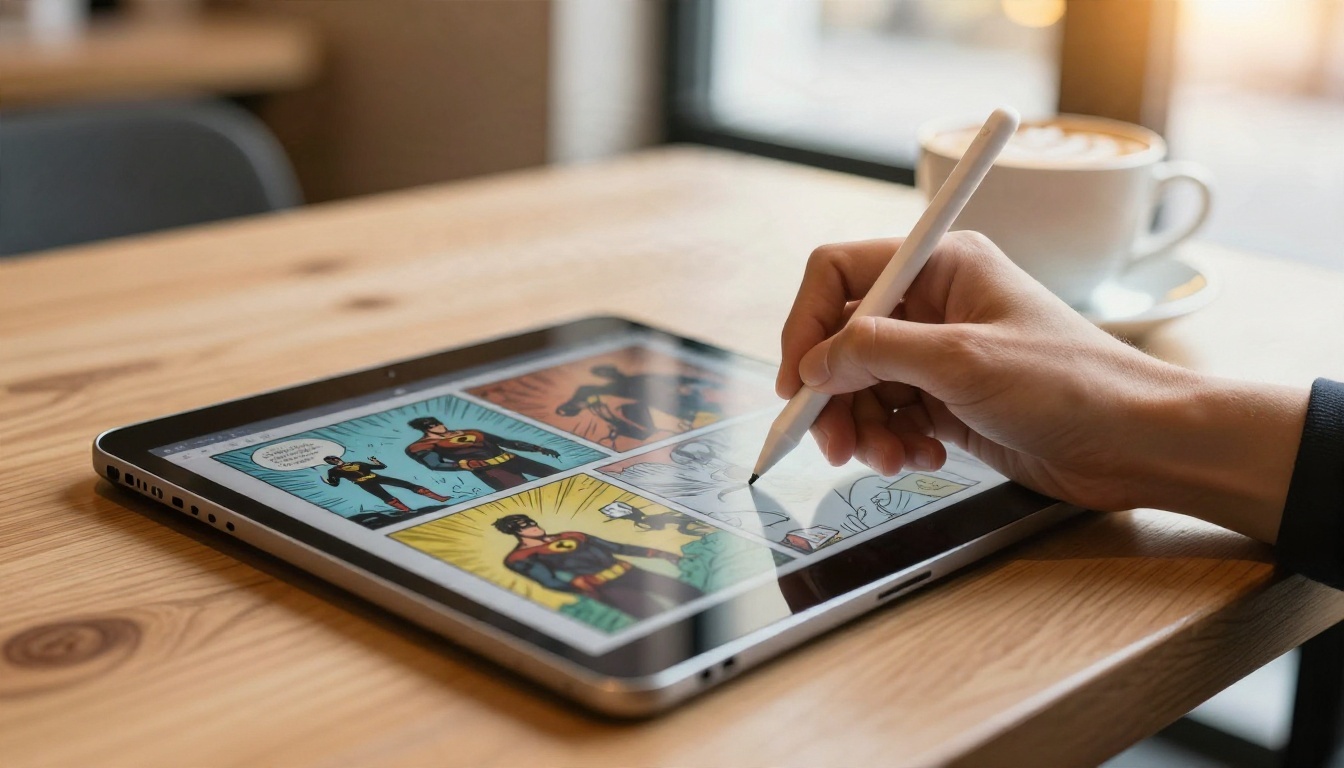
If you like to draw, a tablet turns into a surprisingly capable studio. Phones work too, especially for strips that read vertically.
Tablet Drawing Apps
- Procreate (iPad): A one-time purchase with beautiful brushes. Panel tools are manual, but many webcomic artists swear by it.
- MediBang Paint: Free on desktop and mobile, with panel cutting, screentones and cloud saving. A very friendly entry point.
- Ibis Paint X: Free with ads, packed with brushes, and light enough for a phone.
- Clip Studio Paint: Built around comics, with panel rulers, 3D poses and page management. Paid, but usually offers a trial period.
Phone-Friendly Strip Makers
For photo comics or quick gags, apps such as Comic Life turn pictures into panels with balloons and captions. They are great for family stories, travel diaries and social posts. For vertical scrolling stories, creator platforms like Webtoon Canvas let you publish directly to readers, though you give up some control over presentation.
App Comparison at a Glance
| App | Device | Cost model | Comic tools | Skill level |
|---|
| MediBang Paint | Phone, tablet, desktop | Free | Panels, tones, cloud | Beginner |
| Ibis Paint X | Phone, tablet | Free with ads | Brushes, layers | Beginner |
| Procreate | iPad | One-time purchase | Manual panels | Beginner to intermediate |
| Clip Studio Paint | All major devices | Paid, trial available | Full comic toolset | Beginner to pro |
| Comic Life | Mac, iOS | Paid | Photo panels, balloons | Beginner |
✅ Best practice: Test any app for one full page before paying. A single page exposes problems with export size, layer limits and panel handling that a quick doodle never will.
Desktop Software for Beginners
When your project passes ten pages, desktop software starts to earn its keep. Bigger screens, faster file handling and proper page management save hours.
Free Desktop Programs
- Krita: Open source and genuinely powerful. It includes comic project tools, a huge brush set and clean PDF export. The learning curve is gentler than people expect.
- MediBang Paint (desktop): Same friendly panel workflow as the app, with files that sync across devices.
- GIMP and Inkscape: Good for edits and vector lettering, though neither is built for comic pages first.
Paper First, Scan Second
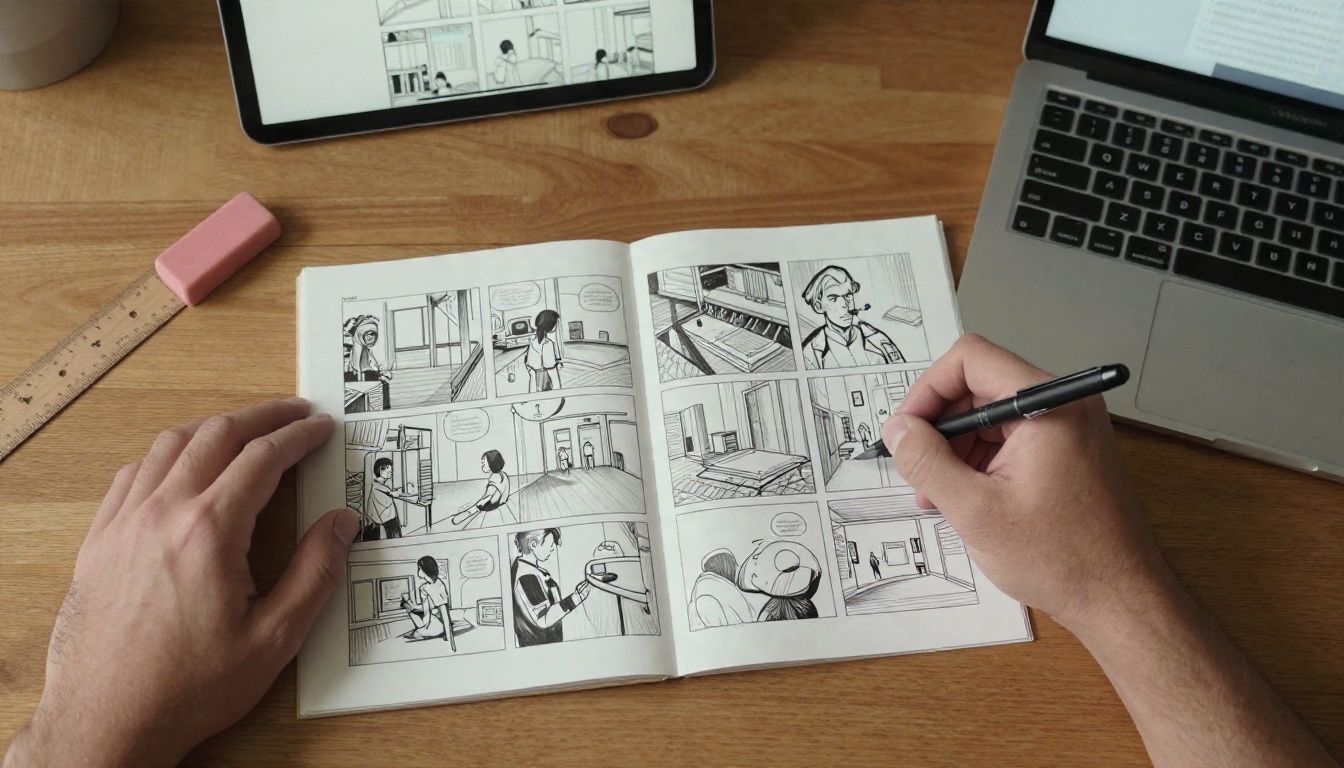
Plenty of successful creators never touch a tablet. Draw in pencil, ink with brush pens, scan at 300 DPI, then clean up and letter digitally. It costs very little and gives your pages a handmade look.

| Workflow | Startup cost | Look and feel | Best for |
|---|
| Paper and scanner | Low | Textured, handmade | Zines, mini comics |
| Tablet and stylus | Medium | Clean, flexible | Webcomics, long projects |
| Template site only | None | Consistent, simple | Strips, school work |
Build Your First Comic Page
Software matters less than structure. Follow this simple sequence for your first page, whatever tool you chose.
Script and Thumbnails
- Write the scene in three to six beats, one beat per panel.
- Sketch tiny thumbnails (about the size of a stamp) to test the layout.
- Decide where the eye should land first, and give that panel the most space.
Panels, Lettering and Pacing
- Draw panel borders with generous gutters, the white space between panels.
- Place speech bubbles before finishing the art so text never hides a face.
- Keep dialogue short. If a bubble needs more than 25 words, split it.
- Vary panel sizes: a wide panel slows time, a narrow one speeds it up.
Inking and Color Basics
Ink with a consistent line weight, thicker on outlines and thinner for details. For color, start with a limited palette of four or five tones per page. Flat colors with one shadow tone look professional and finish quickly.
💡 Pro tip: Build a character sheet with front, side and three-quarter views before page one. Consistent faces are the fastest way to make a beginner comic look polished.
Publish Your Comic as a Flipbook
A folder of PNG files is not much of a reading experience. A flipbook gives readers realistic page turns, works on phones and lets you share a single link. If you made a graphic novel, mini comic or art zine, this is the neatest way to present it. Here is how to do it with Flipbooks AI.
Export Your Pages as PDF
Most tools above export PDF directly. If yours does not, combine your images into one PDF in page order. Use RGB color for screen reading and keep pages at the same size, 2000 pixels wide is plenty.
Upload and Convert
- Create your free account at Flipbooks AI.
- Choose the PDF to Flipbook Converter and upload your file.
- Wait a few moments while pages convert into a turnable book.
- Preview the result and check that speech bubbles stay readable on a phone screen.
Creators with a longer series can also use the E-Book Flipbook Generator, and artists building a showcase can use the Digital Portfolio Creator.
Customize the Reading Experience
- Branding: Add your logo, choose a background color that suits your cover art and set a custom title.
- Page effects: Adjust the page-turn style and sound for a more tactile feel.
- Multimedia: Embed audio, music or short video clips between chapters to add atmosphere.
- Mobile layout: The responsive design adapts pages for small screens automatically.
Share, Embed and Protect
| Sharing option | What it does | Good for |
|---|
| Direct link | One URL to your comic | Social posts, messages |
| Embed code | Places the book on your site | Webcomic homepages, blogs |
| Password protection | Limits access to invited readers | Patron rewards, drafts, client work |
| Offline download | Lets readers save a copy | Conventions, travel reading |
For website placement, the Embed Flipbook on Website tool walks you through the embed code. Your flipbooks never carry watermarks, so the art stays front and center.
💡 Pro tip: Publish chapter one publicly and put later chapters behind a password. It rewards loyal readers and gives you a simple supporter perk.
Pro Features Worth Knowing
On the Professional plan, analytics show which pages readers reach and where they stop, which tells you if your pacing works. Lead generation can collect reader emails before a chapter opens, building a mailing list for your next release. Compare options on the pricing page, or browse all flipbook tools to find a format that fits your project.

Real-World Use Cases
Different creators lean on this workflow in different ways:
- A teacher builds a Canva comic about fractions, exports it as PDF and shares one link with parents, no printing needed.
- A webcomic artist draws in Krita, embeds each chapter on a personal site and tracks where readers drop off.
- A small business owner makes a mascot comic to explain a product and publishes it like a magazine-style flipbook.
- A zine group scans paper pages, assembles a PDF and distributes a password-protected preview before print day.
Common Beginner Mistakes
Even with great tools, new creators repeat the same slips. Watch for these:
- Starting too big. A 100-page epic stalls fast. Finish an 8-page story first.
- Cramming panels. Six to seven panels per page is usually the limit. Fewer panels read better.
- Tiny lettering. Text that looks fine on a monitor disappears on a phone. Test at small size.
- Switching tools constantly. Pick one workflow for a full project. Switching mid-story breaks your style.
- Ignoring file size. Huge images make flipbooks slow to open. Export screen versions at sensible resolution.
| Mistake | Quick fix |
|---|
| Too many panels | Cut to five per page |
| Text too small | Raise font size by 20 percent |
| Inconsistent faces | Use a character sheet |
| Heavy files | Export at 2000 px wide |
Here is the short version. For a fast strip with no drawing, try Canva or Pixton. For hand-drawn pages on a budget, start with MediBang Paint or Krita. If you already own an iPad, Procreate is a joy. And once the pages are done, give them a proper home.
Ready to publish? Create your free account on Flipbooks AI, upload your PDF and share your first comic in minutes. You can also browse the full set of flipbook tools or compare pricing plans when you want analytics, lead capture and unlimited flipbooks.



