Someone emailed you a .pub file, you double click it, and nothing opens. No Microsoft Publisher, no preview, just a blank icon and a deadline. The good news: you do not need the software to get the content out. You can turn the file into a PDF online for free in a couple of minutes, and then publish that PDF as a page turning flipbook with Flipbooks AI so anyone can read it from a single link.
This article walks through the whole path: what a PUB file is, three free conversion methods, how to check the PDF before it goes public, and how to turn it into a flipbook that works on phones, tablets, and desktops.

Why PUB Files Cause Trouble
PUB is the native format of Microsoft Publisher. It was built for designing newsletters, flyers, brochures, and event programs, and it stores layout, fonts, images, and print settings in one proprietary container. Microsoft has also announced the end of support for Publisher in October 2026, so more people now hold old PUB files with no way to open them.
What a PUB File Really Is
Think of it as a blueprint, not a finished page. A PUB file describes where each text box, picture, and shape sits. If the app that reads it does not have the same fonts or image links, the layout can shift. That is why a PUB file is a poor format for sharing and a PDF is a good one.
Who Gets Stuck Most
- Small business owners with old brochures made by a former employee
- Schools and clubs with newsletter archives saved as PUB
- Freelancers who receive client files made on a different computer
- Mac and Chromebook users, since Publisher never ran natively there
- Print shops that get customer files in formats they cannot always open
💡 Pro tip: Before converting anything, ask whether the sender can export a PDF themselves. It takes them ten seconds and gives the best fidelity. If that is not possible, keep reading.
Convert PUB to PDF Without Publisher
There are three realistic routes. None of them requires a paid license, and the first one works entirely in your browser.

Method 1: Free Online Converter
General purpose file converters accept PUB files and return a PDF. The process is almost always the same:
- Open a reputable online file converter in your browser.
- Choose PUB as the input format and PDF as the output.
- Upload the file from your computer.
- Start the conversion and wait for the result.
- Download the PDF and open it to check the layout.
Most of these services run the file through an open source import engine, so results depend on how complex the original design was. Simple text and photo layouts usually survive well. Heavy effects, unusual fonts, and layered shapes are where errors appear.
⚠️ Privacy warning: Do not upload files with private data, such as contracts, invoices, or customer lists, to a random converter. Check how long the service keeps uploads, and prefer Method 2 for sensitive documents.
Method 2: LibreOffice Draw
LibreOffice is a free desktop suite, and its Draw app can import PUB files. Open the file in Draw, then use File, Export as PDF. Nothing leaves your computer, which makes this the safer route for private material. The import is still a best effort, so check each page afterward.
Method 3: Ask for a PDF Export
If you can reach anyone with Publisher installed, a friend, a coworker, or a library computer, they can open the file and choose File, Export, Create PDF/XPS. This is the only method that renders the design exactly as the author intended, because the original software does the job.
Which Method Fits You
| Method | Cost | Needs Install | Layout Accuracy | Privacy | Best For |
|---|
| Online converter | Free | No | Good for simple files | Depends on service | Quick one off jobs |
| LibreOffice Draw | Free | Yes | Good, sometimes shifts fonts | High, stays local | Private documents |
| Export by Publisher user | Free if you know someone | No | Exact | High | Complex designs |
Check the PDF Before You Share It
A converted file that looks fine at thumbnail size can hide small problems. Spend five minutes here and you will avoid the embarrassing kind of email that begins with "Sorry, wrong version."

A Five Minute Quality Checklist
- Page count: does it match the original?
- Fonts: are headings the right weight and size, with no odd replacement letters?
- Images: are photos sharp, in the right place, and not stretched?
- Margins: is any text cut off at the page edge?
- Links: do web addresses and email links still click?
- File size: is it small enough to email, ideally under 25 MB?
Fixing Common Conversion Problems
| Problem | Likely Cause | Fix |
|---|
| Text jumps to a new line | Missing font replaced by a wider one | Install a similar font, then convert again |
| Blurry pictures | Low resolution preview used in the file | Ask the sender for original images |
| Missing shapes or shadows | Effects not supported by the importer | Try a second method or simplify the design |
| Extra blank pages | Page size mismatch | Set the page size manually in Draw |
| Oversized PDF | High resolution images embedded | Compress the PDF before uploading |
✅ Best practice: Keep both versions. Store the original PUB and the converted PDF together, and name the PDF with a date so nobody mixes up versions later.
Why a Flipbook Beats a Plain PDF
Now you have a PDF. You could attach it to an email and hope for the best. Or you could turn it into a flipbook, which behaves like a real publication: pages turn, the layout fits any screen, and the reader opens it from a link without downloading anything.
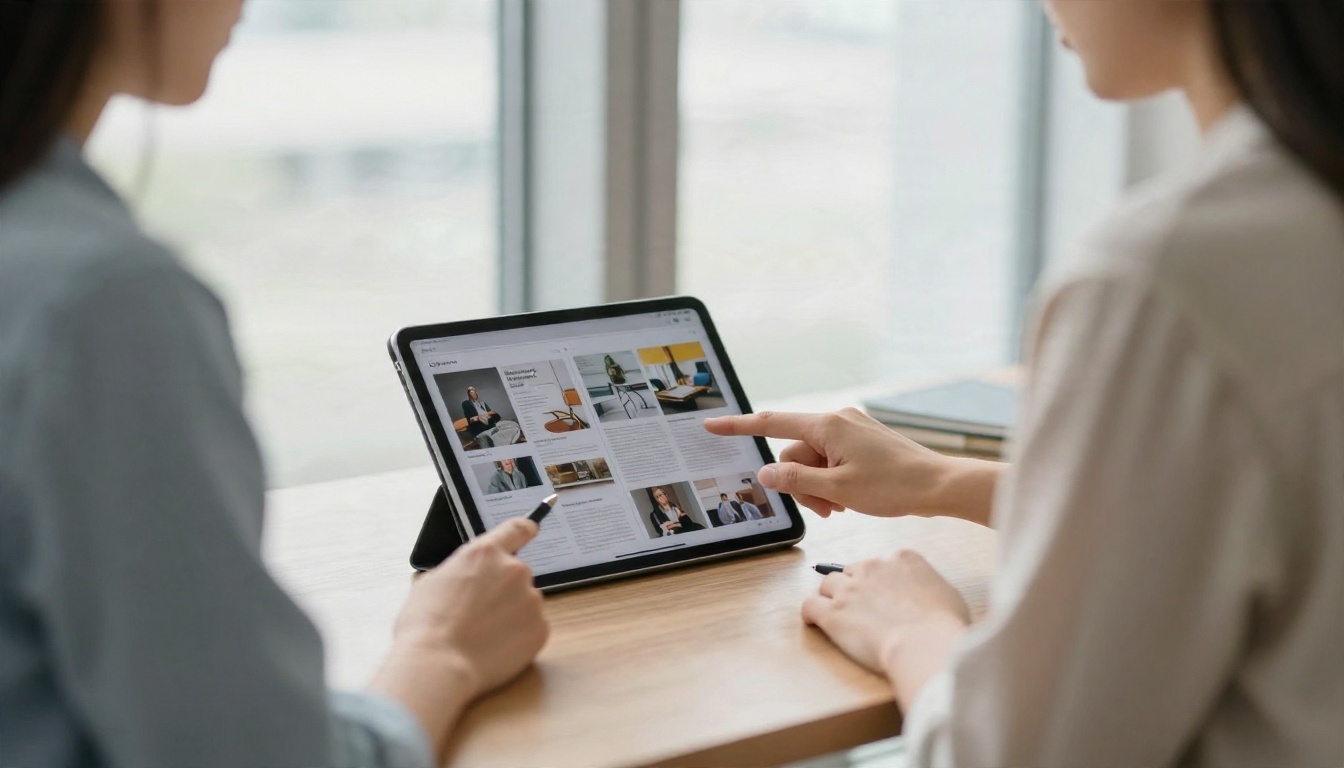
A PDF is a fixed document. It often forces pinching and zooming on a phone, and attachments get stuck in spam filters or exceed size limits. A flipbook solves those problems while keeping the original design.
| Feature | Plain PDF Attachment | Flipbook |
|---|
| Opens in browser | Sometimes | Always |
| Page turning effect | No | Yes |
| Mobile friendly | Needs zooming | Responsive layout |
| Share with one link | No, a file must travel | Yes |
| Embed on a website | Awkward | Simple embed code |
| Password protection | Limited | Built in |
| Reader statistics | None | Available on Professional |
| Add video or audio | No | Yes |

How to Create a Flipbook with Flipbooks AI
Here is the tutorial for the second half of the job. You will use the PDF from the previous steps and the PDF to Flipbook Converter.
Step 1: Open Your Account
Go to Flipbooks AI and create an account. Signing up takes a minute, and you can start with your own PDF right away.
Step 2: Upload and Convert
- From your dashboard, start a new flipbook.
- Drag your converted PDF into the upload area, or pick it from your computer.
- Wait while the pages are processed. A typical newsletter takes only a short while.
- Open the preview and flip through every page. Compare it with your quality checklist.
💡 Pro tip: If you spot a layout error in the preview, fix it in the PDF and upload again. It is faster than trying to patch a broken page afterward.
Step 3: Customize the Look
Make the flipbook feel like your brand, not a generic viewer:
- Branding: add your logo and use your own colors for the background and toolbar
- Page effects: choose how pages turn and how fast
- Multimedia: embed videos and audio to bring a brochure to life
- Mobile view: check the responsive layout on a phone before publishing
- No watermarks: flipbooks stay clean, with no forced logo on your pages
Step 4: Pick How to Share
| Sharing Option | How It Works | Best For |
|---|
| Direct link | Paste one URL into email, chat, or social posts | Fast distribution |
| Embed code | Place the flipbook inside your site with website embedding | Product and event pages |
| Password protection | Readers enter a password to open it | Private reports and internal documents |
| Offline download | Readers save a copy to read without a connection | Travel and field work |

Step 5: Use the Pro Features
On the Professional plan you can turn readers into measurable results. Analytics show how many people opened the flipbook and which pages held their attention. Lead generation can ask for an email address before a reader gets past a chosen page. See the pricing plans for the full list of what each tier includes.
Real Examples by Use Case
PUB was always a format for everyday print work, so most converted files fall into a few familiar groups. Each has a matching tool on the platform.

A realistic scenario: a bed and breakfast owner finds her 2019 welcome booklet as a PUB file on an old laptop. She converts it with an online tool, fixes one font, uploads the PDF, and adds the flipbook link to her booking confirmation emails. Guests read local restaurant tips on their phones before they arrive, and she never reprints a page.
Pick the Right Plan
You can browse every template and use case in the tools directory. When you are ready to choose a plan, think about how many publications you will share and whether you need to see reader behavior.
| Need | What To Look For |
|---|
| One or two files to share | A starter level plan is usually enough |
| An archive of old newsletters | Unlimited flipbooks on the Standard plan and above |
| Proof of reach for clients | Analytics on the Professional plan |
| Collecting contacts from readers | Lead generation on the Professional plan |
| Private internal documents | Password protection |
✅ Best practice: Start with the file you share most often, such as a brochure or price list. One strong flipbook with a clean link does more than ten half finished ones.
Ready to Share Your Publication?
A PUB file does not have to stay locked in a format you cannot open. Convert it to PDF with a free online tool, LibreOffice, or a friend who has Publisher. Check the pages, then give the PDF a better home.
Get started for free on Flipbooks AI, upload your converted file, and send your first flipbook link today. If you want analytics and lead capture, compare the plans and pricing and pick the tier that fits your project.



