Email marketing is one of the highest-ROI channels available to any business, and adding interactive content to it is one of the fastest ways to stand out in a crowded inbox. Connecting a flipbook to your Mailchimp campaigns gives you a format that readers actually want to click, a shareable asset that lives beyond the email itself, and a built-in way to capture new subscribers while they read. This article walks you through exactly how to create a flipbook and sync it with Mailchimp so your next campaign performs better from the moment it lands.
Most email marketing campaigns link out to static PDFs or plain web pages. Those formats work, but they do not hold attention the way interactive content does. A flipbook replicates the experience of flipping through a physical magazine or catalog, complete with page-turn animations, embedded media, and a mobile-responsive layout that renders correctly on every device.

When subscribers click a flipbook link in Mailchimp, they land on a branded, immersive reading experience instead of a plain document download. That difference shows up directly in your campaign numbers.
Static PDFs vs. Interactive Flipbooks
| Feature | Static PDF | Interactive Flipbook |
|---|
| Mobile-responsive | Sometimes | Always |
| Page-turn animation | No | Yes |
| Embed video/audio | No | Yes |
| Analytics tracking | No | Yes (Professional plan) |
| Lead capture forms | No | Yes |
| Password protection | No | Yes |
| Custom branding | Limited | Full control |
| Shareable link | Download only | Direct URL |
Click Rates with Interactive Content
Interactive content consistently outperforms static assets in email campaigns. Subscribers who click through to a flipbook spend more time on the content, share it more frequently, and are more likely to convert because the format feels intentional and premium rather than a quick file dump. When your Mailchimp campaign links to a flipbook hosted on Flipbooks AI, every page view becomes a trackable event you can analyze and act on.
💡 Pro tip: Place the flipbook link above the fold in your Mailchimp template. Subscribers who see it immediately have higher click-through rates than those who have to scroll to find the CTA.
What You Need Before You Start
Before building your first campaign around a flipbook, make sure you have these three things in place.

1. Your PDF document: This is the source file for your flipbook. It can be a product catalog, newsletter, brochure, lookbook, event program, or any publication you want subscribers to read. Make sure it is finalized before uploading, since editing a live flipbook requires re-uploading the file.
2. A Flipbooks AI account: You can create an account for free. The free tier lets you publish flipbooks and share them via link, which is all you need to get started with Mailchimp.
3. A Mailchimp account: Any Mailchimp plan works, including the free tier. You will be inserting a flipbook URL into your campaign template, so no special integration or API key is required.
⚠️ Important: Mailchimp blocks interactive embeds from displaying inside email clients due to browser security restrictions. Always link to your flipbook rather than trying to embed it directly in the email body.
Creating Your Flipbook: Step by Step
Flipbooks AI converts your PDF into an interactive flipbook in under two minutes. Here is the exact process from upload to shareable link.
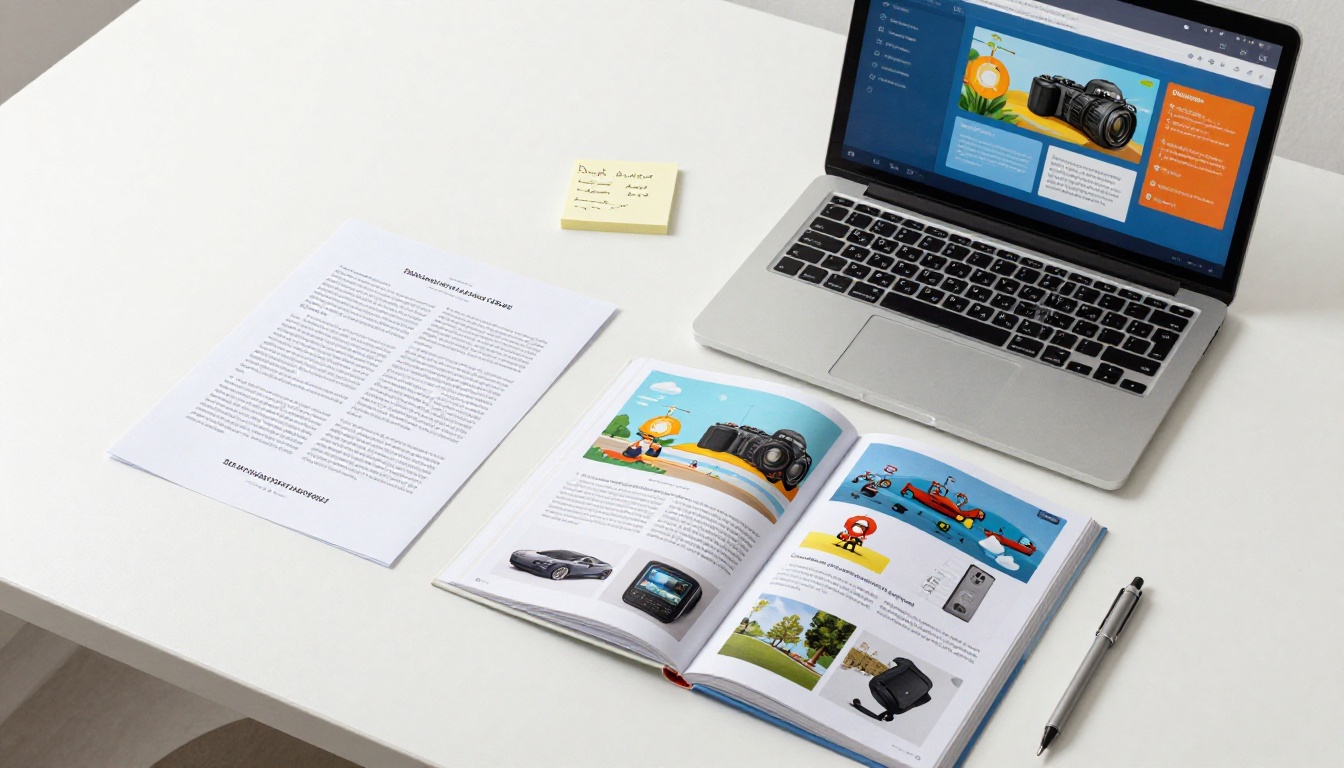
Step 1: Upload Your PDF
- Go to flipbooksai.com and log in to your account.
- Click New Flipbook from your dashboard.
- Drag your PDF into the upload area or click to browse your files.
- Wait for the conversion to finish. Most PDFs are ready in 30 to 60 seconds.
Step 2: Customize Branding and Appearance
Once conversion is complete, you land in the customization editor. This is where you set up branding and behavior before sharing.
- Logo: Upload your brand logo to appear on the flipbook reader.
- Colors: Set primary and accent colors to match your brand palette.
- Background: Choose between solid colors, gradients, or image backgrounds.
- Page effects: Enable realistic page-flip shadows for a more tactile feel.
- Auto-flip: Set pages to turn automatically for a presentation-style experience.
✅ Best practice: Match your flipbook's brand colors to the email template you are using in Mailchimp. Visual consistency between the email and the flipbook increases trust and reduces drop-off after the click.
Step 3: Set Up Lead Capture
If you are on the Professional plan, you can embed a lead generation form directly inside the flipbook. Readers fill out the form while they read, and those contacts can be exported to your Mailchimp list.
- In the flipbook editor, open Settings > Lead Generation.
- Enable the lead capture form and set which fields to collect (name, email, company).
- Choose where in the flipbook the form appears: beginning, end, or after a specific page number.
- Save and publish.
Step 4: Copy Your Shareable Link
Once your flipbook is published, copy the direct URL from your dashboard. This is the link you will paste into your Mailchimp campaign. It works across all devices without any app or plugin required.
Step 5: Grab a Preview Screenshot
Take a screenshot of your flipbook's first page spread. You will use this as the visual thumbnail in your Mailchimp email. A preview image of the flipbook with a "Read Now" button overlay performs significantly better than a plain text link.
Connecting Your Flipbook to Mailchimp
With your flipbook published and your link copied, setting up the Mailchimp campaign is straightforward.
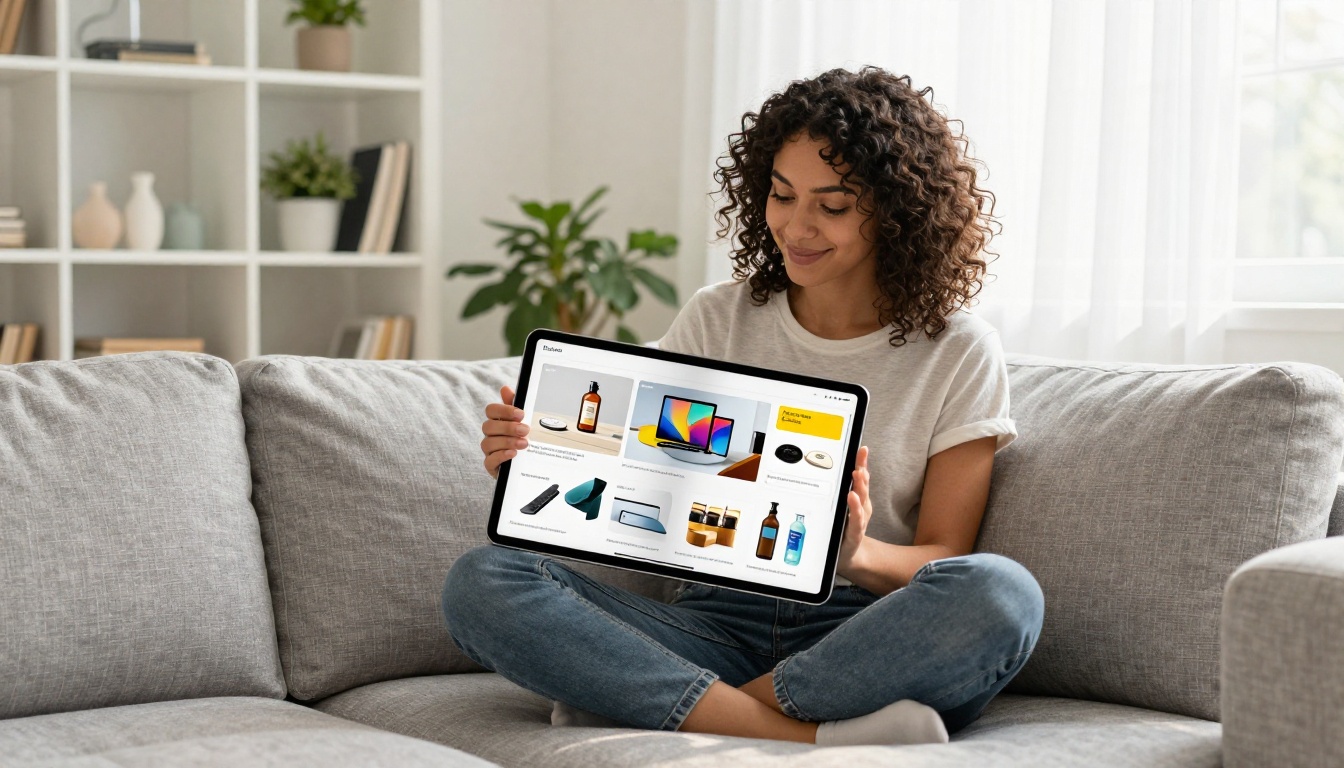
Adding the Flipbook Link to Your Campaign
- Open Mailchimp and click Create Campaign.
- Select Email and choose your campaign type (Regular, Automated, etc.).
- In the email builder, add an Image block and upload your flipbook preview screenshot.
- Click the image block and add a hyperlink pointing to your flipbook URL.
- Below the image, add a Button block with clear CTA text like "Read the Full Issue" or "View the Catalog".
- Link that button to the same flipbook URL.
- Add a plain-text link in the footer as an accessibility fallback.
💡 Pro tip: Use Mailchimp's UTM parameter settings to tag your flipbook URL. This lets you track traffic from the email separately from direct visits, giving you cleaner data in both platforms.
Embedding vs. Linking in Email
This is one of the most common questions marketers ask, so here is a clear breakdown.
| Method | Works in Email? | Recommended? | Notes |
|---|
| Direct iframe embed | No | Never | Blocked by Gmail, Outlook, Apple Mail |
| Inline HTML5 animation | No | Never | Stripped by email clients |
| Linked image (thumbnail) | Yes | Always | Best click-through rates |
| Linked button | Yes | Yes | Use as secondary CTA |
| Plain text URL | Yes | Yes | Accessibility fallback |
The only method that works reliably across all email clients is linking. Never attempt to embed an interactive flipbook directly into the email body.
Using Lead Capture to Grow Your Subscriber List
If your flipbook has lead capture enabled, the workflow becomes a two-way channel. Readers click from your email, fill out the form inside the flipbook, and their contact information is captured by Flipbooks AI. You can export those contacts as a CSV and import them into your Mailchimp audience, or use a tool like Zapier to automate the sync.
This creates a loop: your existing Mailchimp list reads the flipbook, new readers discover it via share links, and the lead capture form feeds new subscribers back into Mailchimp for your next campaign.
Mailchimp Automation with Flipbooks
Connecting flipbooks to Mailchimp automation sequences is where the real performance lift happens.
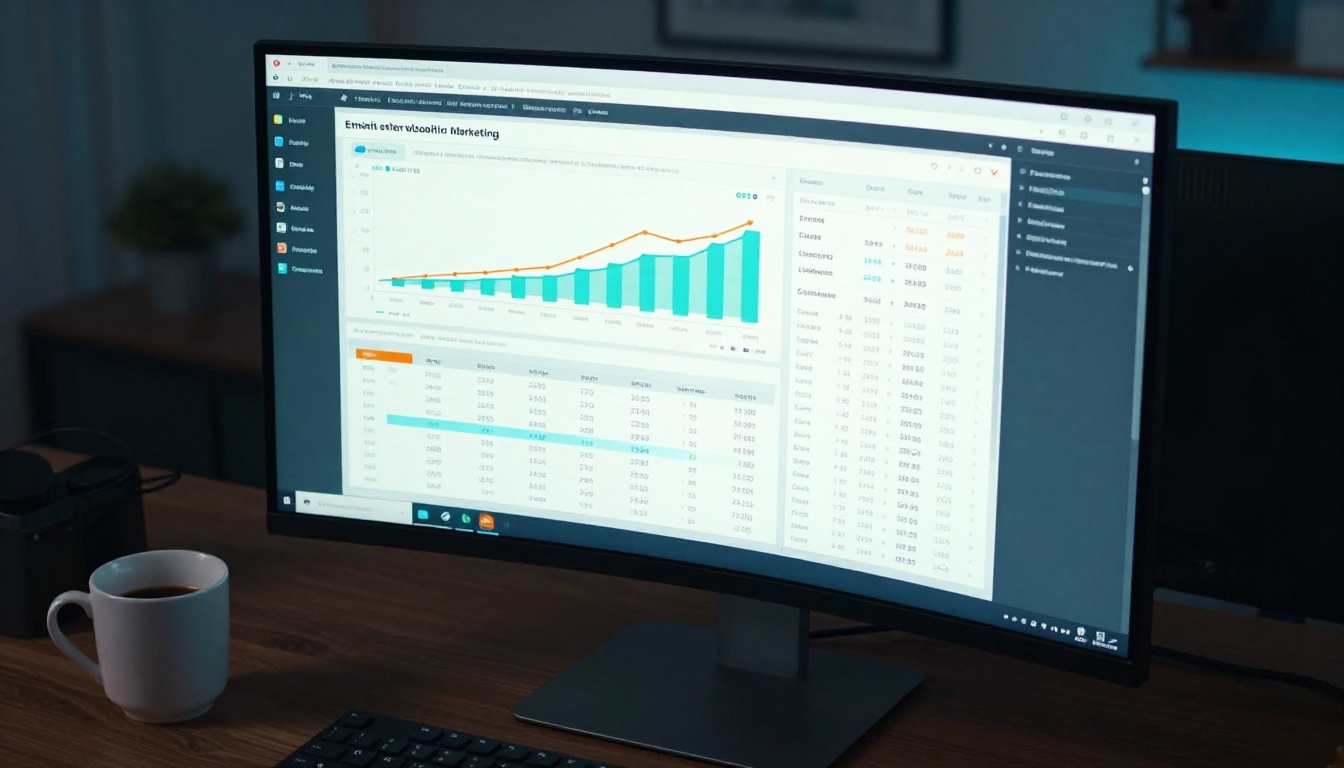
Triggered Campaigns Based on Flipbook Clicks
Mailchimp's automation tools let you trigger follow-up emails based on subscriber behavior. When a subscriber clicks your flipbook link, Mailchimp registers that click as a tracked event. You can build automations around this data:
- Clicked the flipbook link: Send a follow-up email 48 hours later with a related offer or deeper content.
- Did not click: Send a re-send with a different subject line and preview image the following week.
- Clicked and converted: Add them to a post-purchase or onboarding sequence.
Segmenting by Content Interest
If you send multiple flipbooks across different campaigns, Mailchimp's click data tells you which content each subscriber engaged with most. A subscriber who clicked a product catalog flipbook is more sales-ready than one who only read a newsletter. Use that data to create targeted segments and tailor your next campaign accordingly.
| Segment | Flipbook Behavior | Recommended Next Step |
|---|
| High intent | Clicked catalog, viewed pricing page | Send promotional offer |
| Active reader | Clicked newsletter, no product click | Send editorial content |
| Inactive | No clicks in 60 days | Re-activation sequence |
| New subscriber | First open, no click | Welcome sequence with flipbook |
✅ Best practice: Create a dedicated Mailchimp tag for subscribers who have clicked a flipbook link at least once. This segment consistently shows higher lifetime value and is worth treating as a priority audience.
One of the biggest advantages of this setup is having two layers of analytics: Mailchimp tracks delivery and click behavior, while Flipbooks AI (Professional plan) tracks what happens after the click.
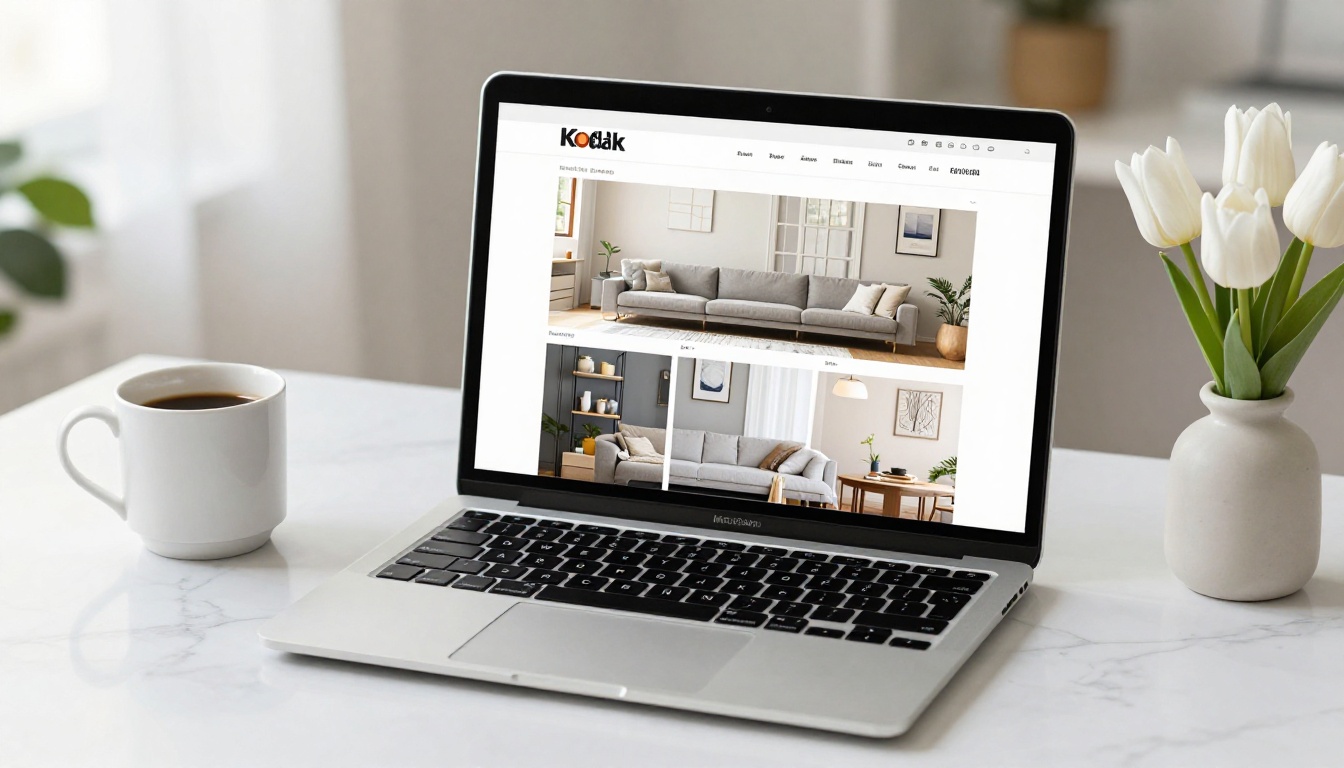
Flipbooks AI Analytics
The Professional plan includes a full analytics suite inside the flipbook dashboard:
- Total views: How many times the flipbook was opened.
- Average reading time: How long readers spend with the content.
- Page drop-off: Which page most readers stop on.
- Device breakdown: Mobile vs. desktop vs. tablet splits.
- Lead capture data: Name, email, and submission timestamp for every form fill.
Mailchimp Click Reports
On the Mailchimp side, your campaign report shows:
- Click rate: Percentage of recipients who clicked the flipbook link.
- Click map: Which links in the email were clicked most.
- Per-subscriber activity: Which individual contacts clicked, and when.
- Comparison to previous campaigns: How this email performed against your historical averages.
Combining both data sources gives you a full funnel view: from inbox open to the specific page where a reader stopped or converted.
Real-World Use Cases
The combination of flipbooks and Mailchimp works for almost any business model. Here are three scenarios where the integration delivers clear results.
Product Catalogs for E-Commerce
An online retailer sends a monthly catalog to their Mailchimp list of 12,000 subscribers. Instead of linking to a static PDF, they publish an interactive catalog using the Product Catalog Generator on Flipbooks AI. The flipbook includes embedded product links on each page so readers can click directly from the catalog to the product page. The analytics show which products attracted the most attention, informing the next month's inventory and promotion decisions.

Real Estate Brochures for Agents
A real estate agency sends weekly property listings via Mailchimp. Each email links to a Real Estate Brochure flipbook featuring photos, floor plans, and neighborhood details. Leads who spend more than three minutes reading the brochure (tracked via flipbook analytics) are automatically added to a Mailchimp segment that triggers a follow-up call request email.
Newsletter Publishers and Media Companies
A media company publishes a monthly digital magazine to 50,000 subscribers. They use the E-Magazine Publishing Tool to create a full-featured interactive issue with embedded videos and audio clips. The Mailchimp campaign links to the flipbook with a compelling cover image preview. Subscribers who click but do not reach the final page get a "Don't miss the rest" re-activation email one week later.
Flipbooks AI Plan Comparison
Choosing the right plan determines which features you can use in your Mailchimp integration. Here is how the tiers break down for email marketers.
| Feature | Free | Standard | Professional |
|---|
| Flipbooks | 1 | Unlimited | Unlimited |
| Custom branding | No | Yes | Yes |
| Password protection | No | Yes | Yes |
| Analytics dashboard | No | No | Yes |
| Lead capture forms | No | No | Yes |
| Offline downloads | No | Yes | Yes |
| Embed video/audio | No | Yes | Yes |
| Watermark | Yes | No | No |
For most Mailchimp users running active campaigns, the Standard plan removes the watermark and unlocks unlimited flipbooks, which is the minimum for professional-looking campaigns. Upgrading to Professional adds the analytics and lead capture features that make the Mailchimp integration genuinely powerful.
Common Mistakes to Avoid

Sending the PDF instead of the flipbook link: A PDF download requires a browser plugin and does not perform well on mobile. Always link to the hosted flipbook URL.
Not testing on mobile before sending: Mailchimp lets you preview campaigns on mobile before sending. Always test the full flow: open the email on a phone, click the flipbook link, and confirm the flipbook loads and reads correctly.
Skipping UTM parameters: Without UTM tags on your flipbook URL, you cannot distinguish traffic coming from your email versus direct shares versus social posts. Add UTM parameters in Mailchimp's link settings before finalizing the campaign.
Using vague CTA text: "Click here" and "Read more" consistently underperform against specific CTAs like "View the Spring Catalog" or "Read the March Issue". Be specific about what the subscriber is about to open.
Forgetting to re-publish after edits: If you update your flipbook after sending the email, the changes appear automatically at the same URL. No need to resend, but do confirm that edits did not break any internal links or form settings.
⚠️ Warning: Never change your flipbook's URL after sending a campaign. Mailchimp's click tracking is tied to the original URL. Changing it breaks tracking and sends subscribers to a broken page.
Start Sending Smarter Email Campaigns Now
Your Mailchimp list is built on trust, and the content you send either reinforces or erodes that trust with every campaign. An interactive flipbook signals that you take your content seriously, that you have invested in the reading experience, and that you respect your subscribers' time enough to make it enjoyable.
The setup takes less than 30 minutes: upload your PDF to Flipbooks AI, customize your branding, copy the link, and drop it into your Mailchimp campaign with a strong preview image and a clear CTA.
Browse all available flipbook tools to find templates for catalogs, menus, brochures, magazines, portfolios, and more. Compare pricing plans to find the tier that fits your team's needs, and get your first flipbook-powered campaign out the door today.



