You exported a beautiful PDF, emailed it to a client, and then watched it sit unopened because the file was too heavy, the layout broke on a phone, or nobody wanted to download anything. A flipbook fixes that. It takes the same PDF and turns it into a page-turning experience that opens in a browser, loads fast, and looks like a real publication. With Flipbooks AI, you can create an online flipbook from a PDF for free, embed it on your website, protect it with a password, and share it with a single link.
This article walks through the whole process, from upload to embed code to private sharing. You will also see real examples for restaurants, agents, teachers, and creatives, plus the mistakes that quietly ruin otherwise good flipbooks.
💡 Quick answer: Upload your PDF, customize the look, copy the embed code or share link, and add a password if the content is private. The whole job takes about five minutes for a typical document.
Why Turn a PDF Into a Flipbook
PDFs Have a Download Problem
A PDF is a great format for printing and archiving. It is a poor format for reading on a screen. Readers have to download it, wait for a viewer to open, pinch and zoom on mobile, and then hunt for the page they need. Many of them simply close the tab.
Here is what usually goes wrong with a raw PDF link:
- Large file sizes that stall on mobile data
- No branding around the document, so it feels like an attachment instead of a publication
- Zero visibility into whether anyone opened it
- No access control, so anyone with the link can forward it
What a Flipbook Changes
A flipbook renders each page as a smooth, interactive spread with a realistic page-turn effect. Readers flip through it right in the browser. You keep the exact layout of your original design, but you gain sharing, embedding, and tracking options that a plain PDF never offers.
| Feature | Plain PDF | Online Flipbook |
|---|
| Opens in browser instantly | Sometimes | Yes |
| Page-turning effect | No | Yes |
| Mobile-responsive reading | Poor | Yes |
| Embed on a website | Awkward iframe or download link | Clean embed code |
| Password protection | Needs separate tools | Built in |
| Video and audio inside pages | No | Yes |
| Reader analytics | No | Yes (Professional plan) |
| Custom branding | No | Yes |
The short version: the content stays the same, but the experience becomes something people actually want to open.
Create Your Flipbook in Minutes
The steps below use the PDF to Flipbook Converter. The same flow applies to every specialty tool on the platform, whether you are building a catalog, a menu, or a magazine.
Step 1: Create a Free Account
Head to Flipbooks AI and create an account. You can start without paying, and the pricing page lists exactly what each plan includes so there are no surprises later. One promise worth noting: no watermarks, ever. Your flipbook looks like your own publication, not an advertisement for the tool.
Step 2: Upload and Convert the PDF
From your dashboard, start a new flipbook and drop in your PDF. The platform reads every page, keeps the original layout, and turns the file into a flipbook automatically. Large files with many images may take a little longer to process, so give it a moment before refreshing.

Before you upload, run through this quick checklist:
- Export at a sensible resolution. 150 DPI is usually plenty for screens.
- Use real page order. Cover first, back page last, no blank spacer pages.
- Keep fonts embedded. Missing fonts cause odd substitutions.
- Compress huge images. Smaller files convert faster and load faster for readers.
⚠️ If your PDF is built as printer spreads (two pages on one sheet), export it again as single pages. Otherwise the flipbook will show two pages squeezed into one.
Step 3: Customize Branding and Media
Once the conversion finishes, open the editor. This is where a generic document becomes yours:
- Branding: add your logo and choose background colors that match your site
- Page effects: pick the flip style and speed that fit your tone
- Multimedia: embed videos and audio directly into pages, such as a product demo or a spoken welcome
- Links: make URLs, buttons, and email addresses clickable
A restaurant might add a short video of the chef plating the signature dish. A training team might add an audio walkthrough on page three. Small touches like these keep readers on the page longer than any static layout can.
Embed a Flipbook on Your Website
Copy the Embed Code
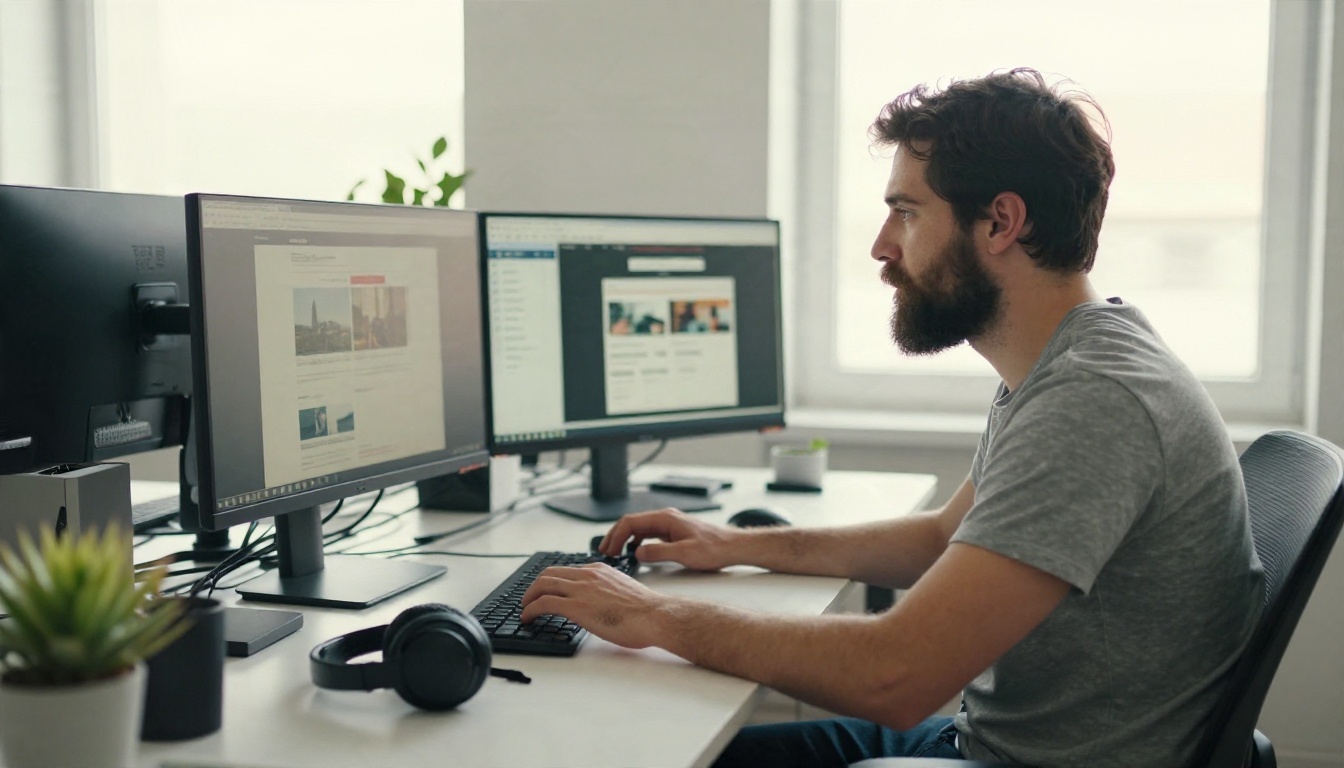
Embedding is where a flipbook earns its place. Instead of sending visitors away to download a file, the publication lives right on your page. In the share panel, copy the embed code. For a fuller walkthrough of the process, see the Embed Flipbook on Website tool page.
Paste It Into Your Site
The embed snippet is plain HTML, so it works in almost any platform that accepts a custom code block.
- Open the page or post where the flipbook should appear.
- Add a Custom HTML block (WordPress), an Embed code element (Wix, Squarespace, Webflow), or paste directly into your template.
- Paste the snippet and save.
- Preview on desktop and phone before publishing.
💡 Give the flipbook a section of its own with a short heading above it. A flipbook buried between two paragraphs often gets skipped, while one with a clear label gets clicked.
Keep It Responsive on Mobile
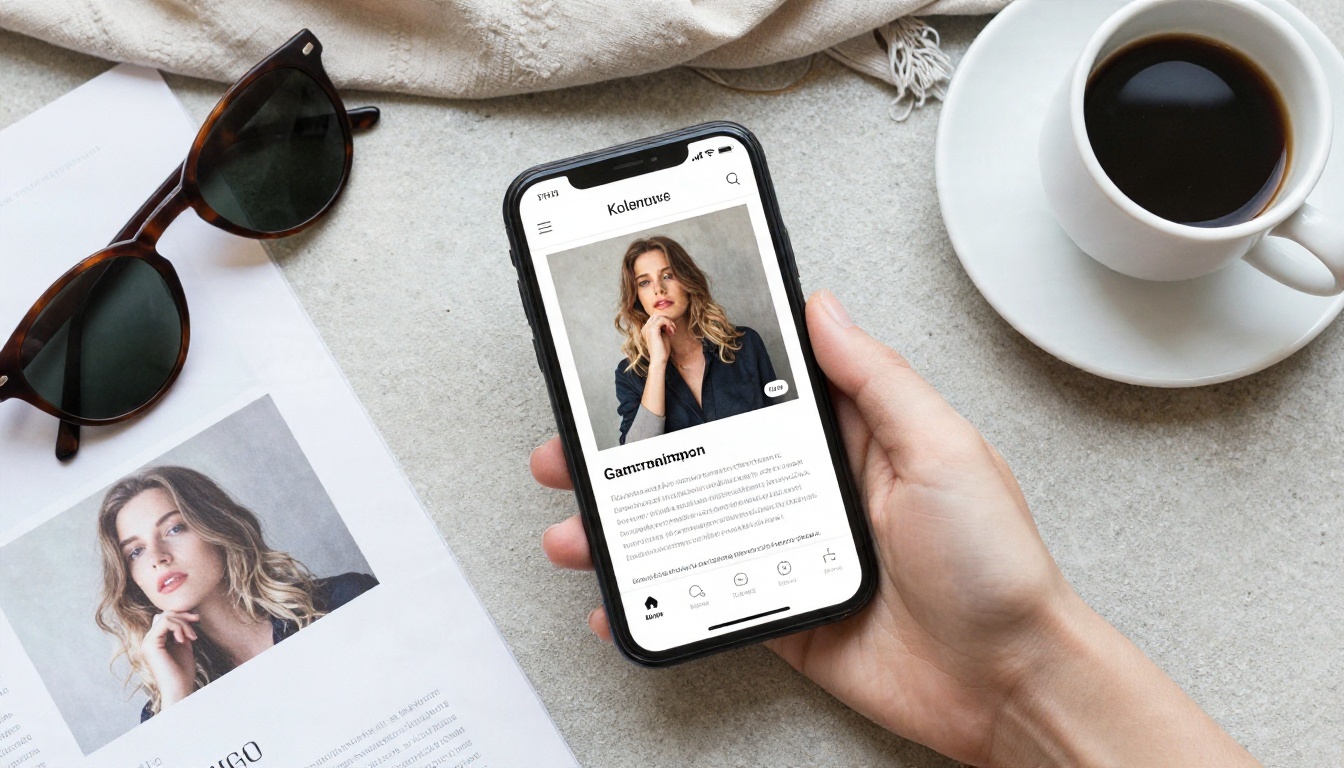
More than half of your visitors will probably arrive on a phone. Flipbooks use a mobile-responsive design, so pages resize and swipe naturally. Still, check your own embed on a real device. Set the width to 100 percent of its container and give it a generous height so readers are not squinting at a narrow window.
Not every situation calls for an embed. Compare the options:
| Sharing method | Best for | Setup time | Works with password |
|---|
| Embed code | Landing pages, product pages, blog posts | 2 minutes | Yes |
| Direct link | Email, chat, social bios | 10 seconds | Yes |
| QR code on print | Packaging, posters, table cards | 5 minutes | Yes |
| Offline download | Trade shows, poor connectivity | 1 minute | Depends on settings |
Password Protect Private Flipbooks
When a Password Makes Sense
Not every document should be public. A password turns a flipbook into a controlled asset, which matters more often than people expect.
Good reasons to lock a flipbook:
- Investor updates and quarterly reports
- Wholesale price lists meant only for approved buyers
- Training manuals for staff or paying students
- Client proposals that contain pricing
- Draft publications you want reviewed before launch

Set It and Share It Safely
Open the flipbook settings, switch on password protection, and enter a password. Anyone who opens the link or embed will see a prompt first. The content stays hidden until the right password is entered.
A few habits make the protection actually useful:
- Use a unique password per flipbook. Never reuse your email password.
- Send the link and password separately. Email the link, then text the password.
- Change it when the audience changes. A new quarter or a new client group deserves a fresh password.
- Pick something readable. Three random words beat a short string of symbols that people mistype.
✅ Best practice: For wholesale catalogs, pair a password with a Digital Price List Generator flipbook. Your approved buyers get current prices, and the public never sees them.
| Access setting | Who can open it | Typical use |
|---|
| Public link | Anyone | Brochures, menus, lookbooks |
| Password protected | People with the password | Reports, price lists, training |
| Embedded on private page | Logged-in site visitors | Member areas, client portals |
Real Examples You Can Copy
Seeing a use case makes the whole idea concrete. These four are common, and each links to a specialized tool built for that purpose.
Restaurants and Cafes
A bistro owner can upload the menu PDF, add a short chef video, and print a QR code on every table. When prices change, the owner replaces the PDF and the same link shows the new menu. No reprinting, no stale QR codes. The Restaurant Menu Creator and Menu Flipbook Designer are built for exactly this.

Real Estate and Property
Agents benefit because a property brochure is judged in seconds. A flipbook on a phone, with floor plans and photography on separate pages, feels far more polished than a 40 MB attachment. Try the Real Estate Brochure tool, then embed the result on each listing page.

Education, Training, and Portfolios
Teachers and trainers publish workbooks, syllabi, and manuals that students open on any device. A password keeps paid material private, while the embed keeps everything inside the course site. The Course Material Publisher and Training Manual Flipbook fit this workflow.
Creative professionals use flipbooks to present work the way it was meant to be seen. A photographer can turn a portfolio PDF into a flipbook and send it to a prospective client in one message. The Photography Portfolio and Digital Portfolio Creator tools handle the layout details.

Pro Features Worth Paying For
The free route gets you a working, watermark-free flipbook. As your use grows, a few upgrades start to pay for themselves. Review the pricing plans to see which tier matches your volume. Unlimited flipbooks are available on the Standard plan and above, and the extra reporting tools sit on the Professional plan.
Analytics You Can Act On
Analytics show how readers actually behave: how many opened the flipbook, how far they read, and where they dropped off. That changes how you edit. If most readers leave on page six, move the strongest content earlier or shorten the section.

Lead Generation and Offline Downloads
Lead generation lets you collect contact details before someone reads a gated flipbook, which suits whitepapers, catalogs, and reports. Offline downloads help in places with weak connections, such as trade shows or field visits. Both are available through the Professional plan, so check the plans before you build around them.
| Need | Free start | Standard plan | Professional plan |
|---|
| No watermarks | Yes | Yes | Yes |
| Unlimited flipbooks | No | Yes | Yes |
| Password protection | Check pricing page | Yes | Yes |
| Embed videos and audio | Yes | Yes | Yes |
| Analytics | No | No | Yes |
| Lead generation | No | No | Yes |
| Offline downloads | No | Check pricing page | Yes |
⚠️ Plan limits change over time. Treat this table as a quick orientation and confirm the current details on the pricing page.
Mistakes That Hurt Your Flipbook
Most disappointing flipbooks fail for the same few reasons. Avoid these and you are already ahead of most publishers.
- Uploading a low-quality PDF. A blurry source stays blurry. Fix the file first.
- Skipping a mobile test. Always open your embed on a real phone.
- Forgetting a call to action. Add a clear link or button on the last page.
- Overloading page one. Open with a strong, clean page, not a wall of text.
- Sharing passwords in the same message as the link. Split them.
- Never updating. An outdated menu or price list damages trust. Replace the PDF when things change.
- Burying the embed. Place it where visitors can see it without scrolling for ages.
✅ Best practice: Keep a simple naming system, such as "Spring Catalog 2026 Wholesale", so you can find and update the right flipbook in seconds.
Make Your First One Today
You already have the hard part: a PDF with content worth sharing. The rest is a few clicks. Upload it, brand it, embed it where your visitors already are, and add a password when the content calls for privacy.
Ready to build? Create your free account on Flipbooks AI and convert your first PDF in minutes. Browse all flipbook tools to find a template built for your exact use case, or compare pricing plans when you are ready for analytics and lead generation. If you want to see the best fit for your volume first, head to the account and pricing page and pick a plan that works for you.



