Smart TVs have become the centerpiece of most living rooms, and it is only natural to wonder whether a digital flipbook will look just as good on a 65-inch screen as it does on a laptop. The good news: yes, flipbooks can work on Smart TVs. Flipbooks AI builds flipbooks in HTML5, which means they run in any modern browser, including the ones built into Samsung, LG, Sony, and other popular TV brands. That said, not every method delivers the same experience, and some approaches work far better than others.
This article walks through every real-world method for displaying a flipbook on your Smart TV, compares what works across different brands, and shows you how to set up your flipbook so it looks crisp and professional at any screen size.
The Short Answer
Digital flipbooks are HTML5 web pages at their core. Any device with a browser that supports HTML5 and JavaScript can open and interact with one. Smart TVs vary in how capable their built-in browsers are, but the bigger challenge is often navigation. Most Smart TV browsers are designed around remote controls, not mice, and flipping through pages with a D-pad directional button is a different experience from clicking or swiping.
The most reliable ways to display a flipbook on a Smart TV are:
- Screen mirroring from a phone, tablet, or laptop
- HDMI connection from a laptop or desktop
- Casting via Chromecast or a Fire Stick
- Built-in TV browser (results vary by brand)
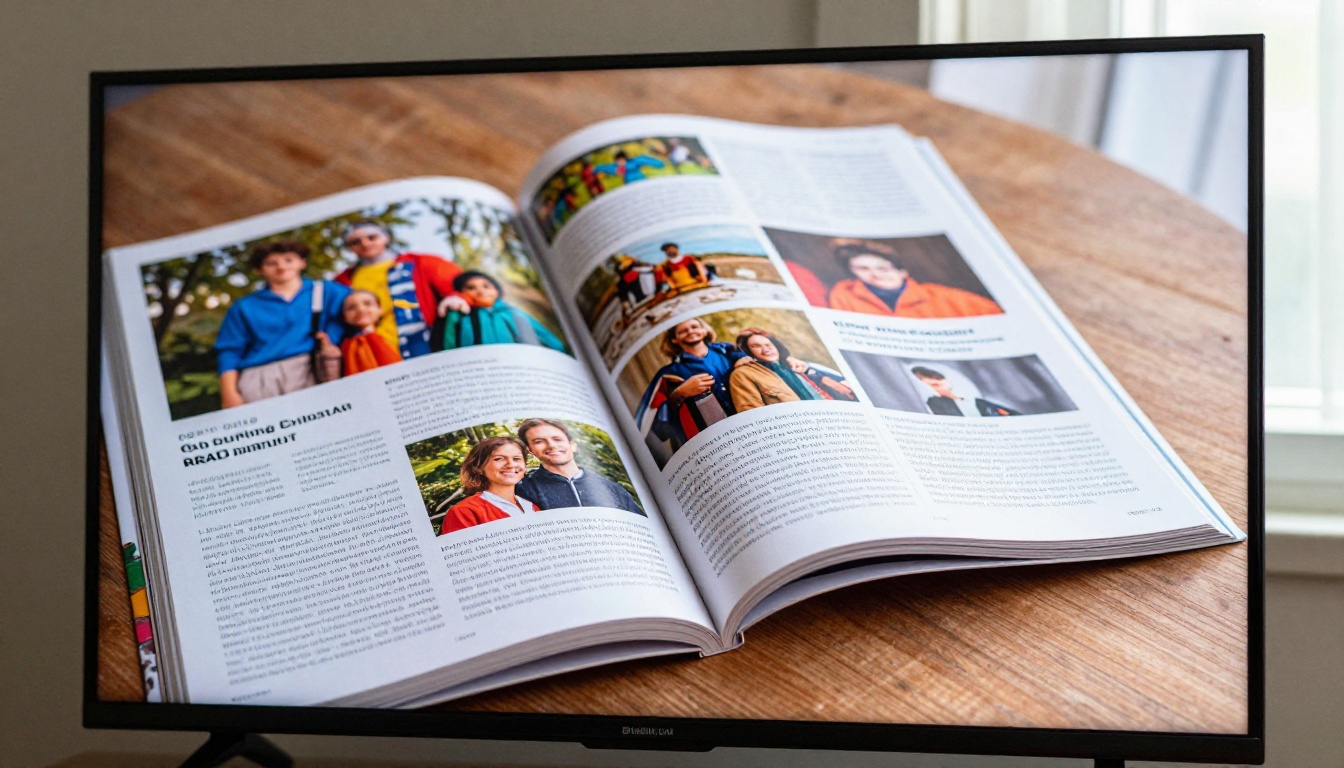
Smart TV Browsers: What to Expect
Most premium Smart TVs ship with a web browser. Samsung's Tizen OS includes the Samsung Internet browser. LG's webOS comes with a Chromium-based browser. Sony's Google TV and Android TV platforms use Chrome or a Chrome-compatible variant. In theory, all of these should handle an HTML5 flipbook without issue.
In practice, the experience depends on the browser version and available memory. Older Smart TVs from 2018 or earlier often run outdated browsers with limited JavaScript support. Newer models from 2022 onward generally handle flipbooks well, including page-turn animations and high-resolution image loading.
Smart TV Brand Browser Compatibility
| TV Brand | OS | Browser Type | Flipbook Compatibility |
|---|
| Samsung (2021+) | Tizen | Samsung Internet | Good |
| LG (2020+) | webOS | Chromium-based | Very Good |
| Sony (2019+) | Google TV / Android TV | Chrome | Excellent |
| Hisense (2020+) | VIDAA / Android TV | Built-in / Chrome | Moderate to Good |
| TCL (2020+) | Roku / Google TV | Limited / Chrome | Moderate |
| Older models (pre-2018) | Various | Outdated | Poor |
⚠️ If your TV is more than five years old, skip the built-in browser and use screen mirroring or HDMI instead.
Navigation with a Remote Control
The biggest friction point for viewing flipbooks directly in a Smart TV browser is navigation. Most flipbooks are designed for touch or mouse input. Turning pages with a remote D-pad is awkward at best. Some Smart TV browsers support a virtual pointer, such as LG's Magic Remote, which makes navigation far smoother. If your remote has a gyroscope or cursor mode, that is the closest experience to a mouse you will get without additional hardware.
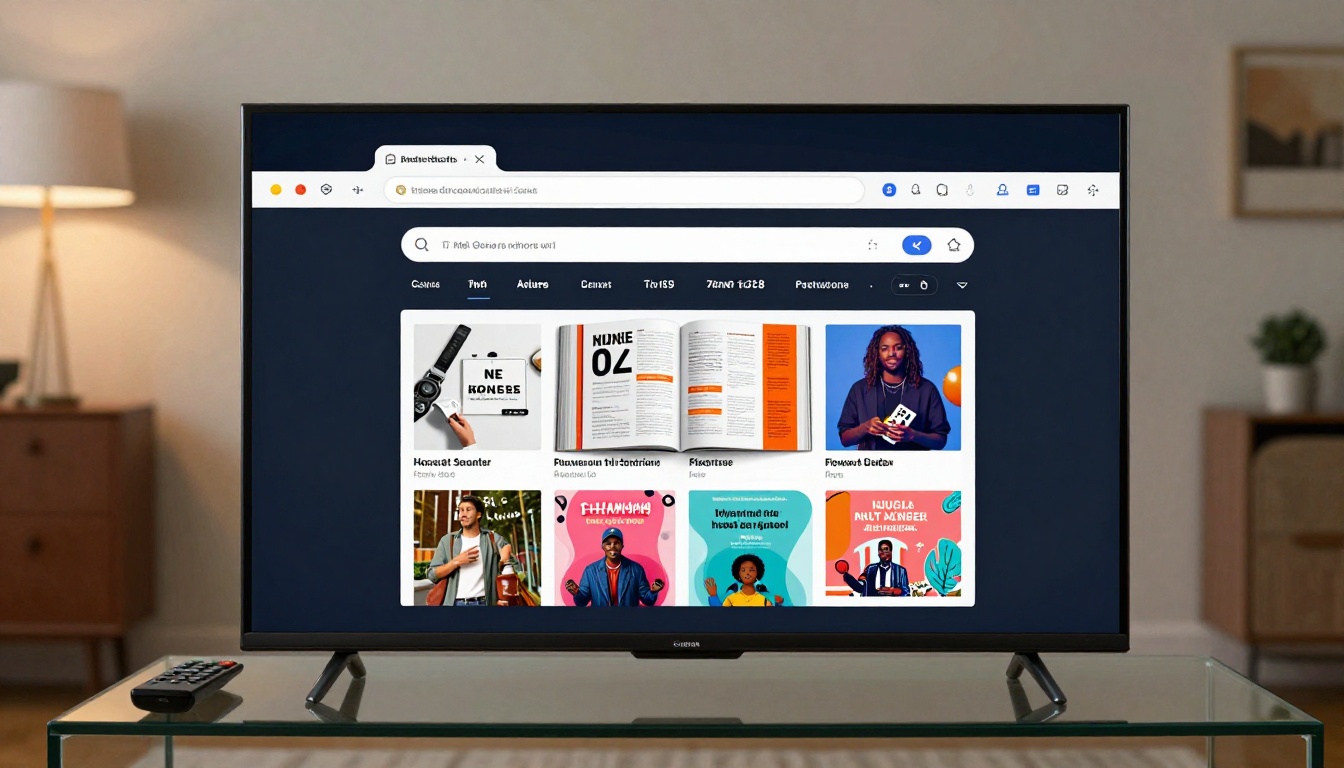
Screen Mirroring: The Most Reliable Method
Screen mirroring is the simplest and most consistent way to put a flipbook on your Smart TV. You open the flipbook on your phone, tablet, or laptop, mirror the screen to your TV, and interact with the flipbook on your device while it displays on the big screen. This bypasses every browser compatibility issue because the flipbook runs on your trusted device, not the TV.
Android Screen Mirroring
Android phones and tablets support several mirroring protocols. The most widely supported is Miracast, which most Samsung, Sony, and LG Smart TVs accept natively. To mirror:
- Open your Smart TV's input settings and enable screen mirroring or wireless display.
- On your Android device, pull down the notification shade and tap "Screen Cast," "Smart View" (Samsung), or "Cast" (other brands).
- Select your TV from the device list.
- Open your flipbook in Chrome on your phone. It will appear full-screen on the TV.
You control the flipbook from your phone, so page turns are smooth and responsive.
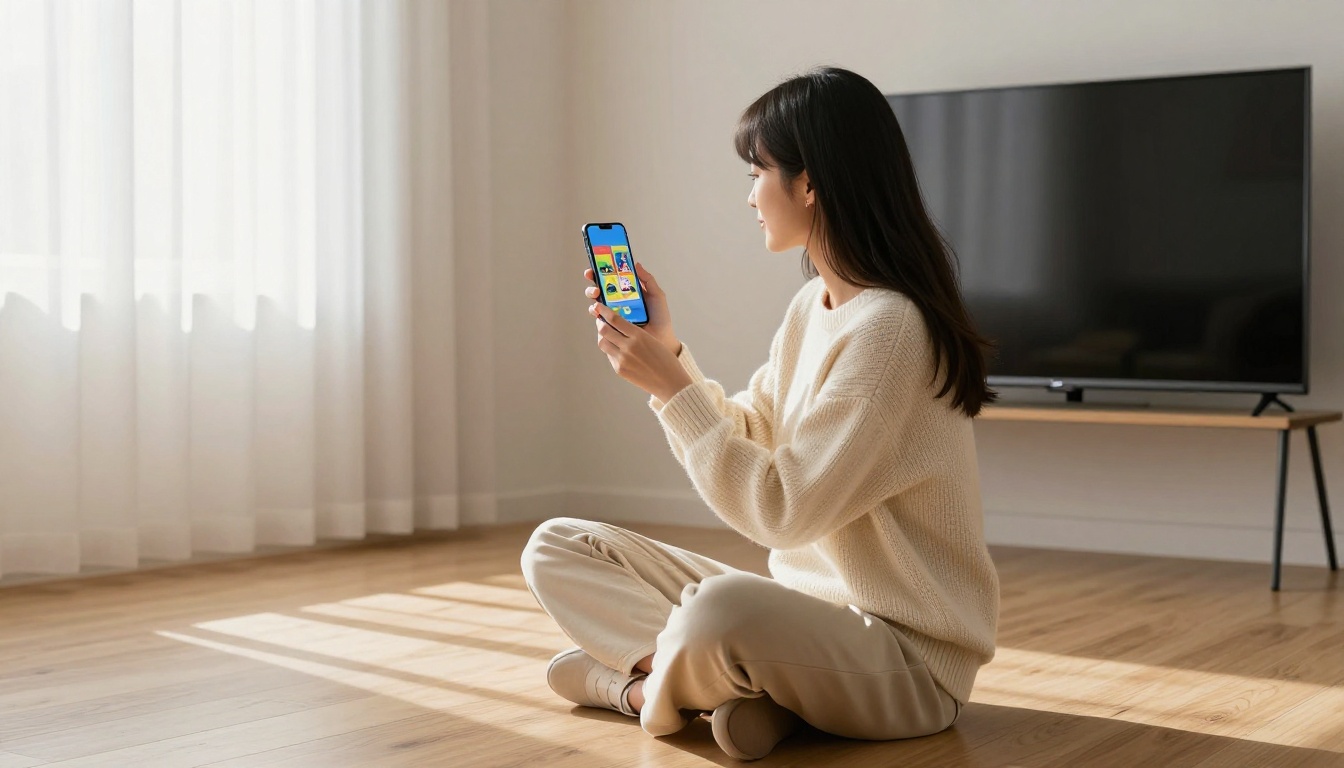
iPhone and iPad via AirPlay
Apple devices use AirPlay, which works with any AirPlay 2-compatible Smart TV, including Samsung from 2019+, LG from 2019+, Sony Android TV from 2019+, and Vizio SmartCast models. To mirror:
- Open the flipbook in Safari or Chrome on your iPhone or iPad.
- Swipe down to open Control Center.
- Tap "Screen Mirroring" and select your TV from the list.
- The flipbook appears on the TV. Use your iPhone to turn pages and interact.
AirPlay delivers sharp 1080p or 4K output depending on your TV, and the connection stays stable for extended viewing sessions.
💡 Keep your phone or tablet plugged in while screen mirroring. The process drains battery faster than normal browsing.
HDMI: The No-Fuss Wired Option
Connecting a laptop directly to your Smart TV via HDMI is the most reliable method of all. It requires no wireless protocols, no browser compatibility checks, and works with virtually every TV made in the last decade.
Laptop to Smart TV via HDMI
- Connect your laptop to the TV using an HDMI cable, or a USB-C to HDMI adapter for newer laptops.
- Set the TV to the correct HDMI input.
- On your laptop, extend or duplicate the display using Windows key + P on Windows, or System Settings > Displays on macOS.
- Open the flipbook in your browser on the laptop.
- Drag the browser window to the TV display and press F11 or use the browser's built-in full-screen button.
The flipbook fills the entire TV screen, and you interact with it from the laptop's trackpad or a wireless mouse. Page animations are smooth, all interactive features work, and there is no resolution loss.
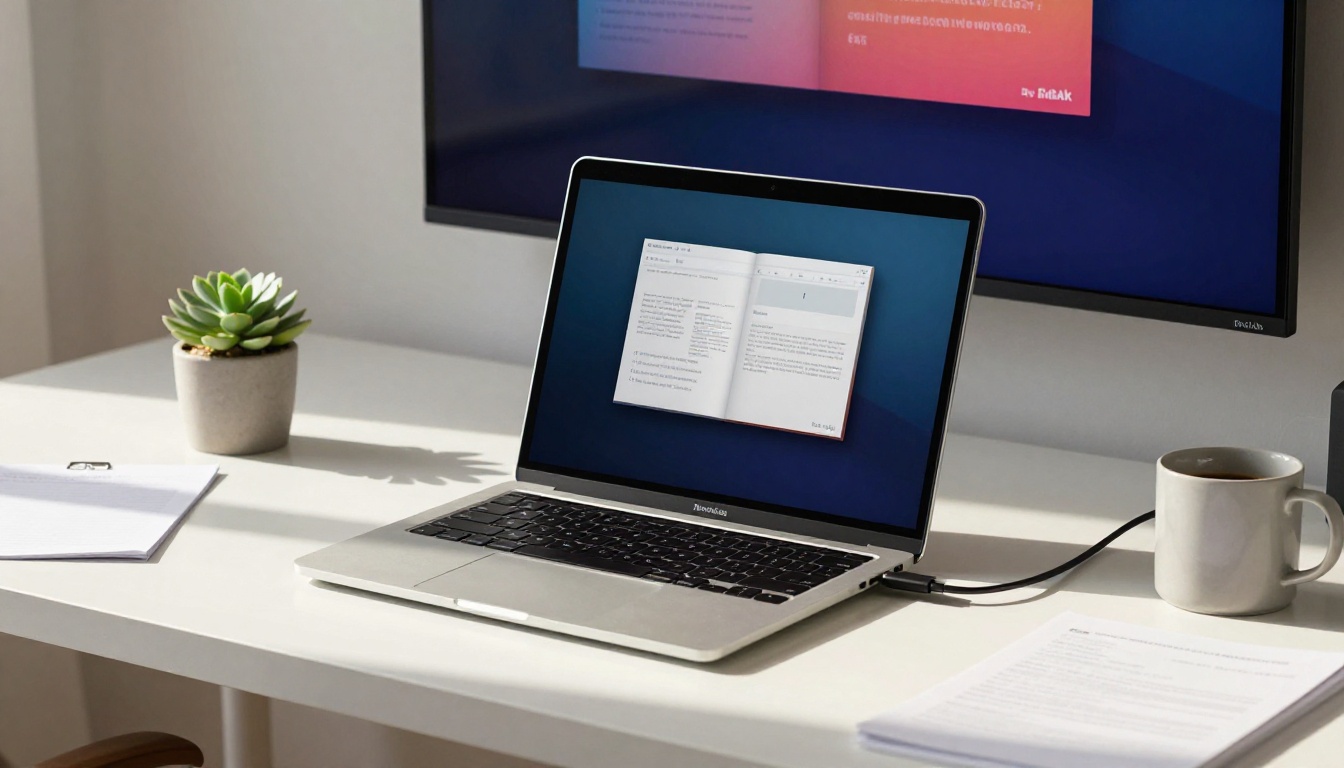
Tablet via USB-C to HDMI
Modern iPads and Android tablets with USB-C ports support video output through a USB-C to HDMI adapter. This gives you the best of both: a touch-friendly interface on the tablet and a large display on the TV. Open the flipbook on your tablet, connect the adapter, and the tablet automatically mirrors to the TV.
✅ HDMI is the gold standard for presentations. If you are showing a product catalog or real estate brochure to a client on a Smart TV, bring a laptop and a short HDMI cable.
Casting via Chromecast and Streaming Sticks
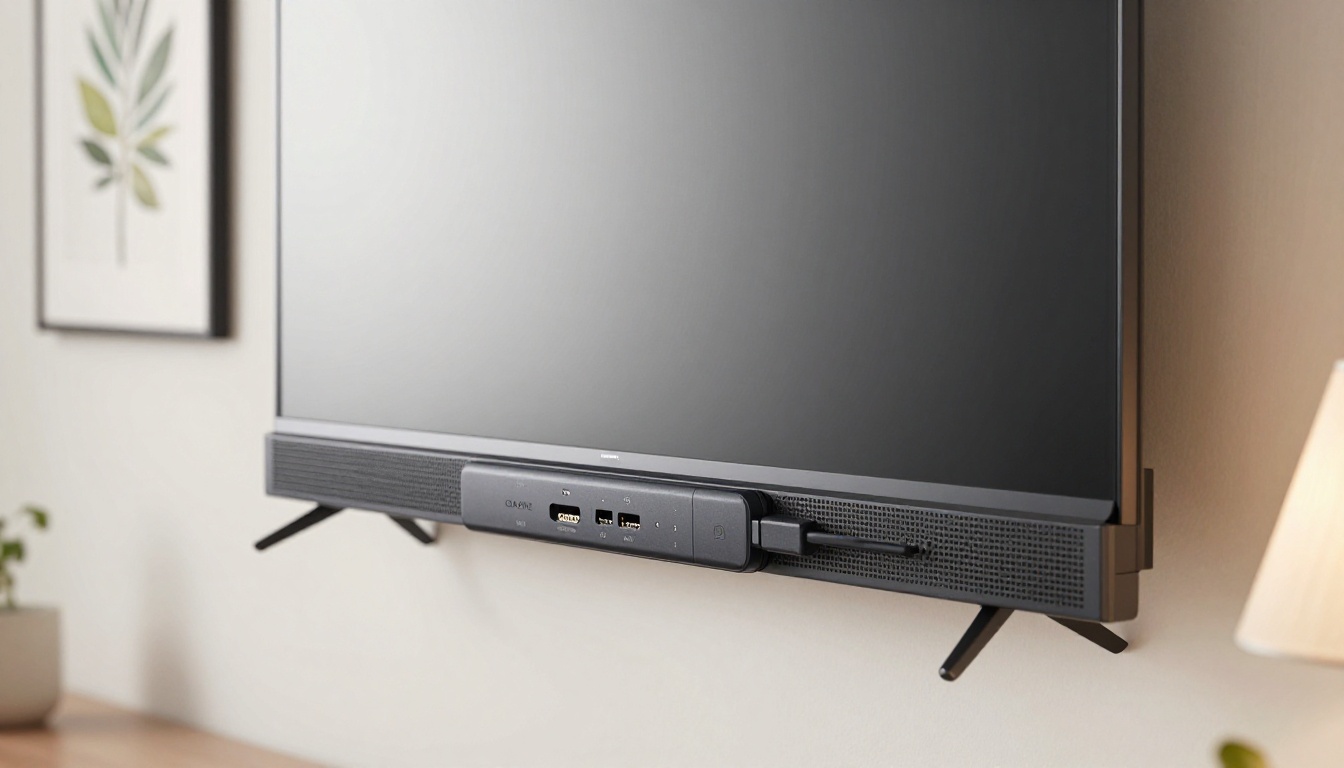
Chromecast and similar streaming devices turn any TV with an HDMI port into a capable display for web content, including flipbooks.
Google Chromecast
With a Chromecast plugged into your TV:
- Open Chrome on a laptop, phone, or tablet.
- Click the three-dot menu and select "Cast."
- Select your Chromecast device from the list.
- Choose "Cast tab" to display just the browser tab with the flipbook.
- The flipbook appears on the TV. Navigate from your device.
Chromecast with Google TV (the newer model with a remote) can also open a browser directly, though its built-in browser is limited. Casting a tab from a connected laptop or phone gives better, more consistent results.
Amazon Fire Stick and Roku
Both devices have their own ecosystems with limited browser options. Fire Stick includes the Silk browser, which can open flipbook URLs, though performance varies. Roku has an even more restricted browser. For either device, casting from Chrome on a laptop or Android phone is more dependable than relying on the stick's native browser.
Method-by-Method Comparison
| Method | Setup Required | Navigation | Compatibility | Best For |
|---|
| Built-in TV Browser | Low | Remote (awkward) | Varies by brand | Casual viewing |
| Screen Mirroring (Android) | Low | Touch on phone | Most Smart TVs | Quick sharing |
| AirPlay (iPhone/iPad) | Low | Touch on device | AirPlay 2 TVs | Apple households |
| HDMI Laptop | Medium | Mouse/trackpad | All TVs | Presentations |
| Chromecast Tab Cast | Low | Mouse on laptop | Chrome + Chromecast | Office/home use |
| USB-C Tablet + HDMI | Low | Touch on tablet | Modern tablets | On-the-go demos |
How to Create a Flipbook That Looks Great on Smart TVs
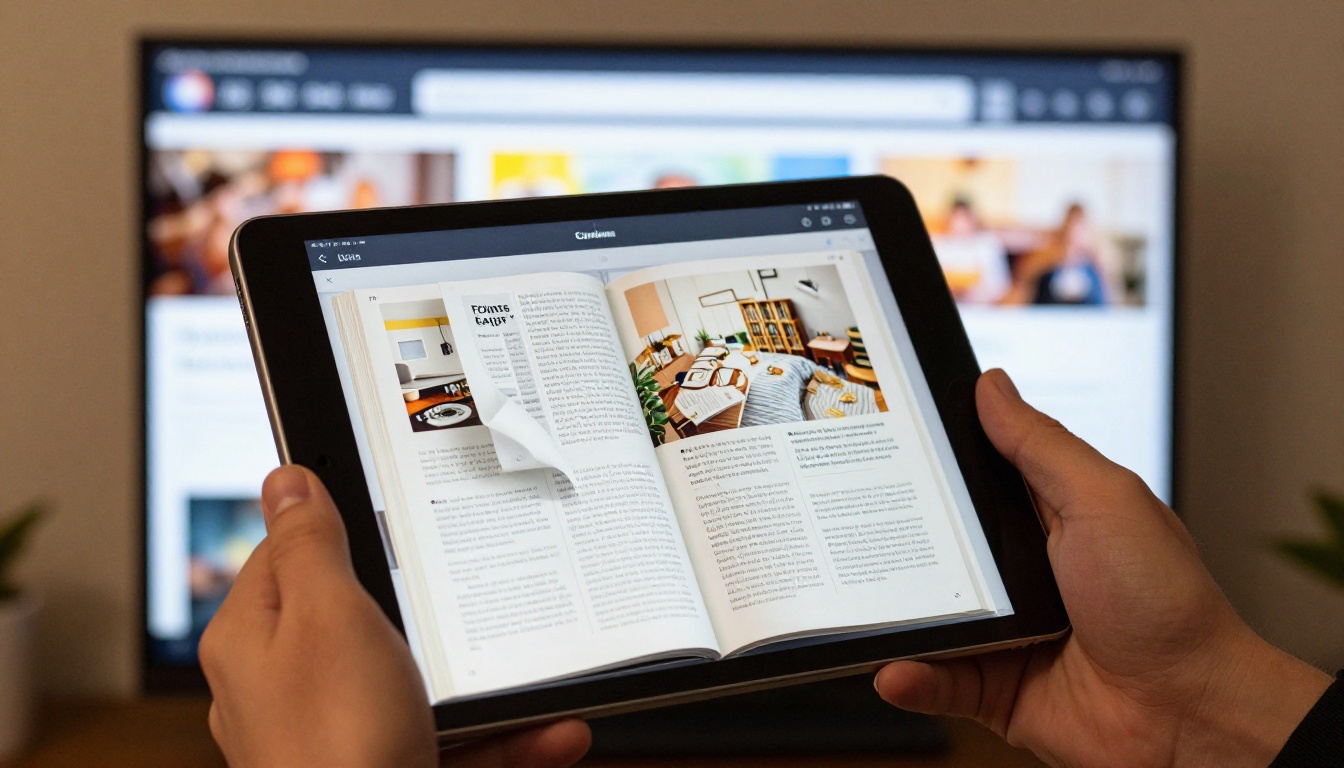
Not all flipbooks deliver the same result on a big screen. A flipbook built with high-resolution images and a clean layout will look stunning at 65 inches. One built with compressed images or dense small text will look mediocre. Here is how to set one up properly using Flipbooks AI.
Step 1: Set Up Your Account
Go to Flipbooks AI and sign up. The Standard plan includes unlimited flipbooks and no watermarks, which matters for professional TV presentations where your branding has to be spotless.
Step 2: Upload a High-Resolution PDF
The PDF you upload determines the final image quality. For Smart TV viewing, use a PDF exported at a minimum of 150 DPI, ideally 300 DPI. Higher resolution means sharper text and images at full-screen on a large TV. The PDF to Flipbook Converter handles the conversion automatically and preserves vector elements at native resolution.
💡 Design your PDF at 1920x1080 pixels (16:9 ratio) if the primary display will be a TV or widescreen monitor. This matches the TV's native resolution and eliminates letterboxing.
Step 3: Customize the Presentation
After conversion, Flipbooks AI lets you:
- Set custom colors matching your brand
- Add a logo to the flipbook interface
- Enable or disable page thumbnails in the sidebar
- Add background music or embedded video for richer presentations
- Control page transition speed and animation style
For TV presentations, disable the sidebar thumbnail panel to maximize the visible page area. Setting a slower page-turn animation speed gives a more polished, cinematic feel on a large display.
Step 4: Copy and Share the Link
Every flipbook gets a unique shareable URL. Copy that link and open it using whichever method fits your setup: the TV browser, a mirrored phone, or a laptop connected via HDMI. The flipbook is fully responsive and scales to fill any screen automatically.
With the Professional plan, you also get analytics showing how long viewers spent on each page. For sales or educational presentations on a Smart TV, that data reveals which sections hold attention and which ones to trim.
Step 5: Present in Full-Screen Mode
Most browsers include a full-screen button built directly into the flipbook interface. Activate it before your presentation starts, and the flipbook fills the entire TV screen with no browser chrome visible. For client-facing or audience presentations, this one step makes a significant visual difference.
When Displaying on a Smart TV Actually Helps
Flipbooks on Smart TVs solve real problems across several industries. Here are the situations where this combination delivers the most value:
A real estate agent can plug a laptop into the living room TV at an open house and walk visitors through a flipbook of floor plans, neighborhood photos, and comparable listings. A hotel spa can run a Chromecast-connected display with a rotating brochure in the lobby without anyone touching the TV after setup. A restaurant bar can put a cocktail menu flipbook on a screen behind the counter so guests can browse without physical contact.
What Can Go Wrong
Even with a solid setup, a few issues come up regularly. Knowing them in advance saves a lot of frustration.
Slow page loading on older TVs: TV browsers have less RAM than phones and laptops. A flipbook with many high-resolution images may load pages slowly on a TV's built-in browser. Using screen mirroring from a phone solves this immediately.
Text too small to read: A flipbook designed for mobile screens will have small text on a 65-inch TV. Build your PDFs for the display size you intend to use. A 16:9 layout at 1920x1080 pixels is the right starting point for TV viewing.
Connection drops during mirroring: Wireless mirroring occasionally stutters on congested Wi-Fi networks. For important presentations, use HDMI instead of any wireless method.
Page-turn animations lag on budget TVs: Some lower-cost Smart TVs have limited GPU resources. If animations feel choppy, look in the flipbook settings for an option to disable 3D page-turn effects and switch to a simpler fade transition.
Aspect ratio mismatch: Flipbooks designed in portrait format (A4 or letter-size) will appear letterboxed with black bars on widescreen TVs. Switching to a 16:9 PDF layout before uploading eliminates this.
⚠️ If you are presenting to a client or audience and have not tested the setup beforehand, you are taking a real risk. Always do a dry run with the actual TV, the actual connection method, and the actual flipbook before the real event.
Flipbooks Work. The Setup Is What Varies.
A well-built HTML5 flipbook will display correctly on any screen that can run a modern browser, and Smart TVs are no exception. The difference between a great experience and a frustrating one comes down to three things: how you connect the TV, how well your flipbook is built, and whether you test before you present.
Screen mirroring and HDMI remain the two most dependable connection methods across all TV brands and all screen sizes. The built-in TV browser is a viable option on newer LG, Sony, and Samsung models, especially with a pointer-capable remote that gives you cursor control. Casting via Chromecast is an excellent middle ground for anyone already in the Google ecosystem.
If you want to create a flipbook worth putting on a big screen, get started for free on Flipbooks AI. The platform handles everything from PDF upload to interactive page design, and every flipbook you publish works immediately on phones, tablets, laptops, and Smart TVs without any extra configuration.
Browse all flipbook tools to find templates for catalogs, menus, brochures, portfolios, and more. Or check pricing plans to see which tier fits your needs, from free access all the way to Professional features like analytics and lead generation.



