Why Flipbook Audio Not Playing on Safari Happens (and How to Fix It)
If flipbook audio stops working on Safari, you're not alone. This article explains exactly why Safari blocks audio playback, what WebKit's autoplay policy does to embedded flipbook sound, and the specific steps to restore audio on both desktop and mobile Safari.
If you've embedded audio in a flipbook and opened it on Safari only to hear complete silence, you're dealing with one of the most frustrating browser compatibility issues in modern web publishing. Flipbooks AI lets you embed rich multimedia, including audio tracks, directly into your digital publications, but getting that audio to play on Safari requires understanding a set of restrictions that Apple has quietly enforced for years. This article breaks down exactly what's happening, why Safari behaves this way, and precisely what you need to do to fix it.
The Safari Audio Problem Nobody Warns You About
Safari is the only major browser that consistently blocks audio playback by default, even when that audio is intentionally embedded in interactive content like flipbooks. The issue isn't a bug. It's a deliberate policy Apple introduced in Safari 11 (2017) and has tightened with every major WebKit update since. If you built and tested your flipbook in Chrome or Firefox and assumed it would work everywhere, Safari just handed you a hard lesson.
Why Safari Treats Audio Differently
Safari's entire audio playback model is built around one idea: the user must explicitly initiate sound. No script can start audio without a direct human interaction first. Apple frames this as a feature protecting users from unwanted autoplay noise on mobile devices. In practice, it means that audio embedded in a flipbook, whether it's background music, narration, or interactive sound effects, simply will not fire on page load.
The root mechanism is the Web Audio API's AudioContext, which enters a "suspended" state by default in Safari. Any audio routed through that context, including <audio> element playback, stays silent until a user touch or click resumes it. This is fundamentally different from Chrome, which allows audio to play after a user has "engaged" with the page domain, or Firefox, which has its own but more permissive autoplay settings.
Desktop vs. Mobile Safari
The restriction exists on both platforms but behaves slightly differently:
Platform
Safari Version
Default Audio Behavior
Can Be Changed in Settings?
macOS Safari
Safari 11+
Autoplay audio blocked
Yes, per-site
iOS Safari
iOS 10+
All autoplay audio blocked
No
iPadOS Safari
iPadOS 13+
All autoplay audio blocked
Limited
Chrome (macOS)
Any
Allowed after page engagement
Yes
Firefox (macOS)
Any
Allowed with user interaction policy
Yes
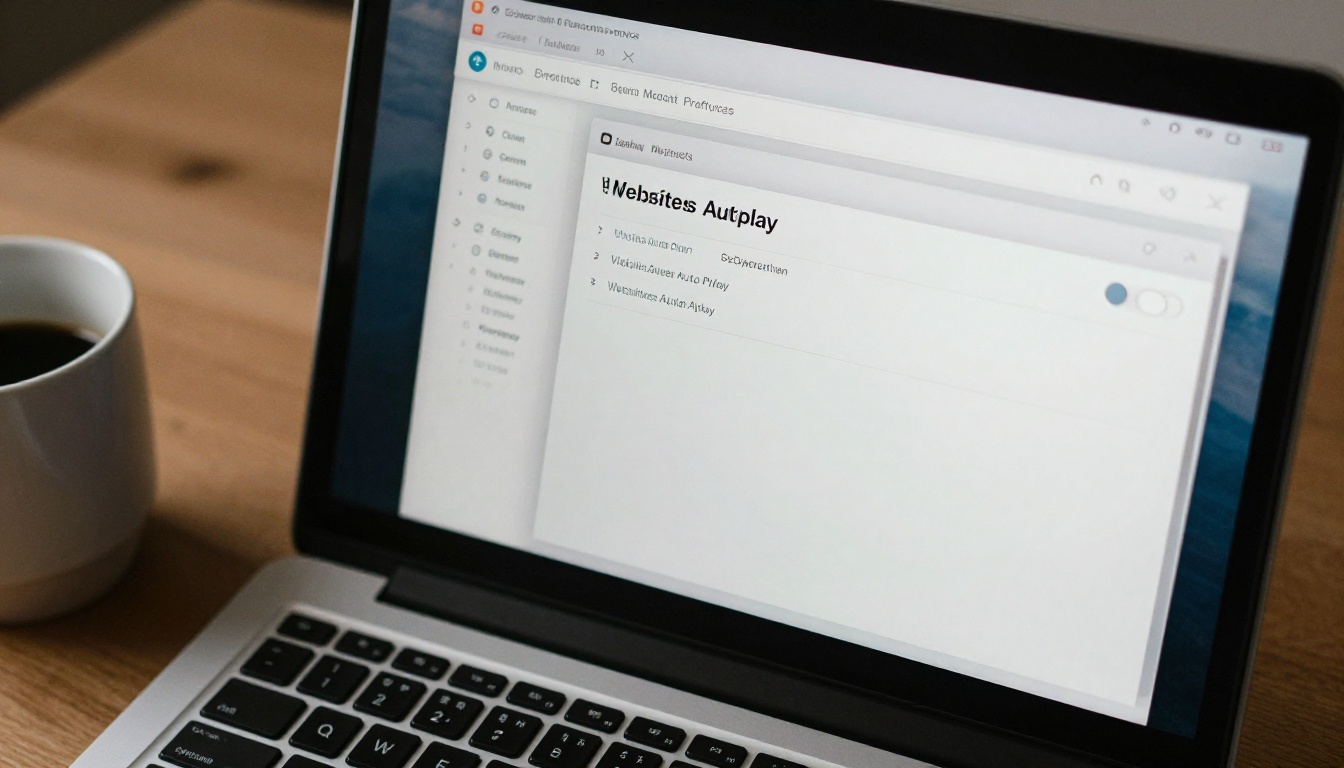
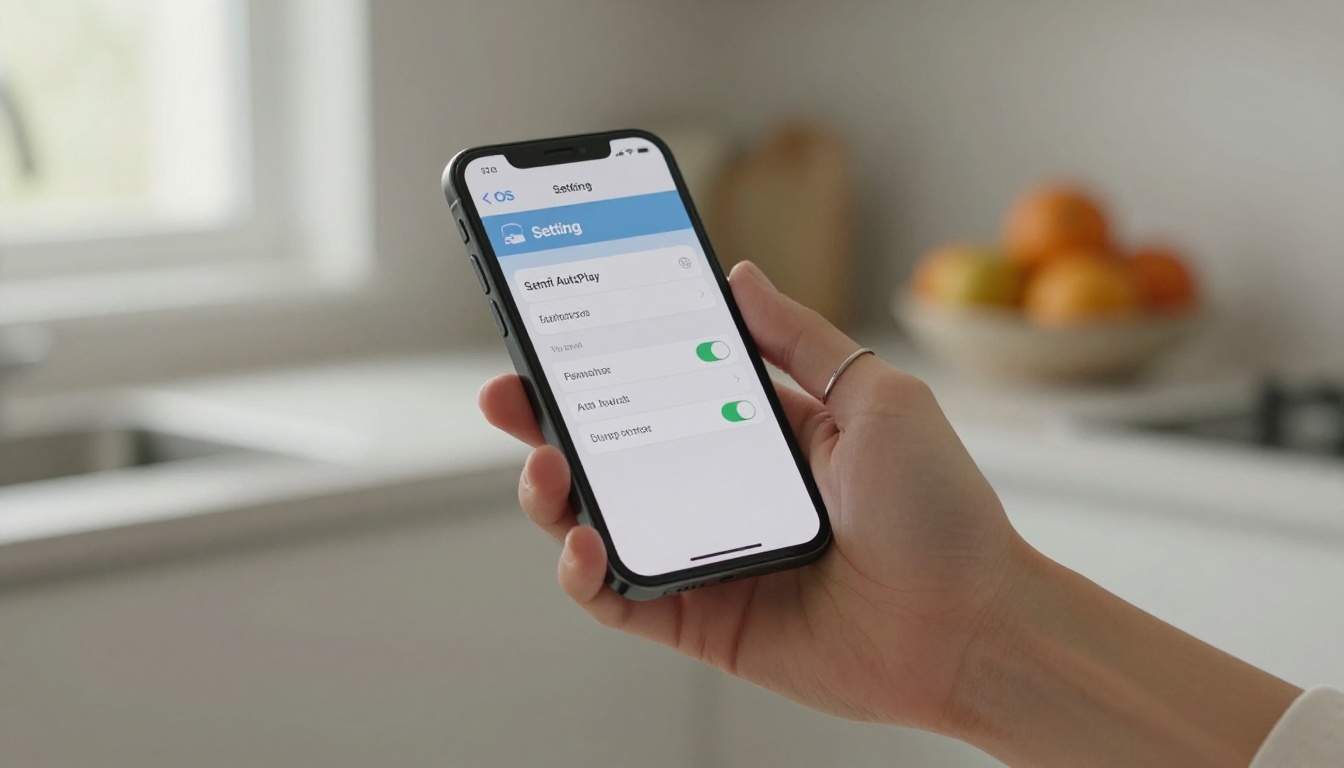
On desktop macOS, you can change Safari's autoplay settings per website through the browser Preferences. On iOS and iPadOS, there is no equivalent setting. The restriction is enforced at the system level, and no amount of user configuration overrides it. This is why flipbook audio not playing on Safari is significantly harder to fix on mobile than on desktop.
What WebKit Autoplay Policy Actually Means
The WebKit autoplay policy has one core rule: audio may only begin in direct response to a user gesture. A "gesture" in WebKit terms means a click, tap, keypress, or equivalent input event that directly triggers the audio action within the same call stack. If your flipbook's code tries to start audio during initialization, on page load, or after a timer, Safari will block it entirely.
The User Gesture Requirement
Here's what makes this tricky for flipbook implementations. Most flipbook players try to start background audio automatically when the flipbook opens, exactly the way a website might autoplay a video. Safari blocks this unconditionally. Even if the user has been interacting with the page for minutes, if the specific audio play command was not triggered by their most recent gesture, it gets silenced.
The correct pattern requires that the audio .play() call (or AudioContext.resume()) fires inside the event handler for a user interaction. You cannot defer it, debounce it excessively, or chain it through too many async callbacks, or WebKit loses track of the gesture origin and blocks the call.
What Counts as a Valid Gesture
Not every interaction qualifies. Here's a breakdown:
Interaction Type
Counts as Valid Gesture
Notes
Mouse click on element
Yes
Most reliable method
Touch tap on element
Yes
Primary iOS method
Keyboard keypress
Yes
Spacebar, Enter work well
Page scroll
No
Not a user gesture in WebKit
Pointer hover
No
Mouse movement not accepted
Programmatic .click()
No
Synthetic events do not count
setTimeout / setInterval
No
Async callbacks lose gesture context
This table explains most of the "it works in Chrome but not Safari" bugs developers encounter when building interactive flipbooks with audio.
Five Fixes That Actually Work
There is no single universal solution. The right fix depends on how your flipbook's audio is implemented and whether you control the underlying code. These five approaches cover the full range of scenarios, from end-user settings changes to developer-level solutions.
Fix 1: Trigger Audio After a Click
This is the most straightforward fix and the one that works across every version of Safari. Instead of auto-starting audio when the flipbook loads, display a visible "Play Audio" or "Start Sound" button that the user clicks. The click event directly triggers .play(). Safari permits this without exception.
For flipbooks created with Flipbooks AI, this means using the built-in Play button on any embedded audio widget rather than relying on autoplay settings. When a reader taps the play control, Safari processes that as a valid gesture and audio begins immediately.
💡 If your flipbook has background music, place the play button on the first page prominently. Users who want sound will click it. Users who don't can skip it. This is actually better UX than forced autoplay.
Fix 2: Use Muted Autoplay First
Safari has one exception to its autoplay block: muted media can autoplay. This is a workaround borrowed from the video world, but it applies to audio too. If you set your audio element to muted before playing, Safari allows it to start. You then unmute it in response to a user gesture.
// Start muted (Safari allows this)
document.getElementById('bg-audio').play();

// Unmute on first user interaction
document.addEventListener('click', function() {
  document.getElementById('bg-audio').muted = false;
}, { once: true });
This approach works well for background music in flipbooks where you want audio to be ready the moment the user engages with anything on the page.
Fix 3: Unlock the AudioContext
If your flipbook uses the Web Audio API (common in more sophisticated flipbook players), the AudioContext will be in a suspended state on Safari. You need to explicitly resume it on user interaction:
⚠️ Note the window.webkitAudioContext fallback. Older Safari versions do not support the unprefixed AudioContext. Without this fallback, the audio context will not initialize at all on those browsers.
Fix 4: Update Safari Permissions on Desktop
On macOS Safari, there is a per-site autoplay setting that overrides the default block. Here's how to change it for a specific flipbook:
Open the flipbook URL in Safari
Click Safari in the top menu bar
Select Settings for This Website
Find the Auto-Play dropdown
Change it from "Stop Media with Sound" to "Allow All Auto-Play"
This setting persists for that domain. Every time you open your flipbook from that domain, Safari will allow audio to autoplay. The limitation is obvious: you can set this for yourself, but you cannot set it for your readers.
Fix 5: Test on a Real Device
Safari's audio behavior on a physical iPhone or iPad is meaningfully different from Safari in macOS. If you are testing your flipbook only in desktop Safari and assuming it will work on iOS, you will miss issues.
✅ Always test your flipbook audio specifically on a real iOS device using Safari. The Simulator in Xcode does not perfectly replicate iOS Safari's audio behavior, and neither does desktop Safari.
Use Flipbooks AI's share link to open your published flipbook on an iPhone and tap through every page that contains audio. If audio fires on tap, you are good. If not, you need one of the code-level fixes above.
Safari vs. Other Browsers at a Glance
When choosing how to build and deploy flipbook audio, knowing how each browser behaves helps you write code that works everywhere without Safari-specific workarounds.
Feature
Safari (macOS)
Safari (iOS)
Chrome
Firefox
Edge
Autoplay audio
Blocked by default
Always blocked
Allowed (with engagement)
Allowed
Allowed
Muted autoplay
Allowed
Allowed
Allowed
Allowed
Allowed
User gesture required
Yes
Yes
No (after engagement)
No
No
AudioContext default state
Suspended
Suspended
Running
Running
Running
Per-site autoplay override
Yes
No
Yes
Yes
Yes
webkitAudioContext prefix needed
Older versions
Older versions
No
No
No
This comparison makes clear why "it works in Chrome" is not a guarantee for Safari. Chrome's engagement-based model means a user who has visited your site before gets audio. Safari requires an in-page gesture every single time, regardless of prior visits.
Common Safari Audio Errors and What They Mean
If you open Safari's developer console while testing flipbook audio, you will see one of a few specific error messages. Each points to a different cause:
Error Message
What It Means
The Fix
The request is not allowed by the user agent or the platform in the current context
AudioContext suspended, no user gesture
Resume AudioContext on click
NotAllowedError: The play method is not allowed
.play() called without user gesture
Move play call into click handler
AbortError: The play() request was interrupted
Audio started then immediately paused
Remove conflicting play/pause calls
MediaError: MEDIA_ERR_SRC_NOT_SUPPORTED
Audio format not supported by Safari
Convert file to MP3 or AAC
No error, just silence
muted attribute set or volume is 0
Check muted state and volume property
The most common of these is NotAllowedError. If you see it in the console, you have a user gesture problem, not a format or file problem. Do not waste time re-encoding your audio files if this error appears.
How Flipbooks AI Handles Safari Audio
Flipbooks AI is built to handle cross-browser audio compatibility, including Safari's restrictions. When you embed audio in a flipbook through the platform, the audio controls are rendered as explicit click-to-play elements rather than autoplay media. This design means your readers on Safari get a working experience without needing to change any browser settings.
Built-in Audio Compatibility
The flipbook player on Flipbooks AI uses event-driven audio triggering. When a reader taps or clicks the play button on an embedded audio widget, the platform fires the audio start command directly inside that event handler. Safari recognizes this as a valid user gesture and allows playback. This works on desktop Safari, iOS Safari, and iPadOS Safari without any special configuration on your part.
💡 When adding audio to your flipbook in Flipbooks AI, use the dedicated audio embed feature rather than embedding an external audio player via HTML. The platform's native audio widget is built to handle Safari's requirements out of the box.
Adding Audio to Your Flipbook on Flipbooks AI
Here's how to add audio to your flipbook so it works reliably on Safari:
Go to Flipbooks AI and open your flipbook in the editor
Navigate to the page where you want to add audio
Use the Multimedia or Audio embed option in the page editor
Upload your audio file in MP3 or AAC format for widest Safari compatibility
Set the audio to play on click rather than autoplay
Add a visible play button or call-to-action so readers know audio is available
Publish and test your flipbook by opening the share link in Safari on your phone
For background music that spans the entire flipbook, add the audio on the first page with a visible "Tap to enable audio" prompt. Once the reader clicks it on page one, the AudioContext is unlocked for the entire session.
✅ Always use MP3 or AAC encoding for flipbook audio. Safari has limited support for OGG and WebM audio formats. MP3 works across every browser and every Safari version without exception.
The PDF to Flipbook Converter on Flipbooks AI preserves embedded multimedia from your source PDF, but audio in PDFs is handled differently from audio added via the flipbook editor. If your PDF has embedded audio that is not playing on Safari, re-add it through the editor's multimedia panel for proper cross-browser behavior.
Flipbooks AI audio features that support rich publications:
Embed audio on individual pages or as a global background track
No watermarks on published flipbooks, including on the free tier
Mobile-responsive player that renders correctly on iOS Safari
Password protection so your audio content stays private
Analytics on the Professional plan to see which pages readers spend time on
When the Sound Just Will Not Start
Sometimes you have done everything right and Safari still blocks audio. These fallback strategies cover the remaining edge cases.
Fallback 1: Use the playsinline attribute. On iOS Safari, media can be blocked if it is set to launch in the system full-screen player. Adding playsinline to the audio or video element forces inline playback, which is subject to the standard gesture rules rather than the stricter full-screen rules.
Fallback 2: Short silent audio primer. Some developers unlock the AudioContext by playing a near-silent (0.001 gain) audio clip on the first available user interaction. This primes the audio system so subsequent audio calls work without requiring another gesture for each one.
Fallback 3: Visible audio prompt on every page. If your flipbook is long and readers may skip pages, put a small speaker icon with "Tap for Audio" on every page that has sound. Do not assume a gesture on page one carries through to page fifteen if the reader has been reading passively.
Fallback 4: Reload prompt. As a last resort, if audio fails to start, display a message like "Tap anywhere and refresh for audio." This is not elegant, but it is honest and gives readers a clear path to fixing the issue themselves.
What to Do Right Now
Safari audio issues are solvable. The core insight is that Safari's restrictions are not arbitrary bugs but a deliberate policy requiring explicit user consent for sound. Design your flipbooks with that in mind: use click-to-play patterns, verify your audio format is MP3 or AAC, and test on a real iOS device before publishing.
Flipbooks AI handles most of the Safari compatibility work through its native audio embedding system. Whether you're building a digital portfolio, an interactive e-book, a restaurant menu with audio descriptions, or a product catalog with narrated pages, the platform's player is built to work across every browser including the most restrictive versions of Safari.
Ready to publish a flipbook with audio that actually works on every device? Create your account on Flipbooks AI and start building multimedia-rich publications today. To see what each plan includes for audio embedding, analytics, and unlimited publishing, visit the pricing page and pick the right fit for your project.