You open your flipbook, click the corner, and nothing happens. Or worse, you click once and the book leaps from page 4 to page 9. It is frustrating, and if your readers see it, they will close the tab and never come back. The good news: Flipbook Pages Not Turning or Skipping Ahead? Here Is Why is a question with a short list of answers, and almost every one can be fixed in under ten minutes. Whether you built your publication with Flipbooks AI or another tool, the same handful of causes show up again and again.
This article walks through each cause, shows you how to test for it, and gives you a repeatable checklist so you stop guessing.
Why Pages Stop Turning
A flipbook is not a static file. It is a small web application that listens for clicks, swipes, scroll wheel events, and arrow buttons, then draws a page curl animation. Anything that interrupts that chain of events can freeze the book or send it forward by accident.
The Event Chain in Plain Words
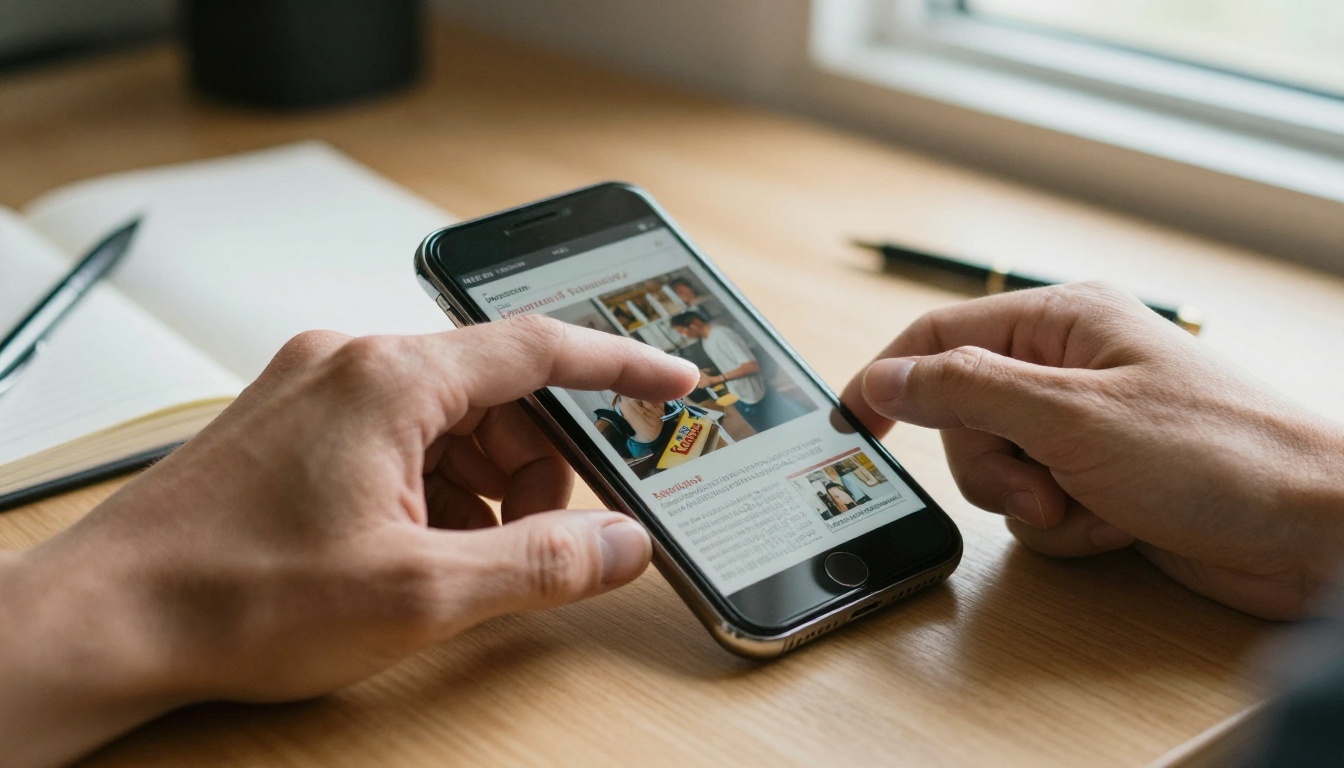
When a reader taps the corner, the browser sends an event, the flipbook script catches it, calculates which page comes next, loads that page image, and plays the animation. If the page image has not loaded yet, the animation can stall. If two events arrive at once, the book can turn twice. Most "bugs" are really one of those two situations.
The Four Families of Problems
- Input conflicts: the page, a plugin, or the device is stealing clicks or swipes.
- Loading problems: heavy pages, slow connections, or blocked files.
- Embed problems: the flipbook sits inside a container that scrolls, resizes, or hides it.
- Source file problems: the PDF itself has odd page sizes, broken fonts, or huge images.
💡 Pro tip: Before changing anything, open the flipbook in a private browser window on a different device. If it works there, the problem is local, not in the flipbook.
Quick Diagnosis Table
Use this table to match what you see with the most likely cause. Start with the row that sounds closest to your situation.
| What you see | Most likely cause | First thing to try |
|---|
| Page corner reacts but never finishes the turn | Page image still loading | Wait 5 seconds, then check your connection |
| Book jumps 2 to 5 pages in one click | Double events from touch plus mouse | Test in a private window with extensions off |
| Works on desktop, frozen on phone | Touch scrolling conflict in the embed | Give the embed its own full height block |
| Only some pages refuse to turn | Heavy or corrupted PDF pages | Re-export the PDF and compress images |
| Arrow buttons do nothing | Script blocked or overlay on top | Check for cookie banners and chat widgets |
| Turns fine, then freezes after 10 pages | Memory pressure on older devices | Reduce image size and page count per file |
Skipping Ahead: The Double Trigger Problem
Skipping is the stranger symptom, and it has a very specific cause. Many devices fire a touch event and then a simulated mouse click for the same tap. A well built flipbook filters the second one out. A page that adds its own click handlers on top can break that filter, so the book turns once for the touch and again for the click.

Trackpad and Scroll Wheel Surprises
Laptop trackpads send a burst of tiny scroll events when a finger lifts, a behavior called inertia. If your flipbook turns pages on scroll, one flick can register as five turns. The fix is on the reader side: use the arrow buttons or click the page corner instead of scrolling. On the publisher side, keep scroll based turning switched off unless you really need it.
Browser Extensions That Cause Trouble
Some extensions inject scripts into every page. Gesture tools, ad blockers with aggressive rules, and dark mode extensions are the usual suspects. They can add duplicate listeners or hide the page layer the flipbook uses to detect clicks.
How to test in 60 seconds:
- Open a private or incognito window (extensions are off by default).
- Load the same flipbook link.
- Turn ten pages.
- If the problem vanishes, re-enable extensions one at a time until it returns.
A Touchscreen Laptop Is Both Devices at Once
A touchscreen laptop reports as a desktop but accepts touch. That mixed signal is a classic source of skipping. Testing on one of these machines is a good way to catch double triggers before your readers do.
When the Real Culprit Is the PDF
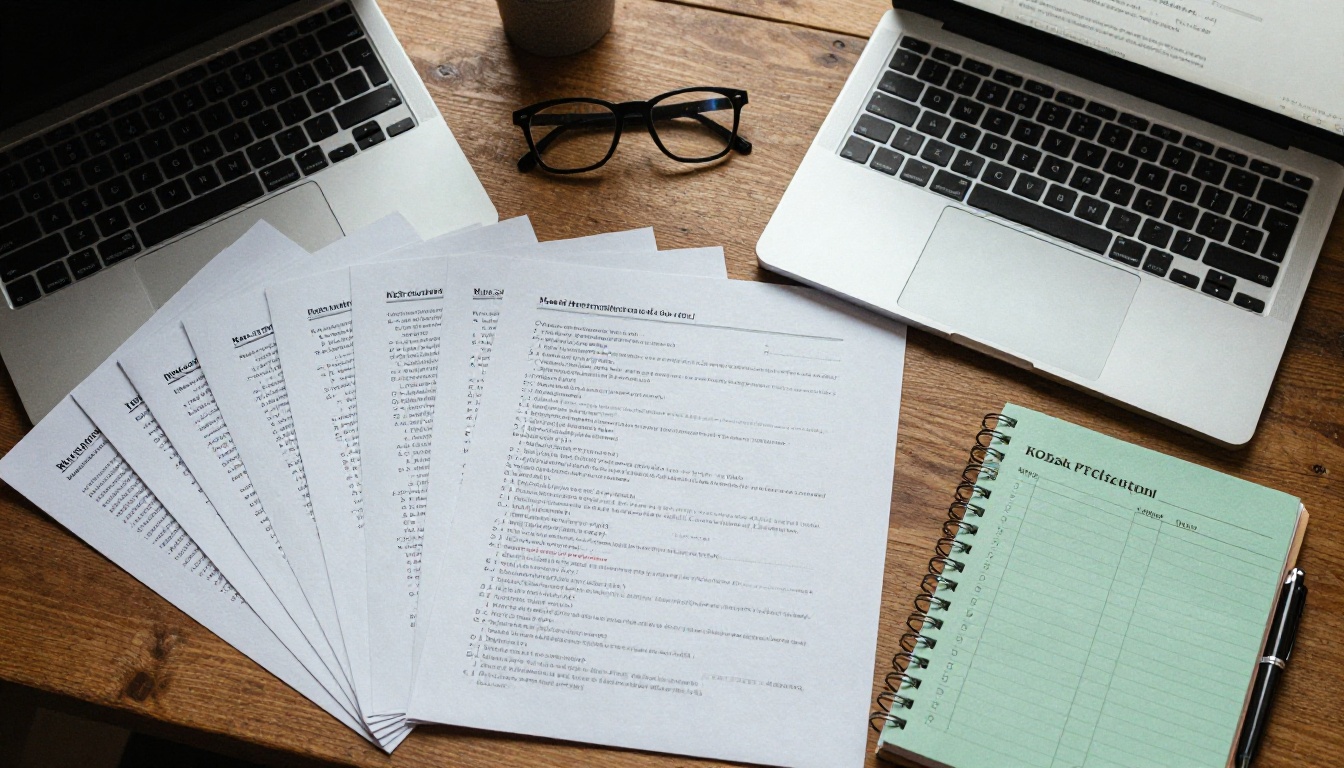
Not every problem lives in the browser. If only certain pages refuse to turn, the source file deserves a look.
Mixed Page Sizes
A PDF with a landscape spread in the middle of portrait pages can confuse the layout engine. The book may stall while it recalculates dimensions. Export your document with one consistent page size, and treat spreads as two separate pages.
Oversized Images
A single 40 MB photo on page 12 can freeze the book exactly when a reader reaches it. This is the most common reason for "it works until page 12." Compress images to roughly 150 to 200 DPI for screen reading. Your readers will not see the difference, but the page will load in a fraction of the time.
Fonts and Transparency
Unusual embedded fonts and heavy transparency effects force the converter to rasterize pages in awkward ways. If one page misbehaves, export it again with fonts converted to outlines and flattened transparency.
| PDF problem | Symptom | Fix |
|---|
| Mixed page sizes | Stalls on spreads | Export one consistent size |
| Images over 10 MB each | Freezes at a specific page | Compress to 150 to 200 DPI |
| Missing fonts | Garbled text, slow render | Embed or outline fonts |
| Layered transparency | Slow turn animation | Flatten before export |
| Password protected source | Conversion stops midway | Remove protection, then re-upload |
⚠️ Warning: Never fix a broken page by taking a screenshot and pasting it in as an image if the page has selectable text. You will lose search and accessibility, and the file size will grow.
Embed Problems on Your Website
If the flipbook works on its own link but misbehaves on your site, the embed is the cause. This is extremely common on pages built with drag and drop site builders.

Scrolling Containers
When a flipbook sits inside a box that has its own scrollbar, swipes can be claimed by the box instead of the book. The reader swipes left to turn a page, and the whole container scrolls sideways instead. Place the embed in a plain full width block with no inner scroll.
Fixed Height Frames
An embed with a height set too small crops the page, and the clickable corner ends up outside the visible area. The page seems frozen because the reader is clicking on empty space. Give the frame at least a 4:3 ratio on desktop and a taller one on phones.
Overlays Sitting on Top
Cookie banners, chat bubbles, and sticky headers can sit invisibly above the page corners. Click targets get blocked, and the flipbook never hears the click. Check by right clicking the corner and inspecting the element: if it is not the flipbook, something is covering it.
If you are embedding for the first time, the Embed Flipbook on Website tool gives you a ready snippet that avoids most of these layout traps.
A Safe Embed Checklist
- Use a full width block with no inner scrolling.
- Set a responsive height, not a fixed small number.
- Remove other scripts that capture swipes on that page.
- Test on one iPhone, one Android phone, and one desktop browser.
- Check that no banner or widget overlaps the page corners.
Device and Browser Limits
Some flipbooks fail because the hardware cannot keep up, not because of any bug.

Older Phones and Low Memory
Phones with limited memory can drop pages from memory while the book is animating. The result is a freeze after several turns, or a page that flashes white. Lighter page images solve this better than any setting.
Outdated Browsers
Page curl animations rely on modern browser features. A browser that is several versions old may skip the animation or break event handling. Updating takes two minutes and fixes more issues than people expect.
Battery Saver and Data Saver Modes
Battery saver modes slow down animations, and data saver modes can block image loading. A reader with either mode on may see turns that stutter or never finish. A short note near the flipbook suggesting they turn those modes off can save support emails.
| Device or setting | Typical effect | Reader side fix | Publisher side fix |
|---|
| Old phone, low memory | Freeze after many pages | Close other tabs | Lighter images |
| Outdated browser | No animation, stuck pages | Update the browser | Offer a simple fallback link |
| Battery saver | Choppy turns | Turn it off | Keep animations short |
| Data saver | Pages never load | Disable for the site | Keep file size small |
| Touchscreen laptop | Double turns | Use arrow buttons | Test on mixed input devices |
Step by Step Fix Routine
When a reader reports a problem, run this exact routine. It finds the cause in order of likelihood, so you stop early.

The Ten Minute Routine
- Reproduce it. Ask which device, browser, and page number. Try it yourself.
- Open the direct link. If it works outside your site, the embed is the cause.
- Try a private window. If it works, an extension is interfering.
- Test another device. If only one device fails, it is a hardware or browser limit.
- Check the failing page number. Same page every time points to the PDF.
- Re-export the PDF with consistent page sizes and compressed images.
- Re-upload the file and test again.
Fixing It Inside Flipbooks AI
If the problem points to your source file, re-uploading is quick:
- Sign in to your Flipbooks AI account.
- Open the affected flipbook and choose to replace the PDF.
- Upload the optimized file. The conversion runs again automatically.
- Open the new link and turn every page once.
- Copy the fresh embed code if your site uses one, and replace the old one.
The PDF to Flipbook Converter handles the conversion, and every flipbook is mobile responsive with no watermarks. If you want to track where readers drop off, analytics on the Professional plan show which pages lose people, which is a great way to spot a problem page. See the pricing plans for details.
✅ Best practice: After every upload, flip through the whole book on your phone before sharing. It takes two minutes and catches almost everything.
Real World Examples
Abstract advice is useful, but real situations make it stick.
The Restaurant Menu That Froze
A restaurant owner uploaded a 24 page menu with full resolution food photography. Customers on cellular data reported that the book froze around the dessert pages. The cause was image weight, with each photo above 12 MB. After compressing them to screen quality, the book turned smoothly. A tool like the Restaurant Menu Creator works best with lightweight photos.

The Catalog That Skipped Pages
A furniture retailer embedded a catalog flipbook inside a slider widget on their homepage. Every swipe moved the slider and the book at once, so customers landed several pages ahead. Moving the embed out of the slider and onto its own section fixed it instantly.
The Brochure That Only Failed on Phones
A real estate agent saw smooth turns on a desktop but stuck pages on phones. The embed height was fixed at 500 pixels, which cropped the corner target on narrow screens. Switching to a responsive height solved it. Agents who publish through the Real Estate Brochure Creator benefit from testing the final page on a phone every time.
| Scenario | Cause | Fix | Time to fix |
|---|
| Restaurant menu freezing | Oversized photos | Compress images | 10 minutes |
| Catalog skipping pages | Slider capturing swipes | Move embed to its own block | 5 minutes |
| Brochure stuck on phones | Fixed small frame height | Use responsive height | 5 minutes |
| Report stalls at one page | Mixed page sizes | Re-export with one size | 15 minutes |
Prevent It Before It Starts
The cheapest fix is the one you never need. A short pre-publish habit keeps most problems away.
Build Light From the Beginning
- Keep each image under 2 MB where possible.
- Use one page size across the whole document.
- Avoid stacking heavy transparency effects.
- Keep one file under a sensible page count and split very long documents into volumes.
Test Like a Reader
Open the link on a phone using cellular data, not your office Wi-Fi. That is how many readers will actually see it. Turn the first, middle, and last pages, and try both swiping and tapping.
Choose Sharing Options Wisely
Direct links are the most reliable option since nothing else on the page can interfere. Use embeds where you need them, and add password protection for private content. Offline downloads are a useful backup for readers with weak connections.

Quick Reference Checklist
Save this list and run it whenever a flipbook acts up:
If you answer these seven questions, you will find the cause of nearly every stuck or skipping flipbook.
Ready to Publish Without Glitches?
Smooth page turns are not luck. They come from light files, clean embeds, and a two minute test before you share. Ready to build one? Get started for free on Flipbooks AI and convert your first PDF in minutes. Browse the full set of flipbook tools and templates to find one that fits your project, and compare the plans to pick the features that suit your readers, from unlimited flipbooks to password protection and analytics.



