If you've ever uploaded a PDF and watched your flipbook scramble the pages into a completely wrong sequence, you know how frustrating that moment is. Page 12 shows up before page 3. Your table of contents points nowhere. The reading experience breaks completely. The good news: this is almost always fixable in under five minutes, and Flipbooks AI makes the re-upload process painless once you've sorted the source file.
This article walks through every reason pages end up out of order, how to diagnose and fix the problem in your PDF, how to republish correctly, and how to stop it from happening again.

Why Flipbook Pages End Up Out of Order
Page order problems in digital flipbooks almost always originate in one of three places: the source PDF, the software used to export it, or the upload process itself. Blaming the flipbook platform is a natural first instinct, but 90% of the time the sequence was already broken before the file left your computer.
The Source PDF Is the Real Problem
PDFs store pages as independent objects, not as a strict numbered sequence. When you merge multiple PDF files, copy-paste sections between documents, or export from certain design tools, the internal page order can get shuffled. The file looks correct in your PDF viewer because most viewers sort pages by their position in the file object tree. But a flipbook converter reads the raw object order, which can differ.
Common situations that scramble the source order:
- Merging PDFs using a tool that appends rather than inserts pages correctly
- Exporting from InDesign, Canva, or Figma with non-sequential artboard ordering
- Scanning physical pages and saving them in the wrong capture sequence
- Splitting and recombining a PDF without verifying the final order
- Converting from PowerPoint or Keynote when slides are out of sequence in the original
Upload Settings That Cause Sequence Issues
Some converters offer options like "reverse page order" or "right-to-left reading" for specific publication types such as manga or Arabic-language books. If these settings are toggled accidentally during upload, your pages will appear in reverse or an unexpected order even when your PDF is perfectly sequenced.
⚠️ Always double-check the upload settings panel before hitting publish. A single checkbox can flip your entire document.

Check Your PDF Before Anything Else
Before touching the flipbook platform, verify the page order inside the PDF itself. This saves time by confirming whether the problem lives in the file or in the conversion settings.
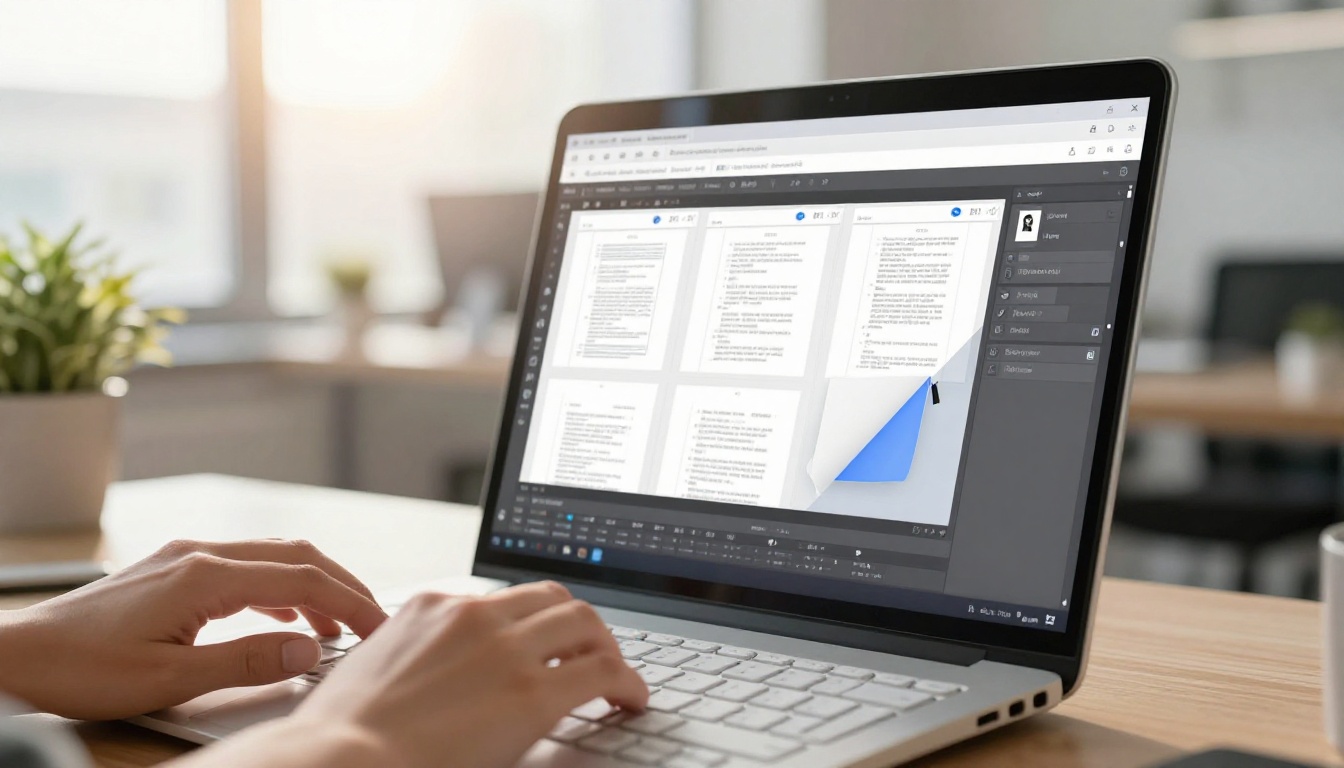
How to Inspect Page Order in Adobe Acrobat
- Open your PDF in Adobe Acrobat (any version, including the free Reader)
- Open the Page Thumbnails panel on the left sidebar (the small stacked pages icon)
- Scroll through all thumbnails in order from top to bottom
- Check whether each page appears in the correct reading sequence
If the thumbnails are already out of order here, your PDF is the problem. If they look correct, the issue is in the upload or conversion settings.
Free Tools for PDF Page Inspection
You don't need a paid tool to inspect your PDF. These free options work well:
| Tool | Platform | Cost | Best For |
|---|
| Adobe Acrobat Reader | Windows, Mac | Free | Quick visual inspection |
| PDF24 | Web browser | Free | Reordering and merging |
| Smallpdf | Web browser | Free (limited) | Simple drag-and-drop reorder |
| ILovePDF | Web browser | Free (limited) | Batch page operations |
| Preview | Mac only | Free (built-in) | Fast thumbnail check |
💡 On a Mac, Preview's thumbnail sidebar is the fastest way to spot a page order problem. Just drag thumbnails to rearrange if needed and re-save.
How to Fix Page Order in Your PDF
Once you've confirmed the PDF itself is the culprit, pick one of the methods below based on what tools you have available.
Rearranging Pages in Adobe Acrobat Pro
If you have Acrobat Pro (paid), this is the most reliable method:
- Open your PDF in Acrobat Pro
- Go to Tools and select Organize Pages
- The page thumbnails appear in a full-panel view
- Drag and drop thumbnails into the correct sequence
- Click File then Save (not "Save As") to preserve the corrected order
This method handles large documents cleanly and supports batch moves, so you can select multiple pages and shift them together.
Using Free PDF Editors Online
For documents under 100 pages, free web tools are fast and reliable:
PDF24 (Recommended for free users):
- Visit PDF24's "Sort Pages" tool
- Upload your PDF
- Drag thumbnails into the correct order
- Download the fixed file
ILovePDF:
- Select "Sort Pages" from their tool menu
- Upload your document
- Reorder using the visual drag interface
- Download and verify before re-uploading
✅ After reordering, always open the downloaded file in your PDF viewer and scroll through every page before uploading to your flipbook platform.
Fixing Page Order via Google Drive
If your original document is in Google Slides or Google Docs:
- Open the original presentation or document
- In Slides, click the slide you want to move in the left panel, then drag it to the correct position
- Export as PDF via File > Download > PDF Document
- Verify the exported PDF page order before uploading
This approach is particularly useful when the disorder originated during an export from Google Workspace rather than in a dedicated PDF tool.

Common Causes and Their Fixes
| Root Cause | Symptoms | Fix |
|---|
| Merged PDFs with wrong append order | Sections from different files mixed together | Re-merge using correct source file order |
| InDesign/Canva artboard sequence wrong | Pages match artboard numbers, not reading order | Reorder artboards in source, re-export |
| Scanned pages captured out of sequence | Physical page numbers don't match position | Use PDF24 or Acrobat to drag to correct order |
| Reverse page mode accidentally enabled | All pages appear backwards | Check upload settings, disable reverse mode |
| PowerPoint slide reordering before export | Slides jump around in PDF | Fix slide order in original file, re-export |
| Split-and-merge operation gone wrong | Chapters or sections appear in wrong chunk | Redo the merge operation with verified files |
How to Fix It in Flipbooks AI Step by Step
Once your PDF is corrected, re-uploading it on Flipbooks AI takes about two minutes. Here's exactly how to do it.

Step 1: Log Into Your Account
Go to flipbooksai.com/account and sign in. If you don't have an account yet, creating one takes less than a minute and gives you immediate access to the converter.
Step 2: Upload Your Corrected PDF
From your dashboard, click New Flipbook and upload the corrected PDF file. Flipbooks AI supports large files across all plan tiers, and the conversion process is automatic. No manual page configuration required on your end.
During upload, pay attention to the reading direction setting if it appears. For standard left-to-right publications such as reports, catalogs, brochures, and e-books, leave the reading direction at its default value.
Step 3: Preview Every Page
Before publishing, use the built-in page preview panel to scroll through every page in sequence. This takes 30 seconds and confirms the corrected order is preserved post-conversion. Don't skip this step.
💡 Click individual page thumbnails in the preview panel to jump directly to any page. Spot-check pages 1, the middle spread, and the last page at minimum.
Step 4: Add Branding and Customize
With the page order verified, this is a good moment to apply your branding settings: logo, brand colors, and background. The PDF to Flipbook Converter handles all of this inside the same workflow. You can also embed videos, audio clips, and clickable links directly into your pages.
Step 5: Publish and Share
Hit Publish. Your flipbook gets a shareable link instantly. You can also copy the embed code to place it on your website, set a password for private access, or download it for offline distribution.
Features available by plan:
- Free plan: Basic conversion, watermark-free flipbooks, shareable links
- Standard plan: Unlimited flipbooks, custom branding, offline downloads
- Professional plan: Analytics, lead generation forms, password protection, priority support
Compare all options at flipbooksai.com/pricing.
PDF Tools for Page Reordering Compared
| Tool | Max File Size | Drag-and-Drop Reorder | Free Tier | Desktop App |
|---|
| Adobe Acrobat Pro | Unlimited | Yes | No (paid only) | Yes |
| PDF24 | 100MB (web) | Yes | Yes | Yes (Windows) |
| Smallpdf | 5GB | Yes | 2 tasks/hour | No |
| ILovePDF | 100MB | Yes | Yes | No |
| Mac Preview | No limit | Yes | Yes (built-in) | Mac only |
| Google Drive | 2GB upload | Via Slides only | Yes | No |
For most users fixing a page order issue one time, PDF24 or Mac Preview cover everything needed at no cost. Reserve Acrobat Pro for recurring workflows where precision and batch operations matter most.
When the PDF Looks Correct But Pages Still Show Wrong
Sometimes you open your PDF, the thumbnails are in perfect order, you re-upload it, and the flipbook still scrambles the sequence. This is less common but it does happen.
Clear Your Browser Cache
Browsers cache flipbook files aggressively. If you've published a flipbook before and then replaced it, your browser may be serving the old cached version with the wrong order.
Fix: Hold Shift and click the browser refresh button to force a reload, or open the flipbook in a private/incognito window. If the order appears correctly in incognito, cache was the culprit. Clear your browser cache via settings and reload normally.
Try a Different Browser
Rendering inconsistencies between browsers are rare but real. If the page order looks wrong in Chrome, check in Firefox or Safari before assuming the platform has an issue.
Delete and Re-create the Flipbook
If re-uploading to the same flipbook shows persistent issues, delete the flipbook and create a brand new one from scratch with the corrected PDF. Some platforms cache conversion data per flipbook entry, and re-uploading doesn't always flush the old rendering.
⚠️ Before deleting, copy your sharing link or embed code if you've already distributed it. You'll get a new URL with the replacement flipbook.

Flipbooks AI Plan Comparison
| Feature | Free | Standard | Professional |
|---|
| Flipbooks created | Limited | Unlimited | Unlimited |
| Watermarks | None | None | None |
| Custom branding | No | Yes | Yes |
| Password protection | No | No | Yes |
| Analytics | No | No | Yes |
| Lead generation | No | No | Yes |
| Offline downloads | No | Yes | Yes |
| Embed on website | Yes | Yes | Yes |
| Priority support | No | No | Yes |
Every plan includes watermark-free flipbooks, which is genuinely unusual in this market. See the full breakdown at flipbooksai.com/pricing.
Stopping Page Order Problems in New Projects
Fixing the problem after the fact is straightforward. Not having the problem in the first place is better. These practices eliminate most page order issues before they start.
Best Practices When Creating Your PDF
When exporting from design tools:
- In InDesign: use File > Export and check "All Pages" with sequential page numbering in the document panel before exporting
- In Canva: download as PDF Print or PDF Standard; double-check that your pages are ordered correctly in the design editor first
- In Figma: export frames in the order you want them to appear, since Figma exports by frame sequence, not a defined page index
When merging multiple PDFs:
- Merge in small batches and verify after each merge
- Name component files with a number prefix (01-intro.pdf, 02-chapter.pdf) so your merge tool processes them in the right order
- Use a dedicated merge tool rather than relying on print-to-PDF workarounds
When scanning physical documents:
- Number pages before scanning
- Scan in batches of 10 to 20 pages and verify each batch
- Use a scanner app that supports automatic page ordering by capture timestamp
File Naming and Pre-Upload Verification
Always include the version and sequence intention in your filename. catalog-final-v3-pages-correct.pdf is a better filename than catalog-final.pdf when you're troubleshooting because it tells you exactly what state the file is in.
Before uploading to any flipbook tool, run through this pre-upload checklist:
✅ A 30-second pre-upload check eliminates 90% of the issues that send people searching for fixes later.

More Ways to Use Your Fixed Flipbook
Once your page order is sorted and your flipbook is published, the format opens up possibilities that static PDFs simply cannot offer.
For businesses with product catalogs: The Digital Catalog Maker lets you turn a correctly ordered product PDF into a shoppable, interactive catalog. Customers flip through pages the same way they would a physical catalog but with clickable product links.
For hospitality and food service: A restaurant or hotel with a properly ordered menu or brochure PDF can use the Restaurant Menu Creator or Hotel Brochure Designer to publish a flipbook version that updates automatically when you upload a new PDF.
For education and training: The Training Manual Flipbook tool works well for organizations that distribute multi-chapter manuals. When every chapter is in the correct order, learners can jump to any section by page number or use a clickable table of contents.
For portfolios and creative work: Photographers and designers who organize their work in a carefully curated PDF sequence benefit significantly from having page order preserved precisely. The Photography Portfolio tool maintains that visual storytelling flow in flipbook format.
For events and publications: A correctly ordered event program or school newsletter converts into a professional digital publication with the Event Program Maker or School Newsletter Creator.
Browse all available tools at flipbooksai.com/tools to find the one that fits your specific use case.
Fix It Once, Publish It Right
Page order problems in flipbooks are almost always a PDF issue, not a platform issue. The fix is predictable: identify whether the problem is in the source file or the upload settings, correct it at the source, verify before uploading, and republish. The whole process rarely takes more than five to ten minutes.
Ready to publish your corrected flipbook? Create your account on Flipbooks AI and upload your fixed PDF today. No watermarks, no complicated settings, and a clean publishing experience that takes the friction out of digital document distribution. If you want access to analytics, password protection, and lead generation forms, check the pricing plans to see which tier fits your needs.



