You uploaded your PDF, clicked convert, and then opened your brand-new flipbook only to find the text reading backward, showing boxes instead of letters, or displaying in a completely wrong language. It is one of the most frustrating moments in digital publishing, and it happens far more often than it should. The good news is that every single case of a flipbook showing the wrong language traces back to a handful of fixable causes. This article covers all of them, in order of likelihood, so you can stop guessing and start reading your content the way it was meant to be read. Whether you are publishing multilingual catalogs, menus, or reports on Flipbooks AI, the fix is almost always in the source PDF, not the platform itself.
Why the Wrong Language Appears
It Is Almost Never the Flipbook Platform
When a flipbook shows garbled characters, boxes, or reversed text, the instinct is to blame the conversion tool. But in the vast majority of cases, the problem was already baked into the PDF before it ever reached the converter. Flipbook platforms read the PDF as-is. If the PDF has bad font embedding, wrong encoding, or no language metadata, those issues transfer directly into the flipbook.
The PDF Source File Is the Real Source of Truth
Your PDF carries invisible layers of information beyond what you see on screen: character encoding maps, font glyph tables, document language tags, and reading-direction instructions. When any one of those layers is misconfigured or missing, the rendered output breaks. The flipbook is just the messenger.
5 Root Causes at a Glance
Before diving into individual fixes, here is a fast reference table to identify which problem you are dealing with:
| Symptom | Most Likely Cause | Severity |
|---|
| Boxes or squares instead of letters | Missing or unembedded fonts | High |
| Garbled symbols (?, #, weird characters) | Wrong character encoding | High |
| Text reading right to left unexpectedly | RTL language not configured | Medium |
| Correct characters but wrong language | PDF language metadata incorrect | Medium |
| Mobile shows correct, desktop shows wrong | Browser font cache conflict | Low |
| Only some words are broken | Mixed font embedding in source file | Medium |
Knowing which symptom you are seeing cuts the troubleshooting time in half. Most users experience the first two, which are both fixed at the PDF export stage.
Fix #1: Set the PDF Language Tag Correctly
Every PDF has a document-level language attribute that tells renderers what language the content is written in. When this tag is missing or set incorrectly, some converters and browsers fall back to a system default, which may be a completely different language than your content.
In Adobe Acrobat
- Open your PDF in Adobe Acrobat Pro
- Go to File > Properties
- Click the Description tab
- Look for the Language dropdown field
- Select the correct language code (e.g.,
en-US, fr-FR, ar-SA)
- Click OK and save the file
In LibreOffice Writer
- Open your source document
- Go to Tools > Options > Language Settings > Languages
- Set the Western Text Language to your target language
- When exporting to PDF, choose File > Export as PDF
- Under the General tab, confirm the language setting is applied

💡 Even if your document looks correct in your authoring tool, always verify the exported PDF's language metadata using a free tool like PDF Debugger or Adobe Preflight before uploading to your flipbook platform.
Fix #2: Embed Your Fonts
This is the single most common cause of boxes and broken characters. When a PDF is created without embedding the fonts used, the viewing software has to substitute whatever font it can find on the local system. If that system does not have the font, you get boxes, question marks, or generic Latin characters instead of your actual content.
Why Font Embedding Matters
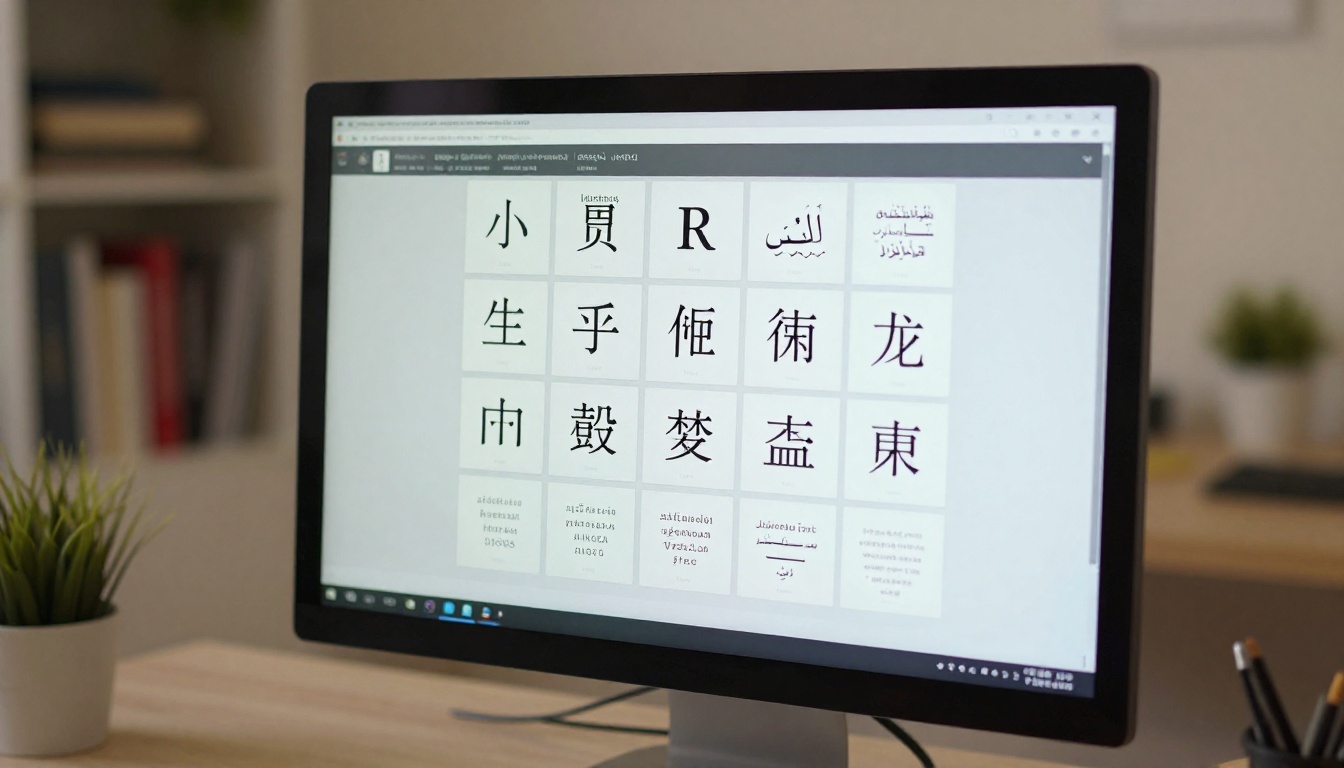
Fonts for non-Latin scripts (Arabic, Chinese, Japanese, Korean, Hindi, Hebrew) are almost never pre-installed universally. If your document uses any of these scripts and you export without embedding, every viewer that lacks that exact font installed will render broken text.
⚠️ Some PDF creators silently subset fonts, meaning they only embed the characters actually used in the document. This is fine for static documents but can cause issues if the flipbook platform processes or re-renders the PDF. Always choose full font embedding when exporting multilingual content.
How to Embed Fonts in Your PDF Export
In Microsoft Word:
- Go to File > Options > Save
- Check Embed fonts in the file
- Uncheck Do not embed common system fonts for maximum compatibility
- Save and re-export to PDF
In Adobe InDesign:
- Go to File > Export > Adobe PDF
- In the Output panel, review color and font settings
- In the Advanced panel, confirm all fonts appear under Fonts Included
In Canva or Google Slides:
- Download as PDF and check if a "Use custom fonts" option appears
- Note: Some web-based tools use web fonts that may not embed correctly in exported PDFs

Fix #3: RTL Languages Need Special Configuration
Arabic, Hebrew, Farsi, and Urdu are read from right to left. When a PDF does not declare its text direction, the flipbook may render these languages left-to-right, making entire paragraphs unreadable or backward.
Setting RTL Direction in Your Source File
In Microsoft Word:
- Go to File > Options > Advanced
- Under Editing Options, enable Show text direction right-to-left
- Select all text in RTL sections and apply Right-to-Left paragraph direction from the Paragraph formatting group
- Export to PDF, which embeds direction tags into the PDF structure
In Adobe InDesign (Middle East editions):
- Use the Paragraph Direction setting under the Paragraph panel
- Set to Right to Left for all RTL text frames
- Export with Tagged PDF enabled to preserve direction information
✅ Always create RTL documents in software designed for RTL support. Microsoft Word with Arabic language packs, Adobe InDesign Middle East Edition, or dedicated Arabic DTP tools produce the most reliable RTL PDFs for flipbook conversion.

Fix #4: Character Encoding Must Be UTF-8
Character encoding is the map that connects binary data to actual readable characters. PDFs exported with legacy encoding (like Windows-1252, ISO-8859-1, or various Asian code pages) can display correctly in some environments but break completely in others.
Encoding Types: a Quick Comparison
| Encoding | Characters Covered | Best For | Flipbook Risk |
|---|
| UTF-8 | All Unicode characters (140,000+) | All languages | Very Low |
| UTF-16 | Full Unicode, larger file size | CJK languages in older tools | Low |
| ISO-8859-1 | Western European only | English, French, German | High for non-Latin |
| Windows-1252 | Western European + some symbols | Legacy Windows documents | High |
| Shift-JIS | Japanese only | Older Japanese documents | High if mixed |
| GB2312 | Simplified Chinese | Older Chinese documents | High if mixed |
The safest choice is always UTF-8. Modern PDF export tools default to Unicode, but older documents created in legacy applications may still carry outdated encoding maps.
How to Check and Fix Encoding
- Open the PDF in a tool like PDF Candy, iLovePDF, or Adobe Acrobat Pro
- Check the document properties for encoding information
- If the encoding is non-Unicode, return to the source document
- Re-open the source file, change the language and encoding settings, and re-export
- There is no reliable way to convert encoding after the PDF is already created
How Flipbooks AI Handles Multilingual Content
Flipbooks AI is built to handle multilingual publications when the source PDF is correctly prepared. Once you have fixed your PDF using the steps above, the platform converts and renders your content faithfully across all scripts, including RTL languages, CJK characters, and complex Indic scripts.
Creating a Multilingual Flipbook Step by Step
- Prepare your PDF using the font embedding and encoding steps above
- Create an account at flipbooksai.com/account if you have not already
- Upload your PDF using the PDF to Flipbook Converter tool
- Preview immediately after conversion to catch any remaining display issues
- Customize branding: Add your logo, choose brand colors, and set page transition effects
- Configure sharing: Use direct links, embed codes, or password protection for private multilingual documents
- Publish or embed: Use the Embed Flipbook on Website tool to place your multilingual flipbook anywhere online
Platform features for multilingual publishers:
- No watermarks on any plan, ever
- Unlimited flipbooks on Standard and above
- Password protection for confidential multilingual reports
- Analytics to see which language audiences engage most (Professional plan)
- Mobile-responsive display across all scripts and text directions
- Offline downloads for distribution without internet access
- Custom branding to match your regional brand identity
Fix #5: Browser and Device Language Conflicts
Sometimes the flipbook renders correctly on one device but shows wrong characters on another. This is almost always a browser or operating system font cache issue, not a problem with the flipbook itself.
How to Diagnose Browser Conflicts
| Test Result | What It Tells You |
|---|
| Works in Chrome, broken in Firefox | Font rendering engine difference between browsers |
| Works on Windows, broken on Android | System font fallback differs by OS |
| Works logged in, broken in incognito | Browser font cache is populated when logged in |
| Works on desktop, broken on mobile | Mobile OS is missing the required font family |
| Different browsers on same device differ | Browser-specific font substitution behavior |
Fixing Browser Font Issues
- Clear browser cache: In Chrome, go to Settings > Privacy > Clear browsing data, then check Cached images and files
- Install missing fonts: For CJK content on older Android devices, install Google Noto fonts from the Play Store
- Test in multiple browsers: If only one browser shows the issue, it is likely a browser configuration problem rather than a flipbook issue
- Check system language packs: On Windows, go to Settings > Time and Language > Language and add the relevant language pack to install missing fonts
💡 If you are sharing multilingual flipbooks with a broad audience, always test on both iOS and Android, and on at least two desktop browsers, before sending the final link.

Different document types have different multilingual publishing needs. Flipbooks AI's tool library covers every use case:
Each tool accepts properly prepared PDFs and converts them into fully interactive, shareable flipbooks that preserve your multilingual content exactly as designed.
When Nothing Else Works
If you have followed every step above and the wrong language is still showing, here is a structured approach to isolate the remaining issue.
Re-Export from a Different Application
Sometimes the authoring tool itself has a bug in its PDF export engine. Try these steps:
- Copy all content to a new document in a different application
- Re-apply fonts, styles, and language settings from scratch
- Export to PDF with all embedding options enabled
- Test the raw PDF in a browser before uploading to any flipbook platform
Use a PDF Preflight Tool
Adobe Acrobat Pro's Preflight tool, found under Tools > Print Production > Preflight, runs a full diagnostic on your PDF's font embedding, encoding, and language tags. Run the "PDF/A compliance" or "Check fonts" profile to get a detailed error report showing exactly what is broken.
Create Your Document in a Better Tool
Some authoring tools produce more reliable multilingual PDFs than others:
- Adobe InDesign: Best overall for complex layouts in any language
- Microsoft Word with language packs: Strong choice for text-heavy documents
- Scribus (free, open-source): Solid RTL support for budget-conscious publishers
- LaTeX: Best for technical documents with mixed scripts and mathematical content
⚠️ Canva and many web-based design tools use proprietary font rendering that does not always translate cleanly to PDF. If you are creating multilingual content in Canva, always download and test the PDF in multiple viewers before uploading to your flipbook converter.
A Fast Checklist Before Every Flipbook Upload
Use this before uploading any multilingual PDF to avoid language display issues entirely:
A flipbook that passes this checklist before upload will display correctly on every device, in every browser, for every reader across every language.

Your Multilingual Flipbook Is One Upload Away
A flipbook showing the wrong language is always a solvable problem. In most cases the fix takes under ten minutes: set the language tag in your PDF, embed your fonts, confirm your encoding is UTF-8, and re-upload. The content you worked hard to create will display exactly as intended, in the right language, in the right direction, with every character intact.
If you are ready to publish multilingual flipbooks that look professional on every device, create a free account at Flipbooks AI and upload your corrected PDF today. Browse the full tools directory to find the right format for your content, whether it is a multilingual catalog, a bilingual menu, or an international annual report. When you are ready to access analytics, lead generation, and offline downloads for your multilingual publications, check the available pricing plans to find what works best for your team.



