Sending your flipbook link on WhatsApp feels like it should take five seconds. You copy the URL, paste it into a chat, hit send, and expect a clean, clickable preview card to appear for the recipient. Instead, you get a dead wall of text, a broken thumbnail, or a link the other person simply cannot open. This is one of the most frustrating sharing problems in digital publishing, and the fixes are not obvious but they do exist. Flipbooks AI makes it straightforward once you know what is going wrong on WhatsApp's end.
What Actually Happens When Sharing Fails
Most people assume the problem is with their flipbook. In reality, the failure usually lives inside WhatsApp itself, or in the way the link is being copied and sent.
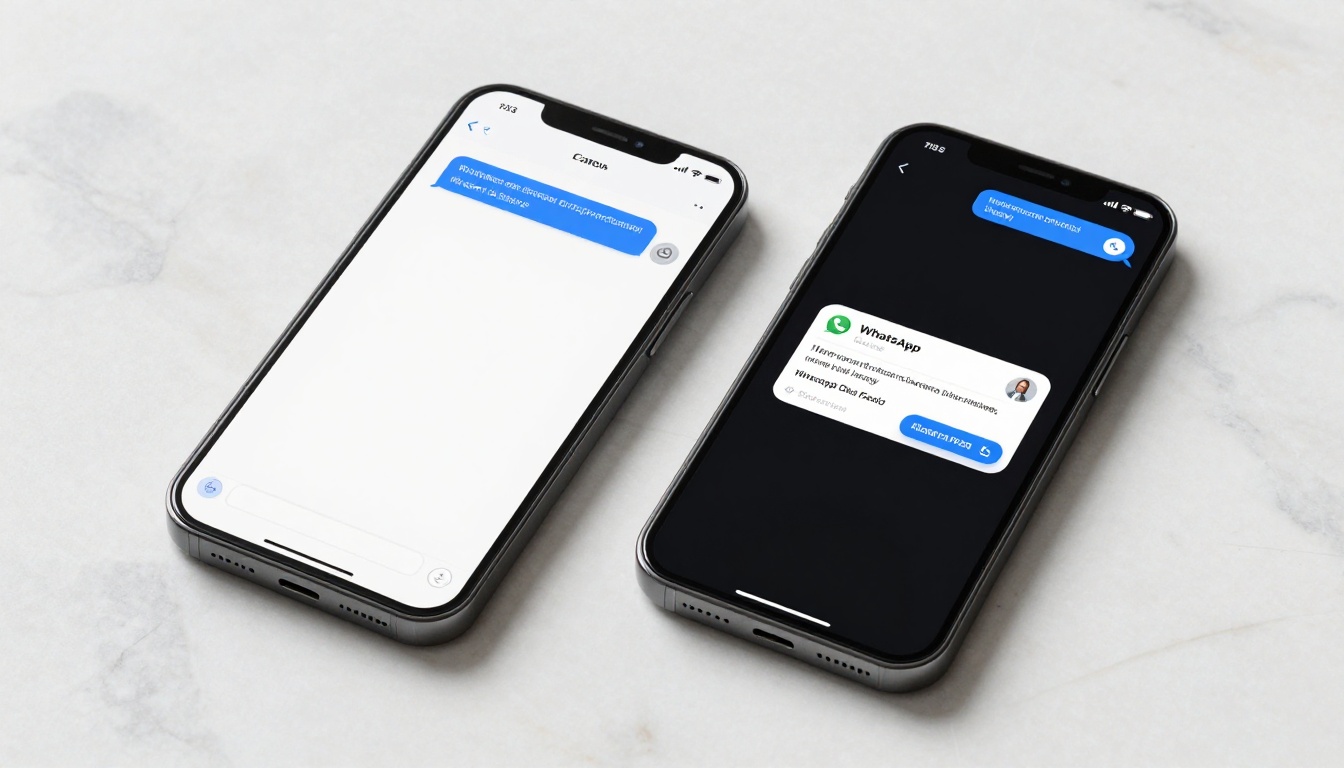
The link shows as plain text
When WhatsApp cannot read Open Graph metadata from a URL, it stops trying to build a preview card and renders the link as raw text instead. No thumbnail. No title. No description. Just a long, ugly string of characters that recipients may not even recognize as clickable.
No preview thumbnail appears
Some links show as tappable but without the thumbnail image WhatsApp is supposed to pull from the page. This often means WhatsApp successfully fetched the page but failed to read the og:image tag, or the image on the other end returned a loading error.
Recipients say they cannot open it
This is a separate issue entirely. If recipients tap the link and hit an access error or a blank screen, the problem is not sharing, it is access control. Your flipbook may be set to private or password-protected, and WhatsApp does not pass login sessions to external pages.
⚠️ Never assume all three problems have the same root cause. A link that shows as plain text and a link that will not open are completely different bugs with different fixes.
Why WhatsApp Struggles With Flipbook Links
WhatsApp is not a browser. It has its own internal bot that crawls a URL the moment you paste it into a chat, reads whatever metadata it finds, and builds a preview card from that. This process can fail for many reasons.
How WhatsApp reads link previews
When you paste a URL into WhatsApp, the app sends a request to that URL as the WhatsApp Link Preview Bot. It looks for Open Graph tags in the HTML head of the page: og:title, og:description, and og:image. If those tags are missing, malformed, or blocked, the preview silently fails.
Most modern flipbook platforms including Flipbooks AI automatically inject proper Open Graph metadata into every published flipbook. But something can still go wrong between the platform and WhatsApp's crawler.
The most common causes at a glance
| Cause | What You See | Frequency |
|---|
| Sending a file instead of a link | No link, just a PDF attachment | Very common |
| Flipbook set to private or protected | Link opens to error page | Common |
| WhatsApp cached a bad preview | Old broken preview won't update | Common |
| Incorrect or truncated URL | Plain text, not tappable | Less common |
| WhatsApp bot blocked by server firewall | No preview, link still works | Rare |
| Platform missing Open Graph tags | Plain text, always | Very rare with modern platforms |
Fix 1: Use a Shareable Link, Not a File
This is the most common mistake, and it is fixable in thirty seconds.
Why file attachments do not work
If you download your flipbook as a PDF and attach it directly to a WhatsApp chat, the recipient gets a file, not a flipbook. There is no page-flip effect, no branding, no embedded media, and most importantly, no clickable preview that showcases what you built. The entire point of a digital flipbook is that it lives at a URL.
How to grab the correct URL
- Log in to your Flipbooks AI dashboard.
- Click on the flipbook you want to share.
- Find the Share or Publish button, usually in the top right area of your editor.
- Copy the direct link provided, it will look something like
https://flipbooksai.com/f/your-flipbook-name.
- Paste that URL directly into WhatsApp, nothing else.
💡 Do not use the URL from your browser's address bar while editing your flipbook. That URL is your editor session, not the published version. Always use the official share link from the Share panel.
Fix 2: Force WhatsApp to Refresh Its Cache
WhatsApp aggressively caches link previews. Once it crawls a URL and gets a bad result, it stores that broken result and reuses it for every subsequent paste of that same link, sometimes for hours.
The cache problem explained
This is why you might fix your flipbook's settings, paste the link again, and still see the same broken preview. WhatsApp is not fetching fresh data. It is serving you the cached failure from the first crawl.
Steps to clear and retry
On mobile (Android and iOS):
- Clear WhatsApp's cache in your phone's app settings (Settings > Apps > WhatsApp > Storage > Clear Cache).
- Restart WhatsApp fully.
- Paste the link into a new chat, not the same thread where the bad preview appeared.
- Wait five to ten seconds before sending so WhatsApp has time to generate a fresh preview.
On WhatsApp Web:
- Hard-refresh the browser tab with
Ctrl+Shift+R on Windows or Cmd+Shift+R on Mac.
- Open a different conversation, then return to the one you are composing.
- Paste and wait for the preview card to appear before pressing send.
The URL parameter trick: Add a harmless query string to the end of your flipbook URL, like ?v=2, if your platform allows it. WhatsApp treats it as a brand new URL and forces a fresh crawl.
⚠️ If you paste the link and immediately press send before the preview loads, WhatsApp often sends it with no preview at all. Always wait for the preview card to appear first.
Fix 3: Check Your Flipbook's Privacy Settings
Flipbooks AI gives you full control over who can access your flipbook. That power becomes a problem when you forget you restricted access and then try to share publicly via WhatsApp.
Public vs. protected flipbooks
A public flipbook can be accessed by anyone with the link. No login required. This is the correct setting for sharing on WhatsApp, because your recipients will not have an account on your flipbook platform.
A password-protected flipbook requires the viewer to enter a password before seeing any content. When WhatsApp's link preview bot hits this page, it sees the password prompt, not the actual flipbook, and generates a useless preview or no preview at all.
A private flipbook may be completely inaccessible to anyone outside your organization or account. WhatsApp's bot will get an error page, and recipients clicking the link will see nothing useful.
When password protection breaks previews
If you need to share a protected flipbook via WhatsApp, you have two practical options:
- Share the password in a separate message right after the link, so recipients know what to enter when prompted.
- Create a public duplicate of the flipbook for WhatsApp sharing, and keep the password-protected version for email or private distribution only.
✅ Best practice: keep your publicly shared flipbooks set to Public in your Flipbooks AI settings. Use password protection only for internal documents or client-specific materials sent via more controlled channels like direct email.
How to Share Your Flipbook on WhatsApp (Step by Step)
Once the fixes above are in place, here is the correct end-to-end process for sharing a flipbook on WhatsApp that works every time.
From your Flipbooks AI dashboard
- Open Flipbooks AI and navigate to your flipbook.
- Click Share to open the sharing panel.
- Confirm the flipbook visibility is set to Public.
- Click Copy Link to get the direct URL.
- If WhatsApp is listed as a direct share option, click it to open WhatsApp with the link pre-filled.
On mobile WhatsApp
- Open WhatsApp and go to the conversation or group where you want to share.
- Tap the text input field.
- Long-press and select Paste to insert the copied flipbook URL.
- Wait for the preview card to appear (usually 2 to 5 seconds).
- Verify the preview shows the correct thumbnail and title.
- Tap Send.
In group chats
Group chats follow the same steps, but be aware that large groups sometimes show previews inconsistently across different devices and operating system versions. If a group member reports not seeing the preview, ask them to tap and hold the link to open it in their browser directly, which bypasses the preview requirement entirely.
💡 For business use cases like sharing a product catalog or restaurant menu with clients, consider using WhatsApp Business and saving the flipbook link as a quick reply. The Product Catalog and Restaurant Menu Creator tools on Flipbooks AI are built specifically for this kind of professional sharing workflow.

Common Mistakes That Kill Sharing
Most WhatsApp sharing failures come down to the same handful of errors. Here is a full breakdown with the fix for each:
| Mistake | Why It Fails | Fix |
|---|
| Sharing the PDF file directly | Recipients get a file, not a flipbook | Always use the published share URL |
| Copying the editor or draft URL | Requires login to access | Use the Share panel's official link |
| Not waiting for preview to load before sending | WhatsApp sends without metadata | Wait for preview card to appear first |
| Flipbook set to private or password-protected | WhatsApp bot cannot read the content | Set to Public for WhatsApp sharing |
| Re-sending to the same cached thread | Stale cache shows old broken preview | Start a new chat or clear WhatsApp cache |
| Sharing a direct download link | Downloads a file instead of opening the viewer | Use the web viewer link, not the download link |
| Typing or editing the URL manually | Breaks the link structure | Always copy-paste, never type URLs by hand |
WhatsApp is not always the best channel for flipbook sharing. Depending on your audience, one of these alternatives may give you more reliable previews and stronger results.
| Platform | Preview Quality | Best For | Flipbooks AI Tool |
|---|
| Email | Excellent | Clients, subscribers | Any flipbook with a direct link |
| LinkedIn | Excellent | B2B, portfolios | Sales Presentation |
| Facebook | Good | Consumer audiences | Catalog, menu, lookbook |
| Instagram | No link previews (use bio link only) | Visual brands | Lookbook Flipbook Builder |
| Website embed | Perfect, no sharing needed | Owned channels | Embed Flipbook on Website |
| WhatsApp | Variable, works with correct setup | Quick sharing with contacts | All flipbooks |
For formal distribution, always prefer email or direct embed. If you are sending to clients or prospects, an embedded flipbook on your website using the PDF to Flipbook Converter is far more professional than a WhatsApp message and removes all the caching and access issues entirely.
✅ Flipbooks AI lets you generate an embed code for any flipbook in seconds. Paste it into your website and the flipbook lives there permanently with no sharing issues, no cache problems, and no access restrictions to worry about. See available pricing plans for embed features on each tier.
Build Flipbooks Worth Sharing in the First Place
Before you can share a flipbook, you need to build one worth sending. Flipbooks AI turns any PDF into a polished, page-flipping digital publication in minutes, with no design experience required.
Your first step
Visit Flipbooks AI and create a free account. The upload process accepts any PDF file and converts it automatically into an interactive flipbook with a realistic page-turn effect.
What you can do with your flipbook
- Upload your PDF and watch it convert in real time with a cinematic page-flip animation.
- Apply your branding: custom colors, logo placement, and background styles from your dashboard.
- Embed videos and audio directly into pages for richer, more interactive content.
- Set sharing options: public link, password protection, or private access configured per flipbook.
- Download offline for situations where internet access is not guaranteed for your audience.
- Monitor analytics on the Professional plan to see who opened your flipbook, which pages held attention, and where viewers stopped reading.
Features that improve WhatsApp sharing
| Feature | Benefit for WhatsApp Sharing | Plan |
|---|
| Direct public link | Clean URL that WhatsApp can preview correctly | All plans |
| No watermarks | Brand-safe, professional share link | Standard and above |
| Custom domain | Polished, recognizable URL for recipients | Professional |
| Analytics | Confirm recipients actually opened and read it | Professional |
| Password protection | Controlled sharing for private clients | All plans |
| Offline download | Backup access if link fails temporarily | All plans |
Whether you are sharing a restaurant menu, a real estate brochure, a digital portfolio, or an interactive e-book, the same sharing rules apply: use the correct public URL, wait for the preview to load, and confirm your access settings are open before you press send.
💡 Flipbooks AI supports unlimited flipbooks on the Standard plan and above. That means you can create separate public versions for WhatsApp sharing and keep internal versions password-protected, at no extra cost.

Still Having Problems? Here Is What to Do Next
WhatsApp sharing problems with flipbooks almost always come down to one of three things: using the wrong URL format, fighting WhatsApp's link cache, or having the wrong privacy setting on your flipbook. Work through the three fixes above in order and you will solve 95% of cases without any technical knowledge.
Start with Fix 1 (correct URL from the Share panel). If previews are still broken, move to Fix 2 (clear WhatsApp's cache and try a new chat). If recipients still cannot open the link, Fix 3 (check privacy settings) is your answer. In the rare cases where none of these work, switching to email with a direct link will always be reliable.
Once your sharing is working correctly, browse the full library of tools and templates on Flipbooks AI. From product catalogs to training manuals to annual reports, every flipbook you create gets a clean, shareable URL that works on WhatsApp and every other platform without the headaches described above.
Ready to create your next flipbook? Get started for free and have it shared in minutes.



