Every workshop has the same ritual: someone tears a sheet off the easel, someone else takes a blurry phone photo, and a week later nobody can find the notes. A flipchart online tool removes that whole routine. Your pages live in one place, turn like real paper, and reach everyone with a single link. With Flipbooks AI, you can turn the pages you already prepare into a clean digital flipchart that works for teams in meeting rooms and students in classrooms alike.
This article shows what an online flipchart really is, where it beats paper, how to build one in a few minutes, and which mistakes to avoid. You will also find tables that compare the options, plus examples you can copy this week.
💡 Quick note on scope: Flipbooks AI is not a live drawing whiteboard. It converts your prepared pages (slides, PDFs, exported sketches) into a page-turning flipbook that you can present, share and embed. That is exactly what most flip chart sessions need.
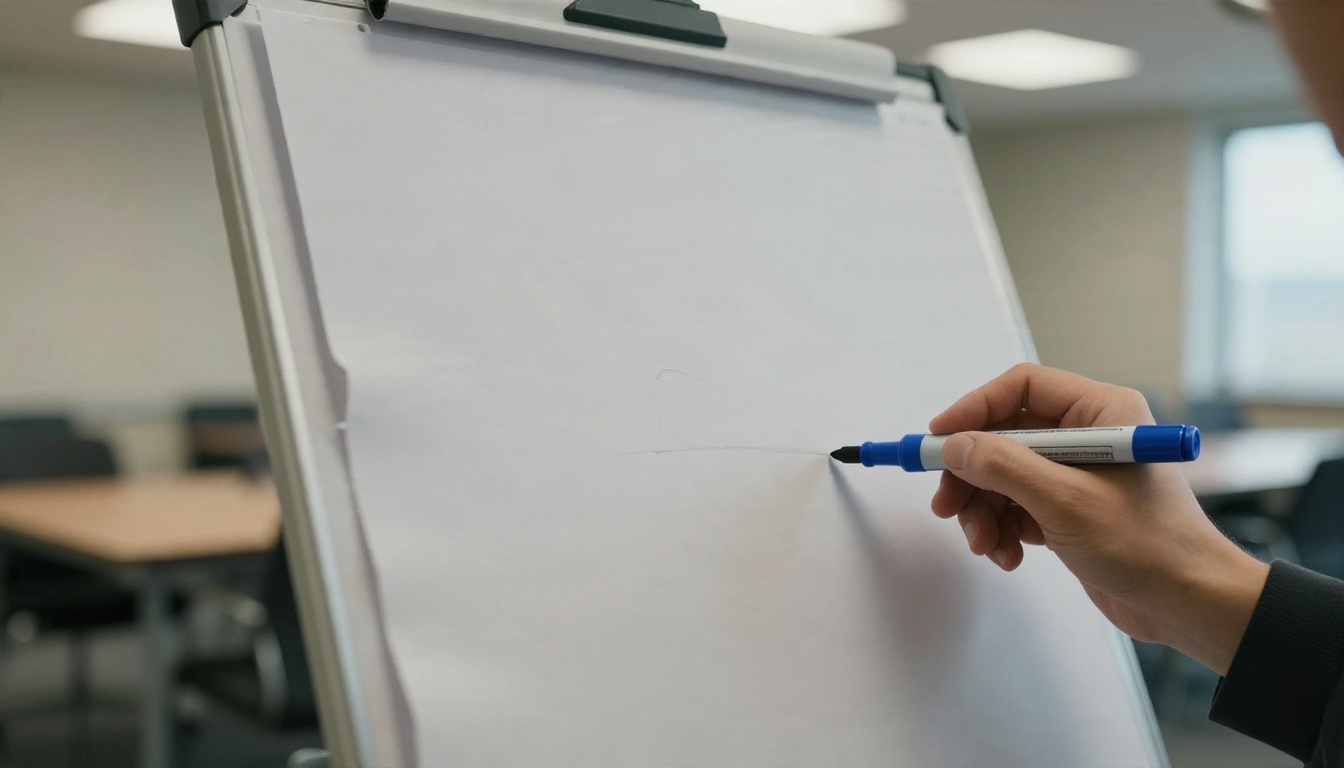
Why Paper Flip Charts Fall Short
Paper flip charts are familiar, and that is their charm. They are also fragile, bulky and almost impossible to share. If your team meets more than once a month, the cracks show quickly.
The Hidden Costs of Paper
Pads, markers, easels, tape and storage rooms add up. A single easel pad costs little, but a company that runs weekly sessions across several offices buys, carries and throws away a lot of paper. Dried-out markers are a running joke for a reason.
- Pads and markers need constant restocking.
- Easels are heavy and rarely in the room you booked.
- Torn sheets get taped to walls, then taken down and forgotten.
- Handwriting varies, and some pages are simply unreadable from the back row.
Where Sessions Break Down
The real damage happens after the meeting. Notes are photographed at odd angles, shared in chat threads and buried within days. Absent colleagues get a fuzzy picture of what was decided. Teachers face a similar issue: a lesson drawn on a chart cannot be handed to a student who was sick.
⚠️ Watch out: A phone photo of a paper chart is not an archive. Glare, shadows and cropped edges make it hard to read, and the file is rarely named or stored anywhere sensible.
What an Online Flipchart Does Differently
An online flipchart keeps the rhythm of a paper chart (one idea per page, flip to the next) and removes the logistics. You prepare the pages once, publish them, and everyone sees the same thing on any device.

Pages That Turn Like Paper
The page-flip effect matters more than it seems. Audiences follow a story better when they see one page at a time instead of a scrolling wall of text. A flipbook gives you that pacing, with realistic page turns, zoom for small details and a layout that adapts to phones, tablets and projectors. Tools like the PDF to Flipbook Converter handle the conversion from a plain PDF in seconds.
Paper vs Digital Side by Side
| Feature | Paper Flip Chart | Online Flipchart |
|---|
| Setup time | Find easel, pad, markers | Open a link |
| Sharing | Phone photos | One link or embed code |
| Storage | Rolled up or thrown away | Saved online, always available |
| Remote attendees | Cannot see it | Same view as the room |
| Readability | Depends on handwriting | Crisp on any screen |
| Edits | Cross out and rewrite | Replace the page and republish |
| Access control | None | Password protection available |
| Tracking | None | Analytics on the Professional plan |
| Ongoing cost | Paper, markers, storage | Free tier or low monthly plan |
The table makes the pattern clear: paper wins only on the spontaneity of drawing live. Everything that happens before and after the session is better online. Many teams keep a small paper pad for spontaneous sketches and publish the final version digitally.
Real Uses for Teams and Classrooms
A digital flipchart is a format, not a single use case. These scenarios show how different groups apply it.

Team Meetings and Workshops
A product team runs a Monday planning session. The facilitator prepares ten pages: last week's results, three priorities, risks, owners and next steps. Everyone opens the same link on their laptop or the room screen. After the meeting, the link stays in the team channel as the single source of truth.
Other uses for teams:
- Sprint retrospectives with one page per theme
- Onboarding walkthroughs that new hires can revisit at their own pace
- Sales kickoffs using the Sales Presentation tool
- Brainstorm recaps that turn messy sketches into clean pages
- Process explainers built with the Training Manual Flipbook option
Classroom Lessons
A secondary school teacher builds a lesson on the water cycle: eight pages with diagrams, a short audio explanation and a recap. Students follow along on their tablets. Anyone absent opens the link at home. The teacher reuses the same flipbook next year and updates only the pages that changed.
For schools, the Course Material Publisher and the School Newsletter Creator are natural companions. Lesson pages, homework packs and parent updates can all sit in one consistent format.
Remote and Hybrid Sessions
Remote attendees are the group paper handles worst. With a shared flipchart link, a person on a video call sees the same page as the person in the room. Nobody has to squint at a camera pointed at an easel.
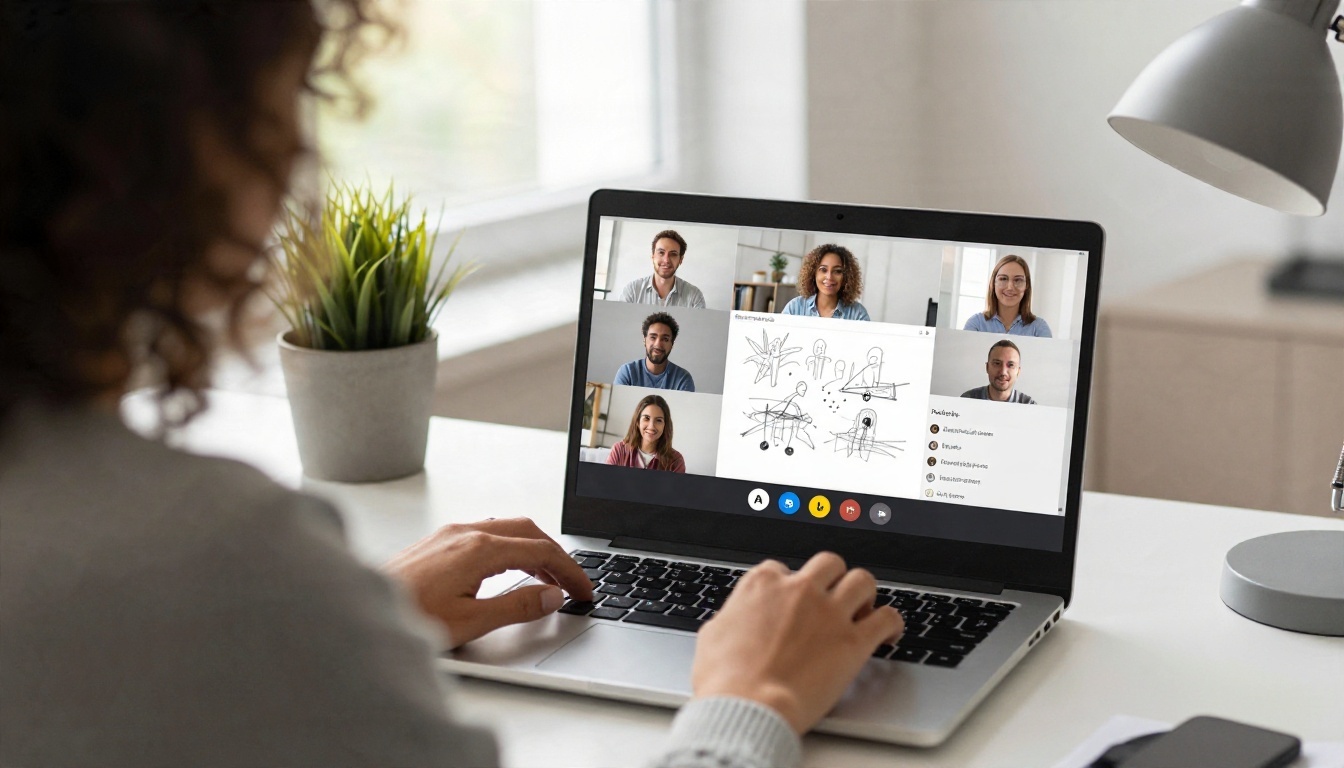
✅ Best practice: Send the link before the meeting. Participants can open it on a second screen and flip ahead or back without interrupting the presenter.
How to Create a Flipchart with Flipbooks AI
Here is the full workflow, from blank page to shared link. Allow about ten minutes for your first one.
Step 1: Prepare Your Pages
Build your flip chart pages in any tool you already use: Google Slides, PowerPoint, Canva, Keynote or a scanned set of hand-drawn sheets. Export the result as a PDF.
Design tips that work well for flipcharts:
- One idea per page. If you need two headlines, make two pages.
- Large type. Aim for text readable on a phone without zooming.
- High contrast. Dark text on a light background beats pastel on white.
- Landscape or portrait, but not both. Mixed formats look messy when pages turn.
- Visual anchors. One icon, photo or sketch per page helps recall.
Step 2: Upload and Convert
Create a free account at Flipbooks AI, choose to create a new flipbook and upload your PDF. The platform converts each page into a flipbook page automatically. Larger files take a little longer, but most sets of ten to thirty pages are ready quickly.
If you are unsure where to start, browse the full list of flipbook tools and pick the one closest to your use case. For example, the Presentation Flipbook Designer suits meeting decks, while the Digital Catalog Maker fits product-heavy pages.
Step 3: Customize the Look
Once the pages load, polish the flipbook so it feels like yours:
- Branding: add your logo and choose colors that match your team or school.
- Page effects: adjust the page-turn style and speed.
- Background: pick a neutral tone so the pages stand out.
- Multimedia: embed a short video or audio clip on a page to explain a diagram.
- No watermarks: the pages stay clean, so you can present them confidently.
💡 Pro tip: Add an audio note to a complex page. Students and absent colleagues get the explanation in your own voice, which a paper chart can never offer.
Step 4: Share and Embed
Sharing is where the digital version pulls far ahead of paper. You have three main options:
| Sharing Option | Best For | Notes |
|---|
| Direct link | Chat threads, email, calendar invites | Fastest way to reach a group |
| Embed code | Intranets, learning portals, team wikis | Use the Embed Flipbook on Website tool |
| Password protection | Private or sensitive sessions | Share the password separately |
| Offline download | Rooms with weak Wi-Fi | Prepare it before the session |
Mobile-responsive design means attendees can open the flipchart on whatever device they carry, with no app to install.
Step 5: Track Results
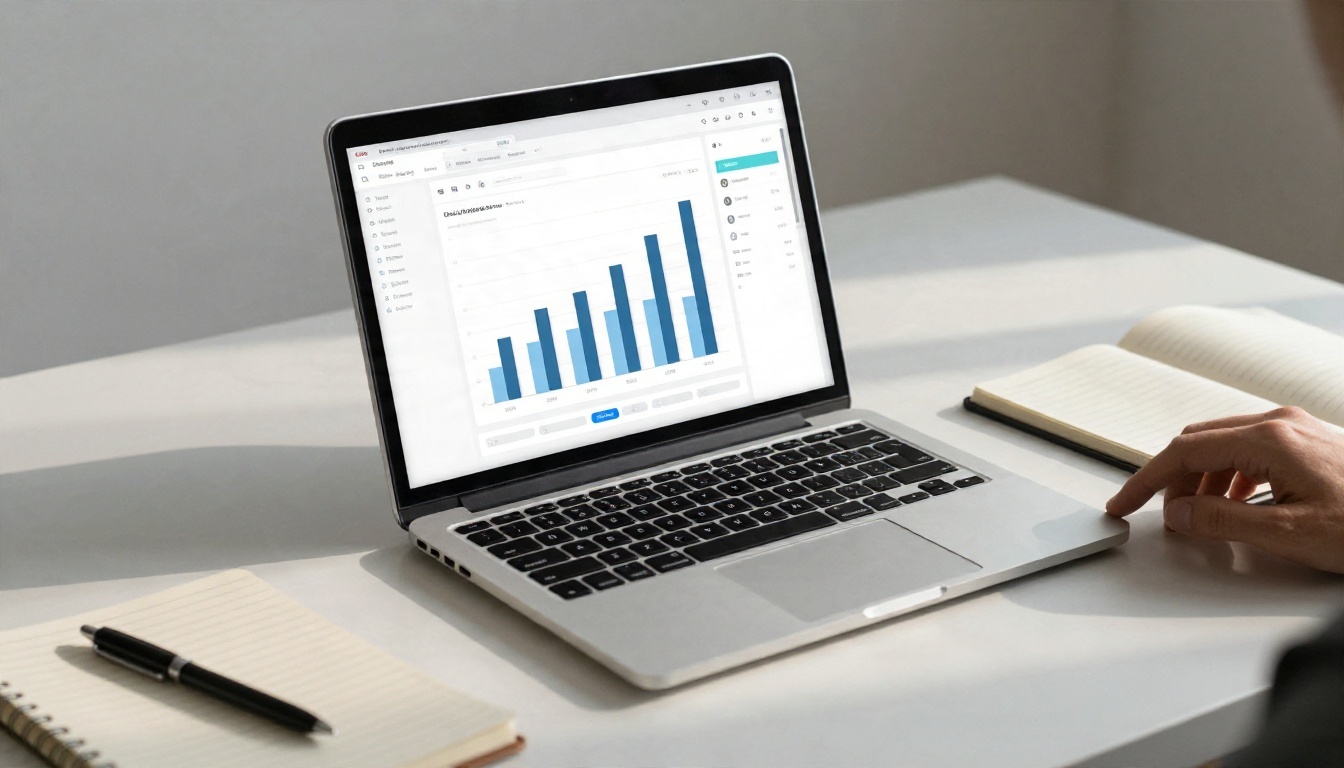
On the Professional plan, analytics show how many people opened your flipchart, which pages held attention and where readers dropped off. That is useful feedback for trainers and teachers: if everyone leaves on page seven, page seven needs work. Lead generation features also help consultants and coaches who run public workshops. See the pricing plans for details on what each tier includes.
Choosing the Right Setup
Different groups need different flipchart formats. This table maps common situations to practical setups.
A University Example
A lecturer teaches a 90-minute seminar on research methods. In the past, they filled six paper sheets and photographed them afterward. Now they prepare twelve pages in advance, project them from a laptop and post the link to the course portal. Students who miss a session open the pages, hear the audio notes and catch up the same evening.

A Training Team Example
A community education group runs evening workshops for adults. The facilitator shares a flipchart link on a QR code at the door. Participants open it on their phones, follow along and keep the pages afterward. No printing, no leftover posters.

Mistakes to Avoid
Most disappointing digital flipcharts fail for the same few reasons. Watch for these.
Copying the Whole Slide Deck
A flipchart is not a slide dump. Fifty dense pages turn into a PDF nobody reads. Cut the content down to the pages you would actually draw on an easel.
Tiny Text and Crowded Pages
If the text is unreadable on a phone, it is unreadable for half your audience. Keep headlines short and use bullet points sparingly.
Forgetting Access Settings
Internal planning pages do not belong on a public link. Use password protection for anything sensitive, and share the password in a separate message.
Skipping the Mobile Check
Open your finished flipchart on a phone before the session. Check that the page order, zoom and embedded media all behave as expected.
Never Updating Old Pages
A flipchart that stays online for a year gets outdated. Review it each term or quarter, replace stale pages and republish. The link stays the same, so nobody needs a new one.
⚠️ Reminder: A digital flipchart is a presentation and sharing format. For live, freehand drawing during a session, keep a paper pad or a whiteboard nearby and add the final sketches to your next version.
Free Plan or Paid Plan?
Most people start free and upgrade only when a clear need appears. Use this table to decide.
| Need | Free Start | Standard Plan | Professional Plan |
|---|
| Try your first flipchart | ✅ | ✅ | ✅ |
| No watermarks | ✅ | ✅ | ✅ |
| Unlimited flipbooks | | ✅ | ✅ |
| Password protection | | ✅ | ✅ |
| Custom branding | | ✅ | ✅ |
| Analytics and lead generation | | | ✅ |
Plan details can change, so check the current pricing page before you decide. A solo teacher with a handful of lessons may never need more than the free start. A training company with dozens of sessions a month will likely want unlimited flipbooks, and a consultant who collects leads will want analytics.
Start Your First Digital Flipchart
Paper flip charts served meetings and classrooms well for decades, but they were never built for sharing, storing or reaching people who are not in the room. An online flipchart keeps the simple one-idea-per-page rhythm and fixes everything around it.
Here is a quick plan for this week:
- Pick one upcoming meeting or lesson.
- Prepare eight to twelve pages and export them as a PDF.
- Create your account and upload the file.
- Add your branding, then share the link or embed it.
- Check the results and improve the weakest page.
Ready to build one? Get started for free on Flipbooks AI, browse all available tools and templates, or compare pricing plans when your sessions grow. Your next session can leave the easel in the cupboard and still feel like a flip chart.



