You wrote the ebook. The words are good. Then you open the PDF on a phone and the margins swallow the text, the images look soft and the file weighs 60 MB. Formatting is where most free ebooks lose their readers, and you don't need expensive desktop software to fix it. This article shows how to format an ebook online for free: which page size to choose, how to export a PDF that behaves, and how to turn it into a flipbook with Flipbooks AI so it opens in any browser.
The short version: choose a page size that matches where people will read, export at the right resolution, then publish the PDF as a page-turning flipbook instead of a raw download. The sections below explain each decision with numbers you can copy.
Most formatting problems come from one assumption: that the page will look the same everywhere. It won't. A PDF is a fixed layout, so what you design is what every reader gets, whether they hold a 6-inch phone or a 27-inch monitor.
The Fixed Layout Problem
An EPUB reflows text to fit the screen. A PDF does not. If you design a page at A4 and someone reads it on a phone, they pinch and scroll sideways. That is fine for a brochure and miserable for a 120-page book.
What Readers Actually Notice
Readers rarely say "the kerning is off." They say "I stopped reading." The things that trigger that reaction are predictable:
- Text that is too small to read without zooming
- Margins so tight the text feels cramped
- Images that pixelate when enlarged
- Slow downloads on mobile data
- Pages that jump or crop when the screen rotates
💡 Pro tip: Open your draft on your own phone before you change anything else. If you squint, your readers will too.
Pick the Right Page Size
Page size is the first decision and the hardest one to undo. Changing it late reflows every page, moves every image and breaks every table. Decide it before you design.
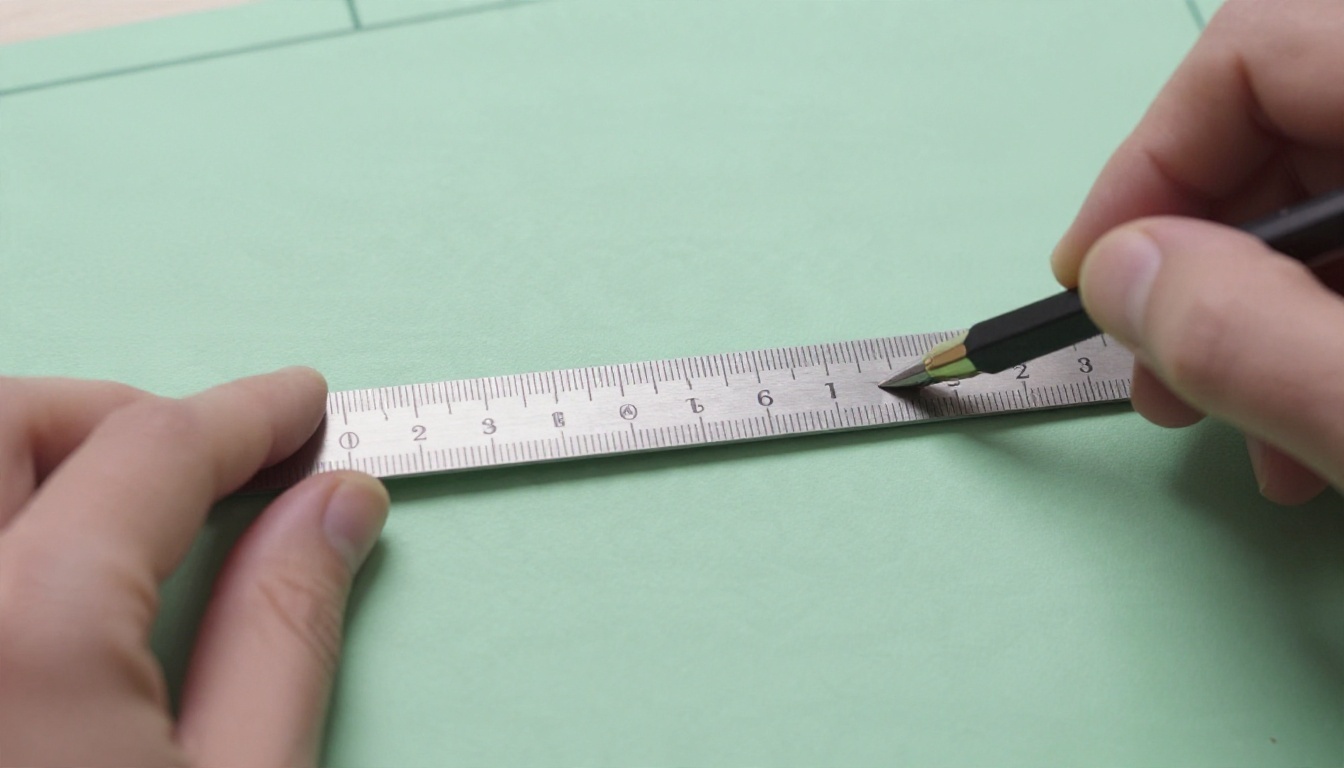
Common Trim Sizes Compared
| Page size | Dimensions (inches) | Best for | Phone readability |
|---|
| A5 | 5.83 x 8.27 | Novels, short nonfiction | Good |
| US Trade | 6 x 9 | Nonfiction, memoirs | Good |
| Digest | 5.5 x 8.5 | Workbooks, short guides to a topic | Good |
| US Letter | 8.5 x 11 | Reports, manuals, workbooks | Fair |
| A4 | 8.27 x 11.69 | Magazines, catalogs, white papers | Fair |
| Square | 8 x 8 | Photo books, recipe collections | Good |
For text heavy books, 6 x 9 inches is the safest pick. It is close to a real paperback, it scales cleanly to a phone and it leaves room for readable type at 11 to 12 points. For image heavy publications such as lookbooks or catalogs, A4 or square gives pictures space to breathe.
Screen Sizes vs Print Sizes
If your ebook will only ever live on screens, you can ignore print conventions and design for the viewport. A 16:9 landscape page works well for slide-style ebooks. A portrait 3:4 page suits tablets. If you plan to offer a printable version too, stay with a standard print size so the file works in both places.
| Reading context | Recommended orientation | Suggested size |
|---|
| Phone only | Portrait | A5 or 6 x 9 |
| Tablet and desktop | Portrait or square | 6 x 9 or 8 x 8 |
| Presentation style | Landscape | 16:9 |
| Print and screen | Portrait | A5, 6 x 9 or US Letter |
Margins and Bleed
Set margins before you place a single paragraph. For a 6 x 9 page, these values are a reliable starting point:
- Inside margin: 0.75 inch (the edge near the spine)
- Outside margin: 0.5 inch
- Top and bottom: 0.6 to 0.75 inch
- Bleed: 0.125 inch only if images run to the page edge and you plan to print
Screen only ebooks don't need bleed, but a margin of at least 0.4 inch keeps text from touching the edge when a flipbook viewer adds page curl shadows.
⚠️ Warning: Mixing page sizes inside one PDF is the fastest way to break a flipbook. Keep every page identical in dimensions.
Set Up PDF Export Properly
Once the layout is fixed, export is mostly a matter of picking sensible numbers. Most free design tools hide these settings in a dropdown labeled "Quality," so check what that label actually changes.
Export Settings That Matter
| Setting | Screen ebook | Print ready |
|---|
| Image resolution | 150 dpi | 300 dpi |
| Color mode | RGB | CMYK (ask your printer) |
| Fonts | Embedded | Embedded |
| Compression | JPEG, medium to high quality | Minimal |
| Page layout | Single pages, not spreads | Single pages |
| Target file size | Under 15 MB | Printer dependent |
The biggest single win is embedding fonts. If a font is not embedded, the reader's device substitutes another one, and your careful line breaks fall apart.
Fonts and Image Resolution
Use no more than two typefaces: one for body text and one for headings. For body text on screen, 11 to 12 points with a line height of about 1.4 times the font size reads comfortably. For images, 150 dpi at their displayed size is sharp enough for screens. Going to 300 dpi on a screen ebook only makes the file heavier without a visible gain.
File Size Targets
A 100-page text book should land under 5 MB. An image rich book can reach 15 MB before mobile readers start to notice the wait. If your export comes out too large:
- Downsample photos to 150 dpi
- Convert PNG screenshots to JPEG when they have no transparency
- Remove unused pages, hidden layers and embedded thumbnails
- Subset fonts instead of embedding the full family
✅ Best practice: Export twice, once at screen quality and once at print quality. Publish the lightweight one as a flipbook and keep the heavy one for download or printing.
A PDF alone is a file. A flipbook is a reading experience: pages turn, the layout adapts to the window and nobody needs to download anything. The PDF to Flipbook Converter handles the conversion in your browser, and the E-Book Flipbook Generator is built for book length content.

Upload the PDF
- Go to Flipbooks AI and create an account.
- Choose to create a new flipbook and drag your exported PDF into the upload area.
- Wait while the pages are converted. A 100-page book usually takes under a minute.
- Check the preview. Flip through the first, middle and last pages to confirm nothing is cropped.
If a page looks wrong, fix it in your source file and re-export. Re-uploading takes seconds, and it is faster than hunting for a workaround inside the viewer.
Customize the Look
Open the design settings and adjust what readers will see around your book:
- Branding: add your logo and choose a background color that matches your site or author brand
- Page effects: switch the page turn animation on or off, and pick a soft or hard cover feel
- Multimedia: embed videos and audio, such as an author introduction or a podcast clip, directly on a page
- Mobile layout: the viewer is responsive, so single page view appears automatically on narrow screens
There is no watermark on your flipbook at any plan, so the design stays yours.
Share and Protect
Once the layout looks right, pick how people will reach it:
- Direct link: paste it into an email, social bio or newsletter
- Embed code: place the flipbook inside a landing page. The Embed Flipbook on Website tool shows exactly how
- Password protection: gate a paid ebook, a client report or a draft for beta readers
- Offline download: let readers save a copy for flights and bad connections
Professional Plan Extras
If you publish to build an audience or sell something, the Professional plan adds two features worth having:
- Analytics: see how many people opened the book and which pages they reached
- Lead generation: ask for an email address before a reader gets past a chosen page
Unlimited flipbooks are available from the Standard plan upward, so a growing library of ebooks, workbooks and lead magnets doesn't hit a cap. Compare pricing plans to see which tier matches your volume.
💡 Pro tip: Put your lead form after the first chapter, not before the first page. Readers who have already seen value are far more willing to type an email address.
Flipbook vs PDF vs EPUB
Which format should you publish? It depends on what the reader needs to do with the book.
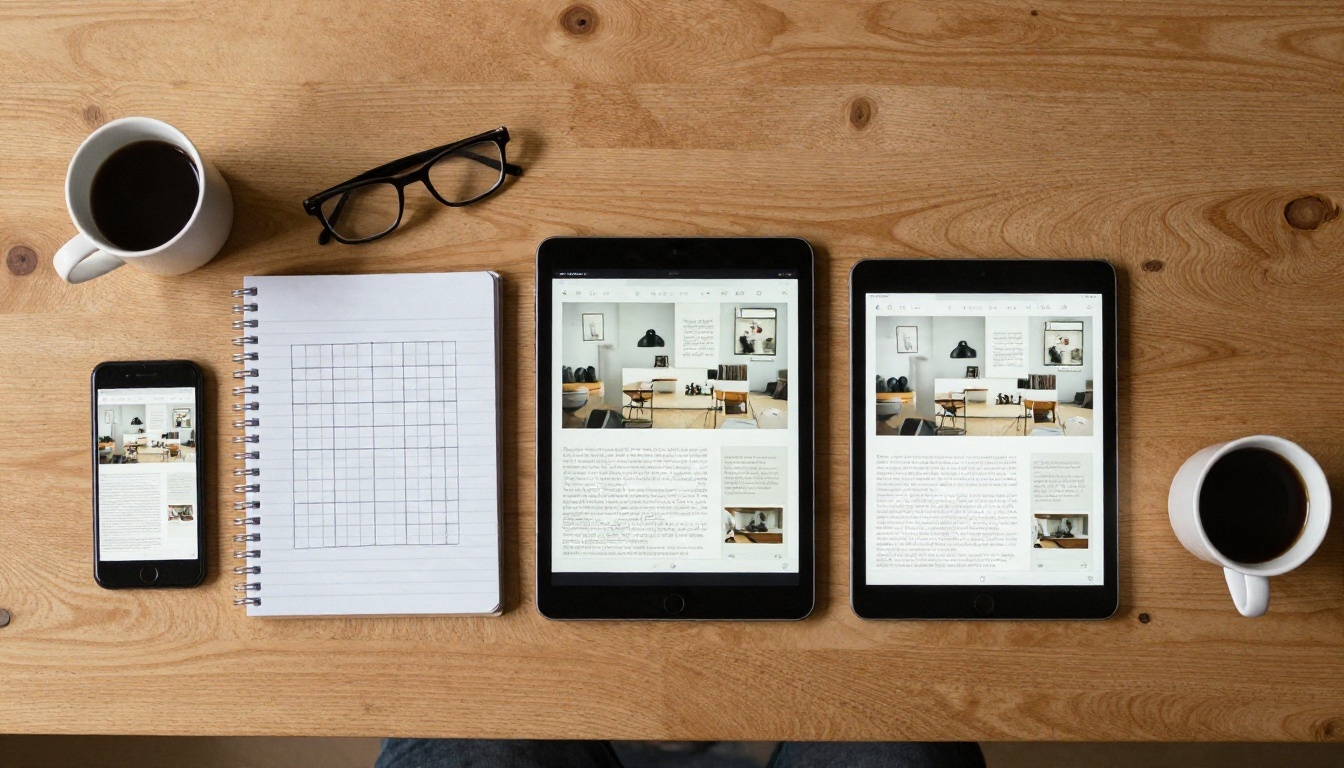
Side by Side
| Feature | PDF | EPUB | Flipbook |
|---|
| Fixed layout preserved | Yes | Limited | Yes |
| Text reflows to screen | No | Yes | No, but scales |
| Needs download | Yes | Yes | No |
| Opens in a browser | Sometimes | No | Yes |
| Page turn experience | No | Basic | Yes |
| Embedded video and audio | Limited | Limited | Yes |
| Reader tracking | No | No | Yes (Professional) |
| Password protection | Basic | Rare | Yes |
When Each Wins
- PDF wins when someone needs to print the file or attach it to a contract
- EPUB wins for long, text only novels read in dedicated e-reader apps
- Flipbook wins when design matters, when you want to share a link instead of an attachment and when you need to know whether anyone read it
Most authors end up using two: a PDF for downloads and a flipbook for sharing. They come from the same source file, so the extra work is close to zero.
Real Examples That Work
Formatting rules feel abstract until you apply them to a specific project. These three scenarios use the same workflow with different settings.
A Self Published Author
A nonfiction writer finishes a 150-page workbook. She sets the page to 6 x 9, embeds fonts and exports at 150 dpi to get a 9 MB file. She uploads it, adds a password for her launch team and shares the link in a pre-order email. After launch she removes the password and embeds the flipbook on her sales page.
A Small Business Owner
A boutique owner turns a 24-page lookbook into an ebook. A4 portrait suits the photography, so she keeps A4. Her export is 12 MB. She builds it with the Interactive Lookbook Designer and drops the link into her newsletter. Product pages link out from the flipbook, so browsing turns into buying.
A Teacher or Trainer
A trainer converts a staff manual from Word into a PDF at US Letter. The file includes tables and screenshots, so she compresses images to 150 dpi. She publishes through the Training Manual Flipbook tool, protects it with a password and updates it each term by uploading a new PDF.
| Use case | Page size | Export dpi | Typical file size | Sharing method |
|---|
| Workbook | 6 x 9 | 150 | 5 to 10 MB | Password link, then public embed |
| Lookbook | A4 | 150 | 10 to 15 MB | Newsletter link |
| Training manual | US Letter | 150 | 4 to 8 MB | Protected link |
| Recipe collection | Square | 150 | 8 to 14 MB | Embedded on blog |
For more ideas, browse the full list of flipbook tools.
Common Mistakes to Skip
Even with the right settings, a few habits keep producing bad ebooks.
Designing at the Wrong Size
If you design on a 27-inch monitor at 100 percent zoom, everything looks large and clear. Then it shrinks on a phone. Zoom out until your page is about the size of a phone screen and check whether the body text is still comfortable.
Skipping the Final Proof
Always read the exported file, not the source. Export can change line breaks, drop fonts and shift images. Check the table of contents links, the first and last page, and any page with a table.
Ignoring Accessibility
Add alt text to images in your source file, use real headings instead of bold text and keep a color contrast of at least 4.5 to 1. These choices help readers with low vision and also improve how search engines read the document.
Over Compressing Images
The opposite of bloated files is blurry ones. If text inside an image becomes fuzzy, raise the JPEG quality or export that image as PNG. A few extra megabytes cost less than a book that looks cheap.
⚠️ Warning: Never publish a flipbook before you have opened it on a phone, a tablet and a laptop. Each screen reveals different problems.
Ready to Publish Your Ebook?
You now have the numbers: pick a consistent page size, embed your fonts, export screen copies at 150 dpi and keep the file under 15 MB. After that, the quickest path to readers is a link that opens instantly.
Here is what to do next:
- Finalize your page size and margins, and export a PDF
- Get started for free on Flipbooks AI and upload it
- Customize branding, add a password if needed and copy the embed code
- Browse the tools directory to find a template that fits your project
- Compare pricing plans when you are ready for analytics, lead capture and unlimited flipbooks
A well formatted ebook costs nothing extra to produce. It only needs a few decisions made in the right order.



