You have a PDF. Maybe it is a catalog, a menu, a portfolio or a ten-page report that nobody opens because the download link feels like homework. A free flipbook online solves that in a few minutes: upload the file, get a realistic page-turning reader, then either embed it on your website or send it as a single link. With Flipbooks AI the whole flow runs in the browser, with no software to install and no watermark stamped across your pages.
This article walks through the three actions people search for most: PDF upload, embedding on a website and sharing links. It also lays out the limits you should check before you publish, because "free" means different things on different platforms.
What "Free" Really Means Here
Before you upload anything, decide what you actually need. A free flipbook maker usually trades something for the price tag: a watermark, a short expiry date, a cap on pages, or a locked sharing option. Knowing the trade upfront saves you from rebuilding a flipbook later.
The Three Jobs a Flipbook Does
Most people want one of these outcomes:
- Show a document nicely. A flipbook reads like a printed magazine, with curled pages and smooth zoom, on phones and desktops.
- Put it on a site. An embed code places the reader inside your own page, so visitors never leave.
- Send it to someone. A short link works in email, WhatsApp, social bios and QR codes.
If you only need the first job, a free tier is often enough. If you need branding, privacy or numbers on who read it, you are in paid territory. The pricing page lists exactly what each plan adds.
Free Versus Paid at a Glance
| Feature | Typical free tool | Flipbooks AI approach |
|---|
| Watermark on pages | Often forced | No watermarks, ever |
| Number of flipbooks | 1 to 3 | Unlimited on Standard and above |
| Password protection | Rarely included | Available for private content |
| Embed on your website | Sometimes blocked | Supported with an embed code |
| Analytics and leads | Not offered | Professional plan |
| Offline download | Rare | Supported |
| Mobile layout | Hit or miss | Responsive by default |
💡 Pro tip: Open the pricing page of any flipbook tool and search for the word "watermark" before you upload. It takes ten seconds and tells you whether the free plan is usable for a client.
Upload a PDF in Minutes
The upload step is where most of the quality is decided. A clean PDF gives a sharp flipbook. A messy one gives blurry pages and a slow load.
Prepare the File First
Spend two minutes on the PDF before you upload it:
- Export at the right size. Aim for a file that is readable on a phone but not huge. Most design tools have a "web" or "smallest size" export option.
- Keep pages in reading order. Decide whether your document should open as single pages or as spreads, and export to match.
- Embed fonts and compress images. Missing fonts cause odd spacing, and uncompressed photos slow the reader down.
- Check the links. Clickable URLs inside the PDF are a good thing. Test them before you convert.
Step-by-Step: Create Your Flipbook
Here is the exact flow on Flipbooks AI. If you want a dedicated page for this single task, use the PDF to Flipbook Converter.
- Open an account. Go to Flipbooks AI and sign up with your email.
- Start a new flipbook. Click the create button on your dashboard.
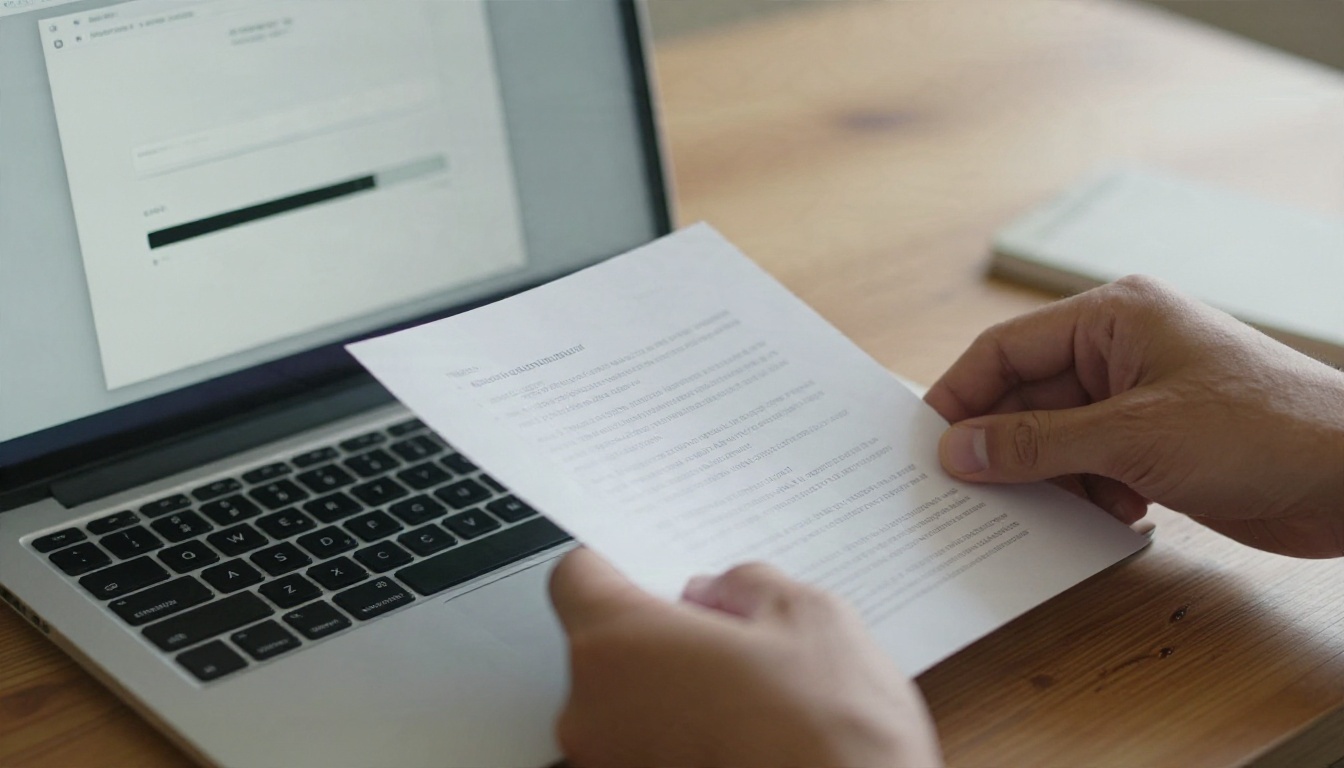
- Upload the PDF. Drag the file into the upload area or pick it from your computer. A progress bar shows the conversion.
- Wait for processing. Each page is turned into an image layer so it can curl realistically. Short documents finish in seconds.
- Preview the result. Flip through every page on desktop, then check it on your phone.
- Publish. Save the flipbook to receive a public link and an embed code.
Screenshot description: after step 3 you see a grid of page thumbnails on the left, the live flipbook preview in the center, and a settings panel on the right with tabs for design, sharing and downloads.
Make It Look Like Yours
A default flipbook works, but a branded one looks deliberate. Inside the editor you can adjust:
- Colors and background. Match the reader to your brand palette or the page color of your site.
- Logo. Add your own mark so the flipbook feels like part of your identity, not a third-party widget.
- Page effects. Choose how pages turn, including the speed and the shadow under the curl.
- Multimedia. Add video and audio to pages, such as a product demo on a catalog spread or a voice note on a portfolio page.
✅ Best practice: Keep the background neutral. A white, cream or soft gray backdrop lets the pages do the work, especially for photo-heavy catalogs.
Embed on Your Website
An embedded flipbook keeps visitors on your page, which is useful for SEO and for sales pages. The mechanics are simple: you copy a short snippet and paste it where you want the reader to appear. A dedicated walkthrough lives on the Embed Flipbook on Website page.
Copy the Embed Code
- Open your published flipbook.
- Click Share and choose Embed.
- Copy the code. It is normally an
iframe that points to your flipbook.
- Paste it into the HTML block or code widget of your page.
- Save and refresh the page to confirm it loads.
A typical snippet looks like this in structure: an iframe with a source URL, a width of 100 percent, and a fixed height such as 600 pixels. Adjust the height to match your layout.
Size It for Every Screen
A flipbook that looks perfect on a laptop can feel cramped on a phone. Follow these rules:
- Set the width to 100% so it fills the column.
- Use a height between 500 and 700 pixels for desktop sections.
- Give it a full-width block on mobile, not a narrow sidebar.
- Add a short line of text above it, so visitors know what they are about to read.
Platform Notes
| Platform | Where to paste the code | Common snag |
|---|
| WordPress | Custom HTML block | Visual editor strips the iframe |
| Wix | Embed a Site widget | Height needs manual adjustment |
| Squarespace | Code block | Requires a plan that allows code |
| Shopify | Custom Liquid section | Theme may limit script width |
| Webflow | Embed element | Publish the site to preview |
| Plain HTML | Anywhere in the body | None, it just works |
⚠️ Warning: Some site builders block iframes on their free plans. If the embed shows a blank box, check the builder's code or embed settings before you blame the flipbook.
Sharing Links That Work
Not every flipbook belongs on a website. Often you just need a link you can drop into an email, a chat or a QR code on a printed flyer.

Public Link for Everyone
Every published flipbook gets its own URL. Anyone who has it can open the reader in a browser, with no download and no account. This is the right choice for:
- Menus on a table QR code
- A portfolio link in a social bio
- A product catalog in a newsletter
- A press kit sent to journalists
Password Protection for Private Files
When the content is not meant for the public, switch on password protection. Visitors need the password to open the flipbook, even if they receive the link. This works well for:
- Internal training manuals
- Client proposals and price lists
- Investor updates and draft reports
- Paid course material
💡 Send the link and the password in two separate messages. If the first message is forwarded by accident, the content is still locked.
Offline Downloads
Some readers prefer a file they can keep. A download option lets viewers save the document for offline reading, which helps for field teams, conference attendees and people with weak connections. You can turn it on or off per flipbook.
Which Sharing Method Fits?
| Method | Best for | Needs login | Trackable |
|---|
| Public link | Marketing, menus, portfolios | No | Yes, on Professional |
| Password link | Private or paid content | Password only | Yes, on Professional |
| Embed code | Website pages and blogs | No | Yes, on Professional |
| QR code | Print, packaging, events | No | Yes, on Professional |
| Offline download | Travel and field work | No | No |
Free Flipbook Limits to Check
This is the section most articles skip, and it is the one that causes surprises later. Every free flipbook service sets limits. Here is what to look for.

Watermarks and Branding
Many free tools print their own logo on the pages or on the reader frame. That can ruin a client presentation. Flipbooks AI never adds a watermark, so what you upload is what viewers see. Custom branding is available when you want your logo and colors in the reader.
File Size and Page Count
Every platform caps the size of the PDF, the number of pages, or both. Heavy files also load slower for visitors. Keep these habits:
- Compress images before export.
- Split very long documents into chapters.
- Remove blank pages and unused artwork.
Number of Flipbooks
Free tiers usually allow only a handful of flipbooks. If you manage several brands or publish a monthly catalog, you will hit that ceiling quickly. Unlimited flipbooks are included from the Standard plan upward.
Analytics and Lead Capture
Free plans rarely tell you who opened your flipbook. If you want page-level numbers, views over time, or a form that collects an email before the reader opens, you need the Professional plan. For a sales catalog, that difference is often worth the upgrade, because you see which pages hold attention and which get skipped.
Limits Checklist
| Limit | Question to ask | Why it matters |
|---|
| Watermark | Is a logo forced on pages? | Looks unprofessional to clients |
| File size | What is the maximum PDF size? | Large catalogs may be rejected |
| Page count | Is there a page ceiling? | Long reports may need splitting |
| Expiry | Do flipbooks get deleted? | Broken links in old emails |
| Embed | Is embedding allowed on free? | Blocks website use |
| Privacy | Is a password option included? | Needed for client work |
| Analytics | Can I see views and leads? | Measures what works |
⚠️ Expiry is the sneakiest limit. A flipbook that disappears after 30 days leaves dead links in every email and social post you ever sent. Confirm how long files stay live.
For the current numbers on each plan, read the pricing page directly, since limits can change over time.
Real Examples by Business Type
Seeing the workflow in context helps you decide what to build first.
A Restaurant Example
A small bistro updates its menu every season. Instead of reprinting cards, the owner uploads the new PDF, publishes it, and points the same table QR code to the updated flipbook. Guests see the current dishes on their phones, and the printed QR stickers never change.
A Real Estate Example
An agent builds one brochure per listing. Each flipbook is shared through a link in the email to the buyer, and the analytics show which listings were opened and for how long. That tells the agent whom to call first.
A Freelancer Example
A photographer embeds a portfolio flipbook on their homepage, then sends a password-protected version with extra work to prospective clients. One PDF, two audiences, no extra design time. Browse all flipbook tools to find a template that fits your own field.
Common Mistakes to Avoid
Most problems with free flipbooks are easy to prevent.
- Uploading a giant PDF. Compress it first. Slow pages lose readers fast.
- Forgetting mobile. Test on a real phone before you share, since most people will open the link there.
- Skipping the preview. Check page order, links and media on every page.
- Using one link for everything. Create a separate flipbook for private and public versions.
- Ignoring expiry. Confirm that links stay active as long as you need them.
- Embedding with a tiny height. A short frame forces visitors to scroll inside the reader.
- Not tracking anything. Without analytics, you cannot tell which version works better.
✅ Best practice: Keep a source PDF in a labeled folder. When you update the content, replace the file and keep sharing the same link where possible.
Start Your First Flipbook Today
A free flipbook online is simple when you know the three moves: upload a clean PDF, embed or share it, and check the limits that matter to you. Watermarks, expiry, privacy and analytics are the points where free tools differ the most, so look at those first.
Ready to publish? Create your first flipbook on Flipbooks AI, paste the embed code into your site, and share the link wherever your audience is. If you need password protection, unlimited flipbooks or lead capture, compare the plans and pick the one that fits. And for ready-made starting points by industry, browse the full list of tools and templates.



