You posted a PDF on LinkedIn, it picked up a few thousand impressions, and people left kind comments. Then nothing. No names in a spreadsheet, no emails, no way to follow up. The fix is simple: instead of uploading a bare file, send readers to a flipbook that asks for an email at the right moment. With Flipbooks AI you can turn that same PDF into an interactive publication with a built-in lead form, and you finally get a list you own.
This article walks through the full setup, the honest limits of what LinkedIn allows, and the follow-up routine that turns a PDF reader into a conversation.

Why LinkedIn PDFs Leak Leads
Document posts (the swipeable carousels) are one of the most reliable formats on the platform. They hold attention, they get saved, and they get shared. But the data you receive back is thin: impressions, clicks, and a list of reactions. LinkedIn does not hand you the email of anyone who swipes through a document.
That creates a gap. You can see that 4,000 people viewed your carousel, yet you cannot contact a single one of them unless they comment, connect, or message you first.
What LinkedIn Will and Won't Show You
Be clear on this before building anything. You cannot extract emails from people who simply view a PDF, and you should not try scraping tools that claim to. Those break platform rules and, more importantly, they break trust. The legitimate route is to have readers hand over their email themselves, in exchange for something useful.
| Data point | Available from a LinkedIn PDF post? | Available from a lead form flipbook? |
|---|
| Impressions | Yes | Yes (views) |
| Names of reactors | Yes | Not needed |
| Reader email | No | Yes, if the reader submits it |
| Pages read | Limited | Yes, through analytics |
| Follow-up permission | No | Yes, with an opt-in checkbox |
⚠️ Never promise a reader something you cannot deliver. If the form says "get the full report," make sure the full report opens right after submission.
The Hidden Cost of Plain PDFs
A native PDF upload also has practical problems: it downloads slowly on mobile, it cannot be updated after posting, and anyone can forward the file with no trace of who received it. A flipbook solves each of those, because the link stays live and you can swap the content whenever the offer changes.
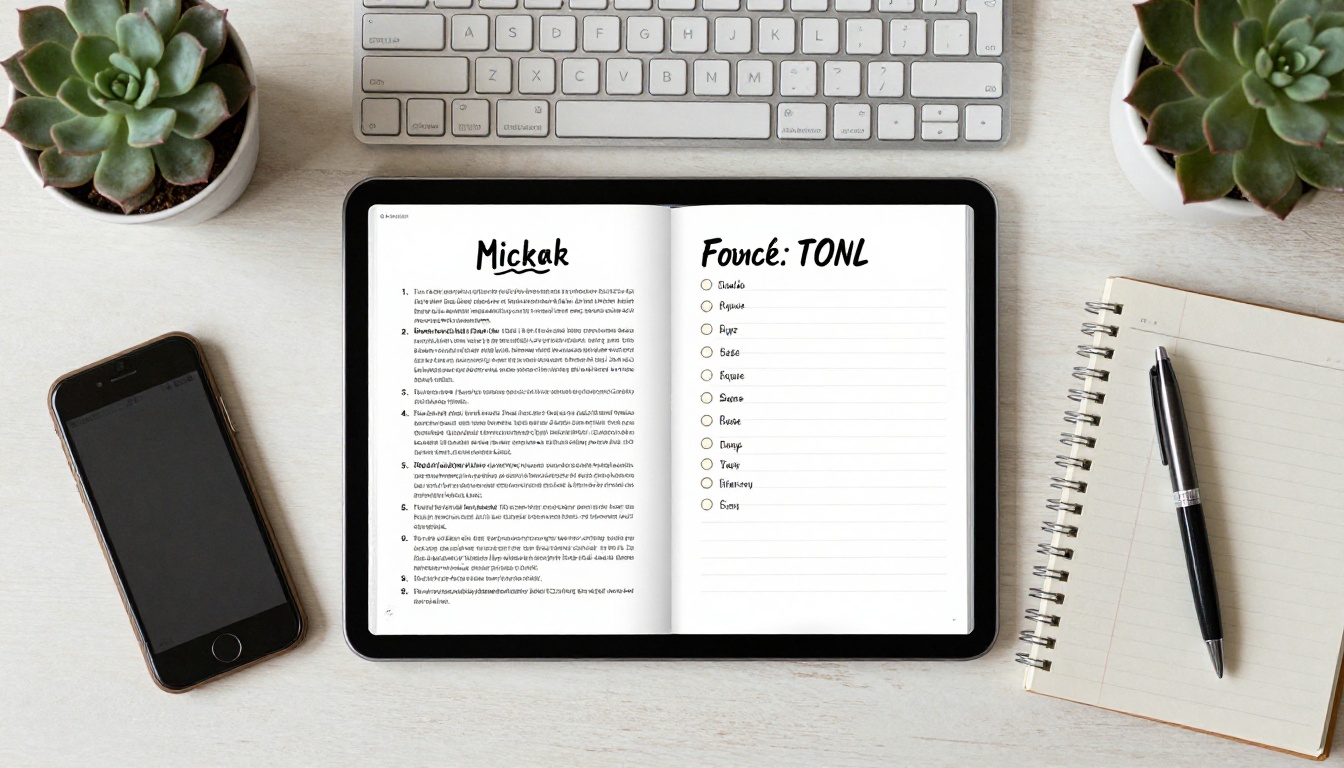
The concept is a two-step path. Step one happens on LinkedIn: a short post with a strong hook and a link in the comments or the first line. Step two happens on a flipbook page: readers browse the first few pages freely, and a form appears before the most valuable section.
Why a Flipbook Beats a Landing Page
A traditional landing page asks for an email before anyone has seen anything. A flipbook lets people taste the content first. They turn pages, they see your charts and examples, and by the time the form appears they already know whether you are worth an email address.
- Lower friction: readers get value before they are asked for anything.
- Better quality leads: people who reach the form have read real pages.
- Mobile friendly: the layout adapts to phones, where most LinkedIn browsing happens.
- Branded: your colors, your logo, no watermarks.
Where the Form Belongs
Placement decides your conversion rate. Put the form too early and people bounce. Put it too late and many never reach it.
| Form position | Typical reader reaction | Best for |
|---|
| Before page 1 | Many leave immediately | Highly exclusive content |
| After 20 to 30 percent of pages | Balanced, readers are curious | Reports, playbooks, checklists |
| Last page only | Few reach it | Short documents under 8 pages |
| Exit prompt | Catches leavers | Supplementary option |
For most B2B documents, a form after the first quarter of the pages is a sound default.
Here is the full process, from the PDF you already have to a live link you can post.

Step 1: Create Your Account
Head to Flipbooks AI and sign up. Lead generation is part of the Professional plan, so check the pricing plans to confirm it fits your needs. Standard plans give you unlimited flipbooks, which is handy if you publish a new carousel every week.
Step 2: Upload and Convert the PDF
Use the PDF to Flipbook Converter and drop in the file you posted on LinkedIn. Conversion takes a short moment, and your pages keep their layout, fonts, and images. If you started from a presentation, export it as PDF first. The Presentation Flipbook Designer is useful for slide-style documents.
Step 3: Customize the Look
Apply your branding so the flipbook feels like a continuation of your LinkedIn profile.
- Upload your logo and pick your brand colors.
- Choose a page-turn effect that suits your tone (subtle for corporate, lively for creative).
- Add a short video or audio clip on a key page if you want a personal touch.
- Set a background that matches the document design.
Step 4: Add the Lead Form
Switch on lead generation in the Professional plan settings and choose where the form appears. Keep it short.
- Email: required.
- First name: optional but useful for personalizing the follow-up.
- Company: optional, valuable for B2B filtering.
- Consent checkbox: a clear statement that they agree to receive emails from you.
💡 Every extra field lowers your conversion rate. Email plus first name is enough for most campaigns.
Step 5: Share the Link
Choose how people reach the flipbook. A direct link works best for LinkedIn. If you also want the document on your site, use Embed Flipbook on Website to place it on a landing page. For a gated, invite-only offer, add password protection and share the password in your post or message.
Step 6: Watch the Analytics
After publishing, check which pages hold attention and where readers drop off. If most people leave before the form, move it earlier. If many reach the form but few submit, shorten it or sharpen the promise above it.
Writing the LinkedIn Post That Sends Readers
A flipbook is only as good as the traffic it receives. The post needs to do three jobs: stop the scroll, set an expectation, and point to the link.

The Hook Formula
Lead with a result or a surprising number. Avoid vague promises.
- Weak: "Here is my new report on sales."
- Strong: "We reviewed 212 cold emails. Only 9 got replies. Here is what those 9 had in common."
Where to Put the Link
LinkedIn often limits reach for posts with outbound links in the main text. Many creators place the link in the first comment, or in the post body with a short line like "Link in the comments." Test both and compare your click rates through the flipbook analytics.
| Placement | Reach effect | Click rate | Notes |
|---|
| Link in post body | Often lower | Higher per view | Direct and simple |
| Link in first comment | Often higher | Lower per view | Needs a clear pointer |
| Link in profile featured section | Neutral | Steady | Good for evergreen content |
| Link in a direct message | Not applicable | Highest | Only for warm contacts |
✅ Best practice: tell people exactly what happens when they click. "You can read the first pages free, then enter your email to open the full playbook."
Real-World Examples
Different roles use this setup in different ways. These scenarios show how the same pattern adapts.
The Consultant
A consultant publishes a 12-page audit checklist as a LinkedIn carousel. The post shows the first three slides natively. The link takes readers to the full flipbook, with the form before the scoring section. Anyone who submits receives a short email offering a 15-minute walkthrough of their own results.
The Agency Owner
An agency owner turns a case study into a flipbook using the Sales Presentation tool. The case study includes embedded video of the client describing the outcome. The lead form appears after the first results chart.
The Freelancer
A freelance designer shares a portfolio flipbook and gates only the pricing page. Readers browse the work freely, then enter an email to see rates. It filters out casual browsers and attracts serious inquiries.

| Role | Document type | Gate location | Follow-up offer |
|---|
| Consultant | Audit checklist | Before scoring section | Short walkthrough call |
| Agency owner | Case study | After first results chart | Strategy session |
| Freelancer | Portfolio | Pricing page | Project quote |
| SaaS founder | Industry report | After executive summary | Product demo |
| Recruiter | Salary benchmark | Before data tables | Hiring consultation |
What to Do After Someone Submits
Collecting the email is the middle of the process, not the end. The first 24 hours matter most, because the reader still remembers what they just saw.

A Simple Three-Email Sequence
- Within an hour: a thank-you message with a link back to the flipbook and one useful extra, such as a template.
- Day three: a short note highlighting the one page readers find most useful, with a question about their situation.
- Day seven: a low-pressure invitation, such as a call or a demo, tied to what they read.
Keep each message under 120 words. Write like a person, not a campaign.
Respect Consent
Only email people who agreed to it. Include an unsubscribe link, store the consent record, and follow the privacy laws that apply to your audience, such as GDPR in Europe. A smaller list of willing readers beats a large list of annoyed ones.
⚠️ Do not add flipbook readers to a mass newsletter unless the consent checkbox said so. Trust is the whole asset here.
Common Mistakes to Avoid
Most failed campaigns share the same handful of problems.
- Asking for too much: five form fields cut conversions sharply.
- Gating weak content: if the free pages are boring, nobody reaches the form.
- No clear promise: "Submit your email" is not a reason. "Get the full 40-point checklist" is.
- Forgetting mobile: test the flipbook on a phone before you post.
- Never updating: refresh numbers and examples a few times a year, and reuse the same link so old posts keep working.
- Skipping follow-up: a list you never email earns nothing.
Quick Self-Check Before Posting
| Question | Good answer |
|---|
| Does the post promise one specific result? | Yes, with a number or outcome |
| Is the form short? | Email plus one optional field |
| Is the consent line clear? | Yes, with a checkbox |
| Does the flipbook load fast on mobile? | Tested on at least one phone |
| Is the follow-up email written? | Yes, scheduled before launch |

Measuring What Works
Track three numbers for each document: clicks from LinkedIn, form submissions, and replies to your follow-up. Divide submissions by clicks to get your form conversion rate. Divide replies by submissions to judge lead quality.
A healthy starting point for a well-targeted B2B document is a form conversion rate in the range of 15 to 35 percent of readers who reach the form. If you fall below that, change one thing at a time: the promise, the field count, or the placement. Reuse winning patterns across your next carousels, and keep a simple log of what you tested.

Ready to Build Yours?
You already have the hard part: a PDF people want to read. Now give it a way to start conversations. Create your account on Flipbooks AI, convert your document, switch on the lead form, and post the link on LinkedIn this week.



