You send a brochure, a price list or a report to a client. Ten minutes later your inbox lights up: "I can't open it. It says I need access." The file is fine. The link is fine. Your sharing setting is the problem, and your client is now waiting on you instead of reading your work. There is a cleaner way to hand over a document, and it starts with turning the PDF into a flipbook on Flipbooks AI, where the link opens for the person you send it to without a permission request.
This article explains why the Google Drive access wall appears, how to fix it when you are stuck right now, and when it makes more sense to stop sharing raw files and share a flipbook instead.
Why Drive Says You Need Access
Google Drive treats every file as private until its owner says otherwise. That is a sensible default for personal documents, but it is a poor fit for anything you want a stranger to open on the first click.
The Default Is Restricted
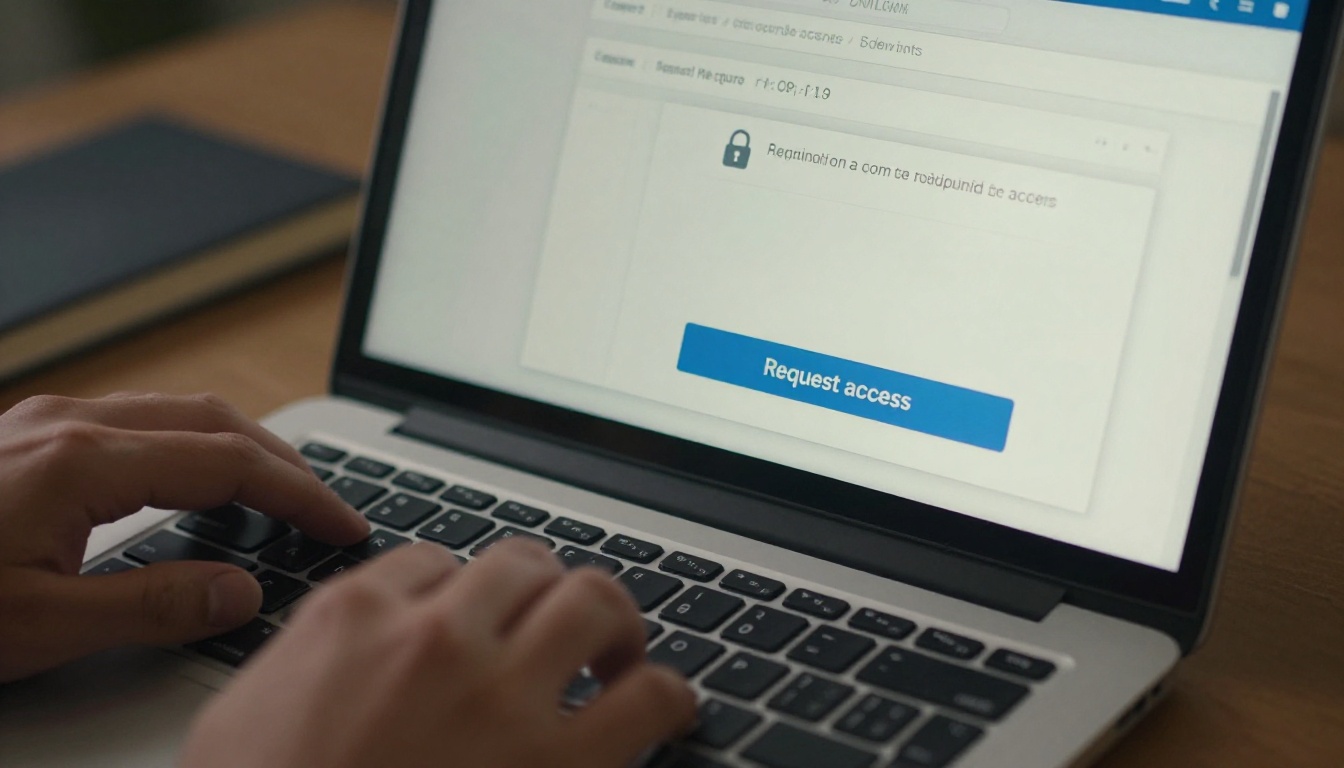
When you upload a file, only you can open it. Copying the link from the address bar and pasting it into an email does nothing to change that. The recipient lands on a grey page with a padlock and a button labelled "Request access." Your file is waiting for your approval, and you may not even see the notification.
Signed In to the Wrong Account
Even when you share with a specific email address, the link only works if the recipient is signed in with that exact account. A client who has a work address and a personal Gmail logged in at the same time will often hit the wall on the wrong one. Nothing is broken. The browser simply picked the account you did not invite.
Shared Folders and Inherited Rules
A file inside a shared folder inherits the folder's rules. Move it, copy it, or change the folder owner, and the access list can quietly shift. Teams run into this after reorganising folders, and nobody notices until a customer reports it.
| Cause | What the recipient sees | Who has to act |
|---|
| File set to Restricted | "You need access" | File owner |
| Wrong Google account | "You need access" or a switch-account prompt | Recipient |
| Folder rules changed | Sudden loss of access | Folder owner |
| Link expired | "File not found" | File owner |
| Organization policy blocks outside sharing | Link refuses non-company accounts | IT admin |
💡 If you ever wonder whether your link is public, open it in a private browser window. If you see a request page there, so will everyone else.
How to Fix the Access Error Fast
If you are the owner and a person is waiting on you right now, this is the quickest repair.
The Owner's Checklist
- Open the file in Drive and click Share.
- Under General access, change Restricted to Anyone with the link.
- Set the role to Viewer so nobody edits the original by accident.
- Click Copy link and send it again.
- Test it in a private window before you tell the recipient it is fixed.
That works, but notice what it costs you. You have made the original file public, which means anyone who forwards the link can see it, download it, and keep it. For a signed contract or an internal price sheet, that is a heavy trade.
If You Are the One Locked Out
Click Request access, add a short note saying who you are, and wait. If the owner never replies, check whether you are signed in with the right account using the profile icon at the top right. Many "locked out" cases resolve with a single account switch.
⚠️ Setting a file to "Anyone with the link" is not the same as a password. Links get pasted into group chats, forwarded, and indexed by mistake.
The Hidden Cost of Sharing Raw Files
The permission screen is only the visible problem. Sharing PDFs and slide decks through a storage service creates quieter ones.
It Feels Like a Folder, Not a Document
A Drive link opens a viewer with toolbars, a file name and sometimes a sign-in prompt. Your recipient is reminded that they are looking at a file on a server. A branded brochure or catalog should feel like a publication, not an attachment.
You Learn Nothing About Readers
Drive tells you who edited a file. It does not tell you whether a prospect opened your proposal, how far they scrolled, or which page they abandoned. If a sale depends on that document, you are flying blind.
Mobile Is Clumsy
Large PDFs on a phone mean pinching, scrolling sideways and waiting for slow pages. Many readers give up before page three.
Updates Create Version Chaos
When you fix a typo, people who downloaded the old copy keep the old copy. A link that always shows the current version is easier to trust than a trail of attachments called "final_v3_REAL."
| Feature | Drive link to a PDF | Flipbook link |
|---|
| Opens without a permission step | Only after you change sharing | Yes, by default for the link you share |
| Reading experience | Scrolling viewer | Page-turn effect on every device |
| Password option | No, only account-based access | Yes |
| Branded look | Google interface | Your colors and logo |
| Reader analytics | None | Yes, on the Professional plan |
| Embed on a website | Awkward iframe | Simple embed code |
| Mobile friendly | Often clumsy | Responsive layout |
What a Flipbook Does Differently
A flipbook is your PDF rebuilt as an interactive publication. Pages turn like paper, text stays sharp, and the whole thing lives at a single URL that you control.

One Link, No Permission Screen
You publish once and share the link. The reader does not need a Google account, does not request anything, and does not wait for you. That alone removes the exact message that started this article.
Control Without Friction
Need privacy? Add a password and tell the recipient separately. That is closer to how people actually think about confidential material than flipping a file between "restricted" and "public." Unlike a public Drive link, a password-protected flipbook stays closed to anyone who stumbles on the URL.
Looks Like Your Brand
Colors, logo, background and page effects all match your identity. Flipbooks AI ships with no watermarks, so the publication carries your brand and nobody else's.
Works Everywhere
The layout adapts to phones, tablets and desktops. A reader on a train sees the same neat pages as someone at a large monitor.
How to Share a Flipbook in Minutes
This is the short route from a locked Drive file to a link that just opens.
Step by Step
- Download the original PDF from Drive, or use the file you already have on your computer.
- Create a free account on Flipbooks AI.
- Upload the PDF with the PDF to Flipbook Converter. Conversion takes a short time even for long documents.
- Open the customization panel. Choose your colors, add your logo, and pick a page-turn effect.
- Add multimedia if it helps: a video on the product page, background audio on a portfolio.
- Choose your sharing option: a direct link, an embed code, or a password-protected link.
- Copy the link and send it. Test it once in a private window.
Sharing Options Compared
| Option | Best for | Notes |
|---|
| Direct link | Emails, chats, social posts | Fastest route, no sign-in for readers |
| Embed code | Website pages, landing pages | See the Embed Flipbook on Website tool |
| Password link | Contracts, internal decks, client proposals | Share the password through a second channel |
| Offline download | Readers without a stable connection | Available as an extra option |
✅ Best practice: keep the original PDF in Drive as your master copy, and share only the flipbook. You get an archive and a clean reader experience at once.
When You Need More Than Sharing
On the Professional plan you also get analytics and lead generation. You can see how many people opened your flipbook and capture an email address before the first page loads. Check the pricing plans to see which level fits your volume.
Real Situations Where It Wins
Abstract benefits are easy to nod along to. Here is how the switch plays out in daily work.

Sales Teams and Proposals
A rep emails a proposal, and the prospect hits the access wall on a phone between meetings. The deal cools. With a flipbook, the proposal opens on the first tap, and analytics show whether it was read. The Sales Presentation tool is built for this kind of file.
Boutiques and Retailers
A small shop owner who shares a seasonal lookbook through Drive often has to approve access one customer at a time. A flipbook built with the Digital Catalog Maker goes into a newsletter or an Instagram bio and stays open to everyone.

Consultants and Agencies
Reports for clients often contain sensitive numbers. A password-protected flipbook delivers them cleanly. The Report Flipbook Creator keeps charts and tables crisp.
Schools and Training Teams
Teachers who send handbooks to parents see the same access failure again and again, usually because families use many different email accounts. A flipbook link removes the account question entirely. Try the Training Manual Flipbook or the School Newsletter Creator.
Which Tool Fits Which File
Keep Private Files Private
Moving away from public Drive links does not mean giving up on privacy. It means choosing the right lock.

Pick the Right Level
- Public, no password: brochures, menus, catalogs, portfolios, newsletters.
- Password protected: proposals, pricing sheets, investor updates, internal training.
- Not for sharing at all: signed contracts with personal data, ID scans, medical records. Keep these in a properly secured storage tool with named-account access.
Share the Password Separately
Send the link by email and the password by text message or in a call. If the email is forwarded, the file stays closed.
Retire Old Links
When a document is out of date, replace the flipbook or unpublish it. Old links that keep working are a quiet risk, and the same applies to every "Anyone with the link" file in your Drive. Open Drive, sort by sharing status, and tidy anything you no longer want public.
💡 Set a calendar reminder every quarter to review active shared links. Five minutes of cleanup prevents months of accidental exposure.
A Better Reading Experience Pays Off
Fixing the access problem is the immediate win. The longer-term gain is what happens after the link opens.

Readers Stay Longer
A page-turn layout feels familiar. People move through it the way they move through a printed magazine, which keeps attention on your content rather than on the viewer interface.
You Look More Professional
A branded flipbook says you took time over the details. A bare Drive link says you attached something. Both get read, but only one adds to your reputation.
You Spend Less Time on Support
Every "I can't open it" email costs a few minutes and an awkward apology. Across a year of client work, that adds up to hours. A link that behaves the same for everyone ends the whole category of message.
Quick Self-Check Before You Send Anything
- Does the recipient need a particular account to open this?
- Will they open it on a phone?
- Do I want to know whether it was read?
- Would I be comfortable if this link were forwarded?
If any answer makes you hesitate, a flipbook is the safer format.
Ready to Stop Chasing Access Requests?
You do not need to rebuild your document workflow. Keep Drive for storing and collaborating on drafts. When a file is ready for readers, convert it and send a link that simply opens.
Next time a client says they need access, you will already have sent them something better.



